A website blocker that works on mobile data, not just home Wi-Fi
Choose the categories of website your child's Android phone should not open, and the check happens on the phone itself, so it holds on the bus, at a friend's house and on the school network, not only behind your own router. Blocked attempts are logged with the page's category, there is an allow list for the exceptions, and the log shows the titles of pages visited. It never shows passwords, anything typed into a form, or the inside of a logged-in account.
Android · Visible on their phone · Permission: Accessibility service (to block)

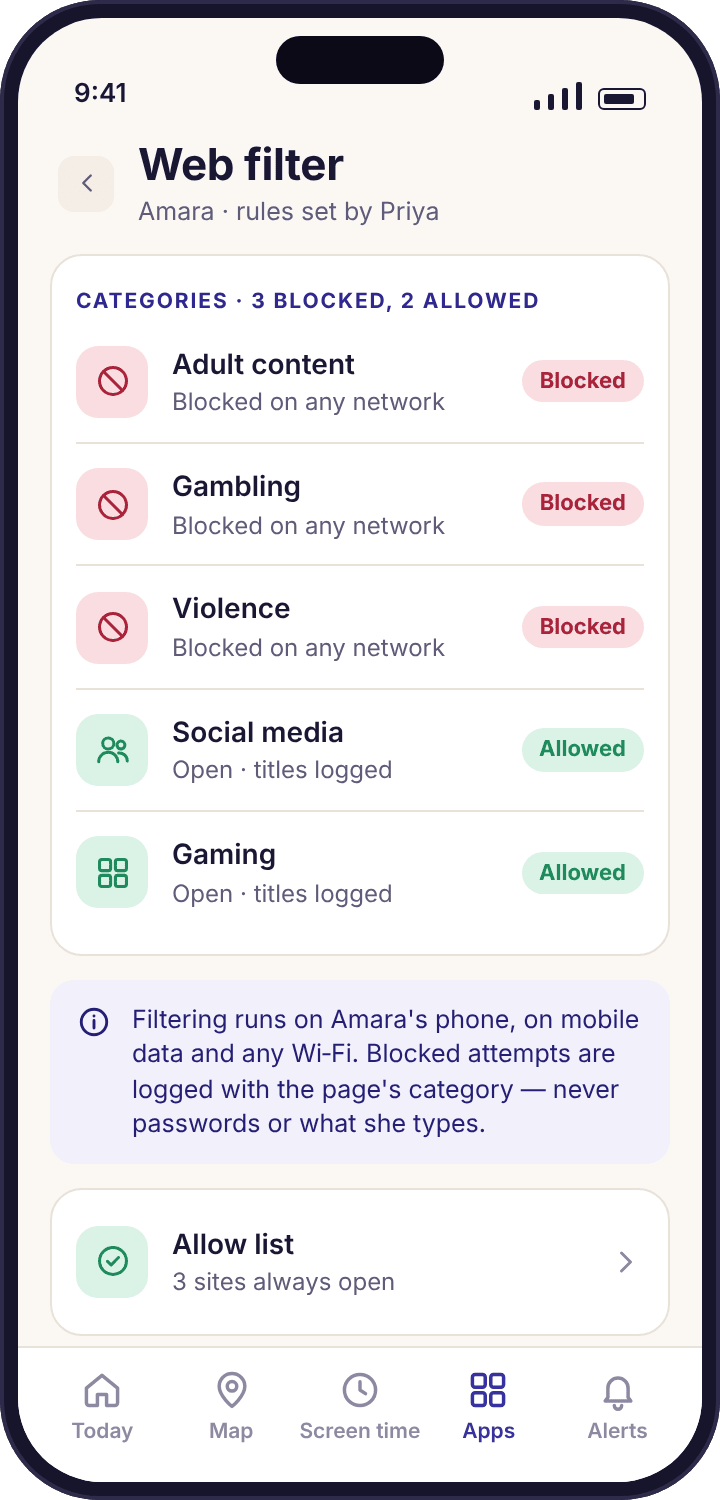
- The filter lives on the phone. It does not depend on your router, a DNS setting or being at home. Mobile data and the café's Wi-Fi are filtered the same way.
- You block categories, not a list of sites. Adult content, gambling, violence and a few more, each on or off per child. Nobody can keep a list of sites by hand; a category keeps itself.
- Blocked means a screen that says so. Your child sees the category, that the family's rules blocked it, and a button to ask you. Never a fake error.
- The log is titles and categories. Page titles, times and categories, with blocked attempts in rose. Not passwords, not forms, not the inside of any account.
- One permission decides whether it blocks. Without the Accessibility service, the app can count visits but cannot stop one. Device health will tell you.
The categories, what each one covers, and where we suggest starting.
Every category is a switch on the web filter screen, set separately for each child. A new child starts with nothing blocked. Here is what each switch does, and the setting the demo family uses for Amara at thirteen and Noah at nine.
| Category | What it covers | Amara, 13 | Noah, 9 | Worth knowing |
|---|---|---|---|---|
| Adult content | Pornography and sites built around it, including the image and video hosts that mainly serve it. | Blocked | Blocked | The one most parents install for. Catches the large sites reliably; a brand-new domain can slip through until it is classified. |
| Gambling | Betting, casino and lottery sites, and the "free play" fronts that lead to them. | Blocked | Blocked | Also catches the skin-betting sites attached to some games, which is often the first contact a child has with gambling. |
| Violence and gore | Sites whose purpose is graphic real-world violence. | Blocked | Blocked | Does not touch the news, which is its own category below, or games. |
| Weapons and drugs | Sales and how-to sites for weapons, and sites promoting or selling drugs. | Blocked | Blocked | Educational and harm-reduction sites are not in this category. |
| Self-harm and eating disorders | Sites that promote self-harm, suicide or disordered eating as a lifestyle. | Blocked | Blocked | Support and recovery organisations are deliberately excluded and never blocked by this switch. |
| Social media | The web versions of social networks, as distinct from their apps. | Allowed | Blocked | Blocking the website while the app is installed achieves little for a teenager; see app blocking for the app side. |
| Gaming | Browser games and game portals. | Allowed | Allowed | Useful at homework time; a scheduled block on Chrome often does the same job more simply. |
| Video streaming | Video sites other than those covered by a category above. | Allowed | Allowed | YouTube's own content controls are on the safe search page; blocking the whole site is rarely the answer. |
| Proxies and VPNs | Sites that exist to route around filters. | Blocked | Blocked | Worth leaving on for every child. A visit here is worth a conversation on its own. |
| News | Newspapers and news broadcasters. | Allowed | Allowed | Exists so a parent of a very young child can switch it off during a difficult news week. Not a safety category. |
Categories are lists kept up to date on the phone, not a judgement made by reading each page. A site that is new, tiny or deliberately disguised can be unclassified for a while, and a site about a difficult subject can be classified by its topic rather than its intent. The allow list and the "Ask Priya" button exist for exactly those cases.
The check happens on the phone, so the network doesn't matter
Most home filters live in the router. They work well until the phone leaves the house, which for a thirteen-year-old is most of the day. MobileTracking's filter is part of the child app. When the browser opens a page, the app sees the address and the page title through the Accessibility service, compares the address against the category lists stored on the phone, and either lets the page load or draws the block screen over it. Nothing about that depends on where the phone is or whose Wi-Fi it is using.
So the rules that apply at the kitchen table apply on 4G at the bus stop, on the school network, on Grandma Ngozi's broadband and on Tyler's Wi-Fi. There is no router to configure, no DNS setting to change on the phone, and no "home mode" that quietly switches off at the front gate. The category lists update in the background a few times a week; a phone that has been offline for a fortnight uses the lists it has until it reconnects.
- Works in the browsers children use. Chrome, Samsung Internet, Firefox and Edge are recognised, along with the built-in browser inside most chat apps.
- Blocks the page, not the whole internet. A blocked page in one tab does not interfere with the tab next to it or with any other app.
- Honest when it can't. If a browser the app doesn't recognise appears, the log says so and you can block that browser as an app.
- Counts without the permission, blocks with it. If the Accessibility service is off, visits are still logged by category, but nothing is stopped and device health goes amber.
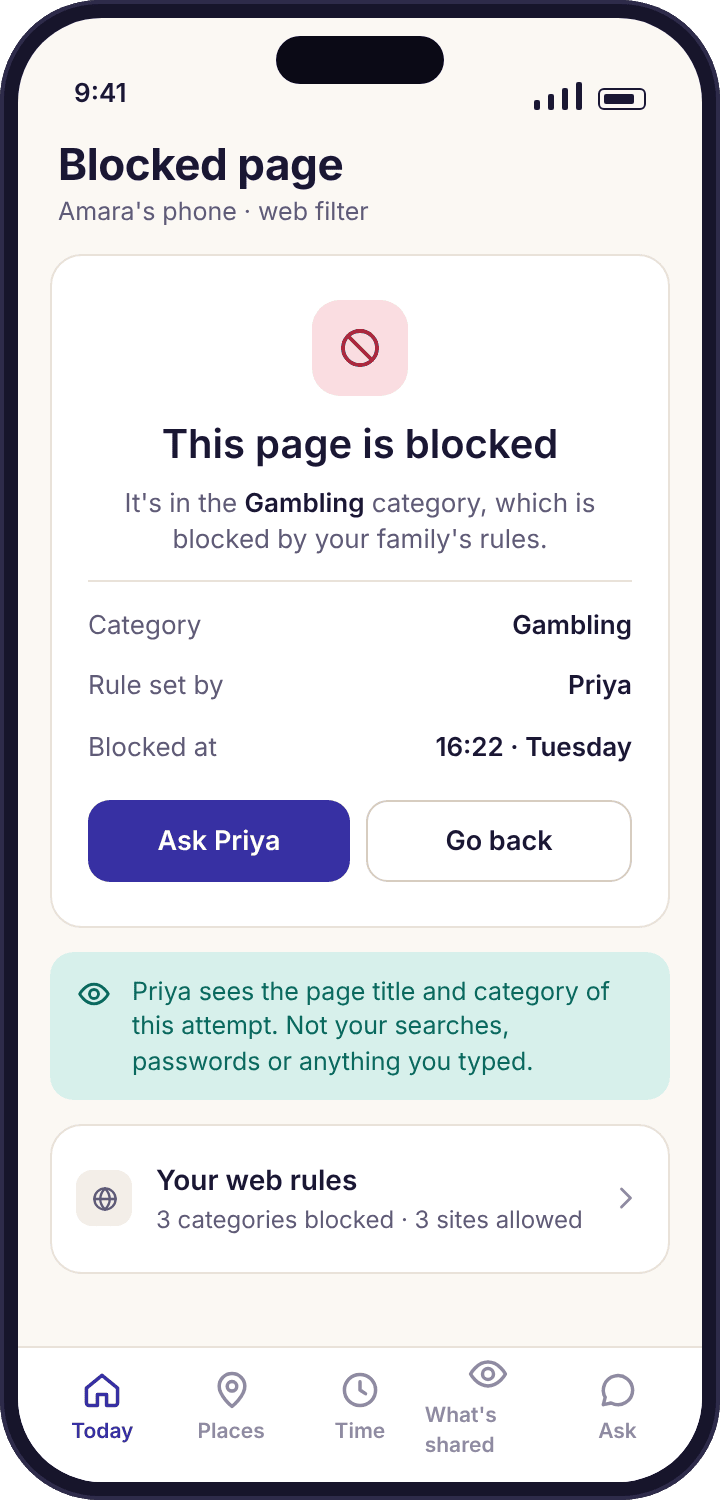
A log of titles and categories, with the blocked lines in rose
The web log is a list of page titles with the time and the category each one fell into. On a normal Tuesday for Amara it reads like a homework evening: a search results page at 16:40, a revision site, two YouTube titles, a bus timetable, the school's homework portal. Every so often a line is in rose. That is a blocked attempt, and it shows the category the page was in rather than the page itself, because the page never loaded.
Two blocked lines in a week is normal and usually means a bad link, an advert or a misclassified site. Two a day in the same category is a pattern. Either way, the log gives you a time and a category to ask about and nothing that would let you reconstruct what your child was reading. Page titles are the most the feature collects; the words on the page are not, and nothing typed into the page is.
- Titles, times and categories. The page's own title as the browser shows it, when it was opened, and its category.
- Blocked attempts stand out. Rose lines with the category, so you can scan a week in a few seconds.
- Searchable in the panel. The parent panel's version of the log filters by day, category and blocked-only.
- The same log on their phone. Amara can open her own web log, with the same lines in the same order.
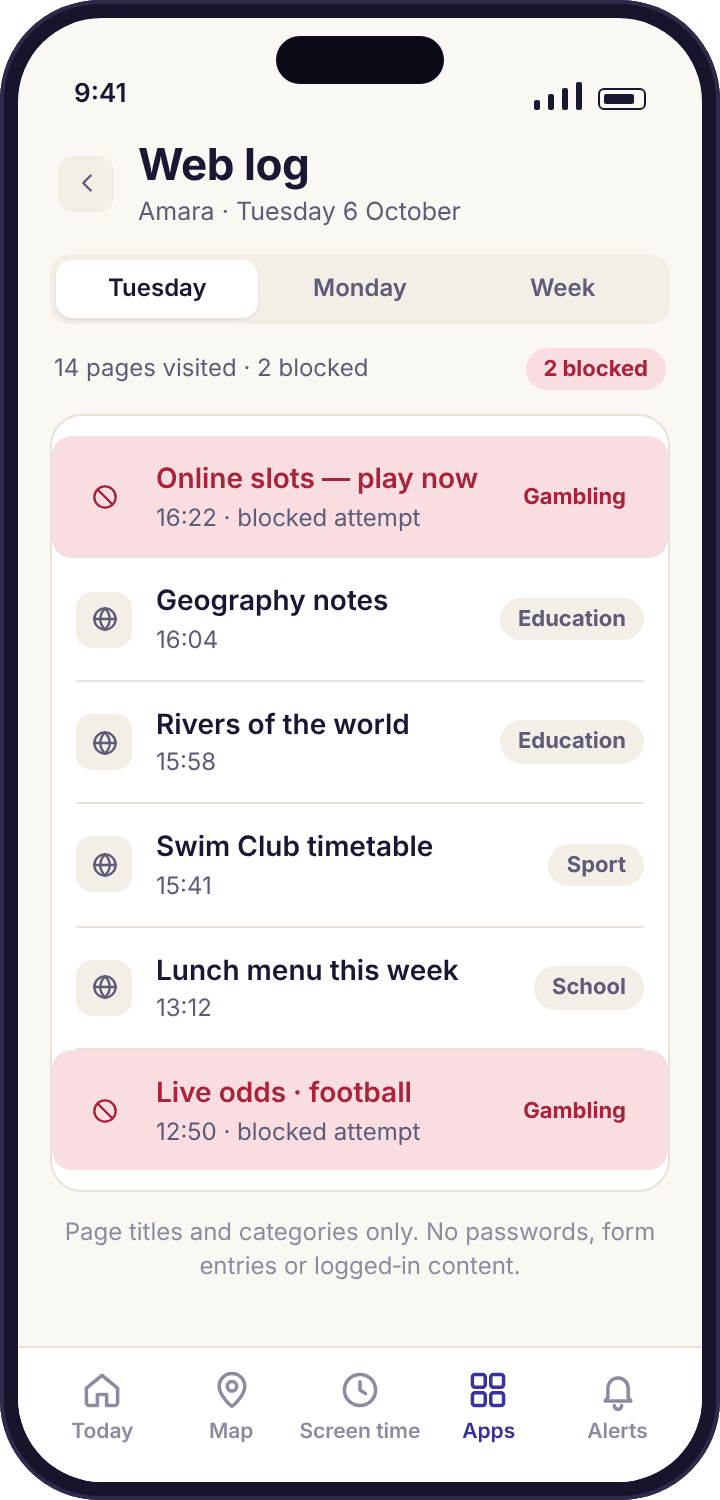
An allow list for the site the category got wrong
Categories are blunt. A biology revision page can land in a category it has no business in, a sexual health site for teenagers can be caught by the adult switch, and a history project about a war can trip the violence category. The allow list is the fix. Add the site, give it a reason if you like ("for homework"), and the filter lets it through for that child from the next check-in regardless of its category. The reason shows on the child's phone next to the entry, which is a small thing that stops the list looking arbitrary.
The quickest way onto the allow list is the "Ask Priya" button on the block screen. Amara taps it, adds a note, and Priya's phone shows the page title, the category, the note and two buttons: Allow this site, or No. One tap adds it. A block list for individual sites exists as well, for the one site you want stopped that no category covers, but it is the smaller tool and most families never need it.
- Allow beats block. A site on the allow list opens whatever category it is in.
- Per child, not per family. Allowing a site for Amara does nothing for Noah's phone.
- Visible to the child. The allow list and its reasons appear on the "What's shared" screen.
- Named in the log. A visit to an allowed site shows its title with an "allowed" mark, so you can see the exception being used.
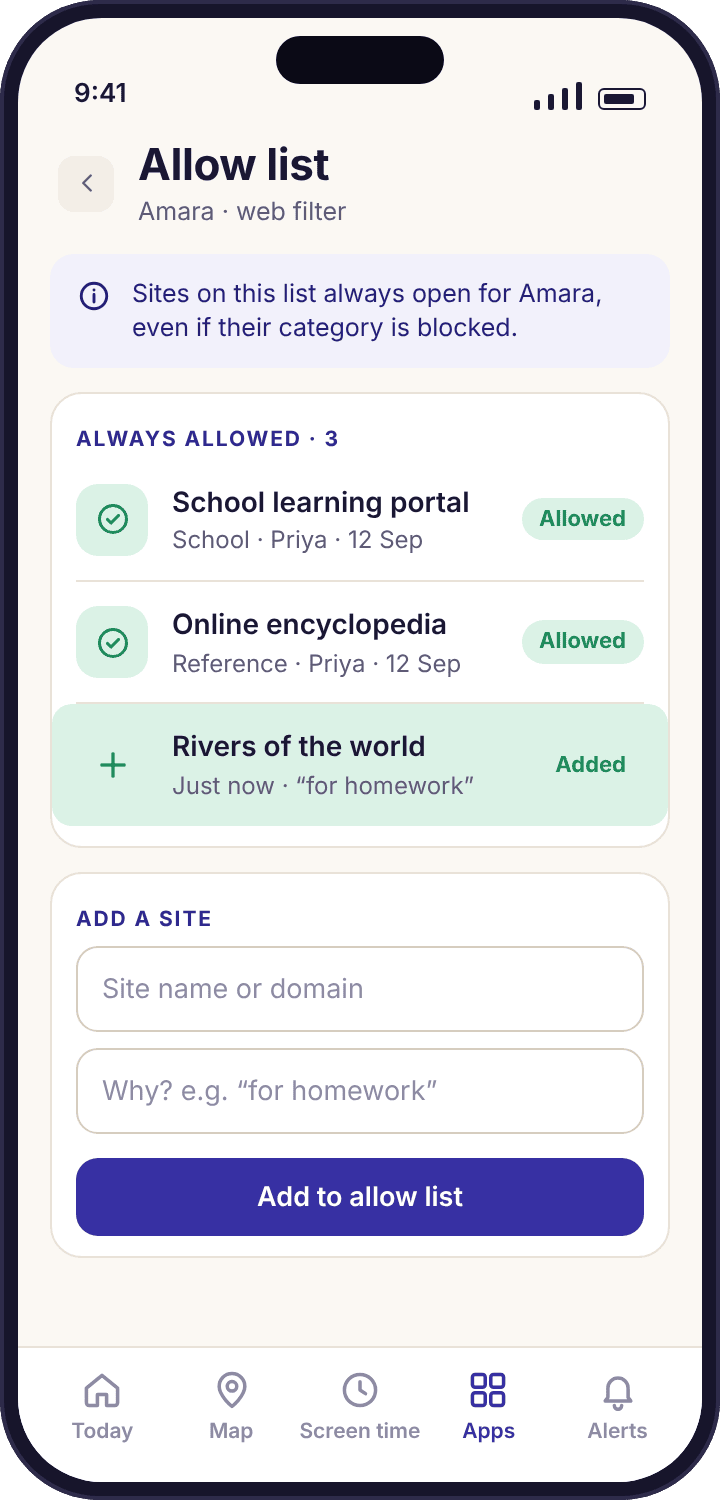
What the web log shows, and what it will never contain.
A browsing log is the feature most likely to be mistaken for surveillance, so the line is drawn here as exactly as we can draw it.
| Item | In the log? | Detail |
|---|---|---|
| Page title | Yes | The title the browser shows in the tab, as it was when the page opened. |
| Time opened | Yes | To the minute, in the phone's local time. |
| Category | Yes | Which list the site matched, or "unclassified". |
| Blocked or allowed | Yes | Blocked attempts in rose, allow-list visits marked "allowed". |
| Which browser | Yes | Chrome, Samsung Internet, or the in-app browser of a named app. |
| Search terms | Partly | Only when the search engine puts them in the page title, which most do. Nothing is read from the search box. |
| The words on the page | Never | The app does not read page content. A title is the whole record. |
| Passwords | Never | Not seen, not stored, not sent. Password fields are excluded at the Android level and the app does not ask for them. |
| Form entries | Never | Nothing typed into any field, including messages written on a website. |
| Inside logged-in accounts | Never | No feed, no inbox, no DMs, no order history. The title of the page is all. |
| Screenshots | Never | The app cannot capture the screen and never will. |
| Private tabs | Partly | The filter still blocks in a private tab. The title is logged like any other; the browser's own history is not involved. |
Six reasons a page opened that shouldn't have, in the order they usually turn out to be true.
Sites are logged, but nothing is ever blocked.
The Accessibility service permission is off. The app can still see which pages open, so the log fills up, but it cannot draw the block screen. This is the cause in most cases.
Fix: device health names it. On the phone: Settings → Accessibility → Installed apps → MobileTracking → On. Some phones switch it off after a system update, so check it after one.
A page in a blocked category loaded anyway.
The site was unclassified: new, small, or built to avoid classification. The log will show it as "unclassified" rather than in the category you expected.
Fix: Add the site to the block list from the log line with one tap; it is reported for classification at the same time. A category is a net, not a wall, and the log is how you see what the net missed.
The page opened inside an app, not the browser.
A link tapped in a chat app opened in that app's built-in browser. Most of those are recognised, but an app with its own unusual browser might not be.
Fix: Check the "which browser" column in the log. If the app is named, the filter saw it. If not, the app can be blocked as an app, and the gap is worth reporting to us.
A browser I've never heard of appeared on the phone.
There are dozens of small browsers on the store, and some exist mainly to get round filters. The app list flagged it as a new install on the day it arrived.
Fix: Block that app from the new-install alert, and switch on approve-new-installs for a younger child. For an older one, the install is itself the conversation.
The block screen appeared, then the page showed for a second.
On some phones the page starts rendering before the block screen is drawn over it. Nothing from that page is logged beyond the title, and the block still holds.
Fix: Nothing to change. If it bothers you, a scheduled block on the browser at the times that matter removes the flash entirely.
A VPN or proxy site keeps showing up in the log.
Your child is looking for a way round the filter. The "Proxies and VPNs" category blocks the sites, and a VPN app would be flagged as a new install.
Fix: Treat the attempt as the information, not the block as the solution. The filter has done its job by telling you; the rest is a conversation about why.
What a web filter is for, what it cannot do, and how to keep it from becoming a wall.
What a web filter is for
Three things, in order of how often they matter. First, keeping a nine-year-old from arriving at pornography or gore by accident, through a mistyped address, a search result or a link a friend sent for a laugh. Noah's five blocked categories do this without him ever noticing them. Second, giving a thirteen-year-old a reason to think before tapping, because the block screen will say what the category was and a parent will see a rose line. Third, and least often, telling you about a pattern you would not otherwise have known about: a cluster of blocked attempts in one category, or a visit to a proxy site.
What it is not for is reading. The log shows titles because a title is the smallest piece of information that makes a category decision explainable. "Blocked · Gambling · 16:42" on its own would leave you guessing whether it was an advert or a betting site; the title tells you. It is still only a title.
What it cannot do
It cannot see inside apps. Instagram's app is not a website, and a video in TikTok's app never passes through a browser. The filter covers the web versions of those services and nothing else; for the apps themselves, app activity counts the time and app blocking pauses them. It cannot filter what is inside YouTube or a search engine: that is what Restricted Mode and SafeSearch are for, and they have their own page. It cannot judge a page it has never seen. A site that was registered yesterday has no category until the lists catch up, which is why the log matters as much as the filter.
It also cannot stop a determined teenager with a friend's phone. No app on this site can, and the ones that claim to are describing something they do not have. The honest aim of a filter for a thirteen-year-old is to make the easy path the right one and to keep the rest visible, not to make the wrong path impossible.
Why the Accessibility service, and what it is not used for
Android allows an app to draw over another app's screen only through its Accessibility service, which is designed for screen readers. MobileTracking uses it for two things: to see the address and title of the page a browser is showing, and to draw the block screen. It does not use it to read the words on a page, the contents of a form, or anything from any other app. The permission is named on the child's consent screen and on the "What's shared" screen with that explanation.
The permission, granted together
The Accessibility service is granted during pairing, with both of you looking at the phone. Android shows a warning dialog when it is turned on for any app, and the wording is alarming on purpose; it says the app will be able to view and control the screen. That is true of the capability and not of what the app does with it, and the child app explains the difference on the screen before the dialog appears. If the permission is declined, every other feature still works. The filter logs visits and categories, the log is accurate, and nothing is blocked.
Some phones, Samsung's in particular, turn Accessibility services off after a system update or when the phone's own "sleeping apps" list catches the app. Device health reports it within a check-in, and the fix-together prompt sends Noah a message with the exact setting to open. It is worth checking after any Android update, because the log will look normal and the blocking will have quietly stopped.
Telling your child what is filtered
They will know anyway: the categories appear on the "What's shared" screen, the block screen names the category each time, and their phone shows that a parent looked at the panel today. The useful conversation is about why the categories are what they are. For Noah at nine, "there are some kinds of website that aren't for children and the phone will say so" is enough. For Amara at thirteen, it is worth showing her the list and saying which switches are off and why: social media and gaming are allowed because the apps are already on the phone and a web block would be theatre.
Tell them about the allow list and the "Ask" button in the same breath. A child who knows a wrong block can be fixed in a minute treats the filter as a thing that occasionally errs, rather than a thing that decides. Priya allowed two sites for Amara in the first month, both for homework, and both came in through the button.
Loosening it on purpose
A filter set at nine should not be the filter at fifteen. The adult content, gambling, self-harm and proxy categories are reasonable to keep until a child leaves school. Social media, gaming and video are categories to switch off deliberately, at an age you choose, and to say so when you do. The panel keeps the date of every change against the parent who made it, so "I turned that off in September because you asked and you were right" is a sentence you can check. A filter that is only ever tightened teaches a child to wait for the day it comes off; one that is visibly loosened teaches them that the rules track them.
A starting point by age, to change on purpose rather than forget.
Most categories on, and a short allow list.
Noah's settings. The point is accidents: a mistyped address or a link from a cousin should land on a block screen, not a page. He rarely sees the screen and almost never asks.
- Adult, gambling, violence, weapons, self-harm, proxies, social media all blocked
- Allow list for school sites
- Approve new installs on, so a new browser waits
Safety categories on, the rest off and said so.
Amara's settings. Social, gaming and video open because the apps already are. The log matters more than the filter here; read it weekly, not nightly.
- Adult, gambling, violence, weapons, self-harm, proxies blocked
- Social media, gaming, video allowed
- "Ask" button explained and used
Usually a short list they agreed to.
At this age a filter is either a thing they consented to or a thing they route around. Make it the first. Keep the categories that would embarrass nobody to defend, and drop the rest.
- Adult, gambling and proxies, agreed together
- Log read rarely, by arrangement
- Reviewed each term and loosened in the open
Questions parents ask about the website blocker.
Does the web filter work on mobile data and on other people's Wi-Fi?
Yes. The check runs in the child app on the phone, not in your router, so a page is filtered the same way on 4G, on the school network and on a friend's Wi-Fi. There is no DNS setting to change on the phone and no home mode. If the phone is offline for a long time it keeps using the category lists it already has.
Can I see every website my child visited?
You can see the title of each page opened in a recognised browser, with the time and its category. You cannot see the words on the page, anything typed into it, or the inside of any account they were signed in to. Blocked attempts show the category only, because the page never loaded. The same log is visible on your child's own phone.
Does it see passwords or things typed into forms?
No. Password fields are excluded at the Android level and the app does not read any form field, including messages written on a website. The Accessibility service is used to read the page's address and title and to draw the block screen, and for nothing else. This is the same on every plan.
What does my child see when a page is blocked?
A full screen in the browser saying which category the page is in, that it was blocked by the family's rules, and an "Ask" button with the parent's name. Tapping it sends you the page title, the category and a note, and you can allow the site with one tap. The screen never pretends the page failed to load.
Why are sites being logged but not blocked?
The Accessibility service permission is off on the child's phone. Without it the app can see which pages open, so the log is accurate, but it cannot draw the block screen. Device health shows this as an amber line naming the permission; it is granted under Settings → Accessibility → Installed apps on the phone, with the phone in your hand.
Can the filter block a specific site rather than a category?
Yes. Beside the allow list there is a block list for individual sites, and the quickest way onto it is a one-tap "block this site" from any line in the web log. Most families never need it, because the categories cover the sites that matter, but it exists for the one site no category describes.
Does it filter what my child sees inside apps like TikTok or Instagram?
No. The filter covers pages opened in a browser, including the built-in browser inside most chat apps. It does not see inside an app, so a video in the TikTok app or a post in the Instagram app is not filtered and not logged. Those apps are counted by app activity and can be paused with app blocking.
Does a private or incognito tab get round the filter?
No. The filter works on the page the browser is showing, not on the browser's history, so a private tab is blocked and logged like any other. The browser's own history setting makes no difference to the log. The same applies to clearing history afterwards.
Will the filter block a site my child needs for school?
Sometimes, because categories are lists and lists make mistakes. When it happens your child taps "Ask" on the block screen, you see the title and category, and one tap adds the site to their allow list with a note. The allow list is per child and overrides every category for that site.
How often are the category lists updated?
A few times a week, in the background, whenever the phone has a connection. A brand-new site can be unclassified until the lists catch up, which is why the log shows "unclassified" as its own label and why a site can be blocked by hand from the log in the meantime.
Where this fits with everything else
The filter covers the browser; the pages around it cover the rest of the phone: safe search, app blocking, app activity and screen time limits.
Web filtering switches on once your child's phone is paired with your account, which takes about ten minutes with both devices on the table. The download and setup guide walks through every screen.
A filter that goes where the phone goes.
Pair the phone, switch on the five categories that matter, and let the block screen and the "Ask" button handle the rest, on any network.
Android · Free account · Visible on your child's phone