Device health: find out on Tuesday, not in an emergency
Every parental control app has a quiet failure mode: the phone stops reporting, nothing on the parent's side looks different, and the gap is discovered on the one evening it matters. Device health exists so that never happens to you. Each paired phone gets one line, green, amber or red, that says whether it is checking in, what its battery is, which permission has gone missing, by name, and whether the app is still installed. When something is wrong, the line names the setting, gives the exact path, and can send your child a prompt to fix it with you.
Android · Either build · Visible on their phone · Needs no extra permission of its own

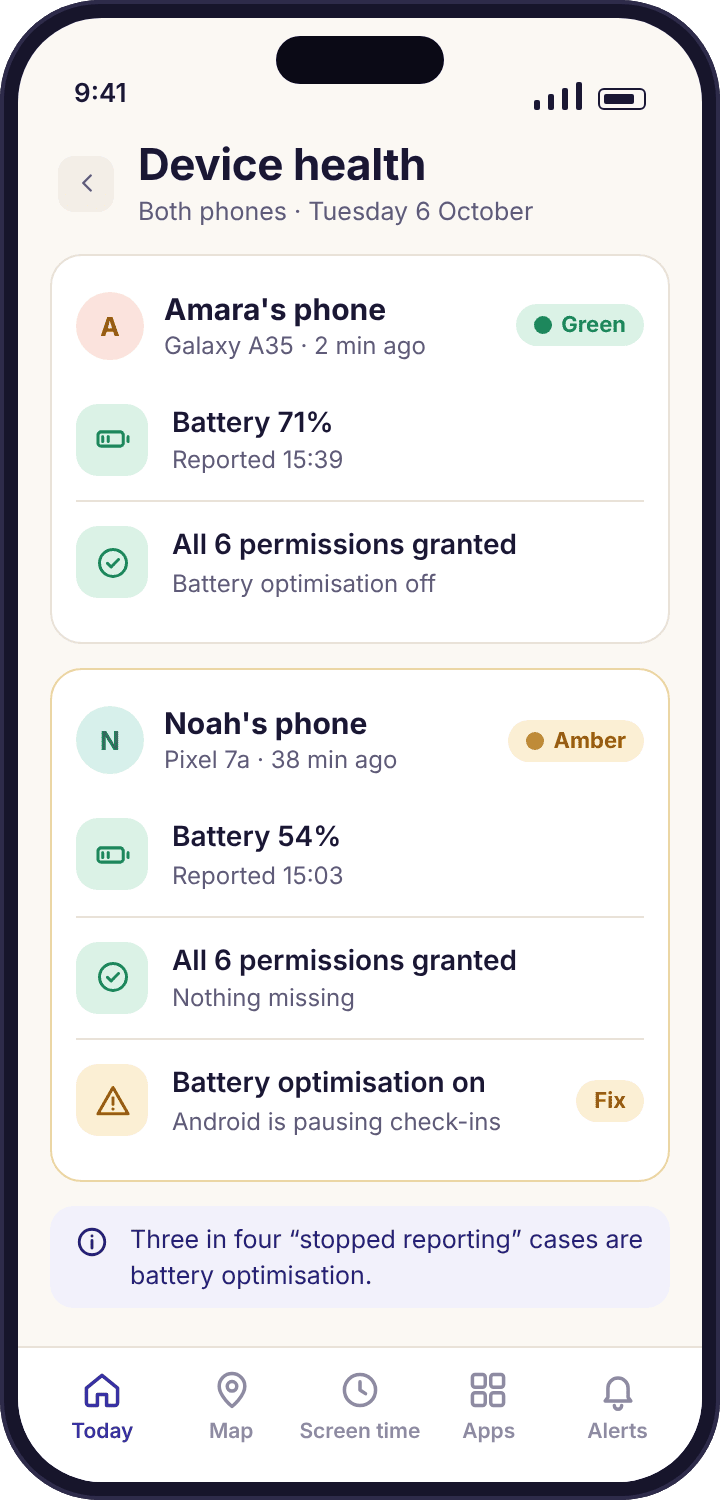
- One line per phone, three colours. Green means reporting normally with every permission in place. Amber means something is degraded and the line says what. Red means the phone has stopped reporting or the app has been removed.
- The cause is named, not guessed. "Battery optimisation is on" or "Location is set to While using", with the Settings path under it, rather than a generic "check your phone".
- About three in four "stopped reporting" cases are battery optimisation. Android, and Samsung in particular, switch it back on after updates. It is the first thing to check and the easiest to fix.
- You can send a fix-together prompt. One tap puts a card on your child's phone naming the setting and opening it, so the fix happens with them rather than by phone call.
- The app does not hide or reinstall itself. If your child uninstalls it, you get a tamper alert and collection stops. That is a conversation, not a technical problem.
What green, amber and red mean, and what each one asks of you
The health line sits at the top of each child's card in the parent app and on the Devices page of the panel. It combines five checks into one colour so the Today view can answer "is everything okay?" without you reading five numbers. The detail is one tap away when the colour is not green.
| Colour | What it means | An example line | What to do |
|---|---|---|---|
| Green | The phone checked in within the last hour, every permission the active features need is granted, battery optimisation is off for the app, and the app is installed and running. | "Amara's phone · 71% · checked in 2 min ago · all permissions" | Nothing. This is the line you should see most days, and the point of the feature is that you do not need to look at it. |
| Amber | The phone is still reporting, but one feature is degraded: a permission has dropped, battery optimisation is back on, the battery is very low, or the last check-in is older than it should be. | "Noah's phone · 23% · checked in 48 min ago · battery optimisation is on" | Open the line. It names the setting and the Settings path. Fix it with your child when you are both home, or send a fix-together prompt. |
| Red | The phone has not checked in for many hours, or the app reported that it was being uninstalled, or the app has stopped and not restarted. | "Noah's phone · last seen 16:12 · the app was removed" | Treat it as a fact to ask about, not an alarm. A flat battery and an uninstall look different in the line, and the line says which. |
The five checks behind the colour
| Check | Green when | Amber when | Red when |
|---|---|---|---|
| Last check-in | Under an hour ago | One to twelve hours | Over twelve hours, with the last battery level shown |
| Battery | Above 20%, or charging | Under 20% and not charging | Not used alone; a flat phone shows as a stale check-in with "battery was 4%" |
| Permissions | Every permission an active feature needs is granted | One or more missing, each named, for instance "Notification access was reset" | Not used; a missing permission is never red on its own |
| Battery optimisation | Off for the app | On, which means check-ins will become irregular within a day | Not used alone |
| App state | Installed and running | Installed but force-stopped | Uninstalled, with the time the removal was reported |
A missing permission only stops the feature that needs it. If Location drops to "While using the app", the map goes stale but screen time, app limits and keyword alerts carry on. The health line tells you which feature is affected so you can decide how urgent the fix is.
The eight causes, in roughly the order they happen
Between them these eight explain nearly every amber and red line we see. Most are a setting on the child's phone that Android or the manufacturer changed without asking. The last two are not settings at all. In every case, the line in the app names which one it thinks it is, and this list tells you what to do about it.
A flat battery.
The commonest and the least interesting. The line goes amber under 20%, and when the phone dies the last check-in stops with the battery level beside it.
Fix: Nothing to fix. "Last seen 15:40 · battery was 6%" is its own explanation, and the line goes green on its own once the phone is charged and back on. A phone that reports 4% and then goes silent did not stop reporting; it stopped.
Battery optimisation switched itself back on.
About three in four "stopped reporting" cases. Android puts apps to sleep to save power, Samsung adds its own "sleeping apps" and "deep sleeping apps" lists, and both tend to reset after a system update or a long stretch without the app being opened.
Fix: On the phone, Settings → Apps → MobileTracking → Battery → Unrestricted. On Samsung also check Settings → Battery → Background usage limits and remove the app from the sleeping lists. Then send a fix-together prompt if you are not in the room.
Location dropped to "While using the app".
Android offers to downgrade background location for apps it thinks are not using it, and some updates reset it. The permission screen still shows a tick, so nothing looks wrong on the phone.
Fix: Under Settings → Apps → MobileTracking → Permissions, open Location and choose "Allow all the time". The map and place alerts resume from the next reading; the gap in location history stays empty because nothing was recorded.
Notification access was reset after an update.
Android treats notification access as sensitive and clears it for some apps when the system updates. Keyword alerts and social notification counts stop the moment it goes; minutes and location carry on.
Fix: Settings → Notifications → Device and app notifications (the name varies; search Settings for "notification access") → MobileTracking → On. The line turns amber within the hour of access dropping, so you usually see this before the gap is a day old.
Usage access was revoked.
The permission behind screen time and app activity. It is removed by Android's permission auto-reset on apps that have not been opened for months, and by some manufacturers' "privacy clean-up" tools.
Fix: Settings → Apps → Special app access → Usage access → MobileTracking → Allow. Screen time totals restart from that moment. Opening the child app once a term, even just to look at the "What's shared" screen, stops the auto-reset from firing.
The phone was off for the night.
Some children switch the phone off at bedtime, and some bedtime routines turn it off for them. The line goes amber after an hour and red by morning, which is correct and not a problem.
Fix: Nothing, but set quiet hours so the overnight amber does not interrupt you. The line returns to green at the first check-in after the phone starts, usually within a couple of minutes of it being switched on.
The app was uninstalled.
Your child removed it. The app does not hide from the uninstall screen and does not reinstall itself, so this is always possible, and it is always visible: you get a tamper alert with the time, and the line goes red with "the app was removed".
Fix: Not a settings change. Ask why. Something about the arrangement stopped feeling fair, or something is happening they did not want seen, and both deserve a conversation before the app goes back on. Reinstalling needs the phone in your hand and a new pairing code.
The phone changed.
A new phone, a factory reset, or a repair that wiped the device. The old phone's line goes red with no uninstall report, and nothing ever checks in from the new one because it was never paired.
Fix: Pair the new phone as the same child from the Devices page, with a fresh code, then remove the old device. Rules, places and limits stay with the child, not the phone, so nothing needs setting up again. The setup and pairing guide covers it step by step.
The amber line names the setting and gives the exact path
Tap an amber line and the detail screen does three things. It says which check failed, in the words you would use: "Battery optimisation is on for Noah's phone, so check-ins will become irregular." It gives the path on that phone's version of Android, as far as the app can tell it, so you are not translating a generic instruction to a Pixel 7a menu. And it offers one button, "Send a fix-together prompt", which puts a card on Noah's phone rather than asking you to talk him through Settings over the phone.
The detail also says what is still working. A missing Location permission leaves screen time, app limits and keyword alerts untouched, and the screen says so, because a parent who thinks everything has stopped reacts differently from one who knows the map is stale and nothing else is. Most amber lines are worth fixing this evening, not this minute.
- Named, never generic. "Usage access was revoked" rather than "a permission is missing". If two are missing, both are listed.
- The path matches the phone. Samsung and Pixel put battery settings in different places; the app shows the one that applies.
- History of the line. The detail keeps the last few changes, so you can see that battery optimisation came back on the day of a system update.
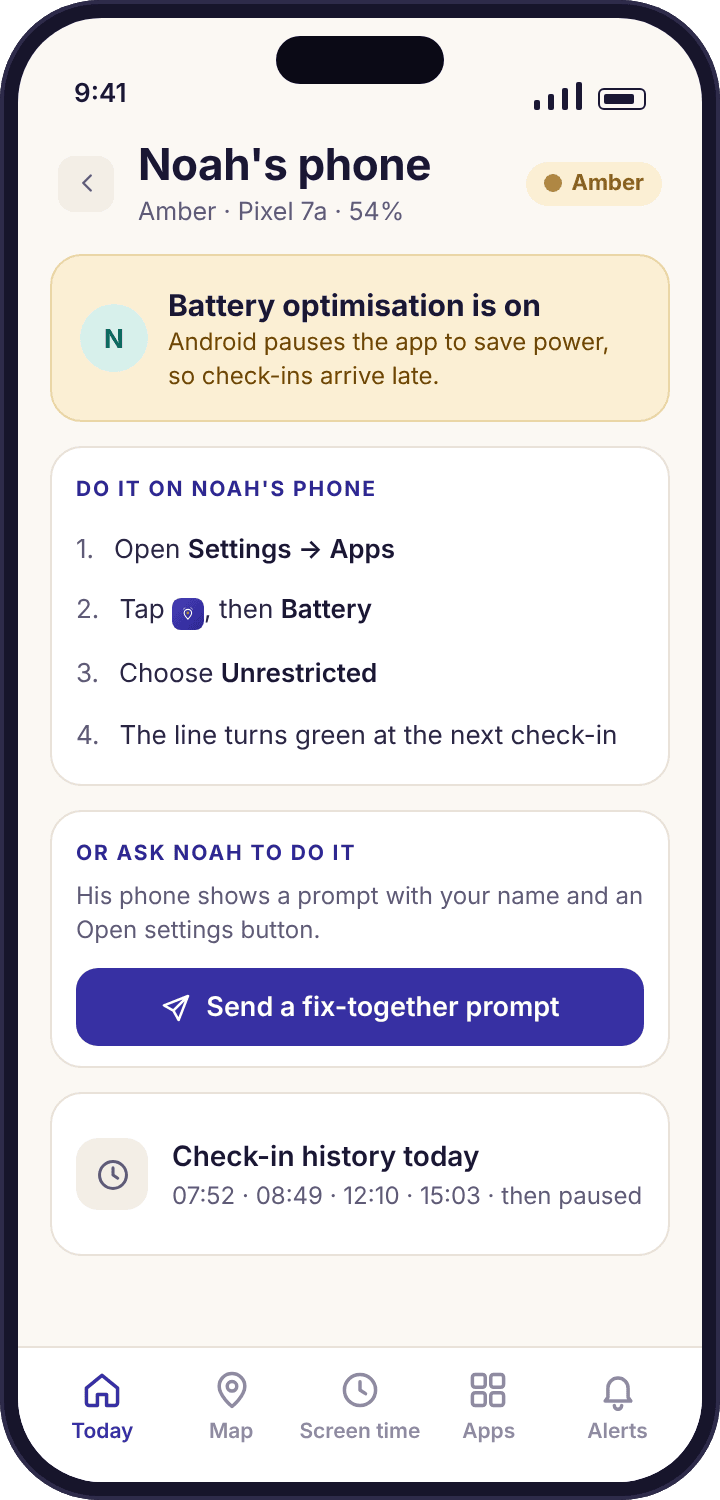
A tamper alert says the app was removed, with the time, and nothing else
When the app is uninstalled, the last thing it does is tell the panel. You get one alert, "The app was removed from Noah's phone at 16:12", and the health line goes red with the same words. Collection stops at that moment. There is no second copy, no service that survives the uninstall, and no setting that makes the app disappear from the app list so it cannot be found. We are often asked for one, and the answer is the same every time: an app a child cannot find is stalkerware with a different label, and we do not make it.
What uninstall protection does is make removal deliberate rather than accidental. With device admin granted at setup, uninstalling takes several steps, including turning that protection off first, so a nine-year-old cannot remove it while trying to free up storage. A thirteen-year-old who wants it gone can still get it gone, and will, and the alert tells you so with the time. That is the right outcome. The app's job is to be honest about its own absence, not to prevent it.
- Force-stop is amber, not red. An app that was stopped but not removed shows as "stopped reporting", and restarts when the phone does.
- The time is the useful part. 16:12 on a Thursday, just after school, tells you more than the alert itself.
- Reinstalling needs the phone. A new pairing code, typed on the phone, with the consent screen again. Pairing cannot happen remotely.
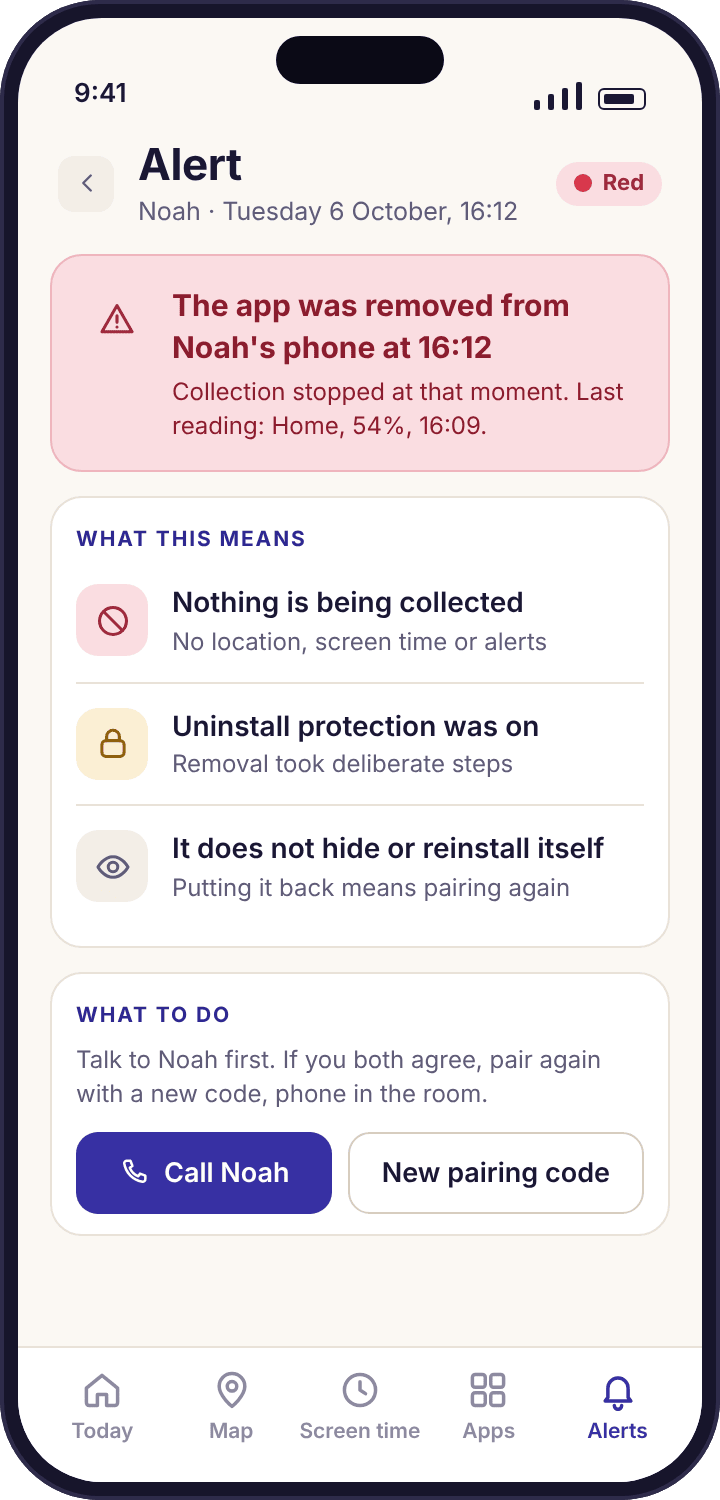
An amber line on a Tuesday, and a red one on a Thursday
The first is what the feature is for: a quiet failure caught days before it would have mattered. The second is the case parents worry about most, and it goes better than they expect.
Noah's Pixel updates overnight and battery optimisation comes back on
Monday night the Pixel 7a installs a system update while charging. Tuesday morning everything looks normal on the phone. At 09:30 the health line in Priya's app turns amber: "Noah's phone · 64% · checked in 52 min ago · battery optimisation is on". The map still shows him at Oakridge School from the 08:40 reading, because the last few check-ins got through; what has changed is that they will now arrive when Android feels like it, which by Wednesday means every few hours.
Priya opens the line. The detail names the setting, shows the path for a Pixel, and notes that the change coincides with a system update. She taps "Send a fix-together prompt". A card appears on Noah's phone: "Priya asked you to switch battery optimisation off · Open settings". He is nine and at school, so it waits. At 16:20, at home, he taps it with Priya beside him, Android opens the right screen, and the line is green by 16:22.
Without the line, the first sign would have been Thursday evening, when a place alert for Swim Club never arrived and Priya spent twenty minutes wondering why, on the one evening she was relying on it.
What the app did: noticed the check-in gap and the optimisation flag within the hour, named the cause, gave the path for that phone, and put a prompt on the child's screen that waited until he could act on it. It did not change the setting itself, because it cannot, and should not be able to.
Amara uninstalls the app at 16:12 on a Thursday
The alert arrives at 16:13: "The app was removed from Amara's phone at 16:12". The line is red. Nothing else on the panel changes; the week's screen time and places stay as they were, and no new data arrives. Priya's first instinct is to ring. She does not. She waits until Amara is home and asks the plain question: "Your phone says you took the app off at ten past four. What happened?"
The answer is ordinary. A friend saw the app icon and said something, and Amara felt watched in a way she had not the day before. There is no secret behind it, only a thirteen-year-old's reasonable discomfort at being the one with the parental control app in a group of friends who do not have one. The conversation that follows is about which features she thinks are fair at thirteen, and two of them come off.
The app goes back on that evening, with a new pairing code typed on her phone and the consent screen read again, this time with fewer items on it. The "What's shared" screen on her phone is shorter than it was, and she can see that. The tamper alert did exactly one thing: it made the removal a fact with a time on it, rather than something discovered a fortnight later.
What the app did: reported its own removal and stopped. It did not resist, hide, or reinstall, and the parent panel did not pretend anything was still being collected. The rest was a conversation, which is what the alert is for.
How to keep a child's phone reporting without checking it every day
Get the line green on the day you pair
Pairing ends when the health line turns green, and that is not a decoration. It means every permission the features you switched on need is granted, battery optimisation is off, and the first check-in has arrived. If you finish setup with the line amber, you will be back here within the week. The two permissions most often left behind are Location at "While using the app", which the permission dialog on newer Android versions offers first, and battery optimisation, which no dialog asks about at all and which lives in a different part of Settings on every manufacturer's phone. Grant both with the phone in your hand and the child beside you, and the the child app's setup checklist shows each one ticking off.
Fixing it together, not by phone call
The fix-together prompt exists because the alternative is a parent reading a Settings path aloud down the phone to a child who is already annoyed. The prompt puts the same path on the child's screen as a card from you, by name, with one button that opens the right screen. Nothing about it is hidden: it says who asked, what the setting is and which feature stopped. A child who taps it has fixed the problem themselves, which is a better feeling than having it done to them.
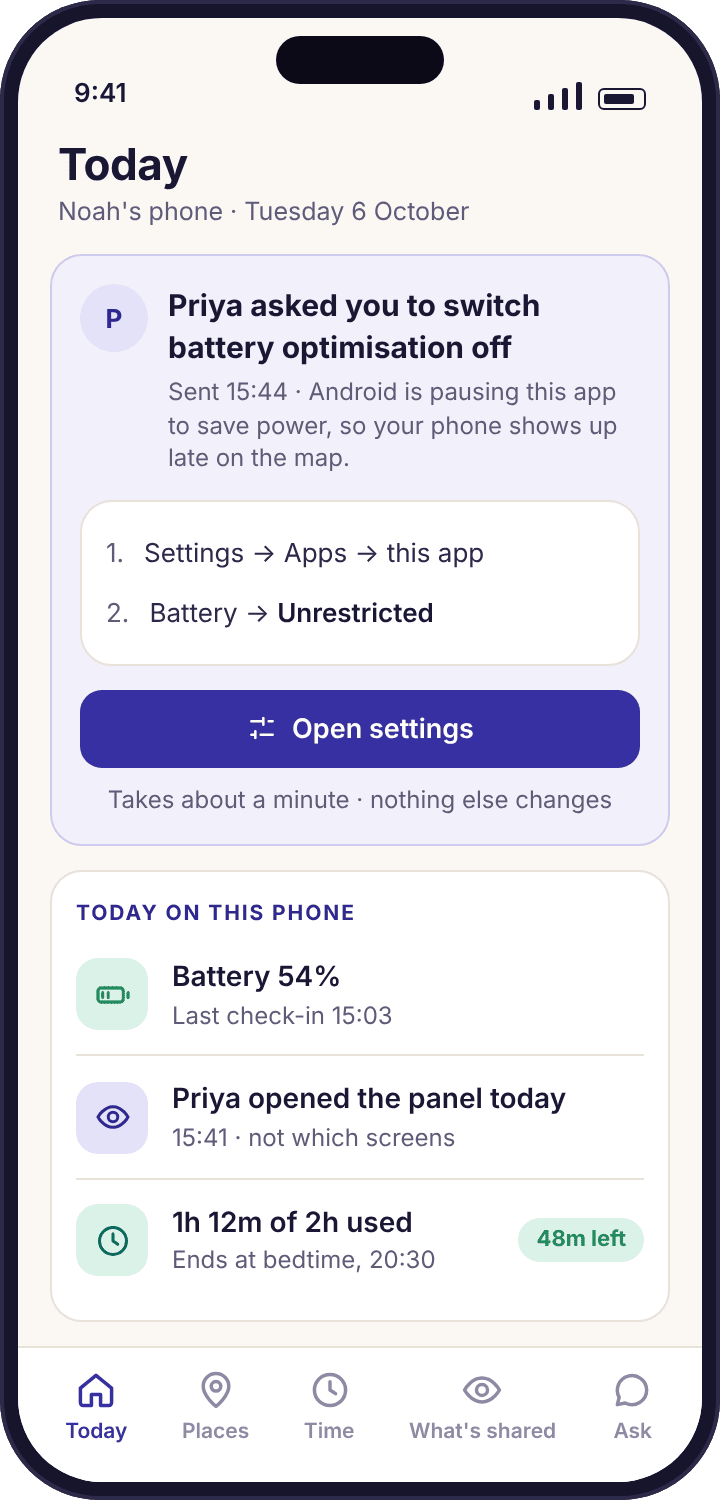
The prompt cannot change the setting on its own. Android does not allow an app to grant itself permissions or exempt itself from battery optimisation, and it would be a worse product if it could, because the child would have no say. If the prompt sits untapped for a day, the line stays amber and the panel says so. That is information too.
Samsung, Pixel and everyone else
Amara's Galaxy A35 and Noah's Pixel 7a fail in different ways. Samsung phones keep a "sleeping apps" list and a "deep sleeping apps" list in Settings → Battery → Background usage limits, and an app on the second list stops checking in entirely until it is opened. System updates, and Samsung's own device-care clean-ups, are the usual way the app lands on those lists. Pixel phones are gentler about background apps but more aggressive about resetting permissions on apps that have not been opened recently, which is where Usage access and Notification access go missing. Other manufacturers have their own versions, and the health detail shows the path it believes applies. If a path does not match, tell us the phone and Android version through the contact page and we update it.
Open the child app once a term
Android's permission auto-reset only touches apps that have not been opened for a few months. A child who opens the app occasionally, even just to look at the "What's shared" screen or to ask for more time, keeps the permissions where they are. It is the single cheapest habit for a green line.
What interrupts you, and what waits for the summary
A health change is not always urgent, and the app treats it accordingly. A red line from an uninstall interrupts you at once, because the time matters. A phone that went flat at 22:40 goes amber and waits for the morning summary, because there is nothing to do at 22:40. Battery optimisation coming back on is amber and interrupts once, during the day, because a day's delay turns into irregular reporting. During quiet hours only the uninstall alert gets through. The Today view shows the current colour for each child at the top, so on an ordinary day you see two green lines and close the app.
Why the app reports its own failures
A parental control app that hides a stale map behind a fresh-looking pin is worse than no app, because a parent trusts it on exactly the evening it has stopped working. Device health is the opposite choice: the app says, as early and as plainly as it can, that it is not doing its job and why. The same honesty runs through the uninstall behaviour. We could make removal harder than it is, and some products do, but an app a child cannot remove is not a parental control, it is a restraint. Our line is that removal takes deliberate steps and is always reported. Everything on this page follows from that.
What parents ask when a line goes amber
Why does the line keep going amber for battery optimisation?
Because Android and Samsung keep switching it back on, usually after a system update or a stretch of days when the child app was not opened. It is the cause in about three in four cases of a phone that stopped reporting. Fix it under Settings → Apps → MobileTracking → Battery → Unrestricted, and on Samsung remove the app from the sleeping apps lists. Opening the child app occasionally keeps it off.
Can the app fix a missing permission by itself?
No. Android does not let an app grant its own permissions or exempt itself from battery saving, and we would not want it to, because the child would have no say. What the app does is name the setting, show the path for that phone, and send a fix-together prompt that opens the right screen on your child's phone. The tap is theirs.
Does a red line mean my child uninstalled the app?
Not necessarily. Red also means the phone has not checked in for many hours, which is usually a flat battery or a phone switched off overnight. The line tells you which: an uninstall says "the app was removed" with the time, while a flat battery says "last seen" with the last battery level. Read the words, not just the colour.
Can my child see the health line?
Yes. The child app shows the same status, including which permission is missing, and the setup checklist on their phone shows each permission ticked or pending. A fix-together prompt appears there too, with your name on it. Nothing about device health is hidden from the child, including the fact that removal is reported.
Does device health use any extra permission?
No. It reads the state of the permissions the other features already asked for, the battery level, and whether the app is running. Uninstall protection, which makes removal take deliberate steps and sends the tamper alert, uses the device admin permission that setup asks for separately; declining it leaves everything else working.
How quickly does the line change when something breaks?
Within the hour for a permission or battery optimisation change, because the app checks its own state on every check-in. An uninstall is reported at the moment it happens. A phone that has gone silent turns amber after an hour without a check-in and red after twelve, with the last battery level shown so you can tell a flat phone from anything else.
What if the Settings path shown does not match my child's phone?
Manufacturers move these menus between versions, and the app shows the path it believes applies to that phone and Android version. If it is wrong, search Settings on the phone for the setting's name, which usually finds it in a few seconds, and tell us the phone model so we can update the path. The fix-together prompt opens the screen directly and does not depend on the path text.
Will the app reinstall itself if it is removed?
No, and it never will. Once uninstalled, collection stops immediately and nothing remains on the phone. Putting it back needs the phone in your hand, a new pairing code and the consent screen again. We treat an uninstall as something to talk about with your child rather than something to engineer around, and the tamper alert gives you the time to start from.
Can the line be green while location is still wrong?
Yes, briefly. Green means the phone is reporting and the permissions are in place; it does not vouch for GPS accuracy, which can drift indoors by tens of metres. If the line is green and the pin looks wrong, the location page explains how to read the accuracy circle. If the line is amber, fix that first.
Does it cover more than one phone?
Yes. Every paired device has its own line, so a household with two children and a shared tablet sees three lines on the Devices page, each with its own battery, check-in and permissions. A new phone for the same child is paired as a new device and the old one removed; rules and places stay with the child.
Where device health fits with everything else
The health line is the thread that runs through the rest of the system, and these pages pick it up from different ends: setup and pairing guide, the child app, family dashboard and location tracking.
Device health switches on once your child's phone is paired with your account, which takes about ten minutes with both devices on the table. The download and setup guide walks through every screen.
Find out it stopped on Tuesday, not on the evening it matters.
Pair the phone with your child, grant the permissions together until the line turns green, and from then on the app tells you the moment something changes, by name, with the fix.
Android · Free account · Visible on your child's phone