Earned screen time: chores, reading and one tap of approval
An optional list of tasks on the child’s phone, each worth a few minutes. The child taps a task when it is done, you get a notification and tap Approve or Not yet, and the minutes are added to that day’s screen time budget. There is no photo to upload, no points to lose and no deadline that docks time. Tasks exist only if you create them, and the child sees every task and its value on their own screen.
Android · Either build · Optional · Needs a screen time budget to add minutes to · Visible on their phone

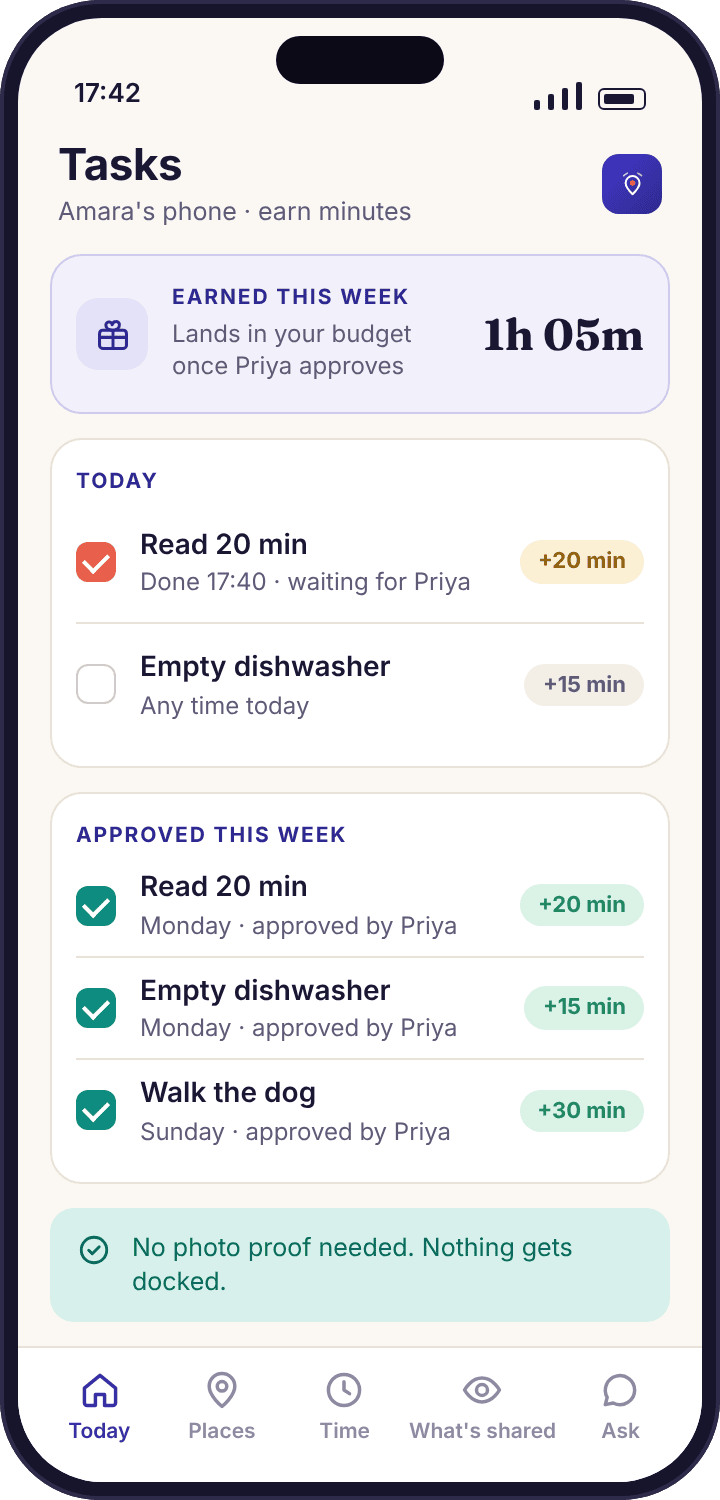
The child marks a task done, and that is all they can do to it.
The Tasks screen in the child app is a short list you wrote. On Amara’s phone this week it reads “Empty dishwasher · 15 min”, “Read 20 min · 20 min”, “Hoover the landing · 10 min” and “Walk to Grandma Ngozi’s · 15 min”. Each line has the name, the minutes it is worth and a single button, Done. When she taps Done on the reading, the line changes to “Waiting for Priya” and a request goes to the parent app. She cannot change the minutes, add a task or approve her own; those three things belong to the parent side and nowhere else.
Tasks can be one-off or repeating. “Empty dishwasher” repeats every day because the dishwasher does; “Tidy the garage” was a one-off worth 30 minutes and disappeared once it was approved. A repeating task can be marked done once a day, which stops a child tapping “Read 20 min” four times before breakfast. The list is deliberately short on purpose: the screen holds about six tasks comfortably, and six is more than most families use.
Creating a task takes a minute from the parent app or the panel: a name, a value in minutes, whether it repeats, and which child it belongs to. Noah’s list is shorter and cheaper than Amara’s, with “Feed the cat · 5 min” and “Read 15 min · 15 min”, because at nine the loop needs to be quick and the budget is smaller. Each child sees only their own list.
- Nothing is collected when a task is tapped. The tap sends the task name and the time; the app does not check where the phone was, what was on screen or whether the dishwasher is empty.
- The value is visible before the work. A child who knows reading is worth 20 minutes and hoovering is worth 10 can choose, which is the point of a visible price.
- A note is optional. “Read chapter 7” beside the Done tap is useful for a parent and costs the child nothing; it is never required.
You get one notification and tap Approve or Not yet.
The request arrives as a notification on the parent app and a line under “Needs you” in the panel: “Amara says: Read 20 min — approve?” Two buttons, Approve and Not yet. Approve adds the minutes. Not yet sends the task back to the child’s list, still worth the same, with a short line saying it was not approved this time; it is not a punishment and it takes nothing away. There is no third button, because the only question the app can usefully ask is whether you are satisfied the task was done.
How you decide is up to you, and the app offers no evidence either way. If you were in the kitchen when the dishwasher was emptied, you know. If you were not, you ask, or you look, or you take their word for it, which is what most parents do most of the time and what the feature assumes. The tap is a parent’s judgement recorded, not a verification. Co-parents both see the request and the first tap wins, with the name and time of the decision kept in the panel’s command log.
- Approve from the notification. The two buttons are on the notification itself, so a task can be approved from a locked parent phone in about two seconds.
- Requests wait as long as you need. An unapproved task sits under “Needs you” until you decide; nothing expires and nothing is lost if you are in a meeting.
- Approving late still counts for the day it is tapped. A reading session approved at 21:00 lands in that evening’s budget, which, if bedtime is 21:30, the child will notice.
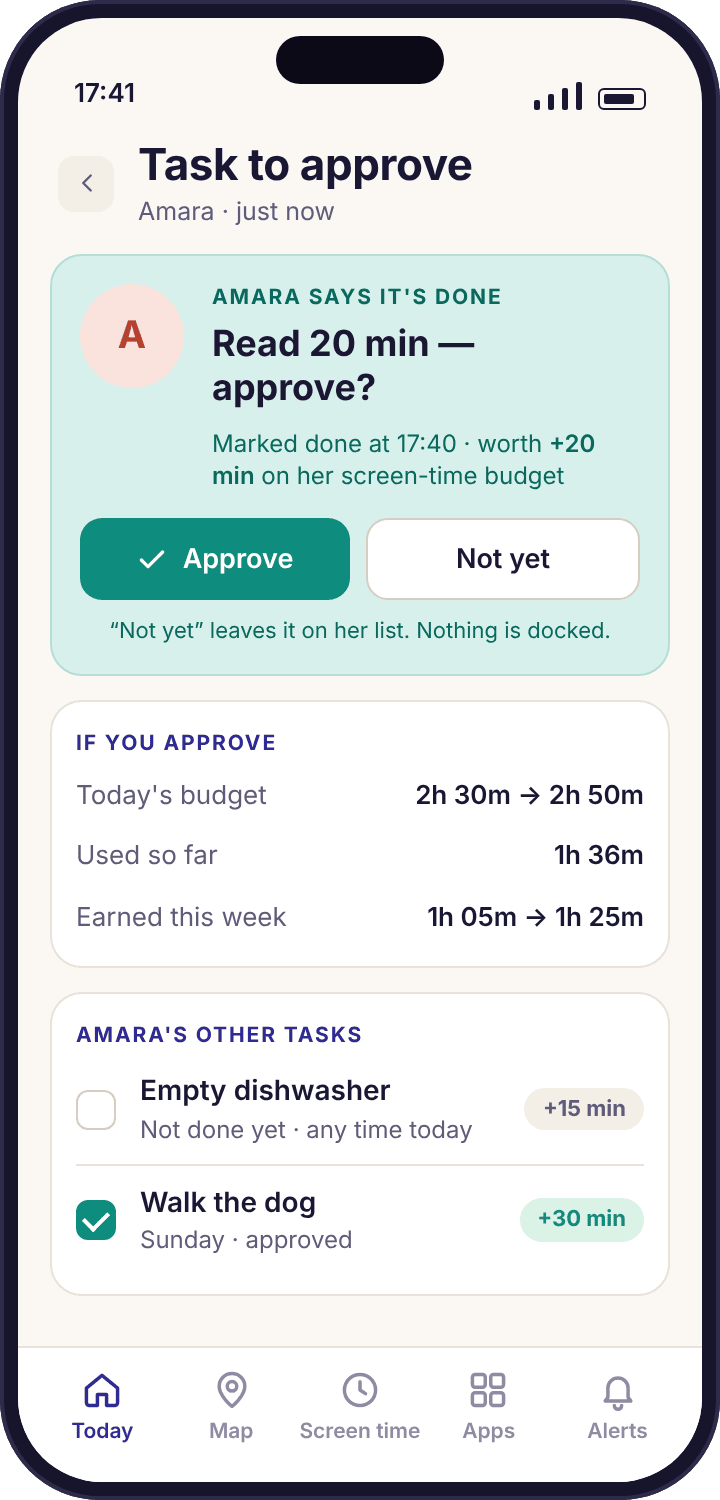
The minutes land in today’s budget, and both phones show it.
An approved task adds its minutes to that day’s screen time budget. Amara’s school-day budget is 2h 30m; with 20 minutes of reading approved, her ring reads 2h 50m for the day, and the child app shows the same figure with a small “+20 min earned” beside it. The ring on your phone updates at the same moment. Nothing is carried over: minutes earned on Tuesday are Tuesday’s, and the budget goes back to 2h 30m on Wednesday unless Wednesday earns something too.
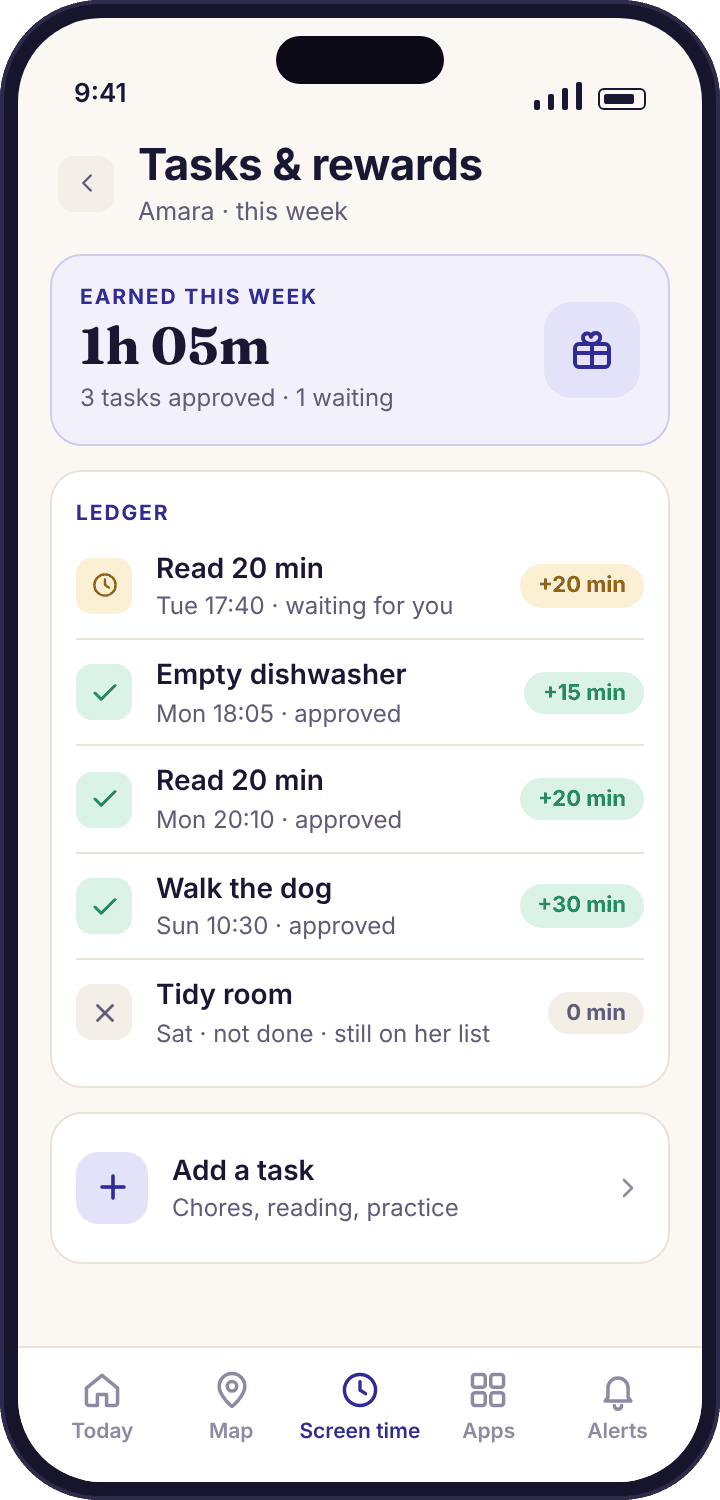
The Earned screen in the parent app keeps the week’s ledger: each task, the day, the minutes, and who approved it. “Earned this week: 1h 05m” at the top is the figure parents check on Sunday. It is also the figure that tells you whether the values are right. A child earning three hours a week has tasks priced too generously or a list that is too long; a child earning nothing for a fortnight has a list that is not worth their time, and both are fixed by editing the minutes, not by adding rules.
- Earned minutes respect the bedtime. They extend the budget, not the hours; a wind-down at 21:30 still happens with twenty earned minutes unused.
- Per-app limits are unchanged. Earned minutes go to the daily total. A 30-minute TikTok limit is still 30 minutes, because the reward is more phone, not more of the one app the limit exists for.
- The child can read the ledger too. The same week, task by task, is on their phone under Tasks, so “you never approved Thursday” can be checked rather than argued.
Five decisions behind the feature, including the two things we left out on purpose.
Most of what parents ask for in a rewards feature we have not built, and the reasons are below. The short version is that the feature should make a chore worth doing and a parent’s word worth something, and anything that gets in the way of either was left out.
No photo proof, because a photo proves nothing and costs trust.
A picture of an empty dishwasher proves that a dishwasher was empty once. It does not prove who emptied it, and a child who wants to game a photo can. Asking for one tells a child that their word is not enough and that the phone is now collecting pictures of the kitchen, which sits badly beside an app whose consent screen promises never to use the camera. The approval tap is your judgement, and your judgement was always going to be the real check. We built the feature around that instead of pretending software could replace it.
No docking, because a reward you can lose is a punishment with extra steps.
There is no way to take minutes away for a task not done, a chore done badly or a bad afternoon. The only movement is upward: a task approved adds minutes, and a task not approved adds nothing. Families that start docking end up with a child who sees the whole arrangement as a trap and stops marking anything done, at which point the list is dead. If something needs a consequence, that is a conversation and perhaps a smaller budget tomorrow, set in the open on the Budget screen where the child can see it. It is not a job for the task list.
Tasks are yours, never ours.
Every task on a child’s phone was typed by a parent. We do not suggest tasks, sponsor tasks or add tasks of our own, and we will not build tasks that reward a child for writing a review, inviting a friend to install the app or posting about it anywhere. A rewards list that a company can write to is an advertising surface pointed at a child, and we are paid by parents so that we never need one. The list stays short, boring and about the house.
Minutes are small and same-day.
A task is worth between 5 and 30 minutes, the minutes go into the day they are approved, and nothing banks. The 30-minute ceiling stops a reward from swallowing the budget it was meant to top up; a child earning two extra hours on a Monday has stopped having a limit. Same-day keeps the loop tight enough for a nine-year-old to feel: dishwasher at 16:00, approved at 16:05, fifteen more minutes of Roblox at 16:06. A points balance that pays out next week is a spreadsheet, and children do not do chores for spreadsheets.
Optional, and visible to the child from the first task.
The feature does nothing until you create a task, and it needs a screen time budget to add minutes to; with no budget there is nothing to extend, and the Tasks screen says so. When you do add one, it appears on the child’s phone with its value the same afternoon, and their transparency screen lists tasks and rewards as active with the parent who set them up. There is no way to run a task list the child cannot see, because a reward the child does not know about is not a reward.
What families put on the list, and roughly what it is worth.
These are the tasks that come up most when parents write to us, with the values they settled on. The minutes are a guide; a family where reading is the whole point might price it at 30 and the dishwasher at 5. The right column is the honest one.
| Age | Tasks that work | Typical value | Repeats | What the app can verify |
|---|---|---|---|---|
| 6 to 8 | Put toys away; lay the table; feed the pet; brush teeth before the wind-down | 5 to 10 min | Daily | Nothing. A parent in the room is the check, and at this age usually is. |
| 9 to 11 | Empty the dishwasher; read 20 minutes; make the bed; pack the school bag the night before; 20 minutes of music practice | 10 to 20 min | Daily or school days | Nothing. The Done tap sends the task name and the time, no more. |
| 12 to 14 | Cook one meal; hoover a floor; walk to Grandma Ngozi’s; a chapter of a book; 30 minutes of homework before the block starts | 15 to 30 min | Weekly or one-off | Nothing. “Read a chapter” is taken on trust or asked about at dinner. |
| 15 and over | Usually none; or one agreed trade, such as a weekly job in exchange for a later weekend wind-down set by hand | 30 min, or the trade | Weekly | Nothing, and at this age the list is often retired in favour of a plain agreement. |
Three things never belong on the list, and the app will not let us put them there either: writing a review of the app, getting a friend to install it, or posting about it on social media. If you ever see a parental control app rewarding a child for any of those, the reward is for the company, not the child.
Four ways a task list stops working, and what fixes each.
The task was approved but the ring did not change.
The child has no screen time budget set, so there is no figure to add minutes to. Earned minutes extend a budget; they cannot create one. The Tasks screen warns about this when a task is created for a child with “Not set” in both budget fields.
Fix: Set a daily budget on the child’s Budget screen, ideally after a recorded week. The approved minutes are kept and appear in the ring as soon as a budget exists for that day.
“Done” was tapped and nothing reached your phone.
The child’s phone is offline or battery optimisation has stopped it checking in. The tap is stored on the phone and shows as “Waiting” on the child’s list; it reaches you when the phone next connects.
Fix: Nothing, if the phone is simply out of signal. If it happens most days, open device health: an amber line naming battery optimisation is the usual cause, and the settings path is on it.
The same task is being marked done three times a day.
The task was created as a one-off and re-added each day by hand, or its repeat setting is “Any time” rather than “Once a day”. The app cannot tell whether the dishwasher was emptied once or three times.
Fix: Edit the task and set it to repeat once a day. Any extra Done taps that day are refused on the child’s phone with “Already done today”, which is a plainer answer than a parent declining three requests.
The list has gone quiet and nobody is tapping anything.
The values are too low for the work, the tasks are things the child was doing anyway, or the budget is generous enough that extra minutes are not worth a chore. None of these is a bug.
Fix: Look at “Earned this week” over the last month. If it is near zero, cut the list to two tasks the child cares about and raise their value, or accept that the list has done its job and retire it. A dead list is better deleted than nagged about.
Questions parents ask about earned screen time.
Do I have to use tasks and rewards at all?
No. The feature is off until you create a task, and many families never do. It suits households where a screen time budget is already in place and a child wants a way to stretch it that feels fair. If your budget is working and nobody is asking for more, there is nothing to add. The Tasks screen on the child’s phone stays empty and says “No tasks yet”.
How does my child prove a task was done?
They don’t, and the app does not ask them to. The child taps Done, you see the task name and the time, and you tap Approve if you are satisfied. There is no photo upload, no location check and no timer. Your judgement is the verification, as it would be without the app; the feature records the decision and adds the minutes, nothing more.
Can I take minutes away if a task is not done?
No. The feature only adds. A task not done earns nothing, and a task you decline with Not yet goes back to the list at the same value. There is no negative balance and no deduction, because a reward that can be lost turns the list into a threat and children stop using it. A consequence, if one is needed, is a conversation and a budget change made in the open.
Do earned minutes carry over to the next day?
No. Approved minutes are added to the budget of the day they are approved and expire with it. Tuesday’s twenty minutes of reading are Tuesday’s; Wednesday starts at the normal budget. Keeping the loop same-day is what makes it work for a nine-year-old, and it stops a child banking a week of chores into one five-hour Saturday.
Can earned minutes be used after bedtime?
No. Earned minutes extend the day’s budget, not the day’s hours. If the wind-down is 21:30, the apps go to sleep at 21:30 with any unused earned minutes still showing, and they are gone by morning. A later bedtime for a special night is a separate, one-off change you make from your phone, not something a task can buy.
How many minutes can a task be worth?
Between 5 and 30. The ceiling is there so that a reward tops up a budget rather than replacing it; a task worth two hours means the limit has stopped meaning anything. Most families price daily chores at 10 to 15 minutes and reading at 20. The value shows on the child’s phone beside the task, and you can edit it at any time.
Can my child add their own tasks?
No. Tasks are created, priced and approved only from the parent app or the panel. The child app shows the list, the value of each task and a Done button, and lets them add an optional note. A child who wants a task added asks you, which is how the list stays about the house rather than about the phone.
Will the app ever suggest tasks or reward my child for recommending it?
No, and that is a rule rather than a current setting. Every task on the list is typed by a parent. We do not add tasks, sponsor tasks, or reward reviews, referrals or social media posts, and we never will; a reward list a company can write to is advertising aimed at a child. We are paid by parents so that we do not need one.
Can both parents approve tasks, and can we see who did?
Yes. Every parent on the account gets the request and the first tap decides. The Earned ledger shows which parent approved each task and when, and the panel’s command log keeps the same record. A child cannot send the same request to each parent separately, because there is one request per task per day.
Does it work if the screen time budget is not set?
Not usefully. Earned minutes are added to a daily budget, so a child with “Not set” in both budget fields has nothing to extend; the Tasks screen warns you when you create a task for them. Set a budget first, ideally after recording a normal week, and the approved minutes appear in the ring from that day.
Where tasks fit with everything else
Earned minutes extend the screen time budget and nothing else; the rules that set the hours and show what the minutes were spent on sit beside it: bedtime schedule and app activity.
The task list switches on once your child's phone is paired with your account, which takes about ten minutes with both devices on the table. The download and setup guide walks through every screen.
Make the dishwasher worth fifteen minutes.
Write two or three tasks with your child, price them together, and approve the first one from your phone tonight with a single tap.
Android · Free account · Visible on your child's phone