Block an app with a screen that says why
Pause any app on your child's Android phone, all the time or on a schedule you set. When they open it, the phone shows a plain screen: which rule applies, until when, who set it, and a button to ask for an exception. It never pretends the app crashed. For younger children, new installs can wait for your approval before they run. This page covers the three kinds of rule, the screen your child sees, and why a long list of blocks tends to fail inside a fortnight.
Android · Visible on their phone · Permissions: Usage access, Accessibility service

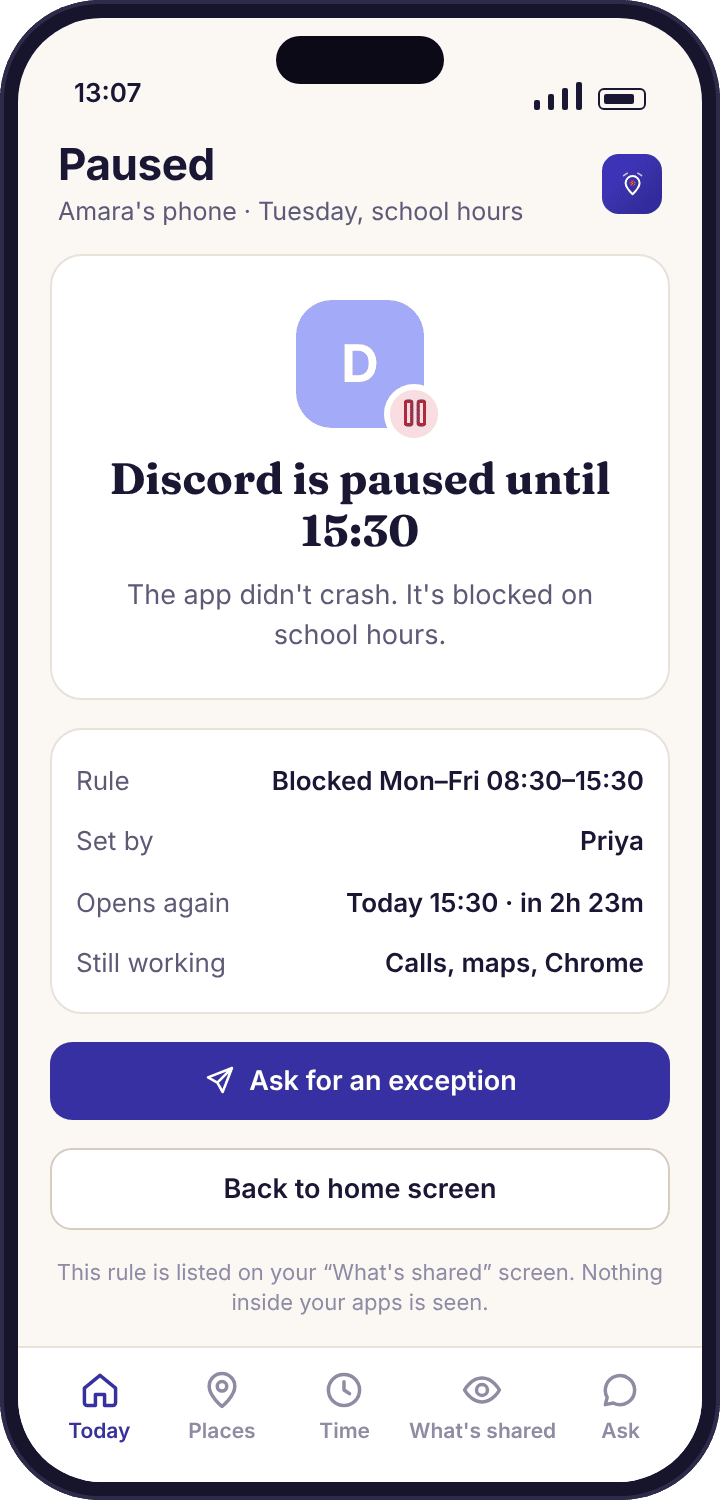
What a block looks like in the Okafor house, in four ordinary weeks.
Abstract rules are easy to describe and hard to picture. These four are drawn from the settings in the demo family, and each ends with exactly what the app did and did not do.
Discord during school hours
Amara's school allows phones in bags, and Discord had started appearing in her app list between 10:00 and 11:00 on weekdays. Priya and Amara agreed a rule at the kitchen table: Discord is paused on school days from 08:30 to 15:30, and nothing else changes. Priya set it from the app rules screen, chose "On a schedule", picked Monday to Friday and the two times, and saved. Amara's phone showed the new rule on its "What's shared" screen the same afternoon.
The next morning at 10:14 Amara opened Discord out of habit. Instead of the app, a full screen appeared: "Discord is paused until 15:30. Rule set by Priya." Underneath, an "Ask for an exception" button. She closed it. At 15:31 the app opened as normal, with no restart and no lost messages, because the block only covers opening the app and does nothing to its data.
What the app did: showed the block screen once at 10:14 and logged the attempt as a single line in the panel. It did not read any Discord message, did not stop notifications arriving, and did not tell Priya anything beyond "Discord · blocked attempt · 10:14".
Noah installs a game that wants his contacts
Noah is nine, so his phone has "Approve new installs" switched on. On Wednesday after school he installed a free racing game from the store. The app opened as far as a holding screen: "This app is waiting for Priya to approve it." At the same moment Priya's phone received the new-install alert: the game's name, its store rating, and that it had asked for Contacts and Location. She tapped Block.
Noah's phone updated within a minute to say the game was blocked and who had decided. That evening Priya told him why: a racing game has no reason to want his contacts. They found another one together, and she approved it from the same alert. The first game is still installed and still blocked; uninstalling it is Noah's choice, and the rule holds either way.
What the app did: held the new app at a visible waiting screen until a parent decided, and sent the decision back to the phone with the parent's name. It did not uninstall anything, and it did not stop Noah installing the app in the first place; it stopped the app running.
The exception request on a Thursday
Amara's Discord rule runs until 15:30, but on Thursday her class finished at 14:50 for a staff meeting and she was on the bus by 15:00. She opened Discord, saw the block screen, and tapped "Ask for an exception". The request let her add a note: "finished early, on the bus". Priya's phone showed it as a single card with three buttons: Allow until 15:30, Allow for today, and No.
She tapped the first one. Amara's phone unblocked Discord for the remaining half hour and the rule resumed on Friday morning unchanged. The request, the note and the decision are all in the panel's command log with the time, so a co-parent can see what was decided and by whom. Requests are capped per day, so a child cannot send twenty of them in an afternoon.
What the app did: passed a short message from child to parent and a one-tap answer back. It did not loosen the rule permanently, and if Priya had not answered, the block would simply have held until 15:30.
The fifteen-app block, and why it came off again
A neighbour of the Okafors set up the app on her son's phone the night before a school trip and blocked fifteen apps in one sitting: every game, every social app, YouTube, the browser. By day three he had hit a block screen more than forty times, the panel log was a wall of identical lines, and he had stopped reading the screen at all. By day ten the phone was "accidentally" left at home, which defeats every feature on this site at once.
She took thirteen of the blocks off and kept two: a game during homework and YouTube after bedtime. The log went quiet, the screens were read again, and he started asking for exceptions instead of working round them. The fifteen blocks failed for a plain reason: a rule a child meets forty times a day stops being a rule and becomes the phone's background. Two rules he could explain to a friend held for the rest of the year.
What the app did: exactly what it was told, fifteen times over. The app cannot stop a parent setting too many rules; it can only make each one visible enough that the child, and the parent, notice when there are too many.
One list of rules per child, one state per app
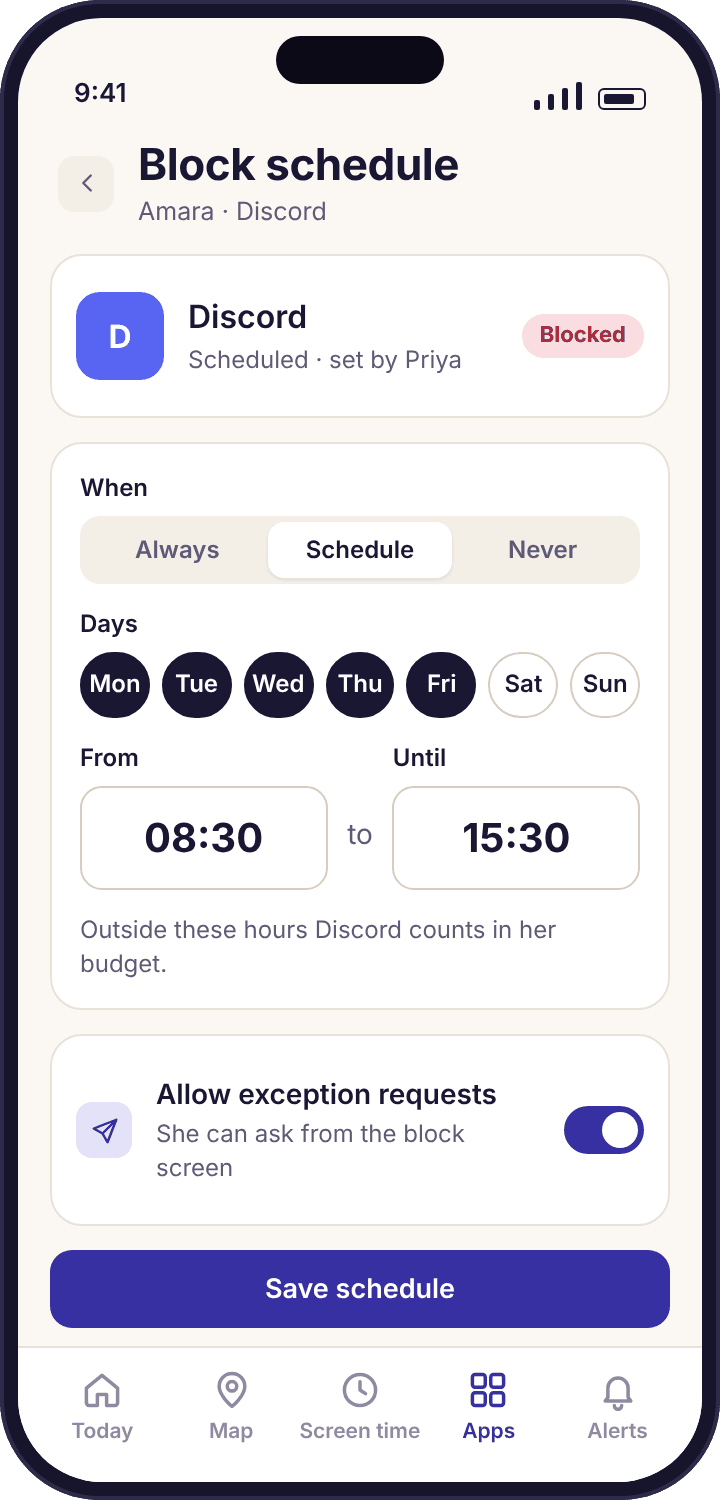
Every app on your child's phone appears on the App rules screen with one of four states: Allowed, Limited, Blocked, or Always allowed. Allowed is the default for everything, and a newly paired phone has nothing blocked at all. Limited means a daily minute cap, which is set on the screen time page and shown here for completeness. Blocked is this page. Always allowed exempts an app from every limit and bedtime, which is where calls, maps and the bus app belong.
For Amara the list reads TikTok Limited 30m, Roblox Allowed, Discord Blocked on school hours, Chrome Always allowed. Four lines that she can read on her own phone, in the same order and with the same words. A tap on any app opens its rule, and a change saves to the phone on its next check-in, usually within a couple of minutes while it is awake. A phone that is off picks the rule up the moment it reconnects.
- Blocked means paused, not removed. The app stays installed with its data. When the rule ends, it opens exactly as it was.
- Notifications still arrive. A block stops the app opening. Messages that land while it is paused are waiting when it reopens.
- The rule is per child. Blocking Roblox for Noah does nothing to Amara's phone. Each child has their own list, under the switcher at the top.
- The child sees the full list. The "What's shared" screen on their phone lists every rule, with its schedule and who set it.
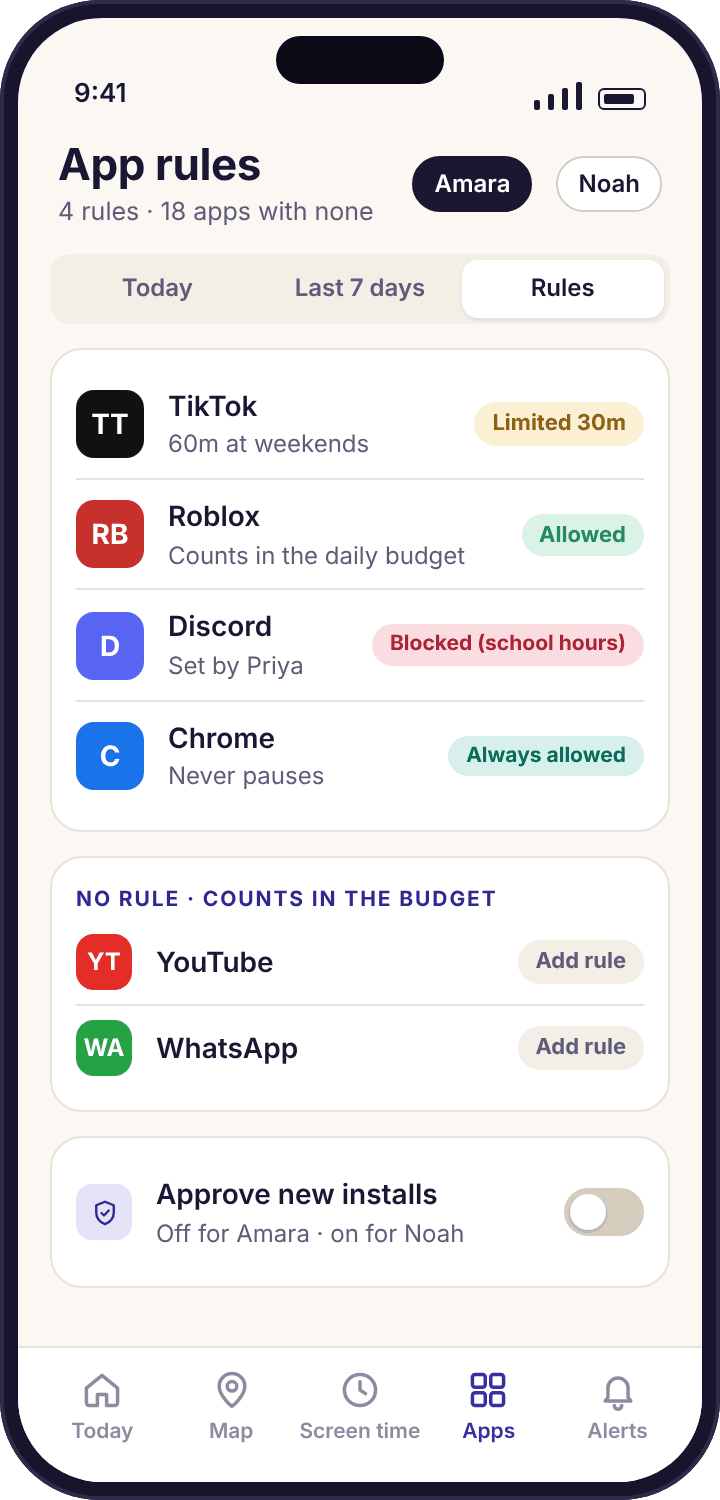
A schedule is days plus a start and an end
Choosing "On a schedule" opens an editor with seven day chips and two times. Tap the days, set the start and the end, save. Discord for Amara is Monday to Friday, 08:30 to 15:30. A schedule can cross midnight, so 21:30 to 07:00 blocks an app overnight, though if what you want is the whole phone to wind down at bedtime, the bedtime schedule does that for every app at once and is usually the better tool.
The schedule is stored on the child's phone, not just in the panel. That matters on a bus with no signal or in a school basement: the block starts and ends on time whether or not the phone can reach the internet. What the phone cannot do while offline is deliver an exception request, so a request sent from a dead spot arrives when the signal comes back, with its original time attached.
- Several schedules per app. A game can be paused during homework on weekdays and after 21:00 at the weekend, as two rules on one app.
- Term time only, if you like. A rule can be set to pause itself between two dates, so the school-hours block does not run through the summer.
- Phone time, not panel time. If Amara is away in another time zone, 08:30 means 08:30 where the phone is.
- Ends cleanly. At 15:30 the block screen goes away by itself; nobody has to tap anything.
Always, on a schedule, or approve new installs: which one fits which job.
The three are often confused, and the wrong one creates a rule that is either ignored or resented. This table is the comparison we wish every parent read before setting the first block.
| Question | Block always | Block on a schedule | Approve new installs |
|---|---|---|---|
| What it does | The app never opens until you change the rule. | The app is paused between a start and an end time on chosen days. | Any newly installed app waits at a holding screen until a parent allows or blocks it. |
| Applies to | One named app. | One named app, with one or more schedules. | Every app installed from now on; existing apps are untouched. |
| Best for | An app you have decided is not for this child yet, after a conversation. | School hours, homework, overnight for one app. | Children under about eleven, and the first month on a new phone. |
| Child sees | Block screen with your name and "always" | Block screen with the end time and your name | "Waiting for Priya to approve" screen |
| Can ask for an exception | Yes | Yes | The install itself is the request |
| Works offline | Yes | Yes, the schedule lives on the phone | Holds the app; your decision arrives when the phone reconnects |
| Removes the app | No | No | No |
| Stops notifications | No | No | No |
| Needs Accessibility service | Yes | Yes | Yes |
| Suits a thirteen-year-old | Rarely, and only agreed | Yes, one or two rules | Usually resented |
Every kind of block needs the Accessibility service permission on the child's phone, because that is what lets the app draw the block screen over another app. Without it, MobileTracking can still count an app's minutes and tell you it was opened, but it cannot stop it opening. The device health page names the permission if it is missing.
Three rules for a block screen, and why we will not build it any other way.
Some apps in this category make a blocked app look as though it crashed, or quietly fail to load, so the child blames the app. We think that is a small lie that costs a large amount of trust. The screen on your child's phone follows three rules.
It says what the rule is, and until when.
"Discord is paused until 15:30" is the whole first line. A child who knows the end time stops checking, and a child who sees "paused" rather than a frozen app knows that nothing is broken. For an always block the line reads "paused until a parent changes the rule", which is equally plain. The screen never shows an error, a spinner or a blank page in place of the truth.
It says who set it.
"Rule set by Priya" is on every block screen, with the date it was last changed. A rule with a name on it is a rule a child can talk to someone about, and a co-parent can see at a glance which of them made the decision. If two parents share the account, the name is whichever of them saved the rule, and the command log in the panel keeps the history.
It offers a way to ask.
The "Ask for an exception" button is on the screen itself, not hidden in a menu. The request carries a short note and reaches a parent's phone as one card with three answers. A limited number of requests per day keeps it from becoming a nag. A block screen without a way to ask teaches a child to work round the rule; a block screen with one teaches them to make a case.
Four reasons an app opens when it should be paused, and the fix for each.
The panel says blocked, but the app opens anyway.
The Accessibility service permission has been switched off, or was never granted during pairing. Minutes are still counted, so the app list looks healthy, but nothing can draw the block screen.
Fix: Check device health, which names the missing permission. On the phone it is Settings → Accessibility → Installed apps → MobileTracking → On. Do it together; the phone has to be in your hand.
The rule started twenty minutes late.
The phone had been asleep with battery optimisation on, so the new rule did not reach it until the next time it woke up. The schedule runs on time once it is on the phone, but a brand-new rule has to get there first.
Fix: Switch battery optimisation off for the app (the health page shows the exact path), and save new rules a little before you need them rather than at the moment.
The app opens inside another app.
A blocked video site opened through a link in a chat app runs inside that app's built-in browser, which is a different app as far as Android is concerned.
Fix: This is what web filtering is for: it blocks by site rather than by app, and catches the page whichever app opened it. Use both for a site that also has an app.
My child found a second app that does the same thing.
A block is on a named app, and app stores have ten of everything. A blocked video app is one install away from a different video app.
Fix: For a younger child, turn on approve-new-installs so the replacement waits for you. For an older one, this is the moment for a conversation rather than a longer list; see Situation 4 above for how long lists end.
Questions parents ask before setting the first block.
Is there a way to block an app without my child noticing?
No, and that is deliberate. Opening a blocked app shows a full screen with the rule, the time it ends and the name of the parent who set it. The rule is also listed on the "What's shared" screen in the child app from the afternoon you set it. There is no setting that makes a block look like a crash or hides it.
Can I block an app remotely, while my child is at school?
Yes. Save the rule in the parent panel or the parent app and it reaches the phone on its next check-in, usually within a couple of minutes while the phone is awake. The child's screen updates at the same moment. If the phone is off or has no signal, the rule applies as soon as it reconnects, and the block screen will say who set it.
Does blocking an app delete it or its data?
No. A block stops the app being opened and nothing else. The app stays installed, its data and sign-ins are untouched, and notifications still arrive while it is paused. When the schedule ends or you change the rule, the app opens exactly as your child left it. Uninstalling remains a choice your child makes on the phone.
Can my child uninstall MobileTracking to get round a block?
If uninstall protection was granted at pairing, removal takes deliberate steps and you receive a tamper alert naming the phone and the time. MobileTracking is an ordinary app in the drawer: it never conceals itself from the uninstall screen and never puts itself back. A child who removes it is telling you the rules stopped feeling fair, which is worth more attention than the block was.
What happens to calls and maps if I block a lot of apps?
Nothing, as long as they are marked Always allowed, which the phone app, maps and the camera are by default. Always allowed apps ignore every block, limit and bedtime. We would still suggest keeping the number of blocked apps small; the fourth situation on this page describes what fifteen blocks did to one family's fortnight.
How is approve-new-installs different from blocking?
A block names an app that is already on the phone. Approve-new-installs holds any app installed from now on at a waiting screen until a parent allows or blocks it from the new-install alert. It suits younger children and the first month on a new phone. For a thirteen-year-old it usually reads as distrust, and one or two scheduled blocks work better.
Can a block run only in term time?
Yes. A scheduled rule can be given a start and end date as well as days and hours, so a school-hours block can pause itself over the summer holidays and resume in September without you touching it. The dates are shown on the child's "What's shared" screen alongside the hours.
Does a block work when the phone is offline?
Yes, once the rule has reached the phone. Schedules are stored on the phone and run from its clock, so a block starts and ends on time on a bus with no signal or in a basement classroom. Only exception requests need a connection, and one sent from a dead spot is delivered when the signal returns.
Can my co-parent change a rule I set?
Yes, if they have been invited to the account with a role that allows it. Every change is stamped with the name of the parent who made it in the panel's command log, and the block screen on the child's phone shows the name of whoever saved the rule last. Neither of you can change a rule in secret from the other.
Where this fits with everything else
A block is the bluntest tool in the set, and it works best beside the gentler ones: app activity, screen time limits, web filtering and bedtime schedule.
App blocking switches on once your child's phone is paired with your account, which takes about ten minutes with both devices on the table. The download and setup guide walks through every screen.
Two rules your child can explain beat fifteen they can't.
Pair the phone, agree one block at the kitchen table, and let the screen do the explaining every time it appears.
Android · Free account · Visible on your child's phone