Pair your child's phone in about ten minutes
Pairing is the one part of MobileTracking that cannot be done alone, from another room, or without the child knowing. You create a six-character code in the panel, your child types it into the app on their phone, reads a consent screen, and the two of you grant the permissions one at a time. This page is the whole sequence, screen by screen, with the six places it goes wrong and how the first week should feel afterwards.
Android 8.0 or later on the child's phone · Any browser for you · Both devices in the same room

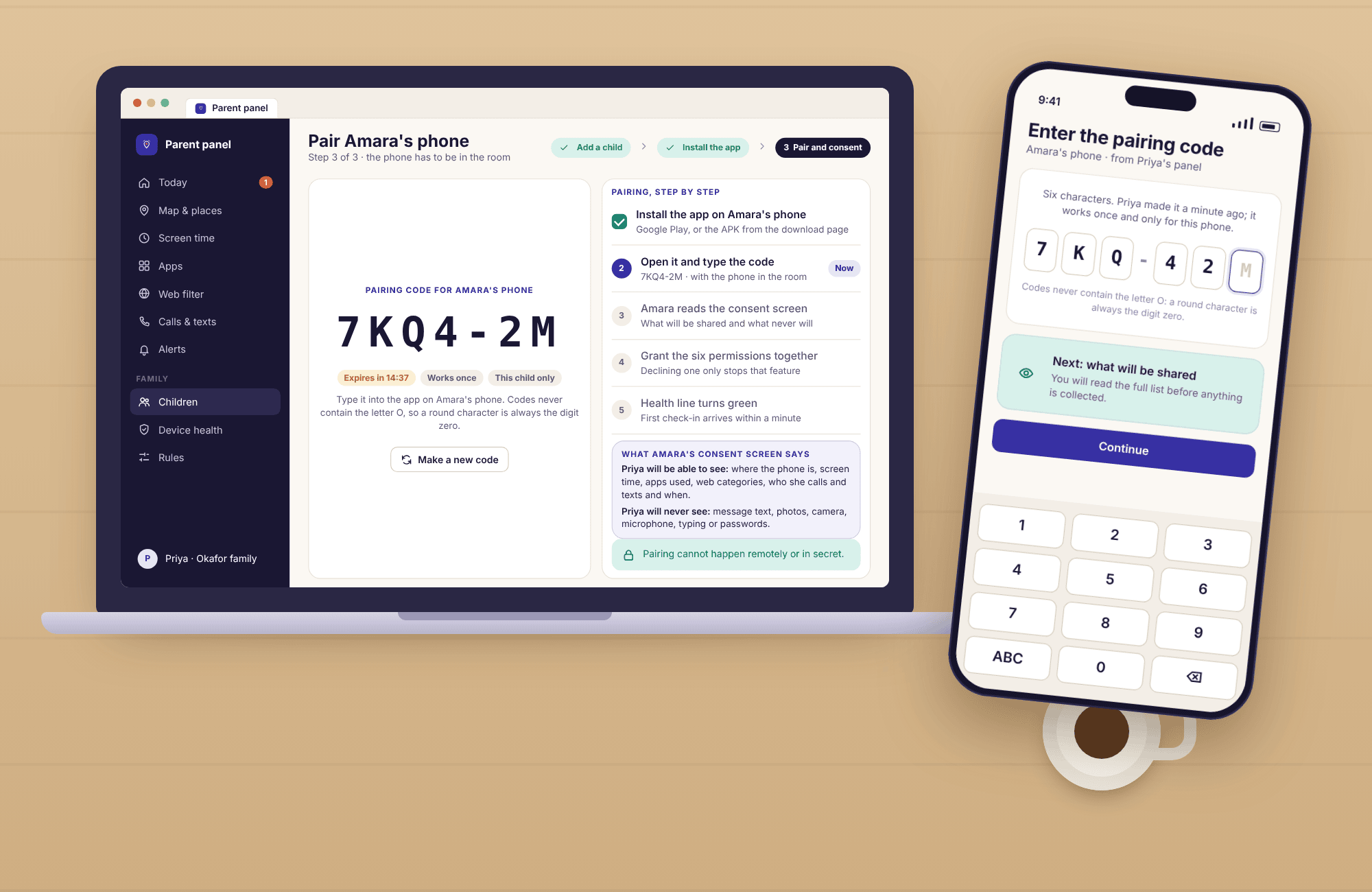
Three things to have ready, and one conversation to have first
Most pairings that go badly go badly in the first two minutes, because something was missing from the table. Here is the short list.
The child's phone, charged and unlocked
It needs Android 8.0 or later, at least 30% battery, and a working internet connection, Wi-Fi or mobile data. You will need the child's screen lock code or the child beside you to type it, several times, because Android asks for it when granting some permissions. An iPhone cannot be paired; the child app does not exist for it.
Your own device with the panel open
A laptop is easiest because the code is large on screen, but a phone browser or the parent app works too. Have your account created and the child added before you pick up their phone, so the only thing left to do together is the pairing itself. Expect about ten minutes for the whole sequence; fifteen the first time.
A child who knows what is about to happen
Tell them before the phone comes out, not during. The consent screen will show them what will be shared and what never will, and it is far better if that confirms what you already said than if it is the first they hear of it. For a nine-year-old like Noah, two sentences do; for a thirteen-year-old, ask what she thinks is fair and listen.
There is no way to pair a phone remotely, by sending a link, or without the person holding it seeing a consent screen. If you are looking for that, this is the wrong product, and anything offering it is stalkerware.
From an empty account to a green health line
Steps one and two happen on your device. Steps three to six happen on the child's phone, with both of you looking at it. Step seven is the panel telling you it worked.
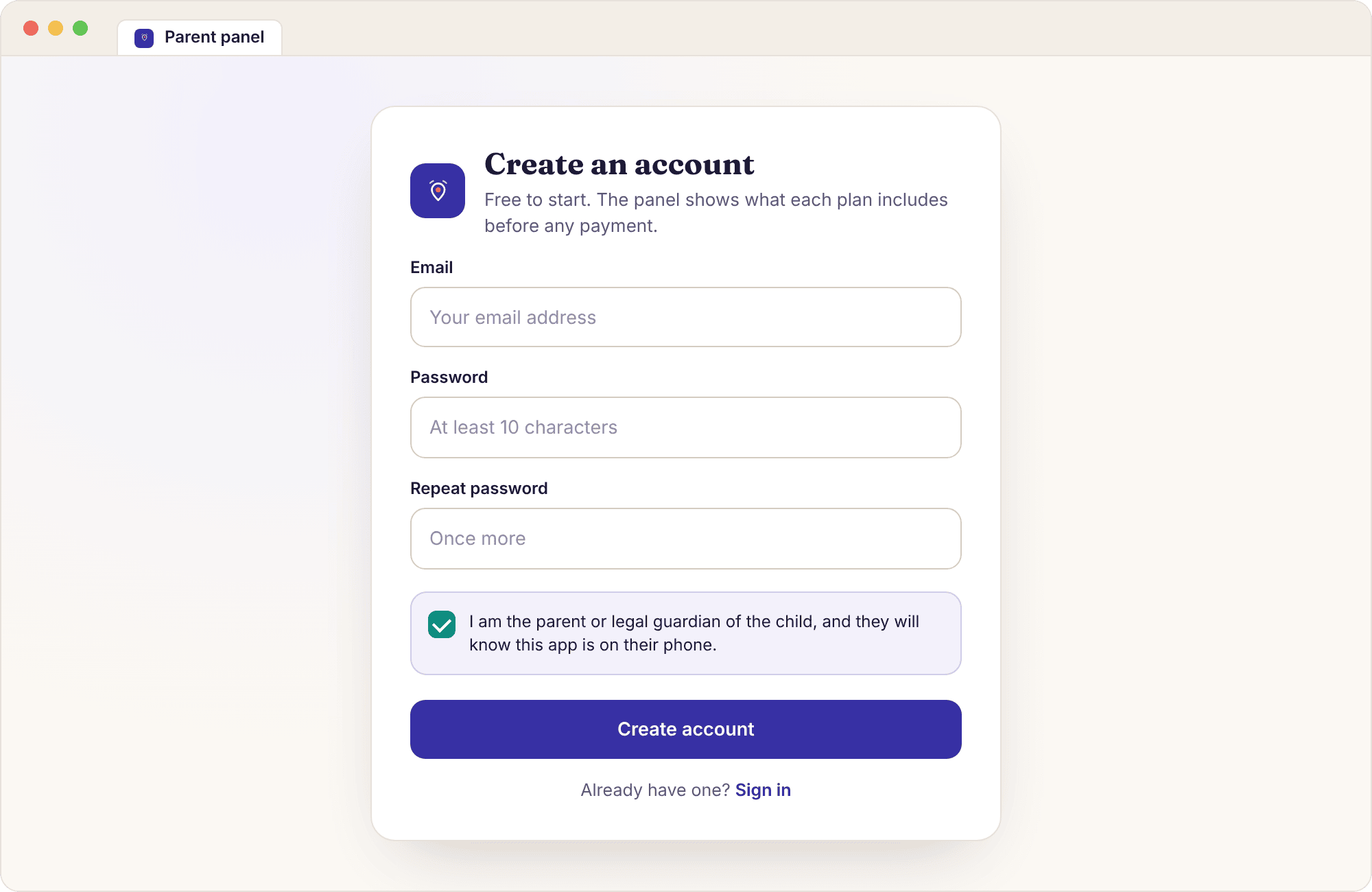
Create your account
Open the parent panel, choose Create an account, and enter an email address and a password twice. The form has one checkbox, confirming that you are the parent or legal guardian of the child and that the child will know the app is installed. Nothing on a phone is touched yet. You will get a confirmation email; the address it arrives at is the one you will sign in with from now on.
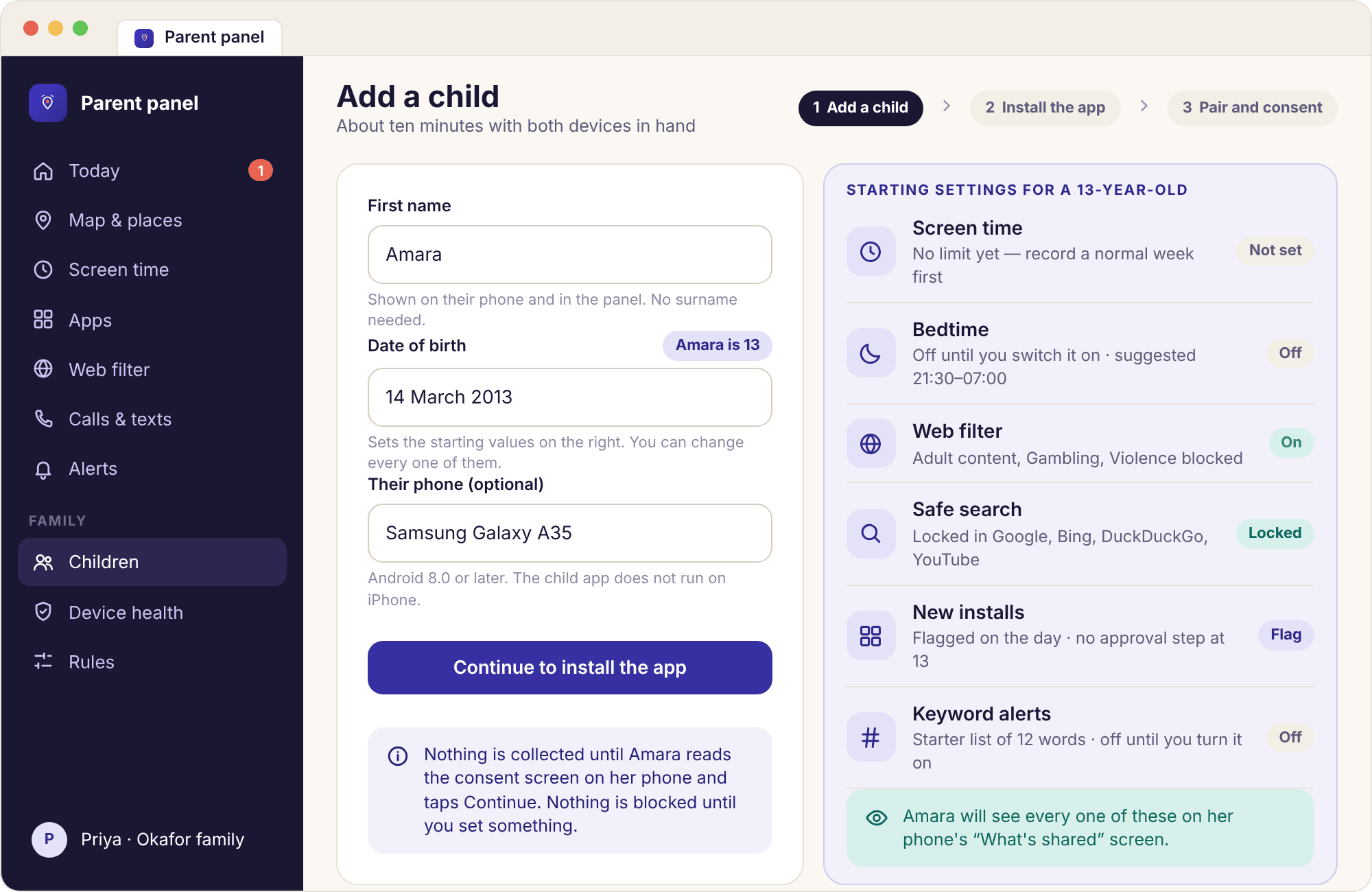
Add a child by first name and date of birth
Click Add a child, type a first name and a date of birth, and the panel shows a preview of the starting settings for a child of that age: which web categories will be blocked, whether a bedtime is suggested. Screen time starts with no limit for every age, so nothing will be paused on day one. Add Amara now and Noah later if you like; each child gets their own pairing code and their own rules, and both live under one account.
Install the child app
There are two ways. Search for MobileTracking on Google Play and install it like any other app, or download the direct APK from the download page if you want call and SMS logs, which the Play build leaves out. The APK route has a few extra Android dialogs, covered step by step in the APK install guide. Either way the app appears in the app drawer under its own name and icon, where it stays.
If you are not sure which build you want, start with Google Play. It updates itself, Play Protect scans it, and it covers everything except the call and SMS logs. Families who later decide they want those can uninstall the Play build and pair the APK build with a new code; the child's rules and history stay with the child in your account, not with the phone.
Create a pairing code for this child
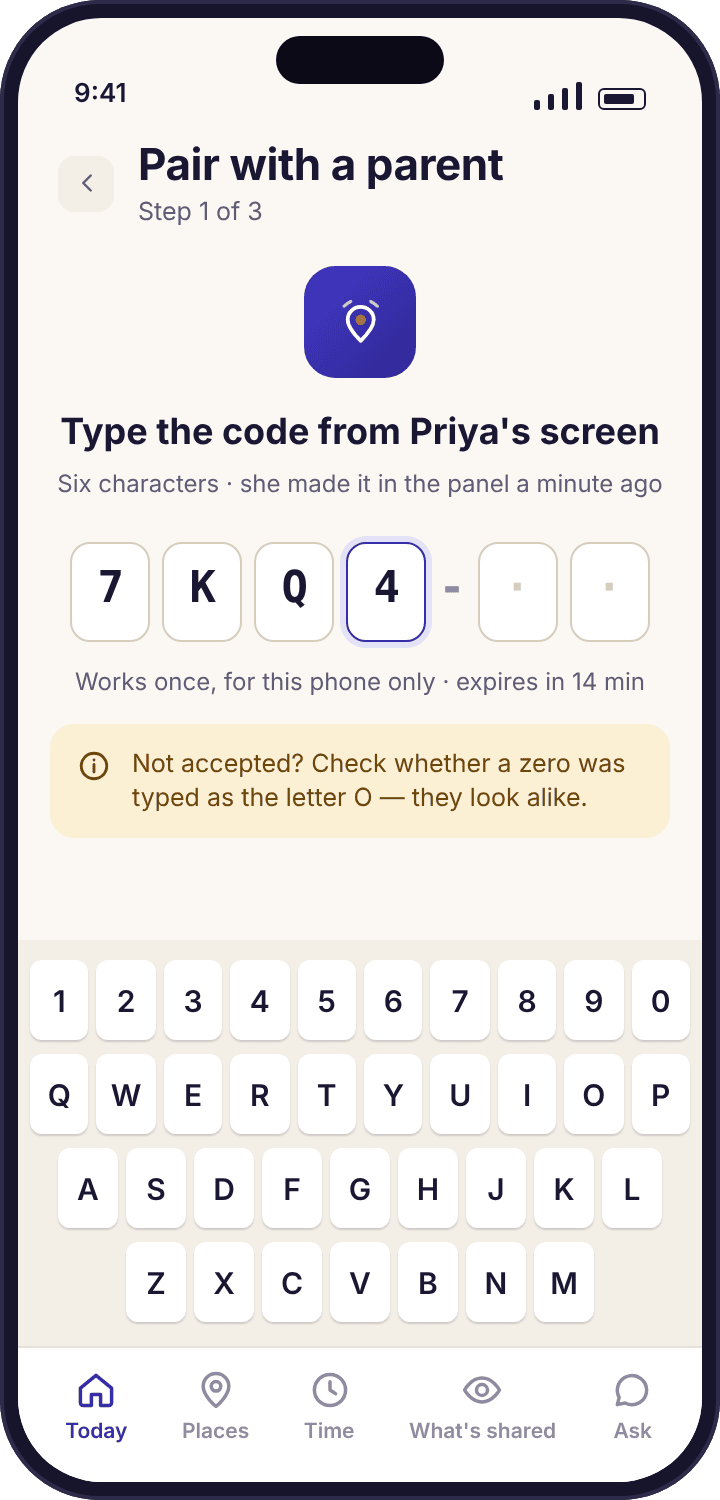
On the child's page in the panel, click Pair a phone. A six-character code appears, shown large, with a countdown. The code works once, for this child only, and expires in about fifteen minutes. If it runs out, make another; the old one dies the moment the new one is created. Read it out or turn the screen round. Codes mix letters and digits, and the single most common support ticket we get is a zero typed as the letter O, so say "zero" out loud.
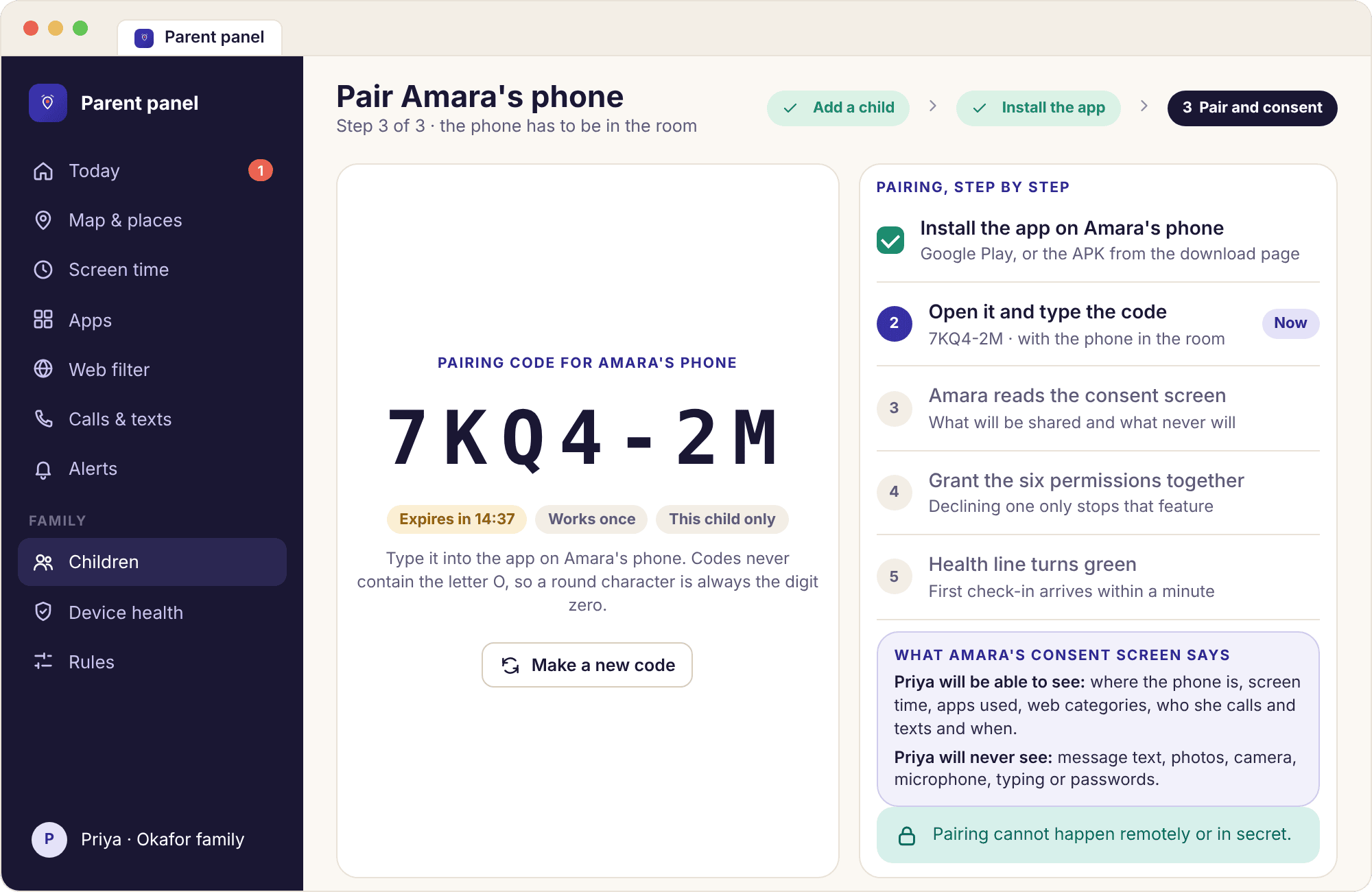
Your child types the code in
Open the app. The first screen is six boxes. Let the child type the code themselves; it is a small thing, but it makes the next screen theirs rather than something done to them. When the last character goes in, the phone checks the code with our server, finds the child it belongs to, and shows "Pairing with Priya's account as Amara". If that name is wrong, you have the wrong child's code, and the back button takes you out without anything being saved.
Read the consent screen, then grant permissions one at a time
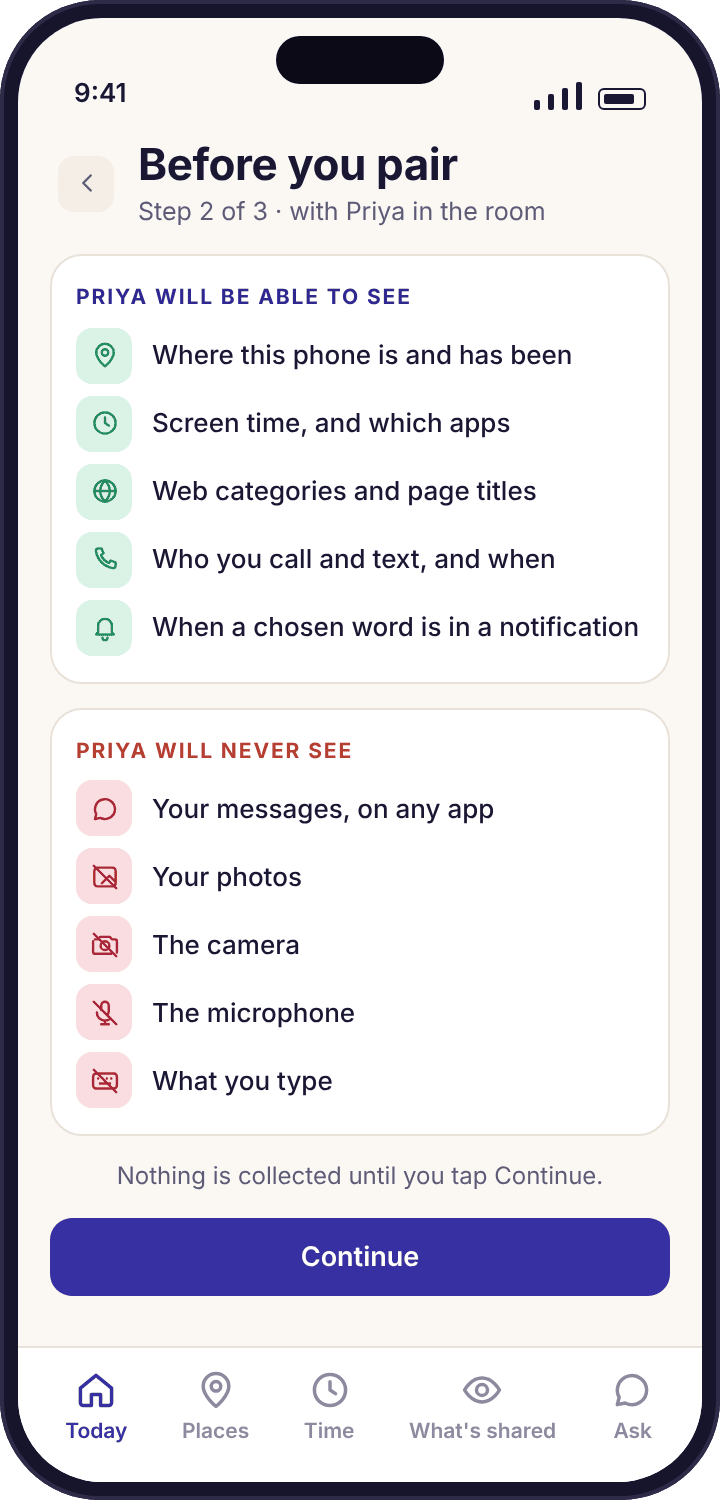
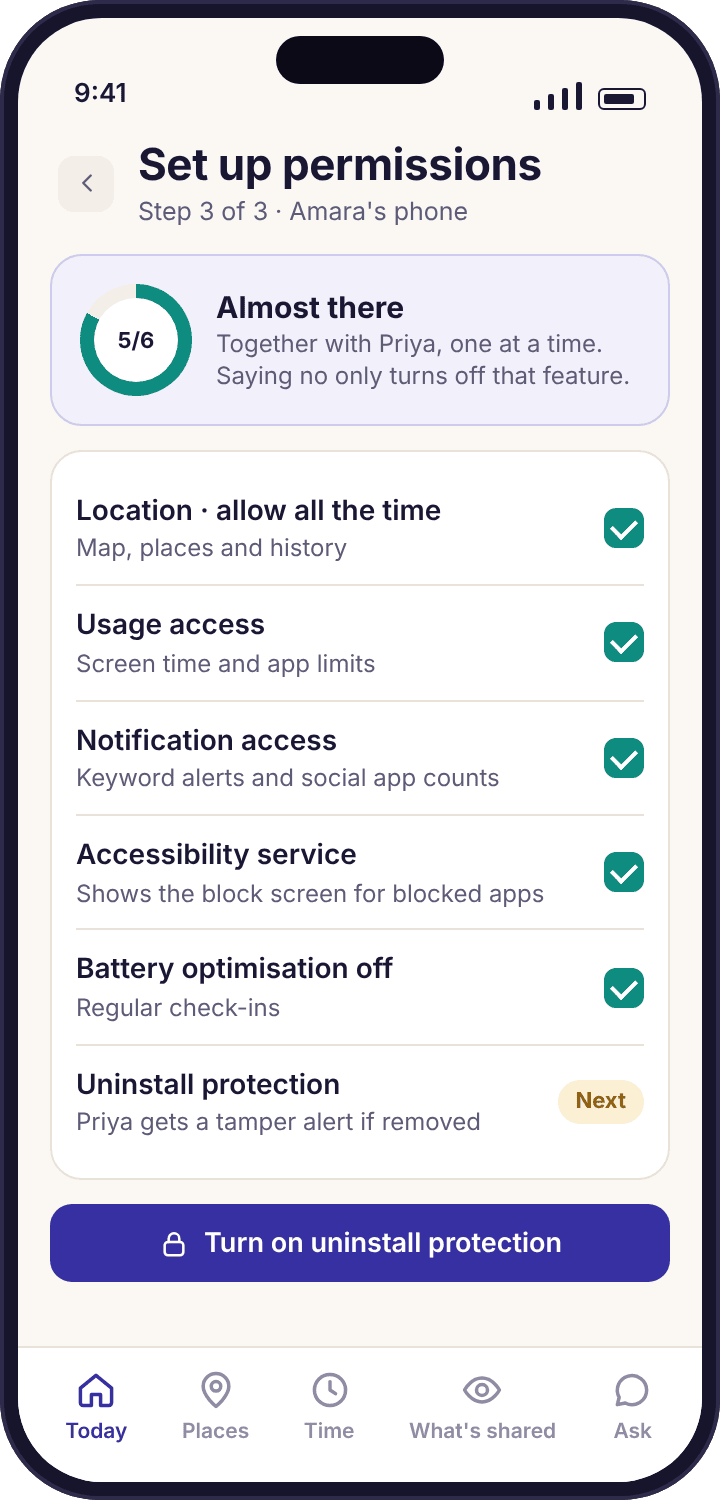
The consent screen lists what Priya will be able to see and what she never will, in two columns, and nothing is collected until the child presses Continue. Then a checklist appears with six permissions, each with a short reason and an Open settings button. Android handles each one on its own screen; the checklist ticks it when you come back. Do them in order, read each reason aloud, and skip any you have decided not to use. Declining one stops only the feature that needs it.
Watch the health line turn green
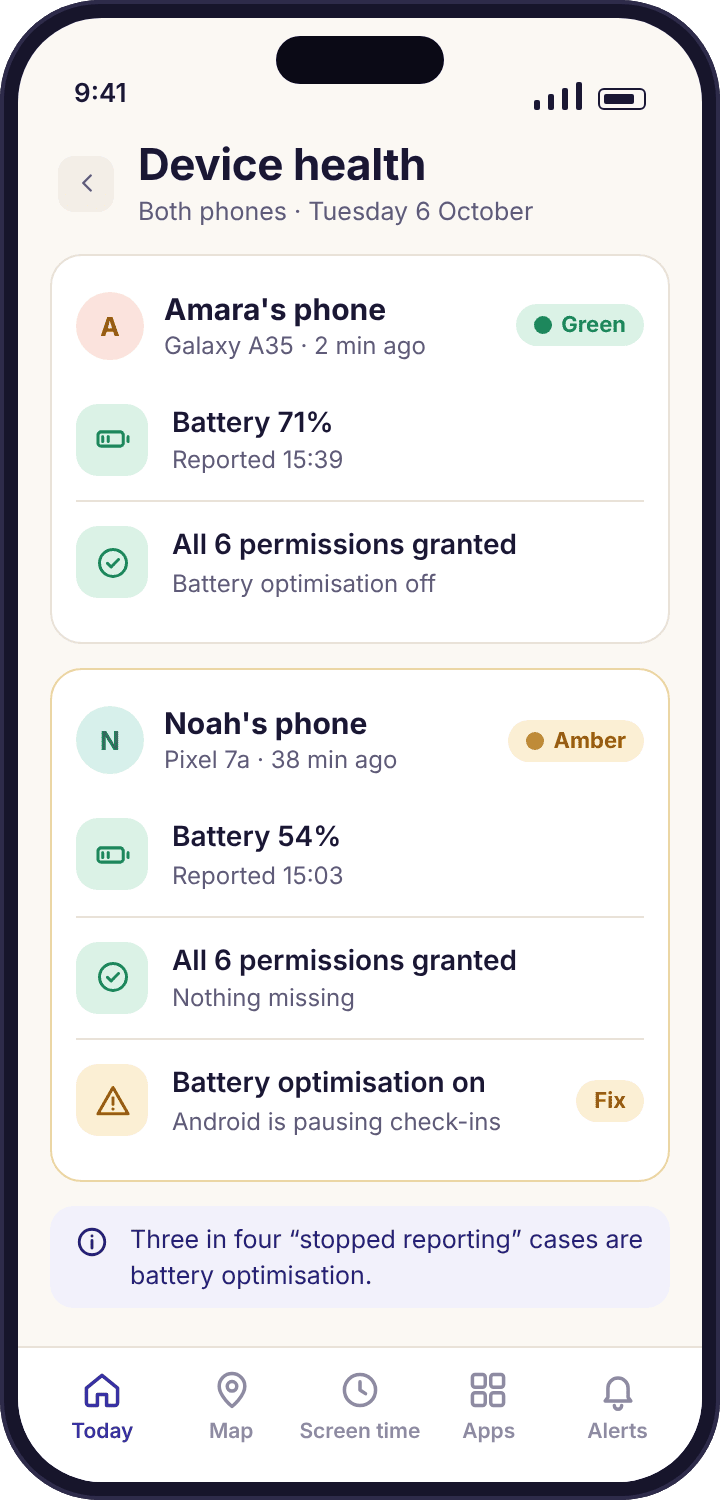
Back in the panel, the child's page now has a Devices block with the phone's name, and within a minute of the last permission the line turns green: checked in, battery level, all permissions present. If it stays amber, the line names the missing thing and the Settings path to fix it. The child's home screen now shows today's budget (none yet), today's places, the "What's shared" screen and a note that a parent viewed the panel today. You are done; put the phone down.
One more thing worth doing before you hand the phone back: open the transparency screen with the child and scroll it together. It shows the same six permissions with the same ticks, and it will update the same afternoon whenever a parent switches something on. A child who has seen that screen once rarely asks what the app is doing, because the answer is always one tap away.
One code, one child, one phone, fifteen minutes
The code is the only link between your account and the phone, and it is designed so that neither side can be joined without the other. Nothing about the phone is known to the panel until the child has typed the code and pressed Continue.
Create a code
Tied to one child in your account. A new code cancels the old one.
Type it in
The app finds the child the code belongs to and shows the consent screen before anything is sent.
Paired
Permissions granted together; the health line goes green; the child's transparency screen lists what is on.
Why it expires
A code that lived for a week could be written down and used later, on a phone you were not holding. Fifteen minutes is long enough to read it across a kitchen and short enough that it cannot be saved for another day.
Why it is typed, not scanned or sent
Typing it means a person with the phone in their hand chose to pair it. A link in a text message could be tapped by mistake, or by someone else. The small cost of six characters buys a clear moment of consent.
Why it is tied to one child
The code carries the child's name, so the phone confirms "pairing as Amara" before continuing. Pairing Noah's Pixel with Amara's code would give him her rules, and the name check is what stops that.
What each permission powers, and what you lose by declining it
Android asks for each of these separately, on its own screen, and the child app explains each one before it sends you there. None of them is required for the others. A family that wants only screen time grants two and skips four.
Location
Map · Places · HistoryMust be set to "Allow all the time". On recent Android versions the first dialog offers only "While using the app"; the checklist then sends you to Settings to upgrade it. "While using the app" looks granted and reports almost nothing once the screen is off. Declining it means no map, no place alerts and no history; everything else works.
Settings → Apps → MobileTracking → Permissions → Location → Allow all the timeUsage access
Screen time · App limits · App activityLets the app see which app is in the foreground and for how long. It is a list of app names and minutes, nothing from inside any app. Without it there is no screen time budget, no per-app limit and no ranking of apps by minutes; the child's budget ring stays empty.
Settings → Apps → Special app access → Usage access → MobileTracking → AllowNotification access
Keyword alerts · Social countsLets the app read notification previews on the phone, where the keyword match happens. Only the matched word, the app and the time leave the phone. Without it, keyword alerts are off and the social media pages show installed apps and minutes but no notification counts. Many families with younger children skip this one and add it later.
Settings → Apps → Special app access → Notification access → MobileTracking → AllowAccessibility service
Block screensUsed for exactly one thing: putting the honest block screen in front of a blocked app or a blocked web category. Without it, apps and sites can still be counted and logged, but nothing can be stopped. Android shows a strongly worded warning for every app that asks for this; the child app's reason screen says what it does and does not do with it.
Settings → Accessibility → Installed apps → MobileTracking → OnBattery optimisation off
Regular check-insNot a permission in the usual sense, but a setting Android uses to put background apps to sleep. With it on, the app checks in late or not at all, the map goes stale and the health line turns amber. Some manufacturers add a second "sleeping apps" list on top. Switching it off costs little battery; the app reports where a phone settles rather than polling.
Settings → Apps → MobileTracking → Battery → UnrestrictedUninstall protection
Tamper alertA device admin setting that makes removing the app take deliberate steps rather than a long press, and sends you a tamper alert if it is removed. It does not hide the app, does not stop removal by a determined teenager and does not reinstall anything. Plenty of families skip it on purpose, treating an uninstall as a message rather than a breach.
Settings → Security → Device admin apps → MobileTracking → ActivateThe Okafors granted all six for Amara, who at thirteen has Snapchat and WhatsApp and agreed to a short keyword list. For Noah, nine, they granted five and skipped notification access, because he has no messaging apps yet and a keyword list for a nine-year-old would match nothing but spelling mistakes. Both choices are visible on each child's transparency screen, and both can be changed on any later day with the phone in hand.
Six things that stop a pairing, in the order we see them
The first two account for most of the tickets. None of them needs a reinstall, and none of them is the app being broken.
"That code isn't right."
A zero was typed as the letter O, or an I as a 1. The code font tries to make them distinct, but a tired child at 20:45 will still mix them.
Fix: Clear the boxes and read the code character by character, saying "zero" and "the letter O" explicitly. If it still fails, create a fresh code in the panel; it takes two seconds and the old one is cancelled.
"This code has expired."
More than about fifteen minutes passed between creating the code and typing it, usually because the install took longer than expected.
Fix: Make a new code. Nothing from the earlier attempt is kept. Next time, install the app first and create the code last, when the phone is already at the six boxes.
The name on the confirmation screen is wrong.
You have two children in the account and made the code from the wrong child's page. Noah's phone is about to be paired as Amara.
Fix: Press Back; nothing has been saved. Go to the right child's page in the panel and create a code there. Each code carries its child's name for exactly this reason.
Everything looks granted, but the health line is amber.
Location was granted as "While using the app". Android shows it as allowed, the checklist cannot tell the difference until the phone is locked, and the panel notices within a minute.
Fix: Open Settings → Apps → MobileTracking → Permissions → Location and choose "Allow all the time". The amber line in the panel shows this exact path and refreshes on its own.
Green at the table, amber by the morning.
Battery optimisation turned itself back on overnight, or the phone's maker put the app on its own sleeping-apps list. Samsung phones do this more than most.
Fix: The device health line names the setting. On the phone, set the app's battery use to Unrestricted and, on a Samsung, remove it from Sleeping apps under Battery → Background usage limits.
"No account found" after typing the code.
The child's phone has no internet connection at that moment, often because it is on a school or café Wi-Fi that needs a sign-in page first.
Fix: Switch the phone to mobile data or a home Wi-Fi, confirm a web page loads, and type the code again. The code is still valid if its fifteen minutes have not passed.
What to do, and not do, in the seven days after pairing
A newly paired phone has no limits on it. That is on purpose. The first week is for watching a normal week and letting the child see what the app shows, not for setting rules on the first evening.
Set nothing, and look at the child's screen with them.
Open the "What's shared" screen on their phone together and read it. It lists every active feature and nothing else, and it will be the same list you see in the panel. Then close the panel and leave it closed; the first readings will arrive on their own.
Check the health line, not the map.
If the line is green, the overnight check-ins worked and battery optimisation is really off. If it is amber, fix it now with the phone in your hand, before the day's readings are lost. Resist opening the map every hour; the point of the week is to see what a normal day looks like.
Save Home, school and one activity, with the child.
Three places are enough. Let Amara name them and choose whether arriving at Oakridge School should alert you or go into the summary. A place she helped set is a place she will not argue about later.
Look at app minutes and alerts, and say what you saw.
The app activity list will show a real ranking by now. Mention it at dinner, plainly: "TikTok was about 50 minutes a day this week". Not as an accusation, as a fact you both now have. The child's phone shows that you looked, so saying so matches what they already know.
Set one limit based on the week, and show them where it is.
Now you have a baseline. Set a school-day budget a little below the week's average, or a bedtime, and open the rule on the child's phone so they see it before it applies. One rule, understood, is worth more than six set on day one and resented by day two.
Pair Noah's phone the same way, on a different evening.
Each child's pairing is its own sitting with its own code and its own consent screen. Pairing two phones in one evening tends to rush the second; give the second child the same ten minutes the first one had.
Questions parents ask about pairing
Can I pair my child's phone without them knowing?
No, and the design makes it impossible rather than merely discouraged. The code has to be typed into the app on the phone, a consent screen has to be read and Continue pressed, and six permissions have to be granted on Android's own screens. Afterwards the app sits in the app drawer under its own name and the transparency screen lists everything that is on. There is no remote install and no hidden version.
How long does a pairing code last?
About fifteen minutes from the moment it is created, and it works once. If it expires, create another from the child's page; the old one is cancelled at the same time. Install the app on the phone before you create the code, so the fifteen minutes are spent typing six characters rather than waiting for a download.
Do I need to be in the same room?
Yes, in practice. You read the code from your screen, the child types it on theirs, and the permission screens need the phone in someone's hand with the child's lock code. A video call can stand in for the room if a child is with the other parent, but the person holding the phone has to do every tap.
What if we decline a permission during setup?
Only the feature that needs it stays off, and everything else works. Skip Location and there is no map but screen time runs; skip Accessibility and apps are counted but not blocked. The checklist in the child app shows the pending item and you can grant it any later day, with the phone in hand, from the same screen.
Can I pair the same phone to two accounts?
No. A phone pairs with one child in one account. If two separated households both want to see the phone, one parent creates the account and invites the other from Family access, and both see the same children and the same log. A second account on the same phone is refused by the app.
Does pairing wipe or change anything on the phone?
No. The app installs like any other, asks for permissions like any other, and leaves every other app, photo and setting alone. Nothing is deleted at pairing and nothing is deleted at unpairing except the app's own data. The only visible change is the new icon in the app drawer and, later, any block screen a rule puts up.
Can my child unpair the phone?
They can uninstall the app, which stops collection immediately and sends you a tamper alert if uninstall protection was granted. The app does not hide, resist removal beyond a few deliberate steps, or reinstall itself. We treat an uninstall as a message from the child, and the right answer to it is a conversation, not a quieter reinstall.
Which phones can be paired?
Any Android phone or tablet on Android 8.0 or later, including the Samsung Galaxy A35 and Pixel 7a in our examples. The child app does not exist for iPhone or iPad and is not planned. The parent side runs in any browser, so your own phone can be an iPhone with no loss.
How do I move to a new phone?
Unpair the old phone from the Devices block on the child's page, install the app on the new one, and create a fresh pairing code. The child's history, places and rules stay with the child, not the phone, so nothing has to be set up again. The old phone stops reporting the moment it is unpaired.
Why does the Google Play version have no call or SMS log?
Google Play policy does not allow call log and SMS access for apps in this category, so the Play build leaves those two features out. The direct APK from our download page includes them. Both builds pair the same way with the same code, and you can switch builds later by uninstalling one and pairing the other.
Where pairing fits with everything else
Pairing is a one-off; what it switches on lives in the pages beside this one: the child app, device health, family dashboard and APK install guide.
The whole set of features switches on once your child's phone is paired with your account, which takes about ten minutes with both devices on the table. The download and setup guide walks through every screen.
Ten minutes, two devices, one kitchen table.
Make the account now, then pair the phone this evening with your child beside you. The health line tells you the moment it worked.
Android · Free account · Visible on your child's phone