Monitor social media use without reading their chats
Social media monitoring in MobileTracking shows you which platforms are installed on your child's phone, how many minutes each one takes, when a new one appears, and how many notifications each app sends and at what hours. It does not show posts, direct messages, followers or anything inside an app, on any plan. Three of the most popular apps are end-to-end encrypted, which means no honest app could show you their chats anyway. This page explains what that leaves, app by app, and why it is enough.
Android · Either build · Visible on their phone · Permissions: Usage access, Notification access

What social media monitoring shows you, and what it never will
The feature collects the shape of social media use and nothing inside it. The right-hand column is not a list of things we have not built yet. It is a list of things the app will not do at any price, and the child's consent screen says so in the same words.
What you see
- Which platforms are installed. WhatsApp, Instagram, Snapchat, Messenger, Viber, TikTok, Discord and any other social app on the phone, by name.
- Minutes per app, per day. Amara's Tuesday: TikTok 48 minutes, WhatsApp 31, Snapchat 22, Instagram 17. The same numbers her phone shows her.
- New installs, on the day. A social app that was not there yesterday is flagged with the day it appeared and the age rating from its store listing.
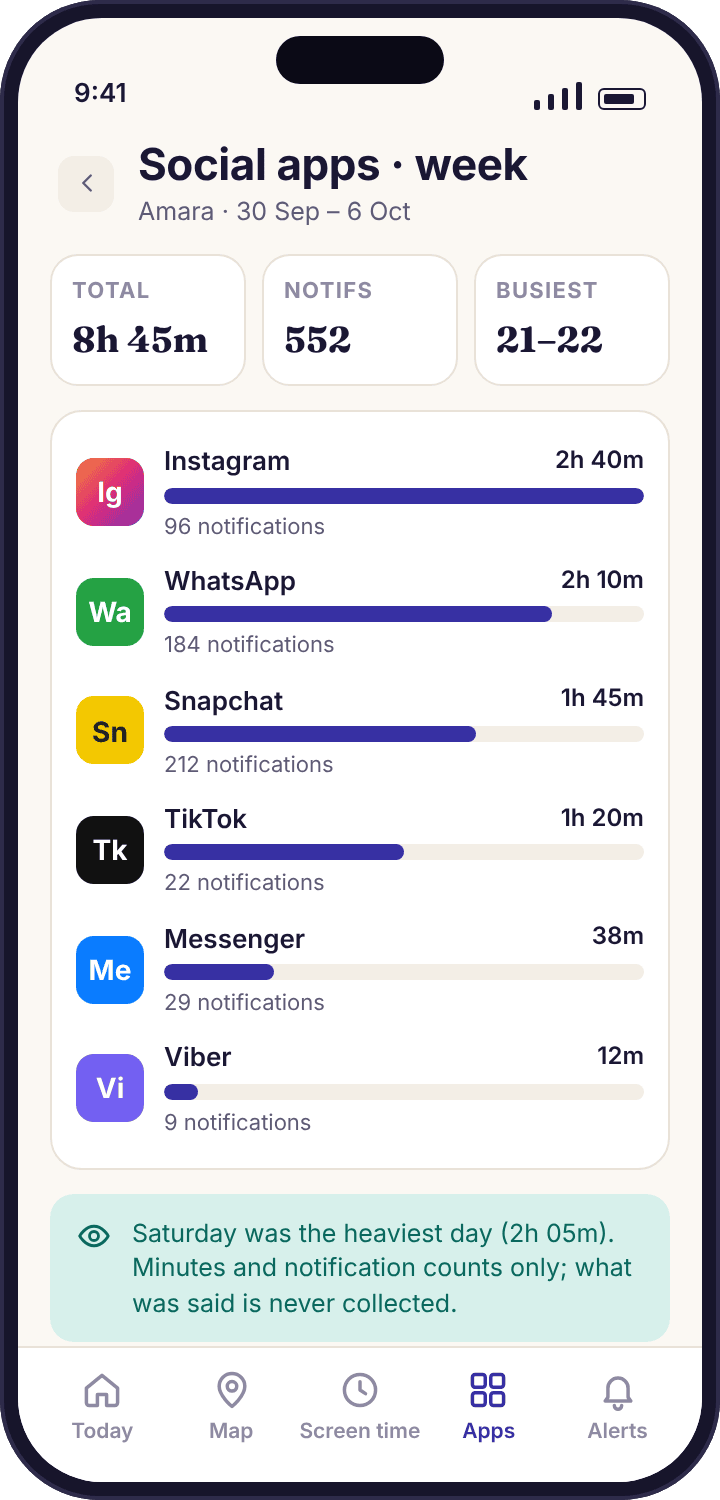
- Notification counts and timing. How many notifications each app posted and at which hours. 184 from WhatsApp in a week, busiest between 21:00 and 22:00, is a pattern you can talk about.
- Keyword matches. If a word from your short list appears in a notification preview: the word, the app and the time, matched on the phone.
What you never see
- Messages. Not a DM, not a group chat, not a snap, not the text behind a keyword match. The app has no screen for it and no setting that unlocks it.
- Posts, stories or comments. Nothing your child publishes and nothing they look at. The app sees minutes on the app, not what filled them.
- Followers, friends or contacts. Who follows them, who they follow, who is in a group. That information lives inside each platform and never leaves it.
- Screenshots or the screen itself. The app does not capture the display, does not log keystrokes and does not read what is typed into any app.
- Account passwords or logins. Nothing is entered into the platforms on your behalf, and nothing is read from their login screens.
Seven platforms: how each is encrypted, what its notification carries, and the control it already has
Each platform has its own privacy settings, its own notification behaviour and, in most cases, its own supervision tools that work better than any third-party tracker. Start with the right-hand column. The tracker is the layer on top, not the first thing to reach for.
| Platform | Encryption | What a notification shows | The app's own control |
|---|---|---|---|
| End-to-end, every chat | Sender name and a text preview, unless "Show preview" is off, in which case only "New message". Group messages show the group and sender. | Privacy settings for who can add them to groups, see their profile photo and last seen; block and report per contact. No parental supervision of its own, which is why the WhatsApp page starts with those settings. | |
| Direct messages not end-to-end encrypted by default | Sender name and DM text, or "sent you a message" with previews off; likes, comments and follow notifications by name. | Teen accounts, private by default, with message restrictions; supervision through Meta's Family Center for time and follower lists, with the teen's agreement. Covered on the Instagram page. | |
| Snapchat | Snaps encrypted; text chats not end-to-end | Usually just the sender and "sent a Chat" or "sent a Snap". Message text appears only if previews are enabled in Snapchat's own notification settings. | "Contact me: Friends", Ghost Mode on the Snap Map, and Family Center, which shows a parent the friends list and who they have messaged recently, never the content. See the Snapchat page. |
| Messenger | End-to-end by default for personal chats | Sender name and a preview; "New message" when previews are off. Group chats show the group name. | Message requests from non-friends held separately; supervision via Meta's Family Center; a separate Messenger Kids app for younger children with a parent-managed contact list. The Facebook and Messenger page walks through them. |
| Viber | End-to-end by default | Sender name and a preview by default, with a "Show message preview" toggle in Viber's notification settings. | Who can add them, who can see them online, blocking unknown numbers, and hidden chats which post no notification at all. The Viber page covers each. |
| TikTok | Not end-to-end | "Sent you a message" with the sender and, often, a preview; plus likes, follows and "someone you may know" prompts that add up quickly. | Family Pairing, which lets a parent set daily time, Restricted Mode and who can message, from the parent's own TikTok account. Direct messages are off for younger accounts. |
| Discord | Not end-to-end for text | Server mentions and DMs with the sender and a preview; a busy server can post dozens an hour until the child mutes it. | Family Center for an overview of recent activity; "Safe Direct Messaging" filters; friend-request limits; per-server notification mute, which is the control that matters most for counts. |
Why the encryption column matters. When a platform is end-to-end encrypted, the message exists in readable form only on the two phones in the conversation. No server in between can read it, and no app on your child's phone can read it without breaking Android's rules. The notification preview is the only glimpse any honest app gets, and that is what MobileTracking is built on. A product that claims to show you WhatsApp, Messenger or Viber chats is either lying or doing something you do not want on a child's phone.
The social overview: installed, minutes, and what is new
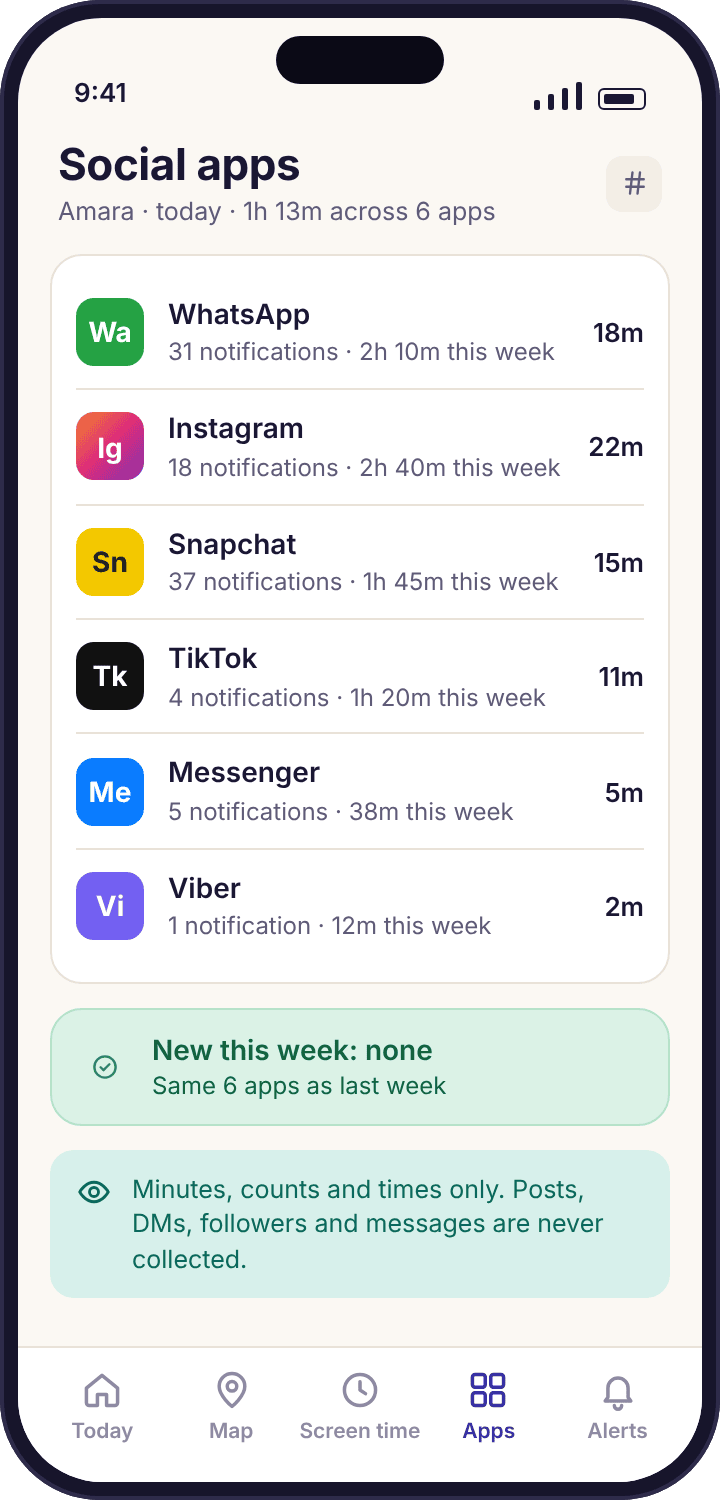
The overview screen lists every social app on the child's phone with today's minutes beside it and a single line at the top: "New this week: none". On most days that line is the whole point. When it reads "New this week: Discord", you know on the day, not three months later when it comes up at a parents' evening. The age rating from the store listing sits next to the name so you can judge the install in one glance.
Minutes are the same figures Android's own digital wellbeing screen shows, read through the Usage access permission. They count time the app was on screen, so a WhatsApp chat left open while Amara does homework counts, and a notification she glanced at and dismissed does not. Treat the numbers as a trend, not a verdict. The useful comparison is this week against last, not Tuesday against some ideal.
- Which apps count as social. Messaging, social networks, short video and community platforms. A game with a chat feature is listed under games, and its notifications still feed the counts.
- Per child. Noah's overview shows two apps: a family WhatsApp group and YouTube Kids. Amara's shows six. The screen does not compare them.
- No ranking inside an app. Minutes on Instagram are minutes on Instagram. Whether they were spent on DMs, reels or a friend's story is not visible and not collected.
Notification counts and timing: the number that explains the evening
Every notification a social app posts is counted, with its time and the app it came from, and nothing else about it is kept. Counts are shown per app per day and as a chart by hour of day. The pattern is the useful part. A phone that receives sixty WhatsApp notifications between 21:00 and 23:00 is a phone that is not resting, whatever the screen-time total says, and the chart shows it without anyone reading a word.
The timing chart also shows you the apps that are loud rather than the ones that are used. Discord servers post constantly; a child who has joined three of them and muted none will see hundreds of notifications a week from an app they open for ten minutes. The fix for that is inside Discord, muting the server, and the chart is what tells you to suggest it.
- Count and time only. The sender, the subject and the text are discarded as soon as the notification is counted. There is no store of previews.
- Keyword matches sit on top. The same permission powers keyword alerts, so a match appears here with the word, the app and the time, and the surrounding count for context.
- Muted chats are invisible. A chat your child has silenced posts nothing, so it is not counted. The counts describe what reached the notification shade, not everything that was sent.
What your child sees on their own phone
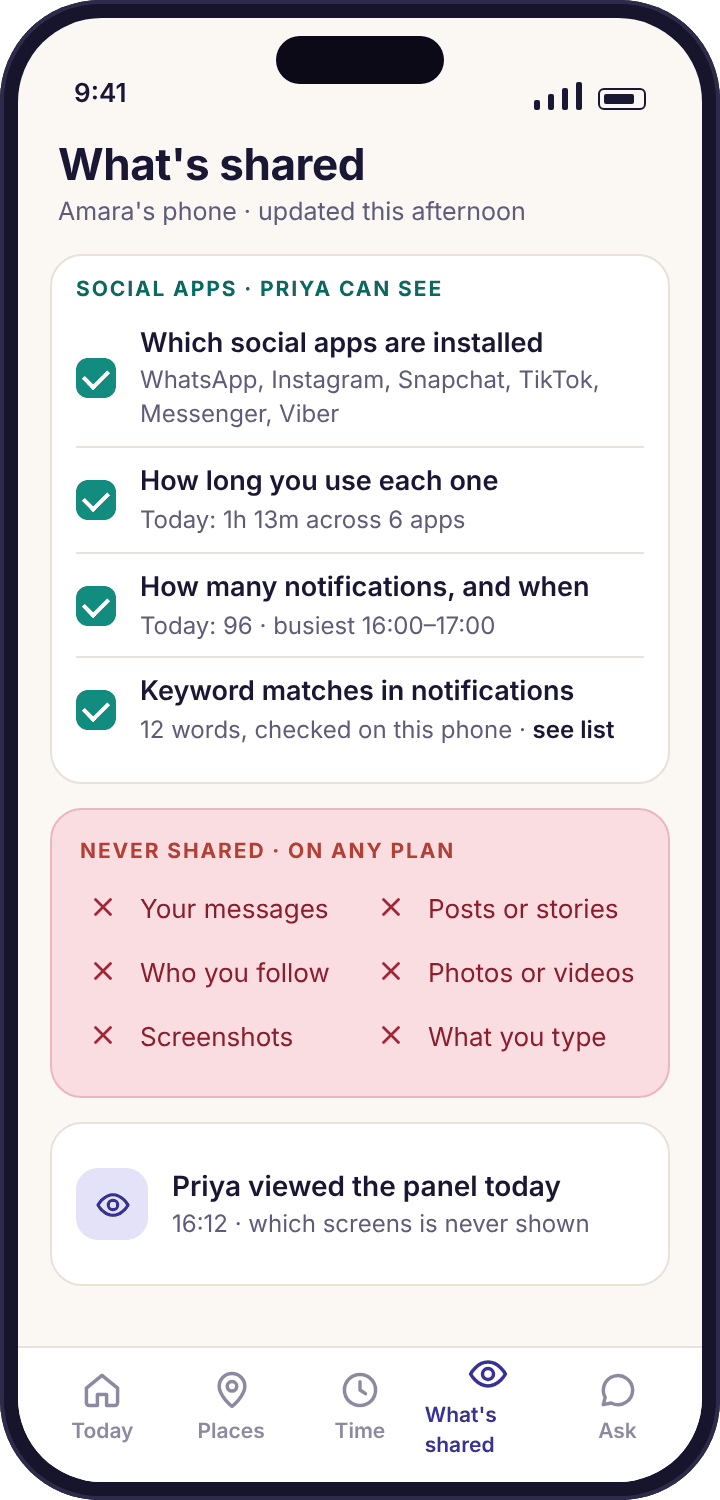
The transparency screen on the child app has a section for social apps. It lists, in plain words, that the apps installed, the minutes per app and the number of notifications are shared, and then, in a separate line marked never, that messages, posts and followers are not. The word list for keyword alerts is shown in full, for that child. If you change any of it, the screen updates the same afternoon.
Below it, the child can see the same weekly chart you see. That is deliberate. A thirteen-year-old who can see that Snapchat posted 140 notifications last week has the information to decide whether that feels right, and most do something about it before a parent raises it. The screen also notes that a parent opened the panel today, so looking is never a secret either.
- Same numbers, both sides. There is no view of social activity that you can see and your child cannot.
- Consent first. The consent screen at pairing names social apps specifically: "Priya will see which apps you use and for how long; she will never see your messages."
- No hidden installs. If the app is removed, collection stops and you get a tamper alert. It does not reinstall itself or hide from the app list.
Seven days of social app use, read from minutes and counts alone
This is a week from the demo family. Nothing in it needed an intervention, which is what most weeks look like, and it still told Priya three things she had not known.
An ordinary school day.
TikTok 44 minutes, WhatsApp 29, Snapchat 20, Instagram 8. Notifications: 61 for the day, most from the year-group WhatsApp chat between 15:40 and 17:00, which is when the homework questions go round. Nothing here is a concern, and the screen does not suggest it is.
A longer evening, and the ten-minute warning.
TikTok reaches 58 minutes and the daily budget runs out at 21:12. The social overview simply records the minutes; the budget lives elsewhere. Notification count 74, with Snapchat quieter than usual. Priya notices nothing on Tuesday because she is not looking, which is the state the feature is designed for.
The one line that changed.
Discord appears on the overview at 16:40 with its age rating beside it. The install alert arrives with Allow, Limit and Block; Priya chooses Limit with school hours blocked and asks about it at dinner. It is the server for a game Tyler plays. By Friday it has posted 212 notifications, which becomes the second conversation.
The timing chart earns its place.
Total minutes are unremarkable at 1h 38m, but the hourly chart shows a block of WhatsApp and Snapchat notifications between 21:00 and 22:30, well past the point where Amara's phone is meant to be winding down. No message was read to learn this. The count by hour was enough to prompt a conversation about muting the group chat overnight.
Friday is always the high.
The week's longest day, and the same shape as last Friday. The screen shows this week against last, and the comparison is what makes 2h 31m readable: it is Friday, not a trend. Instagram reaches 24 minutes for the first time, which is noted and nothing more.
The child fixed it first.
Discord's count drops from 70 a day to 9. Amara muted the busy server after seeing the count on her own transparency screen, before Priya had mentioned it. Minutes on Discord stay at around 15 a day, which tells Priya the app is used, just no longer loud.
What the week said.
Three things Priya did not know on Monday: a new app and what it was for, a late-evening pattern worth muting, and that her daughter sorts out the second problem on her own when she can see the numbers. Nothing was read, nothing was blocked beyond school hours, and the arrangement looks the same to Amara as it did a week ago.
Time and timing are enough, once you know how to read them
Why the tracker does not read messages, even where it could
Three of the seven apps in the table are end-to-end encrypted, so reading their chats is not something any honest app on a child's phone can do. But Instagram DMs and TikTok messages are not encrypted in the same way, and a product could, in principle, capture them from the screen. MobileTracking does not, for a reason that has nothing to do with technology. A child who knows their messages are read writes differently, moves the real conversation somewhere else, and stops telling you things. The information you gain is less than the trust you spend. Counts and timing give you the shape of a problem without taking the conversation away from them, and in our experience the shape is what prompts the talk that solves it.
The second reason is simpler. A message is somebody else's words too. Tyler did not consent to being read by Amara's mother. A notification count involves nobody but your child.
Start with the platform's own settings
Every per-app page on this site opens with the platform's built-in controls, and that order is deliberate. Snapchat's Family Center shows a parent the friends list; no tracker can. Instagram's teen accounts restrict who can message a thirteen-year-old at the source; no tracker can. TikTok's Family Pairing switches direct messages off entirely for a younger account. These controls act inside the platform, where the risk is, and they are free. Set them up with your child first, then use the tracker for the part they leave out: how much, when, and whether a new app has arrived. Spend an evening on the five pages for WhatsApp, Messenger, Snapchat, Viber and Instagram before you change anything in the parent panel.
Built-in controls need the child's agreement too
Snapchat's and Meta's family tools both require the teen to accept the link from their own account. That is the same principle MobileTracking runs on, and it is worth using the same conversation for both: here is what I can see, here is what I cannot, and here is why.
How to read minutes and counts without over-reading them
Minutes tell you how much. Counts by hour tell you when. Neither tells you why, and the mistake parents make in the first fortnight is to treat a number as if it did. Forty-eight minutes on TikTok is a number; whether it was a bad day or a Friday is a comparison, and the overview shows this week against last for exactly that reason. The counts chart is most useful at the edges of the day. A cluster of notifications at 07:10 is the group chat waking up; a cluster at 23:00 is the thing to raise, and the right way to raise it is "your phone was busy at eleven last night" rather than anything about who or what.
Keyword matches sit inside this picture, not above it. A match on a quiet app on a quiet evening is a different thing from one in the middle of 97 notifications. The keyword alerts page explains how to build a list that fires rarely, and the smart alerts feed puts the match next to the count so you see both.
When a new social app appears
The new-install line is the single most useful thing on the overview, because it is the one thing a conversation cannot reliably surface. Children install apps because a friend did, and forget to mention it, and that is not deceit. The alert arrives on the day with the age rating and the permissions the app asked for at install, and three choices: Allow, Limit or Block. The best first response is usually Allow and a question. "What's Discord for?" at dinner gets a better answer than a block screen does, and if the answer is a game server with Tyler, Limit to outside school hours is enough. Block is for the app that is plainly not for a nine-year-old, and when you use it the child's phone says so and says who set the rule.
What social media monitoring cannot tell you
It cannot tell you who your child talks to on any platform. For calls and texts, the calls and SMS monitoring shows numbers and names; for chat apps, the friends list is inside the app and only the platform's own family tools show it. It cannot tell you what a notification said, beyond a keyword match. It cannot see a muted chat, a message read in an open app, or anything on a browser tab, because none of those post notifications. It cannot see use on another device, such as a friend's phone or a school laptop. And it cannot tell you whether your child is happy, which is the thing you actually want to know and the thing only they can tell you. Used as a way of noticing when to ask, it works. Used as a substitute for asking, it does not, and the numbers will not warn you when that has happened.
How much of this suits a nine-year-old, a thirteen-year-old and a sixteen-year-old
Mostly a question of which apps exist at all.
At Noah's age the social apps on the phone should be a short list you chose together: a family group chat and perhaps a kids' video app. The new-install line does most of the work, with approval for new installs switched on.
- Approve new installs before they run
- Notification counts, for the family chat
- No keyword list, or a very short one about strangers and secrets
The years the overview is for.
The social apps arrive together, usually in the first term of secondary school. Set up each platform's own controls first, keep the keyword list to twenty phrases, and read the timing chart more than the minutes.
- Platform family tools linked, with their agreement
- New-install alerts on, Limit as the usual answer
- Timing chart reviewed together on Sundays
Loosen it, and say that you have.
Many families keep the overview and drop the keyword list at this age, on the grounds that the notifications are now a near-adult's business. Tell them what you switched off. The transparency screen will show it anyway.
- Minutes and new installs only
- Keyword list off, or reviewed with them
- Platform controls in their own hands
Questions parents ask before switching on social media monitoring
Can MobileTracking show me my child's WhatsApp or Snapchat messages?
No, and no honest app can show you WhatsApp's. WhatsApp, Messenger and Viber are end-to-end encrypted, so the message exists only on the two phones in the chat. What any app with Notification access can see is the preview in the notification shade, and MobileTracking uses that only to count notifications and to match your short keyword list on the phone.
Which permissions does social media monitoring need?
Two. Usage access gives the minutes per app and the list of installed apps. Notification access gives the counts, the timing and keyword matches. Both are granted on the child's phone during pairing, one toggle each. Decline either and only that part stops; device health names whichever is missing and shows the path to switch it on.
Does it see posts, stories or who my child follows?
No. Nothing inside any platform is visible: not posts, stories, comments, likes, followers or friend lists. Those stay inside the app. If you want to see a friends list, Snapchat's Family Center and Meta's Family Center can show it with the teen's agreement, which is a better route than any tracker because it works at the source.
Will my child know social apps are monitored?
Yes. The consent screen at pairing says what is shared about social apps and what never is, and the transparency screen lists it permanently, with the same weekly chart you see. Their phone also shows that a parent opened the panel today. There is no hidden version of the app and no way to hide this section from them.
How are notification counts different from screen time?
Screen time is minutes with the app open on screen. Notification counts are how many times the app asked for attention, whether or not it was opened. A phone can show thirty minutes on WhatsApp and two hundred WhatsApp notifications, and the second number is what explains why homework took three hours. The hourly chart shows when they arrived.
Can it tell me who sent a notification?
No. The sender, subject and text are discarded as soon as the notification is counted, and nothing of them is stored or sent. A keyword match carries the word, the app and the time, and still no sender. Who your child talks to on a chat app is something to ask them, or to see through the platform's own family tools.
What about a social app I have never heard of?
It is listed by name with its store age rating on the day it appears, whether or not it is in the table above. The counts and minutes work for any app that posts notifications and shows on screen, so an unfamiliar app is covered the same way as Instagram. The per-app pages on this site cover the five most parents ask about.
Does it work if my child uses the browser version of a platform?
Partly. Time in the browser is counted as browser time, not as the platform, and web notifications are counted under the browser too. Web filtering can log the page titles visited, which is often enough to see that Instagram is being used in Chrome. The social overview itself is built around installed apps.
Can I block a social app from here?
Not from the overview itself, but the new-install alert offers Allow, Limit or Block, and the app rules screen can block or schedule any app at any time. When an app is blocked the child's phone shows a plain screen with the rule and who set it, and they can ask for an exception from that screen.
Is social media monitoring the same on the Google Play build and the APK?
Yes. It relies on Usage access and Notification access, which both builds request, so the overview, the counts and keyword alerts are identical. The only difference between builds is call and SMS logging, which Google Play policy keeps out of the Play build and which is unrelated to social apps.
Where this fits with everything else
The overview is the hub; the features that feed it, and the ones that cover what it leaves out, are: keyword alerts, smart alerts, calls and SMS monitoring, SMS tracker and call log.
Social media monitoring switches on once your child's phone is paired with your account, which takes about ten minutes with both devices on the table. The download and setup guide walks through every screen.
Know which apps, how long and when. Leave the chats alone.
Set up each platform's own controls with your child, then pair their phone and let the overview show you the week. Minutes, counts and new installs, with nothing read.
Android · Free account · Visible on your child's phone