Parental controls for more than one child, with rules for each
A thirteen-year-old and a nine-year-old do not need the same bedtime, the same budget or the same blocked apps, and a product that makes you choose one set of rules for the house ends up being wrong for both of them. MobileTracking keeps every child under one account with their own limits, places, rules and alerts, and a switcher that moves you between them in one tap. This page works through the four household shapes that come up most, including the two that are harder than they look.
One account · As many children as live in the house · One subscription covers all of them

The same account, four different families, and what each one sets up.
Rules are attached to a child, not to the house. That one design choice handles most of the situations below without any special mode; the shared tablet is the exception, and we say so.
A thirteen-year-old and a nine-year-old on different rules
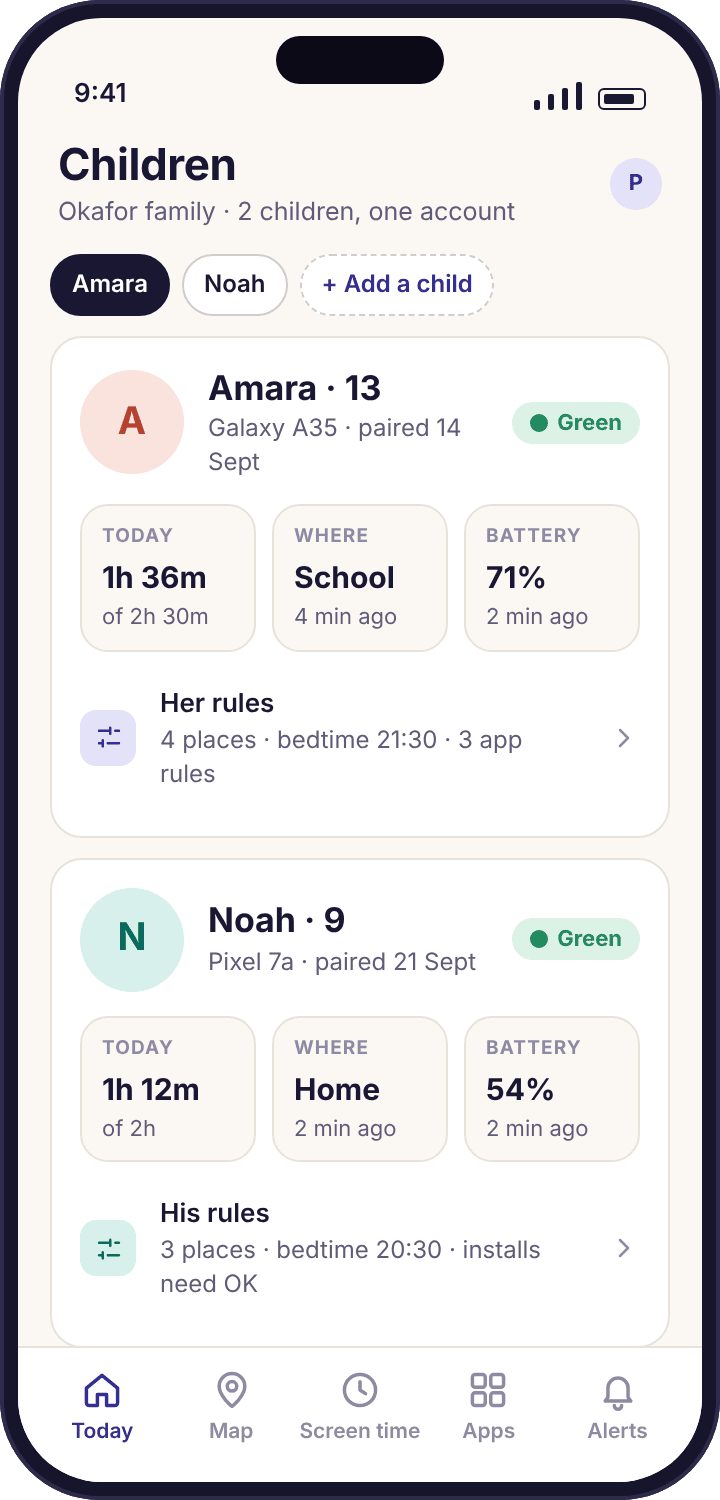
Amara is 13 with a Galaxy A35; Noah is 9 with a Pixel 7a. When Priya added each child in the panel, the date of birth set different starting values before she touched anything: a longer school-day budget and a later bedtime for Amara, a shorter budget, an earlier bedtime and "approve new installs" switched on for Noah. From there every rule diverged on purpose. Amara has a 2h 30m school-day budget, a 30-minute TikTok limit and three web categories blocked. Noah has 1h 30m, Discord blocked during school hours, and every new install waiting for approval.
The places differ too. Both have Home and Oakridge School, but Amara's Swim Club has an arrival alert because she gets there by bus on Wednesdays, and Noah's Grandma Ngozi's has one because he goes straight there on Thursdays. Neither child sees the other's rules: Amara's "What's shared" screen lists Amara's places and limits, Noah's lists Noah's, and nothing on either phone mentions a sibling.
What the app did: Kept two full sets of rules under one account, enforced each on its own phone, and showed Priya both on one Today page with the switcher to go deeper into either.
Twins, same age, who still turn out to need different settings
Twins are the case parents assume will be easy, since the same date of birth produces identical starting values and one evening of setup covers both. The difficulty arrives in week two, when one twin is using Roblox for the entire budget and the other barely opens the phone except to message. Identical rules that felt fair on day one start feeling like one twin being punished for the other's habits.
Because every rule is per child, the answer is to let them drift apart in the open. A per-app limit on Roblox for one twin and none for the other is a conversation, not a configuration problem, and each twin's transparency screen shows only their own rules, so there is no side-by-side comparison on the phones to argue over. The command log records which rule changed for which child and when, which settles the "you changed hers and not mine" argument with a timestamp. A good habit with twins is to review both child pages on the same evening each month, so that the gap between their rules is something you chose rather than something that accumulated.
What the app did: Started both children identically from the same date of birth, then let one rule move for one child without touching the other, with each phone showing only its own list.
A shared tablet that both children use, and the limit that creates
The child app pairs a device to one child. It cannot tell who is holding a tablet, and we would rather say that plainly than pretend a face or a PIN tells it. If Amara and Noah share a tablet in the living room, the honest setup is to pair it under Noah, the younger child, so that its rules are the ones that suit the younger user: his web categories, his approve-new-installs setting, his earlier wind-down. Then tell both children that the tablet is "Noah's" as far as the app is concerned, and that its screen time lands on Noah's ring.
That last part is the real cost. An hour of Amara on the tablet counts against Noah's budget, and his location history gains a stop wherever the tablet is, which is almost always the living room. For some families the fix is a tablet budget generous enough that this never bites; for others it is to give the tablet a separate child entry called by the tablet's name, which keeps its minutes out of both children's rings at the price of a third card on Today. Neither is perfect, and we have not found a way to make a shared device per-child that does not involve the app guessing.
What the app did: Applied one child's rules to the tablet, counted its use against that child, and left the choice of which child, or a separate entry, to the parent, with the limitation stated on this page rather than discovered later.
Loosening the older child's rules without unsettling the younger one
By the spring Amara has kept to her budget for four months, and Priya wants to raise it to three hours on school days, lift the TikTok limit and take the Swim Club arrival alert off, since the bus is routine now. All three changes are made on Amara's child page in about a minute. That afternoon Amara's "What's shared" screen shows the budget line and the alert line with a "new" marker and the TikTok limit gone; Priya had told her at breakfast, so the markers confirm rather than surprise.
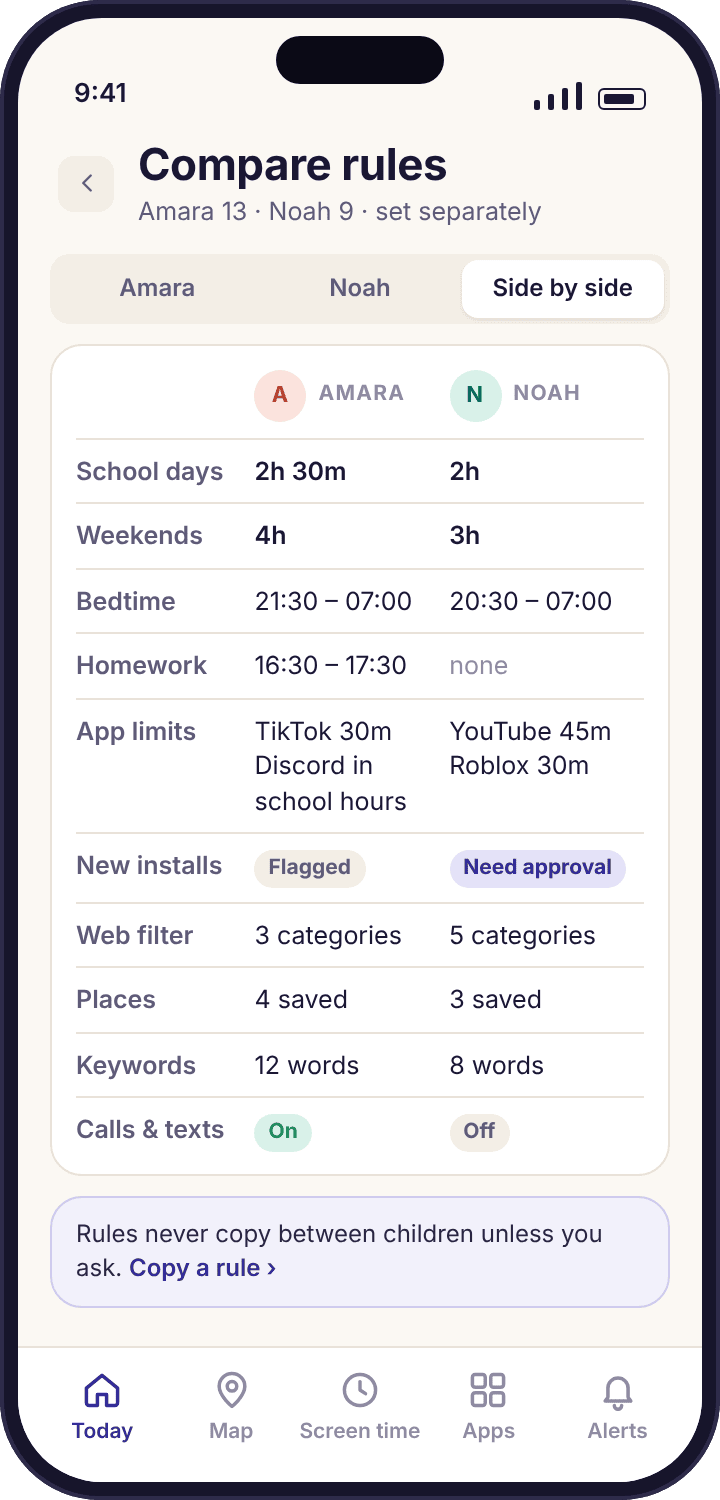
Noah's phone shows nothing. His rules are unchanged, his transparency screen is unchanged, and there is no screen on his phone that could show him what Amara's rules are. The only place the two sets sit side by side is the per-child comparison in the parent app, which is Priya's, and the command log, which records the three changes under Amara's name with the time. When Noah asks, as he will, why Amara gets three hours, the answer is a conversation about age, not a setting the app can hand him.
What the app did: Changed three rules for one child, announced them on that child's phone the same day, and left the other child's phone and rules exactly as they were.
The switcher: one tap between children, and a comparison when you need it
In the parent app a row of chips sits at the top of the screen with each child's name. Tap "Noah" and every screen below switches to Noah: his ring, his places, his rules, his device health. Tap "Amara" and it all switches back. The chip row stays wherever you are, so comparing Amara's web categories with Noah's is two taps rather than a trip back to a menu. In the browser the same switch lives in the left-hand navigation, where each child has their own entry.
For the moments when you want both sets of rules on one screen, the parent app has a per-child comparison: a table with a column per child and a row per rule, so "who has what budget" and "which categories are blocked for whom" are answered without switching at all. It is read-only; changing a rule still happens on that child's page, so that a change is made next to the child it affects.
- Alerts carry the child's name first. "Noah · New app installed" and "Amara arrived at Swim Club" are never ambiguous, and the alerts list filters by child.
- Requests say who is asking. A request for more time arrives as "Noah is asking for 15 more minutes", and approving it adds the minutes to Noah's ring only.
- The order is yours. Drag the chips to put the child you check most often first.
The Children page: one card each, and adding the next one takes a minute
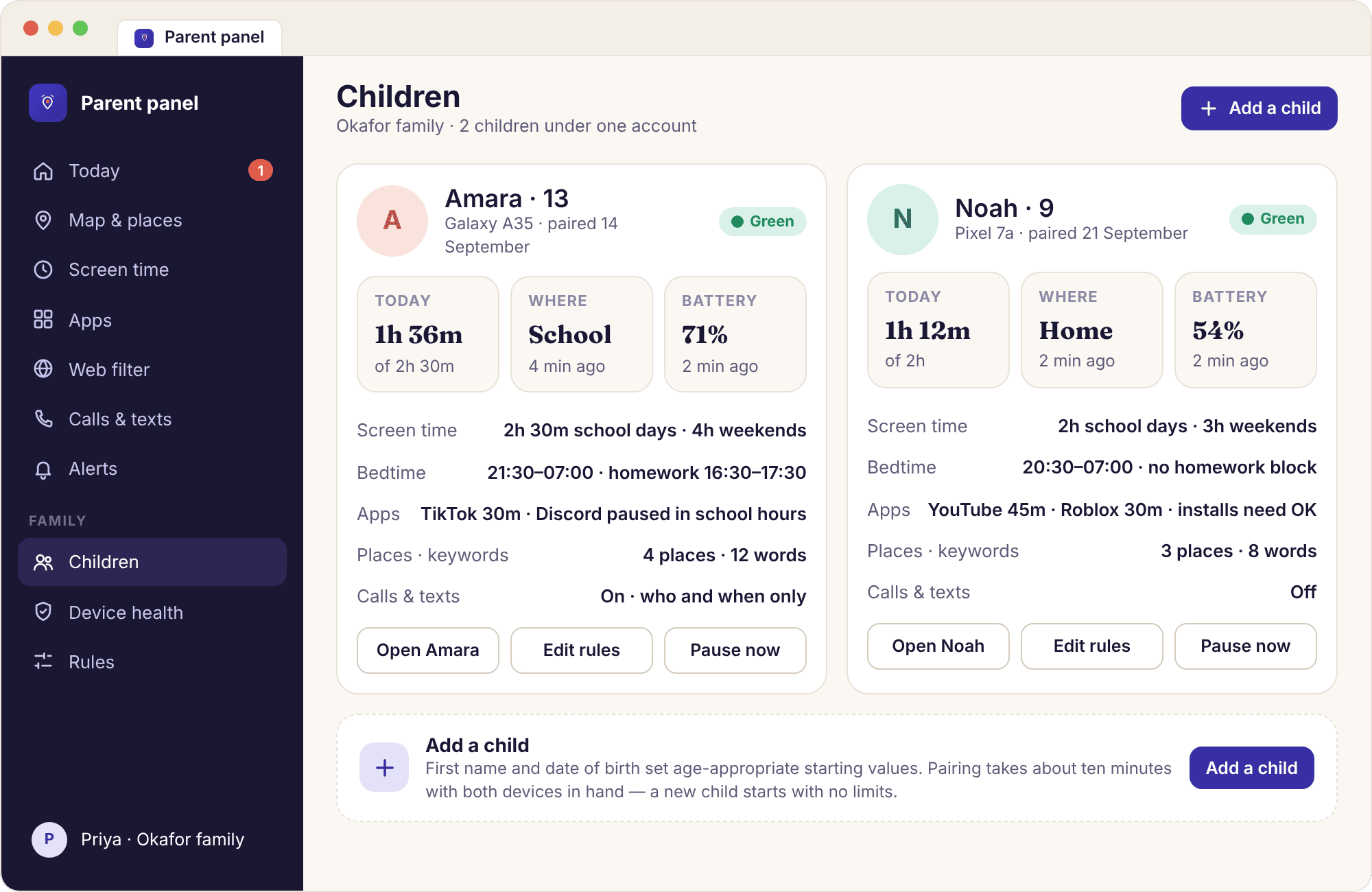
The Children page in the panel shows a card per child with their name, age, phone model and the colour of their device health line, plus an "Add a child" button. Adding a child asks for a first name and a date of birth and nothing else: no email, no photo, no gender. The date of birth is what sets the starting values, and the panel previews them as "starting settings for a 9-year-old" before you confirm, so you can see what a newly added child will begin with. A newly paired phone still starts with no screen time limit until you set one; the preview shows what the suggested values are, not an enforced budget.
Each child then needs their own phone paired with their own six-character code. A code works once and for one child only, so there is no way to pair Noah's Pixel to Amara's entry by mistake if you read the name above the code before typing it. Pairing the second child takes the same ten minutes as the first, including the consent screen on that child's phone; there is no shortcut that pairs a sibling on the strength of the first child's agreement, because the agreement is the sibling's to give. Removing a child from this page deletes their history and rules and unpairs their phone; the child app on that phone says so on its home screen.
- No upper limit for a household. Add as many children as live in the house. The account does not charge or cap per child.
- Each phone pairs to one entry. A child with two Android devices needs the app on each, both paired to the same child, and their minutes add together on one ring.
- Co-parents see every card. Anyone invited through family access sees all the children on the account, with the same switcher.
Which settings are per child, which are per family, and which can be copied.
Almost everything the child's phone enforces is per child. Almost everything about how you are told is per family. Knowing which is which saves setting a rule twice, or once when it needed to be twice.
| Setting | Per child | Per family | Can be copied to another child |
|---|---|---|---|
| Screen time budget (school day / weekend) | Yes | No | Yes |
| Per-app limits and always-allowed apps | Yes | No | Yes |
| Bedtime and routines | Yes | No | Yes |
| Blocked apps and schedules | Yes | No | Yes |
| Approve new installs | Yes | No | Set per child |
| Web categories and allow list | Yes | No | Yes |
| Saved places and their alerts | Yes | No | The place; alerts are then set per child |
| Keyword list | Yes | No | Yes |
| Tasks and rewards | Yes | No | Task ideas; approvals are per child |
| Alert rules (interrupt / summary / off) | No | Yes | — |
| Quiet hours and daily summary time | No | Yes, they are about your evening | — |
| Co-parents and roles | No | Yes | — |
| Subscription | No | Yes, one covers every child | — |
| Location history and its deletion | Yes | No | — |
| Device health and tamper alerts | Yes, per phone | No | — |
Copying a rule to another child does the same thing as setting it by hand on that child's page: it appears on that child's "What's shared" screen the same afternoon with a "new" marker, and it is logged under that child's name. There is no household-wide rule that applies silently to everyone.
Four multi-child mistakes, and how each one is undone.
None of these are faults in a phone. They are the ordinary slips of setting up two children on one evening, and every one of them is reversible from the panel in under a minute, with the command log showing what happened for anyone who asks.
Noah's phone shows Amara's name on the home screen.
The pairing code for Amara's entry was typed into Noah's phone. Each code belongs to one child, and the app pairs to whichever child the code was made for.
Fix: Open the Children page, find the phone under Amara, unpair it, then make a new code with Noah's name above it and type that one. Nothing was collected under the wrong child beyond the pairing itself, and the history for those minutes can be deleted from Amara's page.
A rule you set for one child appeared on both.
The rule was copied, usually by tapping "copy to Noah" on a per-app limit meant for Amara alone. Copying is explicit, but the button sits next to the save button on the limit editor.
Fix: Switch to the child who should not have it and remove the rule from their page. Their transparency screen updates the same day. The command log shows the copy and the removal, so a child who noticed the rule arrive and leave has a plain explanation.
Today shows a third child you did not add.
A co-parent added one, or a shared tablet was given its own entry by whoever set it up, and the card for it now sits on Today with its own ring.
Fix: The Children page shows who added each entry and when. If it is a tablet entry you would rather fold into a child, remove it and pair the tablet again under that child; the tablet's minutes then count on that child's ring from that point on, not retroactively.
Both children's alerts arrive in one undifferentiated stream.
Alert rules are per family, so every child's place arrivals, new installs and screen time events use the same interrupt or summary setting, and with two children the number of lines doubles.
Fix: Move routine types such as arrivals to the daily summary, and keep interrupts for the few types that need one. Then filter the alerts page by child when you read it. The volume halves without any child's rules changing.
What parents of two or more ask before adding the second.
How many children can I add to one account?
As many as live in your house. There is no per-child charge and no cap on the number of cards on Today. Each child needs their own entry, made with a first name and a date of birth, and their own Android phone paired with its own pairing code. A subscription, where one is needed, covers every child under the account.
Will adding a second child change the first child's rules?
No, and the two sets can differ on everything, because the date of birth sets different starting values for different ages. Budgets, bedtimes, blocked apps, web categories, places, keyword lists and tasks are all per child, and changing one child's rule never touches another's. The only settings shared across the family are the ones about how you are notified.
Can my children see each other's rules or locations?
No. The child app on each phone shows only that phone's own rules, places, history and budget. There is no screen on Amara's phone that mentions Noah, and no way for one child to open another's information. Only the parent account and any invited co-parent see the children side by side.
Can I pair a shared tablet so that each child's use counts separately?
No. A device pairs to one child, and the app has no way to tell which child is holding a tablet. Pair it under the younger child so the stricter rules apply, accepting that all its use counts against that child, or give it its own entry named after the tablet. We would rather state the limit than build a feature that guesses.
If one child has two Android devices, how do I set that up?
Install the child app on each device and pair both to the same child, using a fresh pairing code for each. The child's screen time ring then adds the minutes from both devices, the same rules apply on each, and both appear on that child's device health line separately, so a flat tablet does not look like a missing phone.
Does a second child need a second subscription?
No. Where a feature needs a subscription, one subscription covers every child under the account, however many there are. The panel shows what each plan includes before any payment, and cancelling in account settings applies to the whole account, with everything continuing to work until the paid period ends.
Can I copy one child's settings to a new child?
Most rules can be copied: budgets, per-app limits, bedtimes, blocked apps, web categories and the keyword list each have a "copy to" option on their editor. Places can be copied, with the alerts then set per child. Copying is a shortcut for setting the same thing by hand; it still appears on the new child's phone with a "new" marker and in the command log.
What happens to the other children if I remove one?
Nothing. Removing a child deletes that child's rules and history and unpairs their phone, and the other children's entries, rules, places and history are untouched. Their phones show no change, because nothing on a child's phone ever referred to the sibling in the first place.
Do both parents see all the children?
Yes. A co-parent invited through family access sees every child on the account, with the same switcher and the same child pages. Each rule change is logged with the name of whoever made it and the child it was made for, so with two parents and two children there is still one record of who set what for whom.
Where this fits with everything else
Each child's rules show up in the same places whether you have one child or four, so the pages worth reading next are the family dashboard, the child app, setup and pairing guide and device health.
Pairing the second phone is the same ten-minute routine as the first, with the one extra habit of reading the child's name above the code before anyone types it.
A second child switches on once your child's phone is paired with your account, which takes about ten minutes with both devices on the table. The download and setup guide walks through every screen.
Two children, two sets of rules, one page to check.
Add each child by name and date of birth, pair each phone with its own code, and let the rules grow apart as the children do.
Android · Free account · Visible on your child's phone