App activity: which apps, how long, and what's new since Tuesday
A list of the apps on your child's Android phone, ranked by minutes used, for each day of the week. A flag on the day a new app appears, with the store's age rating and the permissions it asked for. Nothing from inside any app: no screenshots, no messages, no idea which video they watched. This page explains what a minute means, why the new-install flag matters more than the ranking, and what the feature cannot tell you.
Android · Visible on their phone · Permission: Usage access

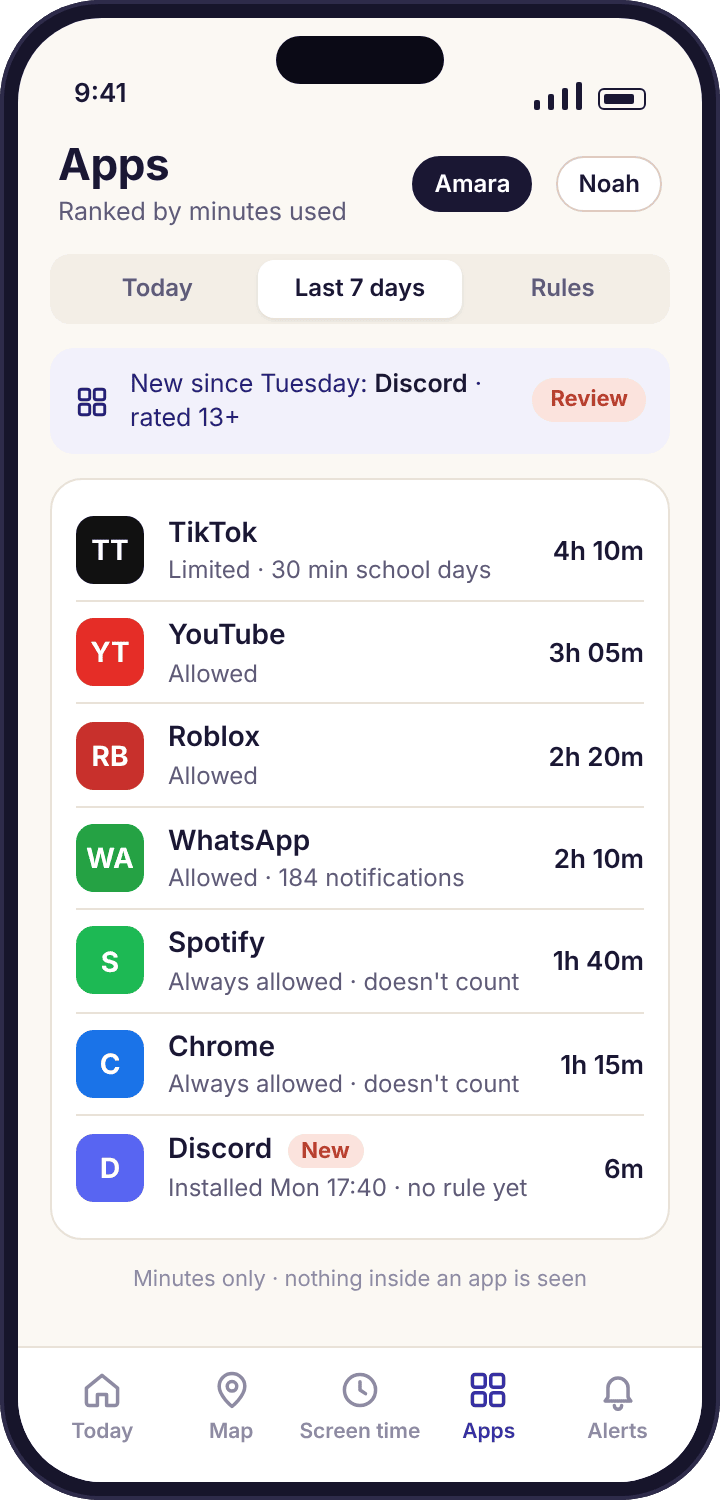
- A minute is a minute on screen. The count is how long an app was open in front of your child. Music with the screen off, or an app sitting in the background, adds nothing.
- The new-install flag is the useful part. The ranking tells you what you probably already knew. The flag on the day an app appears tells you something you didn't.
- It sees the door, never the room. Forty minutes in Discord is all you get. Not which server, not who was there, not a word of what was said.
- Day by day, then the week. Each day has its own list, and the parent panel lays the seven of them side by side so a change stands out.
- Your child sees the same list. The child app shows the same ranking, and that a parent opened the panel today.
Seven days of Amara's apps, and the one day worth asking about.
The quickest way to understand app activity is to watch it across a normal school week. Amara is thirteen and has a Galaxy A35. This week contains one new app, one weekend and one short conversation.
The baseline looks like every other Monday.
TikTok 52 minutes, YouTube 41, WhatsApp 23, Chrome 19, Roblox 14. The rest are under five minutes each: the camera, the calculator, the bus app. Priya opens the list once, at 21:30, sees nothing she didn't expect, and closes it. This is the point of a ranking: most evenings it confirms a picture rather than changing it. The hours are what you would expect of a Monday with homework in them, and nothing in the order has moved since last week.
Discord appears, and the list says so.
A chip at the top of Tuesday's list reads New since Tuesday: Discord. The alert underneath gives three facts: the store lists it for teenagers, it asked for Contacts and Microphone, and it was opened for six minutes after installing. That is everything the app can tell you about a new install. Priya doesn't need to act tonight. The flag will still be there on Sunday, and Discord will still be on the list.
A new app climbs the ranking in a day.
Discord goes from the bottom of the list to fourth. TikTok drops to 31 minutes, which is where the Discord time came from: the total for the day is almost the same as Monday. This is a pattern worth knowing. A new app rarely adds time; it usually takes time from the app above it. Nothing about the 38 minutes says what Amara did in Discord. The list cannot see a server name, a channel or a single message.
A short day, for a reason the map explains.
Amara is at Swim Club from 16:05 to 17:10 and the phone is in a locker. The whole day comes to an hour, most of it WhatsApp on the walk home and YouTube after dinner. A low day is not evidence of anything. The panel does not score days as good or bad, and a parent reading this one should not either. The useful comparison is Thursday against last Thursday, which also had swimming in it and also came in near an hour.
The Friday evening spike that every family has.
No school tomorrow, so the screen time budget is the weekend one. Discord is now second at 54 minutes, with a cluster of sessions between 20:00 and 22:00. The by-hour view shows the shape: short openings every few minutes, which is a chat, not a video. That is as close as app activity gets to telling you what an app is being used for, and it is an inference from timing, not a look inside.
A weekend list is a different list.
Roblox 1h 20m, with Noah on the sofa next to her on his Pixel 7a, which the panel shows under his name with a similar hour. YouTube 48 minutes, Discord 40, TikTok 35. The panel's week view now shows Discord on five of six days, a line that didn't exist on Monday. Priya reads the week, not the day. One large Saturday is a Saturday; a new app in the top four every day since Tuesday is a change.
What the week was for.
Over lunch: "I saw you've got Discord. Who's on there?" It is for a Minecraft group Tyler set up, mostly people from Oakridge. Amara shows the server. Priya asks for one thing, that direct messages from people she doesn't know go unanswered, and leaves the app as it is. The alert is marked as seen. If she'd wanted to, the Allow, Limit and Block buttons were on the same screen, and a block would have shown Amara a screen saying who set it and why.
Minutes per app, for each day, in order
Android keeps a record of which app was in the foreground and for how long. MobileTracking reads that record through the Usage access permission and turns it into a ranked list per day. Nothing is added to the phone to do this and no app is watched more closely than any other; the same counter that produces your own phone's "digital wellbeing" numbers produces these. The list refreshes with each check-in, which is usually every few minutes while the phone is awake.
What counts as a minute is worth being precise about. An app counts while it is open on the screen. A podcast playing with the screen off does not count. A game minimised while Amara answers a message does not count for those seconds, and the message app does. Split screen counts for both. The total at the top of each day is therefore screen-on time divided among apps, which is why it tends to match the number on the screen time limits page almost exactly.
- Ranked by minutes, not alphabetically. The app at the top is the one that took the most of the day, which is the question you were going to ask.
- Each day stands alone. Tap any day of the week to see its own list. The week view in the panel places all seven side by side.
- System apps are folded away. The launcher, the keyboard and the settings app sit under "System" so the list is about choices, not plumbing.
- The child sees the same numbers. Amara's phone shows her own ranking on its home screen. There is no version of the list that only you can see.
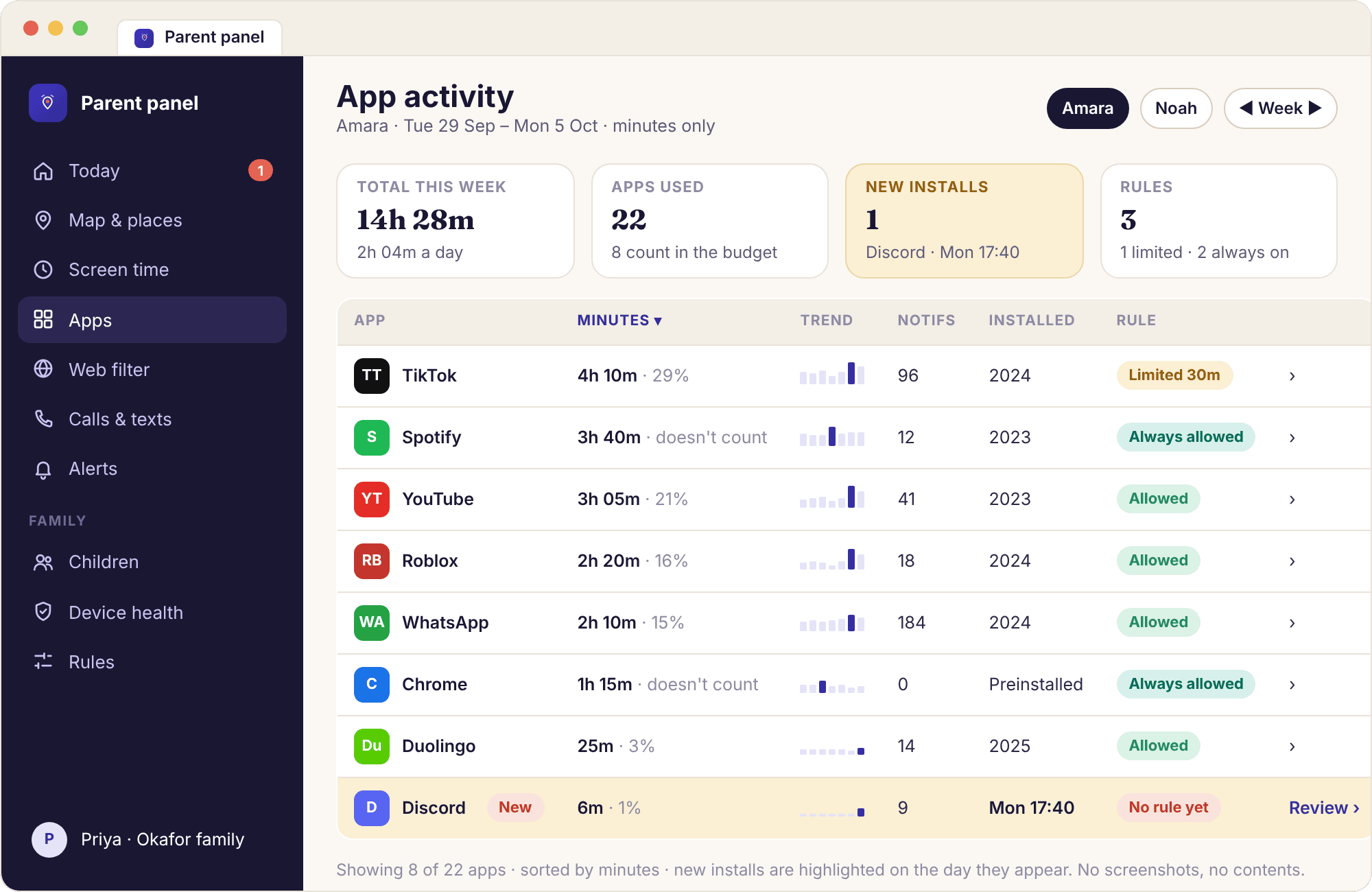
A flag on the day an app appears
The ranking tells you about apps you already know are there. The flag tells you about the one you don't. On the day an app is installed, a chip appears at the top of that day's list and an alert goes to your phone with three things attached: the name, the age rating the store gives it, and the permissions it asked for on first launch. That last item is often the most telling. A drawing app that wants Contacts and Microphone is a drawing app worth a question.
The alert has three buttons: Allow, Limit and Block. Allow clears the flag and leaves the app alone. Limit opens the per-app limit editor on the screen time page. Block hands the app to the app rules, where it can be paused always or on a schedule. None of the three is required. An alert you never answer stays in the list as a flag, and nothing is blocked by the flag itself.
- Flagged on the day, not the week after. The next check-in after the install carries the news, which is usually within minutes.
- Uninstalls are listed too. An app that disappears is noted on the day it went, with its last total, which is sometimes the more interesting event.
- Sideloaded apps are flagged the same way. If the app did not come from the store, the alert says so and the rating field is empty.
- Younger children can need approval first. For Noah, Priya has approval for new installs switched on, which is described on the app blocking page rather than here.
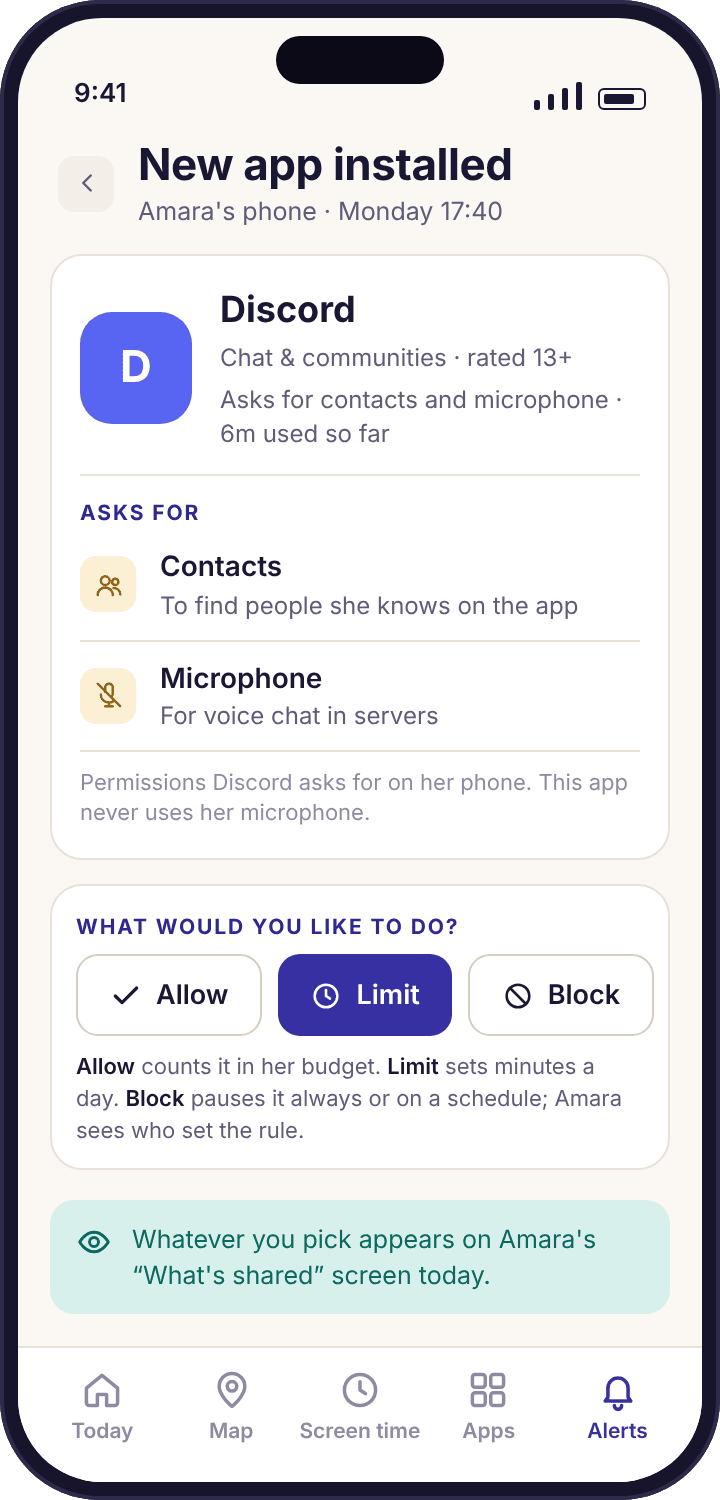
The app counts the time at the door. It never goes in.
This is the line every feature on this site keeps, and app activity is where parents most often expect it to bend. It doesn't. Here is the exact edge of what the list contains.
What you see
- App names and their icons, as the phone shows them.
- Minutes on screen per app, per day, and the total.
- The order from most used to least.
- Times of day an app was open, shown as a bar by hour.
- Installs and uninstalls with the date.
- The store's age rating and the permissions an app asked for.
- How many notifications an app sent, if Notification access is on.
What you never see
- Screenshots of any screen. The app cannot take one and does not ask to.
- What was watched in YouTube or TikTok, or which game was played in Roblox.
- Who they talked to in Discord, WhatsApp or anywhere else.
- Typed text, in any app, including searches.
- Account names, usernames or who they follow.
- Purchases made inside an app, or the balance of any account.
- Anything at all from an app that was not open on the screen.
Web browsing is the one place where more than a name is shown: the titles of pages visited in the browser, with their category, on the web filtering page. That log is separate, and it still never contains passwords, form entries or anything from a logged-in account.
How to use an app list without turning every evening into an audit.
Read weeks, not days
A single day's list is noisy. A wet Sunday, a sleepover, a long bus journey or a flat battery can double or halve it without meaning anything. The week view in the parent panel exists so you can see seven days in a row and ask the only questions that matter: has the order changed, and has anything new entered the top five? For Amara, the answer on most weeks is no and no. When it is yes, it is nearly always because of a new app, and the flag will already have told you.
We suggest looking at the list twice a week at most, and never while your child is watching you do it. The child app shows that a parent opened the panel today, so Amara will know anyway; the point is that the look should be short, and the conversation that follows should be about the one thing that changed, not the whole list.
What a minute cannot tell you
Fifty minutes in YouTube could be a chemistry revision channel or fifty minutes of anything else. Forty minutes in WhatsApp is one long group chat or twenty short exchanges with a grandparent. The list does not know, and a parent who treats the number as a verdict will be wrong about half the time. This is a limit of the design, not a gap in it. The moment a tool starts telling you which video was watched, it has gone inside the app, and there is no version of that which stops short of reading messages.
What the minutes are good for is shape. A new app that takes time from an old one. A total that drifts up by twenty minutes a week for a month. A game that is suddenly open at 06:30 on school days. Each of those is a reason to ask one question, and the question is better than any answer the app could have collected on its own.
Minutes come from the same clock as the budget
The screen time page and this page are two views of one count. If the budget says 1h 36m and the app list adds up to 1h 36m, that is because it is the same number. Chrome marked "doesn't count" on the budget still appears here with its minutes, so the two can differ by exactly the apps you have excluded.
What to do with a flag
Nothing, usually. Most new apps are harmless and most flags should be read and cleared. The ones worth a pause fall into three groups: an app the store rates above your child's age; an app that asked for permissions it has no obvious need for; and a messaging or social app you have not talked about. Discord ticked the third box for Priya and she asked about it on Sunday rather than Tuesday, which is about the right pace.
Blocking from the alert is one tap, and it is worth resisting on the first day. A block set before the conversation tells your child the list is a trap; a block set after it, if one is needed, is a rule they already understand. The bedtime schedule and the per-app limits are usually the better first tools for a new app, because they shape the time rather than remove it.
What your child sees
The same list. The child app's home screen has an "Apps today" card with Amara's own ranking and total, and the "What's shared" screen says in plain words that the names of apps and how long each was used are visible to her parents. It also says what is not: nothing inside any app, no screenshots, no messages. She can also see that a parent opened the panel today, though not which screen.
This changes how the list is used. Amara can check her own Discord minutes before anyone asks about them, and a surprising number of children do exactly that. A list a child can see is a list they can argue with, and an argument about forty minutes is a far better outcome than a child who has found out the list exists some other way.
The permission, and what happens if it goes
App activity needs one permission: Usage access, granted during pairing from Settings → Apps → Special app access → Usage access. If it is switched off later, the list stops updating from that moment and the device health line for that phone turns amber with the permission named. Nothing else breaks. The map still works, places still alert, and the web filter still runs; only this page and the screen time page go quiet.
A phone that reports nothing for a whole day is more often a flat battery or battery optimisation than a removed permission, and the health line tells those apart. A child who removes Usage access on purpose is telling you something about the arrangement, and the right response is a conversation, not a tighter setting.
Questions parents ask about the app list.
Can I see what my child watched on YouTube or TikTok?
No. App activity records that YouTube was open for 41 minutes, and when. It does not see which videos, which channel, what was searched for or what was commented. The same is true of every app on the list. The feature counts time at the door and never goes inside, on any plan.
Does app activity take screenshots of my child's phone?
No, and it never will. The child app does not have the ability to capture the screen and does not ask Android for it. What you get is the app's name, the minutes it was on screen, the times of day, and the date it was installed. A screenshot would be the contents of an app, and contents are the line the product does not cross.
Why is the total different from the screen time page?
Usually because of apps marked "doesn't count" on the budget. Chrome, for example, can be excluded from the screen time limit for homework but still appears in the app list with its minutes. Take those apps away and the two totals match, because they are drawn from the same Android usage record.
Does music playing with the screen off count?
No. Minutes are counted only while an app is open in the foreground, so Spotify playing through headphones with the phone in a pocket adds nothing. The same applies to downloads and background updates. If Spotify is high on the list, it is because the screen was on with the app showing, which is usually browsing playlists rather than listening.
Will I be told the moment a new app is installed?
Within a few minutes, on the next check-in. The alert gives the app's name, the age rating the store shows for it and the permissions it asked for when first opened, with Allow, Limit and Block buttons. You can leave the alert unanswered; the flag stays on that day's list until you clear it and nothing is blocked by the flag itself.
Can my child see their own app list?
Yes. The child app shows the same ranking and total on an "Apps today" card, and the "What's shared" screen explains that app names and minutes are visible to parents, and that nothing inside any app is. There is no second version of the list that only a parent can see. Amara can also see that a parent opened the panel today.
Does it show apps on a tablet as well as a phone?
Yes, on any Android 8.0 or later device paired to the child. A shared family tablet paired to Noah will show its apps under Noah, which is worth remembering if an older sibling also uses it. Each device has its own line on the device health page and its own list here.
What if an app is installed from outside Google Play?
It is flagged the same way, with a note that it did not come from the store and an empty rating field, since there is no listing to read one from. Sideloaded apps are worth a closer look than store apps, and the app blocking page explains how to require approval for new installs on a younger child's phone.
Is there a limit on how far back the list goes?
App activity is kept for a rolling window of recent weeks, the same as location history, then deleted. The panel's week view covers any week in that window. You can delete a child's history yourself at any time from their page, and removing a child from the account removes all of it.
Where this fits with everything else
The app list is the record; the rules that act on it live on neighbouring pages: screen time limits, app blocking, web filtering and bedtime schedule.
App activity switches on once your child's phone is paired with your account, which takes about ten minutes with both devices on the table. The download and setup guide walks through every screen.
See the week before you set a single rule.
Pair the phone, let seven days fill in, and read the list with your child beside you. The first flag will tell you more than the first limit ever could.
Android · Free account · Visible on your child's phone