The parent panel: sign in, create an account, or try the demo
The panel is the website side of MobileTracking. It is where a parent reads the Today view, adjusts a limit, checks a phone's health line and invites a co-parent. It runs in any browser, including the one on an iPhone, and the same account signs in to the parent app. This page gets you through the door, then walks every screen behind it, including what each one cannot show you.
Works in any browser · Same account in the parent app · Your child's phone shows when you have looked

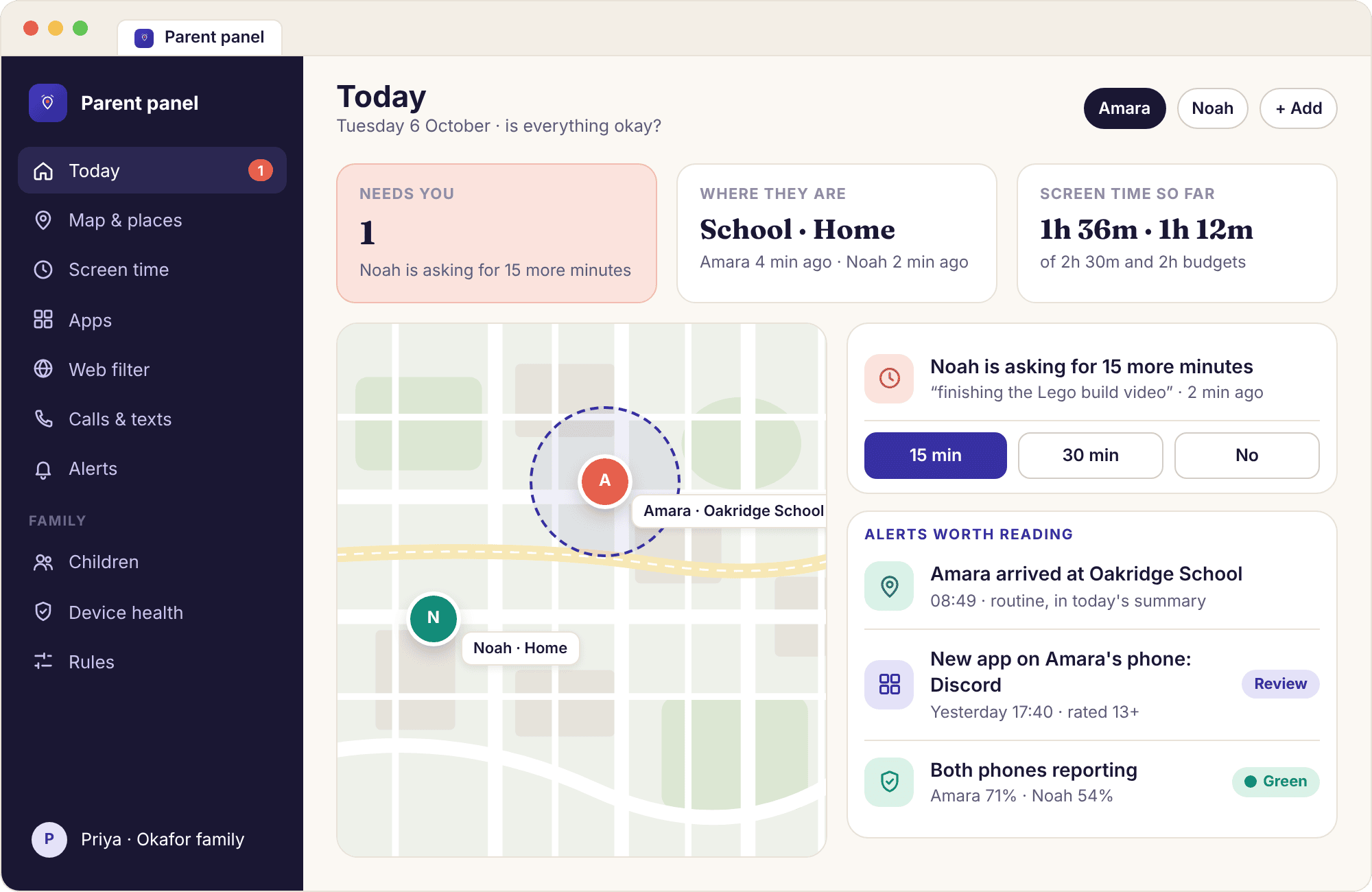
Sign in to your panel
Signing in needs the email address you registered with and your password, or a one-time link sent to that address if you would rather not type a password on a shared computer. The link works once and goes stale after a short while, so request it when you are ready to use it. There is no username to remember; the email is the account.
Once you are in, the panel opens on the Today view for whichever child you looked at last. On a phone browser it folds the left navigation into a menu button; everything else is the same page. If you use the parent app as well, it signs in with exactly these details, and a change you make in one place shows in the other within a minute or so.
Two things the sign-in page is not. It is not the child's login: a child never signs in anywhere, because the child app pairs once with a code and then simply runs. And it is not a second product; the panel and the parent app show the same account, so a limit set on your laptop at lunchtime is the limit Amara's phone enforces at 21:30. If you have forgotten which email you registered with, look for the message we sent when the account was created; the address it went to is the one the form wants.
- Forgotten password. Use the one-time link option on the sign-in form; it gets you in, and you can set a new password under Account once you are there.
- Your child sees that you looked. Each sign-in marks "a parent viewed the panel today" on the child app. It does not say which screens you opened, and there is no way to switch that marker off.
- Sign out of borrowed devices. The Account page lists every browser and phone currently signed in, with a button to end any of them.
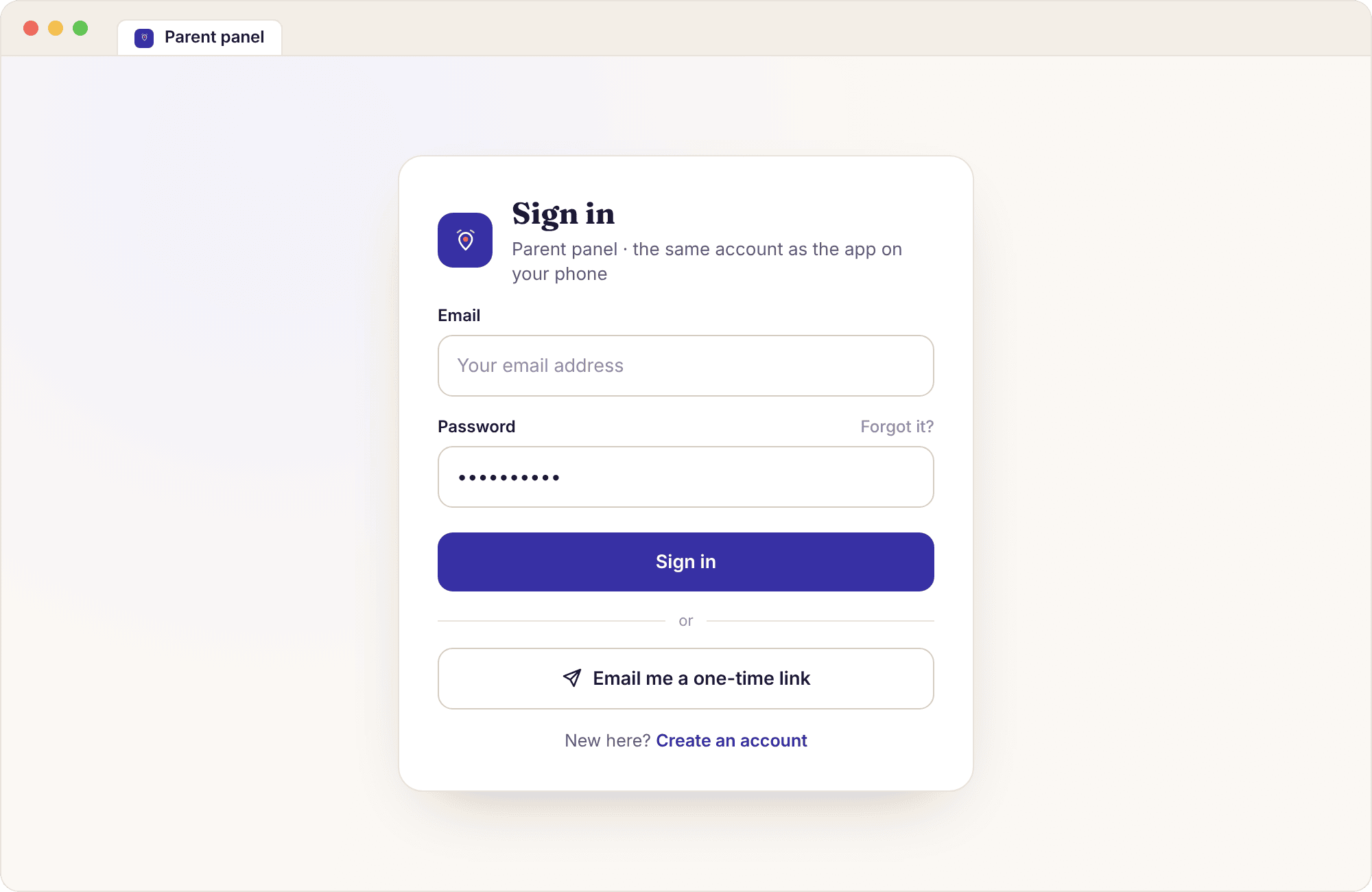
Create a free account
An account is an email address, a password typed twice and one checkbox. The checkbox is the only unusual part: it asks you to confirm that you are the parent or legal guardian of the child whose phone you will pair, and that the child will know the app is there. We make you tick it because it is the condition the whole product is built on, and because a parent who cannot tick it in good faith should not continue.
Creating the account costs nothing and takes under a minute. It does not ask for a card, a phone number or an address. The next screen asks for your first child's name and date of birth, which the panel uses to pick sensible starting values for a child of that age, all of which you can change. Nothing is collected from any phone until a phone is paired and your child has pressed Continue on the consent screen.
A word on the date of birth. The panel uses it to pick starting values, so a nine-year-old like Noah starts with the adult, gambling and violence web categories blocked and a suggested bedtime, while a thirteen-year-old starts with the categories blocked and no bedtime suggested until you choose one. Neither child starts with a screen time limit; we would rather you watched a normal week first. The date is not shared with anyone and can be corrected later from the child's page, which recalculates nothing you have already set by hand.
- One account per household. Amara and Noah both live under Priya's account, each with their own rules, and a co-parent is invited into the same account rather than making a second one.
- What a free account includes. You can pair a phone, see the health line and use the transparency screens without paying. Features that need a subscription are marked inside the panel, with what each plan contains shown before any payment step.
- Nothing to keep secret. The pairing walkthrough needs the child's phone in your hand, so make the account when you have the time to do the rest together.
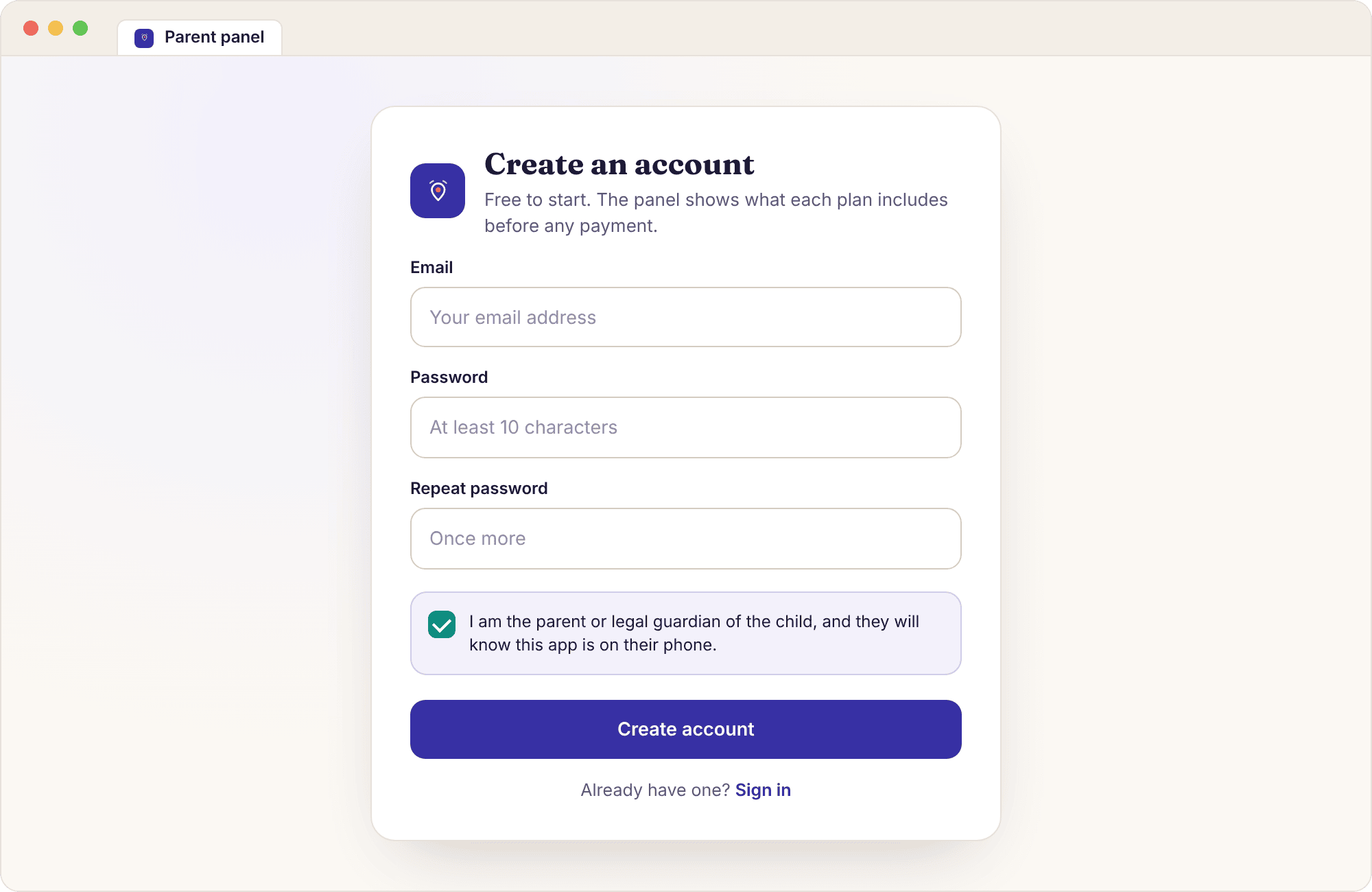
Try the read-only demo
The demo is the full panel signed in as Priya Okafor, with a week of made-up but realistic data for Amara (13, on a Samsung Galaxy A35) and Noah (9, on a Pixel 7a). Every screen opens. You can click into Tuesday's alerts, scroll Amara's location history for Thursday, open the rules page, and read the command log. What you cannot do is change anything: every save button is disabled, and the banner at the top says so.
We built it because parents kept asking the same reasonable question before installing: "what will I actually see?" A list of features does not answer that. Twenty minutes in the demo does. It is also the fastest way to learn what the panel will never show you, because the places where other products put message text, screenshots or a camera button simply are not there.
The data in the demo is a school week, Monday to Friday, with the kind of detail a real week has. Amara leaves home at 07:52 and arrives at Oakridge School at 08:49 each day; on Thursday she goes on to Swim Club at 16:05. Noah's Pixel sits at Home on Wednesday because he was off sick, and its health line turns amber that afternoon when battery optimisation switches itself back on. One unknown number, 07700 900481, texts Amara eleven times over two days. None of it is a real family and none of it changes when you click, which is the point: you can poke at everything without consequence.
- No account needed. The demo link opens straight into the Okafor panel; nothing about you is recorded.
- Worth checking in the demo. Noah's amber health line on Wednesday, the "Needs you" request for fifteen more minutes, and the keyword alert that names a word and an app but no message.
- Show your child. The demo is a good way to show a 13-year-old exactly what a parent would see, before asking them to pair their own phone.
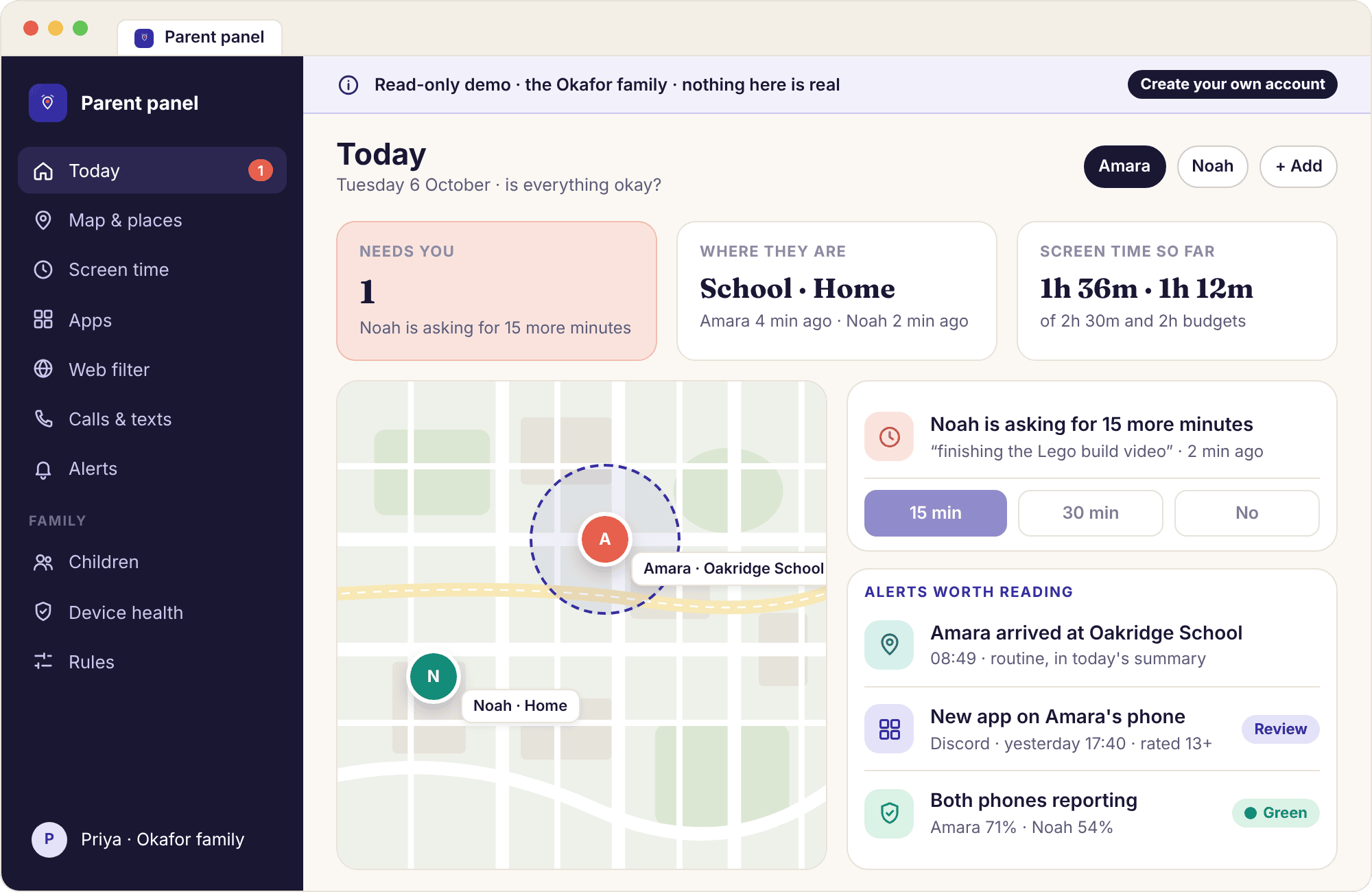
The four pages a parent uses most
The left navigation has more entries than this, but Today, the child page, the map and the alerts list are where almost every visit starts and ends. Here is what each is for, using the Okafor family's week.
Today: is everything okay, in one glance
Today is laid out to be read in about three seconds. The top band is "Needs you", which lists only the things waiting on a parent's decision: on Tuesday evening that is one item, Noah asking for fifteen more minutes to finish a video. Below it, each child has a card with where they are now, screen time used so far against the budget, and the colour of their phone's health line.
A quiet day shows "Needs you: 0", two green cards and nothing else, and the right response is to close the tab. The Today view has its own page describing every tile, but the summary is that it exists so you do not have to open the other pages on a normal day.
What Today leaves out is as deliberate as what it shows. There is no live feed of events, no scrolling list of every app opened, and no "last active" ticker. A parent who wants more detail clicks through; a parent who does not is not pulled in. Priya's habit, after the first fortnight, is one look at Today after dinner and one in the morning, and most days neither look turns into a click.
- Map thumbnail. Both children's last position with the time of the reading; click it for the full map.
- Alerts strip. The three most recent alerts, grouped so three routine arrivals take one line.
- Child switcher. Amara and Noah as chips at the top; each child's page keeps its own rules.
The child page: one child's rules, day and devices
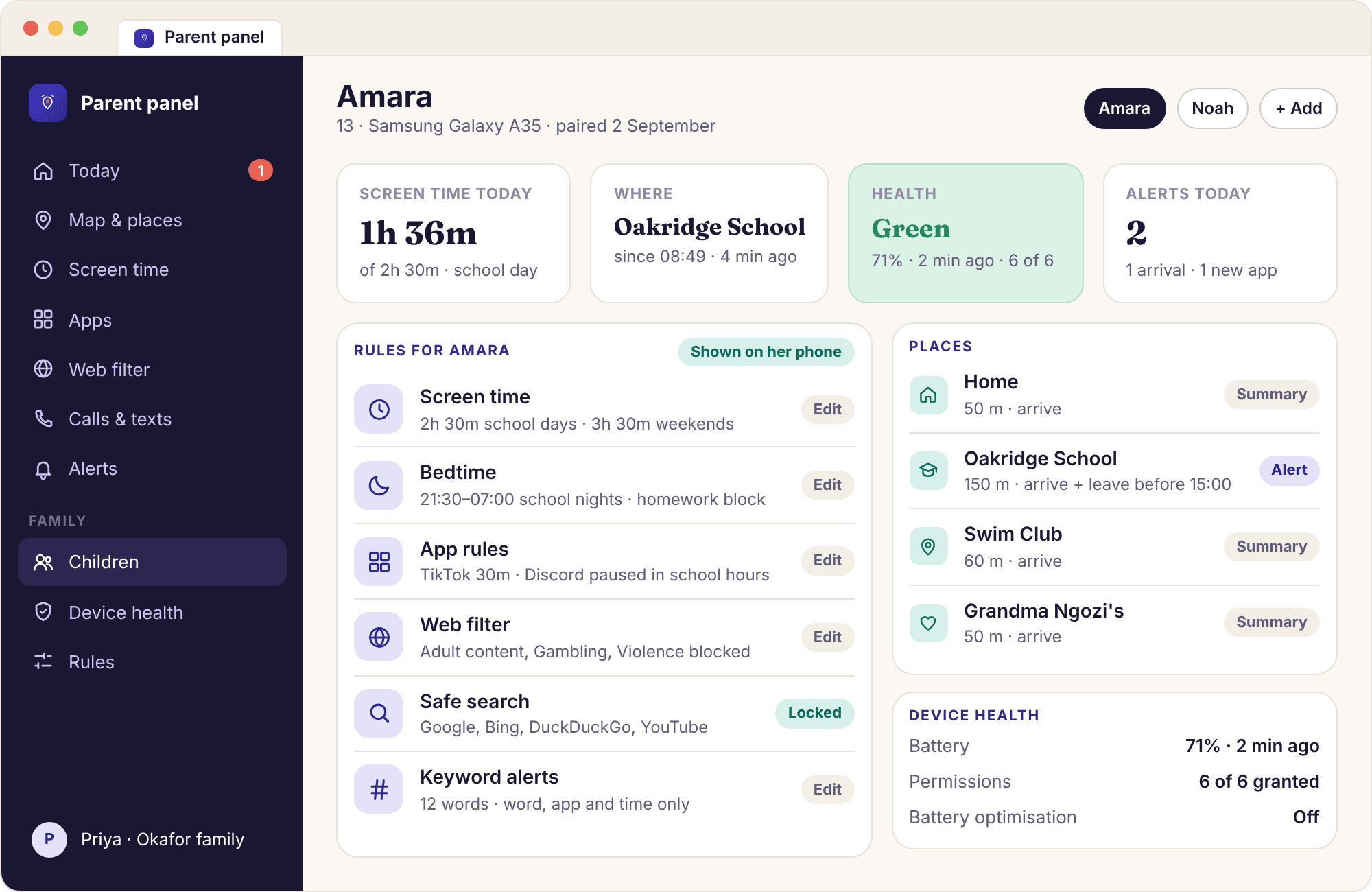
Click Amara's card and you get her page: a summary of every rule that applies to her (a 2h 30m school-day budget, bedtime at 21:30, TikTok limited to 30 minutes, the Gambling category blocked), her day so far, the places she has visited, and the health of her Galaxy A35. Every rule has an edit control next to it, and every edit is logged with your name and the time.
This is also the page where you loosen things as a child grows. Priya's plan for Amara at fourteen is to drop the per-app limit and keep bedtime, and that is two clicks here. What the child page does not contain is any content: no messages, no photos, no page text, no list of followers. The child app shows Amara the same rule summary on her phone, so there is nothing on this page she cannot also read.
The Devices block at the bottom of the child page is where you unpair a phone if Amara gets a new one, and where the pairing code for the replacement is created. Unpairing ends collection from the old phone at once and keeps her history under her name until you delete it. Deleting the child altogether removes the history too, which is the right thing to do when a child becomes an adult and the arrangement ends.
- Rules summary. Screen time, bedtime, app rules and web categories in one list, each with who set it.
- Starting values. New children get age-based defaults with no limit on screen time until a parent sets one.
- Delete history. A button at the bottom removes this child's location history; there is no undo, by design.
The map: both children, with the time of each reading
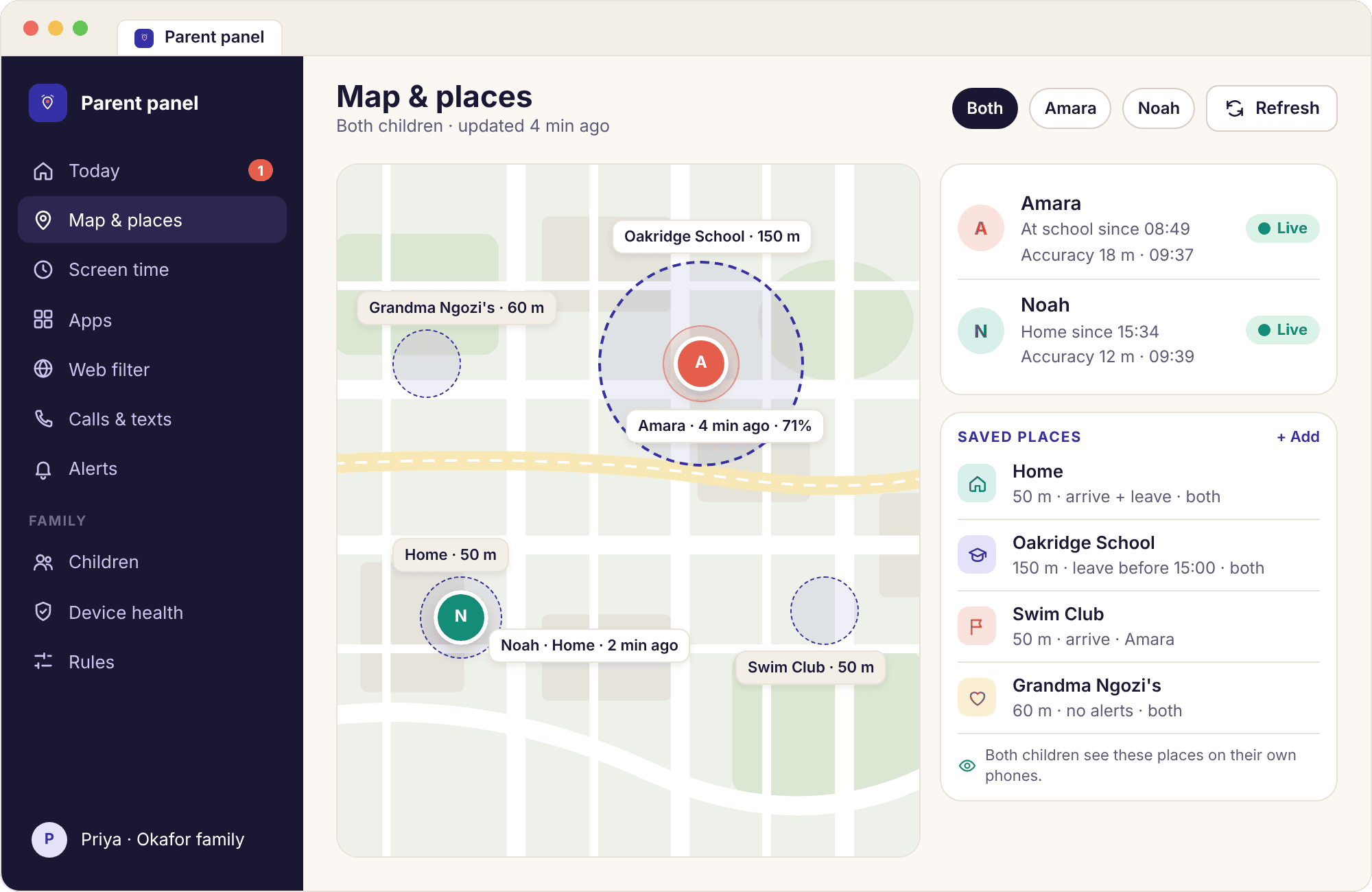
The map page shows every paired phone as a pin with three facts attached: the time of the last reading, the accuracy circle around it, and the battery level. On a school day at 15:31 Amara's pin sits inside the Oakridge School circle with an 18-metre accuracy ring, and Noah's sits at Home, where his phone has been since he was dropped off with a cold. The map is bigger on a laptop than in the app, which is the main reason to use the panel for it.
A pin with an old reading time is drawn differently and says how long ago it reported, rather than pretending to be current. Indoors the circle grows to tens of metres, which is Android doing its best without satellites, not Amara wandering. The location tracking page covers accuracy in detail; the map itself just shows the circle and lets you draw your own conclusion.
The map cannot tell you who a child is with, what they are doing, or whether the phone is in their pocket or a locker. A pin inside the Oakridge School circle means the phone is at school. It is also honest about its own gaps: a phone that has been switched off reports nothing, and the map says "last reading 15:40" rather than inventing movement. Use the place alerts for the routine days and keep the map for the unusual ones.
- Refresh location. Asks the phone for a fresh reading; it answers in a few seconds if it is awake and online.
- Saved places drawn. Home, Oakridge School, Swim Club and Grandma Ngozi's appear as circles so you can see whether a pin is inside one.
- History link. Each pin links to that child's timeline for the day, which the child can also see on their own phone.
Alerts: a ranked list, not a feed of everything
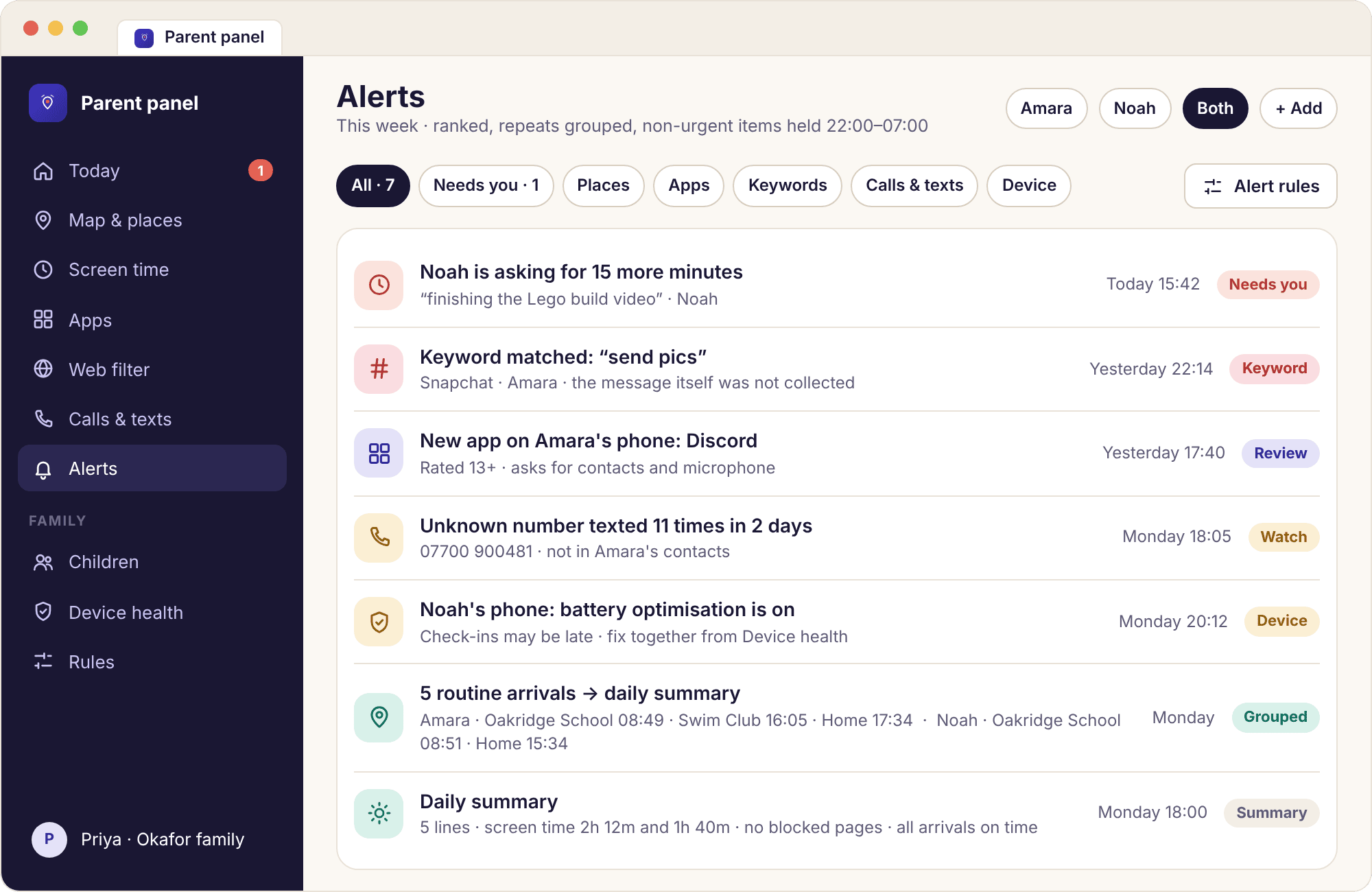
The alerts page is the full list behind the strip on Today, with filters for child, alert type and date. It is ranked rather than purely chronological: a keyword match or a tamper alert sits above an arrival at Swim Club even if the arrival came later. Repeats are folded together, so Noah asking for more time three times on Saturday is one line with a count, not three. The smart alerts rules behind the ranking are editable per alert type.
Each alert opens to what the panel knows, which is deliberately little. A keyword alert reads "matched 'send pics' · Snapchat · 22:14" and then stops; the message is not there because it was never collected. An unknown-number alert shows the number, how many times it appeared and over how many days, and a button to save it as a contact. A keyword alert is the start of a conversation, not evidence.
Alert rules are set per type and per child from this page. For Amara, Priya has arrivals at school going into the daily summary and departures before 15:00 interrupting; for Noah, both interrupt, because he is nine and the school run is newer. The aim is a list you will still open in week six. If you find yourself swiping past the same routine line every day, move that type to the summary rather than muting it altogether.
- Daily summary. Routine events are gathered into one card at 18:00 instead of interrupting through the day.
- Quiet hours. Non-urgent alerts wait overnight; urgent ones still come through.
- Mark as handled. Clears an item for both parents, with your name on the log entry.
Four buttons that reach the phone, and what each one shows your child
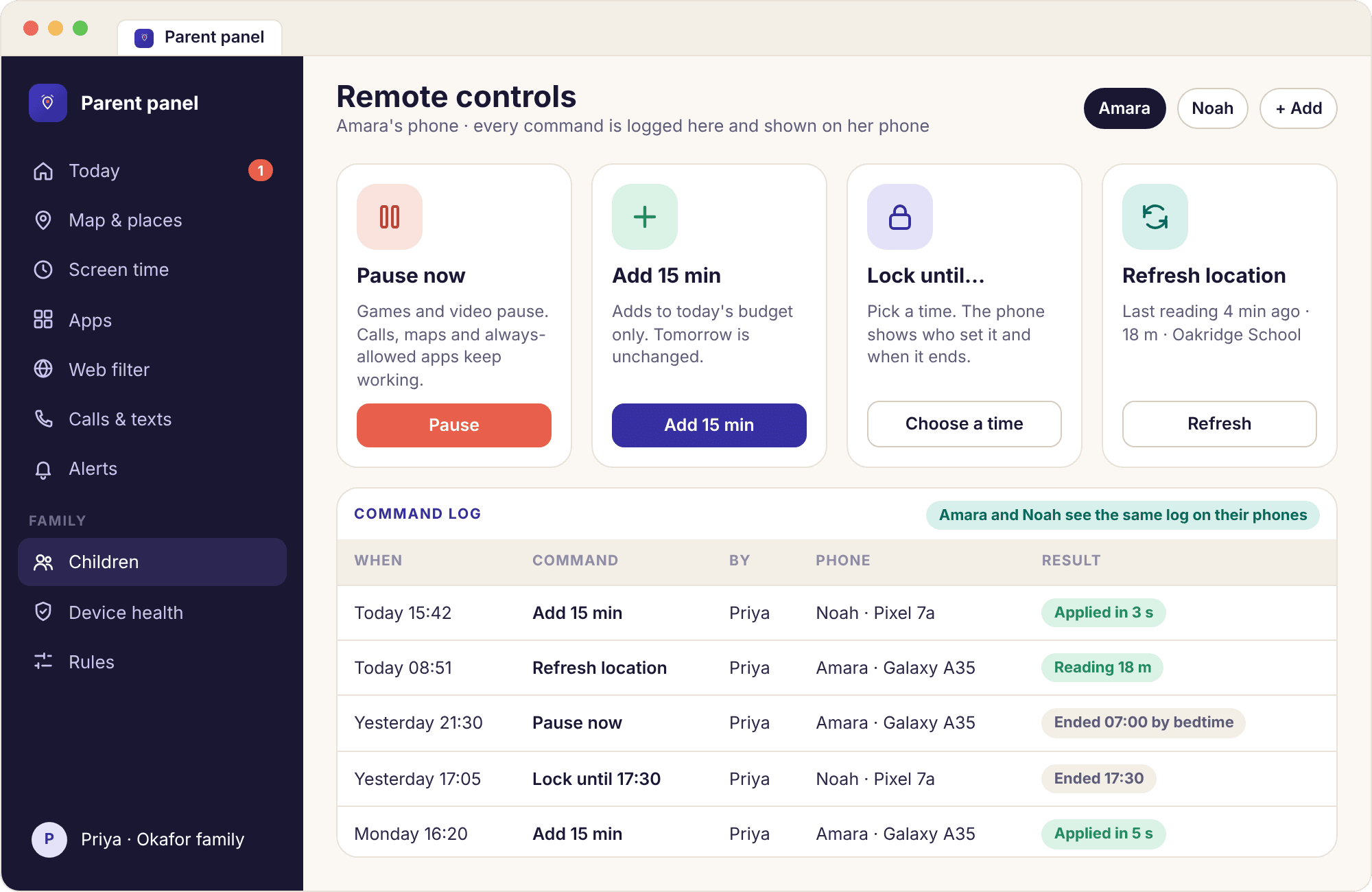
The panel can send a small number of commands to a paired phone. There are four, and they are listed in the table below with what they do, what keeps working, and exactly what appears on the child's screen. The last column matters most. A command from the panel never arrives silently: the child's phone shows a plain screen with the action, the time and the parent's name, and the same entry goes into the command log that the child can read in the app.
Each command needs the phone to be online. If Noah's Pixel is in a bag with no signal, the command waits on our side and is delivered when the phone next checks in, and the log shows "sent 16:02 · delivered 16:40". There is no command to open the camera, play a sound through the microphone, read the screen or wipe the phone, and none is planned. Use these for the moments a rule does not cover, not instead of a rule.
The commands are also available in the parent app, so you do not need a laptop to add fifteen minutes from the supermarket queue. Both parents can send them, and both see the log. A command that the child's phone has not yet acknowledged shows as pending, and you can withdraw it before it lands; a Pause sent at 17:30 that you regret at 17:31 can be cancelled before Noah has seen it.
| Control | What it does | Still works on the phone | What your child sees | Undo |
|---|---|---|---|---|
| Pause now | Pauses games, video and social apps immediately, for 15, 30 or 60 minutes or until you resume. | Calls, messages, maps, the camera app and anything on the always-allowed list | "Paused by Priya until 18:30" on the home screen and on any paused app. | Resume button |
| Add 15 min | Adds fifteen minutes to today's screen time budget, usually in answer to a request. | Everything that was working | The budget ring grows and a line says "Priya added 15 min at 17:05". | Only by lowering tomorrow's budget |
| Lock until | Locks the phone to calls, messages and always-allowed apps until a time you pick, such as the end of dinner. | Calls, SMS, alarm, emergency dialling, always-allowed apps | A lock screen naming the time it ends and who set it, with an "Ask for an exception" button. | Unlock button |
| Refresh location | Asks the phone for a fresh position reading now rather than waiting for the next settle. | Everything | A line in the transparency screen: "Location requested by Priya at 15:40". | Nothing to undo |
| Anything else | There is no remote camera, microphone, screenshot, screen view, wipe or secret command. | Not applicable | Not applicable | Does not exist |
Pause now is for the moment, not the rule. If you find yourself pressing it at the same time every evening, that is a bedtime schedule or a screen time budget waiting to be set, and a rule the child can see coming is fairer than a daily surprise.
The page to check when a pin or a number looks wrong
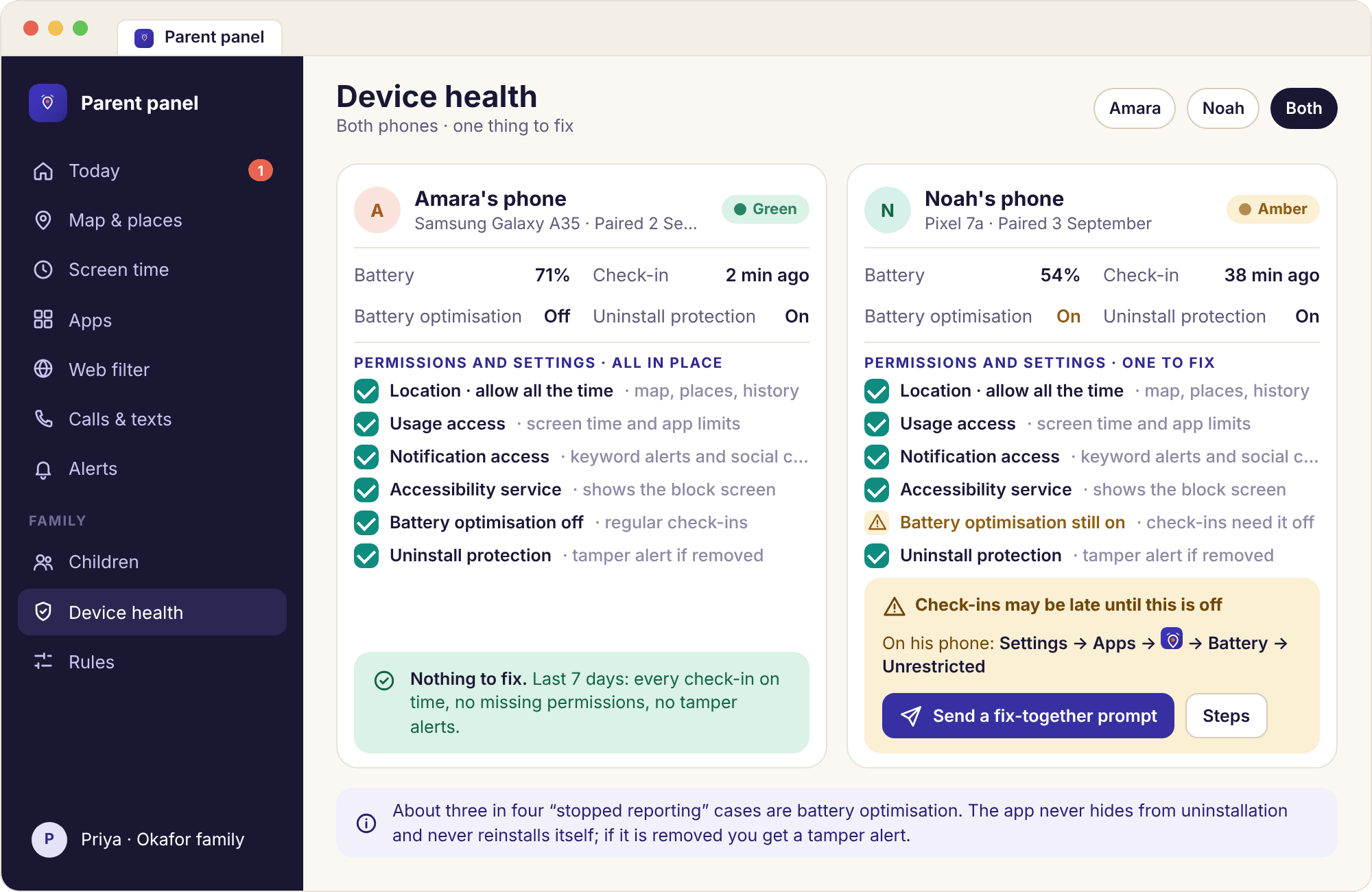
Devices lists each paired phone with a green, amber or red line and the reason in plain words. Green means the phone checked in recently and every permission the active features need is granted. Amber names what is missing: "Battery optimisation is on" is the usual one, and it accounts for roughly three in four cases of a phone that seems to have stopped reporting. Red means the app was uninstalled or has not reported for a long time, and a tamper alert will already have gone to you.
Each amber line has the exact Settings path for that phone model and a "Send a fix-together prompt" button, which puts a short message on the child's phone asking them to open the right setting with you. It does not change the setting itself; Android does not allow that and we would not want it to. The device health page goes through every amber and red reason and its fix.
- Battery and last check-in. Shown per phone, so a pin that stopped at 6% explains itself.
- Permissions named exactly. "Notification access: off" rather than "some features unavailable".
- Removal is visible. The app does not hide from uninstallation and does not reinstall itself; you get a red line and an alert, and the conversation is yours to have.
A new phone usually turns green within a minute of the last permission being granted, and the panel shows it live during pairing. If the line is still amber ten minutes after pairing, the reason is almost always one of two things: Location was granted as "While using the app" rather than "Allow all the time", or the phone's battery saver quietly restricted the app. Both are named on this page, with the path to fix them, and both are quicker to fix with the child's phone in your hand than over a phone call.
Invite a co-parent, and see who changed what
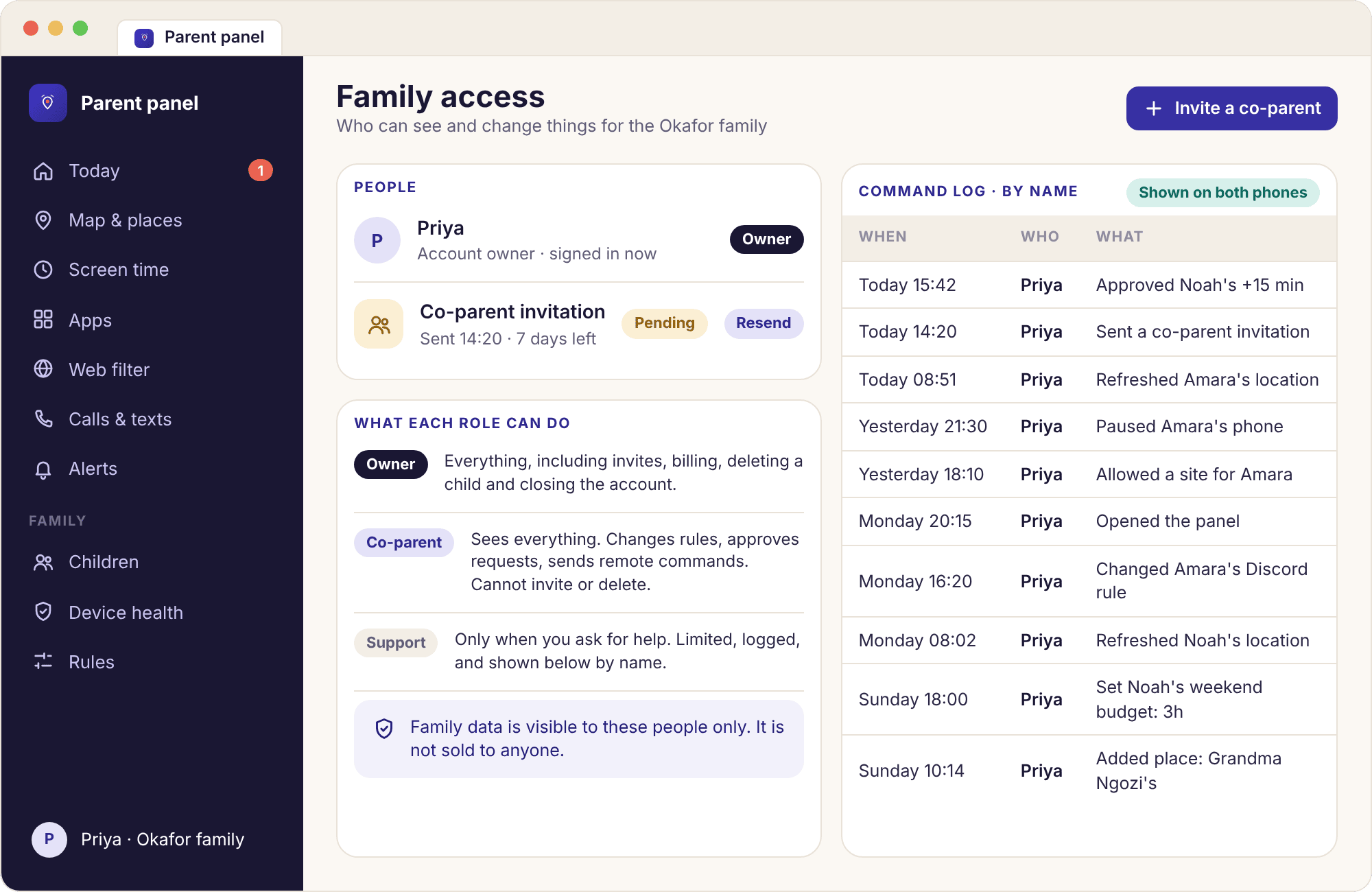
Family access is where a second adult joins the account. Priya invites Amara and Noah's father by email; he creates his own password and sees the same children, the same alerts and the same rules. There is one account per household, with as many children as live in it, and both parents can act on all of them. We do not offer a view-only role for a parent: if someone is responsible enough to be invited, they can change a limit, and the log records that they did.
The command log is the part of this page we would point every separated or busy family at. Every rule change, every Pause, every added fifteen minutes and every deletion of history is listed with the parent's name and the time. "Added 15 min · Priya · Tue 17:05" ends the argument about who let Noah stay up. The same log is readable on the child's phone, minus nothing, which is part of what makes the arrangement fair.
Invitations expire if they are not accepted within a few days, and an invited parent can be removed again at any point. If two households share care, both can be in the account; what the panel cannot do is show one parent a different picture from the other, so agree the rules before you set them rather than editing each other's work at midnight.
- Removing a co-parent. Either parent can remove the other from Account settings; the log keeps their past entries under their name.
- Who the data is visible to. The parent account and any invited co-parent. Support staff can see a limited, logged view only while helping with a ticket, and we never sell or share it.
- Not for anyone else. Family access is for a child's parents or legal guardians, not an employer, a partner or a relative keeping an eye on an adult. The terms of service say so in plainer language.
Account settings sit on the same page: change your email or password, see the subscription and what it includes, cancel it, download a copy of your family's data, or close the account. Cancelling keeps everything working until the paid period ends. Closing the account removes every child, every reading and every log entry, and the child app on each phone stops collecting and tells the child the account has gone. There is no quiet grace period in which we keep a copy.
Questions parents ask about the panel
Do I need separate accounts for the app on my phone and the panel?
No. One account signs in to both. The parent panel in a browser and the MobileTracking app on your own phone show the same children, the same alerts and the same rules, and a change made in one appears in the other within moments. Create the account wherever is convenient, then sign in on the other. There is nothing to link or sync afterwards.
Can I use the panel on an iPhone or a Mac?
Yes. The panel is a website, so it runs in Safari on an iPhone, iPad or Mac, in Chrome or Firefox on anything, and on a work laptop you cannot install apps on. Only the child side needs Android. Many families run the whole parent side from an iPhone and never install the parent app at all, which is fine; the panel has every feature the app has.
What does “remote” mean here? Can I see their screen?
No, remote means two things only: reading what the phone has already sent, and sending it a command. From the panel you can read location, screen time, apps, web categories, alerts and device health as reported, and send commands such as Pause now, Add 15 minutes, Lock until or Refresh location. There is no live screen view, no camera, no microphone and no way to open an app on the phone from your chair.
How long does Pause now take to reach the phone?
Normally within seconds, as long as the phone is on and online. Pause now or Add 15 minutes shows on the child’s screen almost at once, and the command log in the panel records when the phone confirmed it. If the phone is off, in a dead spot or being held back by battery optimisation, the command waits and applies when the phone next checks in. Device health tells you which of those it is.
Does my child get told each time I open the panel?
Once a day, yes. The child app shows that a parent viewed the panel today. It does not show which screens you opened, how long you stayed or what you looked at, only that the panel was opened on that day. Commands you send also appear on the child’s phone with the name of the parent who sent them, so “Paused by Priya until 15:30” is what Amara reads, not an anonymous block.
Can both parents use the panel?
Yes. Invite a co-parent from Family access and they sign in with their own email and password to the same children. Every command either of you sends is stamped with your name in the command log, so you can both see who added fifteen minutes on Thursday and who refreshed the map. Rules changed by one parent show for the other immediately. Removing a co-parent takes one tap and ends their access at once.
I have forgotten my password. How do I get back in?
Start the reset in the MobileTracking app on your own phone: the sign-in screen has a forgotten-password option that emails you a reset link. Choose a new password there and it works in the panel as well, because both share one account. The panel’s sign-in page can also send a one-time sign-in link by email, which gets you in while you sort the password out. If no email arrives within a few minutes, check the spam folder and the address you registered with.
Does it cost anything to use the panel?
No. The panel is free with a free account, including the Today view, the map, device health, the children page and the demo. Some features inside it need a subscription, and the panel marks those clearly and shows what each option includes before any payment. You will never be asked for a card simply to sign in, and nothing on the panel is funded by advertising.
Your panel is a browser tab away.
Create a free account, pair your child's phone with them in the room, and the Today view fills in by this evening. The demo is open if you would rather look first.
Android · Free account · Visible on your child's phone