Download MobileTracking and set it up with your child
The child app installs on an Android phone or tablet from Google Play or as a direct APK from this page. Pairing it with your account takes about ten minutes, needs both devices on the same table, and cannot be done remotely or without your child noticing, because the consent screen is on their phone and the permissions are granted one at a time. This page is the whole process, screen by screen, plus the first week after.
Android 8.0 or later · The Play build omits call and SMS logs · Parent panel works in any browser

What each side needs
Two devices, two very different requirements. The child's side is strict about Android; the parent's side is a website and barely cares what you open it on.
| Requirement | Child's phone or tablet | Parent's device | Notes |
|---|---|---|---|
| Operating system | Android 8.0 or later | Anything with a browser | The child app does not run on an iPhone or iPad, and there is no version that does. The panel at /my/ works on iPhone, Mac, Windows and Android. |
| Where the app comes from | Google Play, or the APK from this page | Optional: the same app on your own Android phone | The parent side is complete in the browser. Installing the app on your own phone adds push alerts and a quicker "approve" tap. |
| Account | None needed on the child's phone | One free account | Your child never signs in to anything. Their phone joins your account through a one-time code, so there is no child password to forget or share. |
| Connection during pairing | Wi-Fi or mobile data | Wi-Fi or mobile data | A few megabytes to install and a few kilobytes to pair. Both devices do not need to be on the same network, only in the same room. |
| Time with both devices in hand | About ten minutes, together | Five of those minutes are the permissions. Do not try to do it over the phone with the child in another house; it will not work and it should not. | |
| Battery and storage | Any amount; the app is small | Not relevant | Background location costs a little battery each day. The device health line shows the child phone's battery level so you can see the cost yourself. |
| Who can set it up | A parent or legal guardian of the child, with the child knowing | Not for another adult's phone, under any circumstances. The consent screen and the visible icon are there to make that impossible to do quietly. | |
Seven steps, from an empty account to a green health line
Steps marked "On your device" happen in the panel or on your own phone. Steps marked "On the child's phone" happen on theirs. Two of them are done together, side by side, and those are the ones worth slowing down for.
Create a free account in the parent panel
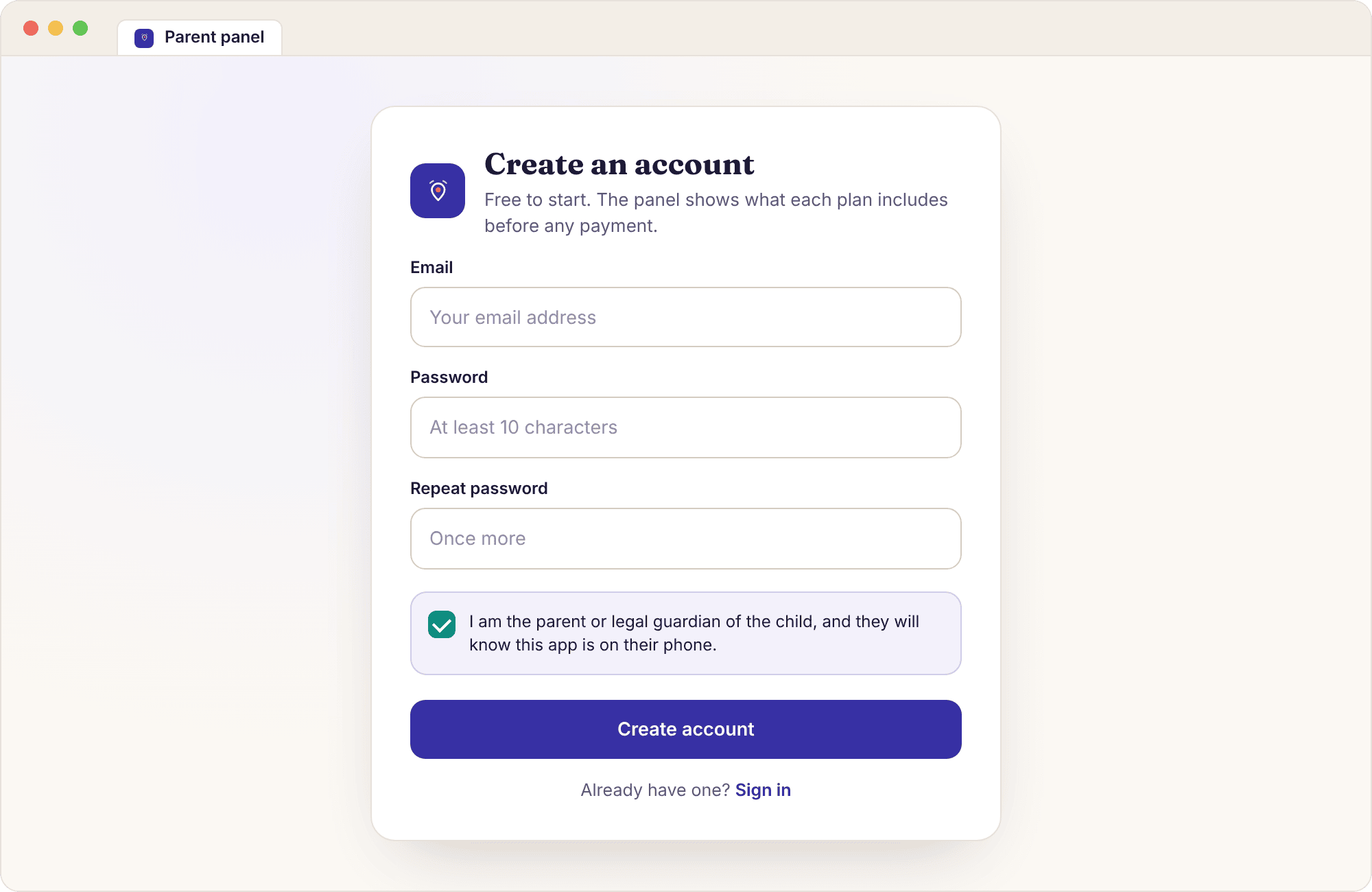
Open the parent panel and choose "Create an account". It asks for an email address, a password typed twice, and one checkbox: that you are responsible for the child whose phone you are about to pair, and that they will know the app is there. That box is not decoration. It is the agreement the whole product rests on, and we would rather you read it now than discover it later.
Nothing on the child's phone is touched at this point, and nothing is collected. You can stop here and come back tomorrow; an empty account costs nothing and does nothing.
Add a child: first name and date of birth
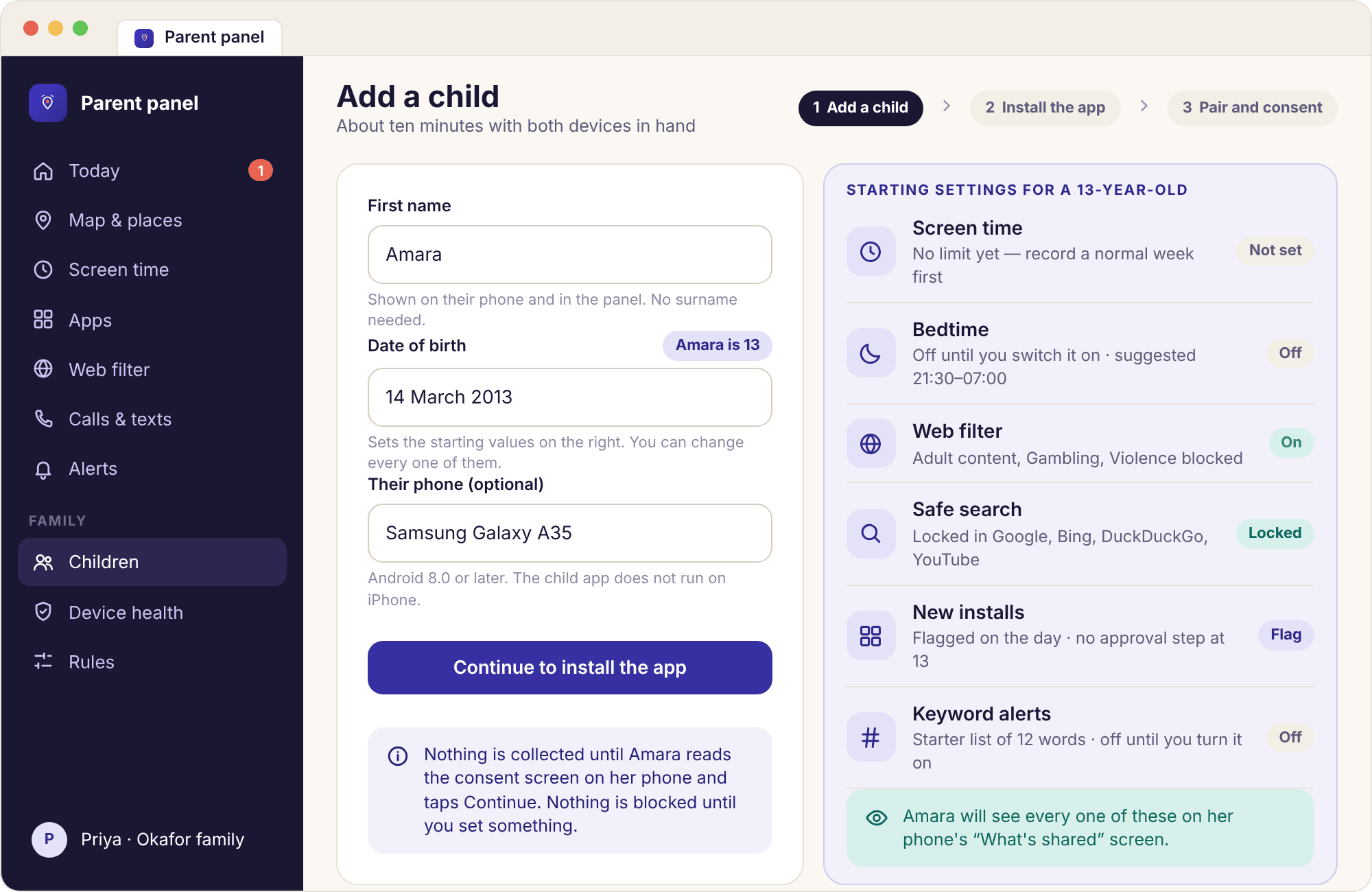
Priya adds Amara with her first name and date of birth, and the panel shows a preview of the starting settings for a thirteen-year-old. Those starting values are suggestions. Screen time in particular starts with no limit at all, whatever the age, because we would rather you watch a normal week before deciding what a limit should be.
Add Noah the same way if you are pairing two phones; each child gets their own rules, places and alerts, and you switch between them with a chip at the top of every screen. You can add a second child next month instead. Nothing about the first pairing changes.
Install the child app from Google Play or as the APK
Pick up the child's phone. For most families the Google Play button is the right one: it installs and updates like any other app and Play Protect scans it. Choose the direct APK only if you want call and SMS logs, which Google Play's policy does not allow; the APK install guide shows the three Android dialogs that appear and reminds you to switch "Install unknown apps" off again afterwards.
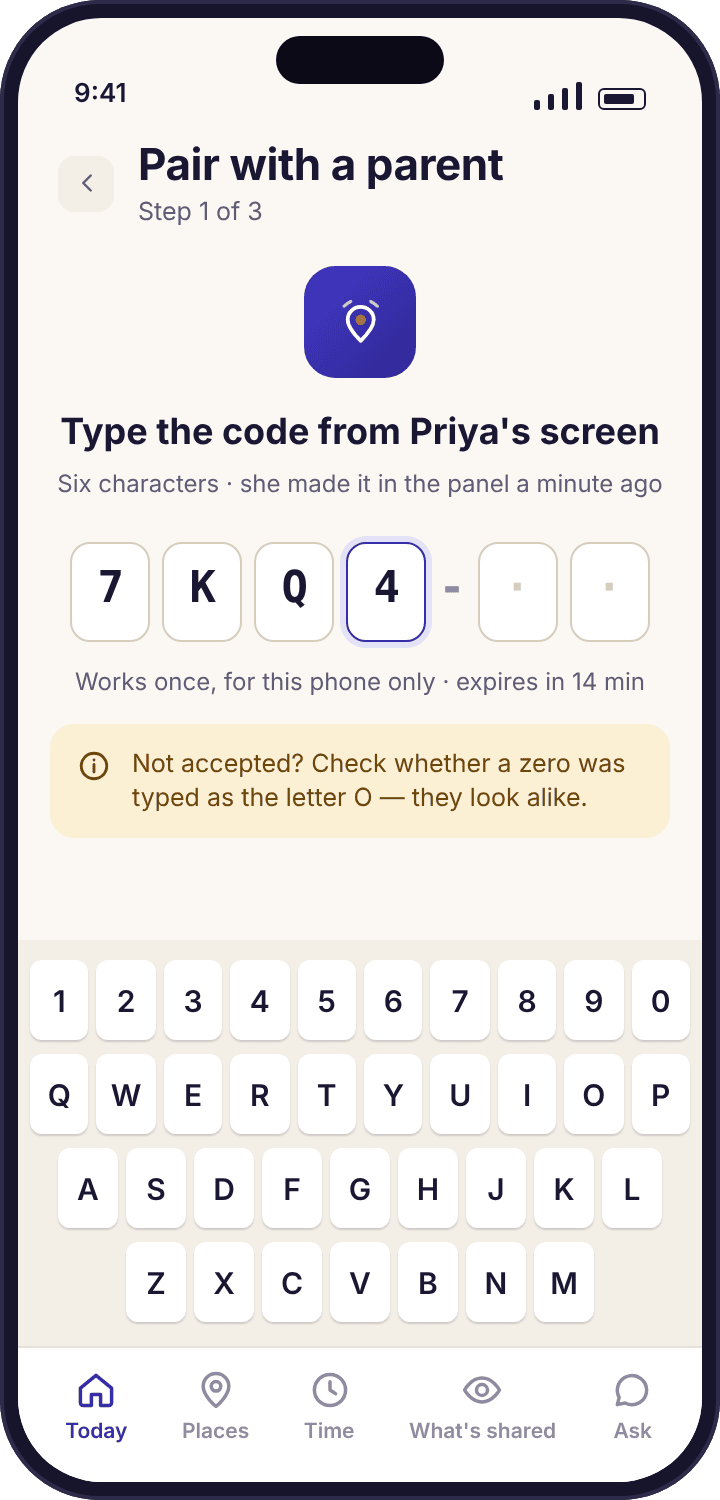
Either way, the app opens for the first time on a screen with six empty boxes. It is waiting for a code, and until it gets one it does nothing at all.
Create a pairing code for this child
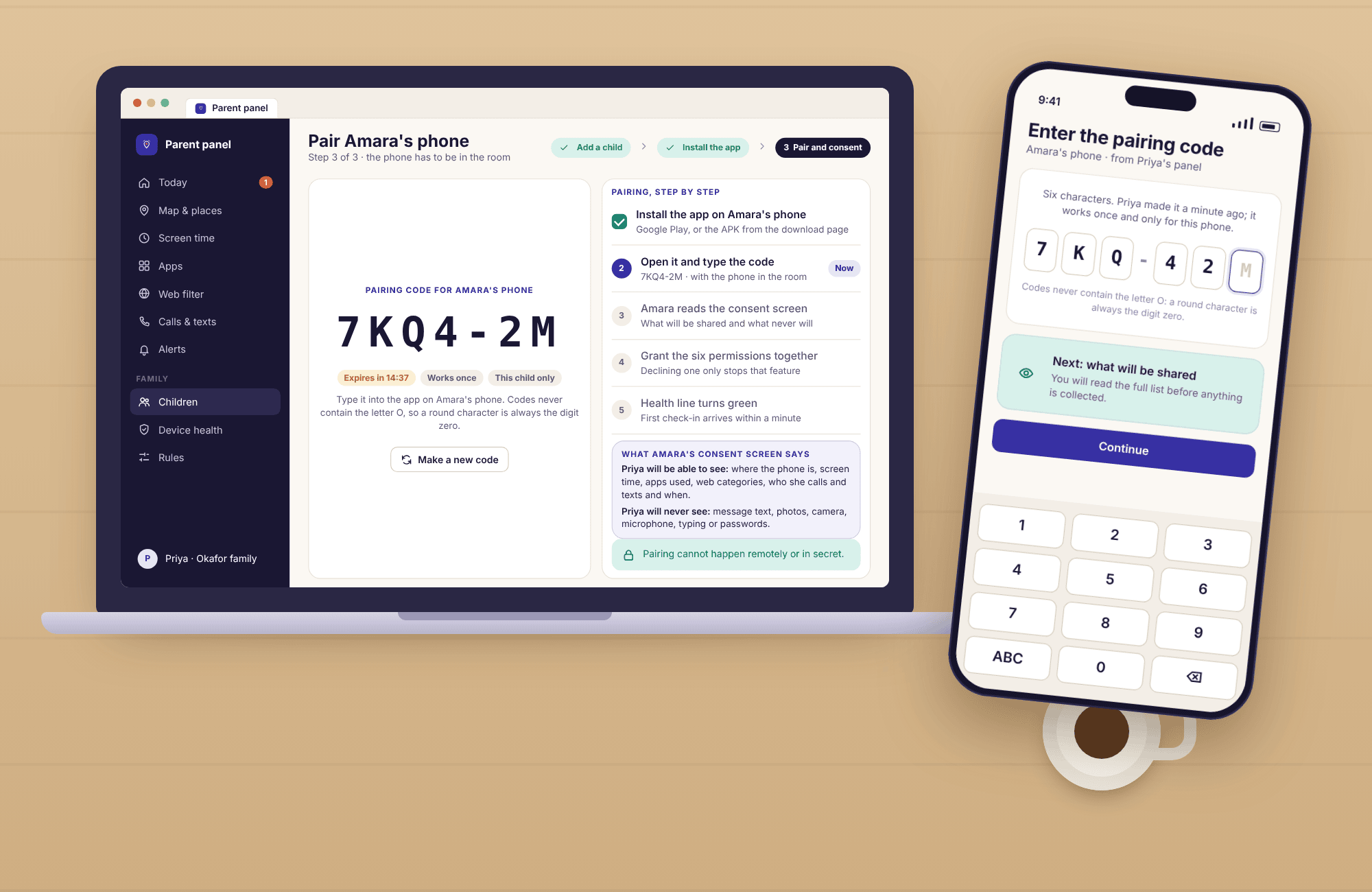
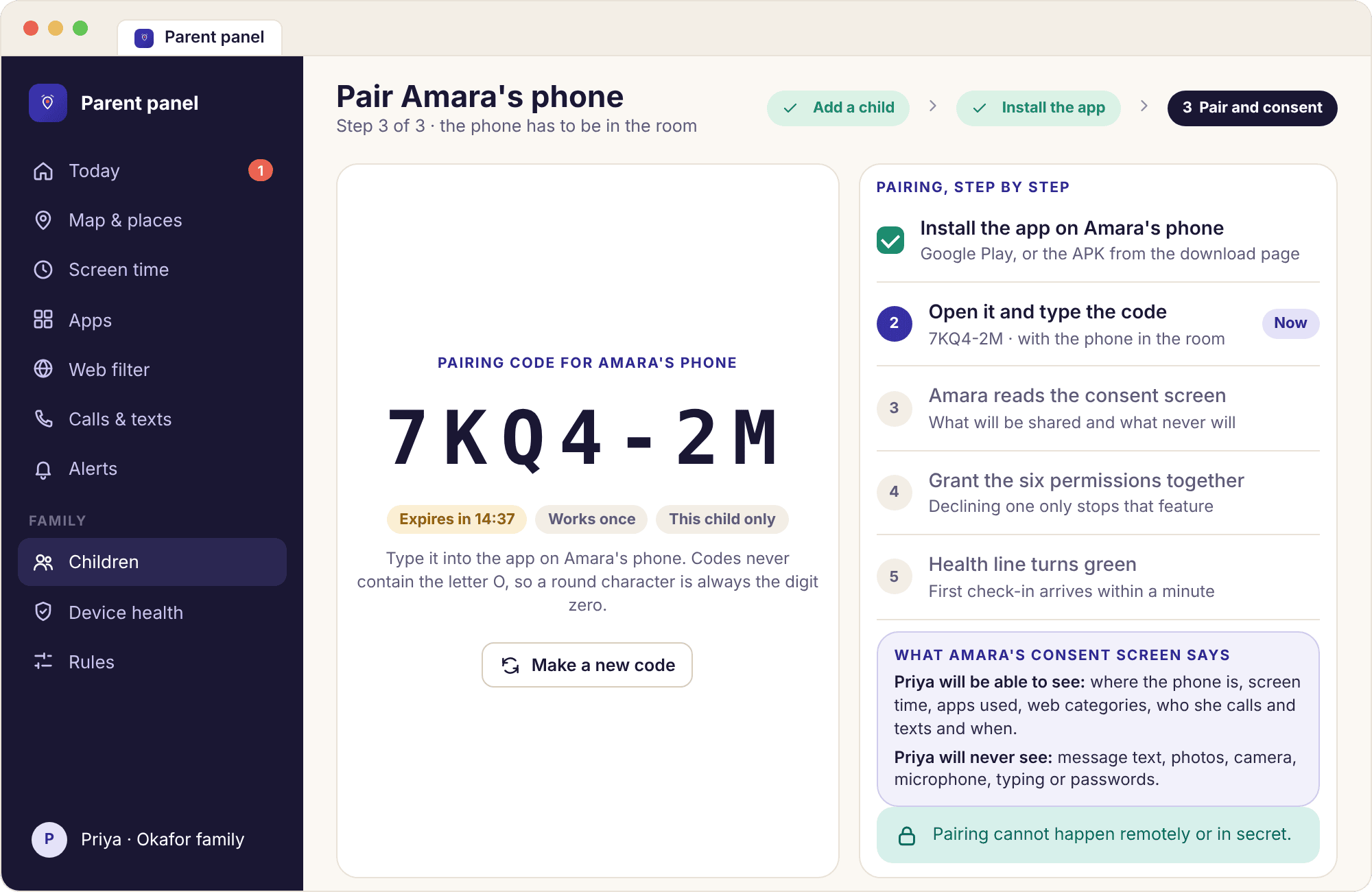
Back in the panel, open the child you added and choose "Pair a device". A six-character code appears, large, with a countdown: 7KQ4-2M, expiring in about fifteen minutes. The code works once, for this child only, and dies when the timer runs out. If it expires while you are still finding the charger, make another; nothing is lost.
The code is the only thing that links a phone to an account, and it can only be typed into a phone someone is holding. This is why pairing cannot be done in secret and why no remote install exists.
Type the code in, then read the consent screen out loud
Your child types the six characters into the boxes on their phone. The single most common mistake at this step is typing the letter O for a zero; the code uses only characters that cannot be confused, but fingers do not know that. If the app says the code is wrong, check that first.
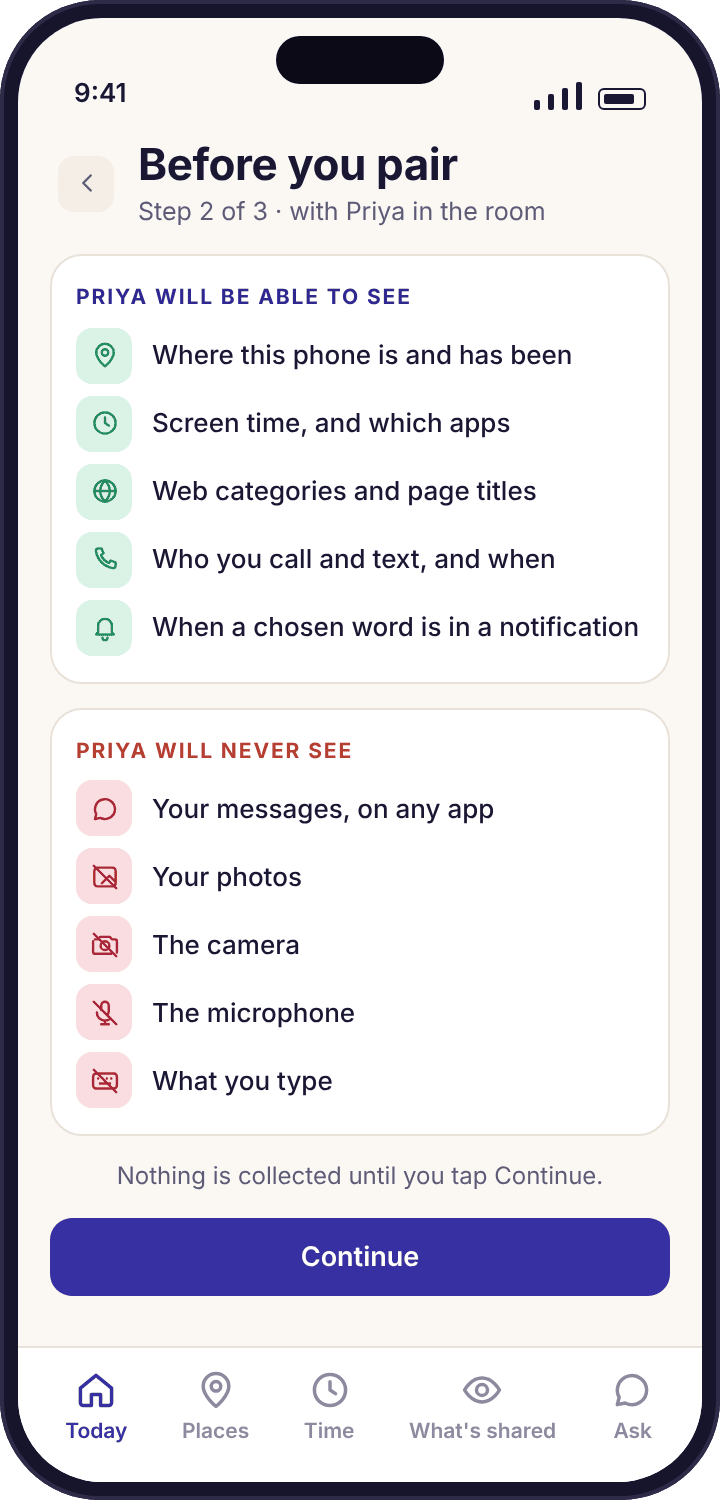
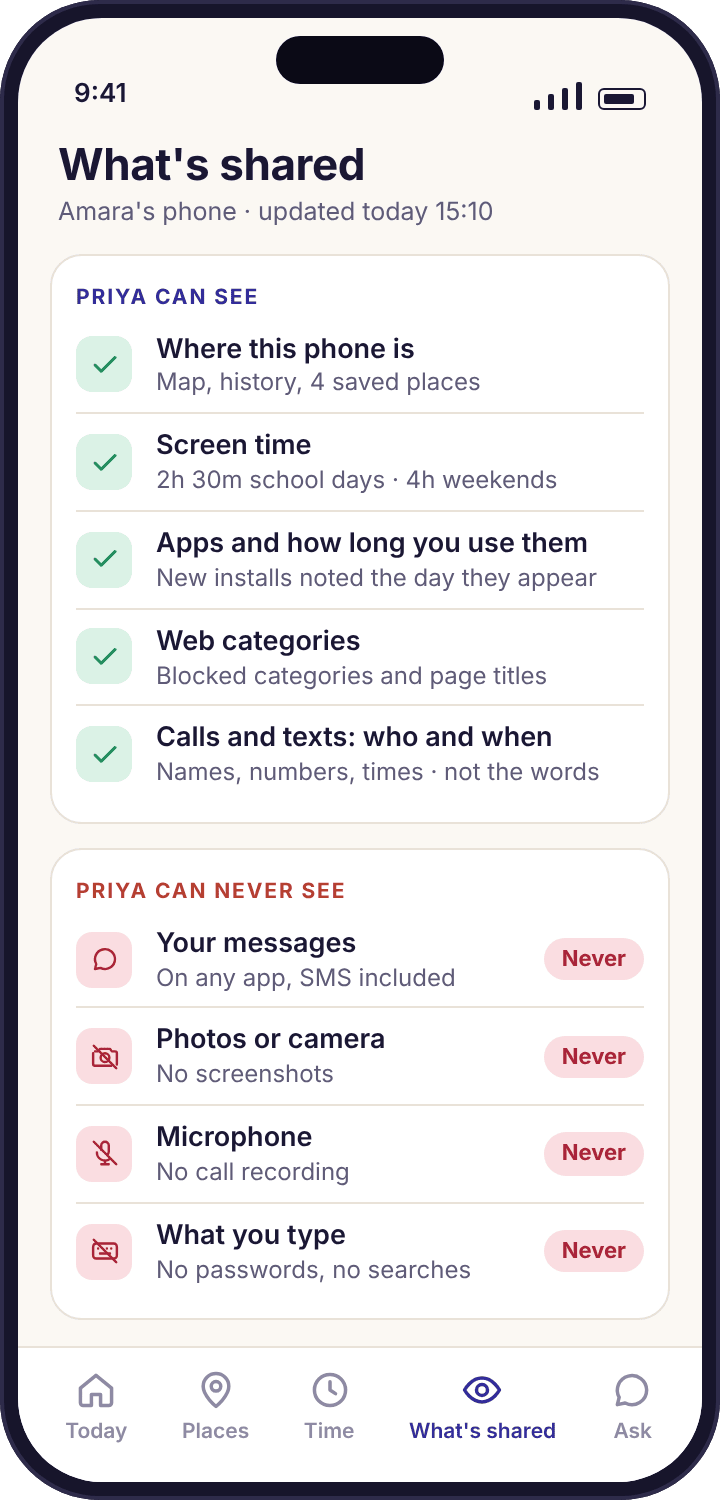
Then the consent screen appears, and this is the moment to hand the phone to the child. It says, in two lists, what Priya will be able to see and what she will never be able to see. Read it together. A child who taps Continue having read that list has agreed to something specific, and that specific thing is what the "What's shared" screen will show them from now on.
Grant the permissions one at a time
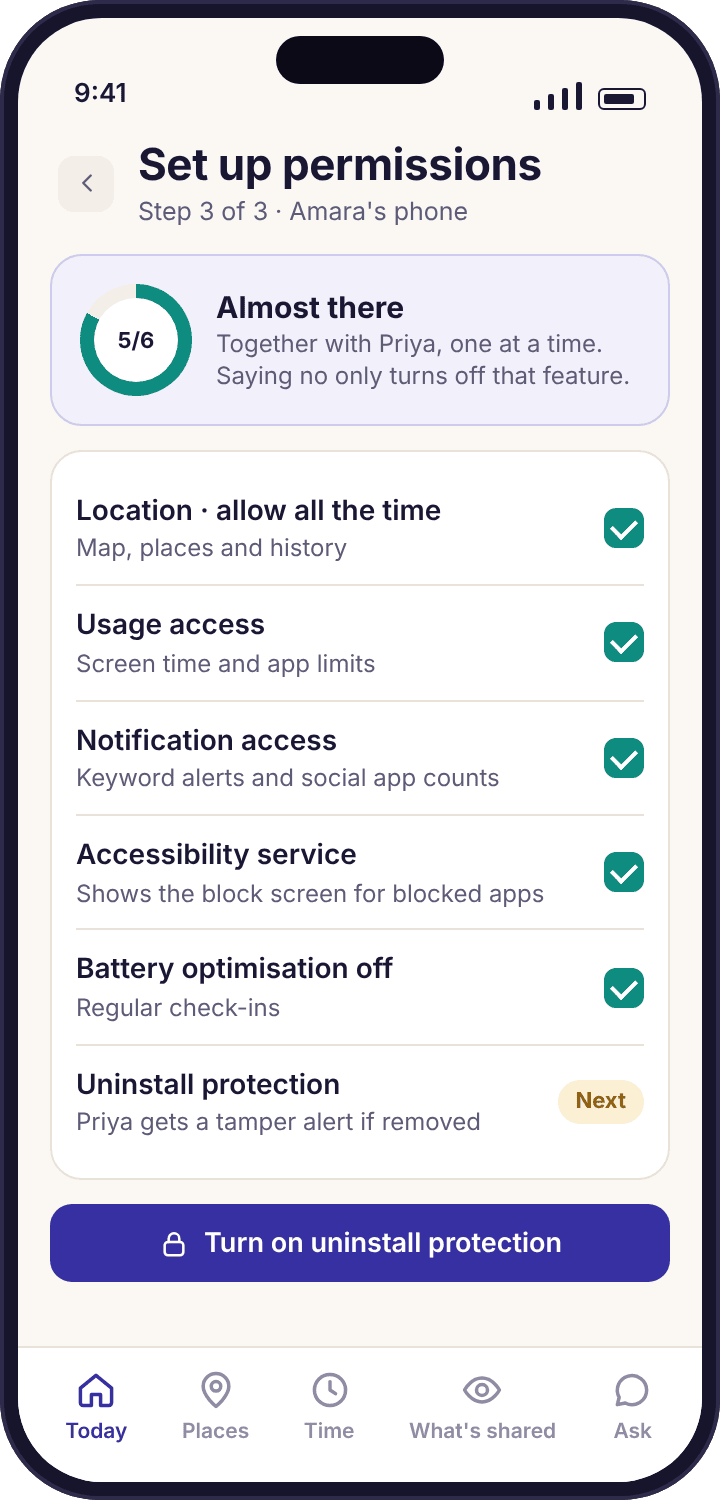
The app shows a checklist of six items, each with a short line saying which feature it powers and a button that opens the right Android settings page. Grant them in order with the child watching, and say what each one is for as you go. The one that catches people out is Location, where Android's first dialog offers "While using the app" and the app then has to send you into Settings to change it to "Allow all the time".
Declining any one of them is allowed and only switches off the features that depend on it. The checklist shows a tick for each granted item and leaves the rest pending, so you can come back to one later without redoing the pairing.
Watch the health line turn green
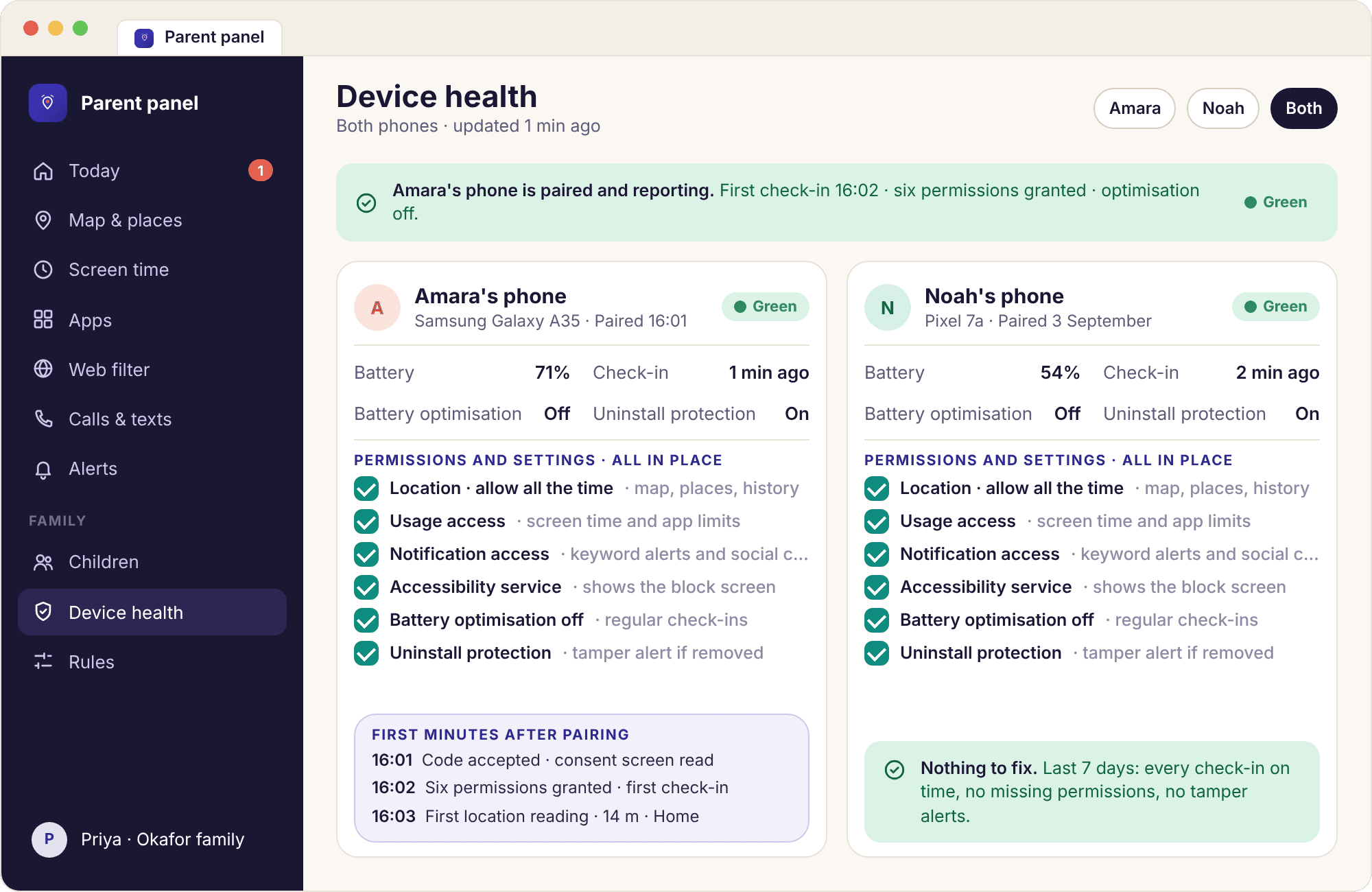
Shortly afterwards the Devices page in the panel shows the new phone with a green line: battery level, "checked in just now", every permission present. If it is amber instead, the line names what is missing, exactly, with the settings path to fix it. Amber at this stage is almost always battery optimisation, and the fix takes thirty seconds while the phone is still in your hand.
That is the end of setup. Nothing is limited yet, no place is saved, no keyword is set. The app on the child's phone now shows their home screen, with today's budget reading "no limit" and the "What's shared" list showing exactly what you granted.
The six permissions and the exact path to each
The checklist on the child's phone opens the right settings page for you, but manufacturers move things around. These are the paths on stock Android; Samsung and others may rename a menu or two.
Location
Map · Places · HistoryMust be "Allow all the time". On recent Android versions the first prompt offers only "While using the app"; accept that, then the checklist sends you to Settings to upgrade it. Without the upgrade the map will show the position from setup day and nothing after.
Settings → Apps → MobileTracking → Permissions → Location → Allow all the timeUsage access
Screen time · App activityCounts which app is in the foreground and for how long. This is the permission every screen time tool on Android uses, and it reveals nothing about what is on the screen. Without it, budgets, per-app limits and the apps list are all empty.
Settings → Apps → Special app access → Usage access → MobileTrackingNotification access
Keyword alerts · Social countsLets the app read notification previews on the phone, count them per app, and match them against your keyword list locally. Previews are not uploaded. If you do not plan to use keyword alerts, this is the one most families skip, and nothing else breaks.
Settings → Apps → Special app access → Notification access → MobileTrackingAccessibility service
Block screens · Web filter · Safe searchDraws the honest block screen over a paused app or a blocked page and keeps safe search locked. Android warns loudly about this permission because it is powerful; the child's transparency screen lists what this app does with it, and screenshots and keystrokes are not on the list.
Settings → Accessibility → Installed apps → MobileTracking → OnBattery optimisation
Check-insSwitch it off for this app, or Android will put it to sleep after an hour of the screen being dark and the health line will go amber at bedtime. This one setting explains about three in four "stopped reporting" cases, and some phones switch it back on after a system update.
Settings → Apps → MobileTracking → Battery → UnrestrictedUninstall protection
Tamper alertDevice admin status makes removal a deliberate few steps rather than a long press on the icon, and sends you a tamper alert when it happens. It does not hide the app, and the app does not reinstall itself. If your child removes it, you will know, and that is a conversation rather than a technical problem.
Settings → Security → Device admin apps → MobileTrackingWhich build to download, and how to tell a safe download from a scam
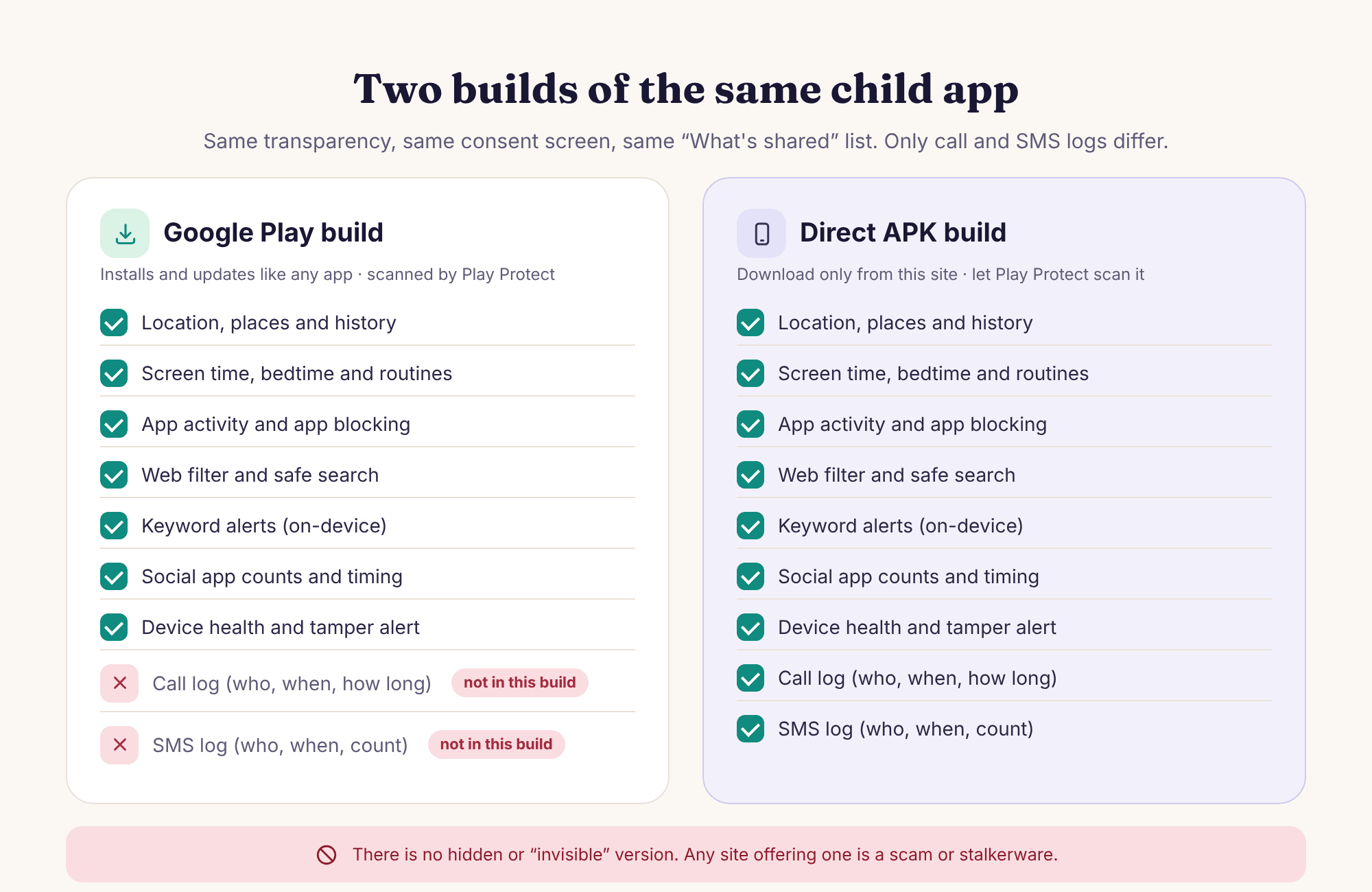
Both buttons at the top of this page install the same visible app with the same consent screen. One of them has one more feature, and that feature is the reason it is not on Google Play.
Choose Google Play if
Calls and texts are not what you are worried about. Updates arrive automatically, Play Protect scans every version, and there are no extra Android dialogs to get through. This is the right choice for most families and the one we suggest for a first pairing; you can switch to the APK later without re-pairing anything.
Choose the direct APK if
You want the calls and texts overview: who, when, how long, how often, and the unknown-number flag. Download it only from this site, typed into the address bar yourself, let Play Protect scan it when Android offers, and switch "Install unknown apps" off again when you are done. Updates do not arrive through Google Play.
There is no hidden or invisible build of MobileTracking and there never will be. A site offering one is either a scam that will take your card details or stalkerware that will take a great deal more. Both builds show the same icon on the child's phone, the same consent screen and the same "What's shared" list.
The conversation before the code
The app is visible, so the question is not whether to tell your child but what to say, and the order matters. Say what you will see before you say what you will not. Parents who lead with "I won't read your messages" sound like they were thinking about it. Parents who lead with "I'll get a message when you arrive at school" sound like they have a plan.
A version that works for a thirteen-year-old: "I can see where your phone is, I get told when you arrive at school and home, and I can see how long each app is used. I can't see what you write to anyone, and I'm not going to be watching the map all day. You can see all of this on your own phone, and you can see when I've looked." Then open the consent screen and let them read it before they tap anything.
- Let them hold the phone through the consent screen and the permissions. It is their device.
- Agree the places together. School and home are easy. A friend's house is where to stop.
- Say what happens if they uninstall it. You will get an alert, and you will ask why rather than reinstall it.
- Set a date to look at it again, a term from now, and mean it.
The first week: watch, then decide
The most common setup mistake is not a permission. It is setting every limit on day one, from a standing start, and spending the week arguing about numbers nobody measured. Here is the week we suggest instead, using the Okafor house as the example.
Pair, add two places, change nothing else
Priya pairs Amara's phone after dinner, saves Home and Oakridge School, and switches on an arrival alert for school only. No screen time limit, no bedtime, no keywords. Amara's phone shows "no limit today" and two saved places on the transparency screen. The health line is green by 20:10.
The first alert, and a stale pin
"Amara arrived at Oakridge School · 08:49" lands on Priya's phone. At 15:40 the pin looks stuck on the sports field; the reading time says 15:38, so it is current, and the phone is simply at hockey. Priya does not open the map again until Thursday. The apps list starts to fill in.
Look at the week so far, say nothing yet
Three days of app totals show TikTok at 50 to 70 minutes a day and YouTube around 40. Priya notes it and holds her nose. Thursday is also when battery optimisation switches itself back on after a Samsung update; the health line goes amber with the exact setting named, and they fix it together in thirty seconds.
Weekend use looks different, which is the point
Saturday totals are nearly double a school day, which is why the budget has separate school-day and weekend values. Noah's Pixel is paired this morning as the second child, and because he is nine, approval for new installs goes on straight away. That is the one limit worth setting on day one for a younger child.
Set the first limits, together, from the real numbers
With a week of bars on the screen, Priya and Amara agree a 2h 30m school-day budget and 4h at weekends, with TikTok capped at 30 minutes on school days. The numbers come from the week, not from a magazine, and Amara has seen them herself. A bedtime of 21:30 on school nights goes on at the same time.
The first request for more time
At 19:42 Amara's phone shows the ten-minute warning and she taps "Ask for more time": 15 minutes, "finishing a group project call". Priya approves with one tap. That exchange, not the limit, is the thing that makes the arrangement last: the limit is real, and it has a door in it.
Review, loosen one thing, add nothing
Two weeks in, the alerts feed has settled into one or two lines a day. Priya moves school arrivals into the daily summary so they stop interrupting, and the panel stays closed most evenings. Keyword alerts, if they are coming at all, come now, with a short list Amara has seen.
Six things that stop a pairing, and the fix for each
Almost every setup problem is one of these. Each takes under a minute once you know which one it is, and the health line usually tells you.
The app says the code is wrong.
A zero typed as the letter O, or the fifteen minutes ran out while you were finding the phone.
Fix: Check the countdown in the panel first. If it has expired, make a new code; the old one is dead and nothing was paired. If it is still live, retype it watching for O and 0, and for a 1 typed as a lower-case L.
The pairing code button is missing in the panel.
No child has been added yet, or you are looking at the family page rather than a child's page.
Fix: Open the child by name first. "Pair a device" lives on the child's own page, because a code is tied to one child. If you have not added a child, step two comes before step four.
Android offers "While using the app" and nothing else.
Newer Android versions do not show "Allow all the time" in the first location dialog at all.
Fix: Accept "While using the app", then tap the Location item in the checklist again. It opens Settings → Apps → MobileTracking → Permissions → Location, where "Allow all the time" is listed. The checklist will not tick until it is set.
The health line is amber straight after pairing.
Battery optimisation is still on, which is the default for every new app on most phones.
Fix: The amber line names it and shows the path. Settings → Apps → MobileTracking → Battery → Unrestricted. On Samsung phones also check that the app is not in the "Sleeping apps" list under Battery and device care.
"Install blocked" when opening the APK.
"Install unknown apps" is off for the browser you downloaded with, which is the correct default.
Fix: Tap Settings in the dialog, switch the toggle on for that browser only, go back and tap the file again. Let Play Protect scan it when offered. Once the app is installed, switch the toggle off again; the app updates itself from then on.
Everything is green but the map is empty.
A phone has to settle somewhere before it reports a position, and a phone that has not moved since pairing on the kitchen table has not settled anywhere new.
Fix: Wait for the first journey, or tap Refresh on the map to request a reading now. If there is still nothing after the school run, check the Location row on the child's checklist: "While using the app" looks granted but reports nothing.
Try the demo with a week of the Okafors' data
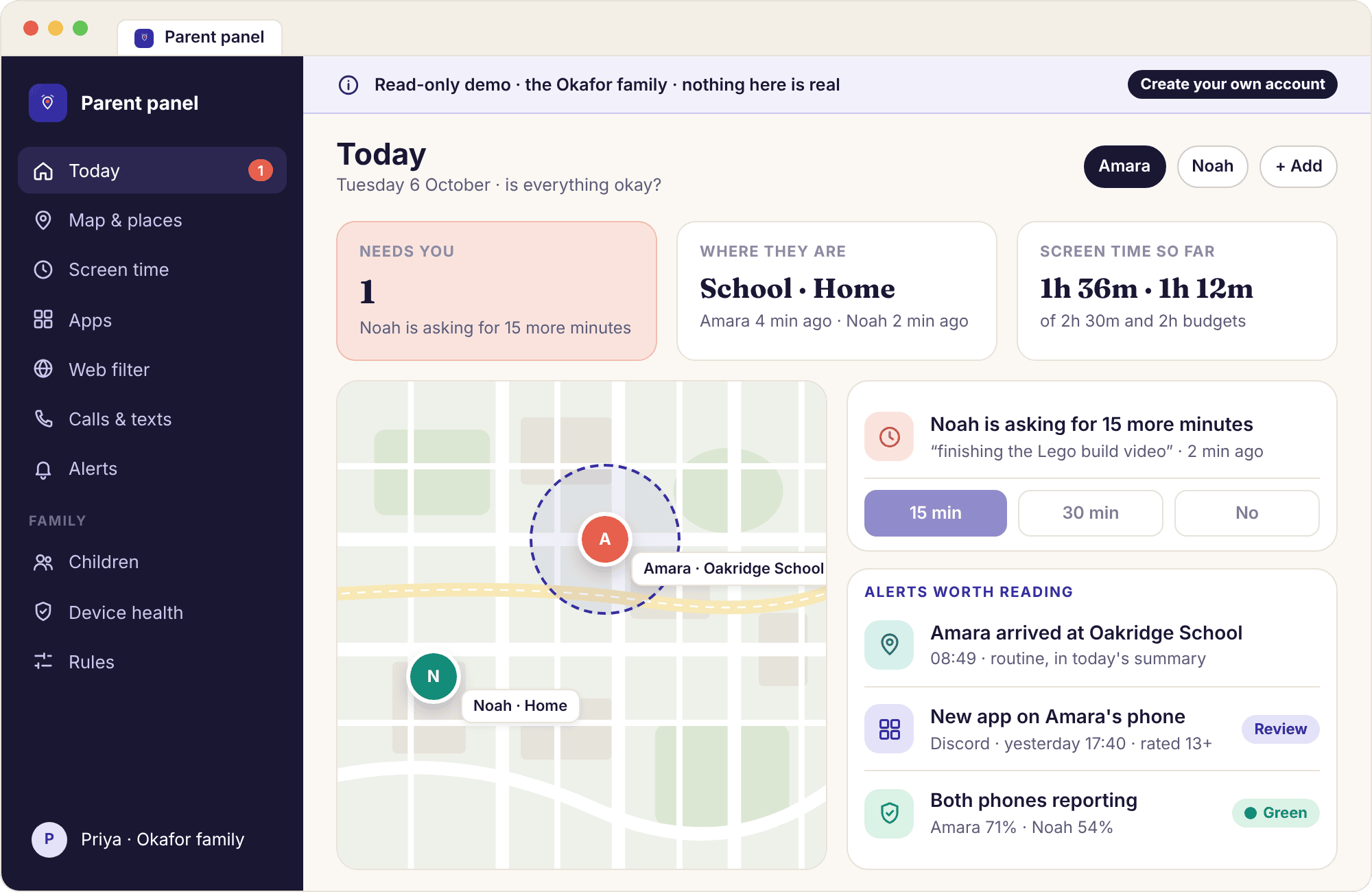
If you would rather see the panel before pairing a real phone, the demo is a read-only account for the Okafor family, Priya with Amara and Noah, holding a full school week of realistic data. Every screen opens: the Today view, both children's cards, the map with Amara at school and Noah at home, the alerts feed, the rules pages, the device health line with Noah's amber battery warning.
Nothing in it can be changed, which is the point. You can click every button, open every alert and read every log without creating an account or touching your child's phone. If the week in there looks like a week you would want to see, come back to the top of this page.
Questions parents ask while installing
Why does the consent screen appear on my child's phone rather than in the panel?
Because the consent being asked for is theirs. The screen lists what you will and will not be able to see, and it appears on the child's phone before anything is collected, so the person being monitored is the one who taps Continue. It also means the app cannot be set up on a phone nobody is holding, which rules out a silent or remote install by design.
Does my child need their own account or email address?
No. The child's phone joins your account through the one-time pairing code and never signs in to anything. There is no child password, no child email and nothing for them to forget. Everything they see on their phone, including the "What's shared" screen and the request button, works without an account of their own.
Can I pair the phone while my child is at the other parent's house?
Not remotely. The code has to be typed on the child's phone and the permissions have to be granted on it, so whoever is with the phone does the pairing. A co-parent you have invited to the account can create the code and do the setup at their house, with the child, and the phone pairs to the same family account.
What happens if the code expires halfway through setup?
Nothing is lost. A code that runs out before it is typed in has paired nothing, so you make another from the child's page and type that one instead. Each code works once, for the one child it was created for, and is deliberately short-lived so that one scribbled on a note cannot be used by anyone later. The account, the child and any settings you have already made are untouched.
What if we skip a permission during setup?
Only the features that depend on it stay off. The checklist on the child's phone keeps the item pending, the health line in the panel turns amber and names it, and you can grant it any evening later without repeating the pairing. Skipping Notification access, for example, switches off keyword alerts and social counts and nothing else.
Will the app keep working after a phone restart or a system update?
Yes, it starts with the phone. The one thing worth checking after a big system update is battery optimisation, which some manufacturers switch back on for every app. If that happens the health line goes amber and names the setting, and the fix is the same thirty seconds as on setup day.
Can I move from the Google Play build to the APK later?
Yes. Install the APK on the child's phone following the same three Android dialogs described in the APK guide, then check the Devices page in the panel. If the phone still shows as paired you are done; if not, create a new code and pair again, which takes two minutes. The call and SMS log then asks for its own permissions, which appear on the child's checklist and on their "What's shared" screen like every other feature.
How do I set up a second child?
Add them in the panel with their first name and date of birth, then repeat steps three to seven on their phone with a new code made for them. Each child has their own places, limits, rules and alerts under the one account, so pairing Noah changes nothing about Amara's settings. A switcher at the top of the app moves between children.
Do I have to switch "Install unknown apps" off again after the APK?
Yes, and the app will keep updating without it. The toggle you switched on was for one browser, and leaving it on means any file that browser downloads can offer to install itself. Once MobileTracking is installed and paired, go back to Settings → Apps → Special app access → Install unknown apps and switch that browser off again. When a newer APK is released, install it the same way: toggle on for the few minutes it takes, then off again.
Both devices on the table, ten minutes, done.
Create the account, make a code, and let your child read the consent screen before they tap Continue. The health line turns green, and the first week is for watching.
Android · Free account · Visible on your child's phone