Smart alerts you'll still read in week six
Every parental control app can send a notification. The hard part is sending few enough that you keep reading them. MobileTracking ranks each event by whether it needs a parent, folds repeats into one line, holds anything that can wait until quiet hours end, and sends the routine stuff as a single summary at six o'clock. The feed you get is short on an ordinary day and loud on the day that matters, which is the only kind of feed a parent keeps open past the first month.
Android · Either build · Alerts arrive in the parent app and the panel · No extra permission

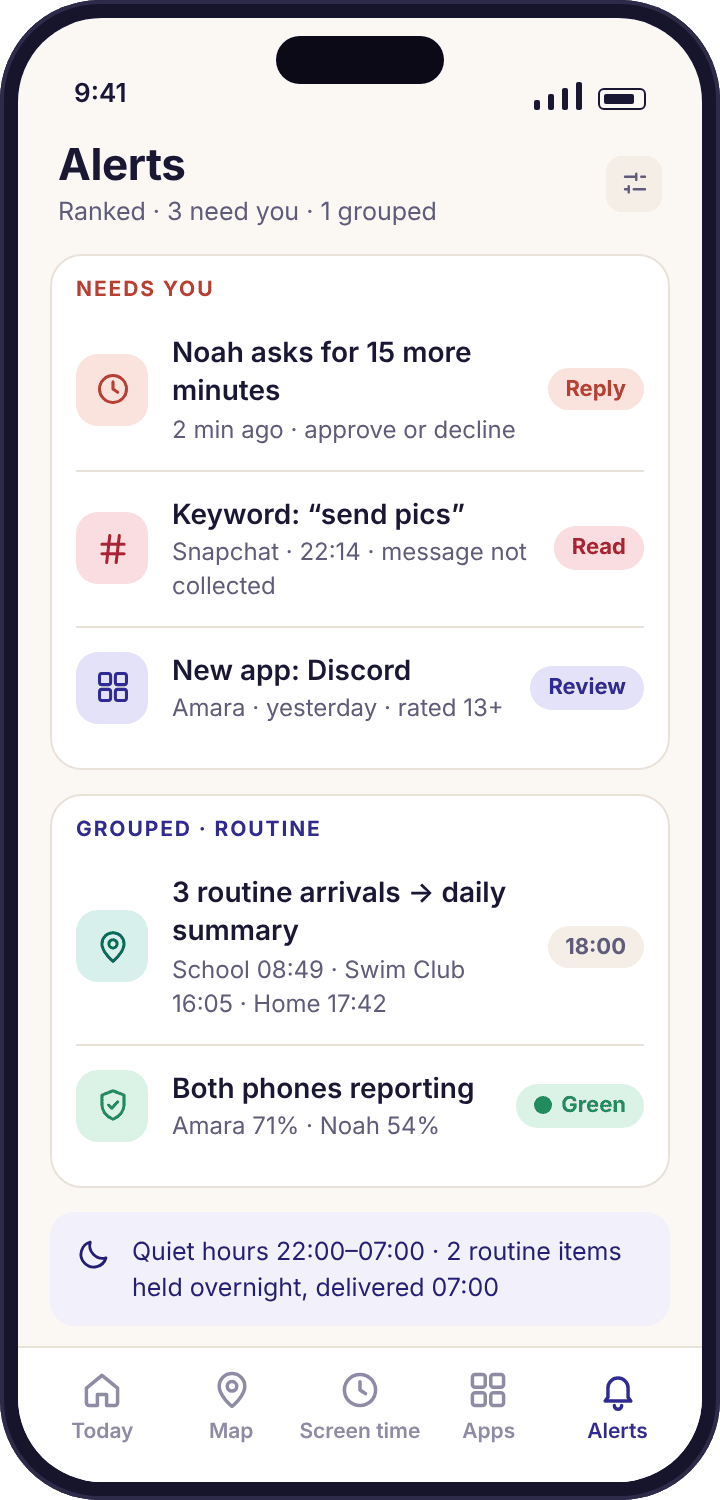
- Three kinds of alert, not one. Interrupt, summary or off, chosen per event type. A school arrival and a removed app should never arrive with the same buzz.
- Repeats become one line. Three arrivals in a day are one entry. Eleven texts from one unknown number are one alert that says eleven.
- Quiet hours hold what can wait. Between 22:00 and 07:00 by default, routine items queue up and arrive together in the morning. Urgent ones still come through.
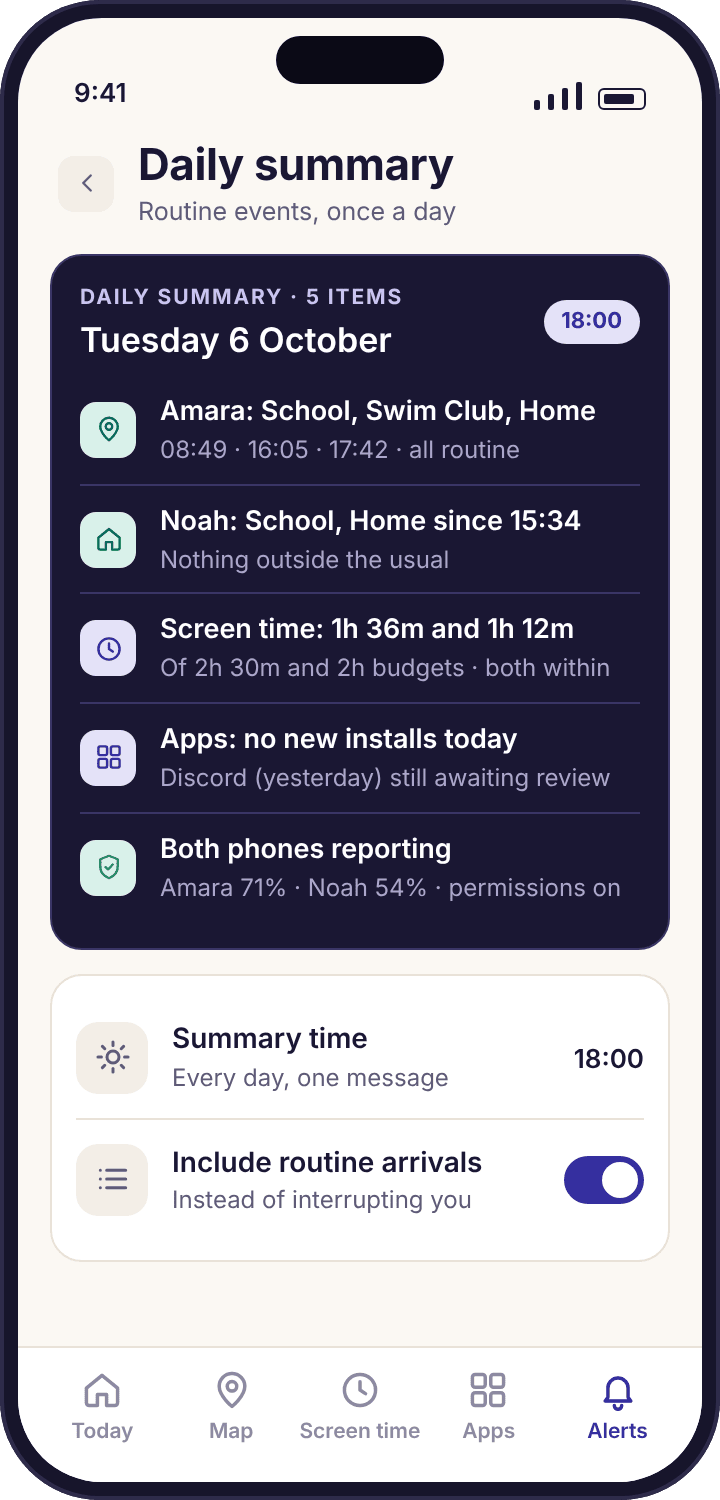
- The daily summary carries the routine. At 18:00 you get five or six lines covering the day. If nothing needs you, that is the only message you see.
- It is still a visible app. Your child's phone shows which alerts are switched on for them, and that a parent opened the panel today.
Seven moments from one week, and what the feed did with each
Priya has two children paired, a short keyword list for Amara, four saved places and quiet hours from 22:00. Here is what reached her phone over a week, what waited, and what she never saw at all because it went into the summary.
Routine. Nothing interrupts.
An arrival at a saved place during school hours is the most common event in the whole system and the least useful to be told about at the moment it happens. Priya set school arrivals to Summary on day one, so the line "Amara arrived at Oakridge School · 08:49" is written into Monday's summary and her phone stays silent. Noah's arrival at 08:52 joins the same line.
Interrupts, straight away.
A departure before the end of the school day is the one place rule Priya set to Interrupt, and it is the alert she installed the app for. Her phone buzzes at 11:21 with the place, the time and a map link. One text to the other parent confirms a dentist appointment. Thirty seconds, and the day resumes.
Interrupts, but calmly.
A new install is ranked as something that needs a decision rather than something urgent, so it arrives as a normal notification with Allow, Limit and Block on it. Priya taps Limit, sets school hours, and the child's transparency screen shows the new rule the same afternoon. Had three apps been installed in one go, they would have arrived as a single alert listing all three.
Interrupts, inside quiet hours.
Quiet hours started at 22:00, but a keyword match is on the short list of things that can still come through. Priya's phone shows the word, the app and the time, and nothing else, because the message was never collected. She decides it can wait until breakfast. The point of the feature is that the decision was hers to make, not the app's.
Five lines, once.
The summary card arrives at six as it does every day: both children's arrivals, Amara's screen time at 1h 52m of 2h 30m, Noah's at 58m of 1h 30m, one blocked web attempt in the Gambling category on Noah's tablet, and "nothing waiting for you". Priya reads it in the time it takes the kettle to boil. This is the only alert she received on Thursday.
Held until 07:00.
Noah's Pixel went quiet overnight. Device health knows the last battery reading was 4% at 01:50, so this is a flat battery, not an emergency. The alert is held and delivered at 07:00 with the morning batch, by which time the phone is charging and the health line is green again. An app removed from the phone would have been different: that interrupts at any hour.
Interrupts, because it needs an answer.
A request for more time is the one alert that is pointless unless it arrives now, so it is always an interrupt. Priya approves it with one tap from the notification without opening the app. Saturday also brought an unknown number that texted Amara four times across the afternoon; those four events arrived as one line, "unknown number · 4 texts today", in the evening summary rather than four separate buzzes.
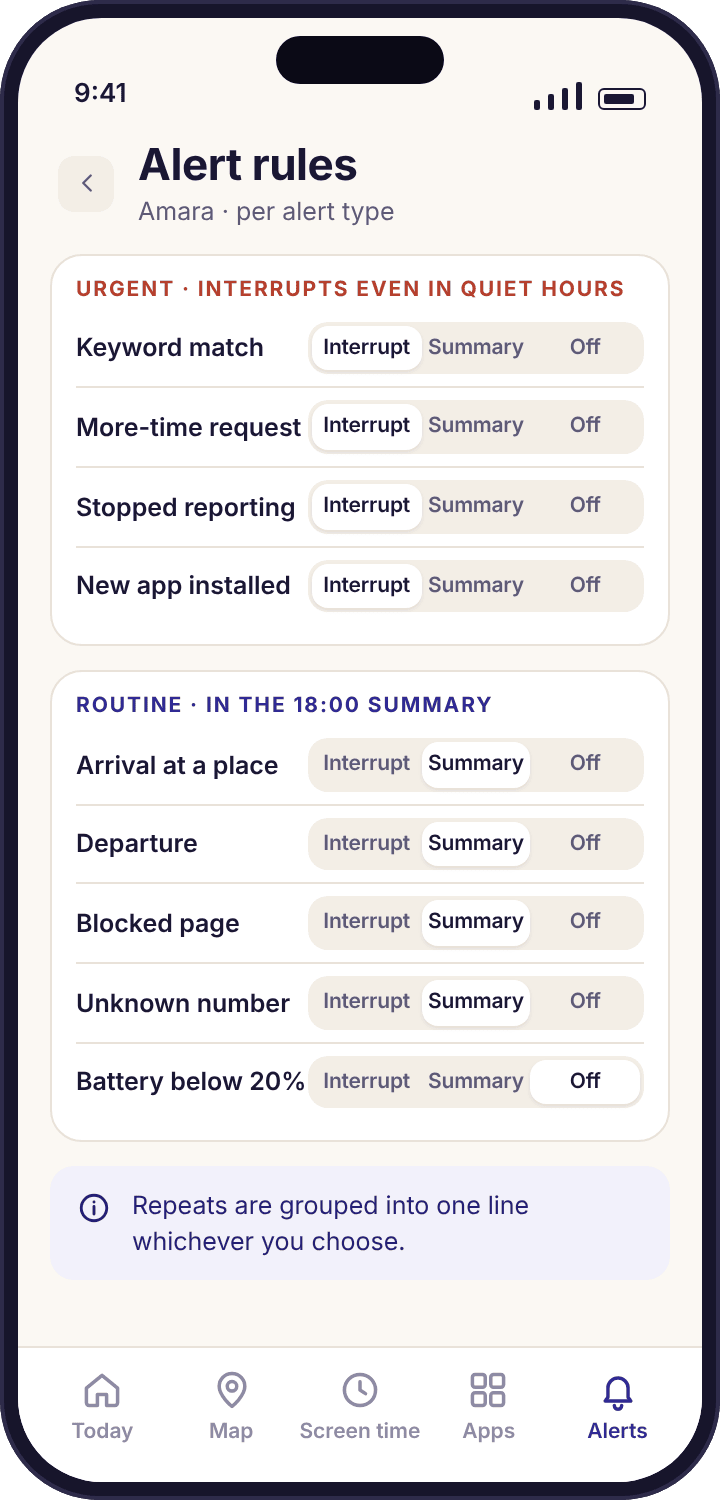
Alert rules: Interrupt, Summary or Off, for every type of event
The rules screen lists every event the app can tell you about, from a place arrival to a tamper alert, with three choices beside each: Interrupt, Summary or Off. Interrupt means a notification on your phone the moment it happens. Summary means the event is written into the daily card and never buzzes. Off means it is still logged in the panel but you are not told at all. Each child has their own set, so Noah's screen-time rules can be chatty while Amara's are quiet.
The defaults are set from the child's age at pairing and lean towards Summary. A newly paired thirteen-year-old generates perhaps two interrupts a week; the rest goes into the six o'clock card. Parents who want more can turn it up, and the useful discovery most make within a fortnight is that they want less.
The reason this page's title talks about week six is that week six is when most alert feeds die. By then the novelty has gone, the arrivals have become wallpaper, and the one notification that mattered arrives between two that did not. Setting the rules well in week one is the difference between a feed you still open in March and one you muted in November.
- A few things cannot be turned off. The app being removed from the phone, and a request for more time, always interrupt. Everything else is yours to set.
- Change it from the alert. Each notification has a "fewer like this" option that moves that event type to Summary without opening settings.
- Logged either way. Off hides the notification, not the record. The panel's alerts page still lists every event with a filter per type.
Ranking and grouping: why eleven events make one alert
Before anything is sent, each event is scored on two questions: does a parent need to do something, and how soon. A request for more time scores high on both. A school arrival scores low on both. A keyword match scores high on the first and is left to you on the second. The feed in the app is sorted by that score, so whatever needs you is at the top, and the ones below it are there if you want them.
Grouping runs alongside. Events of the same kind, for the same child, within the same day, collapse into one entry with a count. Three routine arrivals become "3 routine arrivals → daily summary". An unknown number texting eleven times in two days becomes one alert that says eleven, with the number and the "not in contacts" flag, rather than eleven alerts that say one. A burst of blocked page attempts in the same category in the same hour is a single line with a count.
Grouping also protects your child from a kind of distortion. Eleven separate alerts about one number feel like eleven problems, and a parent who has been buzzed eleven times arrives at the dinner table in a different mood from one who has read a single line saying "eleven". The count tells you the same thing; the mood is the difference.
- The count is the signal. One text from an unknown number is nothing. Eleven is a pattern, and the grouped alert is what makes the pattern visible.
- Groups open. Tap a grouped line and the individual events are listed underneath with their times.
- Nothing is dropped. Grouping changes how many notifications you receive, never how many events are recorded.
Quiet hours: the routine waits, the urgent does not
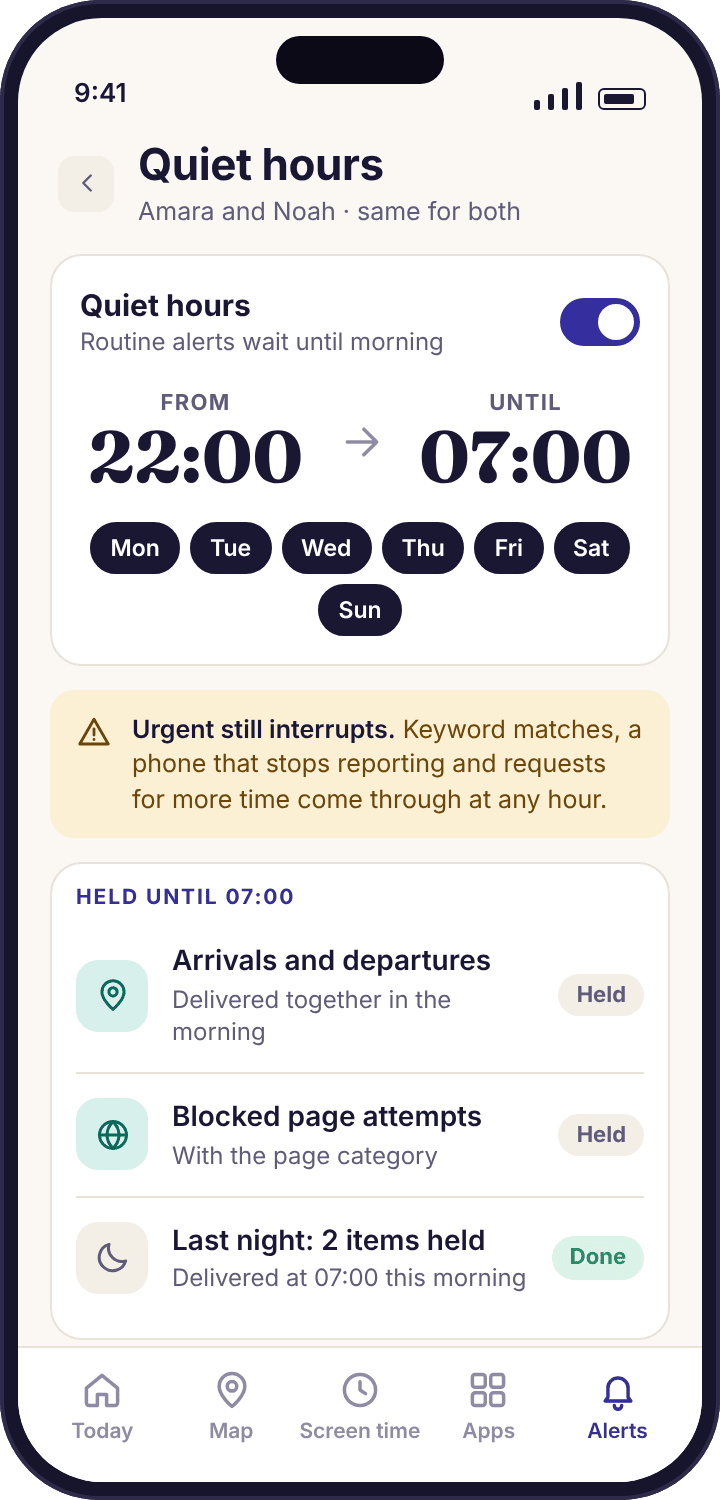
Quiet hours are a window on your side, set in your own app, during which anything that is not urgent is held. The default is 22:00 to 07:00. A phone that stopped reporting at two in the morning with a 4% battery is not urgent, and being told at 07:00 serves you exactly as well as being told at 02:05. A keyword match or a removed app is urgent, and comes through regardless.
At the end of the window, everything that was held arrives as one message, not a stack. If six things happened overnight, you get one notification listing six things. Quiet hours do not affect the child's phone at all; bedtime and wind-down are a separate feature that lives on their handset. This setting is only about when your phone is allowed to disturb you.
Priya's window ends at 07:00, a quarter of an hour before her alarm, so the overnight batch is waiting when she picks up her phone rather than arriving while she is finding her glasses. Small adjustments like that are the point of the setting: it should fit around your morning, not the other way round.
- Urgent is a short list. App removed, keyword match, request for more time. You can add a departure rule to it; you cannot add arrivals.
- Each parent sets their own. A co-parent on the account has their own quiet hours and their own rules, so one of you can take the early shift.
- The panel never sleeps. Open the panel during quiet hours and everything is there; only the notifications wait.
What interrupts, what waits for the summary, and what stays silent by default
The defaults below are what a parent of a thirteen-year-old gets after pairing. Everything marked Summary or Silent can be promoted; almost everything marked Interrupt can be demoted. The two that cannot be changed are at the top.
| Event | Interrupt | Summary | Silent | Why the default is what it is |
|---|---|---|---|---|
| App removed from the phone | Always | No | No | Collection has stopped. You need to know within minutes, not at six o'clock. Cannot be changed. |
| Request for more time | Always | No | No | A request that arrives in the summary is a request nobody answered. Cannot be changed. |
| Keyword match | Default | Optional | No | Word, app and time only. Interrupts even in quiet hours unless you move it to the morning batch. |
| Left a place before a set time | Default | Optional | Optional | "Left school at 11:20" is the single most useful place alert. Most parents keep it on. |
| New app installed | Default | Optional | No | Arrives with Allow, Limit and Block on it, so the decision takes one tap. Several installs in a day group into one. |
| Unknown number, repeated | Optional | Default | Optional | One grouped line with the count. APK build only, because the Play build has no call or SMS log. |
| Phone stopped reporting | Optional | Default | No | Usually a flat battery or battery optimisation. The health line explains it; the alert points you there. |
| Arrived at a saved place | Optional | Default | Optional | Routine arrivals are grouped into one summary line. Promote one place, such as Grandma Ngozi's, if that day is unfamiliar. |
| Screen time budget used up | Optional | Default | Optional | The child already knows: their phone showed a ten-minute warning. You find out in the summary. |
| Blocked page attempt | No | Default | Optional | Logged with the category, counted in the summary. A single blocked page is not worth a buzz; a dozen in an hour is one line with a count. |
| Left home on a school morning | No | Optional | Default | It happens every day at the same time. The event is in the location history if you ever need it. |
The unfamiliar day is when a Summary event deserves to interrupt for a while: Noah's first walk to Swim Club on his own, or an afternoon at Grandma Ngozi's by bus. Promote that one place to Interrupt in the morning and set it back in the evening. The rules screen shows which types are currently promoted, so a change made for one day does not quietly become the default for a year.
The parent panel's alerts page lists every event, including the types set to Off, with filters by child, type and day. It is where you go when a summary line makes you curious. The phone app is for being told; the panel is for looking, and keeping those two jobs separate is what keeps your phone quiet.
The exact rules for what happens between ten at night and seven in the morning
22:00 to 07:00 by default, set on your own phone in the parent app. You can move either end, and switch it off entirely. The window is yours; a co-parent on the same account has their own, and the two do not need to match.
The app being removed from a child's phone, a keyword match, and a request for more time. Any place-departure rule you have marked as urgent. Nothing else, however many events arrive.
Arrivals, departures that are not marked urgent, new installs, a phone that stopped reporting, screen-time events, blocked page attempts and unknown-number groups. Each is timestamped when it happened, not when it was delivered.
At 07:00 everything held overnight arrives as one notification. Open it and the items are listed in the order they happened, with the usual actions beside each. If nothing was held, no notification is sent at all.
Sent at 18:00 regardless of quiet hours, covering the day so far for every child: arrivals, screen time, anything counted, and whether anything is waiting for you. You can move the time; most parents keep it in the early evening, when it is still possible to act on it.
Held items are grouped the same way as daytime ones. Four arrivals overnight (a late pickup, say) are one line, and three check-ins from a flat phone are one line reading "stopped reporting · battery 4% at 01:50".
Unaffected. Quiet hours do not pause collection, change any limit or silence their handset. The bedtime schedule is a separate feature that lives on their phone and runs even when it is offline.
Edit either end from the quiet hours screen in the parent app. A change takes effect at the next window, so moving the end from 07:00 to 06:30 at breakfast applies tomorrow morning. Switching quiet hours off delivers anything currently held straight away, as one message.
Always current. Sign in during quiet hours and every event is already there with its time. Quiet hours decide when your phone buzzes, never what you can see.
One honest limit. An alert can only be as timely as the child's phone's last check-in. If battery optimisation has put the child app to sleep, an event may reach you an hour after it happened. The device health line names that state exactly, and the fix is one Android toggle.
Questions parents ask about the alerts feed
How many alerts will I get in a normal week?
For one child with the defaults, usually two or three interrupts a week plus one summary card each evening. The number rises if you promote arrivals or screen-time events to Interrupt, and most parents who do that move them back within a fortnight. The rules screen shows a count of interrupts over the last seven days so you can judge for yourself.
Can I switch off all notifications and just use the panel?
Almost. Every event type except two can be set to Off, which keeps it in the panel's alerts page and sends nothing to your phone. The two exceptions are the app being removed from the child's phone and a request for more time, because both are pointless unless you hear about them promptly.
Do alerts arrive by email as well?
The daily summary and the tamper alert for a removed app can both be sent by email as well, as a backstop in case your phone is off. Interrupts arrive as push notifications in the parent app, and every event is listed in the panel. Email is a copy, never the only route.
Why did an event arrive an hour after it happened?
Because the child's phone checked in an hour late. Alerts are generated when the phone reports, and a phone with battery optimisation switched on for the child app can be put to sleep for long stretches. The alert shows the time the event happened, and device health shows the last check-in so you can see the gap and fix the setting.
Does my child see which alerts are set up?
Yes. The transparency screen on the child app lists the alerts that are switched on for them in plain words, such as "Priya is told if you leave school before 15:00". It does not show your quiet hours or your summary time, because those are about your phone, not theirs. It does show that a parent opened the panel today.
Can a co-parent get different alerts from me?
Yes. Each parent on the account has their own alert rules and their own quiet hours. One of you can have school arrivals set to Interrupt and the other can have them in the summary. Actions are shared: if either of you approves a request for more time, it is marked as handled for both.
What happens to an alert I ignore?
It stays in the feed, sorted by whether it still needs you. A request for more time expires on its own after a while and the child is told nobody answered, which is better than it sitting open for a day. Everything else remains in the panel's alerts page for as long as the child's history is kept.
Will the summary tell me what my child wrote or said?
No. The summary carries counts, times, places and durations, the same signals as the rest of the app. A keyword line says the word, the app and the time. There is no message text anywhere in the feed, on any plan, because the app never collects any.
Can I set different rules for my nine-year-old and my thirteen-year-old?
Yes, and the defaults already differ by age. Rules are per child, so Noah can have a new-install alert that interrupts while Amara's goes to the summary. The child switcher at the top of the rules screen moves between them, and a change to one child never affects the other.
Are alerts delayed if my child's phone is offline?
Yes, until it reconnects. Events are recorded on the phone and sent at the next check-in, with their original times, so a day with no signal arrives as one morning batch rather than disappearing. The one thing the app cannot do is tell you about a phone that is switched off, beyond the fact that it stopped reporting.
Where this fits with everything else
The feed carries events from every feature, and a few of them deserve their own page: keyword alerts, calls and SMS monitoring, social media monitoring and call log.
Smart alerts switches on once your child's phone is paired with your account, which takes about ten minutes with both devices on the table. The download and setup guide walks through every screen.
An alert feed that stays short on the quiet days.
Pair your child's phone, leave the defaults for a week, and see how few notifications a well-ranked feed needs. Everything else is in the summary at six.
Android · Free account · Visible on your child's phone