How to install the APK on Android safely
MobileTracking comes in two builds. The Google Play build installs like any app. The direct APK build adds the call and SMS logs that Google Play policy keeps out, and installing it means stepping through four Android dialogs that most parents have never seen. This page shows each dialog, explains what it is asking, and sets out the three habits that make sideloading an app as safe as it can be, including the two settings you should put back afterwards.
Android 8.0 or later · Download only from this site · Let Play Protect scan it · Switch "Install unknown apps" off again

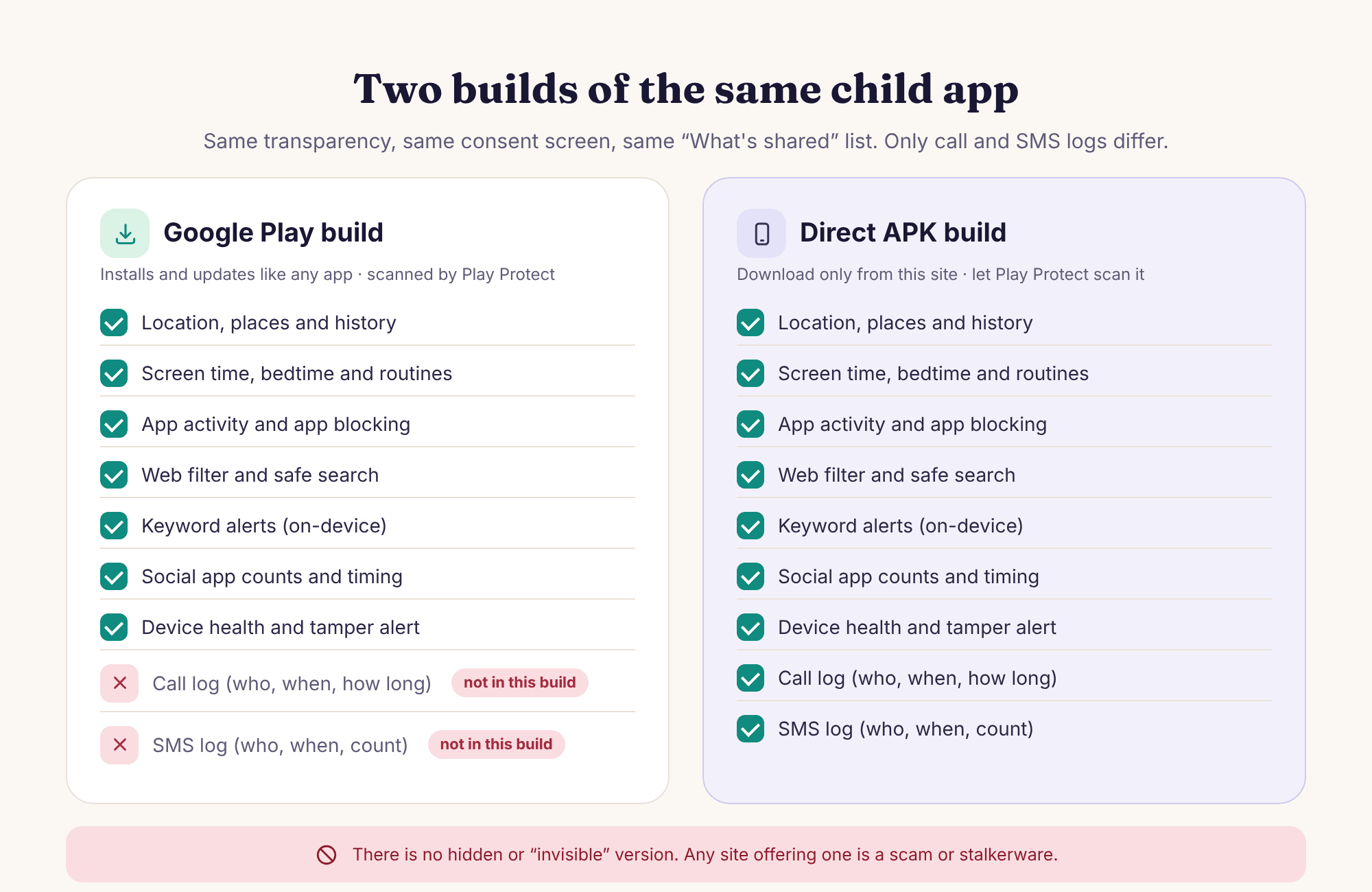
- You only need the APK for call and SMS logs. Every other feature is identical in the Google Play build, which updates itself and needs none of this page.
- Type our address into the browser yourself. Never install an APK that arrived by text, email, a forum link or a search advert, whatever name is on it.
- Android's warnings are normal, not a verdict. "Install unknown apps" and "Do you want to install this app?" appear for every sideloaded app. Read them; do not fear them.
- Let Play Protect scan it, every time. The scan takes seconds and is the one check that does not depend on trusting us.
- Put the setting back. Switch "Install unknown apps" off for the browser once the app is installed, so the phone goes back to refusing stray APKs.
The six screens between the download button and the app's home screen
All six happen on the child's phone, with the child there. Android's wording varies a little between a Samsung Galaxy A35 and a Pixel 7a; the order does not.
Open the download page by typing the address
In the phone's browser, type this site's address into the address bar yourself and go to the download page. Do not search for it and tap a result, and do not follow a link from a message, however plausible the sender. Tap the "Full build (APK)" button. Chrome will ask whether to keep a file of this type; choose Keep. The file lands in Downloads and a notification appears when it has finished, usually within a minute.
Why so insistent about the address bar? Because the file name proves nothing. Anyone can rename an APK to look like ours, and the sites that rank well for "MobileTracking APK download" are not ours. The only thing that proves where a file came from is the address you typed to get it. If the child's phone has a browser you do not recognise, use Chrome, which is on almost every Android phone.
Allow the browser to install apps, for now
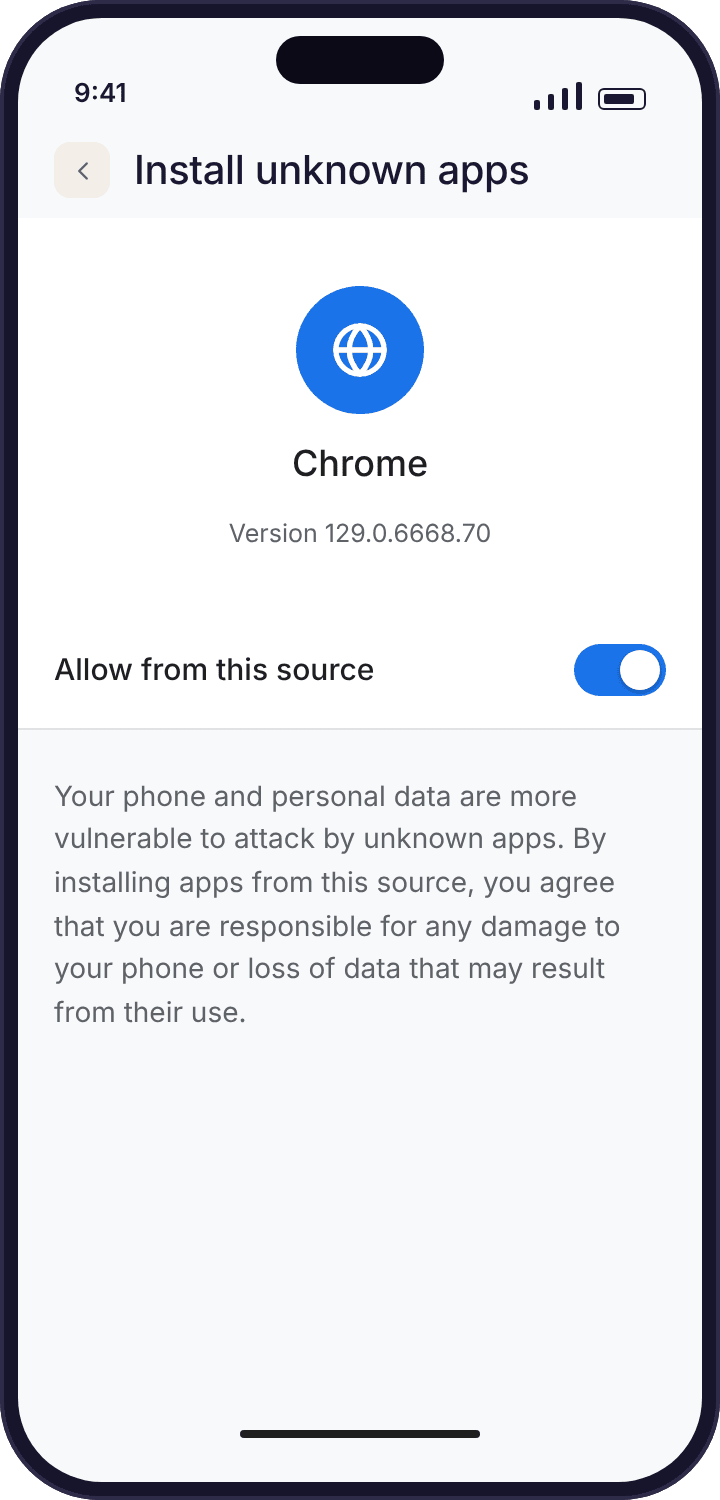
Tap the finished download. Android stops you with a sheet saying the phone is not allowed to install unknown apps from this source, with a Settings button. That takes you to the "Install unknown apps" screen for Chrome, which has one toggle, "Allow from this source". Turn it on. This is a per-app permission: you are telling Android that Chrome may hand it an APK, nothing more. You will switch it off again in step five.
Confirm the install prompt
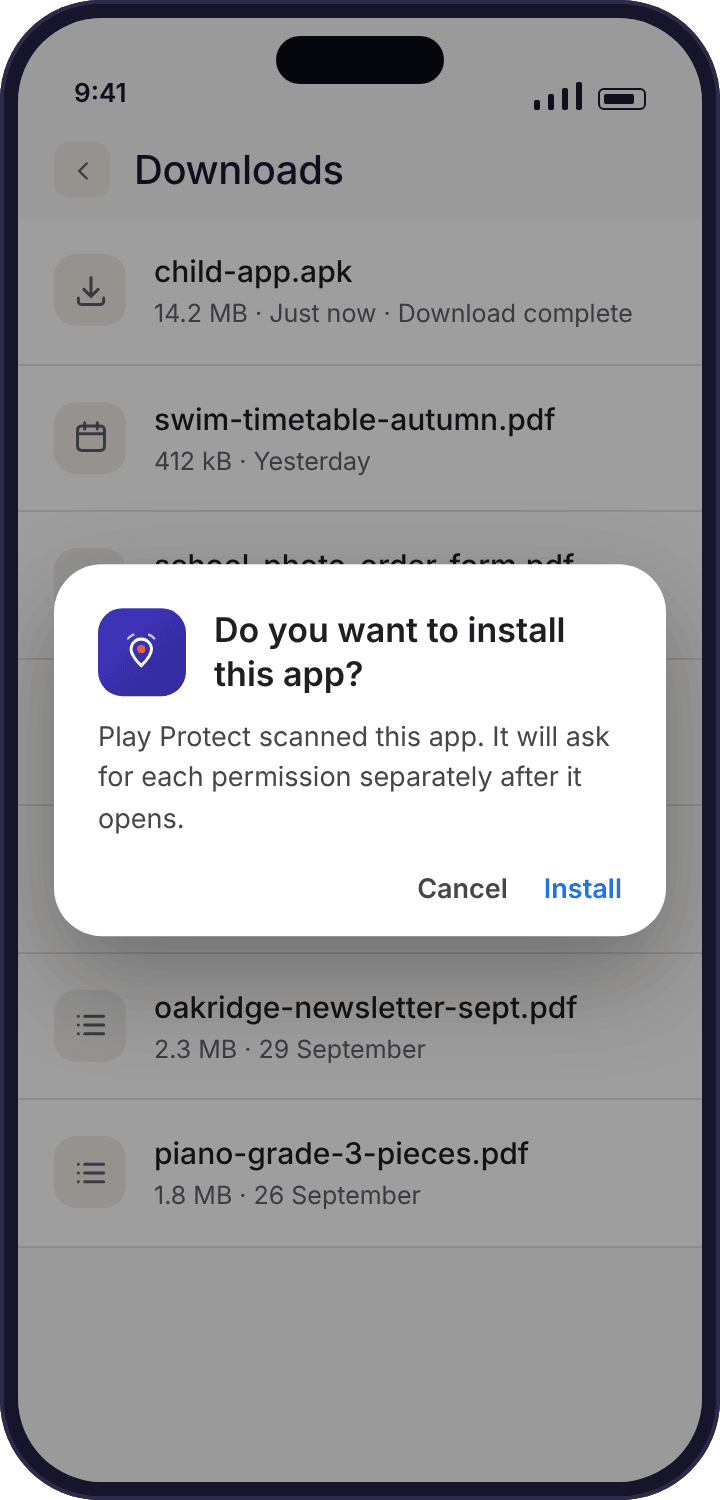
Go back and tap the download again. The system install prompt appears: the app's icon and name, and the question "Do you want to install this app?" with Cancel and Install. Check two things before tapping Install. The icon should be our logomark, and the name should be MobileTracking with no extra words such as "Pro", "Hidden" or "Lite"; any of those means the file did not come from us. Then tap Install and wait a few seconds.
Let Play Protect scan it
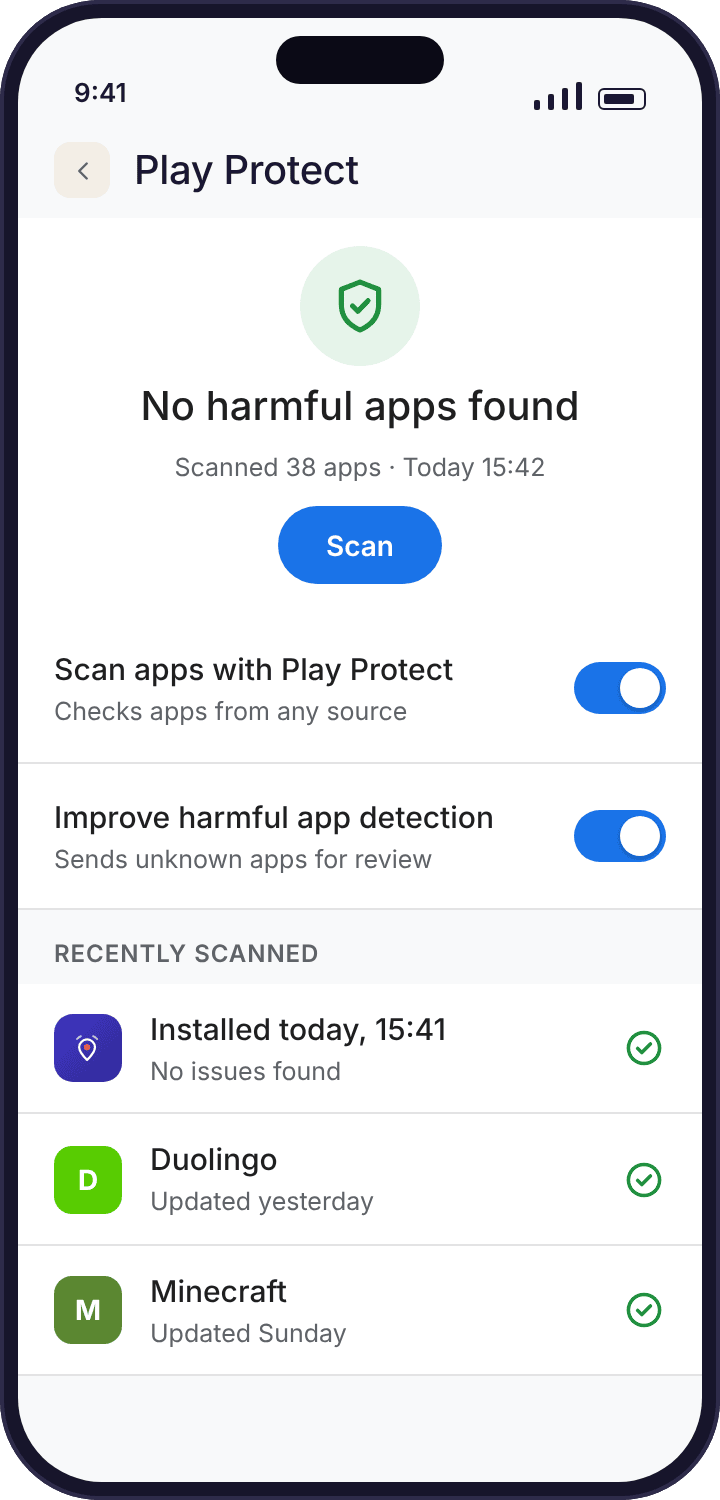
On most phones Play Protect scans a sideloaded app automatically as it installs and shows a brief result; on some it asks first, "Scan this app?". Say yes. The result you want is "No harmful apps found", or an equivalent line with a green tick. Play Protect is Google's check, run by the phone, with no involvement from us, which is exactly why it is worth the few seconds. If it says anything other than a clean result, stop and read the troubleshooting section below before opening the app.
Switch "Install unknown apps" off again
Go to Settings → Apps → Special app access → Install unknown apps → Chrome and turn "Allow from this source" off. The app you just installed keeps working; the toggle only governs future installs. Leaving it on means a tapped link in a group chat could put an APK on the phone with one fewer barrier, and a child's phone is exactly where that barrier earns its keep. On a Samsung the same screen is under Settings → Security and privacy → Install unknown apps.
While you are in that list, glance at the other apps on it. If a messaging app or a file manager already shows "Allowed", a previous install left it that way, and the same reasoning applies: turn it off unless you know why it is on. This takes a minute and is the single most useful thing a parent can do for an Android phone's safety that has nothing to do with our app.
Open the app and pair it with a code
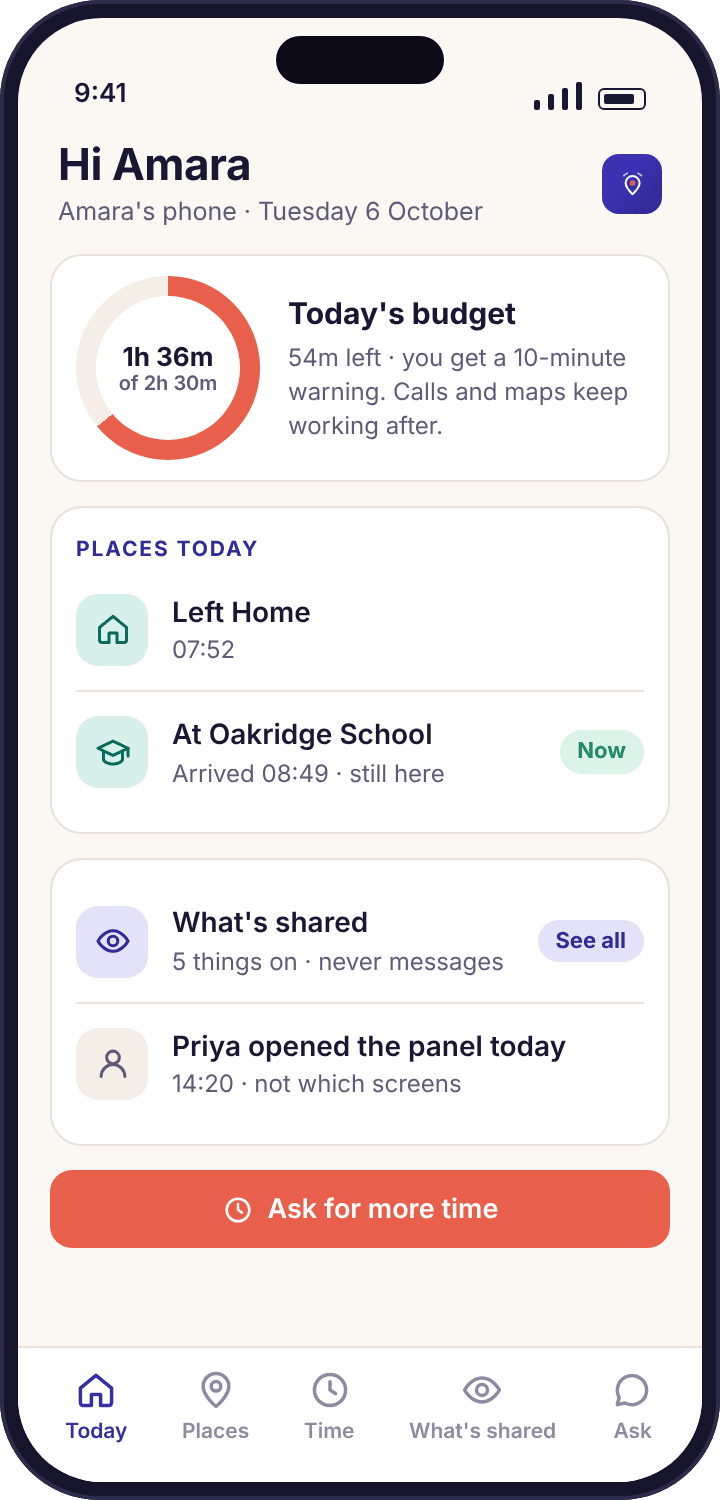
Open MobileTracking from the app drawer. The first screen asks for a six-character pairing code, which you create on the child's page in the parent panel; it works once and expires in about fifteen minutes. The consent screen and the six permissions follow, and the pairing walkthrough covers each one. When it is done the child's home screen shows their name, today's budget, today's places and the "What's shared" list, and the app sits in the drawer under its own name.
Google Play build and direct APK build, side by side
The builds are the same app with one difference in what they are allowed to collect. The table is the full list; if a row surprises you, it is probably the one about updates.
| Google Play build | Direct APK build | |
|---|---|---|
| Where it comes from | Google Play, searched and installed like any app | This site only, typed into the address bar |
| Call and SMS logs | Not included; Google Play policy forbids the access | Included: numbers, names, times, durations, direction and counts |
| Message contents | Never | Never; the log is numbers and times, not words |
| Location, places, history | Same | Same |
| Screen time, bedtime, app rules, web filter | Same | Same |
| Keyword alerts and social counts | Same | Same |
| Updates | Automatic, through Google Play | The app tells you when a new version exists; you download it from this site and install it over the old one, keeping the pairing |
| Play Protect scanning | At install and periodically afterwards | At install if you let it, and periodically afterwards like any installed app |
| Visible on the child's phone | Own icon, home screen, transparency screen | Identical; there is no quieter build |
| Pairing and consent | Code, consent screen, six permissions | Code, consent screen, six permissions |
| Uninstalling | Like any app; parent gets a tamper alert | Like any app; parent gets a tamper alert |
| Extra Android settings to touch | None | "Install unknown apps" on, then off again |
Switching builds later is allowed. Uninstall one, install the other, and pair with a fresh code; the child's rules, places and history stay with the child in your account. Only the paired phone changes.
The Okafors run both. Amara's Galaxy A35 has the APK build, because at thirteen she texts and calls a good deal and Priya wanted the unknown-number flag; Noah's Pixel 7a has the Play build, because a nine-year-old's call log is two parents and Grandma Ngozi, and automatic updates are one less thing to remember. Both phones appear on the same panel, and nothing about the way each child's rules work depends on which build is underneath.
The three habits that make a sideloaded app safe
Sideloading is not dangerous in itself; Android has supported it from the start. What is dangerous is doing it casually, on a child's phone, from a source you did not choose. Three habits remove almost all of the risk.
Only ever from this site, typed in by you
An APK is just a file, and a file can be renamed. The APK stores, forum mirrors and "latest version" sites that come up in a search are run by people we have never met, and some of them repackage parental apps with extra code of their own. The same goes, with more force, for any link that arrives by message. Our file lives on our download page and nowhere else. Type the address yourself, every time, including for updates.
The corollary is worth saying plainly: any site offering a "hidden" or "invisible" version of MobileTracking is not offering MobileTracking. No such version exists. What they are offering is either stalkerware wearing our name or a plain scam, and installing it on a child's phone is the opposite of what you came here to do.
Let Play Protect scan it, and read what it says
Play Protect is the one check in this process that does not rest on trusting us. It compares the file against Google's own records and runs on the phone, with no account or sign-in. A clean result takes seconds. If you ever see a result that is not clean, do not tap through it; delete the file and download again from the address bar, because the usual cause is a file that was altered on the way or came from somewhere other than here.
Play Protect keeps scanning installed apps afterwards, on the Play build and the APK build alike, which is a second reason not to disable it on a child's phone even if a game once asked you to.
Switch "Install unknown apps" off again, and keep it off
The toggle you turned on in step two is per app, and it stays on until someone turns it off. On a child's phone it should be off. The reason is not our app but every other APK the child might be sent: a "free skins" file in a Discord server, a cracked game from a friend, a fake update. With the toggle off, each of those stops at the same Android sheet you saw, which is a useful barrier for a nine-year-old and a reasonable one for a thirteen-year-old. Our app, once installed, does not need it.
Check it once a term. Children ask friends how to install things, friends say "just turn that on", and it stays on. The device health line does not report this setting, so it is a thing to look at yourself with the phone in hand.
Six things that stop an APK install, and the fix for each
None of these needs a factory reset, a developer mode or a different browser. Most are one setting or one fresh download.
"App not installed" after tapping Install.
The download was cut short or the phone is nearly out of storage. A half-downloaded APK looks complete in the Downloads list but fails at the last step.
Fix: Delete the file from Downloads, check there is at least a few hundred megabytes free under Settings → Storage, and download again from the address bar. Install the fresh file, not an older copy with "(1)" in its name.
"There was a problem parsing the package."
The phone is on Android 7 or earlier, which the app does not support, or the file is not actually an APK because the browser saved a web page instead.
Fix: Check Settings → About phone → Android version. 8.0 or later is needed. If the version is fine, delete the file and download it again directly from the download page's button, not from a link on another site.
The "Install unknown apps" screen has no toggle for Chrome.
You opened the setting from the wrong place, or you downloaded with a different browser or a file manager, and that app needs the permission instead.
Fix: Go to Settings → Apps → Special app access → Install unknown apps and pick the app you tapped the file from. On Samsung phones the list is under Settings → Security and privacy. Grant it to that one app, install, then switch it off again.
Play Protect warns about an unrecognised developer.
A sideloaded app is, by definition, not one Google has reviewed through the Play store, and some Android versions say so with a cautious wording even when the scan itself is clean.
Fix: Read the result carefully. "No harmful apps found" with a note that the app is from an unknown source is a clean result. A result that names the app as harmful is not; delete the file and download again by typing our address, and if it repeats, stop and contact us before installing.
Installed and paired, but the panel shows no call or SMS log.
The Google Play build is installed, not the APK. The two look identical on the phone, so this is easy to do if the child had already installed it from Play.
Fix: Open the app's About screen on the phone; it names the build. If it says Google Play, uninstall it, install the APK as above, and pair again with a fresh code. The child's rules and history are unaffected.
Blocked by a school or work device policy.
The phone is managed by someone else, typically a school-issued tablet, and its policy forbids unknown sources. The toggle is greyed out with a "managed by your organisation" note.
Fix: There is no fix we can offer, and we would not want to bypass another organisation's policy. Use the Google Play build if the policy allows it, or pair the child's own phone instead of the managed device.
Questions parents ask before sideloading
Is it safe to install an APK on my child's phone?
Yes, if it comes from this site, typed into the address bar, Play Protect scans it clean, and you switch "Install unknown apps" off afterwards. Those three habits are the whole of the safety advice. An APK from a mirror site, a message or a search advert is a different matter, and we would not install one of those on any phone, let alone a child's.
Why is there an APK at all if the app is on Google Play?
Google Play policy does not allow apps in this category to read the call log or SMS log, so the Play build cannot offer the calls and texts overview. The direct build can. Parents who do not want call or SMS logging have no reason to sideload anything and should use the Play build.
Does the APK build hide the app or do anything the Play build does not?
No. The only difference is the call and SMS log. The icon, the home screen, the consent screen, the transparency screen and the "a parent viewed the panel today" note are identical. There is no hidden build and anyone offering one is not offering our app.
How do updates work for the APK build?
The app shows a notice when a newer version exists, with a button that opens our download page. Download the new file the same way, install it over the old one, and the pairing, rules and history carry across without a new code. Expect to repeat the "Install unknown apps" toggle, on and then off, each time.
Will Play Protect remove the app later?
Play Protect keeps checking installed apps and would act on one it found harmful. Our app has nothing in it that triggers that: no advertising SDK, no third-party analytics on location data, no hidden components. It has not been removed from a paired phone by Play Protect, and if it ever were, the device health line would show the app as stopped and you would get a tamper alert.
Can my child install the APK on their own?
They could run the install, but it is useless without a pairing code from your panel, and the consent screen and permissions need to be done with you anyway. We would rather you did the whole thing together; the installation is a good moment to explain what the app will show, with the actual screens in front of you.
Do I need to "root" the phone or enable developer options?
No. Rooting is neither needed nor advised, and the app does not use developer options. Everything on this page is done through Android's ordinary settings, which is deliberate: a parental app that needs a rooted phone is asking a child's device to give up its own protections.
Which browser should I download with?
Any of them. Chrome is the example on this page because it is on almost every Android phone, but Samsung Internet or Firefox work the same way; the "Install unknown apps" toggle just applies to whichever browser you used. Use the one already on the phone rather than installing another.
Can I install the APK on a tablet?
Yes, on any Android tablet running 8.0 or later. Call and SMS logs only have something to show if the tablet has a SIM and is used for calls or texts; on a Wi-Fi tablet they stay empty. The rest of the app runs the same, and a shared tablet can be paired to one child at a time.
What do I do with the downloaded file afterwards?
Delete it from Downloads once the app is installed. It is not needed again, it takes up space, and an old installer lying around is one more thing a child could tap by mistake. The installed app is unaffected by deleting the file it came from.
Where the APK fits with everything else
Installing is the short part; the pages beside this one cover what happens next: setup and pairing guide, the child app and device health.
Call and SMS logging switches on once your child's phone is paired with your account, which takes about ten minutes with both devices on the table. The download and setup guide walks through every screen.
Four dialogs, three habits, one honest app.
Download the APK from this page, let Play Protect scan it, put the setting back, and pair it with your child in the room.
Android · Free account · Visible on your child's phone