Screen time limits your child can see coming
A daily budget for each child, one figure for school days and another for weekends, with optional limits on the two or three apps that swallow the afternoon. When the budget runs out, games and video pause; calls, maps and the apps you mark as always allowed carry on. Your child gets a ten-minute warning on their own phone, can ask for more from a button on the same screen, and you answer with one tap. Nothing is limited until you set a limit.
Android · Either build · Permission: Usage access · Visible on their phone

- A newly paired phone has no limit. Pairing switches on counting, not blocking. Until you type a number into the Budget screen, nothing pauses.
- Record a normal week before you set anything. The first budget most parents guess is wrong by an hour in one direction or the other. Seven days of real figures fix that.
- The budget pauses games and video, not the phone. Calls, the dialler, maps and any app on the always-allowed list keep working after the minutes are gone.
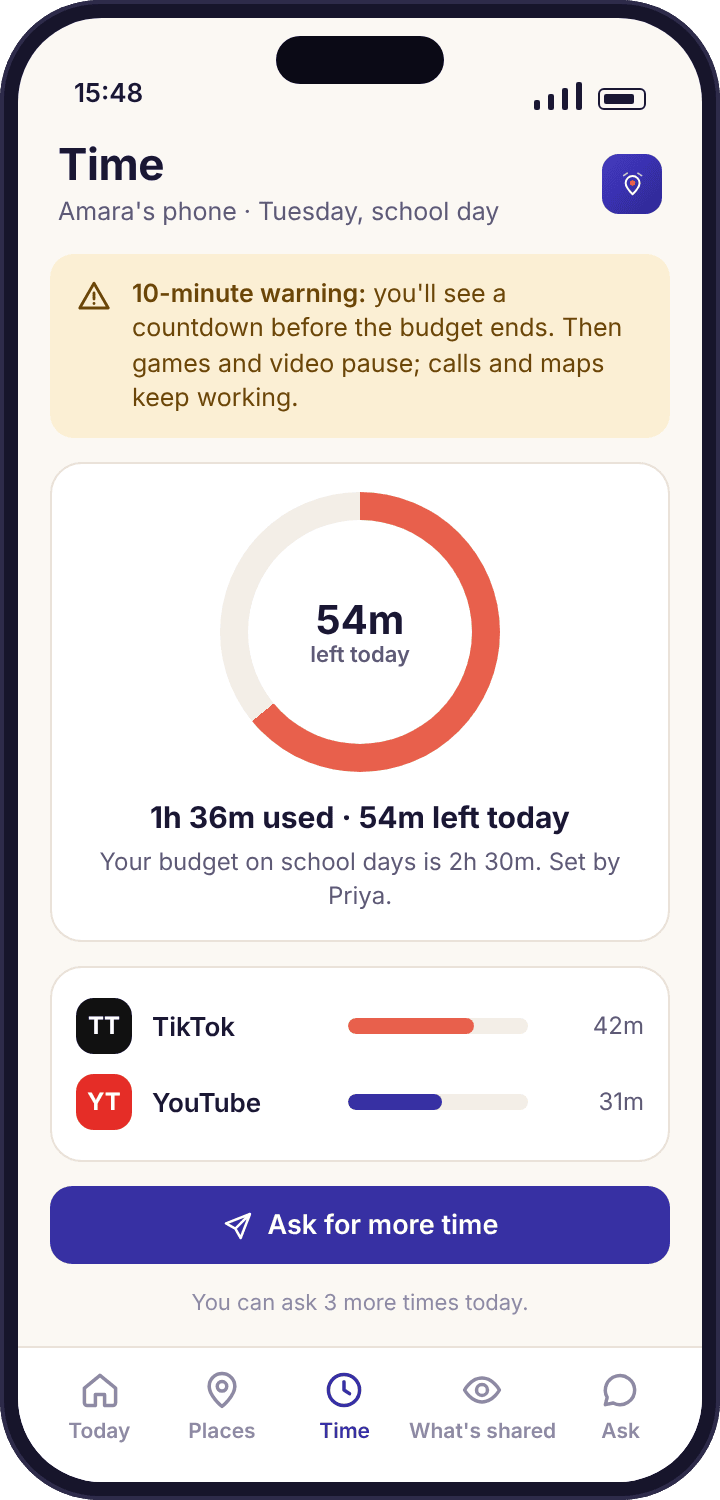
- The child sees it first. The budget sits on their home screen, a banner appears ten minutes before the end, and the “Ask for more time” button is theirs to press.
- You answer requests with one tap. 15 minutes, 30 minutes or No, from the notification. A cap you set stops the asking becoming a campaign.
What the first two weeks look like if you do them in the right order.
The mistake is to set a budget on the evening you pair the phone. The order below is the one we give every parent who writes in, and it is the order Priya followed with Amara. Day one to day seven is measuring. Day eight onwards is deciding.
Switch on Usage access and leave every limit empty.
The phone is paired, the health line is green, and the Screen time screen shows a single figure: minutes used today, which is nineteen because the phone has been on the kitchen table. There is no budget. The Budget field reads “Not set” and the child app’s home screen says the same in plain words. Amara can see that her usage is being counted and that nothing is being blocked, because both facts are on her transparency screen.
The by-app bars start to mean something.
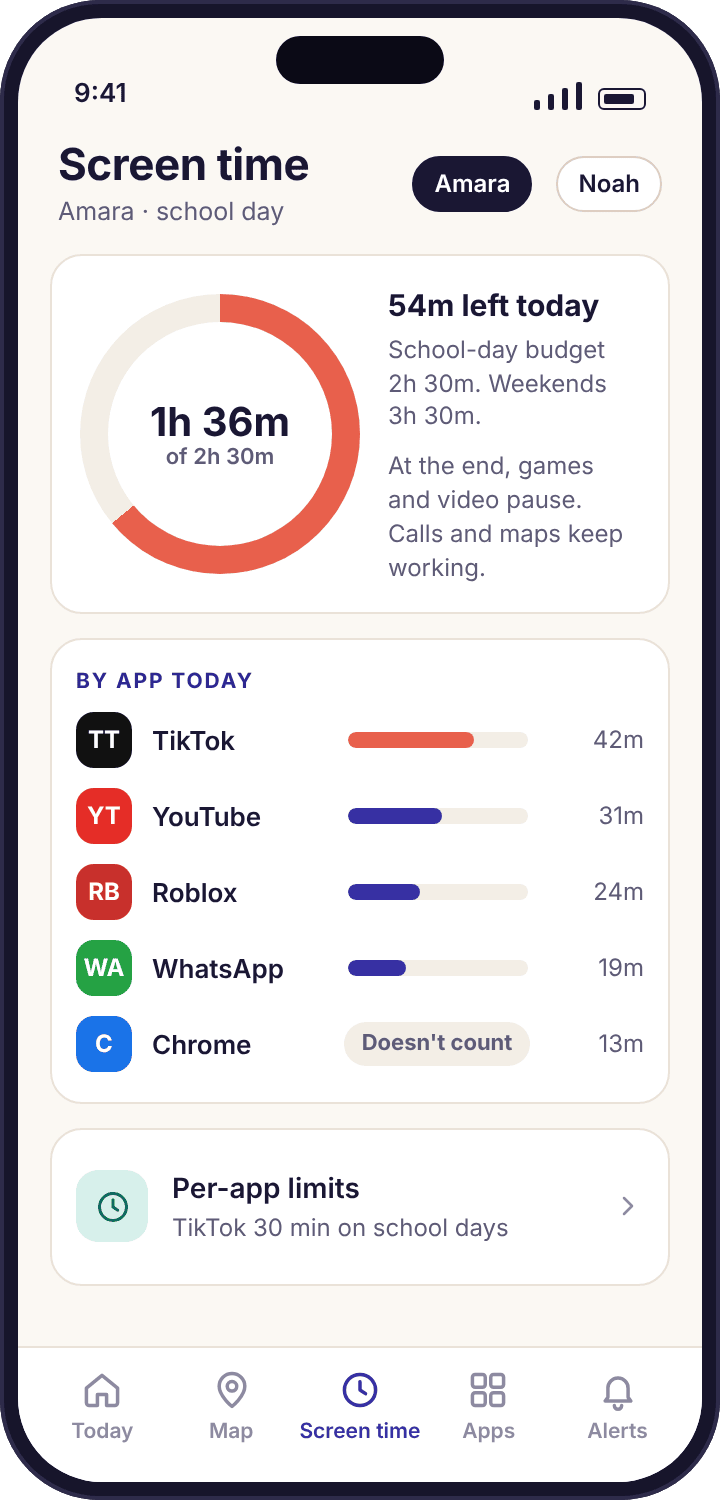
By 21:30 the ring reads 2h 48m. The bars underneath rank TikTok at 71 minutes, YouTube at 52, Roblox at 31 and WhatsApp at 28. Chrome shows 14 minutes and a small “doesn’t count” label, because Priya marked it as always allowed on day one so homework would never be caught in a limit. Resist the urge to react to one day. Tuesday was wet, and a wet Tuesday is not a week.
Ask your child what the number should be.
Show them the ring. Ask what feels like enough on a school day and what feels like enough on a Saturday. Amara said two hours and three hours; Priya was thinking ninety minutes and two and a half. Write both pairs down and do nothing yet. A child who has named a number before it was imposed argues about the number later, not about the app.
The first new app appears, and it is not a screen time problem.
A fresh install lands in the list with its own bar. On this page that is simply more minutes to count; the app activity page explains the flag it also raises. The weekday figures are settling: Monday to Friday average 2h 31m, with Friday highest. Still no limit set. Still nothing blocked.
Open the weekly report and read the average, not the worst day.
The Week screen lays the seven days out as bars with three figures underneath: average 2h 44m, best day Thursday at 1h 58m, worst day Saturday at 4h 12m. The Saturday figure is the one that makes parents gasp and the one to ignore for now. The weekday average is your starting point. A budget set fifteen or twenty minutes under the real average gets kept; one set an hour under gets fought.
Set the school-day figure, the weekend figure, and nothing else.
Priya typed 2h 30m for school days and 3h 30m for weekends, closer to Amara’s numbers than her own. The child app updated that afternoon: the home screen now shows a ring, the transparency screen lists the budget under “Limits”, and the “Ask for more time” button has gone live. No per-app limits yet. One rule at a time is easier to keep and easier to argue about fairly.
Compare the two weeks and decide whether TikTok needs its own line.
Week two’s average was 2h 22m, inside the budget on four days out of five. The ten-minute banner fired on three evenings and Amara asked for more time twice, once approved. The only bar that did not shrink was TikTok, still at about 70 minutes a day, which is the signal for a per-app limit rather than a smaller budget. Priya set TikTok to 30 minutes on school days and 60 at weekends, and left everything else alone.
One daily budget, two figures, and a list of what never counts
A budget is a number of minutes a day. You set it per child, on the Budget screen inside that child’s page, as two figures: school days and weekends. School days are Monday to Friday and weekends are Saturday and Sunday. There is no third figure for Fridays or half-terms; two was enough for every family we tested with, and a third made the screen harder to read than it was worth. In the holidays, most parents simply raise the school-day figure for a few weeks.
Minutes are counted from the phone’s own usage records, the same ones Android shows under Digital Wellbeing, so the ring on your phone and the ring on theirs match. What counts is time with an app open on screen. Time with the screen off, a call in progress, or an always-allowed app in the foreground is not charged to the budget. Chrome is on Amara’s always-allowed list because homework lives there; Noah’s has the dialler, Maps and the camera.
- Nothing is set until you set it. A freshly paired child has “Not set” in both fields and no app is ever paused.
- The ring is the same on both phones. 1h 36m of 2h 30m on your screen is 1h 36m used, 54m left on theirs.
- Always-allowed apps are visible to the child. They appear with a “doesn’t count” label so there is no mystery about why Chrome kept working.
Per-app limits, for the one app that never shrinks
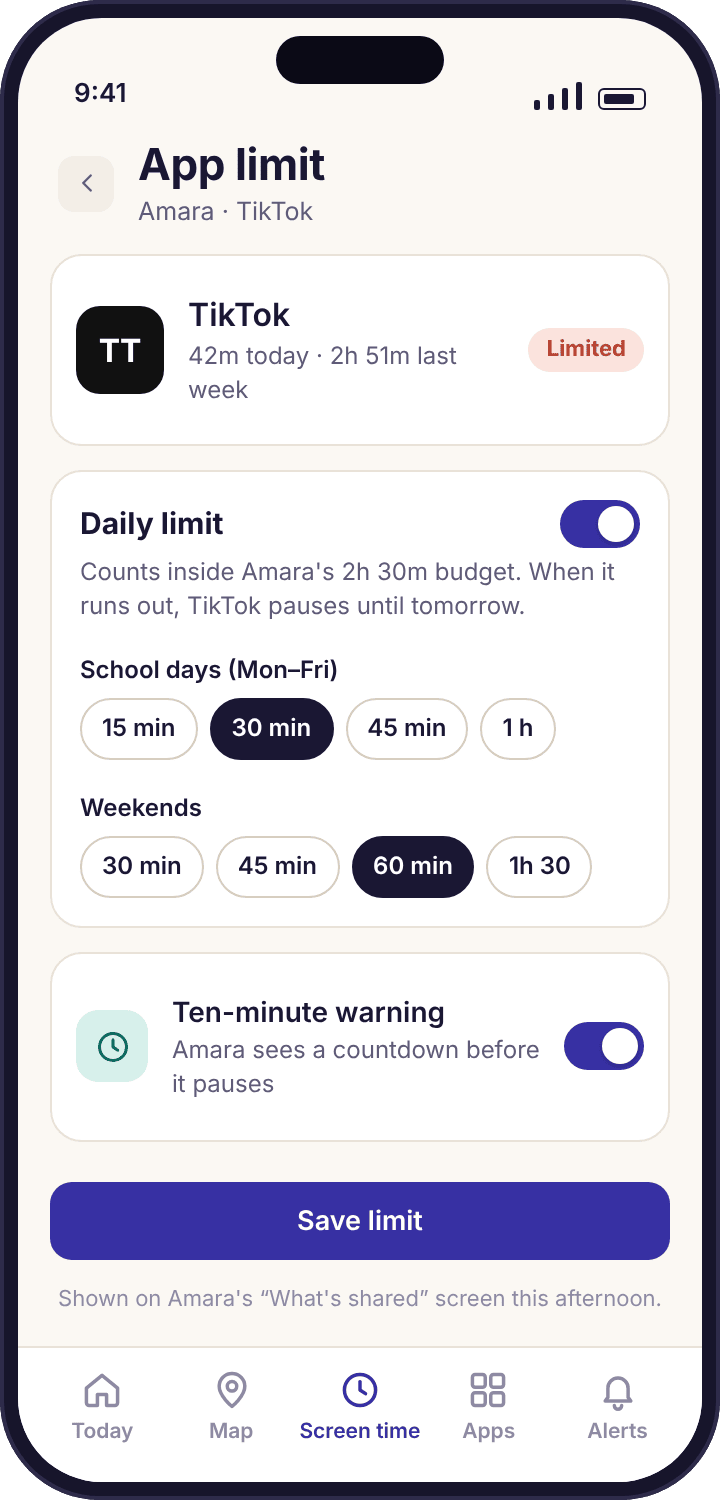
A per-app limit is a smaller budget inside the daily one, for a single app. TikTok at 30 minutes on school days and 60 at weekends is the example in the editor because it is the one most parents of a thirteen-year-old end up setting. When the app’s own minutes are used, that app pauses and the rest of the day’s budget carries on. The child sees the app’s limit on their transparency screen the afternoon you set it, with the figure, not just the fact.
Two things a per-app limit cannot do. It cannot see inside the app, so it has no idea whether the 30 minutes were spent on cooking videos or something you would rather they had not watched; that is counting, not viewing. And it cannot limit the web version of the same service in a browser, because the browser is what gets counted. If an app is a problem in both forms, app blocking on a schedule and web filtering by category are the tools for that, and they work alongside the budget rather than instead of it.
- Set it from the bar. Tap any app in the by-app list and the limit editor opens with that app already chosen.
- Two figures again. School days and weekends, the same split as the daily budget, so Saturday TikTok can be longer without touching the weekday figure.
- Three or four limits at most. More than that and the child stops being able to predict their own afternoon, which defeats the point of a visible limit.
The weekly report, and the three figures that matter on it
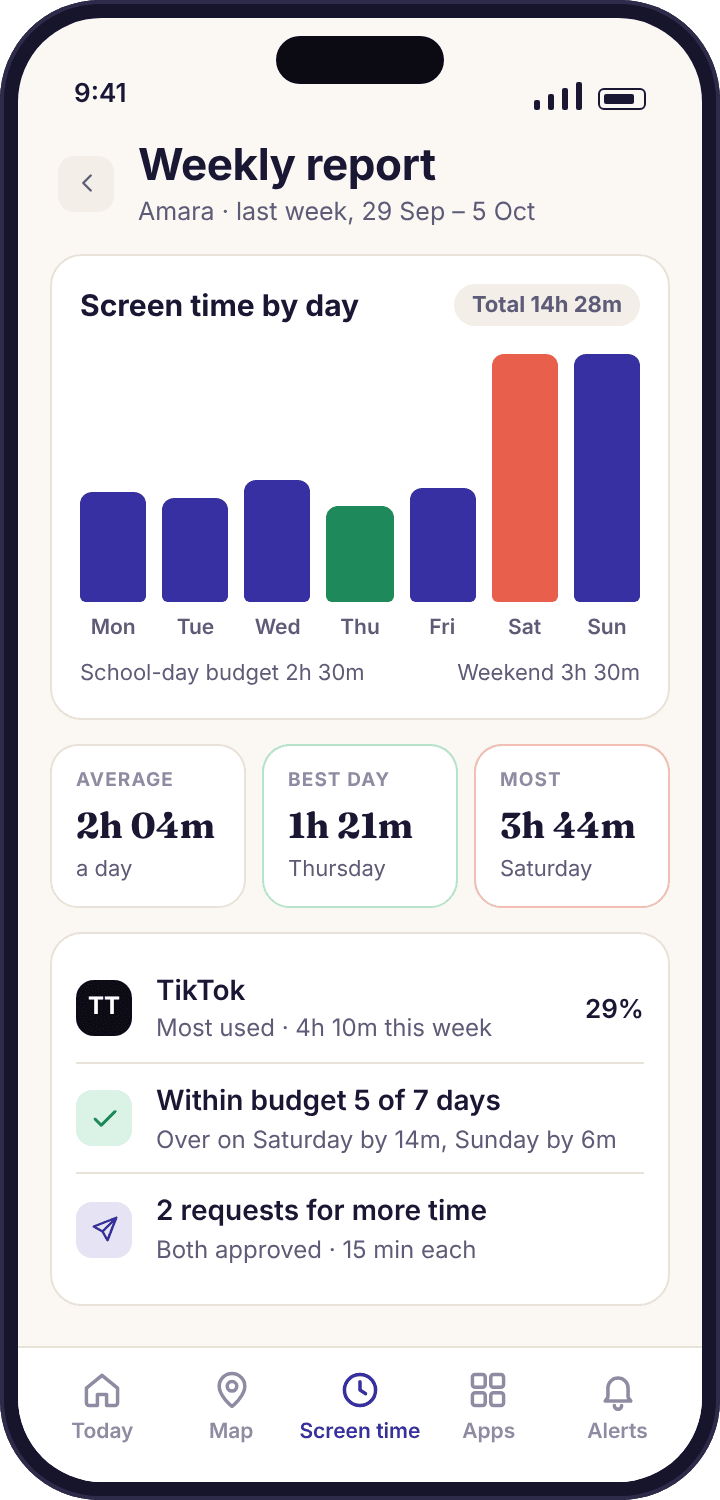
The Week screen shows seven bars, one a day, with the budget drawn as a line across them so you can see at a glance which days went over. Underneath are the average, the best day and the worst day. The average is the figure to set budgets by. The worst day is the one to ask about at dinner, lightly, because it usually has a reason: a sleepover, a long car journey, a Saturday of rain.
What the report does not contain is any sense of what was watched, read or played. It knows minutes and app names, and it knows them accurately, but “YouTube, 52 minutes” could be a maths revision channel or a prank compilation and the report cannot tell you which. If that distinction is the thing worrying you, the answer is a conversation and the safe search settings, not a shorter budget.
- The budget line moves with the day. Weekend bars are measured against the weekend figure, so a 3h Saturday inside a 3h 30m budget shows as kept, not broken.
- Requests are marked. A small chip on a day shows how many extra-time requests were approved, so a 3h day that was really 2h 30m plus two approvals reads correctly.
- The child can open the same report. It is on their phone under Screen time, bar for bar, because a figure they can check is a figure they can plan around.
Starting budgets by age, before you have a week of your own figures.
These are the values the panel suggests when you add a child by date of birth, and they are starting points rather than advice. Every one of them should lose to a real week of data from your own child’s phone. The last column is the part most parents skip.
| Age | School day | Weekend | Per-app limit | Always allowed |
|---|---|---|---|---|
| Under 9 | About 1 hour | About 1h 30m | Rarely needed; the daily budget does the work | Dialler, camera, a maps app |
| 9 to 11 | 1h 30m to 2h | 2h 30m to 3h | One, for the game that eats the afternoon | Dialler, Maps, the school’s homework app |
| 12 to 14 | 2h to 2h 30m | 3h to 3h 30m | One or two short-video apps | Chrome for homework, Maps, music while studying |
| 15 and over | 2h 30m to 3h, or none | Usually none | The one they asked you to set | Most of the phone; limit what was agreed, not everything |
Noah, at nine, started on 1h 30m school days and 2h 30m weekends after his own week of figures came in at 1h 41m. Amara’s thirteen-year-old defaults were 2h and 3h; her real week said 2h 44m, and the budget Priya set was 2h 30m. Both children had the same rule for the first week: nothing.
A button on their phone, a tap on yours, and a cap on how often.
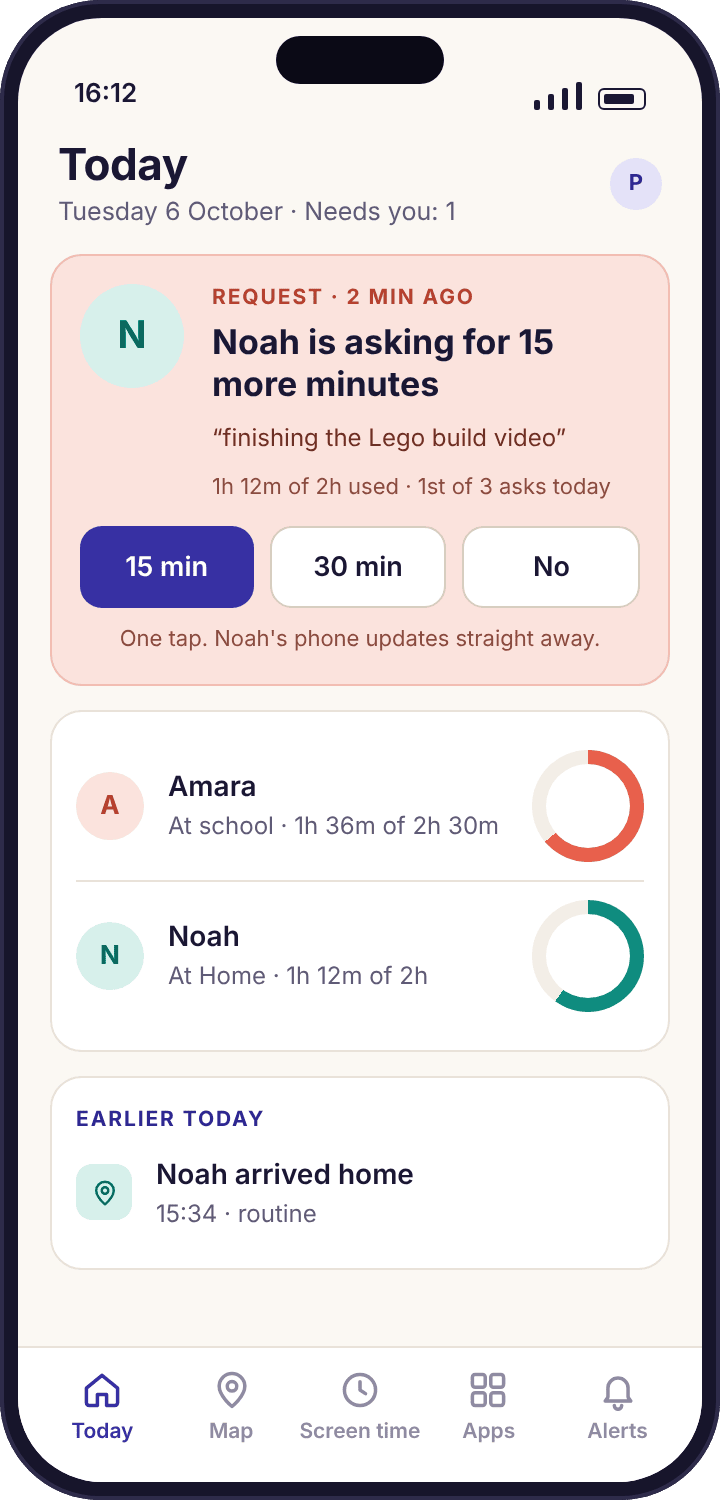
When the ten-minute banner appears, the child app offers an “Ask for more time” button beside it. The child picks 15 or 30 minutes, can add a short note, and the request lands on your phone as a notification: “Noah is asking for 15 more minutes — ‘finishing the Lego build video’.” Three buttons: 15 min, 30 min, No. The tap is the whole interaction. The minutes are added to today’s budget, the child’s ring updates, and the ring on your phone updates with it.
The cap is the part that keeps this civil. You set how many times a day a child can ask, and once it is reached the button greys out with the reason showing. In the Okafor house it is two for Noah and three for Amara. A child who can ask forty times will; a child who can ask twice chooses the moment. Declining sends nothing cruel: the child’s screen says “Priya said not today” and the ring stays where it was.
- Requests show in the weekly report. An approved 15 minutes appears as a chip on that day, so you can see whether Thursdays always need topping up.
- A co-parent can answer too. The first tap wins, and the command log in the panel records who tapped and when, so nobody is blamed for a decision they did not make.
- Earned minutes are a separate route. If you would rather time be earned than asked for, tasks and rewards adds minutes for a chore or a reading session, through the same approval tap.
Four things that go wrong with screen time, and none of them are the child.
The ring says 0 minutes all day.
Usage access was never granted, or an Android update reset it. Without that permission the app cannot read the phone’s usage records and has nothing to count.
Fix: Device health names the missing permission. On the child’s phone it is Settings → Apps → Special app access → Usage access → MobileTracking → Allow. Counting resumes within the hour; the missing hours are not recovered.
The budget ran out but the game kept going.
The Accessibility service is off. Counting works without it; pausing an app needs it, because the pause screen is drawn over the app. The pause is not instant either: an app already open can run on for a short while before the screen appears.
Fix: Settings → Accessibility → Installed apps → MobileTracking → On. Do it together; the dialog Android shows is alarming out of context and is explained on the child’s setup checklist.
Your ring and theirs disagree by twenty minutes.
The child’s phone has been offline and has not uploaded its latest figures. The child app counts locally and is always current; your phone shows the last upload.
Fix: Nothing, usually. The figures reconcile on the next check-in. If the gap persists for hours, it is a battery-optimisation problem rather than a counting one, and the health line will be amber.
The limit paused the homework app.
The app is not on the always-allowed list, so it was counted and paused with everything else when the budget ran out. The app cannot tell homework from games by itself.
Fix: Open the by-app list, tap the app, choose “Always allowed”. It takes effect on the child’s phone within minutes and appears on their transparency screen with the “doesn’t count” label. Approve a one-off 30 minutes meanwhile.
What a budget is for, what it cannot do, and how to keep it from becoming the household argument.
Why a limit the child can see works better than one they can’t
A screen time limit does two different jobs, and parents usually only think about the first. The first is stopping: at some point the video pauses. The second is planning: a child who knows there are 54 minutes left decides how to spend them, and that decision is where the self-control that eventually replaces the app gets practised. A limit the child cannot see does the first job and none of the second. It arrives as a surprise, feels like a punishment, and teaches nothing except that the phone is unpredictable.
That is why the budget is on the child’s home screen, why the ten-minute banner exists, and why the figures on their phone are the same figures on yours. Amara can look at her ring at 16:40, see 54 minutes, and decide whether the WhatsApp group or the Roblox session is worth more of it. The app is not making that decision for her. It is making the decision visible, which is the most a piece of software can usefully do here.
Why we ask you to wait a week
The instinct on pairing evening is to set a limit, because that is what you installed the app for. We ask you not to, for two reasons. The first is accuracy: a budget guessed before you have figures is usually either so generous it does nothing or so tight it is broken by Tuesday, and a limit broken on Tuesday is a limit the child stops believing in. The second is fairness: a number set after a week of visible counting, with the child shown the figures, is a number the child understands. A number set on day one is just a number you picked.
A week also tells you which problem you have. Some children have a total-time problem: everything a bit too long, nothing dominant, and the daily budget alone fixes it. Others have a single-app problem: 70 minutes of one thing inside an otherwise ordinary day, and a per-app limit on that one app fixes it without touching anything else. You cannot tell which you have from a gut feeling. You can tell in one look at the by-app bars on day seven.
They know the week is being counted
The child’s transparency screen lists screen time counting from the moment Usage access is granted, with “No limit set” beside it. There is no quiet measuring period. The measuring is the first thing they see.
What the budget cannot see
The feature counts time, and it counts it per app. That is the whole of what it knows. It does not know what was on the screen during those minutes, who was in the chat, which video played, or whether the 31 minutes of Roblox were spent building or arguing. There are no screenshots, no keystroke logging and no reading of anything inside an app, on either build and at any price, and the app’s consent screen says so to the child before counting starts. If a parent needs to know what a child watched, that is a question for the child, with the by-app figures as the opening line rather than the verdict.
It also cannot count what it cannot see. Time on a second device, a friend’s phone or the family television is invisible to a limit on one Android phone. A child with a 2h 30m budget and a games console has a 2h 30m phone budget, nothing more. That is not a flaw to engineer around; it is a reason to keep the phone budget modest and talk about the rest.
What “paused” means on the child’s phone
When the minutes are gone, opening a counted app shows a plain screen inside the app: the app’s name, “Today’s budget is used”, who set the budget, and the two buttons, “Ask for more time” and “Close”. It does not pretend the app crashed and it does not lock the phone. The home screen, the dialler, incoming calls, the alarm, Maps and everything on the always-allowed list work as normal. A child who has run out of budget at the bus stop can still ring you, look at the map and get home.
This matters more than it sounds. Limits that lock the whole phone get switched off by parents within a fortnight, usually after one evening when a child could not call from a late train. A limit that only touches the things it was set for survives, because it never puts the parent in the position of choosing between the rule and the child’s safety. The bedtime schedule uses the same principle overnight.
Loosening it on purpose
The budget you set for a thirteen-year-old is wrong for a fifteen-year-old, and the Week screen will tell you when. If a child keeps inside the budget for a month without a request, the budget is doing nothing except existing, and it is time to raise it or remove it with them watching. Removing a limit is a single tap on the Budget screen, back to “Not set”, and the child’s transparency screen updates that afternoon so the loosening is as visible as the tightening was.
We would rather you took the limit off at sixteen than left it on out of habit. A screen time limit is scaffolding for a skill, and scaffolding comes down. The counting can stay on as long as you both find the weekly report useful; the counting was never the part that needed permission beyond the one Android setting, and the budget was always optional.
Which parts of the feature suit a nine-year-old, a thirteen-year-old and a sixteen-year-old.
The daily budget does nearly all the work.
Noah’s phone has a short budget, a long always-allowed list and no per-app limits. At nine the goal is a predictable end to the afternoon, not a negotiation.
- One school-day and one weekend figure
- Dialler, camera and Maps always allowed
- Requests capped at two a day
The years the per-app limit earns its place.
Amara’s week showed a single app that never shrank. A limit on that app, set with her in the room, did more than a smaller budget would have.
- Budget set after a recorded week, with the child’s own number in the discussion
- One or two per-app limits, no more
- Chrome always allowed for homework
Counting on, budget usually off.
At this age the weekly report is a conversation starter and the budget is an insult unless they asked for it. Some do ask, usually before exams.
- Weekly report shared and discussed
- A per-app limit only at their request
- Reviewed together every term
Questions parents ask before setting a budget.
Is anything blocked as soon as I pair my child’s phone?
No. Pairing switches on counting and nothing else. Both budget fields read “Not set”, there are no per-app limits, and no app is ever paused until you type a figure in. The child’s transparency screen shows “No limit set” next to screen time from the first evening, so the measuring week is visible to them as well as to you.
What keeps working when the screen time budget runs out?
Calls in and out, the dialler, the alarm, Maps and anything you have put on the always-allowed list. Only counted apps pause, and the pause screen inside each one names the rule and offers the request button. The phone is never locked, so a child out of budget at the bus stop can still ring you and find their way home.
Can I set a different budget for school days and weekends?
Yes, and that is the only split there is: one figure for school days, one for weekends, per child. Per-app limits take the same two figures. In the holidays, raise the school-day figure for a few weeks and put it back in September. There is no separate figure for Fridays, and no hourly schedule here; time-of-day rules belong to the bedtime schedule.
Does the screen time counter see what my child was watching?
No. It counts minutes per app from the phone’s own usage records and nothing more. It cannot tell a revision video from a prank compilation, takes no screenshots and reads nothing inside any app, on either build. If what was watched is the worry, the by-app figures are the opening line of a conversation, not a substitute for one.
How does my child ask for more time, and how often can they?
From the “Ask for more time” button on their home screen, which appears with the ten-minute banner. They pick 15 or 30 minutes and can add a note; you tap 15 min, 30 min or No on the notification. You set a daily cap on requests, and when it is reached the button greys out with the reason showing on their phone.
Why do you say not to set a limit on the first day?
Because a budget guessed before you have figures is usually wrong by an hour, and a limit broken on Tuesday is one the child stops believing in. Seven days of counting shows the real weekday average and whether one app dominates, which tells you whether you need a daily budget, a per-app limit or both. A number set after visible counting is also one the child understands.
Which Android permission does screen time need?
Usage access, under Settings → Apps → Special app access. That is what lets the app read the phone’s own usage records and count minutes. Pausing an app when the budget is gone additionally needs the Accessibility service, which draws the pause screen. Without Accessibility, counting and the weekly report still work; only the pausing does not.
Does a per-app limit work on the website version of the same app?
No. A per-app limit counts the installed app only. The same service opened in Chrome is counted as Chrome, and if Chrome is always allowed for homework it is not counted at all. If an app is a problem in both forms, use app blocking on a schedule and web filtering by category alongside the budget.
Can both parents approve a request for more time?
Yes. Any parent on the account gets the notification and the first tap decides. The panel’s command log records who approved or declined and at what time, so a child cannot play one parent off against the other and neither parent is blamed for a tap they did not make.
Does the counter include time on a tablet or a games console?
The counter sees only the Android device the child app is installed on. A console, a television, a laptop or a friend’s phone is invisible to it, and so is a tablet the app is not on. A 2h 30m budget is a budget for that one device, which is a reason to keep it modest and treat the rest of the household’s screens as a conversation.
Where screen time fits with everything else
The budget counts minutes and pauses apps when they are spent; the rules that work by time of day, by app or by website category sit beside it: bedtime schedule, app blocking and web filtering.
Screen time counting switches on once your child's phone is paired with your account, which takes about ten minutes with both devices on the table. The download and setup guide walks through every screen.
Count a week first, then set the number together.
Pair the phone, leave both budget fields empty for seven days, and set a figure on the second Monday that your child helped choose and can see on their own screen.
Android · Free account · Visible on your child's phone