If your child has just been handed an iPhone, or is about to be, there is a good hour of setup ahead of you that most parents never do, and the gap between a phone set up properly and one handed over straight out of the box is enormous. Out of the box, an iPhone assumes an adult owner: full App Store access, an open web browser, no time limits, no content filtering, and a payment card one tap away. None of that is malicious, it is just not built for a nine-year-old. The iPhone parental controls to fix it are all there, free, and reasonably good; they are simply switched off.
This guide walks through setting up an iPhone (or iPad) for a child from scratch, in the order that actually makes sense. It is written to be done with the phone in your hand. A quick note before we start: Apple moves things around between iOS versions, so a menu might sit one tap to the left of where this describes, but the features and the logic are stable, and you will find everything mentioned here somewhere in Settings.
Start with a child Apple Account and Family Sharing
Everything good flows from this one decision, so do not skip it: your child should have their own Apple Account, created as a child account inside your Family Sharing group, not a hand-me-down of yours and not a fake adult account with a made-up birth year.
Why it matters so much: a properly set up child account, with the correct age, unlocks the whole parental toolkit. You become the “family organiser”, which lets you approve what they download, see and manage their Screen Time from your own phone, and control their purchases. A child account also applies age-appropriate defaults automatically. Set the phone up with a fake adult account and you throw all of that away, and you will find yourself trying to police the device by hand forever.
So: in your own phone’s Settings, under your name and Family Sharing, add a child and create their Apple Account with their real birthdate. Then sign that account in on the child’s phone. Ten minutes here saves you hours later.
Screen Time is the control centre: turn it on and lock it
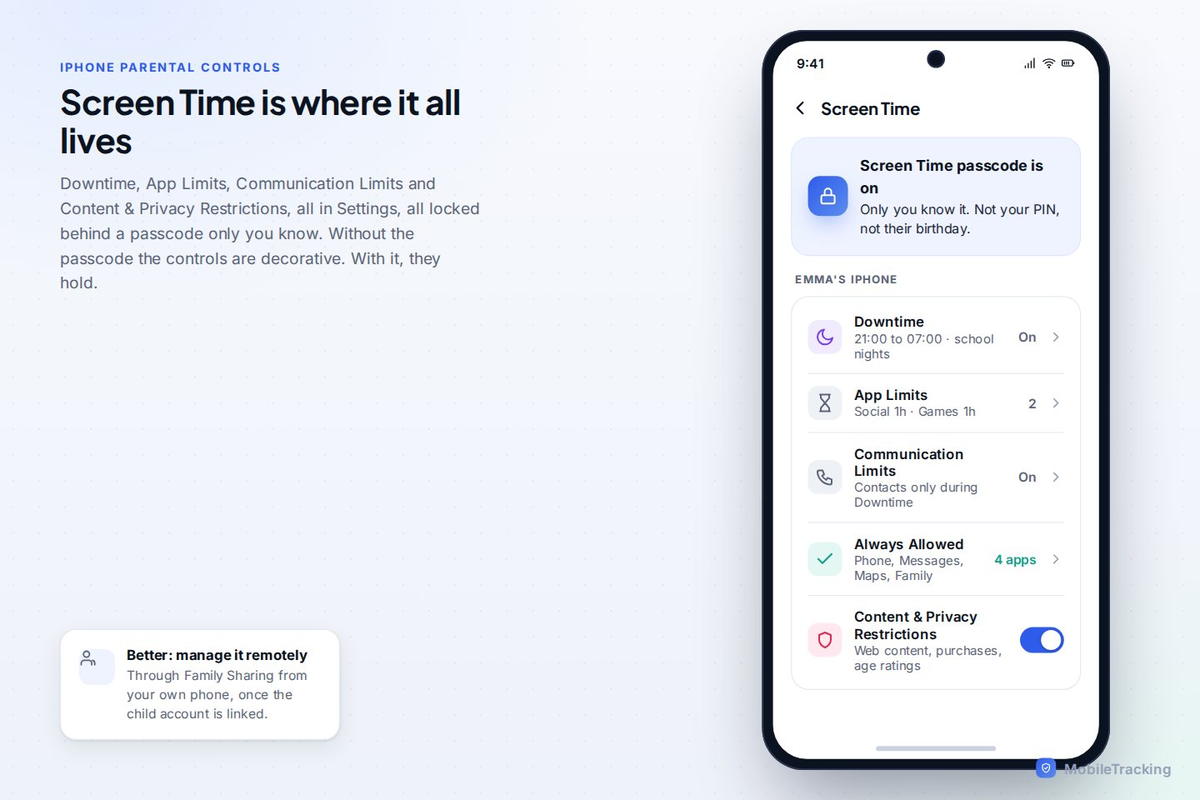
Screen Time is Apple’s name for the entire parental-controls system, and it lives in Settings. You can set it up directly on the child’s phone, or, better, manage it remotely from your own phone through Family Sharing once the child account is linked.
The first and most important move is to set a Screen Time passcode, and to make it one your child does not know and cannot guess (not your usual PIN, and not their birthday). This passcode is what stops every setting you are about to configure from simply being switched off by a curious child thirty seconds after you hand the phone over. Without it, the controls are decorative. With it, they hold. Set it, and do not share it.
Content and Privacy Restrictions: the big one
Inside Screen Time, the section called Content & Privacy Restrictions is where most of the real protection happens. Switch it on, and work through it. There are a few things worth setting deliberately.
Under content restrictions, set age ratings for apps, films, TV and books to match your child, so they cannot download or open material rated well above their age. Turn on the web content filter to “Limit Adult Websites”, which does a decent, if imperfect, job of blocking pornography and other adult sites in Safari and across apps. For younger children you can go further and allow only specific approved websites.
Under the App Store and purchasing settings, this is where you require your approval for downloads. With “Ask to Buy” enabled through Family Sharing, every app your child tries to install, free or paid, sends a request to your phone that you approve or decline. This single setting means no app appears on the phone without your knowledge, which quietly solves a whole category of problems. You can also prevent them changing account settings, deleting apps, or altering the very restrictions you are setting.
Set time limits that fit real life
Screen Time gives you three tools for managing time, and using them together works far better than any one alone.
Downtime schedules a period when only apps you choose (and phone calls) are available, everything else greys out. The obvious use is bedtime: set Downtime to run from, say, 9pm to 7am, and the phone effectively goes to sleep when your child should. This one setting, protecting sleep, is the highest-value limit at every age, because sleep is where screen habits do their clearest damage.
App Limits let you cap categories or individual apps, for example an hour a day of social media, or thirty minutes of a particular game. When the time is up, the app locks until tomorrow (or until you grant more). This is how you stop one app quietly eating the entire evening.
Always Allowed sets the apps that stay available even during Downtime or after limits are hit, typically phone, messages, and anything you consider essential, so your child can still reach you no matter what else is locked.
Communication limits and Messages
A newer and genuinely useful part of Screen Time is Communication Limits, which control who your child can call, message, and FaceTime, both during the day and during Downtime. For a younger child, restricting communication to their saved contacts closes off contact from unknown numbers, which is worth doing.
Apple also has a feature called Communication Safety that detects nudity in photos sent or received in Messages and other apps, blurs the image, and shows the child a gentle warning with options to get help, all on the device, without Apple seeing the photo. For a child with a phone, switching this on is a sensible, low-cost safety net against both unwanted images and the early stages of grooming or sextortion. You will find it in the child’s safety or Screen Time settings.
Lock down the App Store, browser, and payments
A few specific loose ends are worth tying off, because they are the common ways a carefully-set-up phone springs a leak.
On payments, do not store your card in a way the child can spend from freely, and rely on “Ask to Buy” so every purchase, including in-app purchases, needs your approval. This is where surprise charges come from, and it is entirely preventable.
On the browser, the adult-website filter helps, but remember a determined child can install a different browser to get around Safari’s filter, unless you have blocked new app installs behind “Ask to Buy”, which you now have. This is a good example of why the settings work as a system: the download approval backs up the web filter.
On Siri and search, you can restrict explicit language and web search results in the content settings, worth doing for younger children who might otherwise ask Siri something and get an unfiltered answer.
What Apple’s tools do well, and where they fall short
It is worth being straight about the limits, because no built-in system is a complete answer. Apple’s Screen Time is genuinely good at the mechanical stuff: time limits, download approval, content ratings, and payment control are all solid, and for many families that is enough.
Where it is weaker is in visibility and cross-platform coverage. Screen Time will tell you how long your child spent in an app, but not much about what happened inside it. It does not show you the content of messages (nor should it, really), it does not cover an Android tablet or a Windows laptop your child also uses, and a technically-minded teenager can find workarounds, resetting things, exploiting bugs that come and go between iOS updates, or simply using a friend’s less-restricted phone. The web filter, too, is good but not perfect; some things slip through.
None of this means Screen Time is not worth setting up, it absolutely is, and it should be your foundation. It means that for some families, especially those who want a consistent set of rules across an iPhone and an Android device, or who want more visibility and alerting than Apple provides, a dedicated family app layered on top fills the gaps.
The conversation that has to go with it
One thing no setting can replace: telling your child what you have done and why. A phone quietly loaded with restrictions the child discovers by accident breeds resentment and a game of cat-and-mouse. The same restrictions, explained openly as “here’s how your phone is set up, here’s what it does, and here’s how the rules will loosen as you get older”, land completely differently.
Frame it as a starter setup that grows with them, not a cage. Agree the time limits together where you can. Make clear that the point is safety and good habits, not distrust, and that they can always come to you if something online worries them. The technical setup and the trust are not alternatives; the phone works best when it has both.
A quick checklist
To pull it together, a well-set-up child’s iPhone has: a child Apple Account inside Family Sharing with the real age; Screen Time on with a passcode only you know; Content & Privacy Restrictions configured with age ratings and the adult-website filter; “Ask to Buy” so downloads and purchases need your approval; Downtime for bedtime plus App Limits on the time-eaters; Communication Limits set to contacts for younger children, with Communication Safety on; and an honest conversation with your child about all of it. That is the hour well spent, and it is the difference between a phone that works for your family and one that works against you.
Where a tool like MobileTracking helps
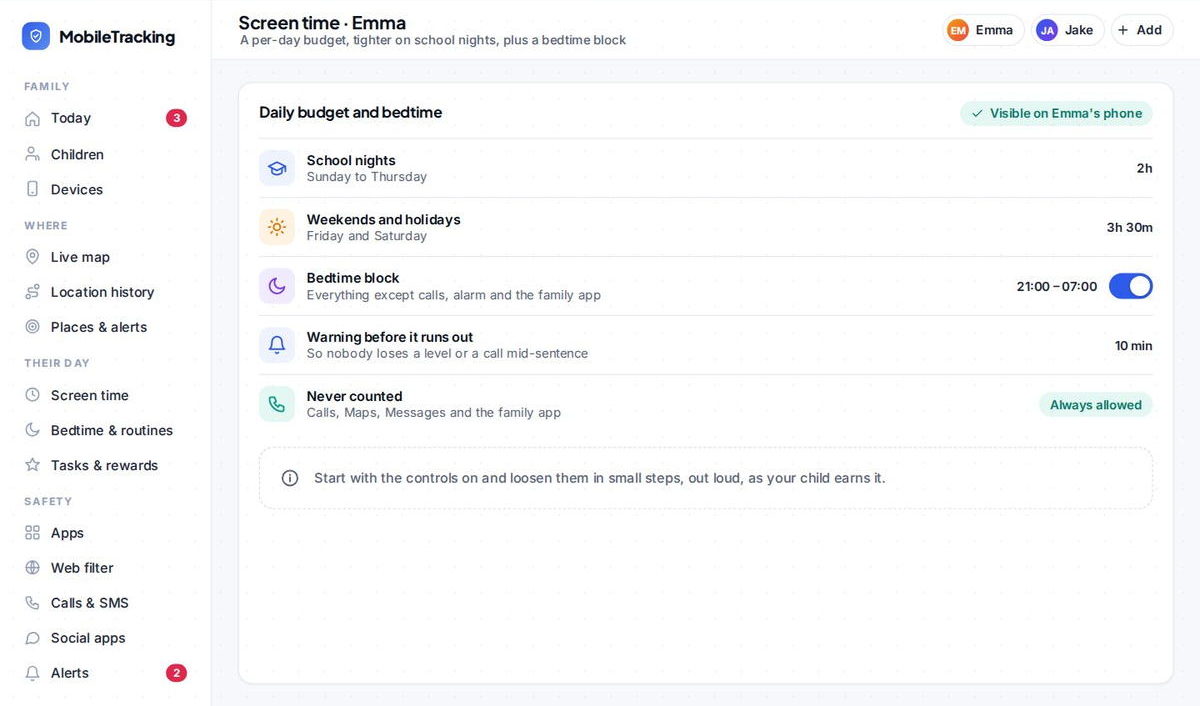
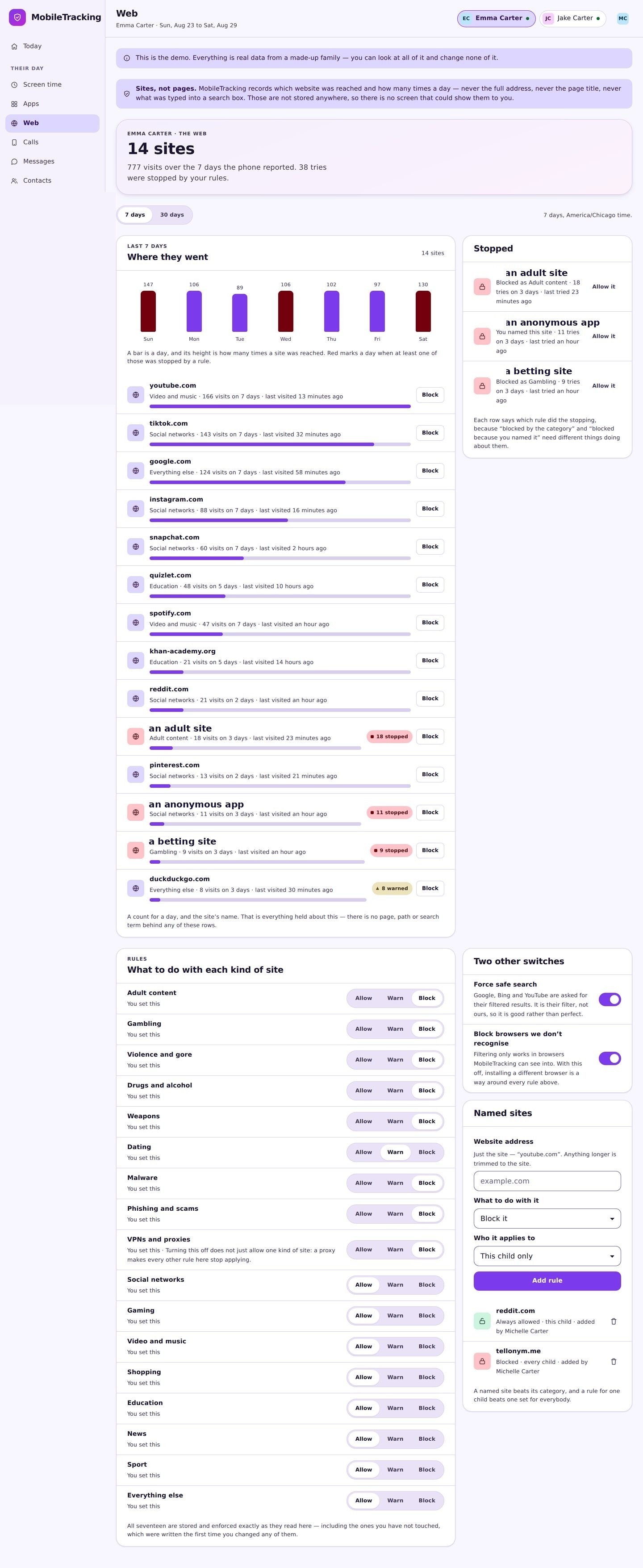
MobileTracking is the layer some families add on top of the built-in iPhone parental controls, particularly when they want one consistent set of rules across both iPhone and Android, or more visibility than Screen Time offers on its own. It shows which apps are installed and how much each is used, flags when a new app appears, lets you set a screen-time budget and a bedtime block, and can alert you to keywords you are watching for, all from one parent view that does not depend on which kind of phone each child carries. It is designed to complement Screen Time, not replace it: set Apple’s foundation first, then add MobileTracking where you want the gaps filled.
Frequently asked questions
What is the best age to set up iPhone parental controls?
Set them up the moment the phone is first configured, whatever the age. A child’s iPhone should never be handed over on its adult defaults. The controls can loosen as your child gets older, but the right time to put the foundation in place is day one, before the phone is in daily use.
Do I need a separate app, or is Apple’s Screen Time enough?
For many families, Screen Time is enough, and it should always be your foundation. A separate family app is worth adding if you want one consistent set of rules across both iPhone and Android, more visibility and alerting than Apple provides, or a single parent view of several children on different devices. Set up Screen Time first, then decide.
How do I stop my child changing the settings back?
Set a Screen Time passcode that your child does not know and cannot guess, not your usual PIN or their birthday. This passcode locks all the restrictions so they cannot be switched off. Managing Screen Time remotely from your own phone through Family Sharing adds another layer, since the controls then live on your device.
Can Screen Time block adult websites?
Yes. In Content & Privacy Restrictions, the “Limit Adult Websites” web filter blocks pornography and other adult content in Safari and across apps. It is good but not perfect. Backing it with “Ask to Buy” matters, because that stops a child installing a different browser to get around the filter.
Will my child know the phone is monitored?
They should, and it works better that way. Explain openly how the phone is set up, what the controls do, and how the rules will ease as they grow. Restrictions discovered by accident breed resentment and workarounds; the same setup explained honestly, framed as safety and good habits rather than distrust, keeps your child on side.
Keep going
Read our guides on setting up parental controls on Android, how much screen time is healthy by age, and cutting screen time without a fight. For trusted guidance beyond this site, Common Sense Media is a well-regarded resource for parents: Common Sense Media.