Setting up Android parental controls is easier than most parents fear. You can get the important parts done in about fifteen minutes, and you don’t need to be technical. You need a plan and the right order.
This guide gives you both. It works on any Android phone, Samsung, Pixel, Xiaomi, Motorola, a cheap supermarket handset, and it covers the step that nine out of ten guides leave out: stopping your child from quietly switching the whole thing back off.
Read it once through first. Then do it with the phone in your hand.
The 15-minute plan
Here’s the whole thing at a glance. We’ll take each step slowly below.
- Get the child on the right kind of Google account.
- Lock down the Google Play Store.
- Set screen-time and app limits.
- Filter the web so it works everywhere.
- Turn on location and a couple of safety basics.
- Close the back doors so it all sticks.
- Have the two-minute conversation that makes it last.
If you only have five minutes today, do steps 1 and 2. They stop the most common problems: surprise apps and surprise charges.
Step 1: The one choice that changes everything
Before you touch a single setting, decide which Google account your child will use. This one choice decides whether Google’s controls even appear.
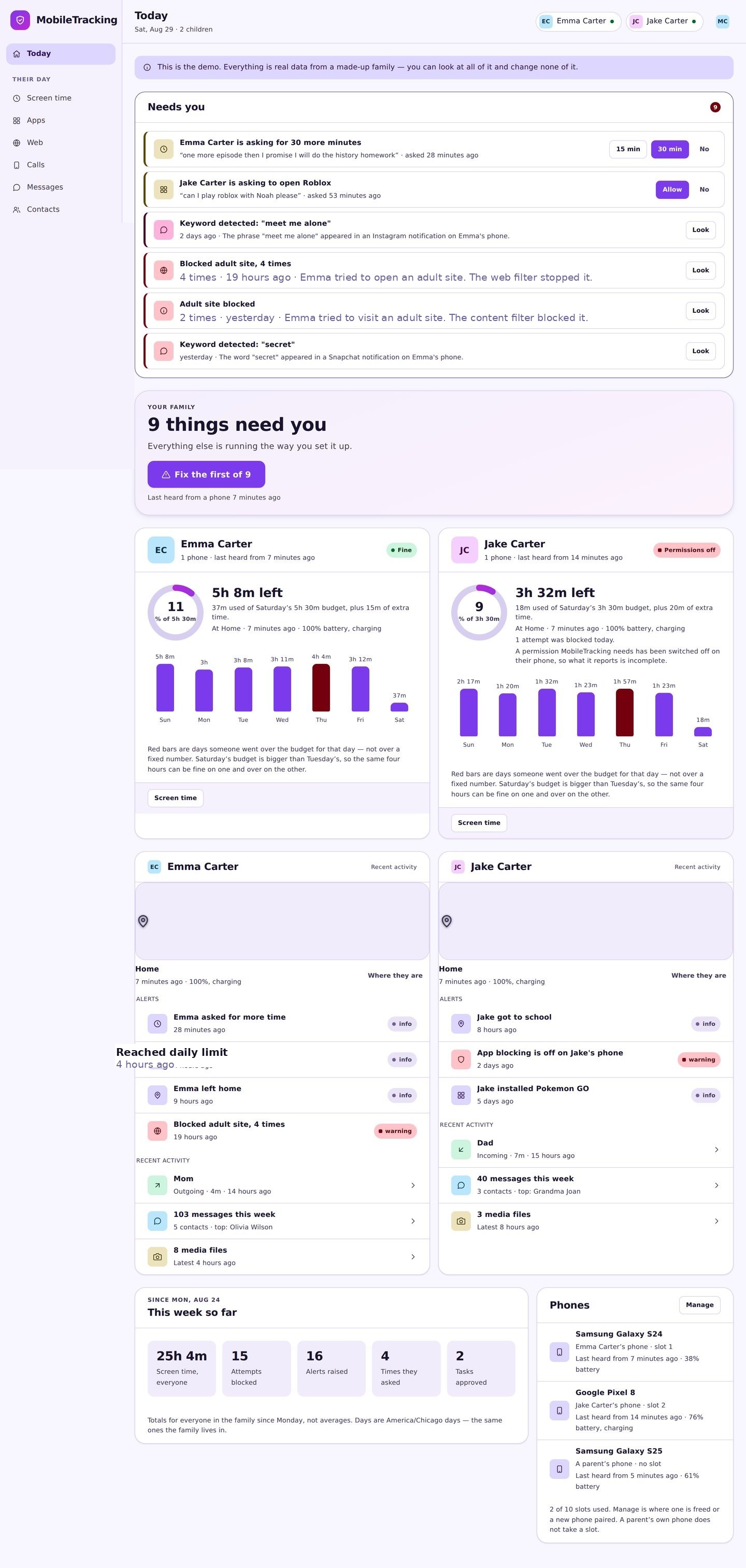
Under 13? Your child needs their own child Google account, made through Google Family Link. Install Family Link on your phone, and use it to create the account. This links your child’s phone to yours. It’s what lets you approve apps, set limits, and see how the phone is used.
13 or older? They can have a normal Google account. You add supervision to it with Family Link, rather than making a new one.
Watch out for one very common trap. Lots of kids, especially with a hand-me-down phone, are already signed in with a regular adult Google account. On an adult account, most of Google’s parental controls simply don’t show up. If that’s your situation, sign that account out and set up a proper child account first. It feels like a hassle. It saves you hours later.
Step 2: Lock down the Play Store
If you do nothing else, do this. The Google Play Store is where most nasty surprises come from: a mature game, a random chat app, or a £40 charge you didn’t agree to.
Picture the classic one. A seven-year-old is playing a “free” game, taps a shiny button, and buys a pile of gems. The bill lands three days later. Purchase approvals stop that cold.
On the child’s phone, open the Play Store, go to Settings, and turn on three things:
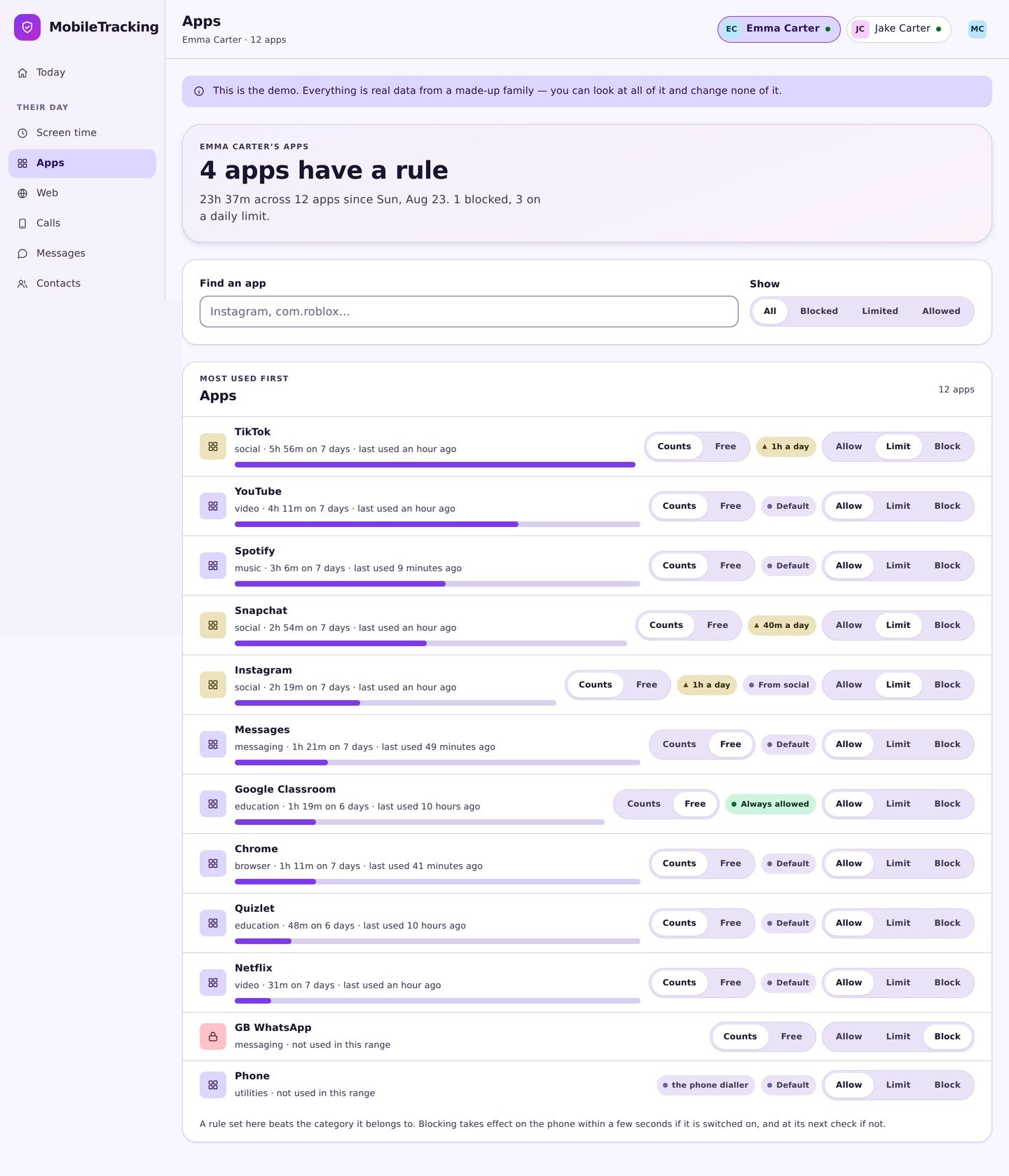
- Purchase approvals. Require your OK (or a password) for every download and every purchase. Now nothing installs or gets bought without you.
- Content rating limits. Set the highest age rating you’ll allow for apps and games. Anything above it won’t show or install.
- App approvals in Family Link. If you’re using Family Link, each install request pings your phone for a yes or no.
Do the same for other kinds of content while you’re here. Set maturity limits for films, TV, and books in Google’s apps. Turn on Restricted Mode in YouTube. For younger kids, use YouTube Kids properly, actually set it up, don’t just install it and hope.
Step 3: Set screen time and app limits
This is the part you’ll feel every day. You can use Family Link, Android’s built-in Digital Wellbeing, or a dedicated app. Whichever you pick, set three things.
A daily budget. Give each day its own amount. A short allowance on school nights and a longer one at the weekend works far better than one flat number for the whole week.
App limits. Put a cap on the one or two apps that would otherwise eat the whole evening. It’s usually a short-video app. You don’t need to limit everything, just the time-eaters.
A bedtime window. Set a “downtime” from, say, 9:30pm to 7:00am. The phone winds down, games and video stop, and notifications are held until morning so it doesn’t buzz all night.
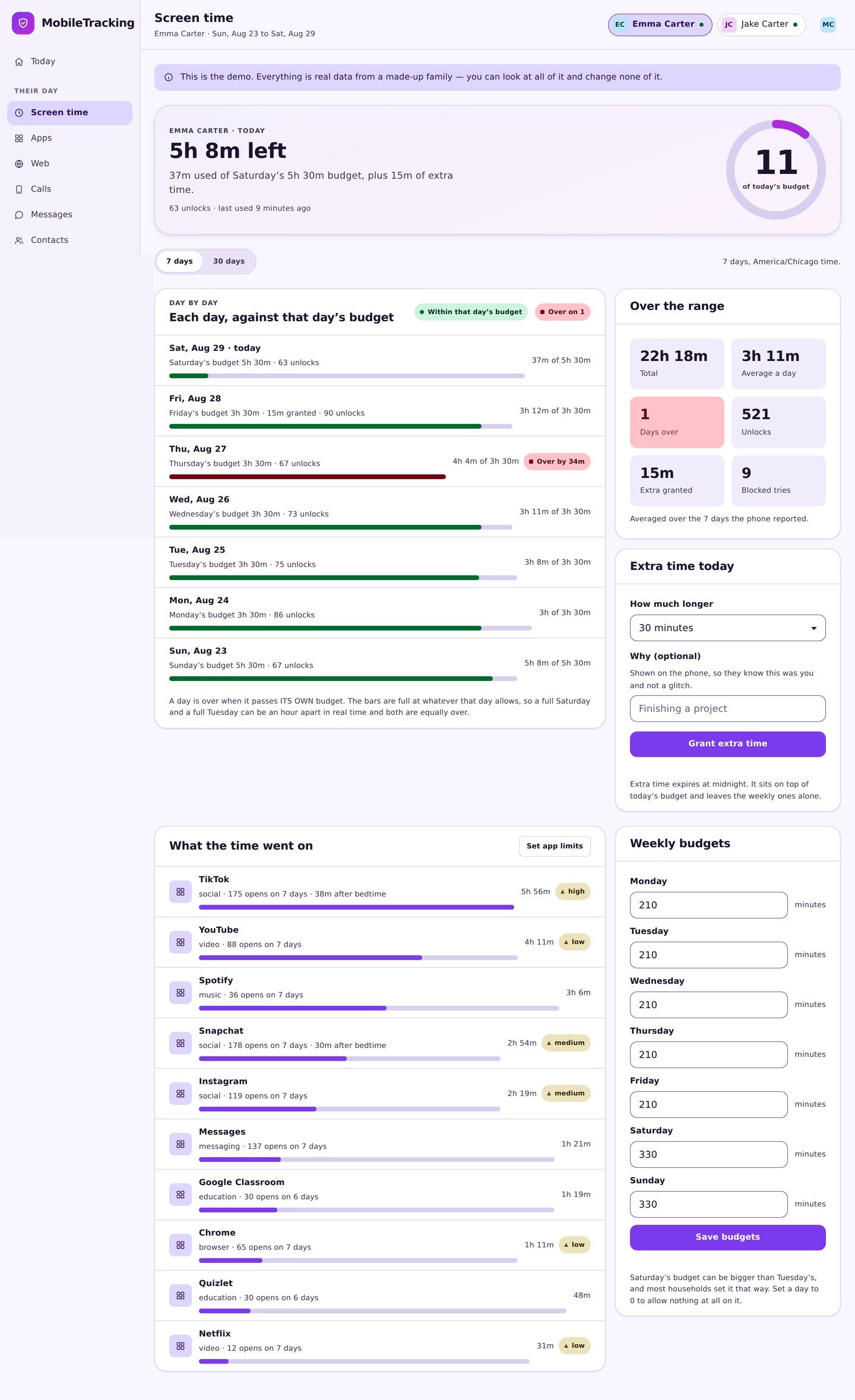
Spend a minute on the per-app breakdown. It shows where the time really goes, so your rules are based on facts, not a hunch. “TikTok, five and a half hours this week, and 38 minutes of it after bedtime” is a much better start to a conversation than “you’re always on your phone.”
Step 4: Filter the web so it works everywhere
Here’s a mistake almost everyone makes. They set up filtering on the home Wi-Fi and think they’re done. But a phone spends most of its day on mobile data or on other people’s Wi-Fi, where your router does nothing.
So the filter has to live on the phone, not the network.
First, turn on SafeSearch in every browser. On a managed child account you can lock it on. That’s the floor, not the ceiling, it only covers search results.
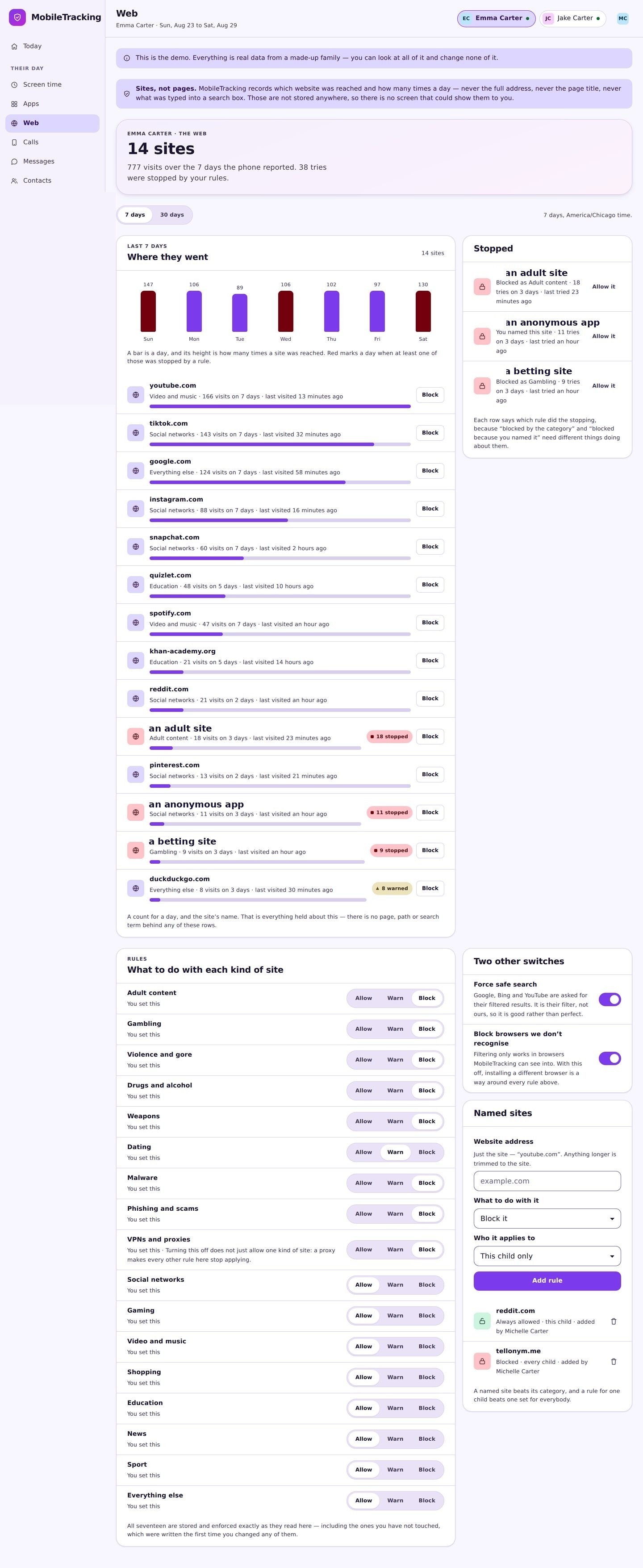
For real protection, use a phone-level content filter that blocks categories, adult content first, then gambling, which goes after minors more than parents realise. A device filter checks each site before the page loads and works on any network, in any browser.
One category matters more than the rest: proxies and “unblocker” sites. The very first thing a curious teenager does against a filter is search for a way around it, and those workarounds are themselves websites. Block that category and you close the back door. Miss it and you’ve locked the front door while leaving the back one open.
Step 5: Turn on location and safety basics
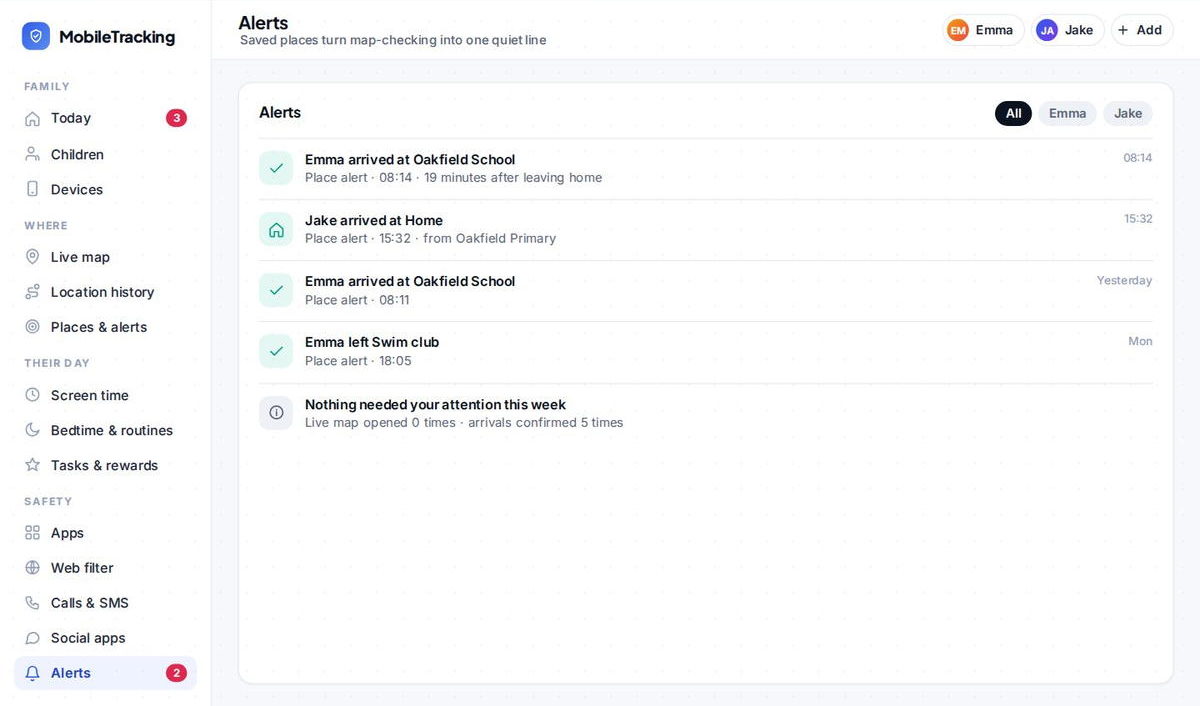
Switch on location sharing so you can see where the phone is. On Android you must grant the “Allow all the time” permission, the app can’t send you a “left school” alert if it’s only allowed to see location while it’s open.
Then save two or three places that matter, home, school, a grandparent’s, and turn on arrival alerts. Now you’re not checking a map all afternoon; you just get a quiet “arrived at school” and get on with your day.
While you’re in the settings, spend two minutes on safety. Add an emergency contact and a Medical ID to the lock screen. It’s the kind of thing you set once and hope you never need, and are very glad of on the day you do.
Step 6: Close the back doors (the step everyone forgets)
This is what separates a setup that lasts from one that’s gone by Friday. Kids are resourceful, and a control they can switch off isn’t a control at all.
Lock the settings that undo your work. Stop your child from removing accounts or changing the date and time. That second one is a classic: rolling the clock forward is an old trick for resetting daily limits.
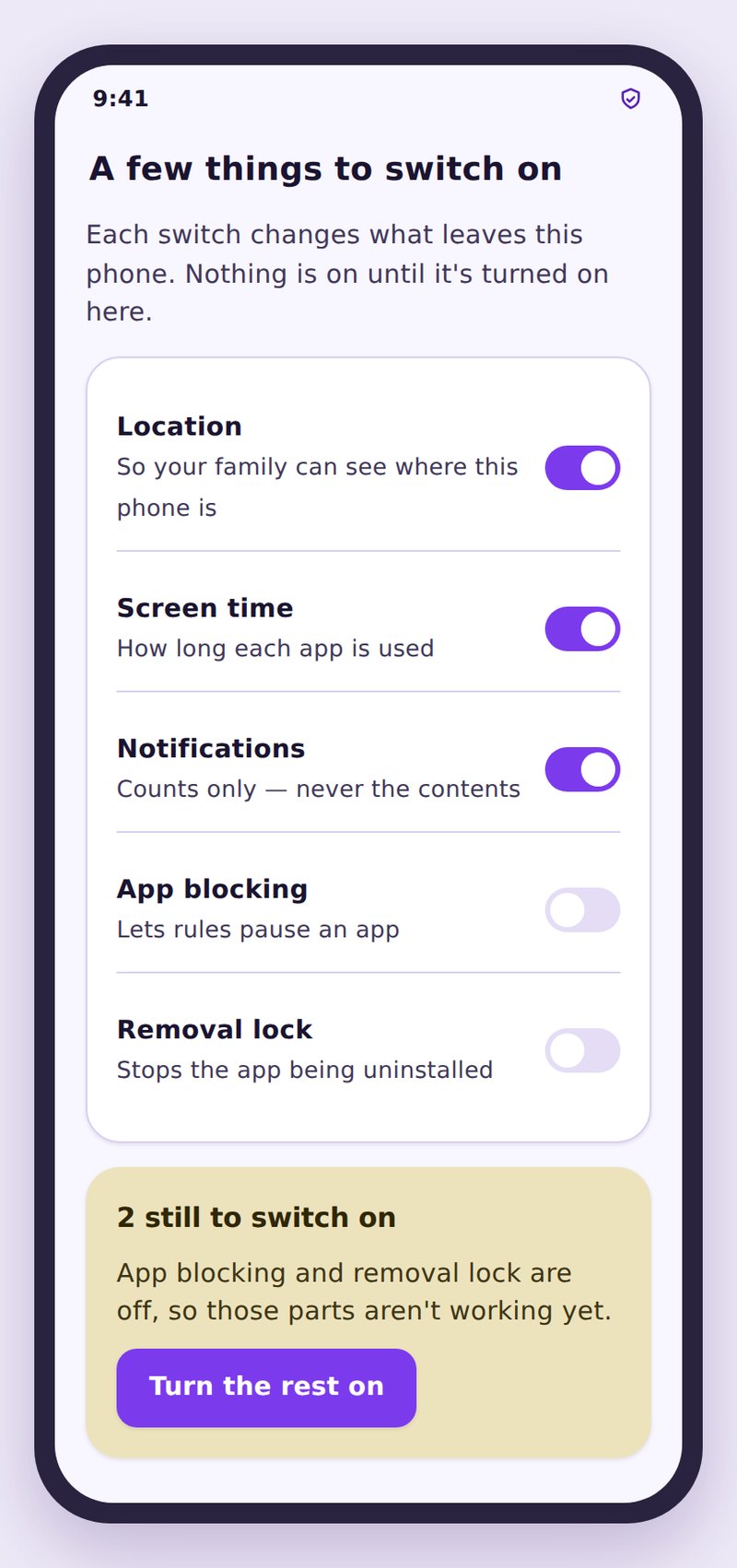
Fix the battery settings, this is the big one. Samsung, Xiaomi, OPPO, and Vivo phones are aggressive about killing background apps to save power. That quietly stops your parental-control app and your location from working, and then you think the app is broken. It isn’t. Go into the battery settings, find your control app, and set it to “Unrestricted” or “Don’t optimise.” On Xiaomi and OPPO there’s usually an extra “Autostart” toggle to enable too. This single fix solves the most common complaint parents have.
Turn on removal protection if your app offers it, so the app can’t just be uninstalled.
Know the usual escape routes and close them: a second browser, a VPN app, safe mode, a guest profile. You don’t need to be paranoid, you just need to have looked.
Step 7: The two-minute conversation
Do the setup with your child, not behind their back. It’s tempting to do it in secret, but it backfires. A child who discovers hidden controls treats getting around them as a game, and learns that being watched in secret is normal.
Keep it short and specific. “I’ve put a filter on so you don’t stumble into stuff that’s genuinely horrible, and I’ve got location on so I know you got to school. I’ll loosen things as you get older.” That’s it. Controls your child knows about are the ones that hold.
What Android parental controls can’t do
It’s only fair to be straight about the limits.
No setup is a force field. Determined teenagers find gaps, especially older ones, that’s normal, and it isn’t a sign you failed. Controls also can’t read the room: they can tell you a phone was used for three hours, but not whether those hours were homework or misery. And they are not a stand-in for supervision or for talking.
Think of the app as a seatbelt. It’s always on, quietly protecting, and you’re very glad of it on a bad day. But it doesn’t drive the car. The families who do best use the tools and keep the conversation open.
A realistic first week
You don’t have to get everything perfect on day one. Here’s a gentler way in.
Day 1: Do steps 1 and 2, the right account and the Play Store lockdown. Have the short conversation.
Days 2-3: Don’t set limits yet. Just watch the screen-time numbers roll in, so you’re setting rules from real data instead of a guess.
Day 4: Set your daily budgets and a bedtime window based on what you saw.
Day 5: Add app limits to the one or two apps the numbers flagged. Turn on the web filter.
Days 6-7: Turn on location and saved places, and do the battery fix from step 6. Then leave it alone and let the new normal settle.
How MobileTracking can help here
MobileTracking is built to be the “dedicated app” half of this setup, and to cover the two things Google’s own tools handle poorly: location and web filtering.
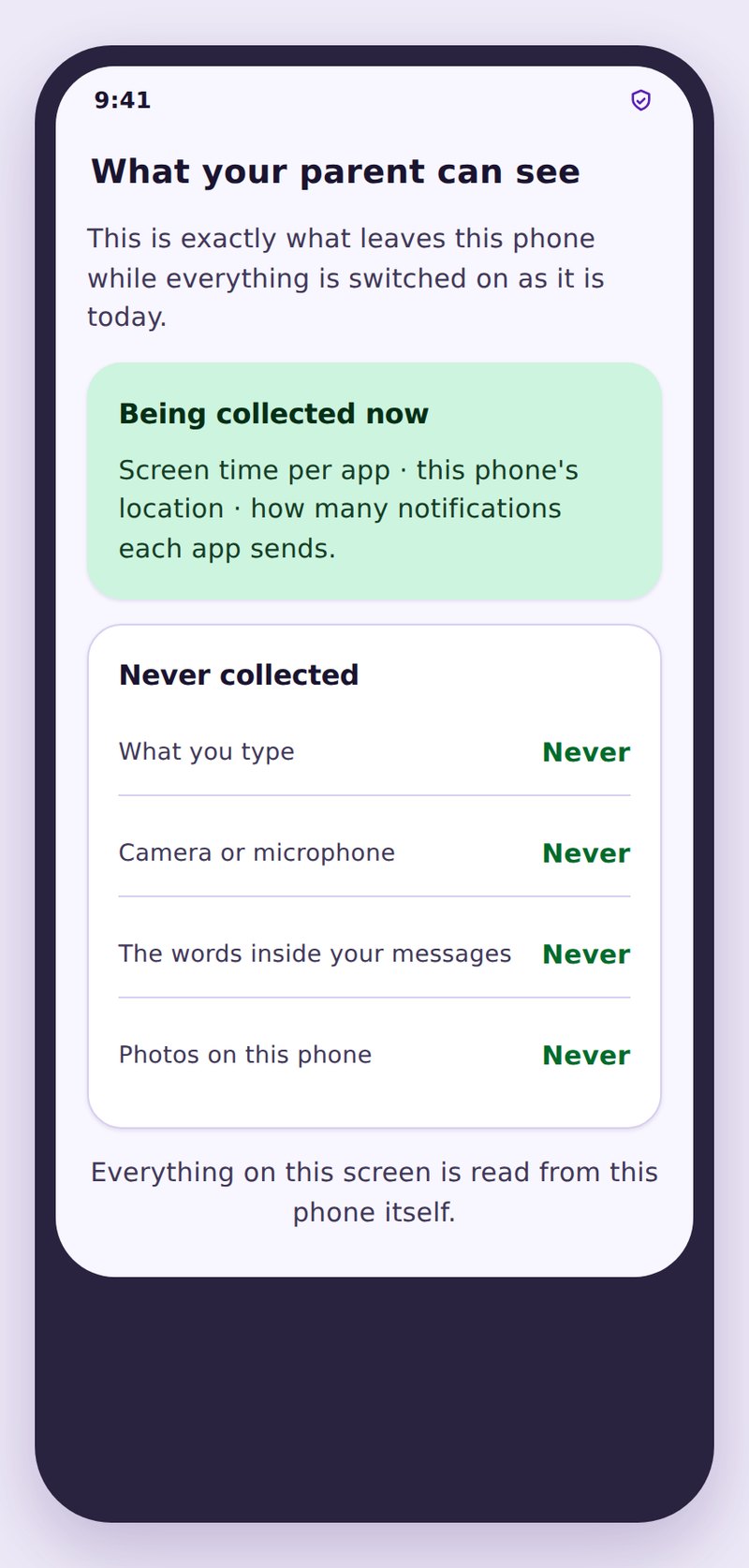
It gives you a live map with saved-place alerts, per-day and per-app screen-time budgets with one-tap extra time, and a web filter that blocks by category on any network, including the proxy sites kids use to get around it. It’s designed to be visible on your child’s phone, with a plain screen of exactly what’s shared, which is the version that actually lasts. You can run it next to Family Link or on its own.
Frequently asked questions
Is Google Family Link enough on its own?
For a younger child, often yes. Its weak spots are detailed location and web filtering, and it can’t do much once a teen has an adult account. Many families pair it with a dedicated app to fill those gaps.
My parental-control app keeps stopping. What’s wrong?
Almost always battery optimisation on a Samsung, Xiaomi, OPPO, or Vivo phone. Set the app to “Unrestricted” in battery settings (and enable Autostart on Xiaomi/OPPO) and it’ll stay running.
Will my child know Android parental controls are on?
With Family Link, yes, it shows a notice. With a dedicated app it depends on the app; we’d always recommend the visible kind. Secret controls cause more problems than they solve.
How do I set this up on a phone my child already uses?
Same steps, but leave extra time to sign out any adult Google account, review what’s already installed, and have the “here’s what I’m turning on and why” chat first.
What age should a child get their first phone?
There’s no magic number, it depends on the child and your family. Whenever it happens, do this setup before you hand it over, not after.
What happens to the controls when my child turns 13?
On Android, a child can gain the option to manage their own account at 13 (the exact age varies by country), at which point some Family Link supervision can be switched off by the teen. Treat this as a prompt rather than a cliff edge: it is the moment to shift from imposed controls toward the more collaborative, conversation-led approach that suits an older teen, loosening the technical restrictions while keeping the agreed expectations and the dialogue going. Planning for that transition in advance beats being caught out by it.
Keep going
Read our guides on cutting screen time without a fight, family location sharing between Android and iPhone, and blocking adult websites so they stay blocked. For trusted guidance beyond this site, Common Sense Media is a well-regarded resource for parents: Common Sense Media.