You text “are you on your way home?” and then you wait. Nothing. You text again. Still nothing. Is the phone dead, are they ignoring you, or is something actually wrong? Twenty minutes later they stroll in, baffled by the fuss. Family location sharing exists to end that particular flavour of low-grade dread, not by tracking your child’s every step, but by quietly answering the one question you keep asking: are they where they’re meant to be?
The catch, if your household mixes an Android phone and an iPhone, is that Apple and Google built their location tools to work with their own devices and nobody else’s. Apple’s Find My won’t share with an Android. Google’s location sharing is fiddly on an iPhone. So the “just use the built-in thing” advice falls apart the moment your kid has an iPhone and you have a Pixel, or the other way round.
This guide fixes that. It covers the free cross-platform route, the dedicated-app route, and, the part that actually matters, how to make family location sharing genuinely useful instead of a battery-draining chore you feel guilty for checking.
Why the built-in tools leave mixed families stuck
Apple’s Find My is excellent, and completely useless here. It only shares location between Apple devices. If your child has an iPhone and you’re on Android, there is no version of Find My that puts them on your map. Full stop.
Google’s location sharing is the more flexible one, because it lives in Google Maps, which runs on both platforms. It works, but it was clearly built as a feature for adults meeting for coffee, not as a family safety tool. There are no automatic alerts when a child arrives somewhere, it’s easy for anyone to switch off, and Android’s battery-saving modes love to quietly kill it in the background.
So for an Android-and-iPhone family you’ve really got two honest choices. Use Google Maps sharing, which is free but basic. Or use a dedicated family app that runs on both, which costs money but does the things Maps won’t. Let’s set up both, so you can decide.
Option 1: Google Maps location sharing (free)
This is the zero-cost route, and it’s fine for a teenager you broadly trust and just want to be able to check on.
It works on Android and iPhone as long as everyone has the Google Maps app installed and a Google account signed in. On each person’s phone, open Maps, tap the profile picture in the top corner, choose Location sharing, and share with the family members you want, set it to “until you turn this off” rather than a time limit, or it’ll quietly expire.
What you get is a live-ish map of where everyone is. What you don’t get is any of the family-specific stuff: no “arrived at school” alert, no history you can scroll, and no resistance to a teen tapping it off or a battery-saver killing it. For a fifteen-year-old with a good track record, that’s often plenty. For a younger child, or if you want to stop checking the map manually, you’ll want option two.
Option 2: a dedicated family app (both platforms, more control)
A purpose-built family app installs on Android and iPhone alike and adds the three things Maps can’t: saved places that trigger automatic arrival and departure alerts, a location history you can actually read, and battery handling designed to run all day without flattening the phone.
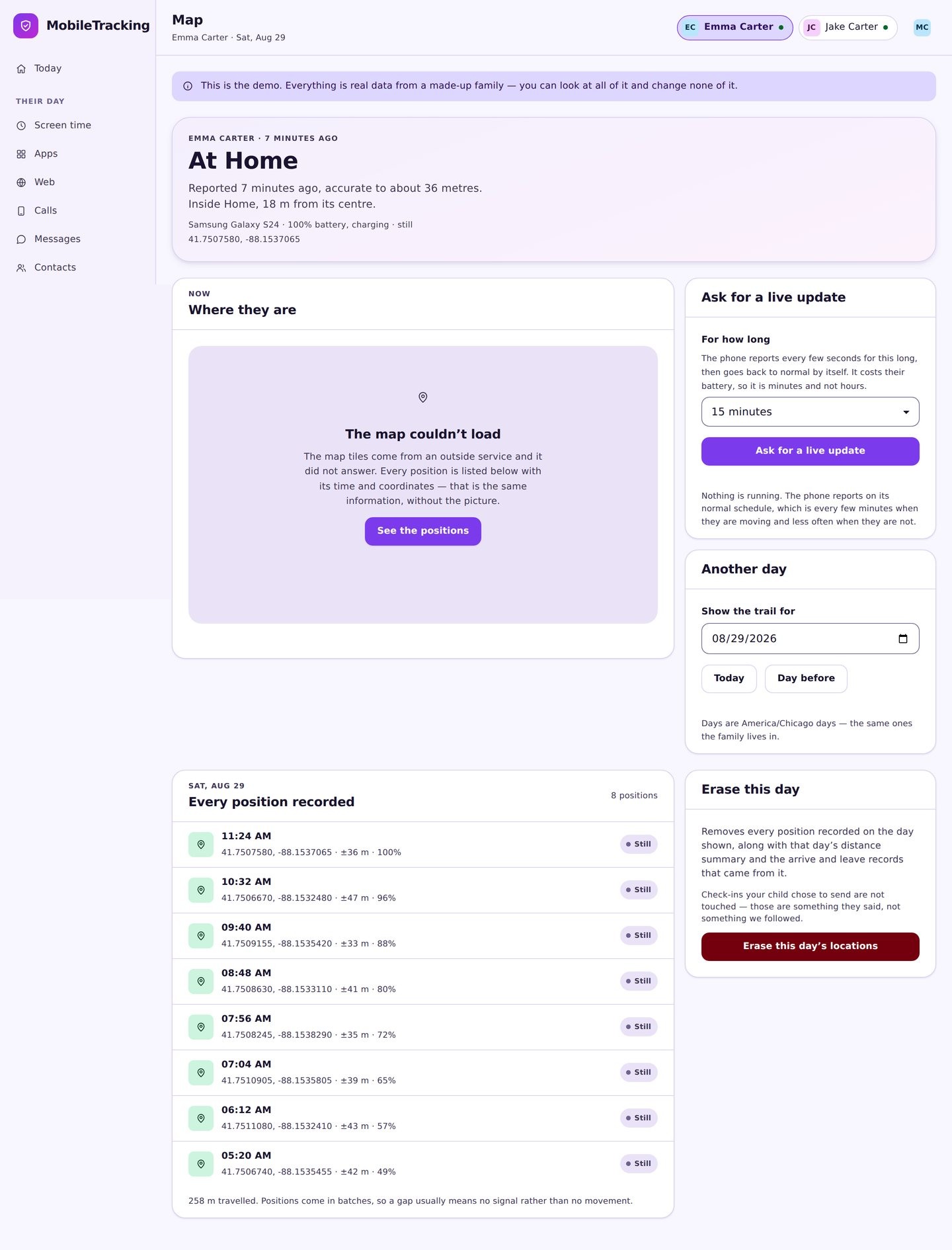
The real value isn’t the live dot. It’s what the app does while you’re not looking at it, which brings us to the single most important idea in this whole guide.
Save your places, and then stop checking the map
Here is the counterintuitive heart of it: the goal of location sharing is to let you stop watching.
Refreshing a map every fifteen minutes to see whether your kid has reached school is a terrible use of your morning and does nothing but feed your anxiety. The fix is to save the handful of places that matter and let the app tell you when something happens, instead of you going to look.
A saved place, sometimes called a geofence, is just a location with a name and a radius around it. Home, school, a grandparent’s house, the sports club, a best friend’s. You decide what you want to hear about for each one: an alert when your child arrives, when they leave, or both.
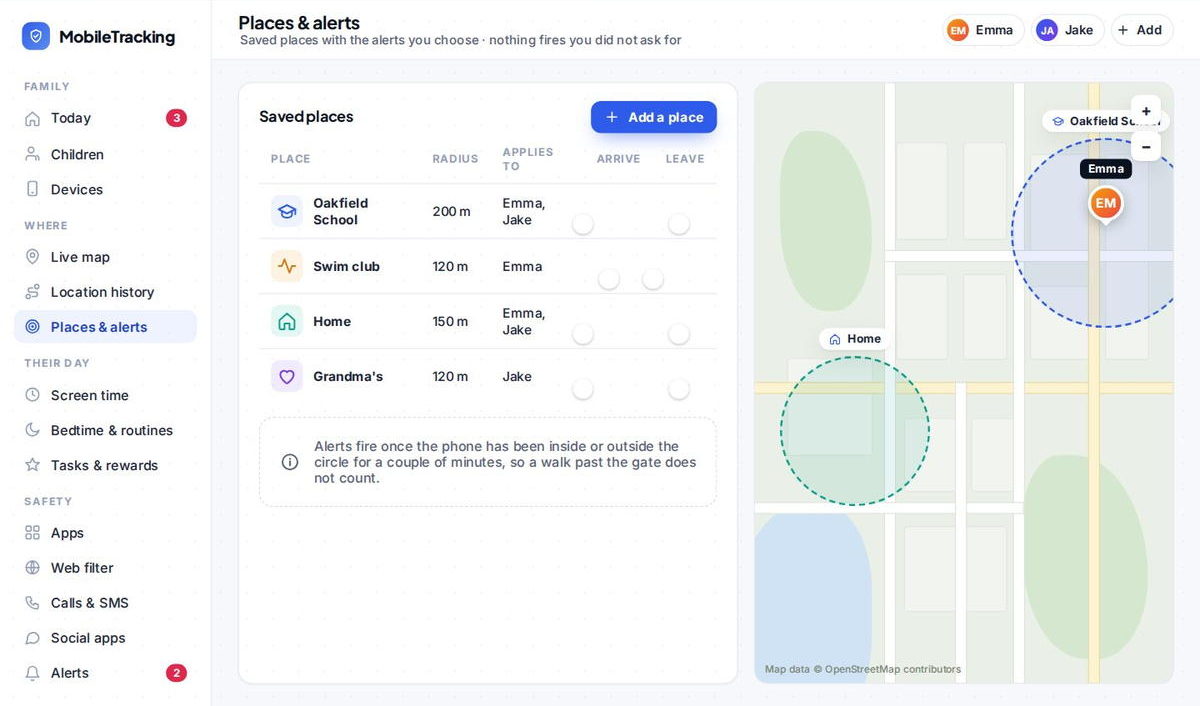
Now the whole thing inverts. Instead of anxiously checking, you get on with your day, and a single message arrives: “Emma arrived at School, 8:14 AM.” No message means everything is normal, which is exactly the state a parent wants to be able to trust without staring at a screen to confirm it.
Start small. You don’t need fifteen zones. An “arrived at school” alert in the morning and a “left home” or “arrived home” alert in the afternoon will do more for your peace of mind than an all-day map you feel obliged to watch. Add more only if you find you actually want them.
The trust conversation is the part people skip
Here’s where a lot of parents go wrong. They set up location sharing in secret, or spring it on a teenager as a done deal, and are then surprised when it becomes a flashpoint.
Older kids especially can experience location sharing as a statement of distrust, “you think I’m lying about where I am.” And if you introduce it clumsily, that’s exactly what it says. So introduce it as what it actually is: a safety net, not a lie detector.
A few things make the difference. Tell them it’s on, and why, in plain terms: “if your phone dies or something goes wrong, I want to be able to find you, and I want to stop texting you every twenty minutes.” Frame it as mutual where you can, plenty of families share location both ways, so the teen can see the parent too. And be explicit that you’re not going to sit there watching the dot all day, because you’re not, and saying so out loud matters.
The deal you’re offering is simple: you get to know they’re safe, they get to know you’re not spying, and the whole thing loosens as they get older and prove they can be trusted. That’s a deal most teenagers will actually accept, especially compared with the alternative of you finding out they turned it off and the argument that follows.
Keeping the battery alive (this is where most setups fail)
A location app that flattens the battery gets switched off within a week, and a dead phone can’t be located at all, which defeats the entire purpose on the exact day it matters.
Two rules keep it healthy. First, use an app or setting that reports where a phone settles rather than pinging the GPS every few seconds. Constant high-accuracy GPS is what murders a battery; reporting “they’ve been at this place for a while” sips power instead.
Second, deal with the phone’s own power management. On Android, and Samsung, Xiaomi, OPPO and Vivo are the worst culprits here, the system aggressively kills background apps to save battery, which silently stops location working. Go into the battery settings, find the app, and set it to “Unrestricted” or “Don’t optimise.” On Xiaomi and OPPO there’s usually an “Autostart” toggle to enable as well. On an iPhone, the equivalent is setting the app’s location permission to “Always” rather than “While Using”, background alerts simply won’t fire otherwise. Skip this step and you’ll spend a fortnight thinking the app is broken when it’s really just being throttled by the phone.
Read the map honestly: accuracy and age
Every location reading carries two pieces of information, and cheap tools only show you one.
The first is accuracy. Location comes from a mix of GPS, Wi-Fi and cell towers, and how precise it is depends heavily on where the phone is. Standing outside with a clear view of the sky, it’s accurate to a few metres. Deep inside a big concrete school building, it can drift to the block. A good app is honest about this rather than pretending to a precision it doesn’t have, which, incidentally, is why saved places use a radius. A sensible radius means you get one clean “arrived at school” alert instead of a flurry of arrive-and-leave messages every time the estimate wobbles by thirty metres.
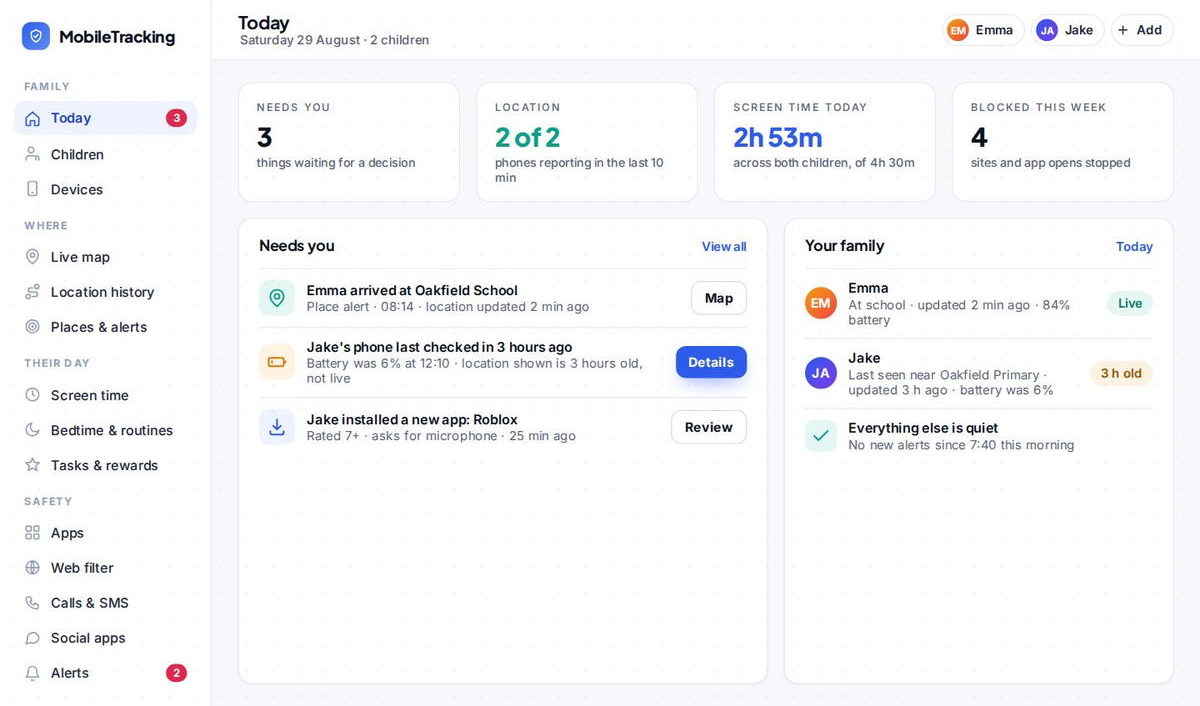
The second, and more important, piece is the timestamp. A location dot with no time attached is quietly misleading. A phone that’s been sitting in a bag with no signal will happily show its last known spot as if it were current. “At home, 4 minutes ago” is reassuring. “At home, 3 hours ago” means you should look closer, because that reading is stale. Always check when a location was recorded before you trust it.
When location history earns its keep
Live location answers “where are they now.” History answers “where were they this afternoon,” and most days you’ll never need it.
A good app keeps a scrollable record of where each phone has been, grouped into the same place-by-place timeline you see for today. It’s there for the handful of times a year when a straight answer is genuinely worth more than a doubt left to fester, when a child says they were at the library and you’d simply like that to be true, and it takes ten seconds to confirm rather than turning a small niggle into an accusation.
A word of caution, though: don’t live in the history. Scrolling back through every place your child has been, every day, is the behaviour that tips location sharing from safety into surveillance, and it’s exactly the thing that erodes the trust the tool is supposed to protect. Use it when you need it. Ignore it the rest of the time.
The safety extras worth thirty seconds
While you’re setting up location, a couple of related safety features are worth the tiny effort. Add an emergency contact and a Medical ID to the phone’s lock screen, so a stranger who finds a lost or unresponsive phone can reach you. If you’ve got a new driver in the family, look at whether their phone offers crash detection and turn it on, and set up something that discourages texting behind the wheel. None of these are location sharing exactly, but they live in the same “just in case” corner of parenting, and they’re the kind of thing you’re very glad you set up on the day you need them.
What family location sharing can’t do
Be clear-eyed about the limits, because over-trusting a dot causes its own problems.
Location tells you where a phone is, not where your child is or whether they’re okay. Phones get left in lockers, lent to friends, forgotten on buses, and run flat. A dot at the swimming pool doesn’t prove your kid is swimming, and a dot that hasn’t moved doesn’t prove anything is wrong.
And it isn’t a substitute for trust or for conversation. A teenager who feels tracked to the metre will find ways around it, and, worse, will stop volunteering the information you actually want, because they’ve learned you’ll just check the app anyway. Used well, location sharing is a convenience and a safety net: “are they on their way,” “did they get there.” Used badly, it’s a way to run a surveillance operation on your own kid, and it corrodes the relationship it was meant to protect. Introduce it as the former, keep it in the open, and it stays healthy for years.
Using MobileTracking for this
MobileTracking puts your whole family on one live map, with honest timestamps so you always know how fresh a location is, saved-place arrival and departure alerts so you can stop checking, and a scrollable day-by-day timeline for the rare times you need it. It’s built to be light on battery so it actually lasts the day, and because it’s visible on your child’s phone and lists location plainly as something that’s shared, it stays a family agreement rather than a secret. It’s the “dedicated app” option above, done in a way you can be comfortable telling your kid about.
Frequently asked questions
Can I see my child’s iPhone location from my Android phone?
Yes, but not through Apple’s Find My, which is Apple-only. Use Google Maps location sharing (both install Maps) or a cross-platform family app that runs on Android and iPhone alike.
Does location sharing work if the phone is turned off or has no signal?
You’ll see the last known place and the time it was recorded, clearly marked as not current. When the phone comes back online, the map catches up. No app can locate a phone that’s genuinely powered down.
Will it drain my child’s battery?
A well-built app won’t, because it reports settled locations rather than hammering the GPS. The bigger issue is Android killing the app in the background, exempt it from battery optimisation and it’ll behave.
How accurate is phone location, really?
Usually within a few metres outdoors, and looser indoors or in dense buildings. Treat it as “which building” rather than “which doorway,” and always check the timestamp.
Should I tell my child I can see their location?
Yes. Secret tracking backfires the day it’s discovered. Visible sharing, introduced as a safety net and loosened as they grow, is the version that lasts.
Keep going
Read our guides on setting up parental controls on Android, transparent monitoring for families, and how much screen time is healthy by age. For trusted guidance beyond this site, Common Sense Media is a well-regarded resource for parents: Common Sense Media.