Every parent who hands a child a phone eventually has the same quiet worry: one wrong search, one dodgy link in a group chat, and their kid is looking at something no ten-year-old should see. So they Google “how to block adult websites,” flip a setting or two, and feel better. The problem is that most of those settings leak, and the parent doesn’t find out until it’s too late.
Learning to block adult websites properly isn’t hard, but it does mean understanding why the obvious methods fail. A filter that actually holds does three things: it lives on the phone itself rather than on your home network, it covers every browser and app, and it blocks the “unblocker” sites kids use to slip around filters. Get those three right and you’ve built something that works. Miss any one of them and you’ve built a fence with a gate left open.
This guide walks through the whole thing, why the common setups leak, how to build one that holds, and where even a good filter reaches its limits.
Why most website blocking quietly fails
Four setups give parents a comfortable but false sense of security. It’s worth understanding each, because the failure is different every time.
The home router. Plenty of routers let you filter content, and it feels thorough because it covers the whole house. But it only covers the house. The second your child walks out the front door and the phone switches to mobile data, or connects to the café’s Wi-Fi, or the school’s, the router is doing precisely nothing. A phone spends most of its waking life off your home network, which is exactly where you have no visibility.
Browser SafeSearch. Turning on SafeSearch in Chrome feels like a real step, and it is a small one. But it’s a single toggle a curious child can flip back in seconds, it only filters search results rather than direct links, and it does nothing at all about the countless apps that aren’t a browser.
Blocking one browser. Some parents lock down Chrome and consider the job done. Kids install a different browser from the app store in about ninety seconds. Worse, half the apps on the phone have their own built-in browser, tap a link inside a social app and it opens in a mini-browser your Chrome block never sees.
“I’ll just check the history.” Checking browsing history isn’t blocking anything; it’s reading the report after the event. And it’s trivial to delete, or to sidestep entirely with private browsing. By the time you’re scrolling the history, whatever was going to be seen has already been seen.
Every one of these leaks somewhere. A filter that works has to be on the device, has to cover all browsers and in-app browsers, and has to survive the obvious workarounds. Here’s how to build that.
Step 1: Turn on SafeSearch everywhere (the floor, not the ceiling)
Start by forcing SafeSearch on across every search engine your child might use, Google, Bing, DuckDuckGo, in every browser on the phone. On a managed child account you can lock it on so it can’t be quietly switched off.
Be honest with yourself about what this achieves, though. SafeSearch cleans up search results, which removes the most casual route to explicit material, the idle image search. It does nothing about direct links, apps, or a determined kid. It’s the floor of your setup, not the ceiling. Treat it as the easy first layer and keep going.
Step 2: Block adult websites at the device level
This is the layer that actually does the work. A phone-level content filter checks every web request against the categories you’ve chosen to block and stops it before the page loads, on any network, in any browser, in any app’s built-in browser. That “before it loads” part matters: the page never renders, so nothing from it is ever downloaded, shown, or stored.
Turn on adult content as your baseline. Then add gambling, which is worth blocking even for teens who show no interest in it, because gambling and loot-box-adjacent sites market to minors far more aggressively than parents realise. Depending on your child’s age you might add categories like violence and gore, or drugs and alcohol.
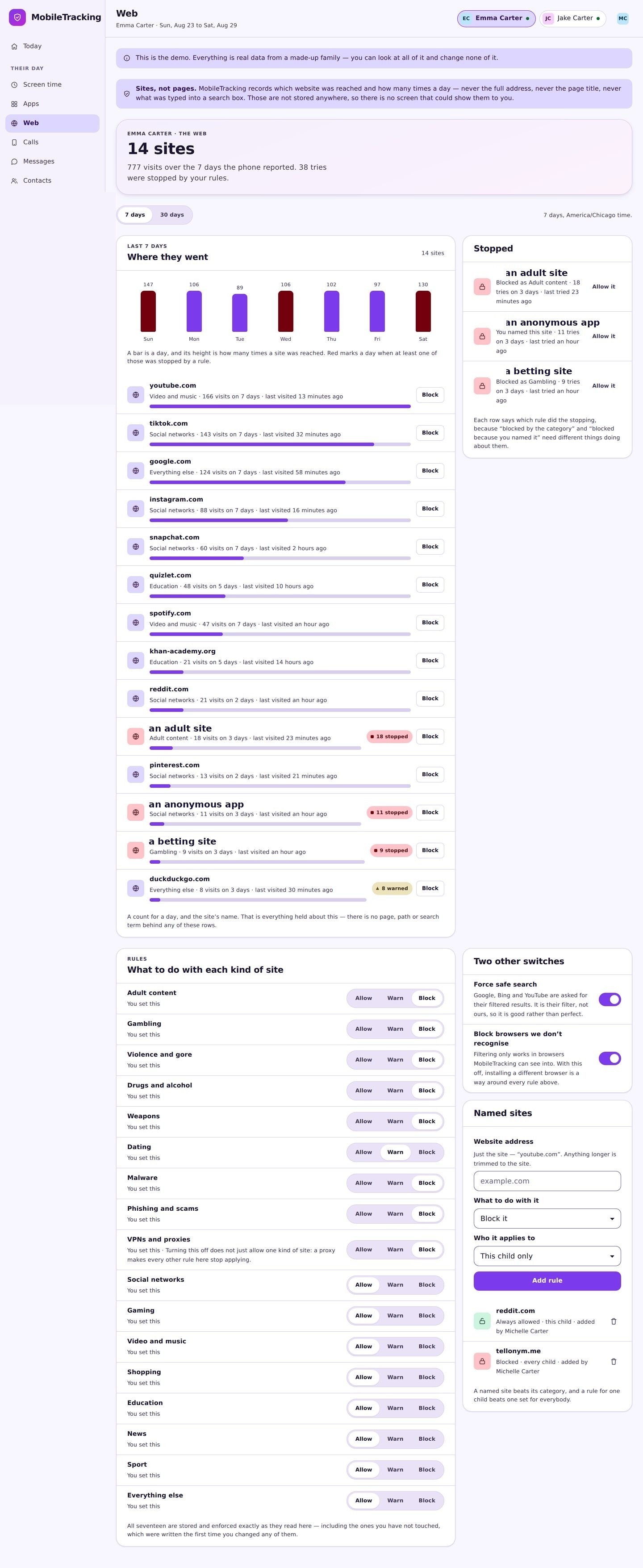
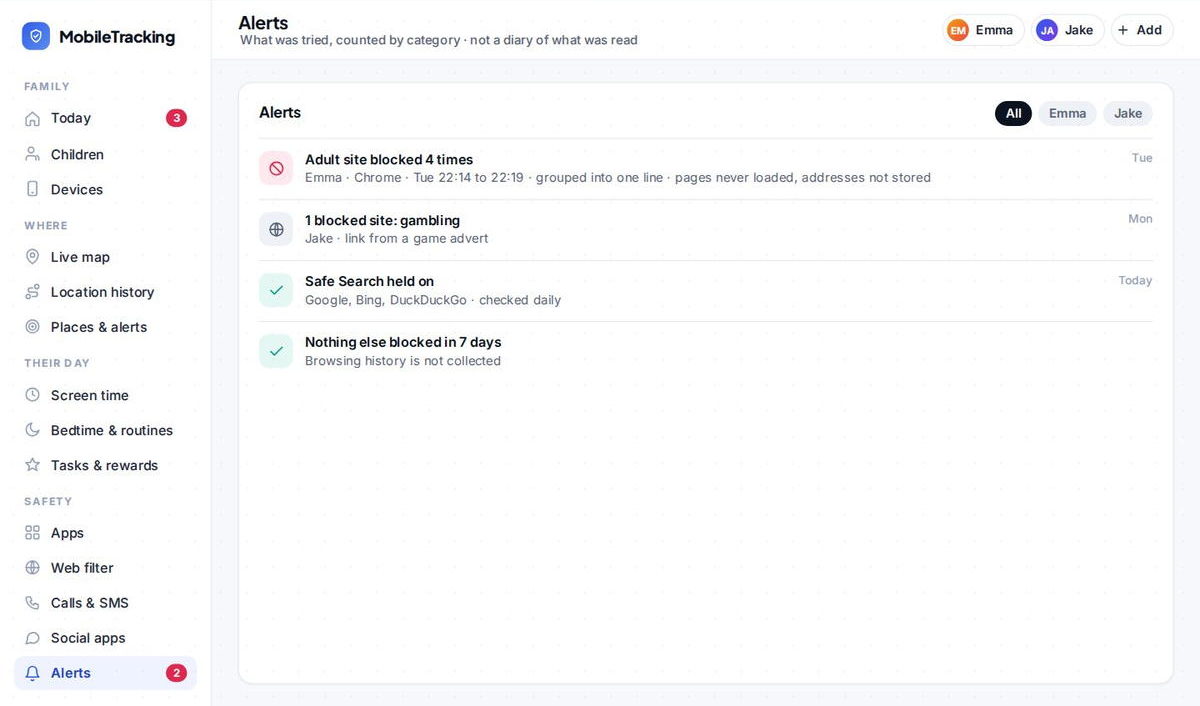
There’s a quiet privacy benefit to filtering this way, and it’s worth naming. Because the blocked page never opens, there’s nothing to store. The filter can honestly tell you “an adult site was blocked four times yesterday”, but it doesn’t know, and can’t know, what was on that site, because it stopped before finding out. That’s a very different thing from an app that logs every page your child visits. The job is to prevent, not to build a dossier.
Step 3: Block the unblockers (the step nearly everyone misses)
If you take one thing from this guide, take this. It’s the single step that decides whether your filter holds or gets beaten in an afternoon.
The first thing a curious, capable teenager does when they hit a filter is search “how to get around website blocking.” The tools that come up, web proxies, “unblocker” sites, mirror sites, are themselves websites, and their entire purpose is to launder a blocked site through an allowed-looking address. If your filter doesn’t block the proxy and anonymiser category, then you’ve locked the front door and hung a sign on the back one reading “spare key under the mat.” Block that category, and the obvious escape route closes with it.
Step 4: Close the in-app and incognito gaps
Two quieter leaks remain, and both are easy to miss.
The first is in-app browsers. When your child taps a link inside a social or messaging app, it often opens in that app’s own built-in browser rather than in Chrome. A filter that only knows about Chrome can be walked straight past this way. A device-level filter catches it because it works on the phone’s traffic as a whole, not on one particular app, which is another reason the device-level approach beats the browser-only one.
The second is incognito or private mode. This one causes a lot of needless panic, so let’s be precise: a proper device filter blocks regardless of whether the browser is in private mode. What private mode does is hide history. So the practical lesson isn’t “incognito defeats the filter”, it doesn’t, it’s “don’t rely on reading history as your safety net,” because a child can browse privately and leave no trail. Let the filter do the blocking and don’t lean on the history.
Step 5: Handle VPNs
A VPN reroutes a phone’s internet traffic through another server, and depending on how a filter works, that can be used to slip around it. On a younger child’s phone, the sensible move is to block VPN apps from being installed at all; on a managed account you can prevent VPN configuration entirely.
But there’s a parenting signal here as much as a technical one. If a VPN suddenly appears on your teenager’s phone, it’s worth a calm conversation, because teens generally install a VPN for one of a small handful of reasons, and most of them are things you’d want to know about. Treat the VPN as a prompt to talk, not just a thing to delete.
Step 6: Match the strictness to the child
A ten-year-old and a sixteen-year-old should not have the same web, and the whole point of per-child settings is that they don’t have to. Keep a tight filter on the younger one, adult content, gambling, violence, the lot, and loosen categories for the older as they earn the trust.
Resist the urge to lock a teenager down as hard as a small child. Over-blocking an older kid doesn’t make them safer; it makes them resourceful. It’s the fastest way to turn a teen into someone who spends their spare time hunting for holes in your filter, and who resents you the whole time they’re doing it. A filter that’s visibly reasonable for their age is one they’re far more likely to simply leave alone.
A note on kid-safe browsers and DNS filtering
Two related tools come up a lot, so here’s where they fit. A dedicated kid-safe browser is a reasonable option for younger children, because it bakes filtering right into the browsing experience, but it only helps if you can also stop the child opening a different browser, which brings you back to device-level control. And a family DNS filter (which blocks categories at the network level by changing where the phone looks up website addresses) is a genuinely useful layer, though on a phone it’s cleanest when it travels with the device rather than being tied to your home router. In practice, most families get the best result from a single on-device filter that handles categories, proxies and in-app browsers together, rather than stitching several partial solutions into something with seams.
What web filtering can’t do
A filter is a safety rail, not a force field, and pretending otherwise sets you up to be blindsided.
Category filtering is accurate but not perfect. Occasionally it’ll catch a legitimate site, a health resource, a piece of art, a news story, which is easy enough to fix when you can see what was blocked and loosen the category, but it does happen. It also can’t catch literally everything on an internet this vast; new sites appear constantly. And a truly determined older teenager with time, motivation and decent technical skills can eventually find a gap, the same way a determined kid can find a way to do most forbidden things.
More importantly, a filter does nothing about content that arrives another way, an explicit image sent directly in a message, something seen over a friend’s shoulder at school, a video passed around in a group chat. Those are conversations, not category blocks. What a good filter buys you is the years before those conversations are age-appropriate, and a backstop for after they’ve happened. It is not a replacement for talking to your child about the internet. It’s the thing that holds the line while you do.
Keep it honest: tell your child the filter is there
When a page gets blocked, your child should see a clear “this site is blocked” message rather than a confusing error that looks like the internet is broken, and the filter itself shouldn’t be a secret. A kid who knows a filter exists, and roughly why, is a kid you can talk to about it. A kid who discovers a hidden one just learns to distrust you and to hunt for the seams.
Using MobileTracking for this
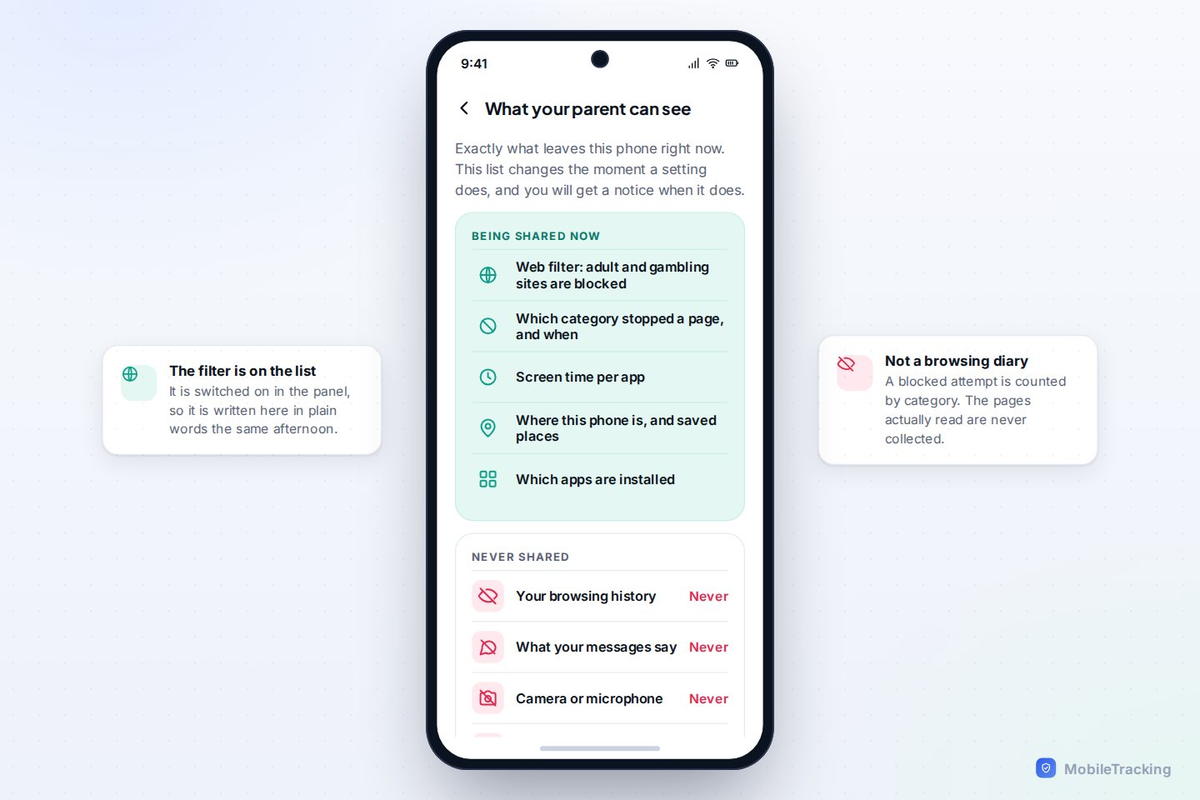
MobileTracking’s web filter runs on the phone, so it applies on mobile data and any Wi-Fi network, across every browser and in-app browser. It blocks adult, gambling and other categories before the page loads, covers the proxy and unblocker category so the usual workarounds don’t help, and shows you what was blocked, the address of the attempt, without ever opening the page. Each child has their own settings, so you can be strict with a younger one and looser with a teen, and it’s visible on their phone, listed openly as one of the things that’s on. It’s category blocking that holds up, done in a way you can tell your kid about.
Frequently asked questions
Does website blocking work on mobile data, not just home Wi-Fi?
Only if the filter lives on the phone. Router and home-network filters stop working the moment the phone is on cellular data or a different Wi-Fi network, which is most of the day.
Can my child get around it by installing a different browser?
Not with a device-level filter, it covers every browser on the phone, including the ones hidden inside other apps. And blocking the proxy category closes the workaround sites that are usually the next attempt.
Do you keep a log of every site my child visits?
A well-designed filter doesn’t need to. Blocked pages never open, so there’s nothing to store. You see categories, counts, and the addresses of blocked attempts, not a full browsing history.
What if the filter blocks a site my child actually needs for school?
Category filtering isn’t perfect and can occasionally over-block. When you can see what was blocked, it’s quick to loosen the relevant category or allow that specific site.
Is incognito mode a way around the filter?
No. A proper device filter blocks regardless of private mode. Incognito only hides history, so the real lesson is not to rely on checking history as your protection.
Keep going
Read our guides on setting up parental controls on Android, the social apps teens actually use, and AI chatbots and kids. For trusted guidance beyond this site, Common Sense Media is a well-regarded resource for parents: Common Sense Media.