Features
The parental control features in MobileTracking answer three questions a parent actually asks in a normal week: where are they right now, is the day roughly the shape we agreed, and is there anything here I should know about. Everything on this page exists to answer one of those three, and every single thing it does is visible on your child’s phone at the same moment it is visible to you.
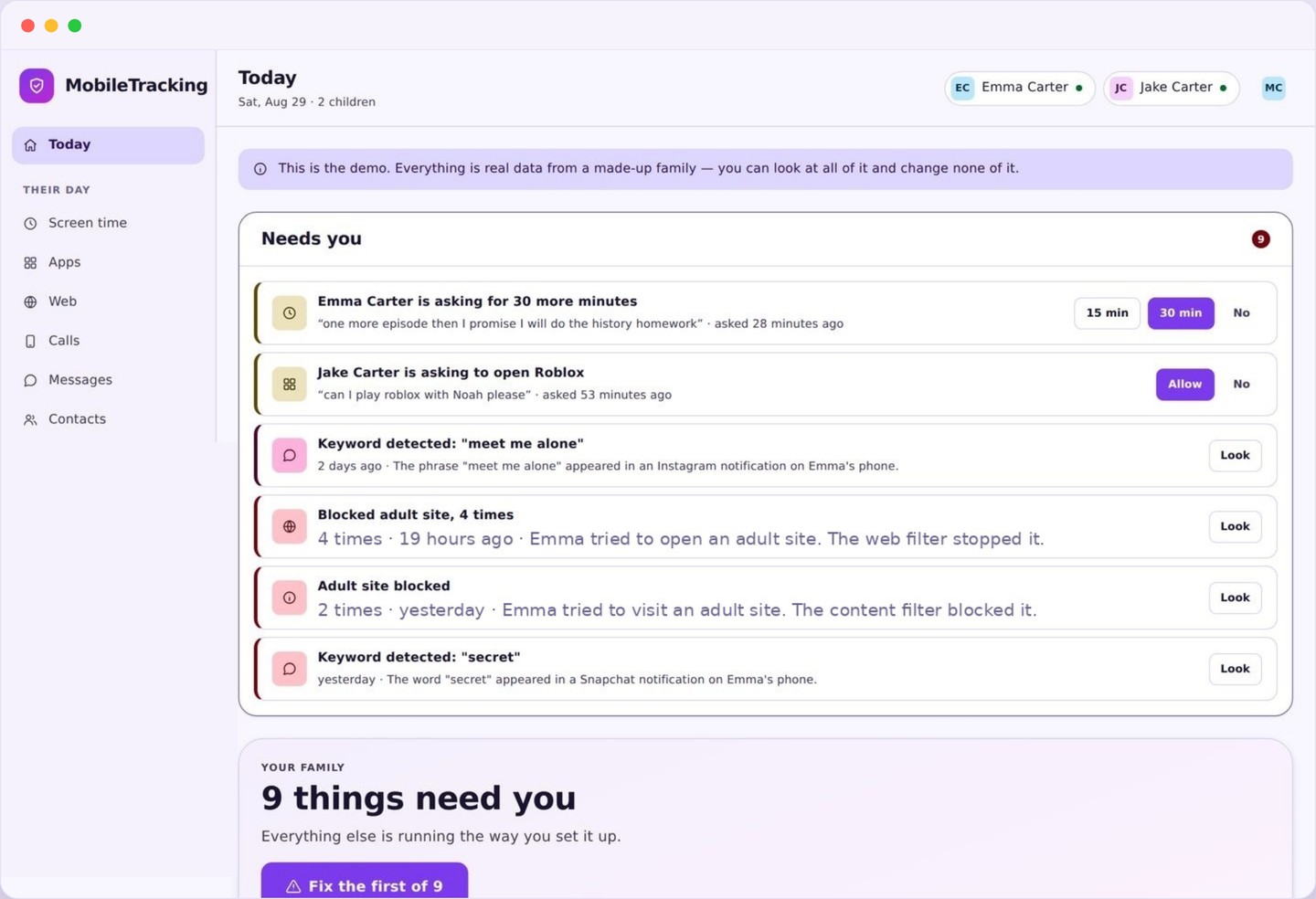
Knowing where they are without living on a map
Three features that work together: a live position, a readable history, and named places that tell you when something happens.
Live location gives you the current position with a timestamp and an accuracy figure, so you always know how fresh and how precise the reading is. That honesty matters. A position four minutes old and accurate to twenty metres is something you can act on; a position pretending to be exact while the phone sits deep inside a building is how people end up worrying about nothing.
Location history turns the day into a readable timeline rather than a tangle of lines. Stops are grouped, journeys are collapsed, and places you have named appear by name. If you only ever open it after the fact, when you are piecing together an unexplained afternoon, it will still have been worth having.
Places and geofencing is the piece that finally lets you shut the map. You draw a circle around home, school and one place your child likes, choose whether you want arrivals, departures or neither, and after that a single message replaces the checking. “Arrived at School, 8:14” is something you read at a glance and then get on with your morning.
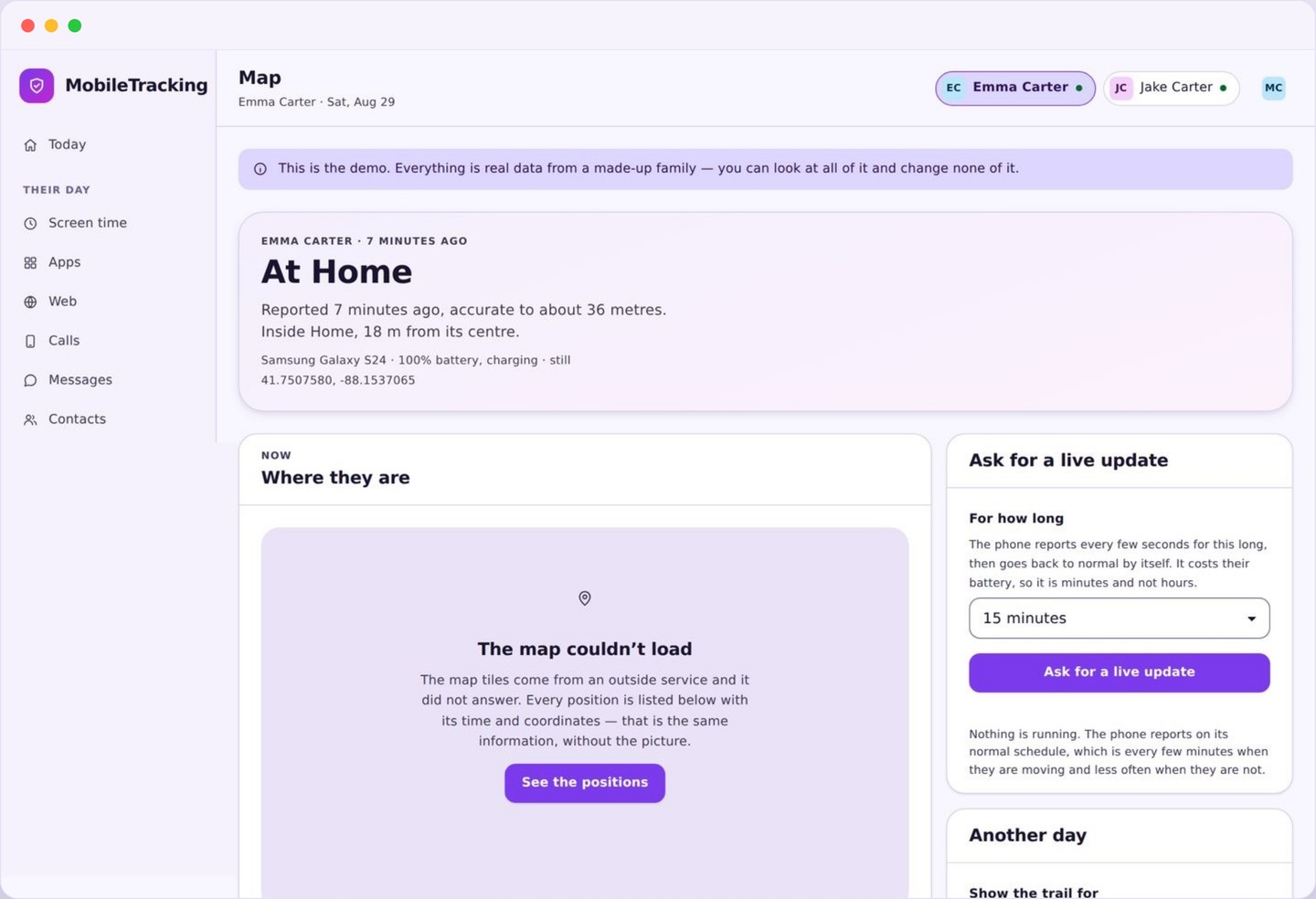
The current position with a timestamp and an accuracy circle, plus a manual refresh when you need a fresher reading than the schedule provides.
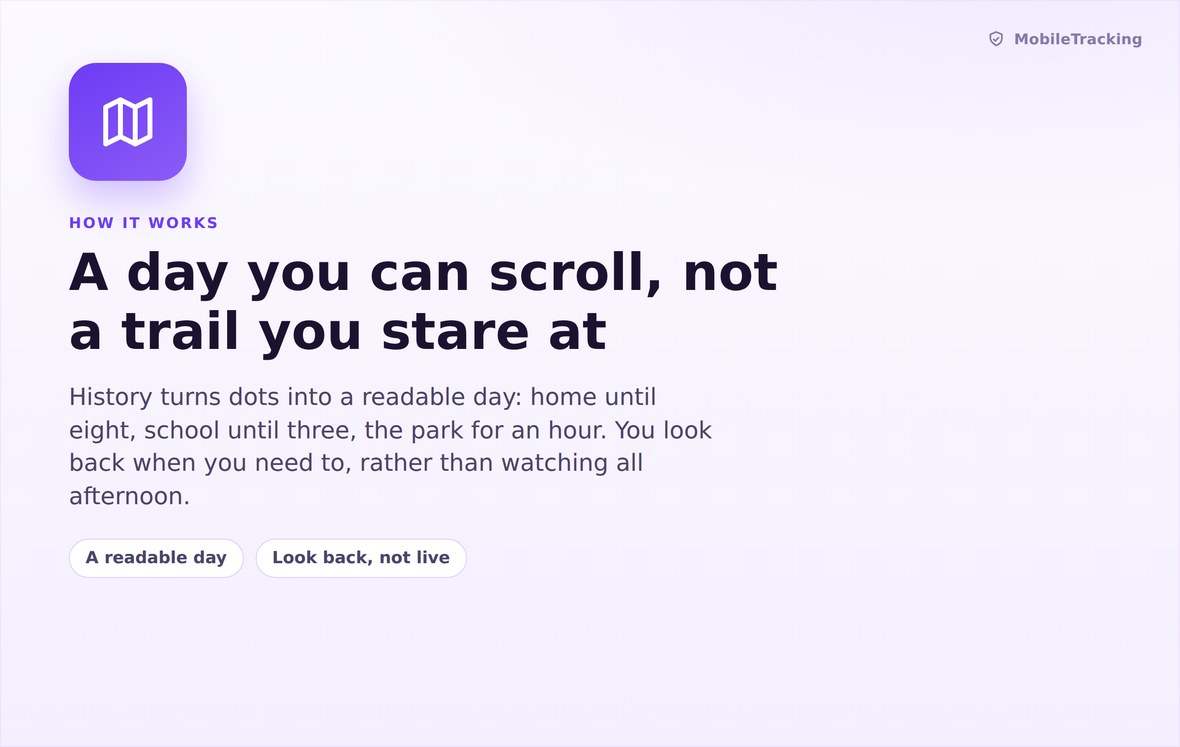
The day as a timeline of stops and journeys, labelled with your saved place names instead of raw coordinates.
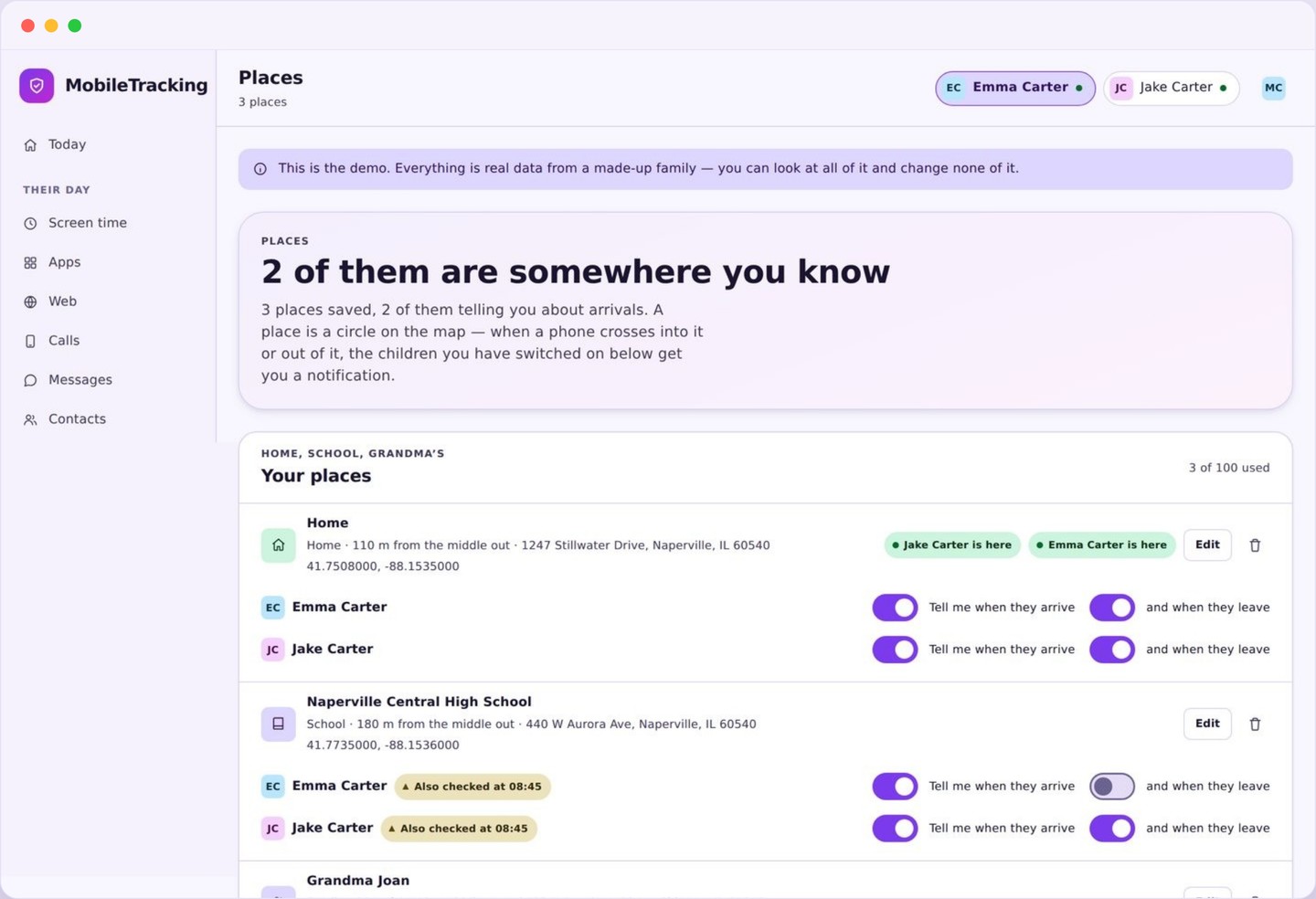
Named circles that send one clear arrival or departure message, with quiet hours so nothing buzzes overnight.
Shaping the day instead of policing it
Limits, bedtimes and earned time, all of them visible on your child’s phone long before they ever bite.
A screen time limit is not a punishment, it is a shape. The families who get on well with these tools set two or three clear edges and then leave them alone, rather than tightening and loosening the dial after every argument. This group is built around that idea: set the shape once, agree it out loud, and let the phone hold the line so you are not the timer.
Screen time gives you a daily budget, per app limits, and a picture of where the hours actually went. Almost every family is surprised by that picture at least once. Bedtime and routines handles the schedule side, winding devices down at one time on school nights and a later one at weekends, with a short warning first so nobody loses progress in the middle of something.
Tasks and rewards is the part that changes the tone of the house. Instead of time being something to be argued out of you, it becomes something that can be earned: a finished chore, a homework block, a walked dog. It is optional, and plenty of families never switch it on, but where every evening had turned into a negotiation it has a way of turning the conversation round.
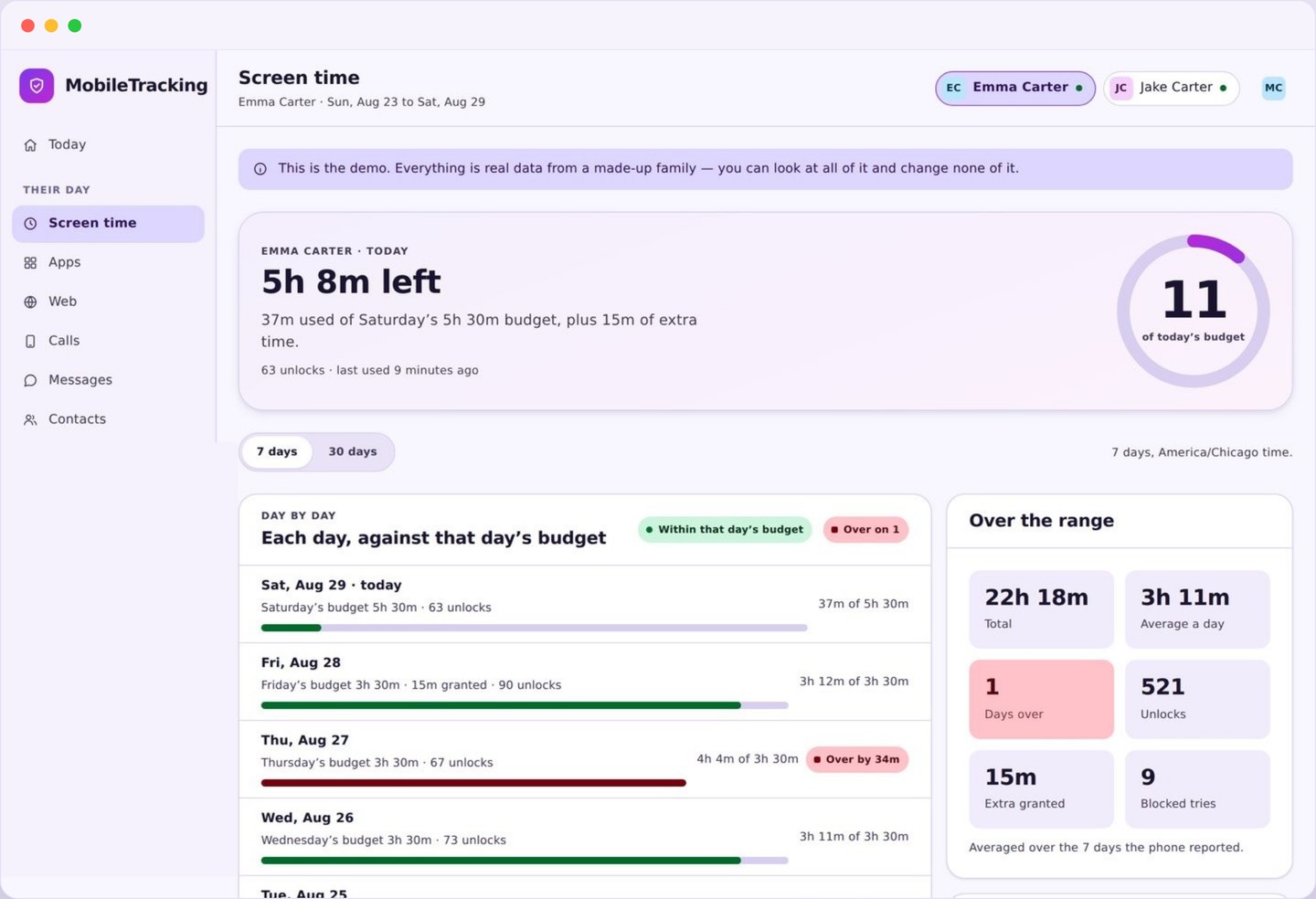
A daily budget, per app limits and an honest picture of where the hours went, broken down by day and by app.
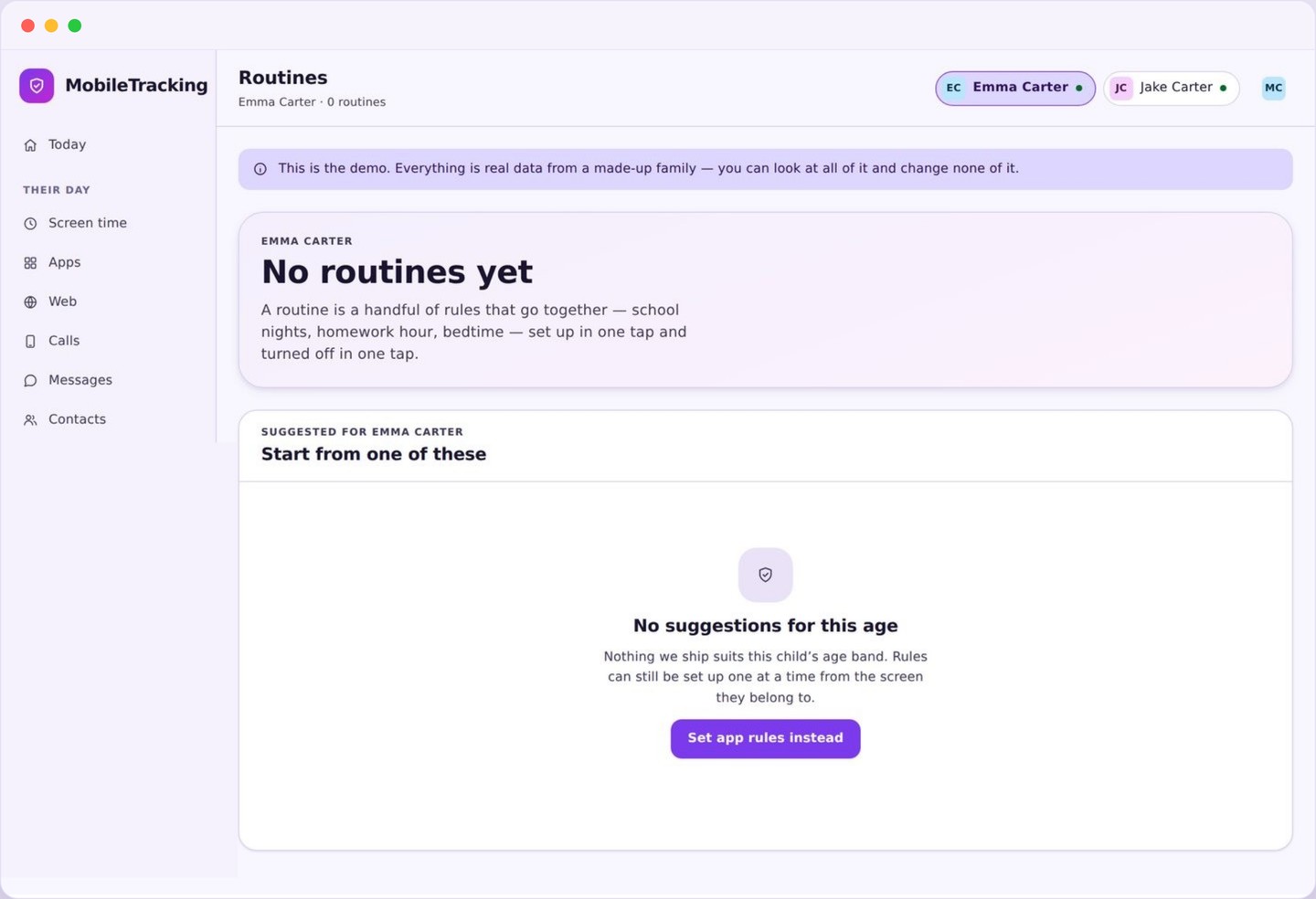
School nights, weekends, homework blocks and wind down windows, each with a warning before it starts.
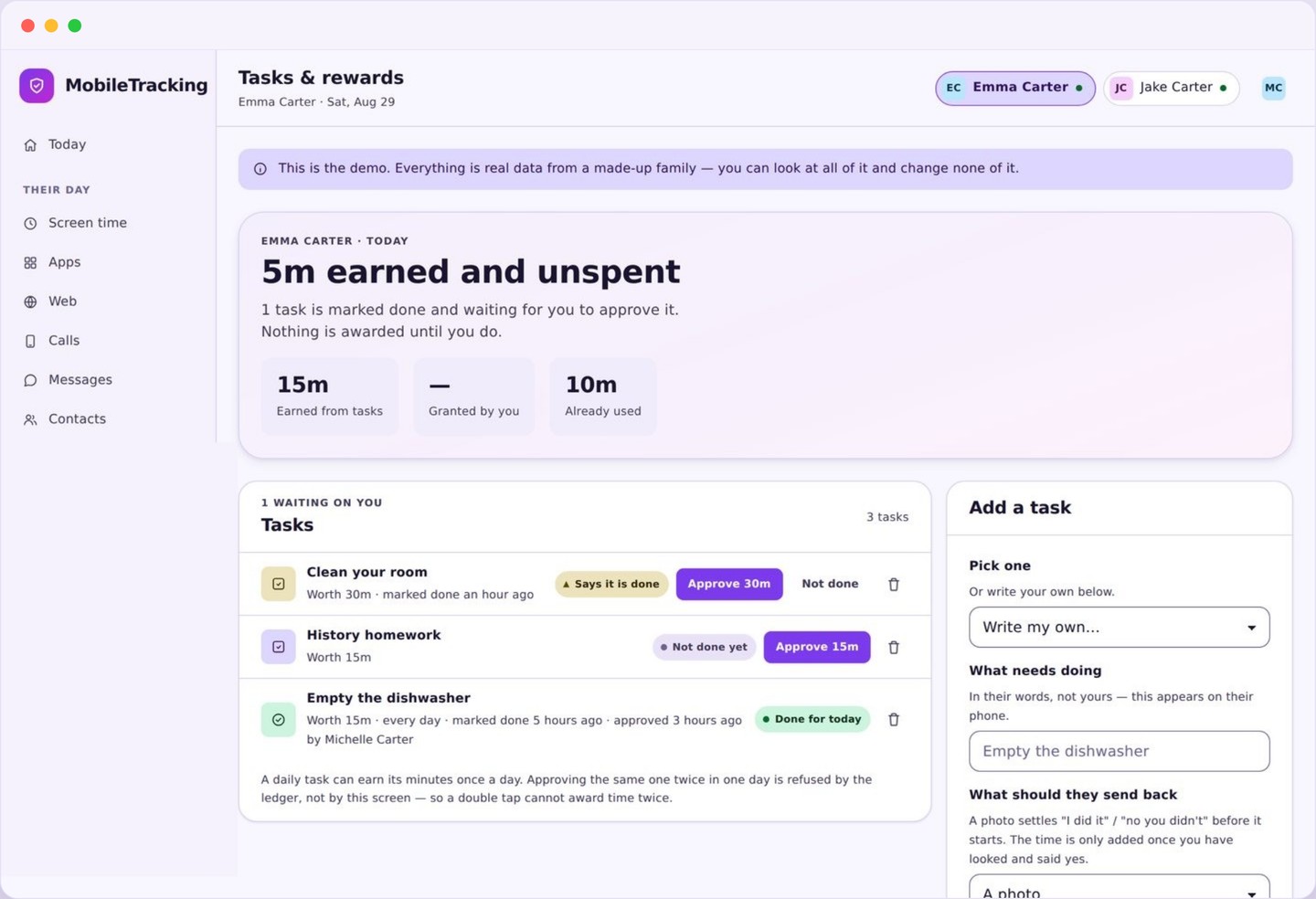
Chores and homework that earn extra minutes, so time becomes something to work towards rather than argue about.
Which apps, for how long, and which ones are off the table
Names, icons and durations. Never the contents of what happens inside them.
App activity tells you which apps were opened, for how long, and when. That is the whole of it. There are no screenshots, no reading of messages, and no record of what was typed. The reason is not squeamishness. It is that the useful signal for a parent lives at the level of “four hours in a game on a school night” or “a new social app appeared on Tuesday”, not inside a private conversation.
App blocking is the blunt instrument in the set, and it works best used sparingly. Turning off one app that is genuinely causing harm tends to stick. Blocking fifteen at once produces a child strongly motivated to get round all fifteen. The block is also visible on their phone, with a screen naming the app and saying who blocked it, because a mysterious failure invites tinkering while a plain statement invites a conversation.
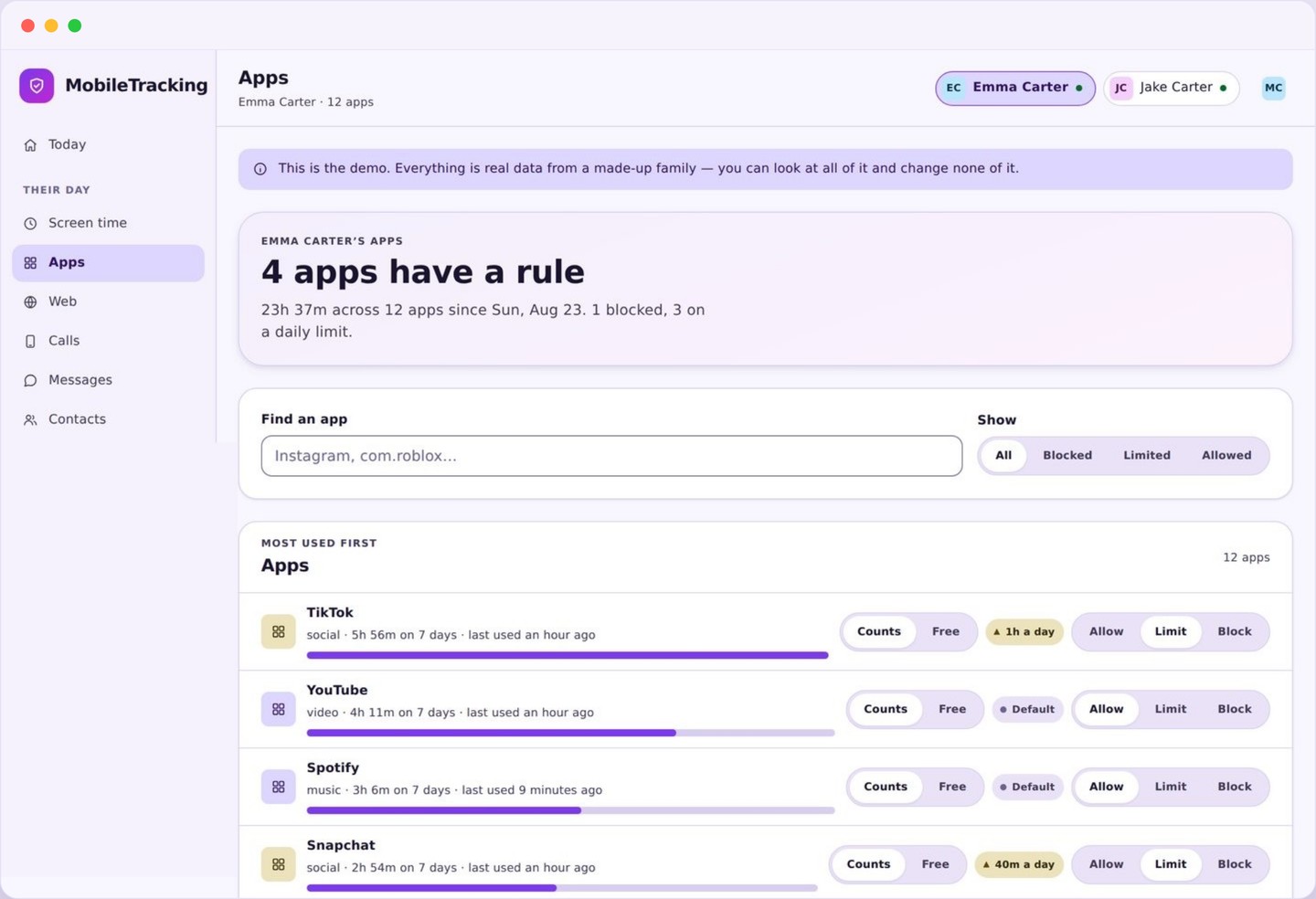
Which apps were used and for how long, with new installs flagged so a new social app does not appear unnoticed.
Turn a specific app off, permanently or on a schedule, with a clear screen on their phone explaining what happened.
A safer web, without pretending the internet is safe
Category filtering and locked safe search cut down the accidental encounters. They do not build a walled garden.
Web filtering blocks by category rather than by an endless list of individual sites, because an endless list is a losing game before you start. You choose the categories that are off limits for a given child, and the blocked page on their phone says plainly that a category was blocked instead of pretending the site is broken. Older children can have a looser set than younger ones.
Safe search does something smaller and, in daily terms, arguably more valuable. It locks the safety setting inside search engines and video platforms so it cannot simply be switched off again, which removes the single most common route to material nobody went looking for. It is not a content filter and it will not catch everything, but it quietly prevents a great many accidents.
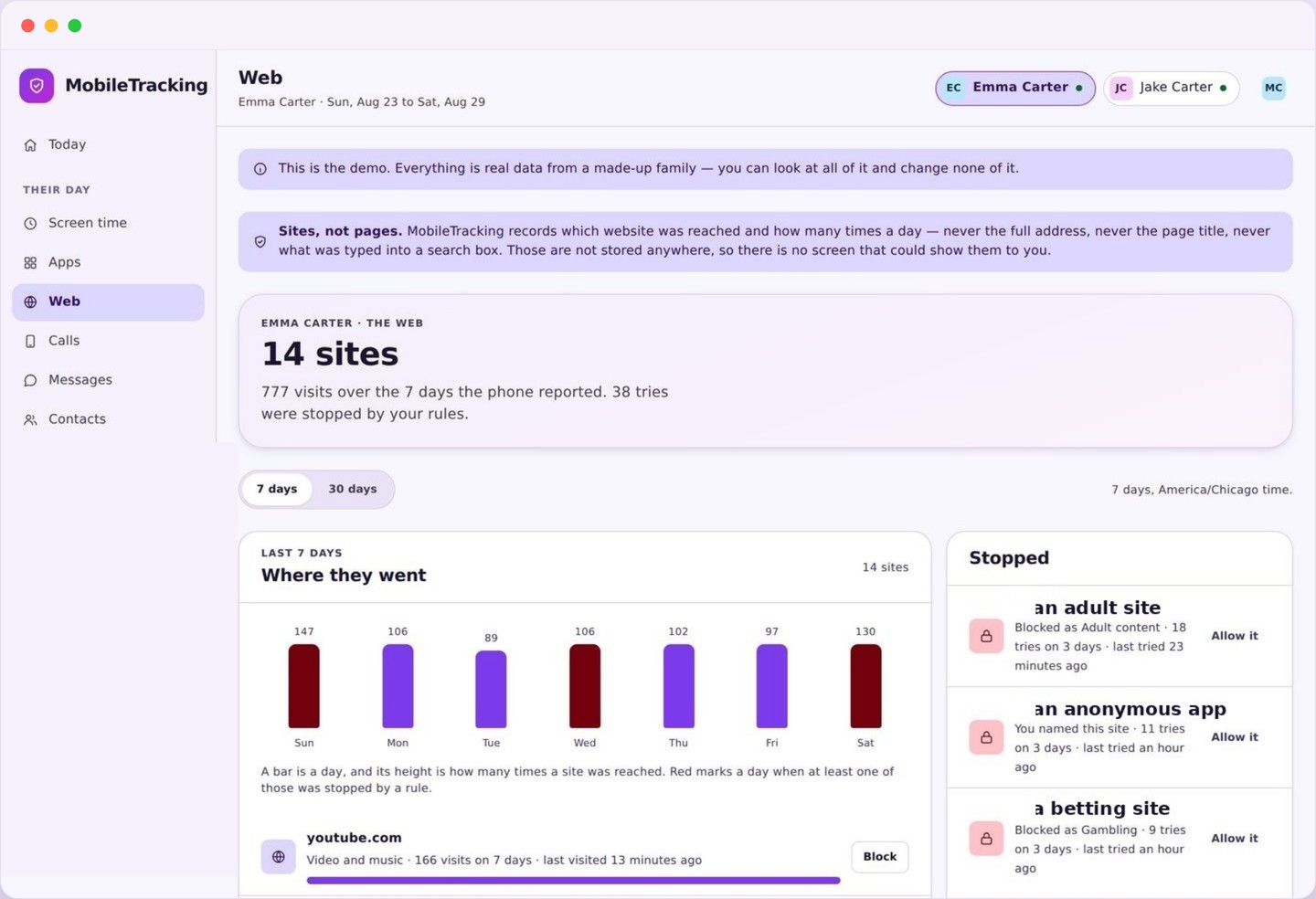
Block by category per child, with an honest block page rather than a site that mysteriously fails to load.
Locks the safety setting in search engines and video apps so it cannot be turned back off in two taps.
A few signals, not a firehose
Patterns and metadata rather than contents, grouped so that a notification still means something when it lands.
Calls and SMS deals in metadata only: numbers, names from the contact list, times, durations, and how often a number appears. Message contents are never collected, never transmitted and never shown to you. What you do get is the pattern that actually indicates a problem, such as an unknown number that has appeared thirty times in two days, or a long call at three in the morning.
Social monitoring works the same way, at the level of which platforms are in use and how heavily, plus installs and removals. Keyword alerts lets you nominate specific words that are worth a flag if they turn up in a search or a visited page title. Smart alerts is the layer on top: it groups related events, applies quiet hours, and turns a burst into one message you can read in five seconds.
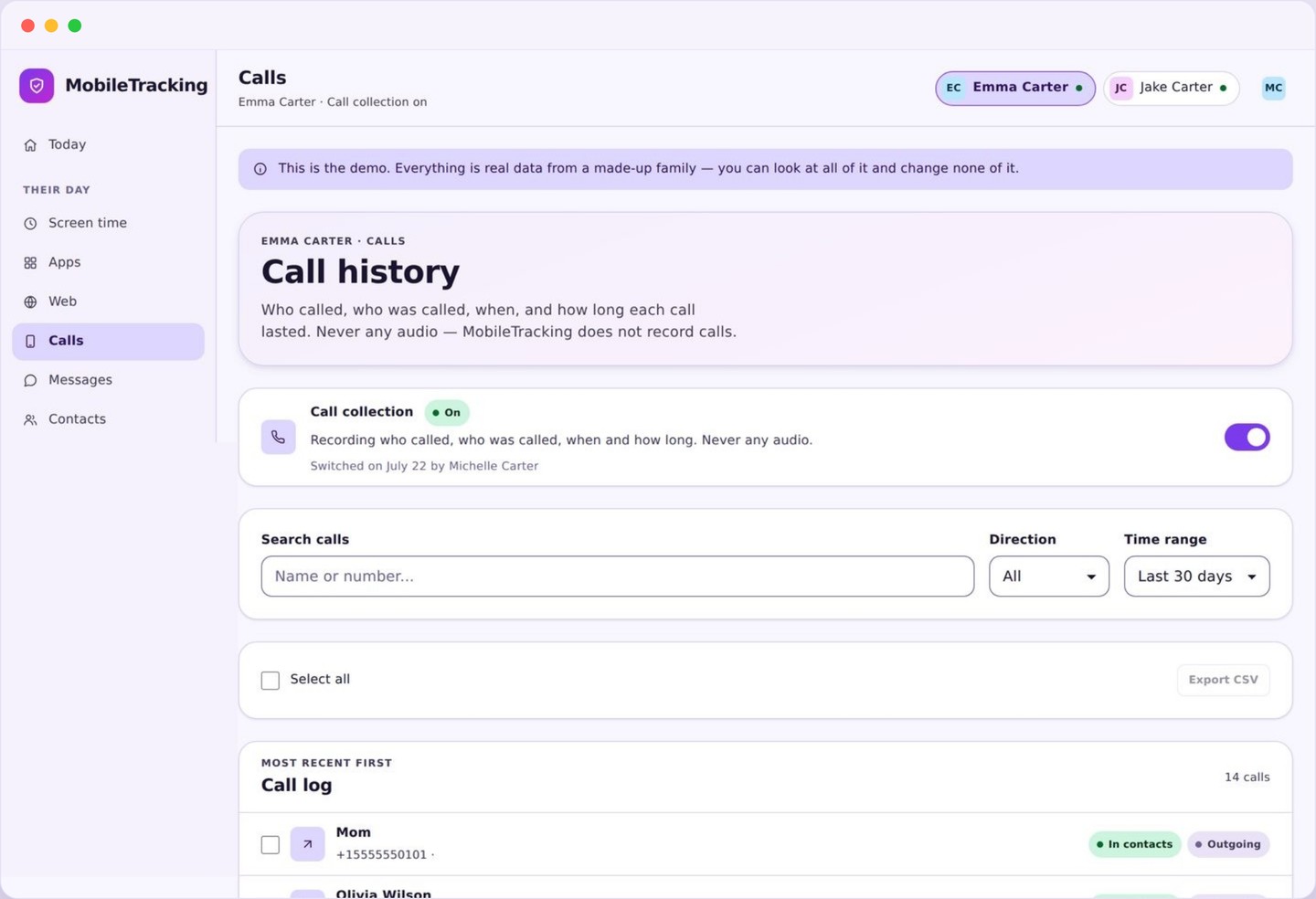
Numbers, names, times and frequency. Never the words inside a message, on any plan, for any reason.
Which platforms are in use and how heavily, plus new installs, without reading anything posted or received.
A short list of words you choose that raise a flag when they turn up in a search or a page title.
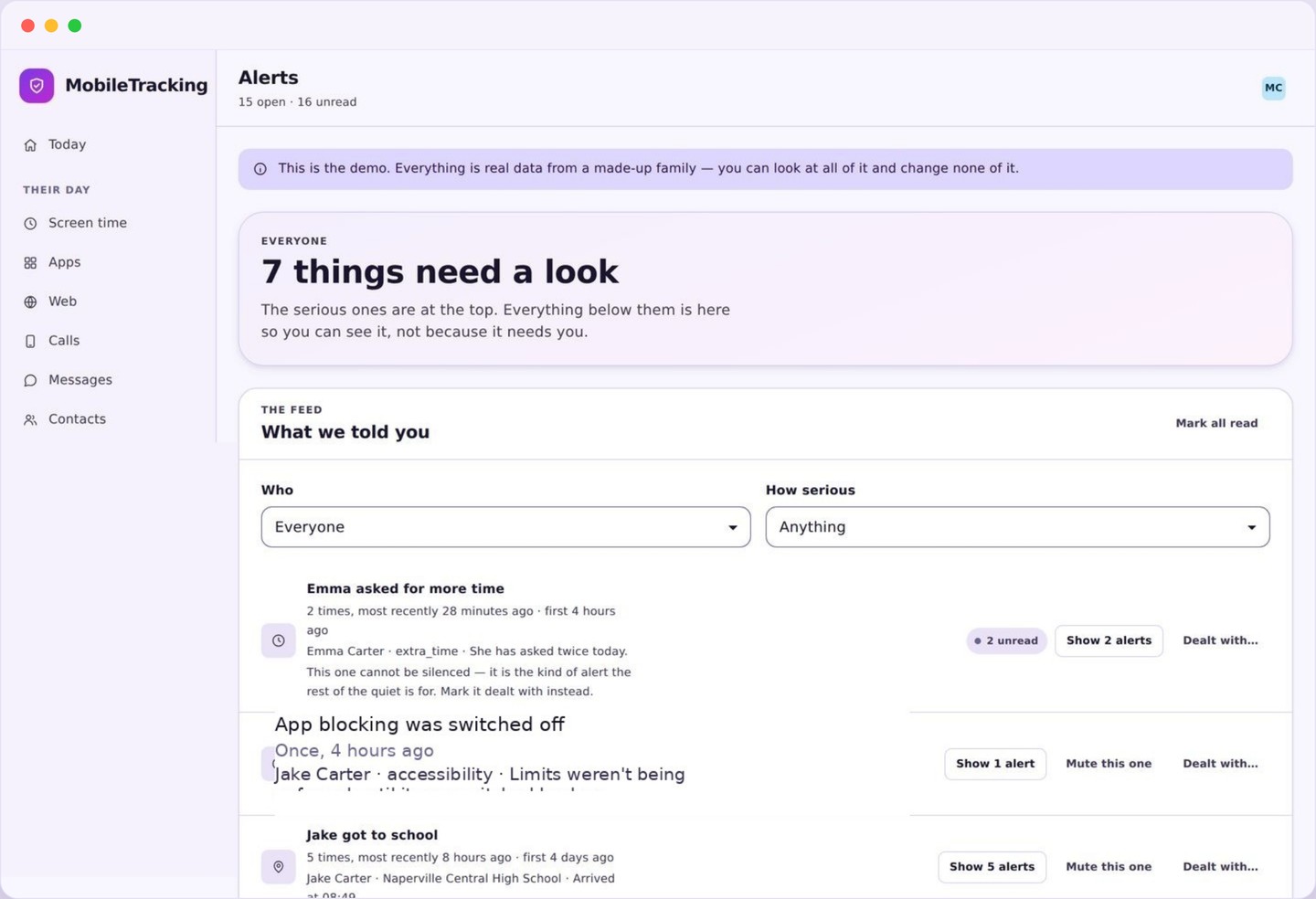
The layer that groups, delays and quiets everything else, so you get a handful of messages instead of a stream.
The unglamorous parts that keep it working
Setup, the child’s own app, battery and connection health, and one panel for the whole family rather than one per child.
The family dashboard is the front door, with a Today view for each child and the whole household on one screen. Multiple children means separate settings, separate limits and separate alert rules under a single subscription, because a nine year old and a fifteen year old need very different arrangements and one global setting satisfies neither of them.
Device health is the feature nobody asks for and everybody needs. It watches the battery level, the connection, whether the required permissions are still granted, and whether the app has reported recently. If the child app has been silent since Tuesday because a permission was reset during an Android update, you find that out on Tuesday rather than in the middle of an emergency.
The child app is not a hidden background process. It is a real app with its own screens showing what is shared, what the current limits are, which places are saved, and a button to request more time or ask a question. Setup and pairing is the two minute process that connects the two sides with a code, done in front of your child rather than behind their back.
The Today view, the whole family on one screen, and every setting in one place on web or phone.
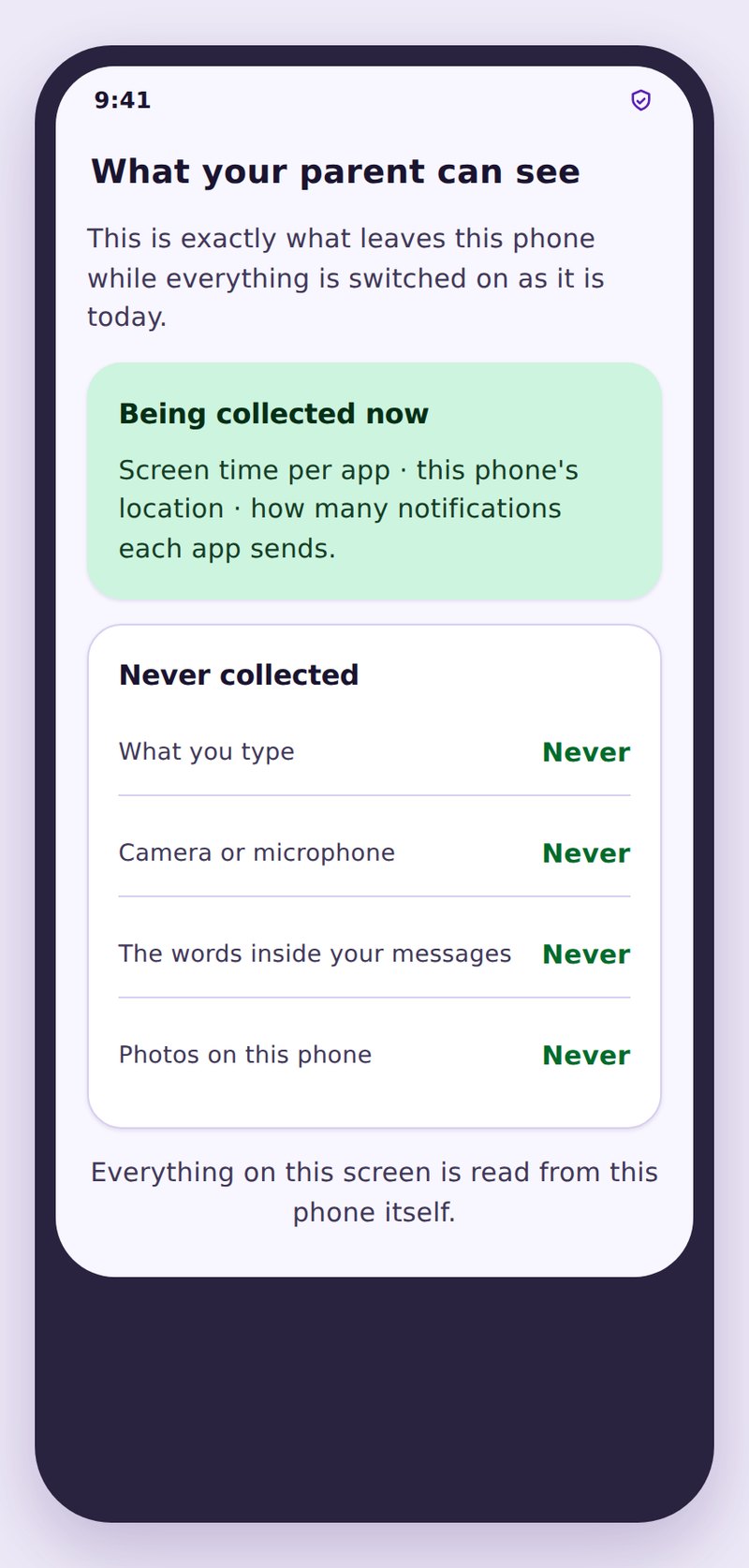
Their side of the arrangement: what is shared, what the limits are, and a way to ask for more time.
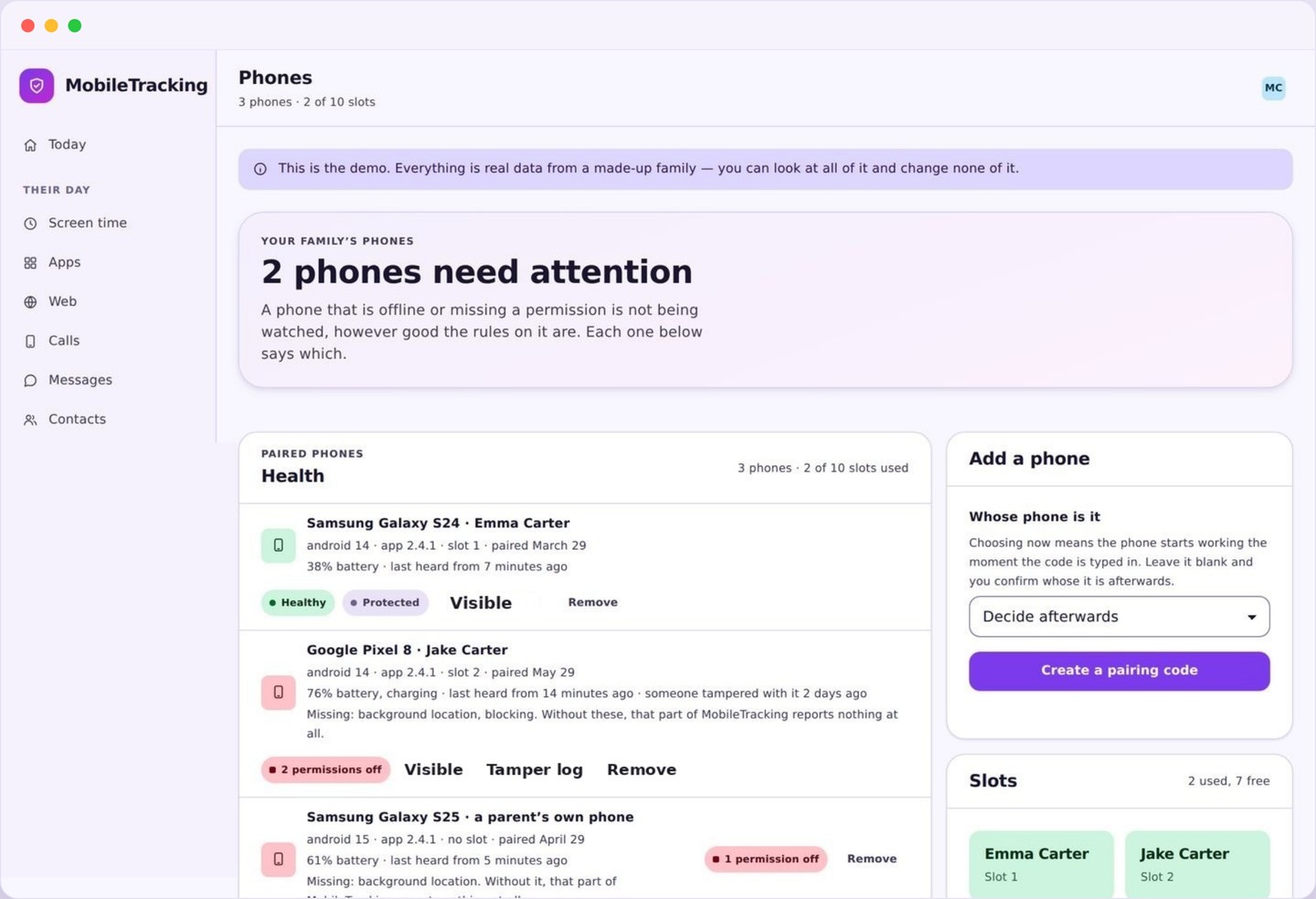
Battery, connection, permissions and last report, so you know when the app has gone quiet and why.
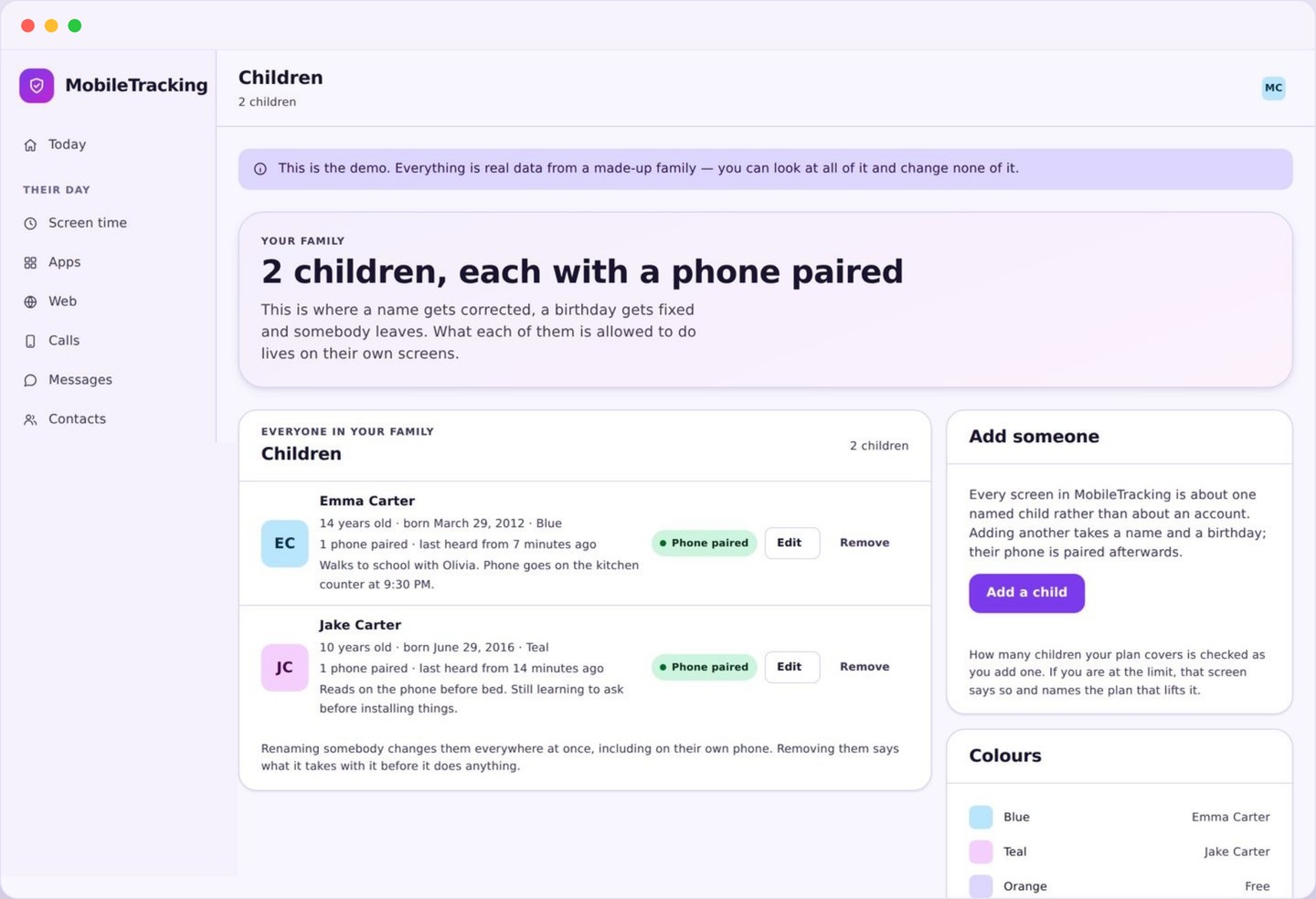
Separate limits, places and alerts for each child, under one subscription and one login.
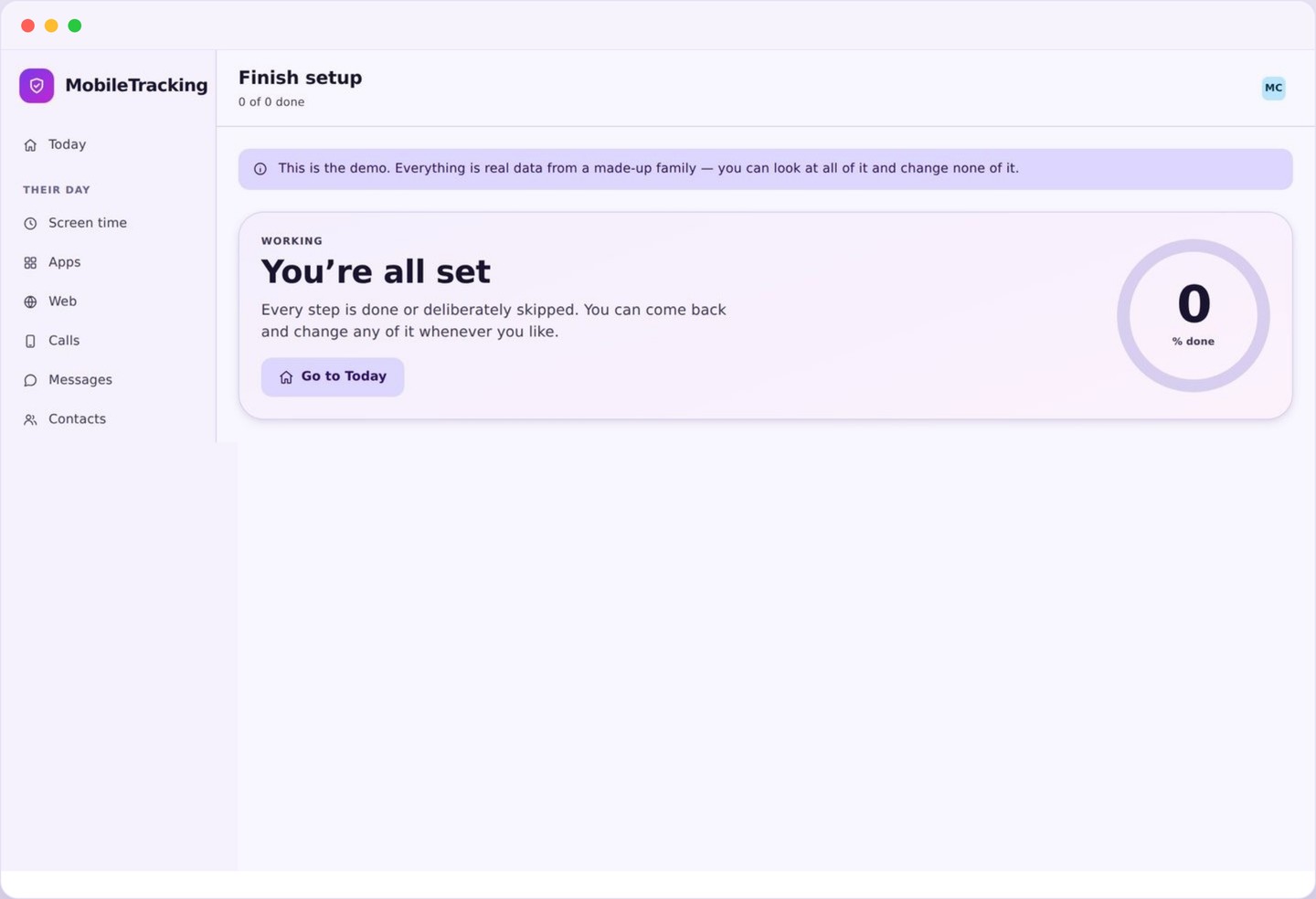
Create an account, add a child, install, pair with a code, grant permissions. Roughly two minutes.
Contact and app awareness, never the private messages
These pages go deeper on specific apps and channels. Every one works the same honest way: you see usage and safety signals, and encrypted or private messages are never read.
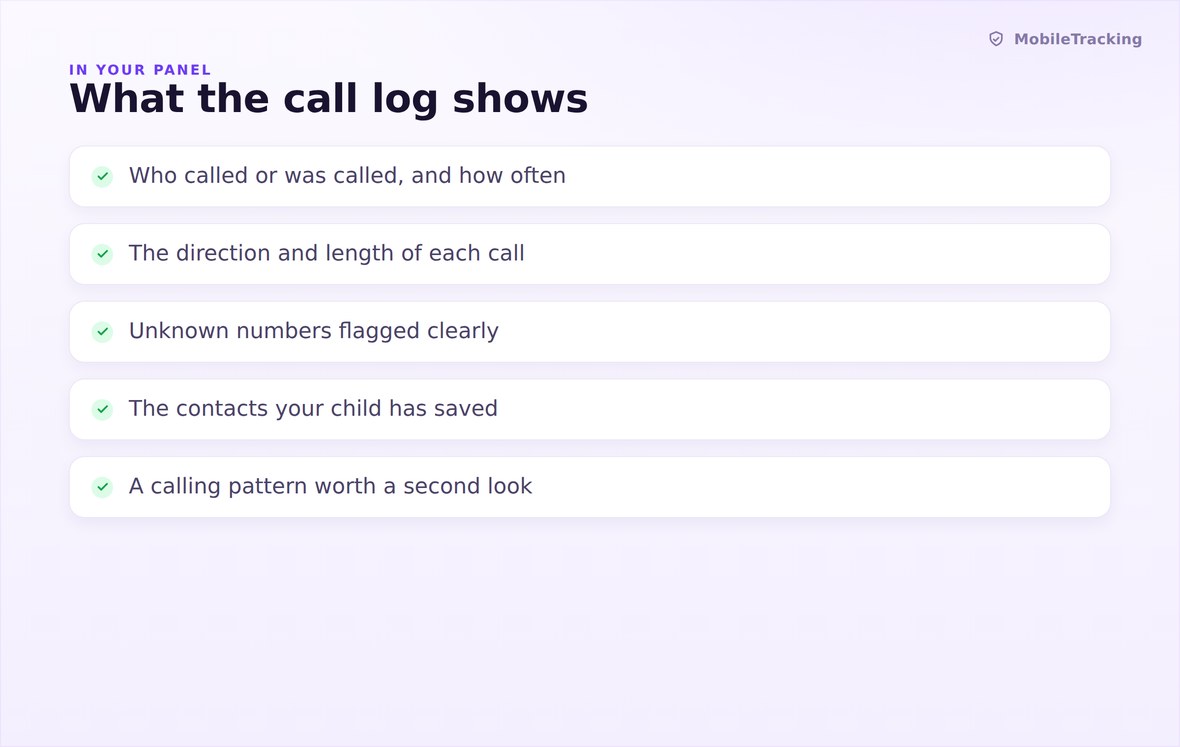
Who called and how often, with unknown numbers flagged. Never the audio.
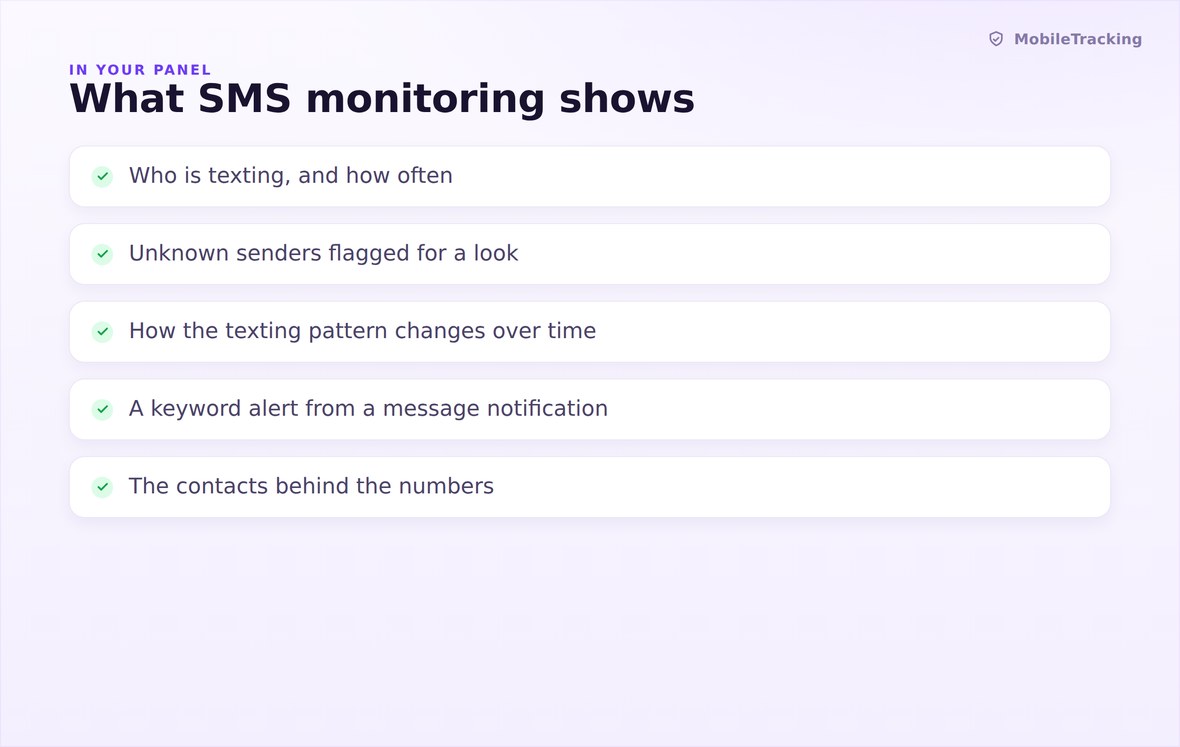
Who is texting and how often, and keyword alerts. Never the message text.
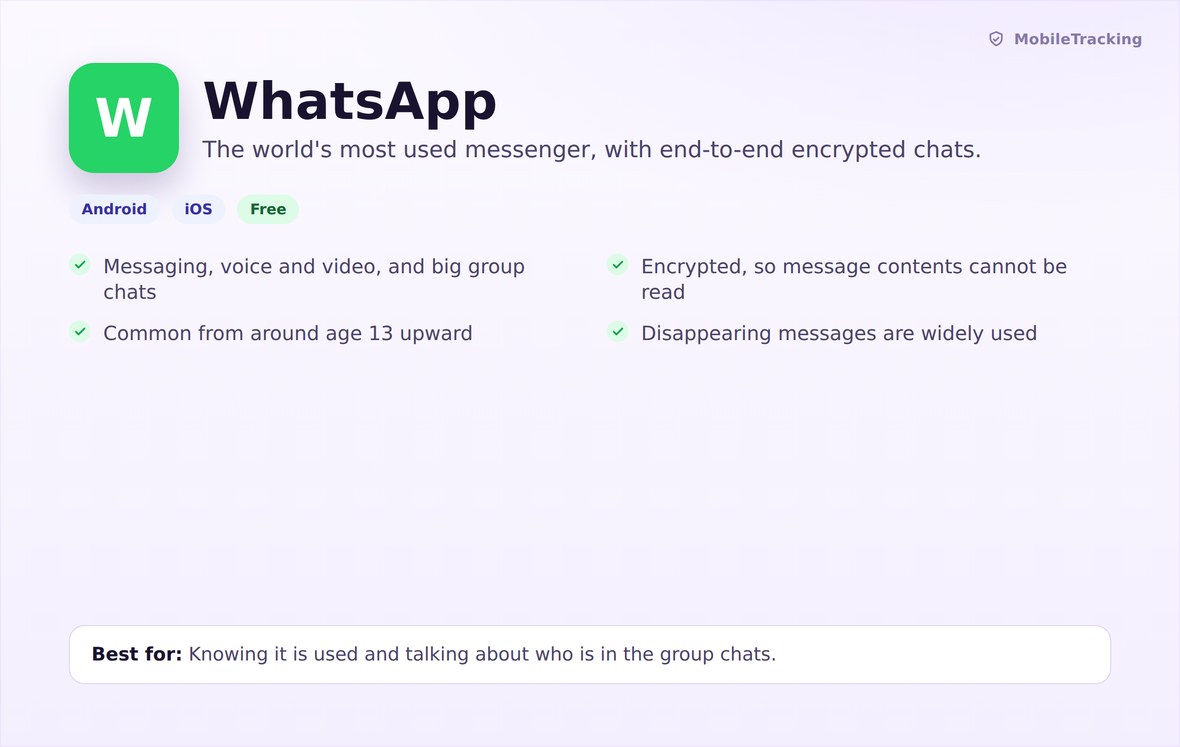
Usage and keyword alerts on an end-to-end encrypted app that cannot be read.
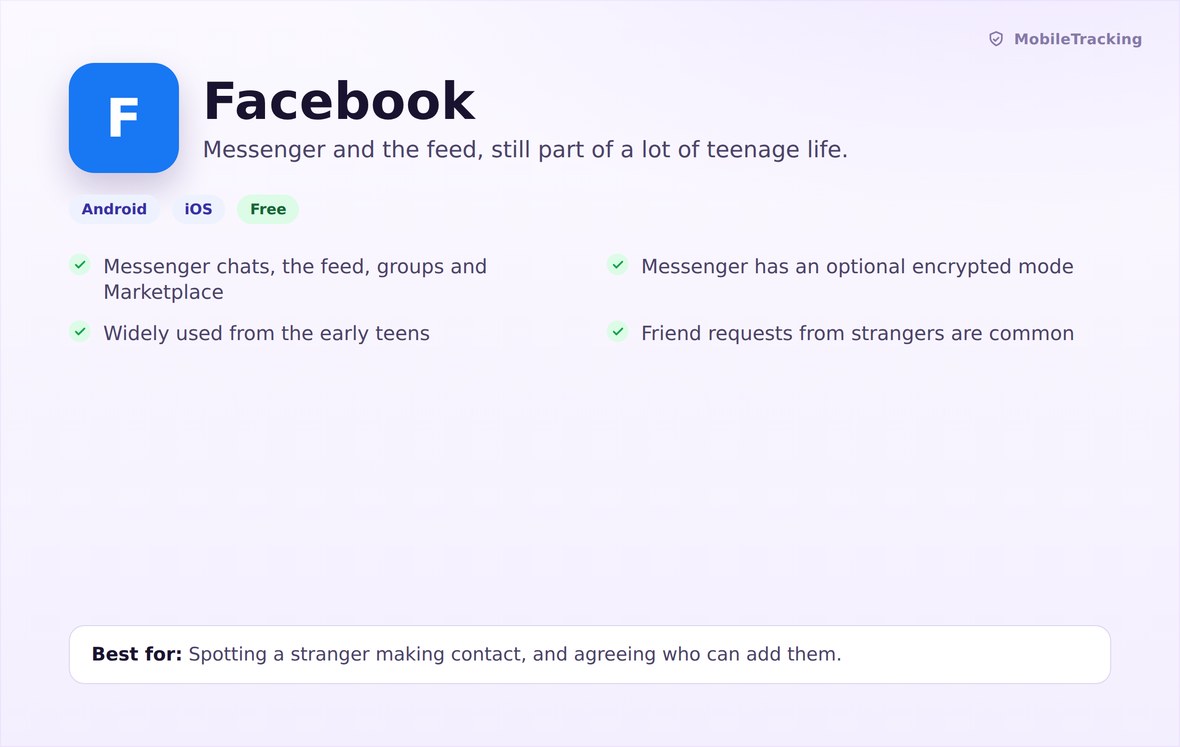
Time and new-contact signals, without opening the inbox or the feed.
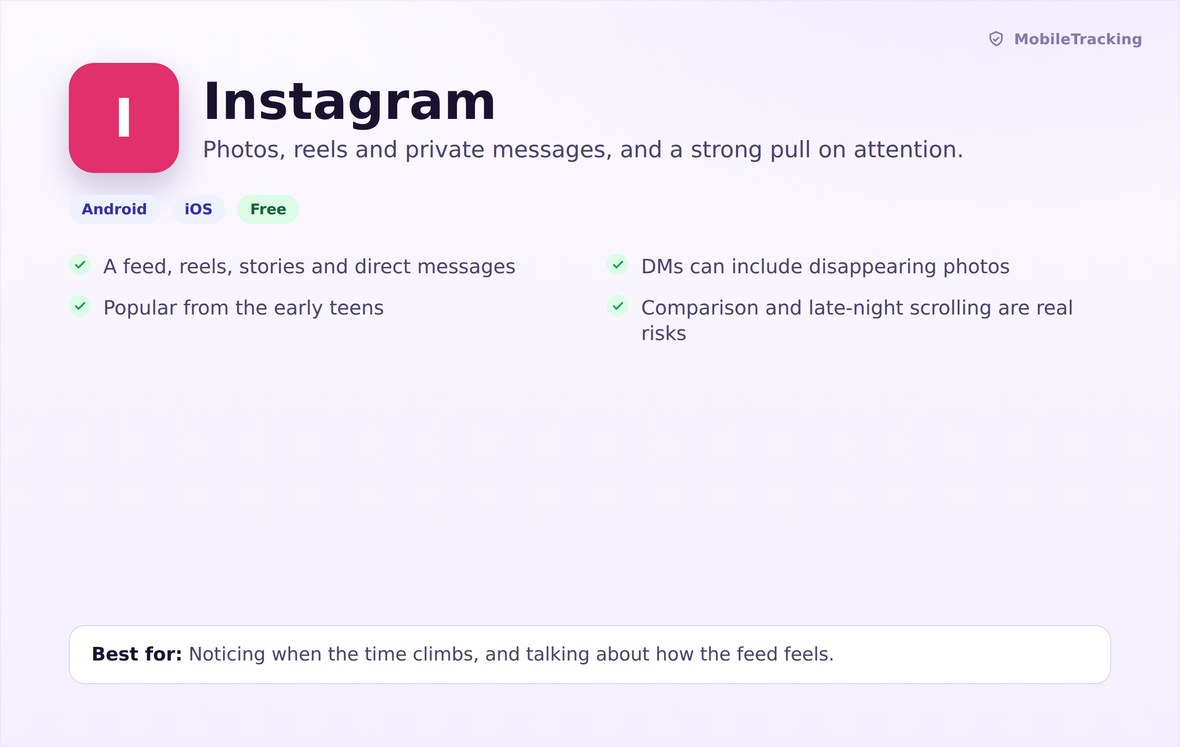
Focused on time and comparison, with keyword alerts, never the DMs.
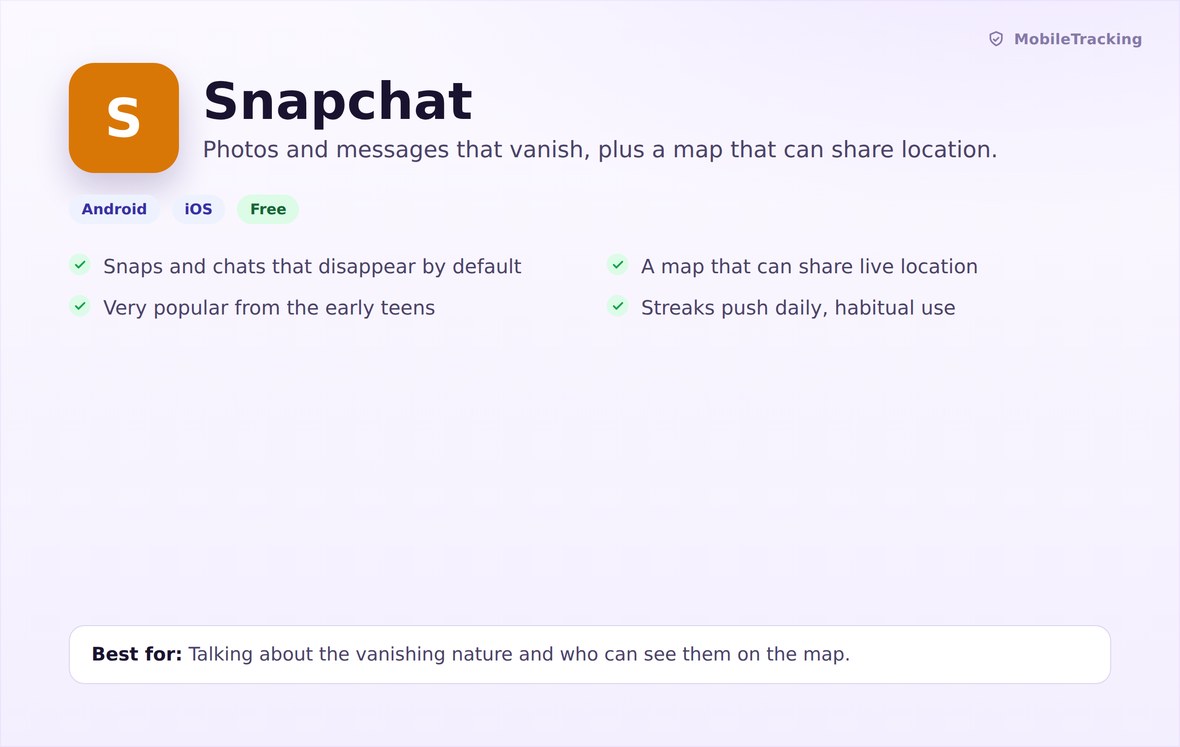
Usage and Snap Map awareness for an app built to disappear.
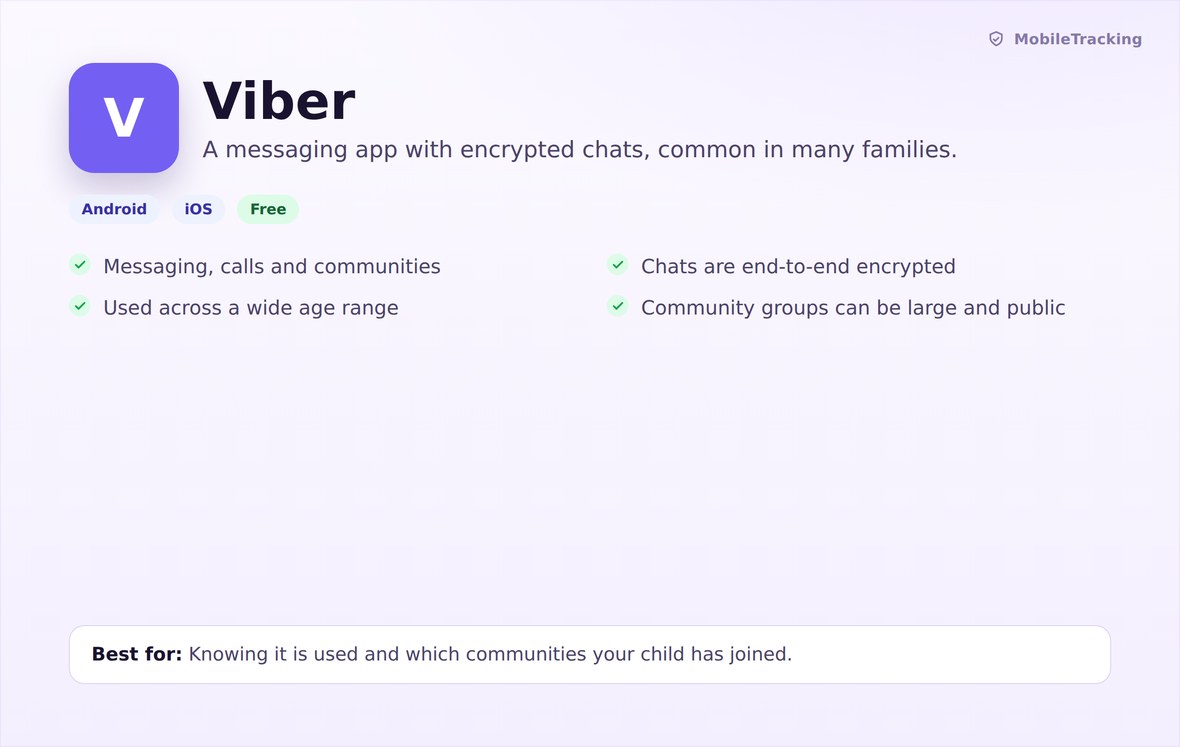
Usage and keyword alerts, with the same honest encryption limit.
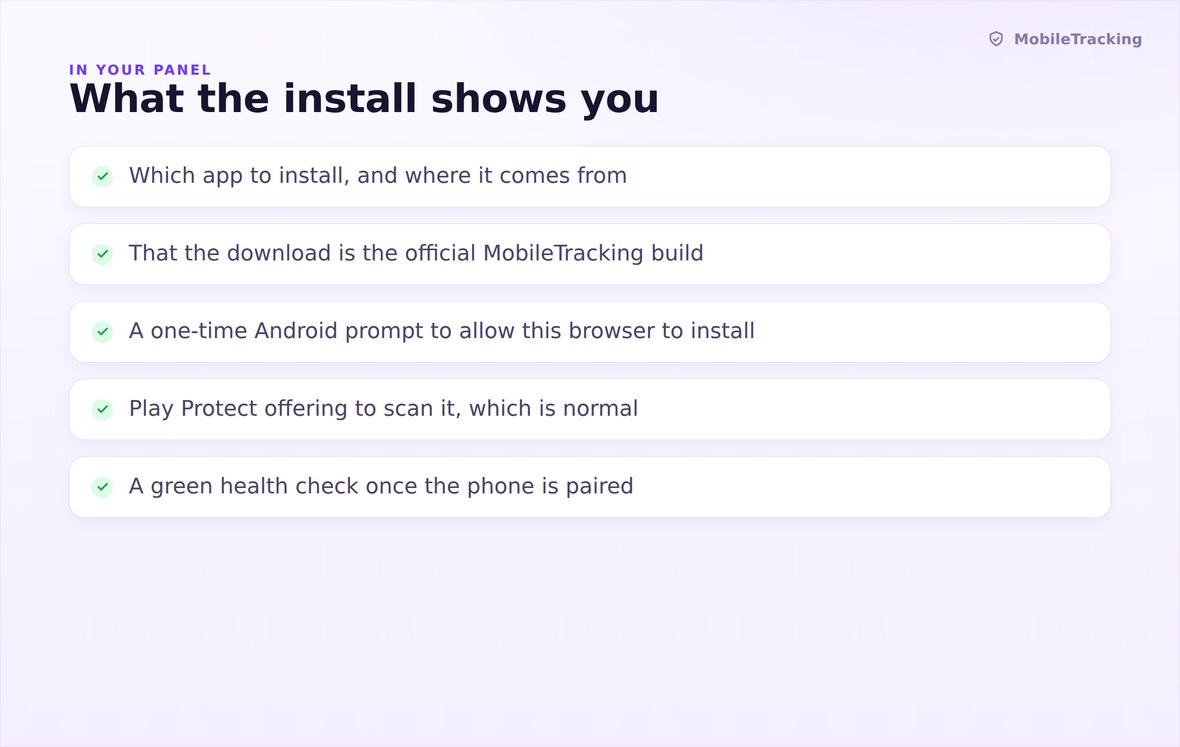
Install the family app from the web when you are not using the Play Store.
Every feature here is visible on their phone
There is no stealth mode, no hidden icon and no silent install. The child app carries a screen listing exactly which features are switched on, which places are saved and what the limits are. If you turn something on today, they can see it today. That is a deliberate decision, not a gap: a rule everyone can see survives, and a trap only works until it is found.
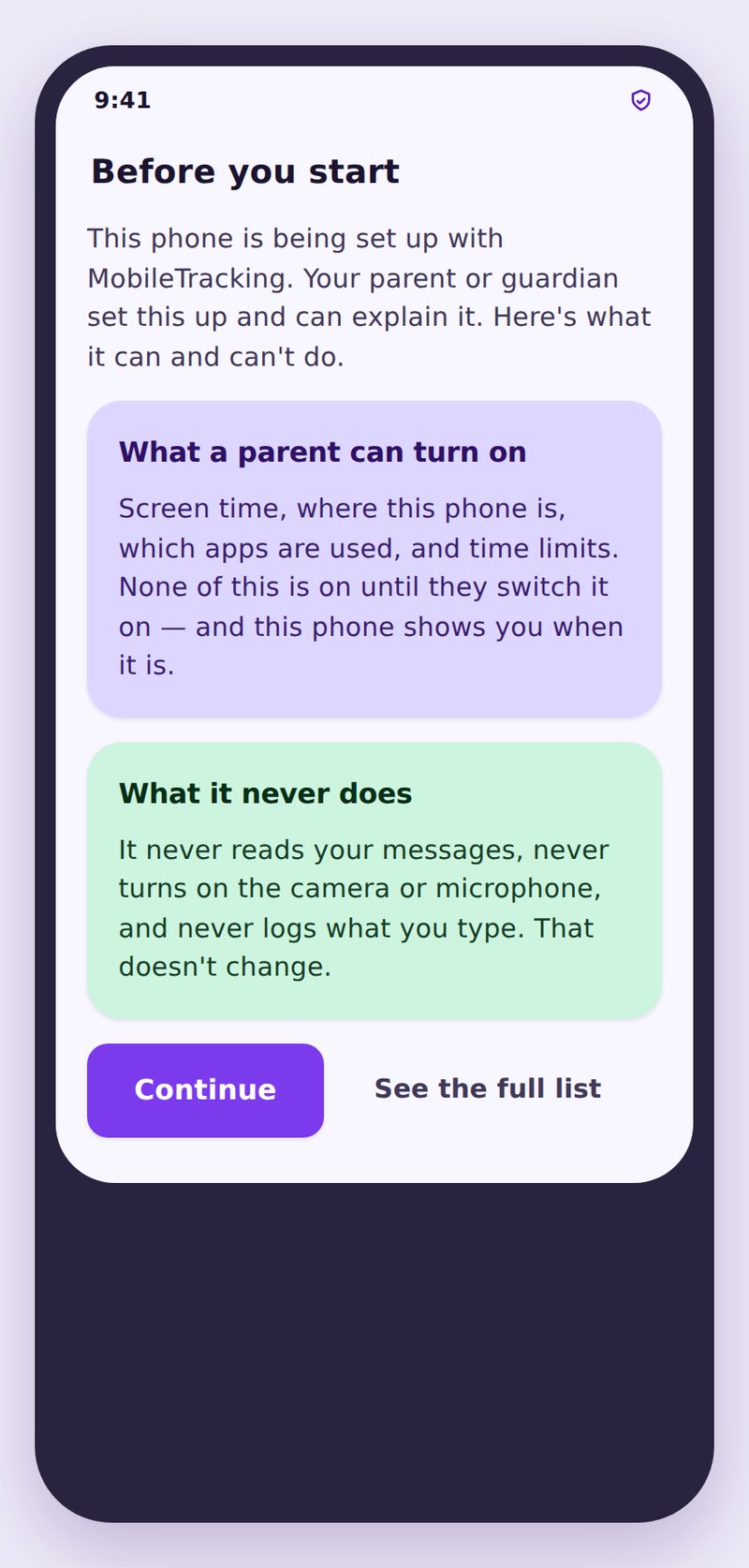
- A visible app, alwaysAn icon they can see, screens they can open, and a full list of what is switched on.
- Contents stay privateNo message text, no camera, no microphone and no record of what was typed.
- Your data is yoursNothing is sold, nothing goes to advertisers, and you can delete all of it whenever you like.
| Area | What is collected | What is never collected |
|---|---|---|
| Location | Position, timestamp, accuracy, place crossings | Audio or images from wherever the phone happens to be |
| Apps | App names, icons, session times and durations, new installs | Screenshots, in app contents, or what was typed inside an app |
| Web | Site categories, blocked attempts, visited page titles | Form entries, passwords, or the contents of private accounts |
| Calls and SMS | Numbers, contact names, times, durations, frequency | The words in any message, and audio of any call |
| Social | Which platforms are used and how heavily, installs and removals | Posts, direct messages, followers, or anything you would call content |
| Device | Battery level, connection state, permission status, last report | Microphone input, ambient recording, or remote camera access |
No, and most families should not. Every feature is switched on or off individually, per child. A sensible starting point is location, one or two places and a screen time budget. Add more only when a real question comes up.
Yes, always. The child app lists every active feature, every saved place and every limit. There is no hidden mode and there never will be, on any plan.
No. Message contents, camera, microphone and typed input are all outside what this app collects. The calls and SMS features work on metadata such as numbers, times and frequency only.
The child app runs on Android. The parent dashboard runs in any modern browser, including on an iPhone, so your own device is not a constraint.
Device health notices. If the app stops reporting or a permission is revoked, you get a notice saying so rather than a screen full of stale data that looks perfectly fine.
Start with three features, not nineteen
Turn on location, name two places and set one screen time budget. Add the rest only when your family actually needs them.