Download MobileTracking
To download MobileTracking and get it running you need two things in the same room: your own device with a browser, and your child’s Android phone. The whole job takes about ten minutes, most of which is conversation rather than tapping, and nothing at all is collected until the two are linked.
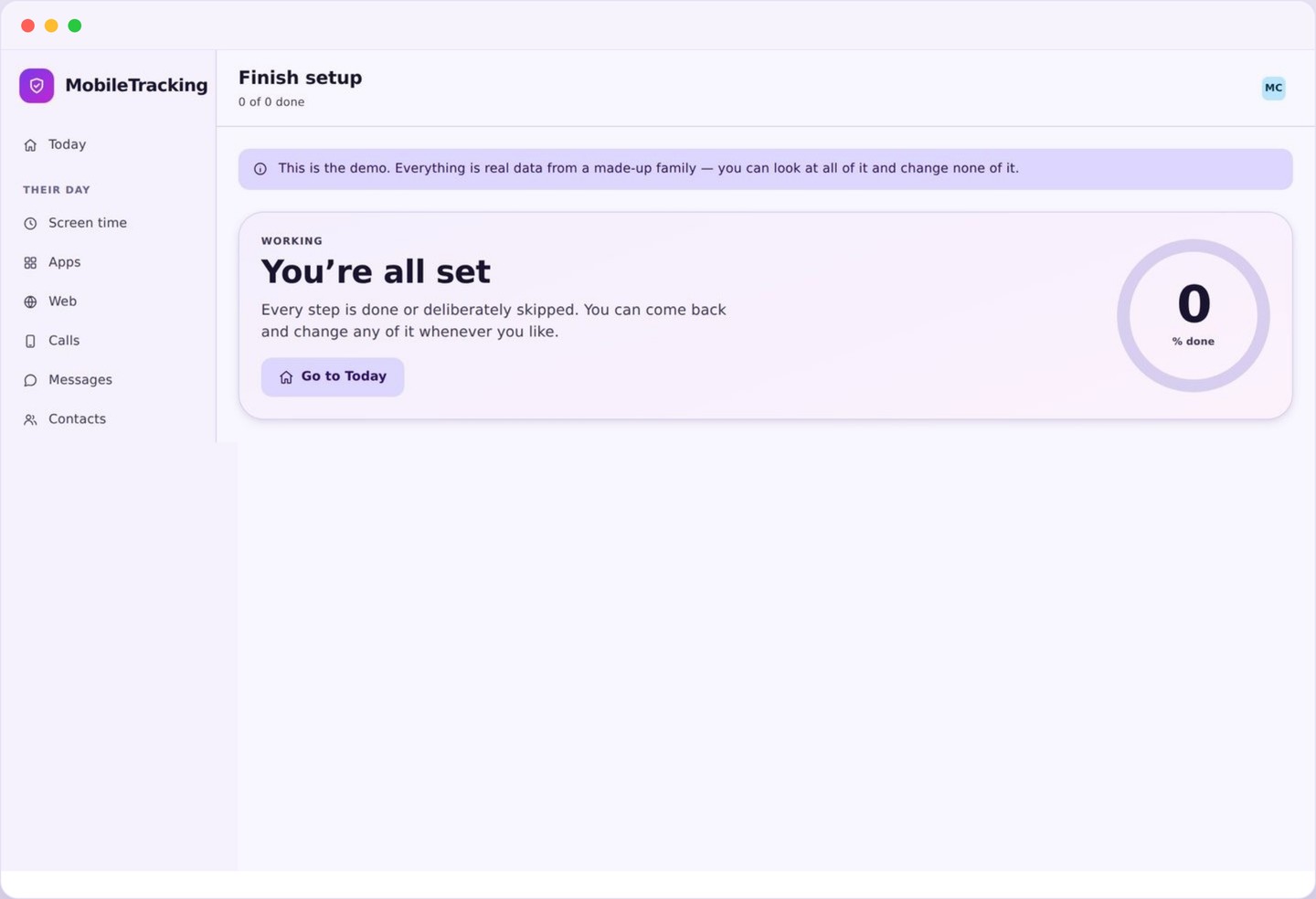
What you need, and what you do not
There is no confirmation email to wait for and no card to enter to get started.
You need an Android phone for your child. MobileTracking runs on Android, and the parent panel is a website, so whatever you already own with a browser will do: an iPhone, an old laptop, a tablet propped against the kettle. You do not need both to be on the same wifi, and you do not need to be technical.
You do need the child’s phone physically in your hands for a few minutes. Android will not let any app grant itself permissions remotely, which is exactly the protection you would want on your own phone, so the permission screens have to be tapped on the device itself. We treat that as a feature rather than an obstacle, because it forces the setup to happen with your child rather than behind their back.
What you do not need is your child’s passwords, their unlock PIN, or access to their accounts. MobileTracking never asks for any of them.
Seven small steps, start to finish
The first two happen in your browser. The middle three connect the two devices. The last two confirm it is actually working.
Create your free account
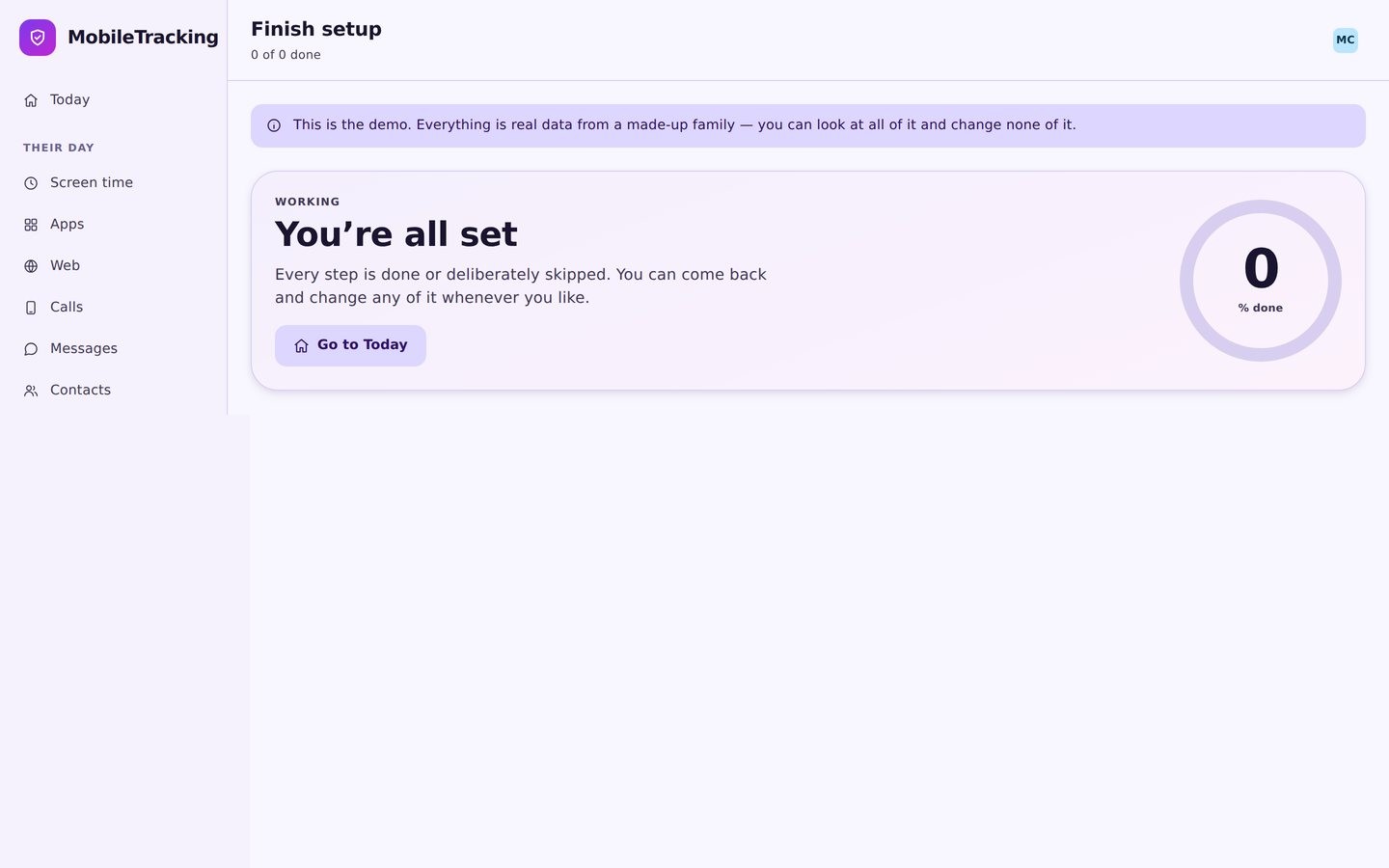
Sign up with your email and a password on this site. You land straight in your panel, with no confirmation email to chase. The panel is where every setting lives from now on, and you can reach it from any browser you happen to be near.
- Your email is how you sign in and where alerts arrive.
- Use a password you do not use anywhere else.
- Already have an account? Sign in and skip to step two.
Add your child
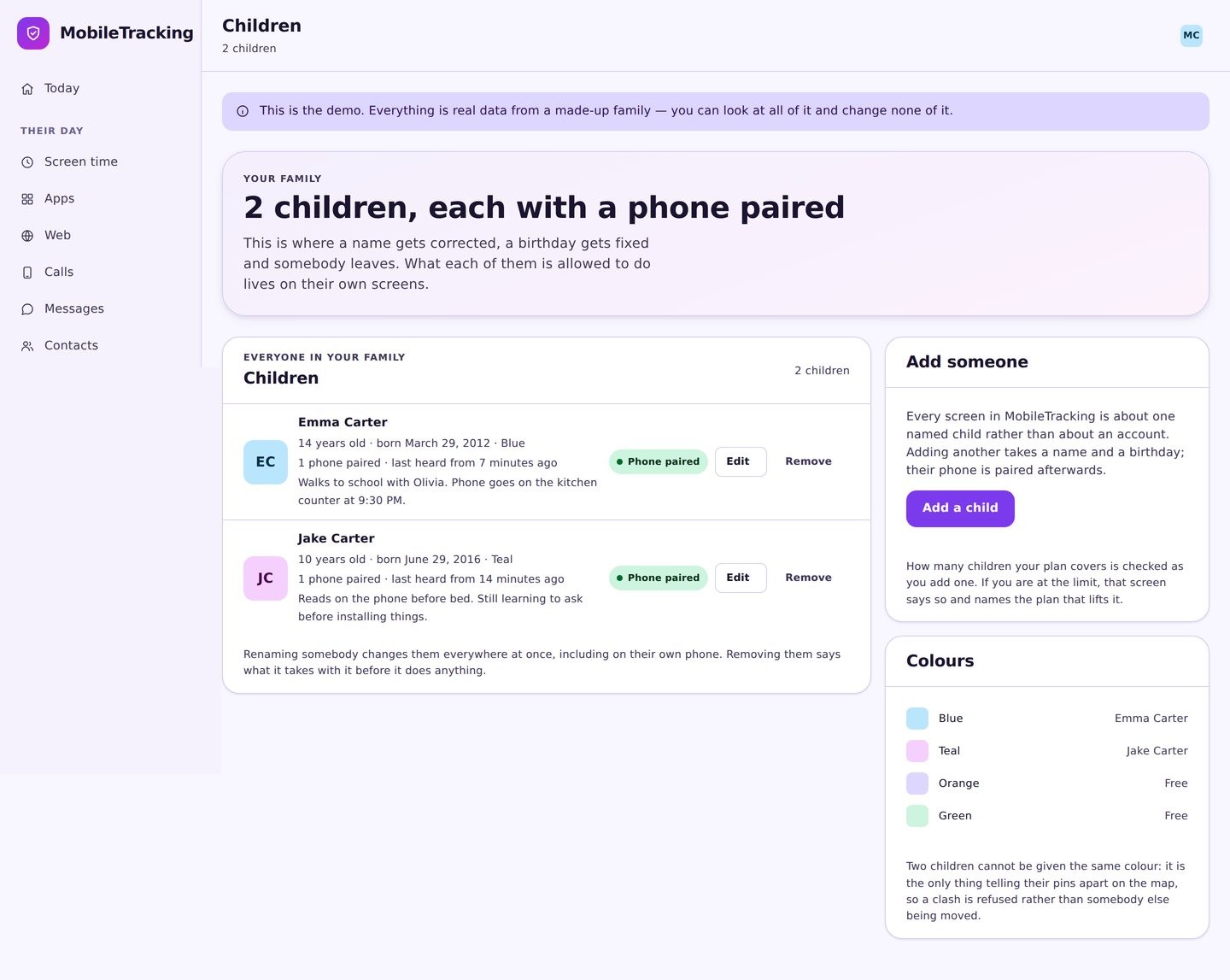
Give their name and date of birth. The birthday is not decoration: it sets sensible opening values for the daily limit, the bedtime and the filtering categories, so you start from something reasonable for a nine year old rather than something reasonable for nobody. Every one of those defaults can be changed in a moment.
- Add one child now and more whenever you like.
- Everything in MobileTracking hangs off a named child, not an account.
- Each child gets their own rules, so siblings are never forced to share limits.
Install the family app on your child’s phone
Pick up your child’s Android phone, open this page in its browser, and tap the download button. The install takes under a minute. If you are downloading from the web rather than the Play Store, Android asks once whether the browser is allowed to install apps: allow it and the install carries straight on.
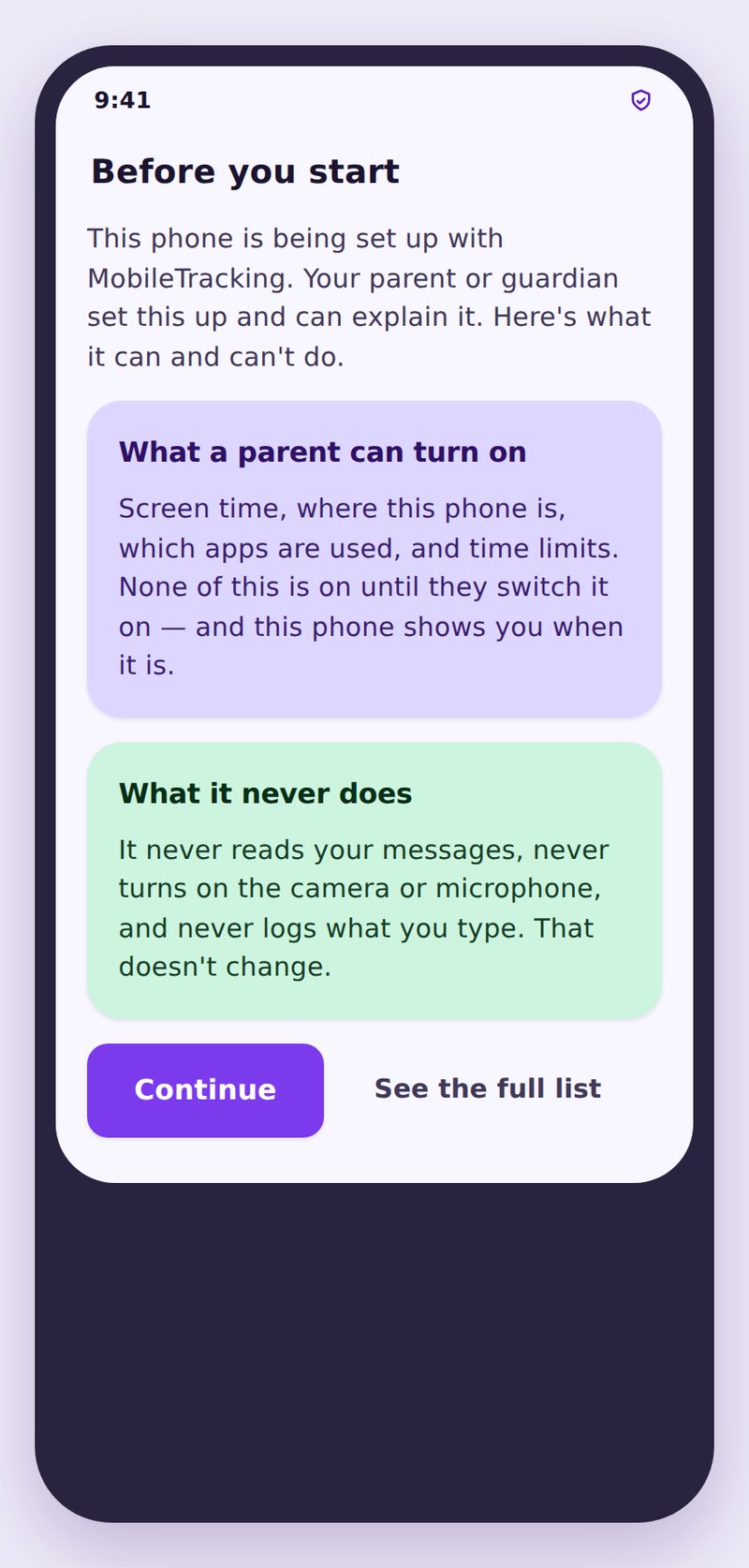
Open the app when it finishes. The first thing it shows is not a login box but a plain explanation of what a parent can switch on and what the app will never do. Read that screen with your child. It is the best two minutes you will spend on this.
- One app, on the child’s phone only. Nothing to install on yours.
- Nothing is collected yet. The app is inert until it is paired.
Create a pairing code
Back in your browser, open the child you just added and press Create a pairing code. The panel produces a short code, six characters, big enough to read across a table. This is the step that links a specific phone to a specific child, which is why the code is made in your panel and not in the app.
- The code is single use and expires after about fifteen minutes.
- If it runs out, press the button again for a fresh one. Nothing is lost.
- One code links one phone. Adding a second phone means a second code.
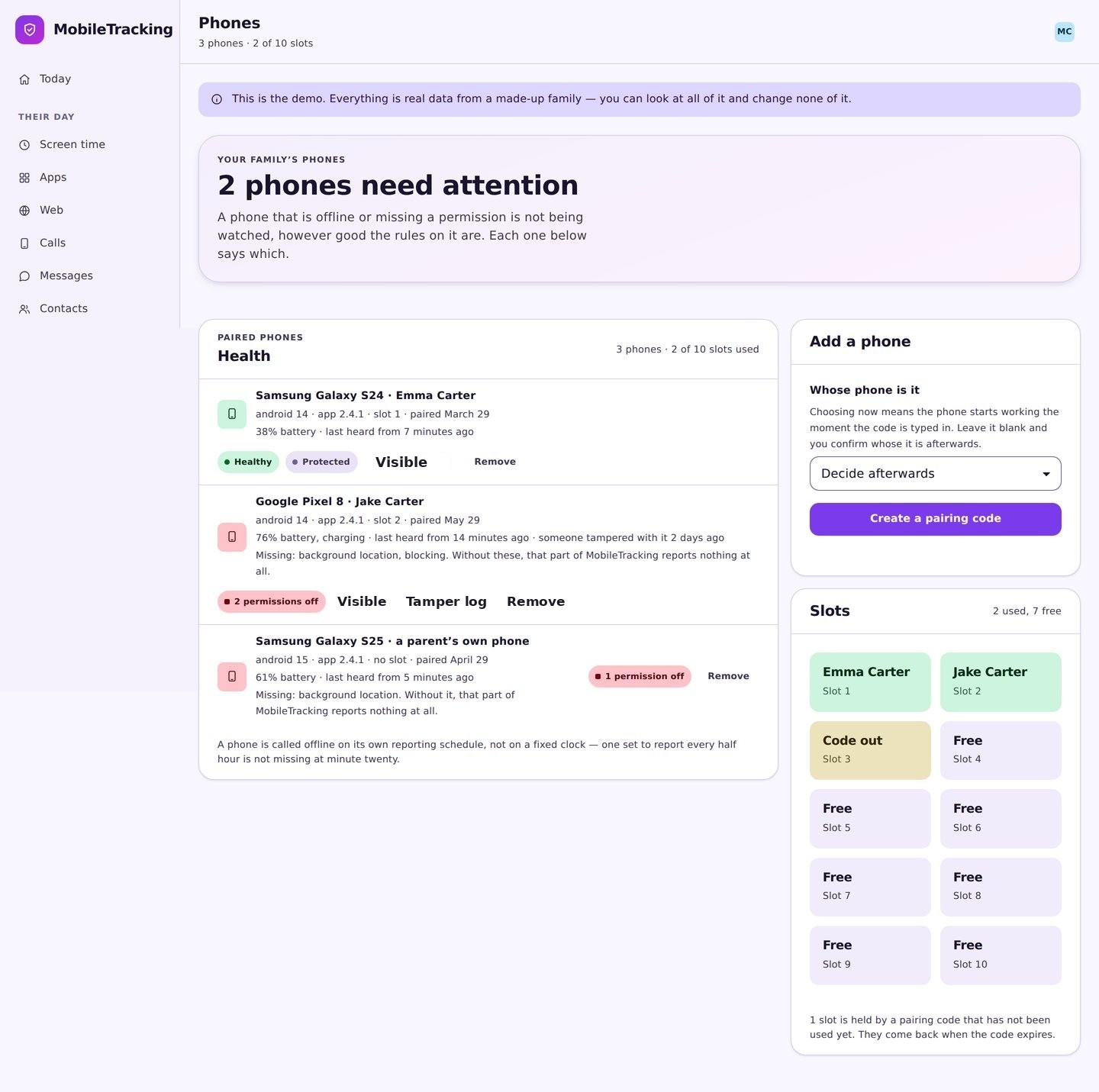
Type that code into the app
On your child’s phone, the app is waiting on a screen asking for the code from the other device. Type in the six characters and confirm. Within a couple of seconds the two recognise each other and the app switches from its waiting screen to the child’s home view.
This is the moment the whole setup hinges on, and it is deliberately a thing you do together, out loud, with the code visible on your screen. There is no silent link, no invisible install, and no way to pair a phone that is not in the room.
- Codes are not case sensitive, so a lowercase entry is fine.
- If it says the code is wrong, check for a mistyped 0 against O.
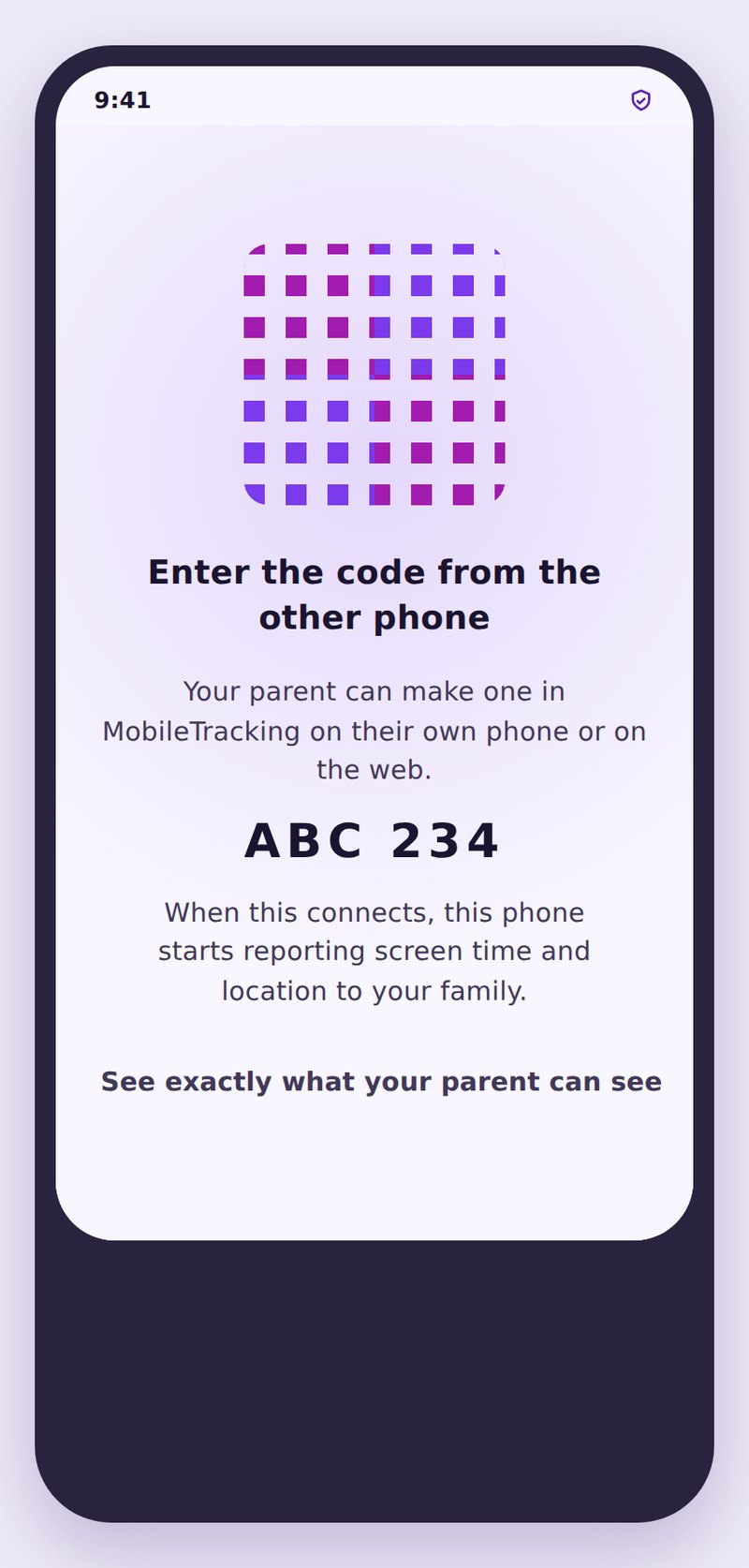
Grant the permissions, together
Android now asks, one at a time, whether the app may see location, count screen time, and read notification titles. Each switch maps to one feature and nothing else, and the app spells out in plain words what each one turns on before you tap. Anything you decline simply means that part of MobileTracking does not run, and the panel will tell you which feature is dark and why.
Two answers matter more than the rest. For location, choose Allow all the time rather than while using the app, or the map will only update when your child happens to have the app open. And exclude the family app from battery optimisation, or Android will quietly put it to sleep and your data will arrive in gaps.
- Location: choose allow all the time, not only while using the app.
- Notifications: this reads titles for keyword alerts, never message contents.
- Show your child the list as you go. They can reopen it any time.
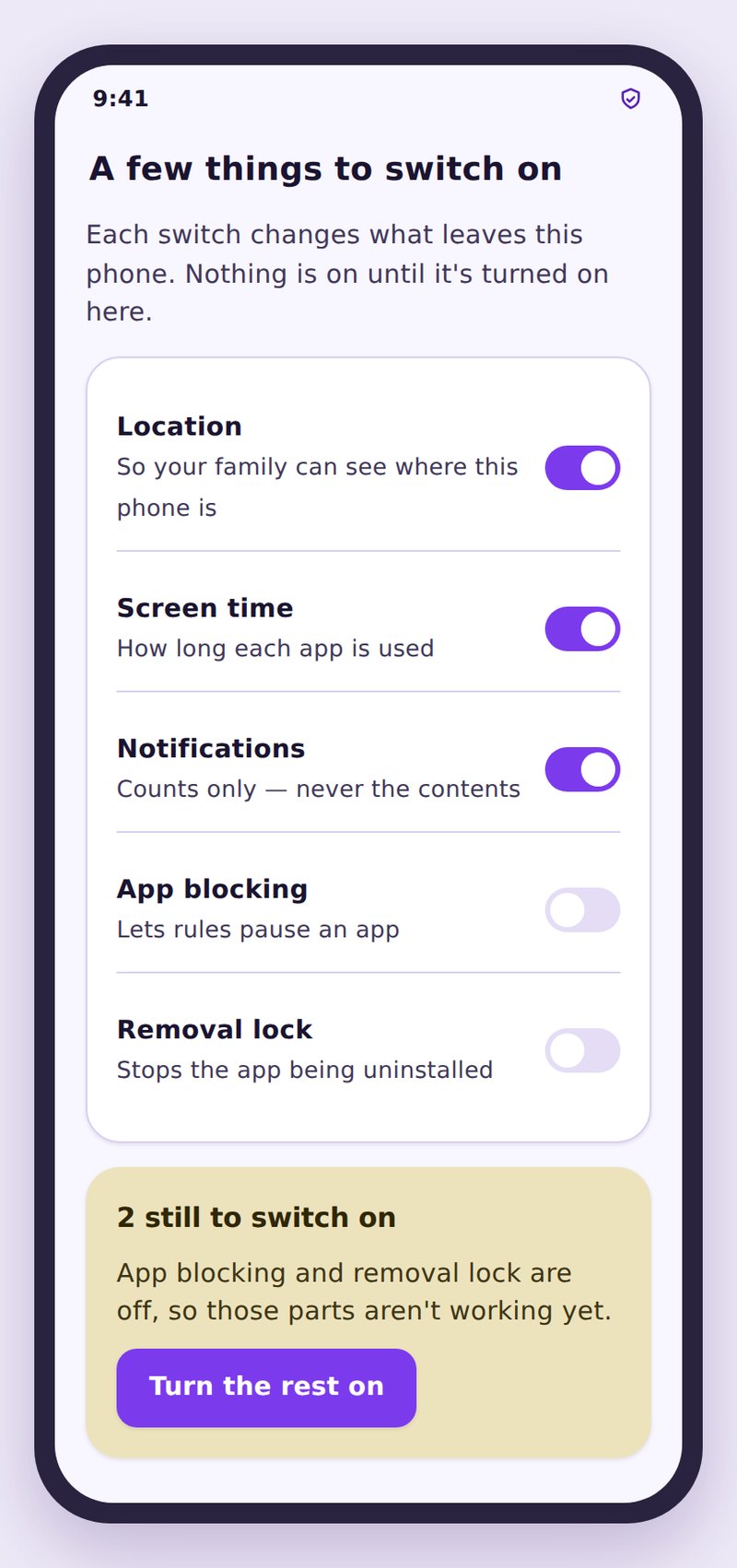
Check that it is really working
Refresh your panel. The phone should appear within a few seconds with a battery level, a last seen time, and a green health check. That green tick is the only confirmation that matters: it means the phone is reporting, the permissions are in place, and the data you are about to rely on is actually arriving.
If something is missing, the panel names it rather than failing quietly. A phone showing “background location off” is telling you precisely which switch to go back and flip.
- Give it a minute. The first check-in is not instant.
- A red or amber line always names the exact permission at fault.
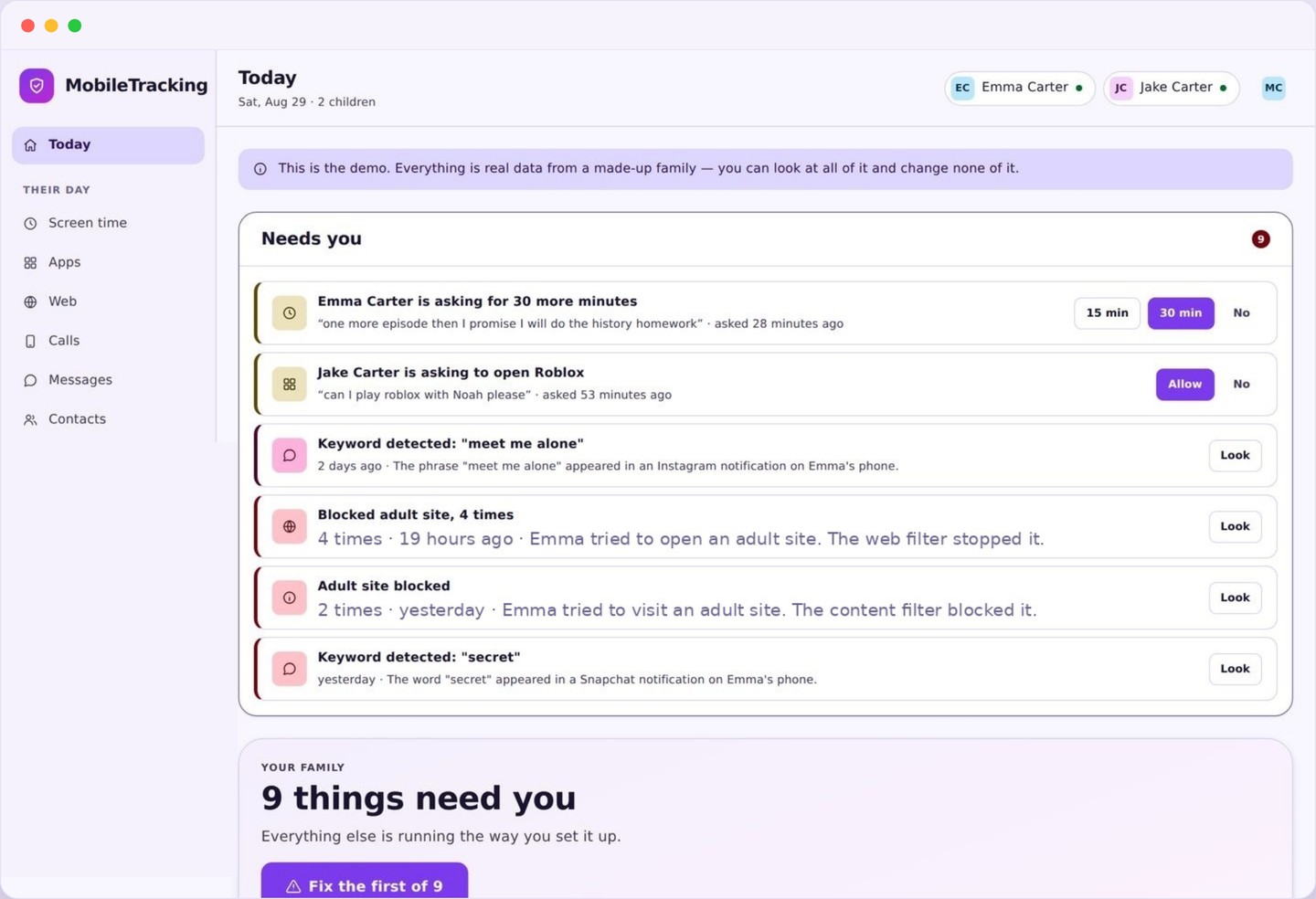
What happens in the first hour
Data does not arrive all at once, and knowing the rhythm saves a lot of unnecessary worry.
Location usually shows up first, within a minute or two. Screen time begins counting from the moment of pairing, so the first day will look artificially short and the first genuinely useful number arrives tomorrow. App activity fills in as apps get opened, which means a phone sitting on the side will show almost nothing for an hour and that is entirely normal.
Resist the urge to change every setting on the first evening. The most useful thing you can do on day one is nothing at all: let a normal day record itself so you can see what your child’s actual usage looks like before you decide what a reasonable limit would be. A budget chosen from real numbers survives an argument. A budget guessed at from a standing start rarely does.
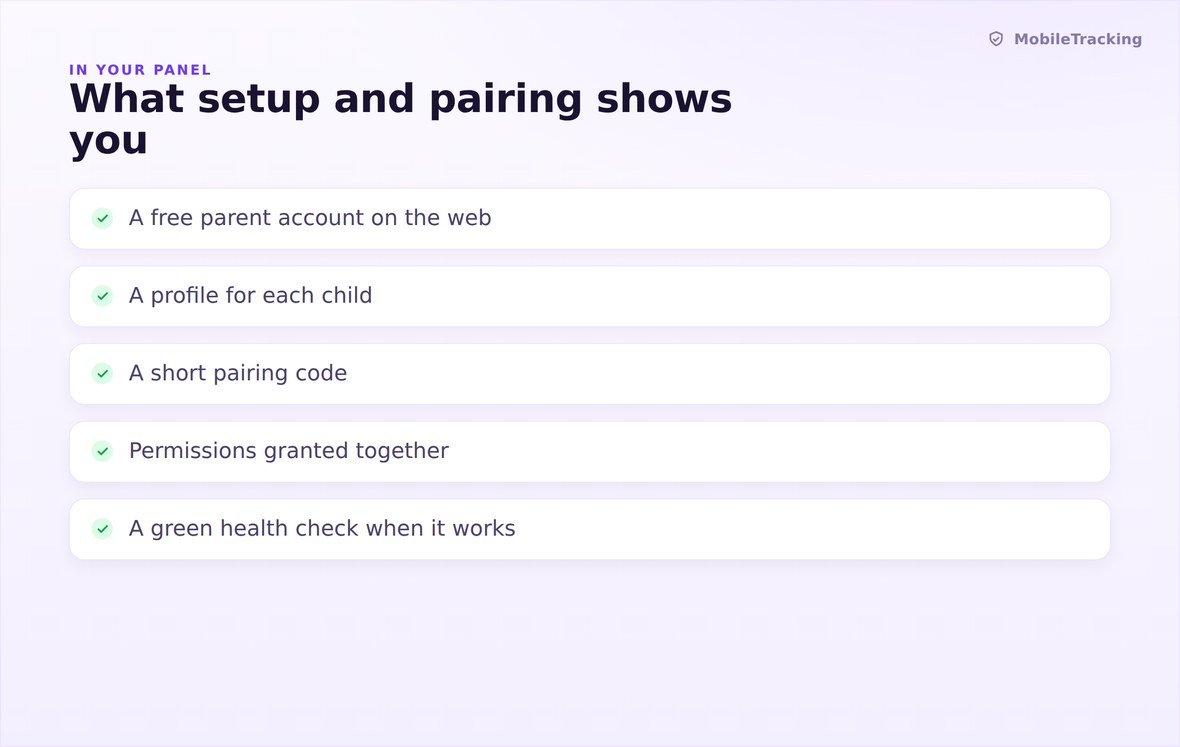
An account, a named child, a linked phone and a green health check.
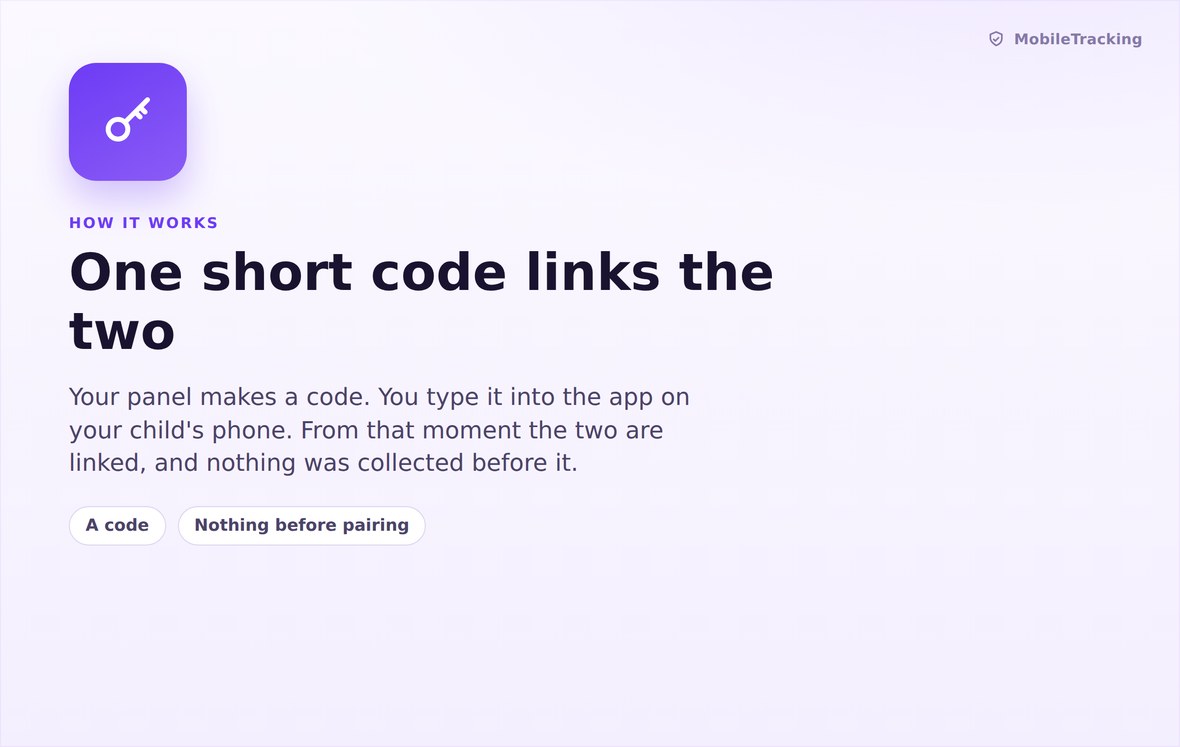
One short code, made in your panel, typed into their phone.
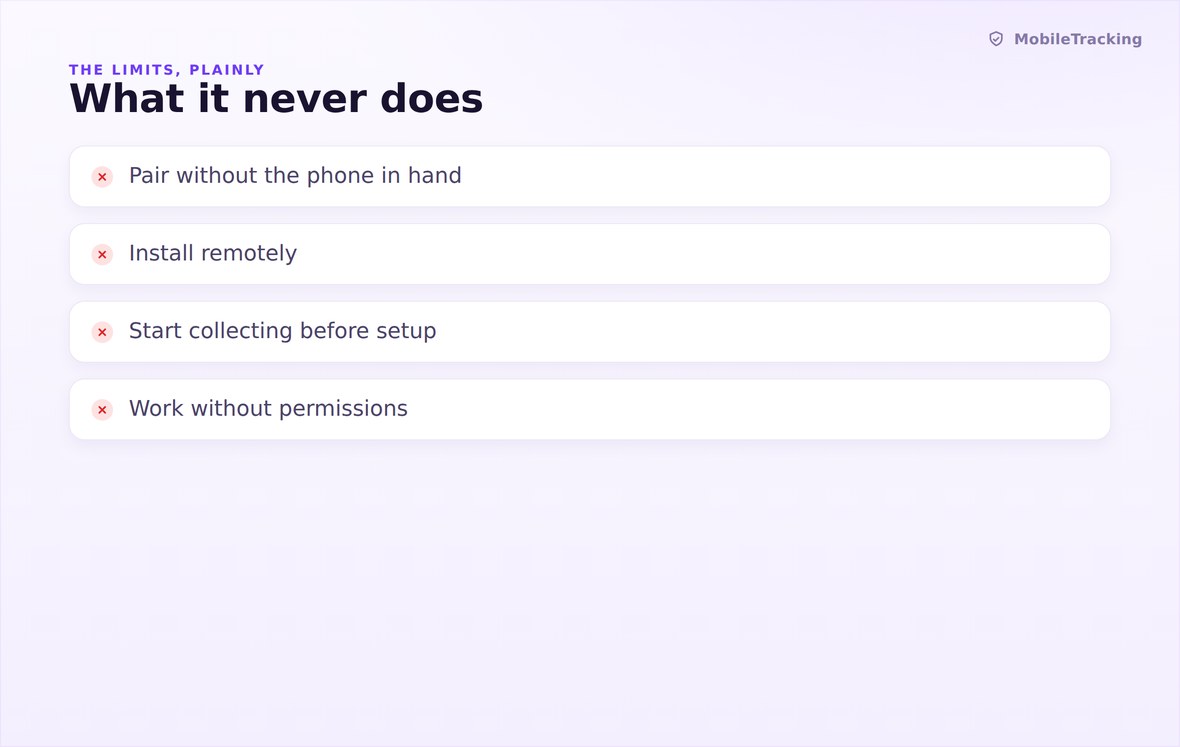
No silent install, no remote pairing, and nothing collected beforehand.
Your child sees all of this too
The family app is not a background service. It sits on the home screen with its own name and icon, and your child can open it whenever they like to read exactly what leaves their phone.
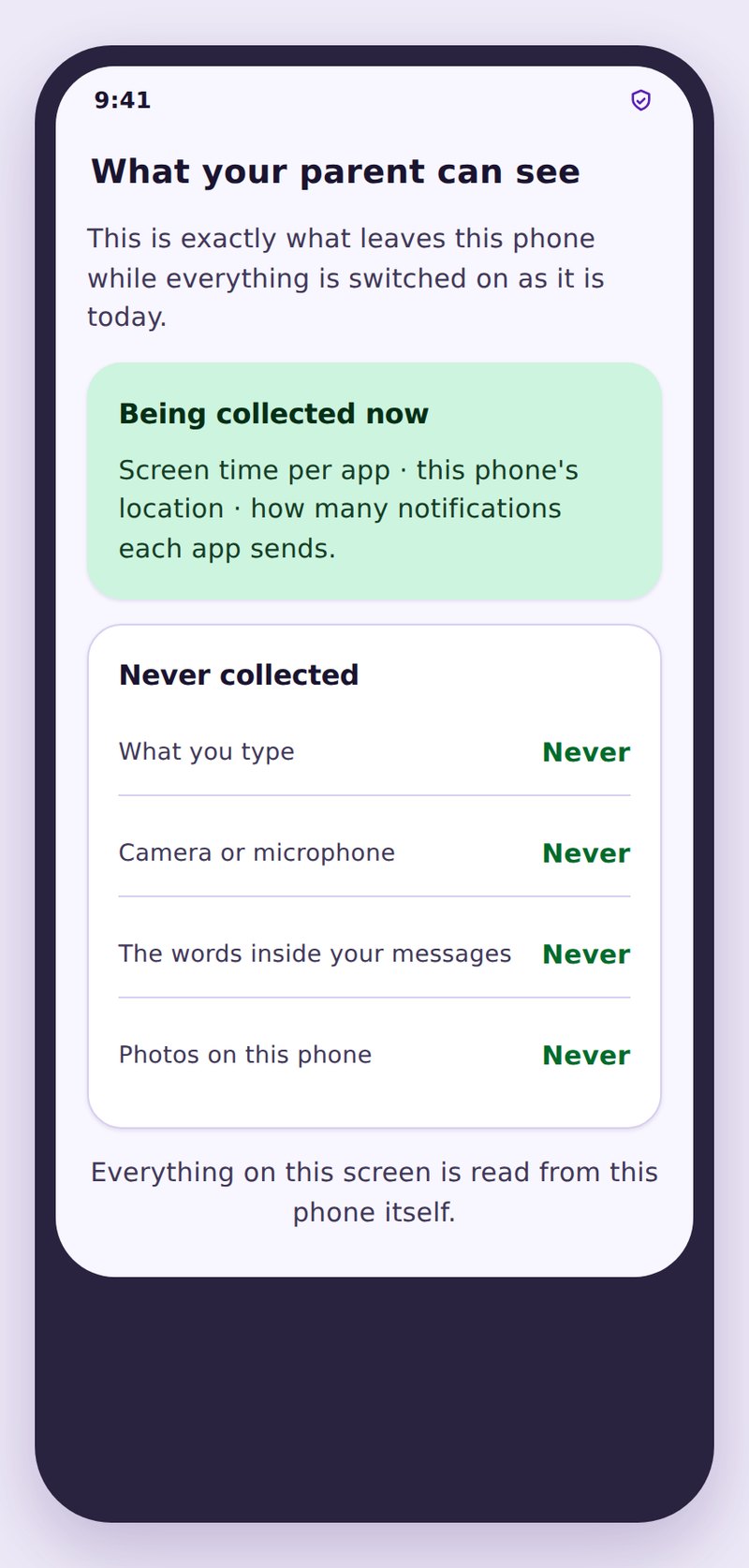
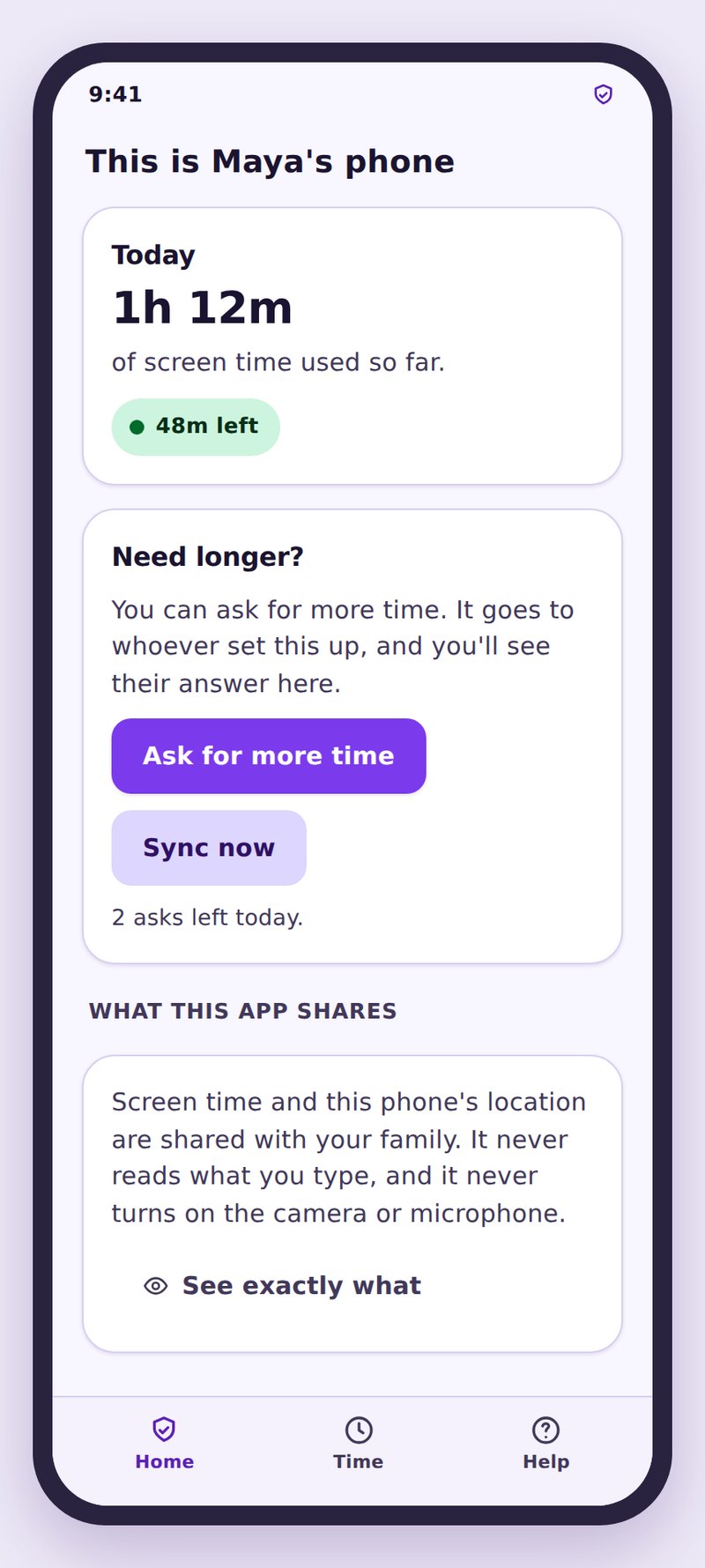
- A plain list of what is sharedWritten for a child to read, not a lawyer.
- They can ask for more timeA tap sends a request to you instead of starting an argument.
- A note when something changesSwitch a new feature on and their phone says so.
What each switch actually turns on
Every permission maps to one feature. Decline one and you lose that feature, nothing more.
| Permission | What it powers | If you decline it |
|---|---|---|
| Location, all the time | The map, places and location history | Location only updates while the app is open, which is rarely |
| Usage access | Screen time and per-app time | No screen time figures and no app limits |
| Notification access | Keyword alerts on notification titles | No keyword alerts. Message contents are never read either way |
| Accessibility service | App blocking and web filtering | Apps and sites cannot be blocked, only counted |
| Battery optimisation off | Reliable, regular check-ins | Android sleeps the app and data arrives in gaps |
| Removal lock | Stops the app being uninstalled quietly | The app can be removed, though your panel will show it went silent |
The things that trip people up
Almost every setup problem is one of these six, and all of them take under a minute to fix.
Codes live for about fifteen minutes so an old one cannot be reused. Press Create a pairing code again for a fresh one and type it in straight away.
Nine times out of ten it is a zero read as the letter O, or a stray space. Codes are not case sensitive, so capitals are never the problem.
A phone is called offline against its own reporting schedule, not a fixed clock. Give it a few minutes. If it stays offline, check that battery optimisation is switched off for the family app.
This is nearly always the location permission set to “while using the app” instead of “allow all the time”. Open the app on their phone and change it there.
Usage access is a separate Android permission that is easy to skip. The panel will name it. Today will also always look short, because counting only starts at pairing.
The family app is Android only at the moment. Your parent panel works fine on an iPhone, but the phone being watched over needs to be an Android device.
Ready to set it up?
Create your free account, add your child, and link their phone with one short code. It takes about ten minutes, and everything is visible on their phone from the first moment.
Next: read what your child sees on the child app, how setup and pairing works in more detail, or what lands on your family dashboard once you are connected.