Setup and Pairing
Setup and pairing takes about ten minutes and needs both phones in the same room, which is the only genuinely important instruction on this page. You create a free parent account in a browser, add your child with a name and a birthday, install the app on their phone, and type in a short code that links the two. Nothing at all is collected before that code is accepted, and the best version of this process is the one you do sitting next to your child rather than while they are out.
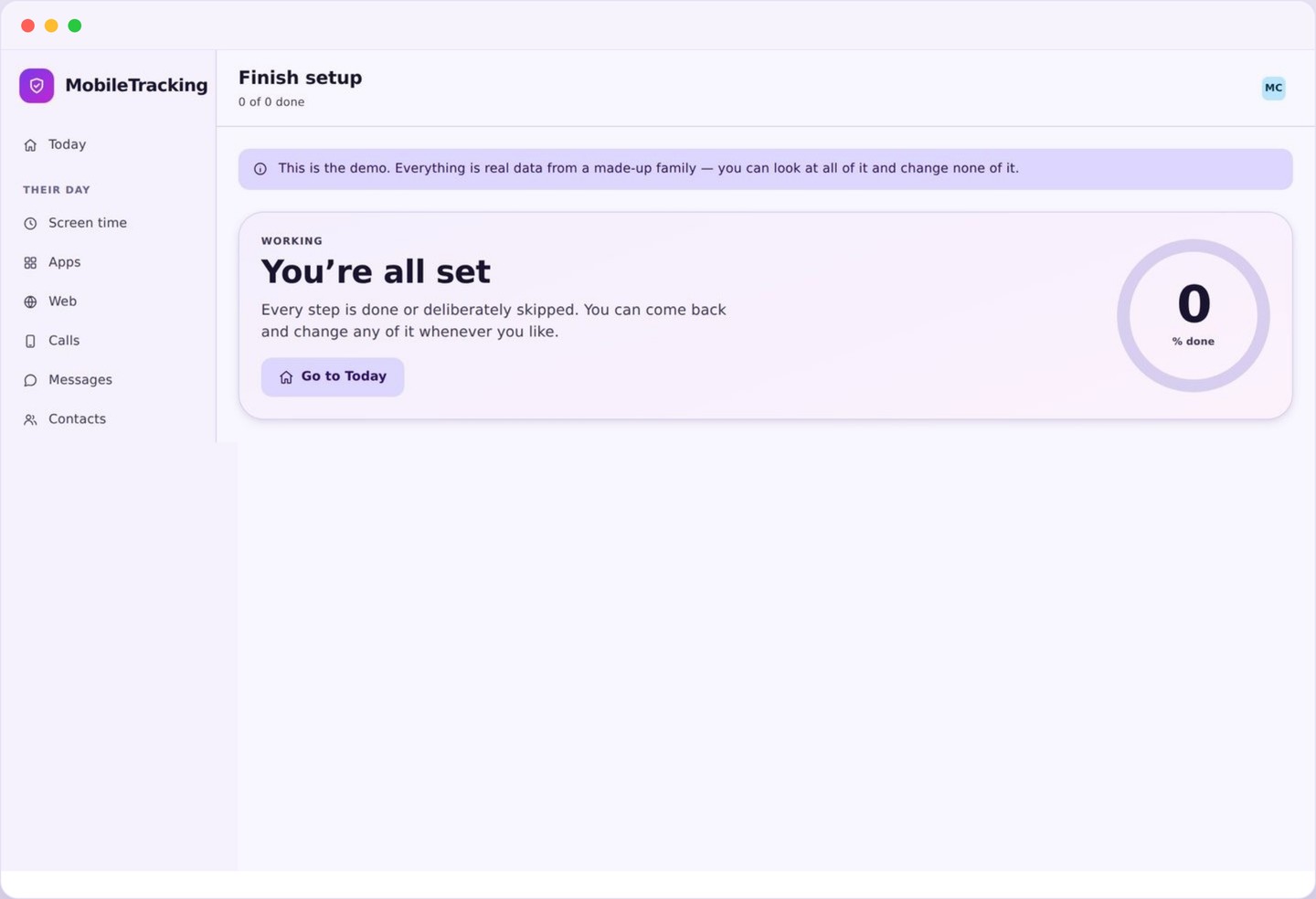
Setup and pairing begins with a free parent account
An email address, a password, and nothing else. No card, no phone number, no identity check.
The parent side lives in a browser, so there is nothing to install on your own phone unless you want the notifications, and even those arrive perfectly well by email or push from the site. You give an email address and choose a password, confirm the address from a link, and you are looking at an empty family panel about ninety seconds later.
We ask for nothing more because we do not need it. There is no billing step on the free tier, no request for your child’s school, and no attempt to build a profile of your household. The account exists to hold your settings and to be the only place your family’s data can be read from.
Use a password you do not use elsewhere, and turn on two factor authentication in your account settings before you add anybody. The parent account is the key to everything the app collects, so it deserves better protection than the average shopping site login. If you share parenting across two homes, add the second parent as a co-parent rather than passing the password around.
- Email and password only, confirmed by a link.
- No card details on the free tier.
- Two factor authentication available from day one.
- Co-parent access, so nobody shares a login.
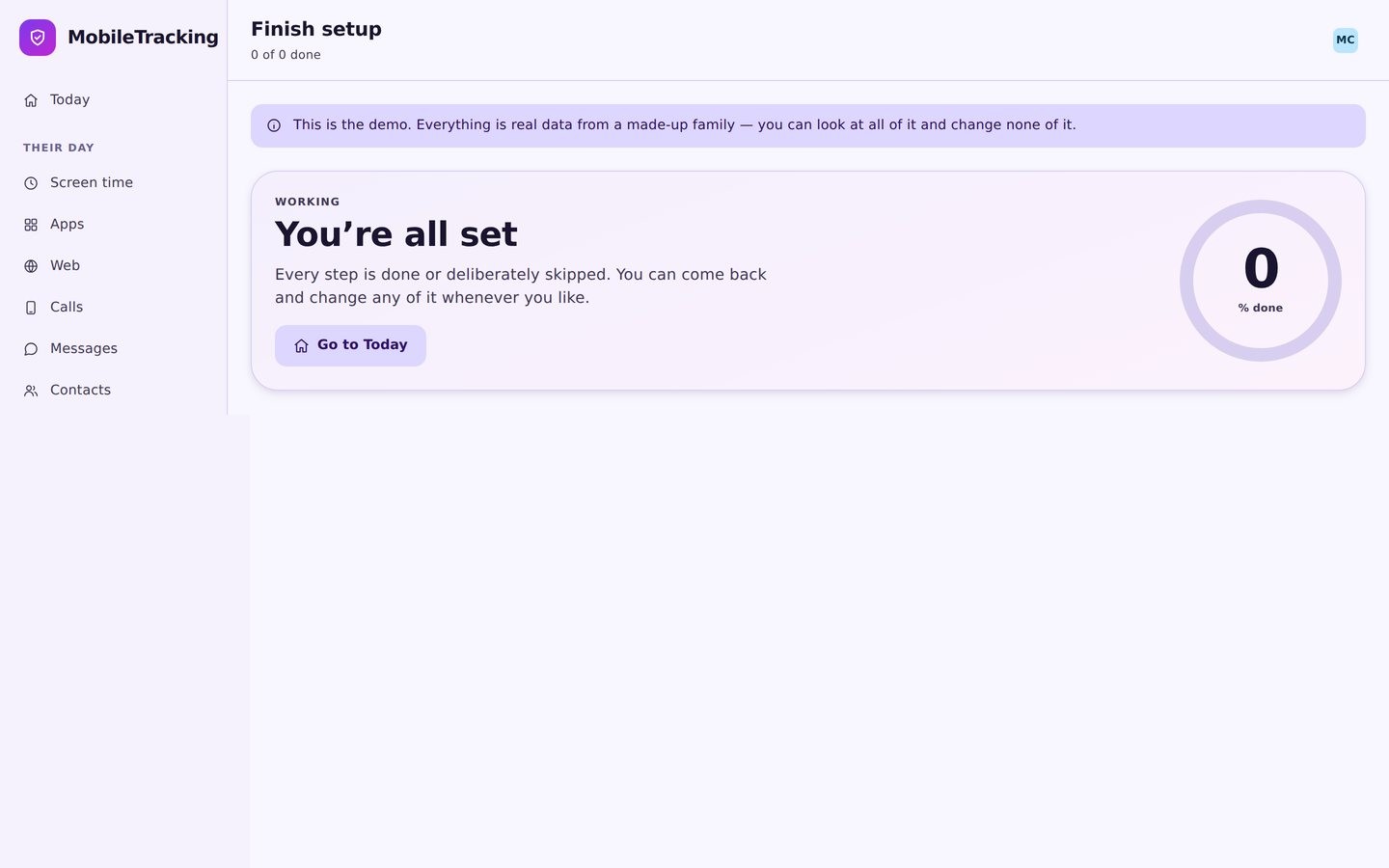
Adding a child, and why the birthday matters
A name and a date of birth are enough to give you sensible starting limits instead of a blank form.
Adding a child asks for two things: what you call them, and when they were born. The name is for your benefit, so use whatever the family actually says. The birthday does real work, because it decides the starting point for every rule in the account rather than handing you twenty sliders set to zero.
A nine year old starts with a shorter weekday allowance, a bedtime around half past eight, web filtering set to its stricter categories, and app limits switched on for the categories that most commonly cause trouble at that age. A fifteen year old starts with a longer allowance, a later bedtime, a much lighter filter, and most alerts off by default. Neither set is a recommendation you must accept, and every one of them can be changed in the first minute if you disagree.
The reason we do this is that defaults are the settings most families keep. A blank profile pushes people towards copying whatever a forum suggested, which is how a teenager ends up with a filter designed for a primary school child and starts looking for ways around it. Starting age appropriate makes the first week calmer.
The birthday also lets the panel prompt you as the year passes. Around a birthday you get a short suggestion to loosen something specific, because a rule that made sense at eleven rarely makes sense at thirteen and almost nobody remembers to revisit it unprompted.
Setup and pairing on your child’s phone
Install, generate a code, type it in. The code is the moment the arrangement begins.
Install the child app from the download page on their Android phone. It appears in the app drawer under its own name with its own icon, exactly as it will stay, and its first screen is not a login. It asks for a pairing code, because we would rather your child never had to see or type a parent password.
Back in your panel, open the child you just created and press the pairing button. You get a short code, easy to read out across a table, and a countdown. Your child types it into their phone, the two sides shake hands, and the panel confirms the link with the device name Android reports.
Codes expire deliberately, usually within about fifteen minutes, and each one can be used once. If it lapses while you are hunting for a charger, generate another; there is no limit and no penalty. Short lived single use codes mean a code overheard in a cafe or left on a screenshot cannot quietly attach a stranger’s phone to your family account days later.
Until that code is accepted, the app collects nothing whatsoever. No location, no app usage, no device details. It is an installed app waiting for permission to exist, and if you never pair it, it never reports anything to anybody.
Granting Android permissions together
Four prompts, each one from Android rather than from us, each one worth explaining as it appears.
Android deliberately makes monitoring permissions awkward to grant, and we think that is correct. Nothing here can be granted remotely from your panel, silently, or by tapping through a single screen. Each one is a separate system dialog with its own warning text, and each one has to be accepted on the phone itself.
Location is the first, and it needs the “allow all the time” option rather than “while using the app”. Without it, saved places cannot fire when the app is closed, which is almost always. Android usually shows this as a second confirmation on a settings page, so expect two taps rather than one.
Usage access comes next, which lets the app count screen time per app. Notification access follows if you want alerts about blocked attempts. Finally, exclude the app from battery optimisation, because otherwise Android will eventually put it to sleep and your evening reports will have holes in them for no obvious reason.
Do these with your child watching the screen. Each dialog names exactly what it grants, in Google’s wording rather than ours, and reading those four sentences aloud is the clearest possible explanation of what the app can and cannot do. It takes two minutes and it answers questions you would otherwise be arguing about in a fortnight.
The green health check, and finishing setup and pairing openly
One screen that says everything works, and the conversation that makes it stick.
Once the permissions are in, the panel shows a health check for that device. Each requirement gets a line and a colour: location permission, background permission, usage access, notification access, battery exemption, and recent contact from the phone. All green means the features you have switched on will actually work. Anything amber tells you which single setting to fix and where to find it.
Check it again after a week. Phone manufacturers with aggressive battery software sometimes undo an exemption after an update, and the health check is how you find that out in ten seconds instead of wondering why last Thursday has no data in it.
Then the part that is not technical. Show your child their own transparency screen before you close the phone. It lists what is now shared and what never will be, and it will already reflect the exact settings you chose. Ten minutes spent there converts the app from something being done to them into something the household agreed on, and it is the single strongest predictor of whether the arrangement lasts past the first argument.
If your child is old enough to have an opinion, let them have one. Agreeing to review the limits at a set date, or leaving one feature off because they asked, costs you very little and buys a great deal. The families who get years of use out of this tool are almost never the ones who installed it quietly.
Create the account and add a child
Sign up with an email address, confirm it, then add your child with a name and a birthday. The age sets sensible starting limits you can change immediately.
- No card details, no phone number.
- Turn on two factor before adding anyone.
- Birthday drives the default rule set.
Generate the pairing code
Open the child profile and press pair. A short code appears with a countdown. Read it out rather than sending it, since you are both in the same room anyway.
- Single use, and it expires in minutes.
- Generate as many replacements as you need.
- One code per child, so check the name.
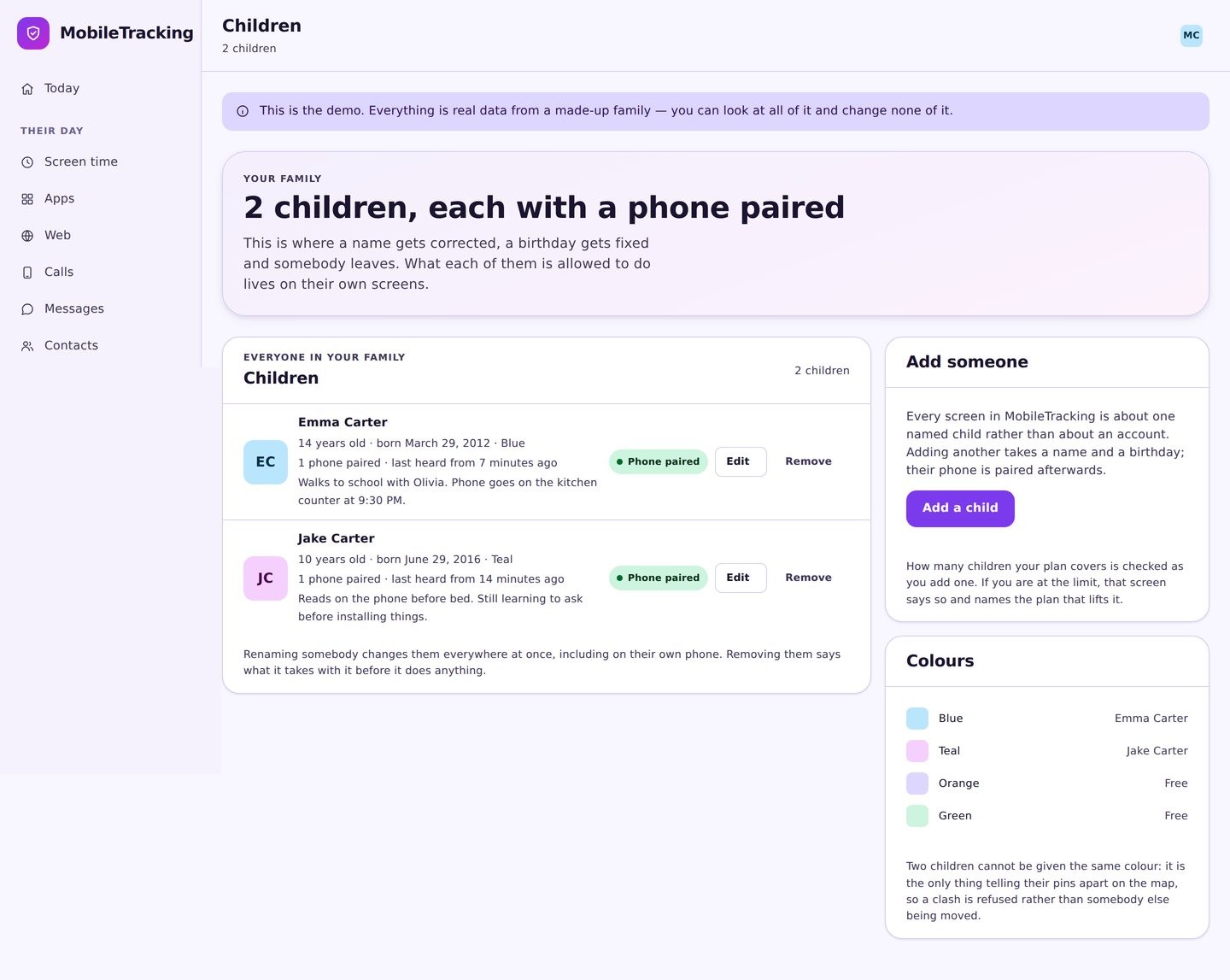
Type the code and grant permissions
The app asks for the code, not a password. Once it is accepted, work through the Android prompts together and watch the health check turn green.
- Nothing is collected before the code is accepted.
- Location must be allow all the time.
- Exclude the app from battery optimisation.
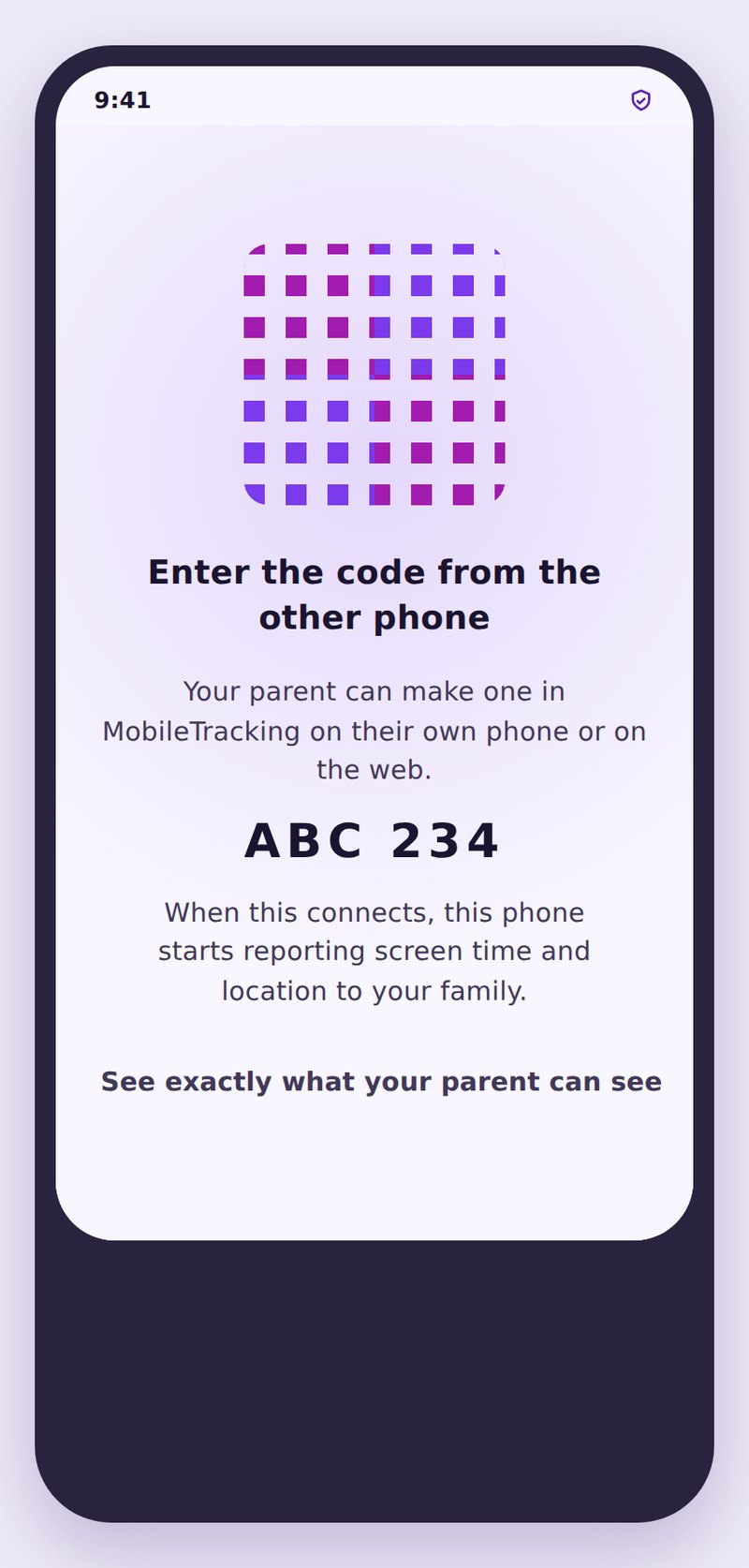
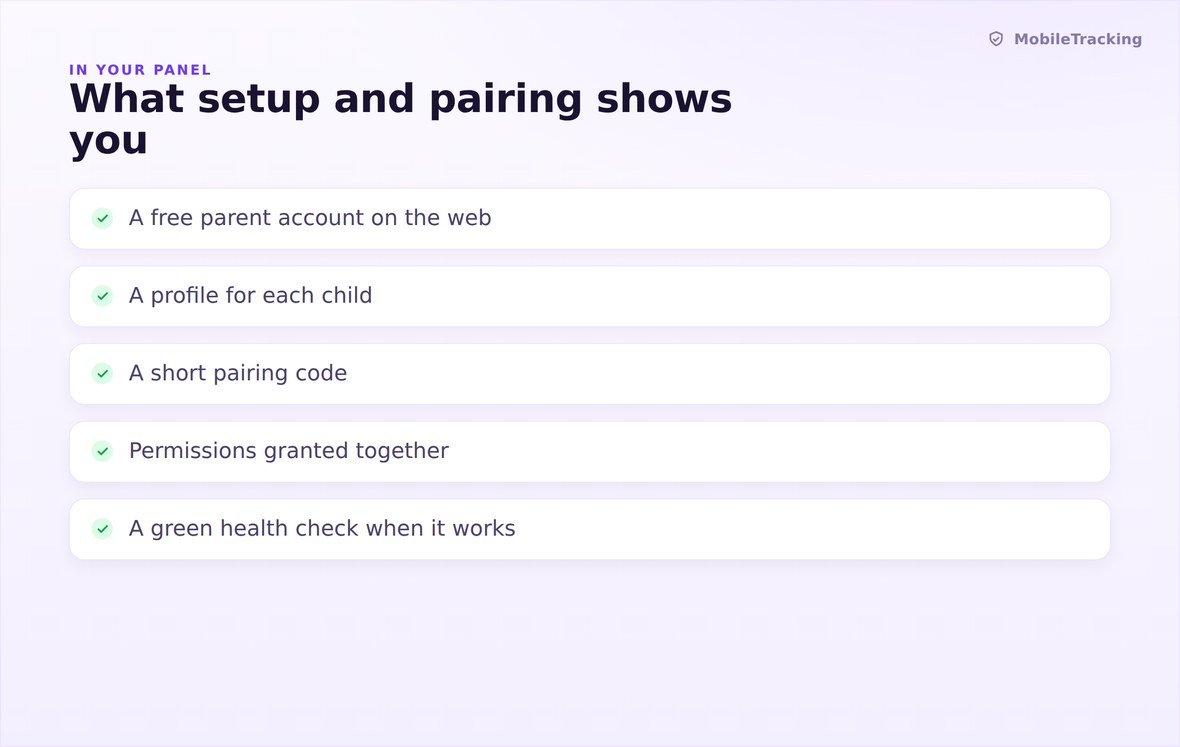
Paired devices, permission status, last contact, and which single setting still needs fixing.
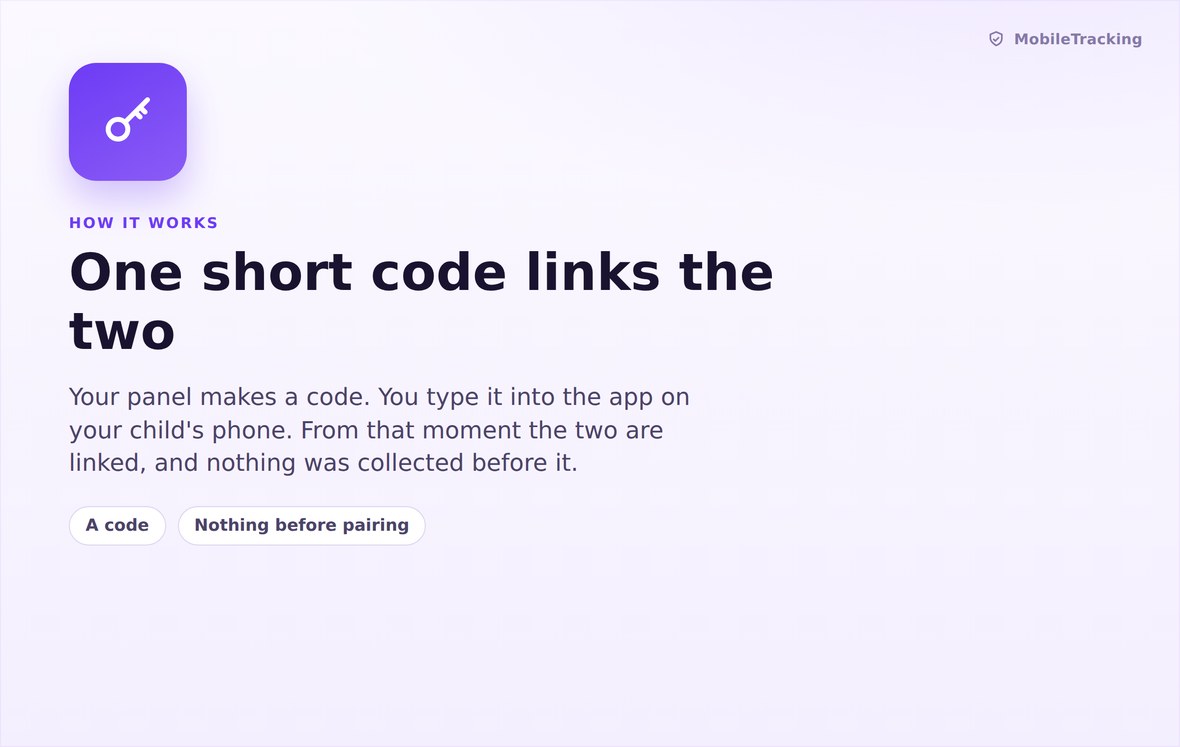
A short single use code links the phone to one child profile, then expires for good.
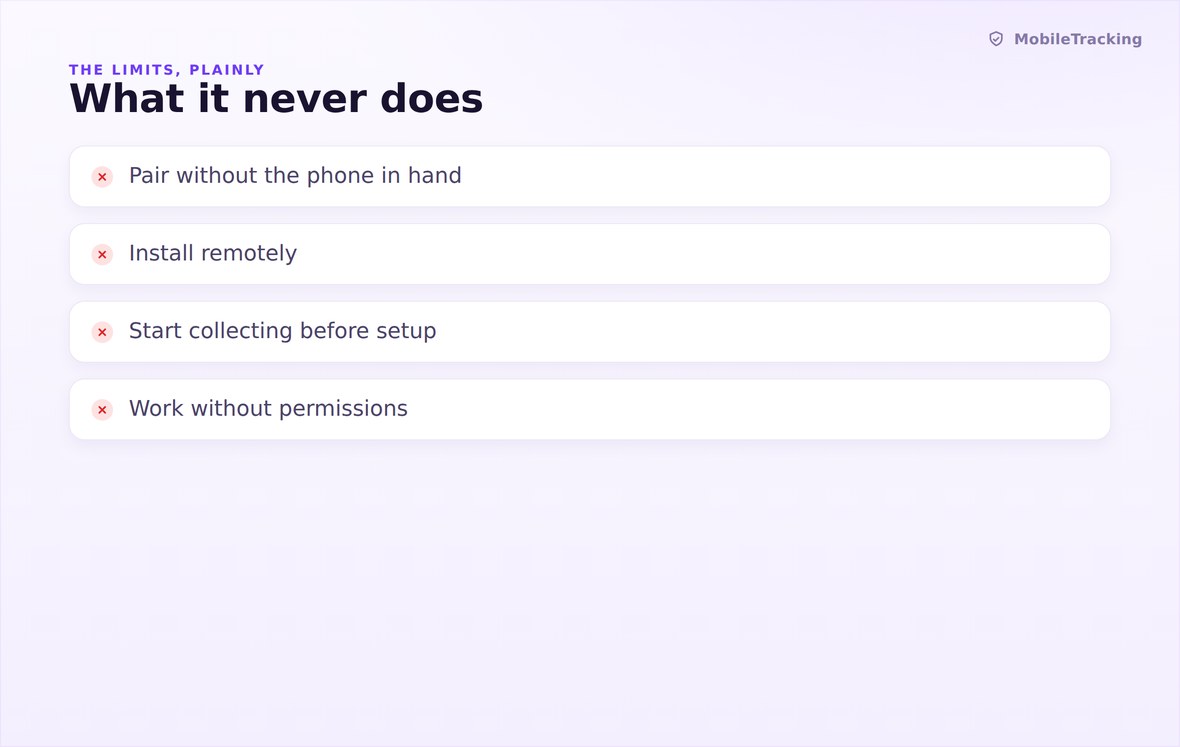
No collection before pairing, no silent install, no permission granted from your side.
What your child sees
The first thing the app shows after pairing is a consent screen listing what will be shared, followed by the permission prompts in Android’s own words. Neither can be skipped from your side. Setup and pairing is designed so that your child cannot end up with a monitored phone without having read, on their own screen, exactly what that means.
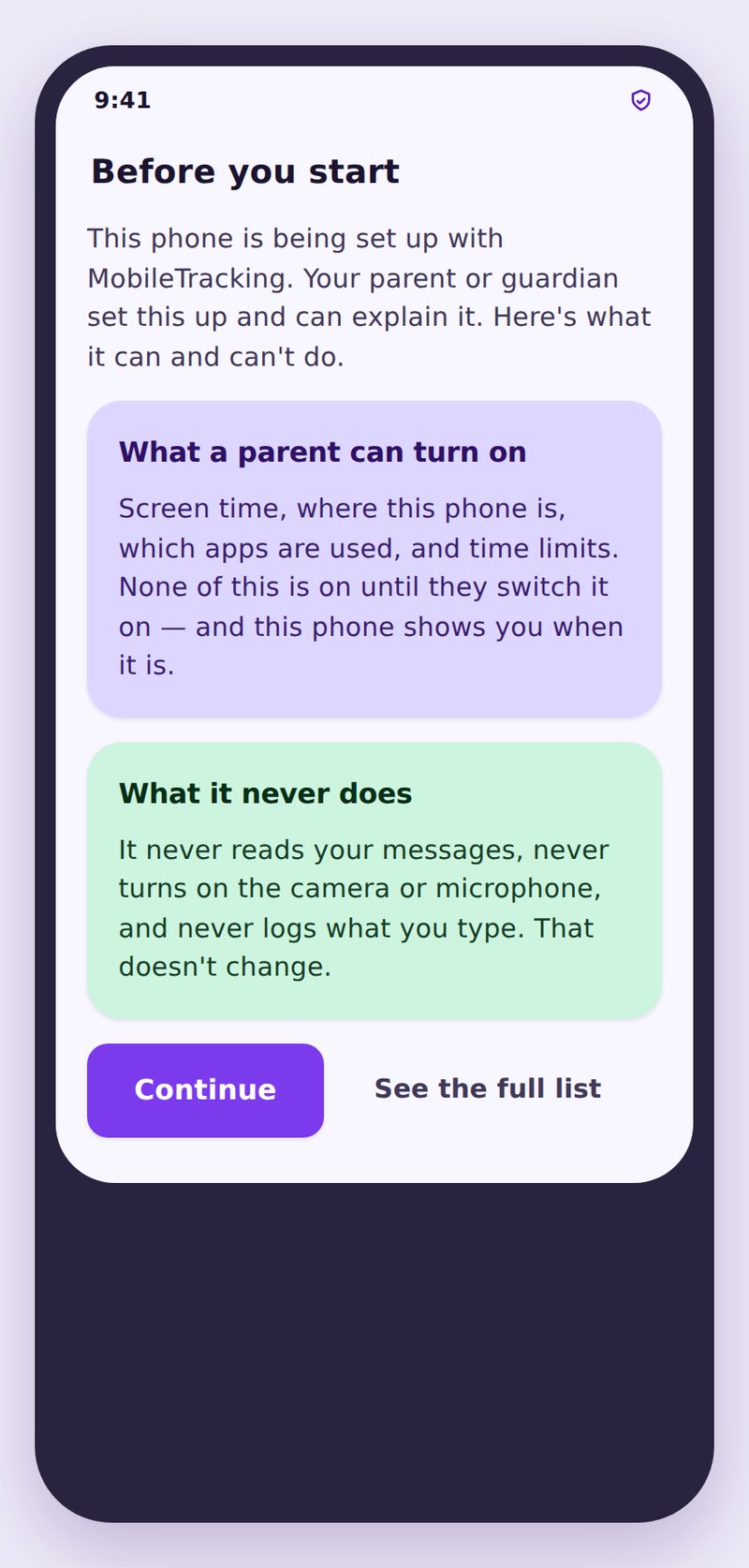
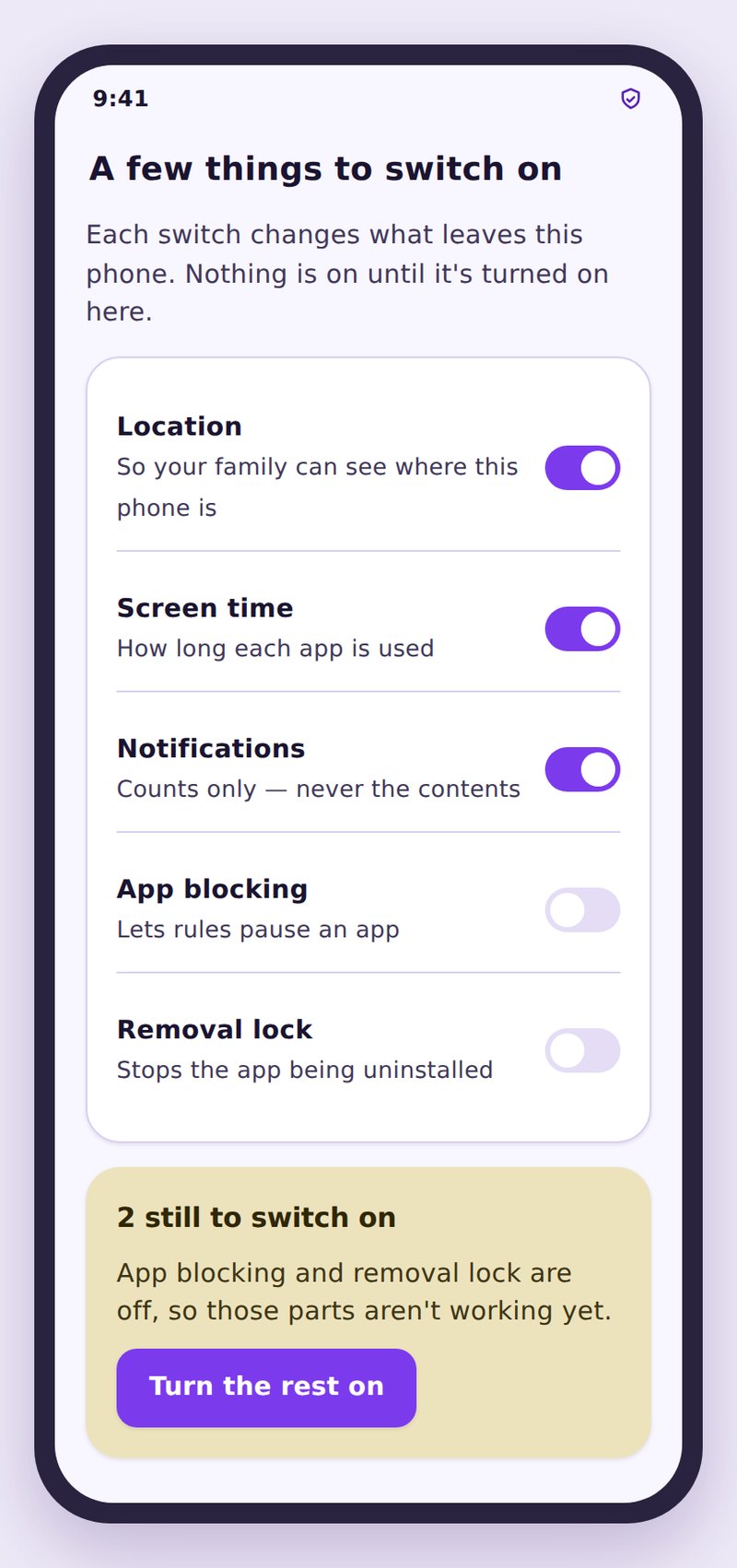
- Consent comes firstThe sharing list appears before any feature starts reporting anything.
- Permissions are theirs to grantEvery prompt is an Android dialog accepted on the phone, never from your panel.
- Nothing before the codeAn unpaired app sits idle and sends no data at all, to us or to you.
| Step | Where | Roughly how long | Common snag |
|---|---|---|---|
| Create the account | Any browser | 2 minutes | Confirmation email in the spam folder |
| Add a child | Parent panel | 1 minute | Birthday typed wrong, so defaults look odd |
| Install the app | Child’s Android phone | 2 minutes | Unknown sources prompt on a sideloaded install |
| Enter the pairing code | Child’s phone | 1 minute | Code expired, or a sibling’s code used |
| Grant permissions | Child’s phone | 3 minutes | Location set to while using instead of always |
| Read the health check | Parent panel | 1 minute | Battery optimisation still switched on |
No. The parent side is a website that works in any browser on any device. Install the parent app only if you prefer push notifications to email.
About fifteen minutes, and it works exactly once. If it expires, generate another from the same screen. There is no limit on how many you can create.
Nothing. An installed but unpaired app holds no permissions and sends nothing. It is inert until a valid code is accepted on the phone.
Not fully, and that is by design. The permission dialogs must be accepted on the phone itself. We would encourage you to treat that limitation as a prompt to do it together.
Add each one as a separate profile with their own birthday and their own rules, then pair each phone with its own code. One account holds the whole family.
The child app is Android only. The parent panel is a website, so you can run the family side from an iPhone, an iPad, or any computer without difficulty.
Ten minutes, both phones, one room
Create a free account, add your child with their birthday, and pair the phone together so the first thing they see is the list of what is shared.
Related pages: The Child App, Multiple Children, and Device Health.