The Child App
The child app is the half of MobileTracking most parental control products would rather you never thought about: a normal Android app, with its own name and its own icon, sitting on your child’s home screen where they can open it whenever they like. It shows them the rules, the time they have left today, and a plain list of what is shared with you and what never leaves their phone. Nothing about it hides, because a rule your child can read is a rule you can actually talk about.
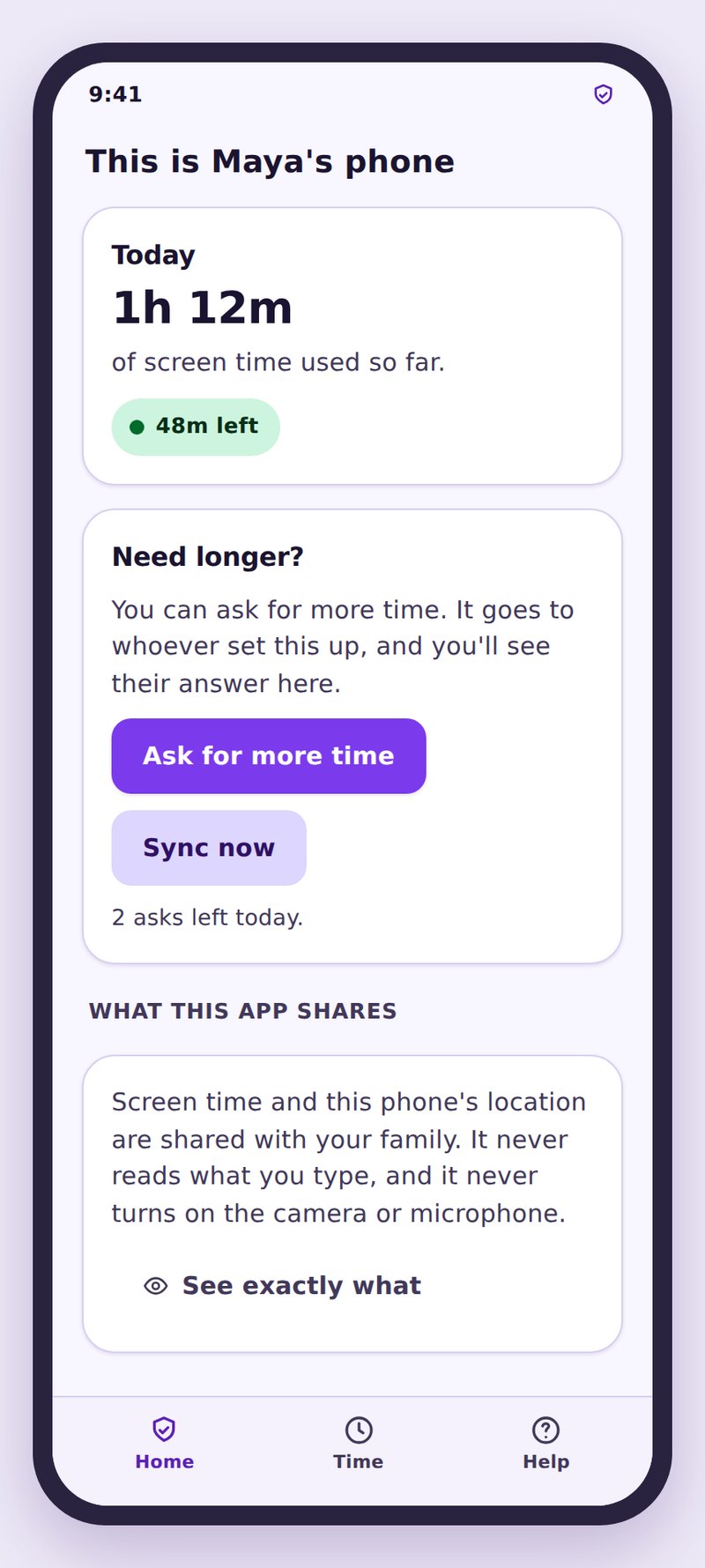
What the child app puts on their home screen
One icon, one name, and a first screen that answers the questions a child actually has.
It installs like any other app. It has a name in the app drawer, an icon on the home screen, and an entry in Android’s settings under its real title. It cannot be dressed up as a system service or renamed to something bland, because the moment a monitoring app has to disguise itself, the family arrangement behind it has already gone wrong.
Opening it gives your child a short summary rather than a wall of numbers. At the top is the time left today, expressed the way they think about it: fifty minutes, not a percentage of a quota. Below that sit the rules currently in force, such as a bedtime that starts at half past nine and two apps that are limited to half an hour each.
Under the rules is the sharing list, which is the screen we care most about. It names each thing the app sends to your side of the account, in ordinary words, and it names the things it does not send with the same directness. Then come tasks, if you use them, and a button to ask for more time.
- Time left today, and what happens when it reaches zero.
- Active rules, including bedtime and any app limits.
- The sharing list, in plain language, with what is never collected.
- Tasks to earn extra time, and a request button for the rest.
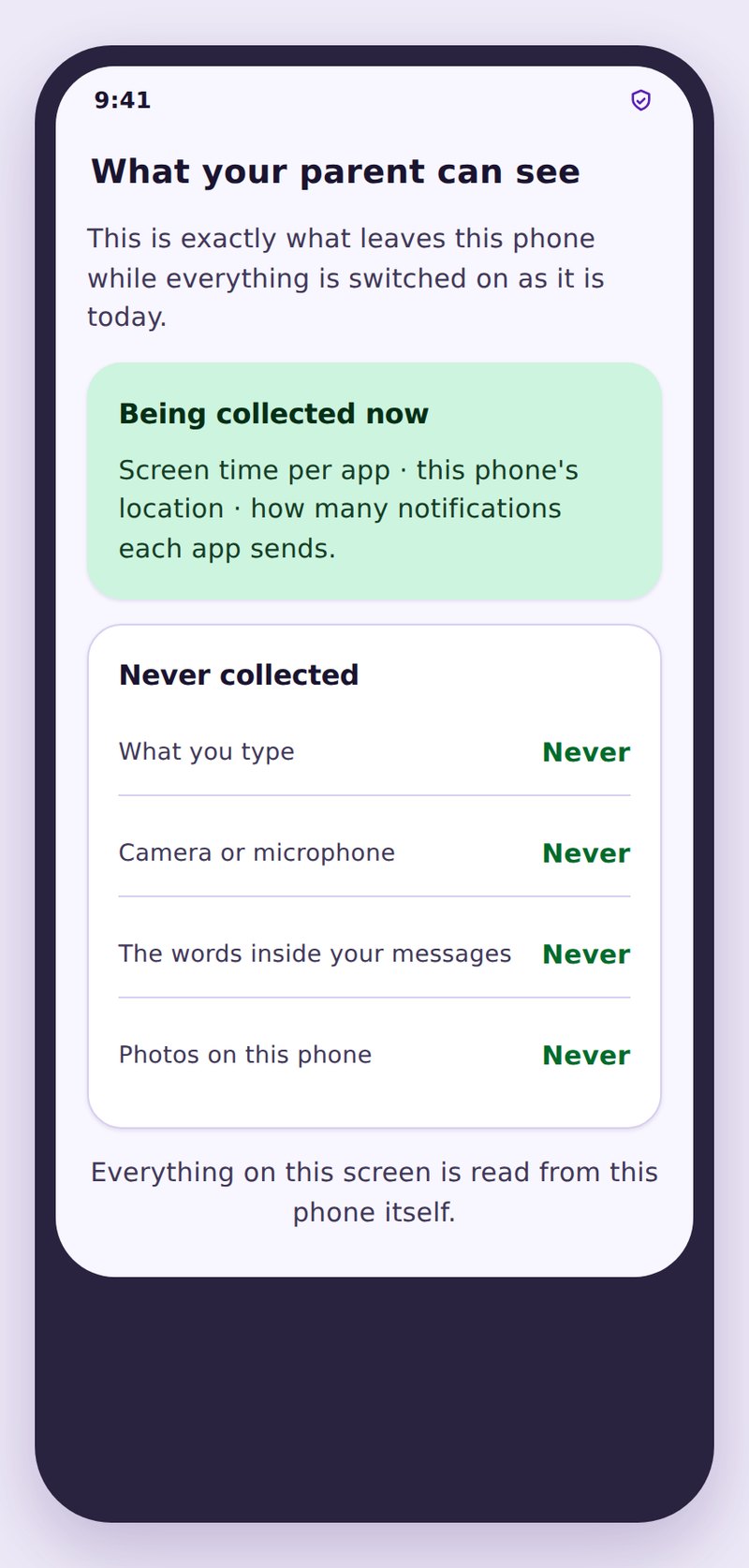
The screen in the child app that lists exactly what is shared
Written to be read by the person it describes, not by a lawyer checking a compliance box.
Every family has a version of the conversation that starts with “so what can you actually see”. The transparency screen exists so that conversation has a document both sides can point at. It lists location, screen time, which apps were opened and for how long, web categories that were blocked, and, where you have switched them on, call and message summaries. Each line says what it is in one short sentence.
The same screen lists the absences, which matter just as much. The app does not read the content of personal messages, does not record audio or video, does not photograph anyone, does not log passwords or what is typed into a keyboard, and does not read the inside of a private account. If a feature is switched off in your panel, its line appears greyed out on their side with the word Off next to it.
What makes the list trustworthy is that it is generated from your actual settings rather than written once as marketing copy. Turn a feature off and the line changes on their phone. Turn one on and the line appears, along with a note saying when. A child can check it at any hour of any day without asking you, which is exactly the point.
Time left today, and how to ask for more
A running number, a warning before it ends, and a way to make the case for an extension.
Screen time only causes arguments when it is invisible. If the first sign of a limit is a phone going dark in the middle of something, every limit feels like an ambush. So the number is on the first screen all day, it counts down where they can see it, and a warning appears with ten minutes to go so a game can be finished or a video paused at a sensible place.
When time does run out, the block screen names the reason. It says which rule stopped the app, how much was used, and when the next allowance begins. It is a sentence, not a padlock with no explanation, and it always leaves the phone able to make an emergency call and reach the contacts you have marked as always allowed.
The request button is the release valve. Your child taps it, chooses how long they are asking for, and can add a short reason. It arrives on your phone as a notification you can approve or decline with one tap, and the extra time appears on their side immediately. Declining is not silent either: they see that you answered, which beats a request that vanishes into nothing.
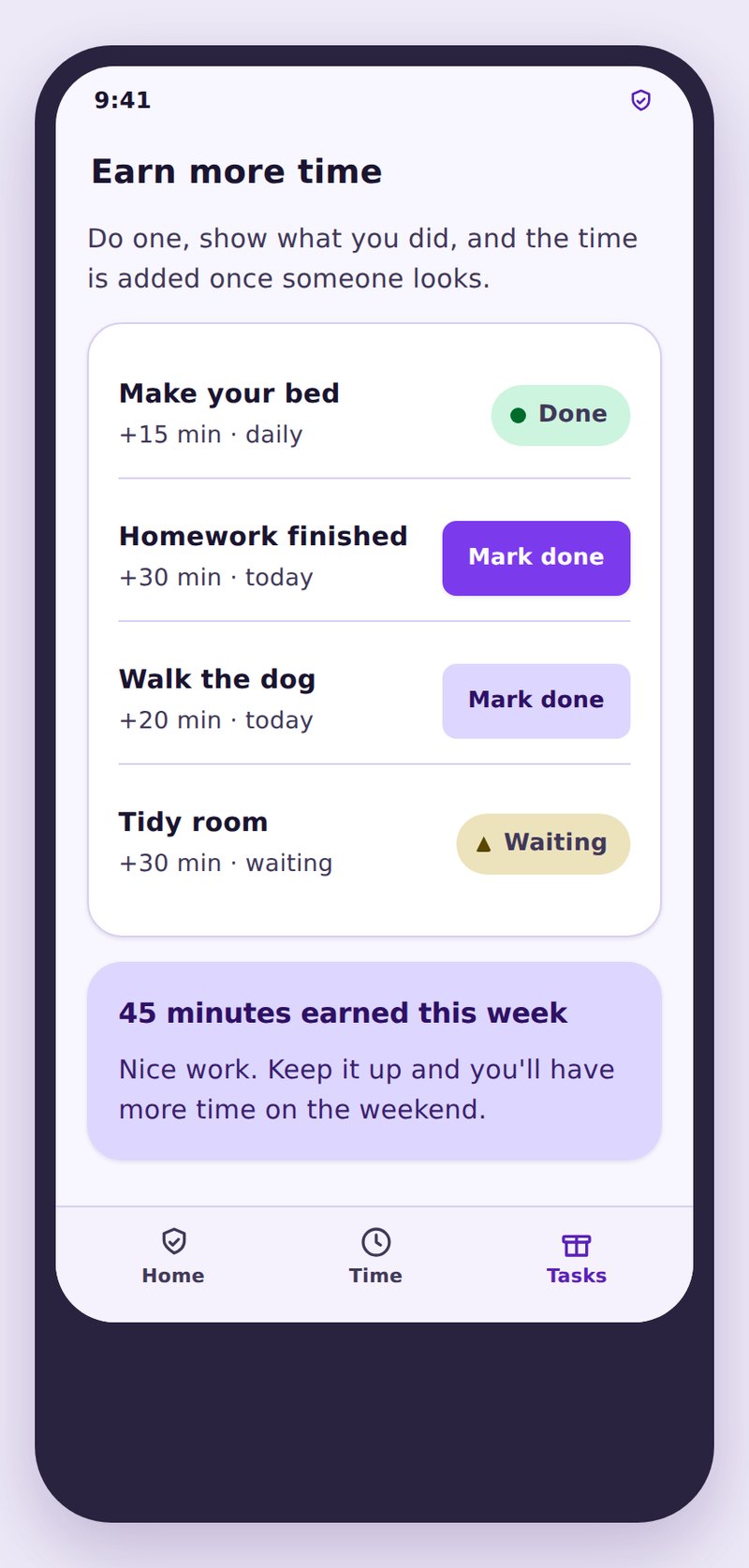
Tasks are the other route. If you have set them up, the child app lists the jobs that carry a time reward, they mark one as done, and you confirm it. Earned minutes land in today’s allowance and are labelled as earned, so nobody has to remember why there is an extra twenty minutes on a Tuesday.
A note whenever you switch something new on
New settings announce themselves on their phone rather than arriving quietly.
Adding a feature is the moment where a monitoring tool either keeps its promise or breaks it. If you turn on location sharing, add a saved place, tighten a bedtime, or enable call summaries, the child app posts a short note on their phone saying what changed and when. There is no delay and no way to suppress it from the parent panel, because a suppressible notice would make the whole transparency screen worthless.
The notes stack into a small history inside the app, so an older child can scroll back and see that keyword alerts were turned on in March and location history was turned off in May. That record is the difference between an arrangement and a surprise, and it protects you as much as it protects them. Nobody can claim they were never told.
It also gives you a natural prompt to explain yourself. A note saying “your parent turned on app limits” is a question waiting to be asked, and answering it in the moment is far easier than defending a rule discovered by accident three weeks later. Most families find the number of changes drops sharply after the first fortnight, which is usually a sign the settings have found their level.
Why an app that hides itself teaches the wrong lesson
The case for visibility, made without pretending the alternative is not tempting.
Hidden monitoring apps sell a fantasy: perfect knowledge with no awkward conversation. The fantasy does not survive contact with a real teenager. Hidden apps get found, usually sooner than the parent expects and usually at the worst possible moment, and what gets discovered is not the rule but the concealment. The rule might have been reasonable. The hiding never looks reasonable afterwards.
There is a second cost, and it is the one we think about most. A child raised under surveillance they were not told about learns that watching people without their knowledge is what love looks like when it has power. That is a lesson they will carry into their own relationships, and it is precisely the lesson we spend adolescence trying to teach them not to accept from anyone else.
The practical argument is simpler. A child who knows the app is there will tell you when something goes wrong, because they already know you can see part of the picture and would rather give you the rest in their own words. A child who thinks they are unobserved will hide the problem until it is too big to hide, and the app will only ever show you the symptom.
None of this is comfortable. Your child will push back on limits they can see and occasionally win. We consider that a feature: the argument is the supervision, and the software only makes it specific enough to have.
What the child app deliberately does not do
Choices made on purpose, and expectations worth setting before you install anything.
It does not hide, and it cannot be made to. There is no stealth mode, no hidden icon setting, and no support request that will unlock one. If that rules the product out for you, we would rather you found that out on this page than after paying for it.
It does not read private conversations. Message content, photographs, keystrokes, the inside of a social account, and audio from the microphone are all outside what the app collects, on every plan, with no exception behind a paywall.
It does not punish on its own. Nothing is deleted, no account is locked, and no penalty is applied automatically because a limit was reached. The app blocks what you asked it to block, tells your child which rule did it, and stops there.
Read the sharing list together
Open the app on their phone the day you install it and go through the list line by line. It takes about five minutes and it prevents most of the arguments that would otherwise arrive later.
- Every shared item, in one short sentence each.
- The never-collected list, stated just as plainly.
- Off features shown greyed out, not omitted.
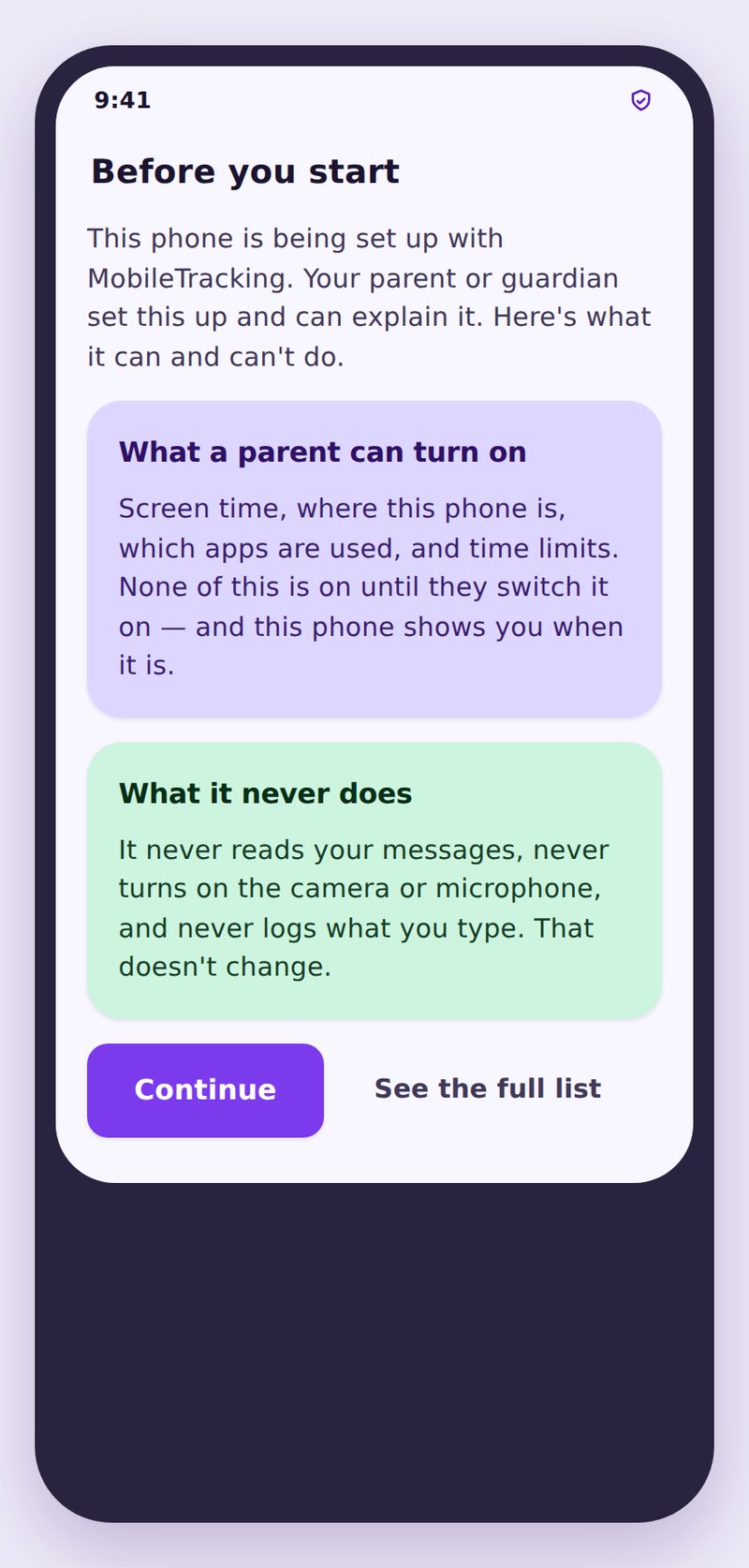
Agree the rules before you switch them on
The consent screen asks your child to confirm they have seen what the app does. It is not a legal formality; it is the moment the arrangement becomes a shared one.
- Shown once at pairing and again after major changes.
- Written for a child, not copied from a policy.
- Their questions here are worth more than the tap.
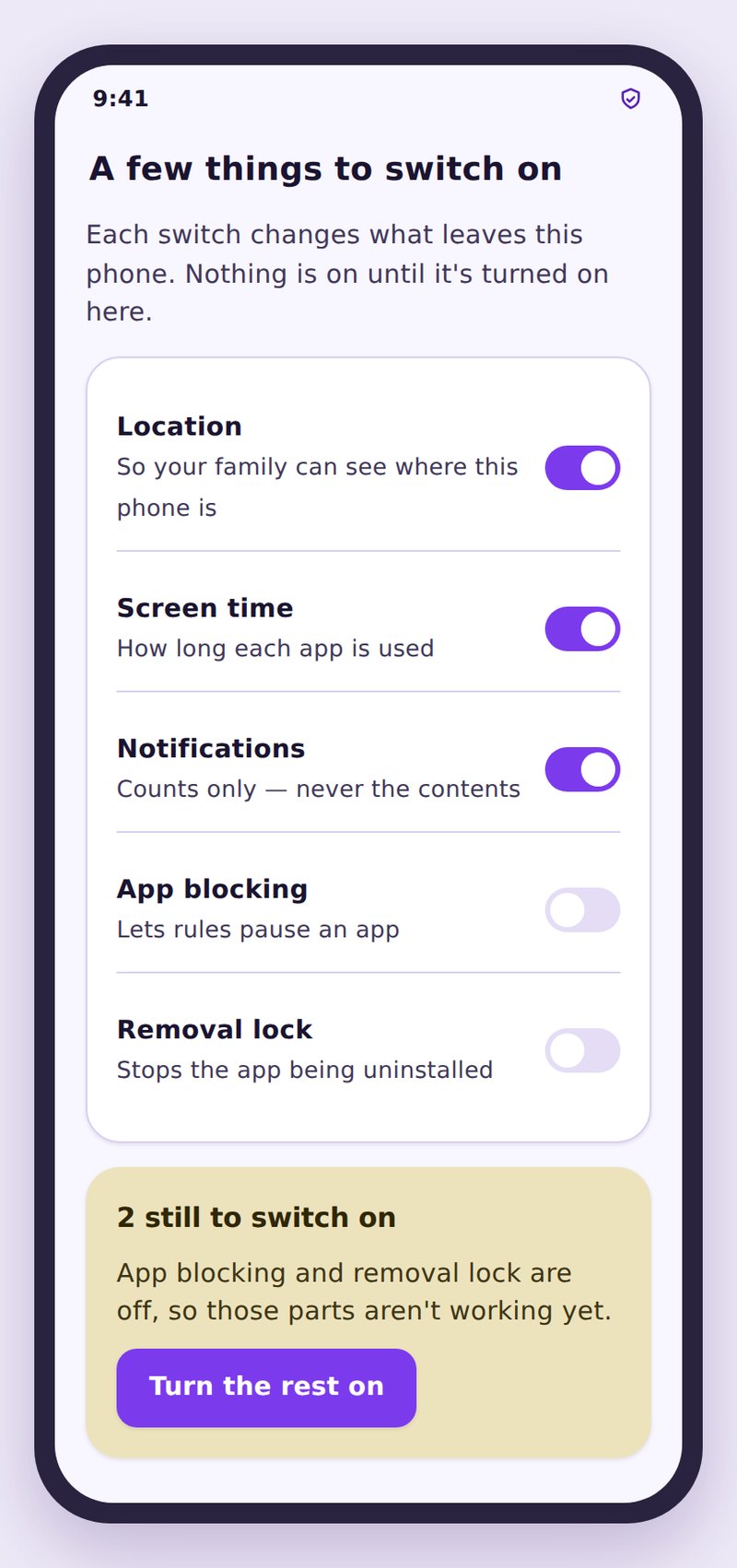
Grant the permissions side by side
Android asks for location, usage access and notification permission one at a time, with its own wording. Doing it together means your child sees exactly which doors were opened.
- Location set to allow all the time, for saved places.
- Usage access, so screen time can be counted.
- Battery optimisation off, so nothing stops overnight.
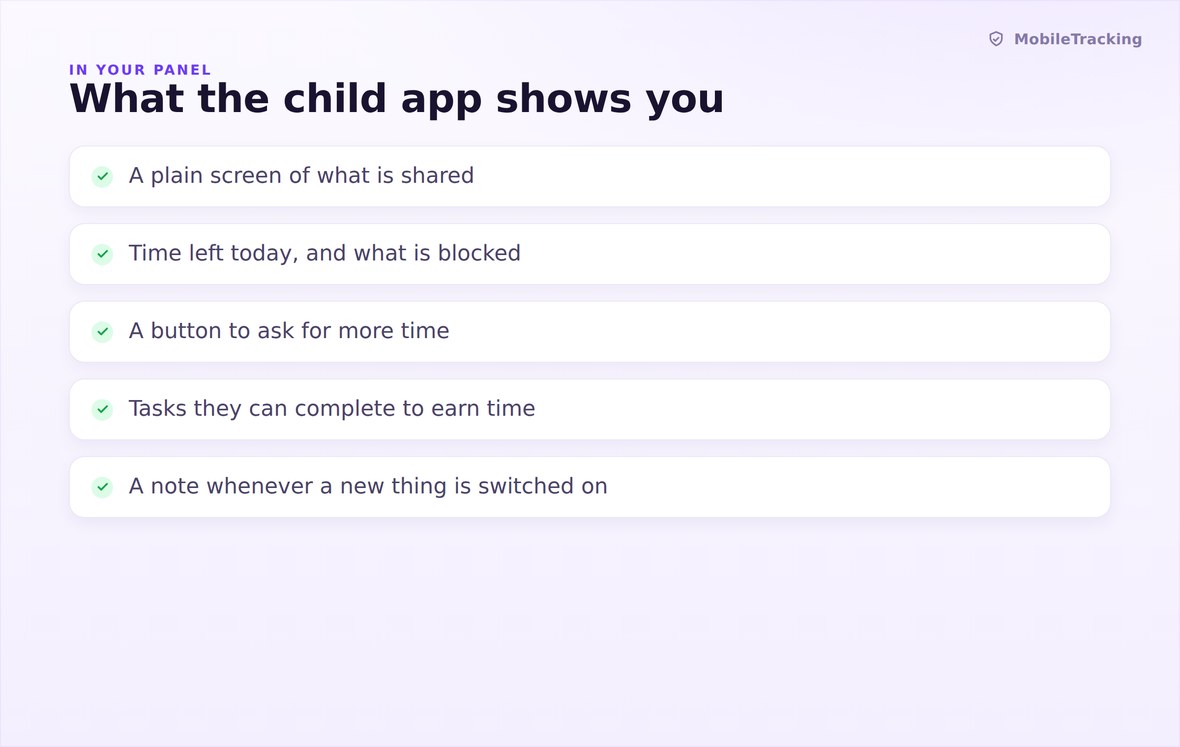
Time left today, the rules in force, tasks to earn more, and the full sharing list.
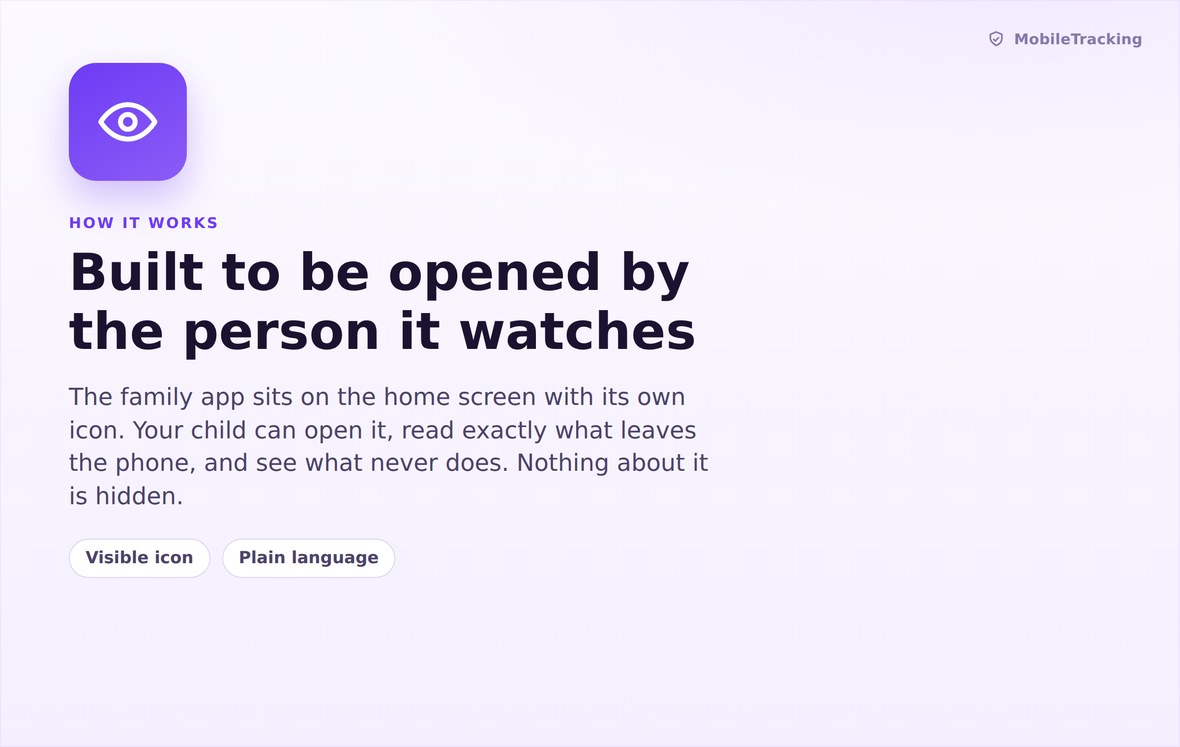
Settings change on your panel, a note appears on their phone, and the list updates itself.
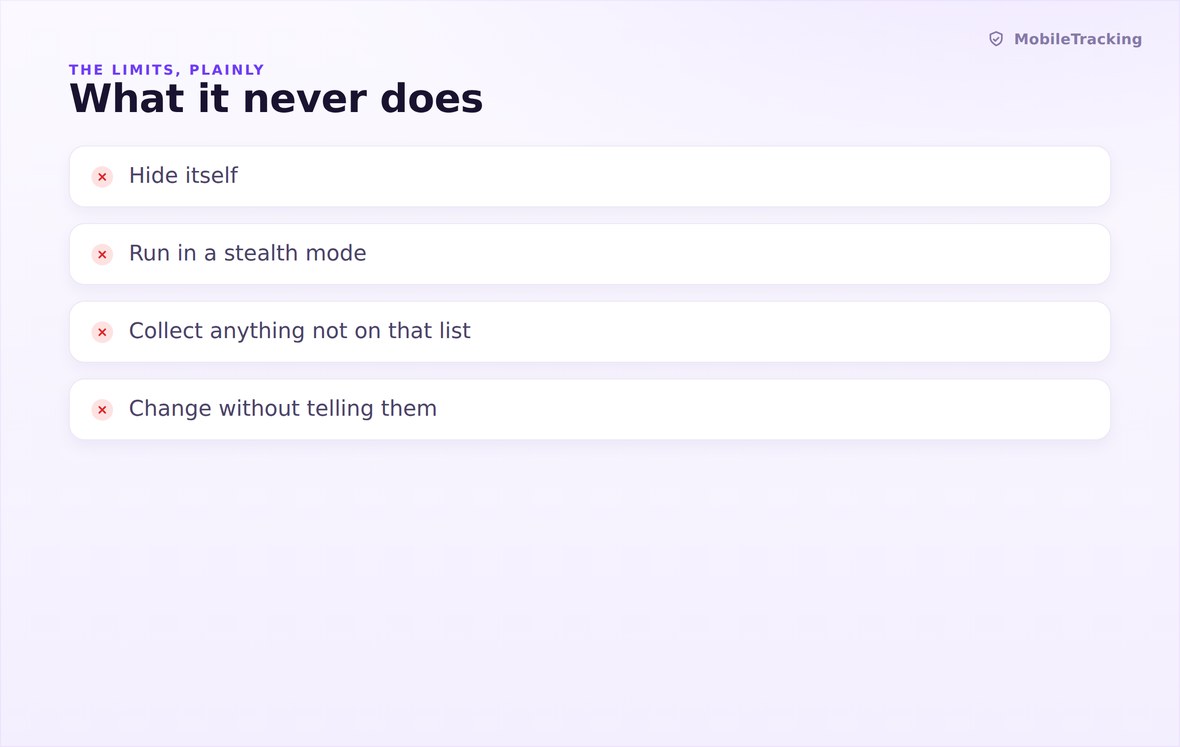
No hidden icon, no message content, no microphone, no keystrokes, no silent changes.
What your child sees
Everything, is the short answer. The rules that are on, the time that is left, the reason a block screen appeared, the tasks that carry a reward, and a dated note for every setting you have changed since the day you paired. If you can see it in your panel, there is a line about it on their phone.
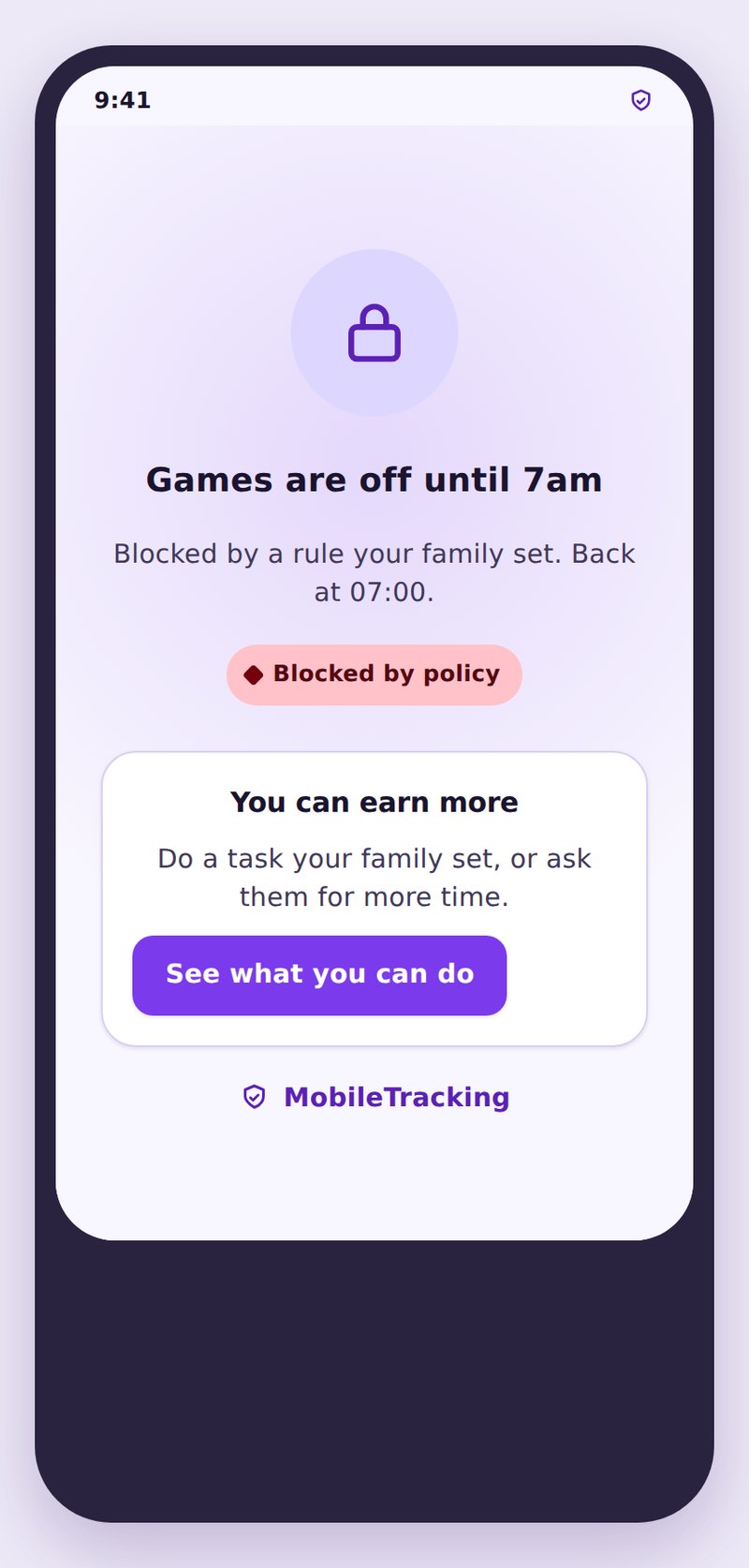
- Blocks explain themselvesWhich rule stopped it, how much was used, and when the next allowance begins.
- Changes are announcedSwitch a feature on and a dated note appears on their phone straight away.
- Earned time is labelledMinutes from tasks are shown as earned, so nobody argues about where they came from.
| Screen | What it shows | What your child can do there | What it never shows |
|---|---|---|---|
| Home | Time left today, rules in force, next bedtime | Open it any time, no password needed | Nothing hidden behind a parent code |
| Sharing list | Every item sent to the parent account, in plain words | Read it, question it, check it again later | Message content, photos, audio, keystrokes |
| Block screen | The rule that applied and when time returns | Ask for extra time with a short reason | Any block without a stated reason |
| Tasks | Jobs available and the minutes each is worth | Mark one done and wait for your confirmation | Rewards that change without being announced |
| Changes | A dated note for every setting switched on or off | Scroll back through the whole history | Silent or retroactively edited entries |
Removing it needs the device administrator permission to be revoked first, which takes several deliberate steps in Android settings. You are told immediately if the app stops reporting, so an uninstall shows up as a conversation to have rather than a gap you never notice.
No, and there will not be one. The app always has a visible icon and a visible entry in Android settings. Covert monitoring is the product we chose not to build.
The wording targets a confident reader of about nine or ten. Younger children usually need you to read the sharing list with them once; teenagers tend to read it alone and then come back with sharp questions.
Typical usage sits in the low single digits of daily battery, because location is collected on a schedule rather than continuously. Excluding it from battery optimisation actually helps, since a killed app restarts more often.
No. They can see everything and ask for changes, but the settings live in your account. What they can do is request extra time, complete tasks, and read the full history of what you have altered.
Yes. Emergency calls are never blocked, and contacts you mark as always allowed stay reachable even when every other limit has been reached for the day.
Install it in the open, together
Put the app on their home screen, read the sharing list side by side, and let the rules be something your child can check rather than something they discover.
Related pages: Setup and Pairing, Screen Time, and Tasks and Rewards.