GPS Location Tracking
GPS location tracking in MobileTracking answers one small question well: where is my child right now, and how long ago did the phone tell us that. It is a map with names on it, a timestamp on every pin, and an honest accuracy circle instead of a fake pinpoint. Your child can see the same thing running on their phone, because this only works as a family agreement.
What location tracking actually shows you
The map is deliberately plain. Four facts per child, and nothing that pretends to be more certain than it is.
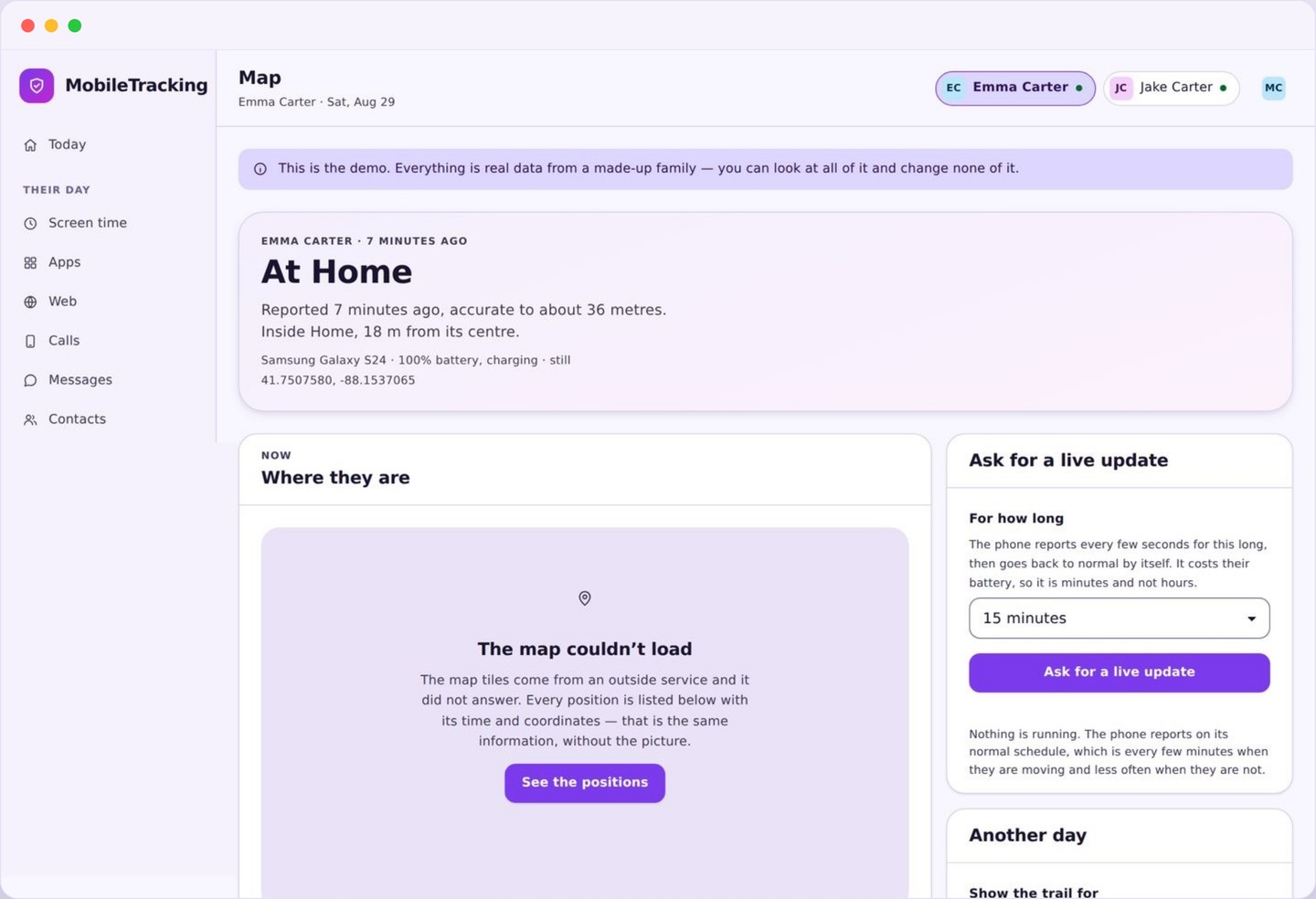
Open the map and every paired phone is already on it. Each pin carries the child’s name, the position the phone last reported, the time of that report, and the battery level it had when it sent it. A pin that says “Home, 3 minutes ago, 68 percent” is a complete answer. A pin that says “Home, 2 hours ago, 4 percent” is a different story entirely, and you would never learn the difference from a map that only draws a dot.
Around each pin there is a soft accuracy circle: the phone’s own estimate of how sure it is. Under open sky it is tight enough to name a building. In a basement classroom it can swell to a hundred metres. We draw it rather than hide it, because a confident dot in the wrong doorway causes more arguments than an honest blur over the right block.
Tapping a child opens their card. From there you get the same position written in words where we can manage it, using the places you have saved, plus a short summary of the day so far and a button to ask the phone for a fresh reading. If the phone has not checked in for a while, the card says so in plain language instead of leaving a stale dot sitting there looking current.
- Name, position, time of the reading, and battery at that moment.
- An accuracy circle that reflects real signal conditions.
- The saved place name when the phone is inside one.
- A clear “last seen” state when a phone has gone quiet.
How a position is actually worked out
Android does not have a single magic location source. It blends several, and the blend explains almost every odd result you will ever see.
The child app asks Android’s fused location provider for a position. Fused means the system combines whatever it can reach: satellites overhead, the pattern of Wi-Fi networks in range, nearby cell towers, and the phone’s own motion sensors. Satellites are precise outdoors and useless indoors. Wi-Fi is excellent in dense neighbourhoods and vague in the countryside. Cell towers are almost always available and almost never precise.
This is why a dot drifts indoors. Inside a school building the phone probably cannot see a satellite at all, so Android falls back to the Wi-Fi networks it can hear. The position it returns is the estimated centre of those networks, which may be forty metres from where your child is actually sitting, and it can hop when a different set of networks comes into range. Nothing is broken. The phone has simply told the truth about what it can and cannot see, and the accuracy circle grew to say so.
Every reading is timestamped on the child’s phone at the moment it is taken, not when it arrives at our servers. If the phone was in a tunnel, in airplane mode, or out of data for twenty minutes, the readings it queued are uploaded with their original times when it reconnects. Your map then fills in the gap correctly rather than pretending everything happened at once.
A reporting schedule, not a live feed
Most tracking disappointment comes from expecting a video game minimap. What you actually have is a well behaved phone that checks in.
The child app reports on a schedule and on movement, which is a very different thing from streaming. In practice the phone sends a position every few minutes while it is moving, slows down when it has been sitting still in the same place, and speeds up briefly around the moments that matter, such as crossing the edge of a saved place. Sitting in a lesson for an hour does not need twelve identical readings, so the app does not take them.
When you genuinely need a fresh answer, the child card has a request button. Tap it and the phone is asked for a new fix as soon as it can manage one, which is usually well under a minute if it is awake and has signal. The request is not silent on their side either: the child app records that a fresh location was asked for, so nobody finds out later that they were being pinged all afternoon.
There is a real battery cost to all of this, and it would be dishonest to claim otherwise. Typical use adds a low single digit percentage to a day’s drain, roughly comparable to a mapping app that is open occasionally. Chasing a one second refresh rate would multiply that several times over, and a dead phone tells you nothing at all. The schedule is the compromise that keeps the phone alive until home time.
Setting up GPS location tracking on Android
Ten minutes with the phone in your hand, done together, beats an hour of remote troubleshooting later.
Start on your panel by adding the child and generating a pairing code. Install the MobileTracking Family app on their Android phone, sign in with that code, and read the consent screen together. It lists exactly what will be shared, including location, and your child taps to accept it. That screen is the whole philosophy in one page, and it is worth two minutes of conversation rather than a fast swipe.
Android then asks for the location permission in stages, and the stages matter. The first prompt offers “while using the app”, which is not enough for background reporting. You need to go one step further and choose “allow all the time” from the app’s location settings, which Android deliberately makes a separate, deliberate action. The setup checklist walks you to that exact screen so you are not hunting through system menus.
Two more settings decide whether the phone reports reliably. First, exclude the app from battery optimisation, otherwise Android will happily put it to sleep for hours and your check-ins will arrive in strange clumps. Second, on many manufacturer skins there is an extra autostart or protected apps list that must be switched on. The checklist names these per device family, because the wording differs between Samsung, Xiaomi, Oppo and stock Android.
What location tracking deliberately does not do
A short, firm list. These are design decisions, not features waiting to be built.
It does not hide. There is no stealth mode, no disguised icon, and no way to make the child app invisible in the launcher. Android shows a location indicator while the app is reporting and we do not suppress it. If you want something a teenager cannot discover, this is not that product.
It does not listen, and it does not read. Location tracking is location only. The map does not turn on a microphone, take photographs, capture the screen, or open the camera. It does not read the contents of messages. It does not track adults who have not installed and accepted the app on their own device, which is both our rule and, in most countries, the law.
Finally, it does not promise perfection. A phone that is off, out of battery, out of coverage, or left on a friend’s kitchen table cannot report a person. The map shows a phone. Most of the time that is the same thing as showing your child, and knowing the difference keeps you sensible on the day when it is not.
Using it well with a child who knows about it
The tool is easy. The relationship around it is the part worth thinking about.
Agree on the why before you install anything. For most families the honest answer is small and practical: nobody wants to send four texts to find out whether the bus arrived. Say that out loud. A child who understands that the map exists to reduce nagging behaves very differently from one who thinks it exists because they are suspected of something.
Then agree on how you will use it. The single most useful rule is that you will not comment on ordinary movement. If you mention every detour to a corner shop, you have taught your child that the map is a surveillance device, and the sensible teenage response is to leave the phone in a locker. Save your questions for the things that would have worried you before the app existed.
Open the map and read the timestamps
Every paired phone appears with a name, a position, a battery level and a time. Read the time before you read the dot, because a position without an age is just a guess dressed up as a fact.
- Tap a child to zoom in and open their card.
- Use the request button when you need a fresh fix now.
- Watch the accuracy circle to judge how literally to take the pin.
Save the places your family actually uses
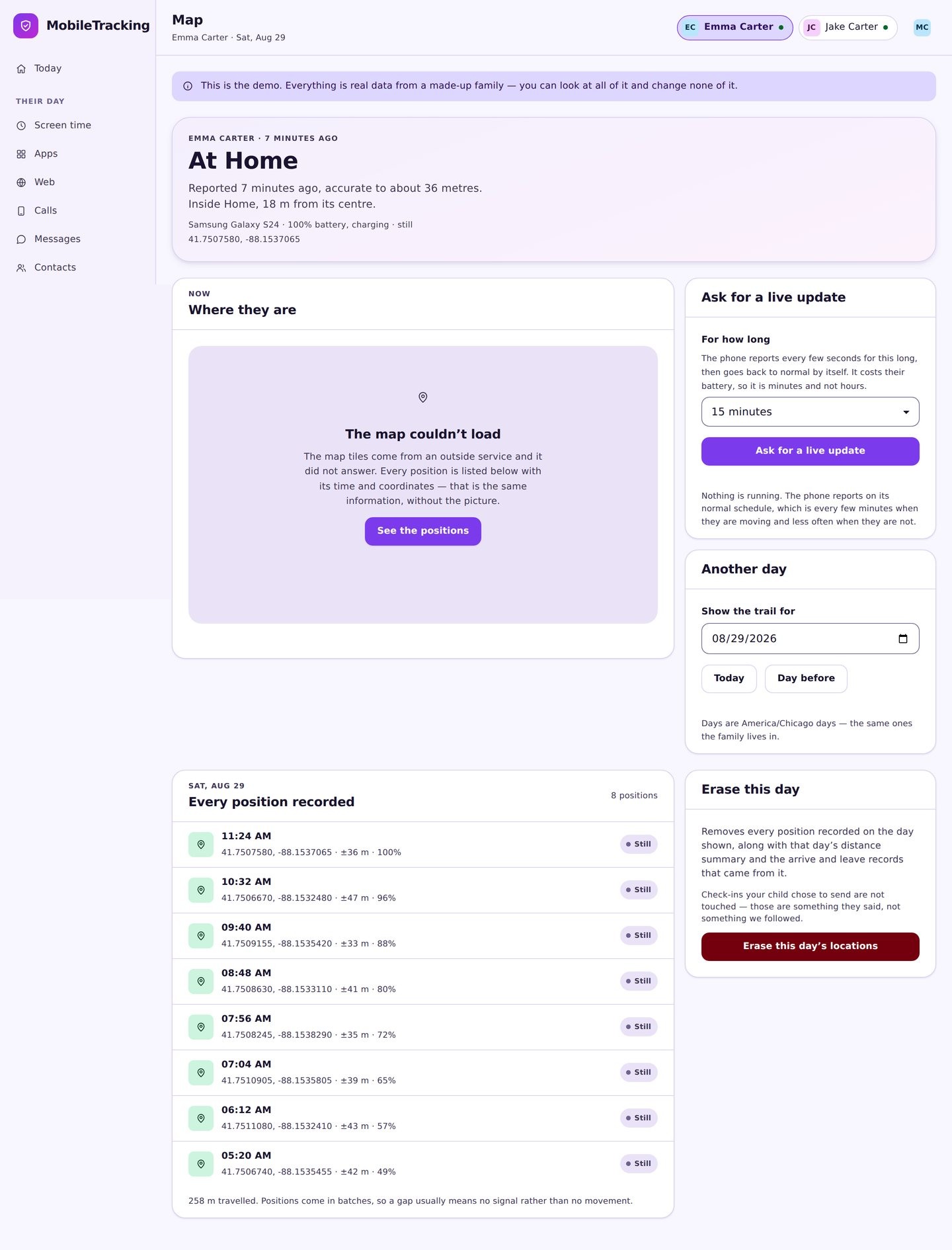
Drop a circle on home, school, and anywhere your week revolves around, then give each one a name. From that moment the map answers in words rather than coordinates.
- Fifty metres is a good default radius for most buildings.
- Name places the way your family says them out loud.
- Turn on arrival alerts only where they earn their keep.
Grant the permissions together, once
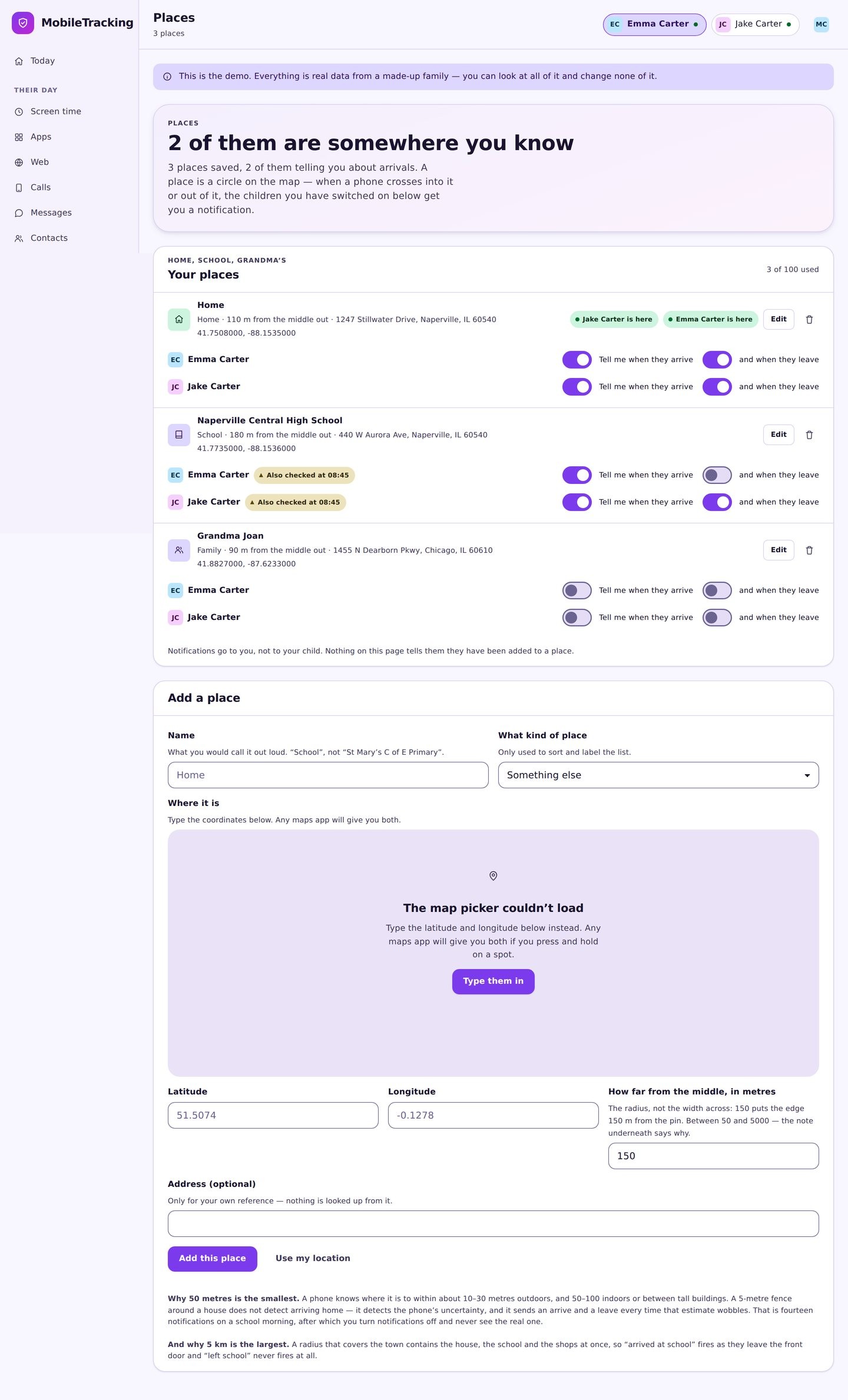
Android needs the all the time location permission and an exemption from battery optimisation before background reporting works properly. Do it with your child watching, so nothing about it is a secret.
- Choose “allow all the time”, not “while using the app”.
- Switch off battery optimisation for the family app.
- Enable autostart on Samsung, Xiaomi and similar skins.
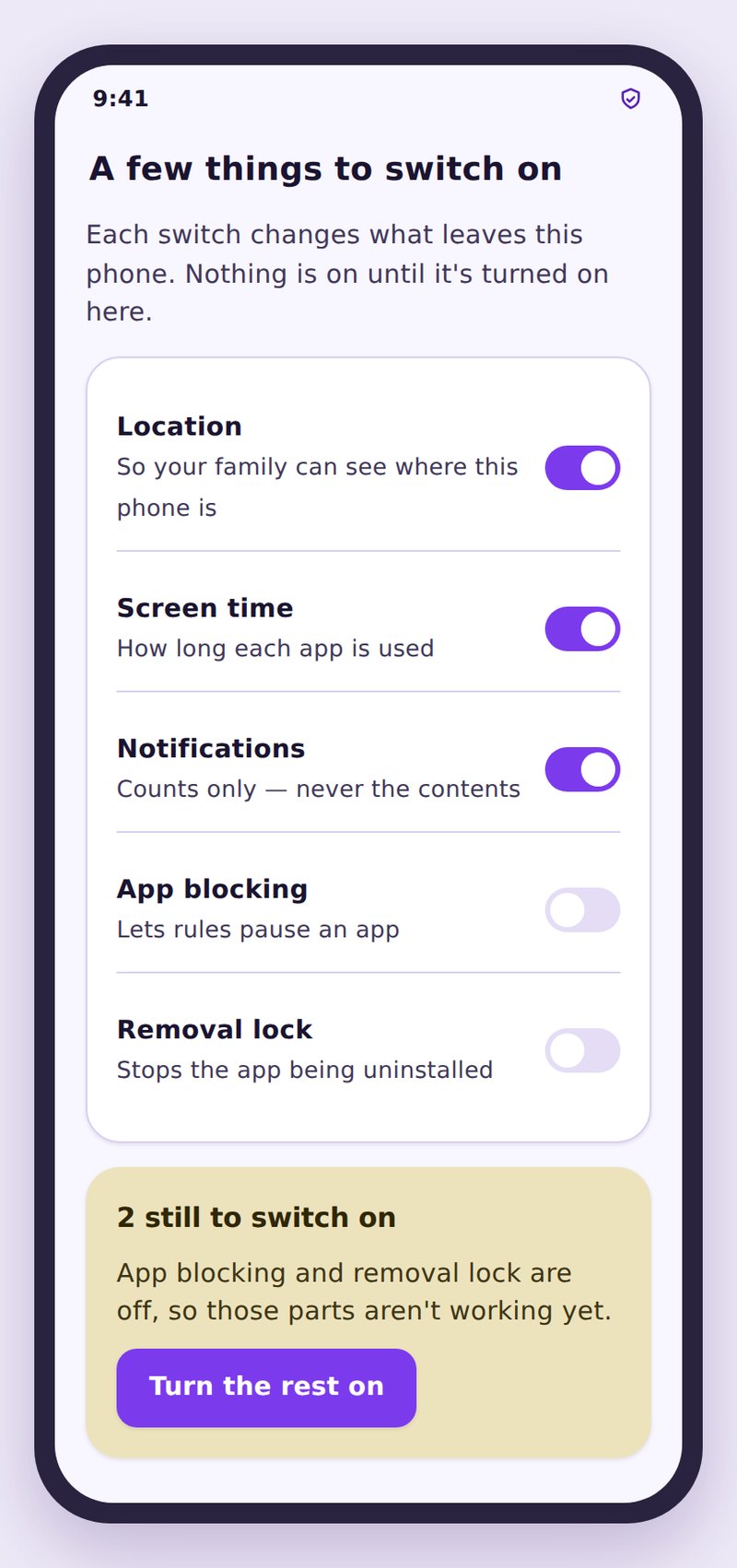
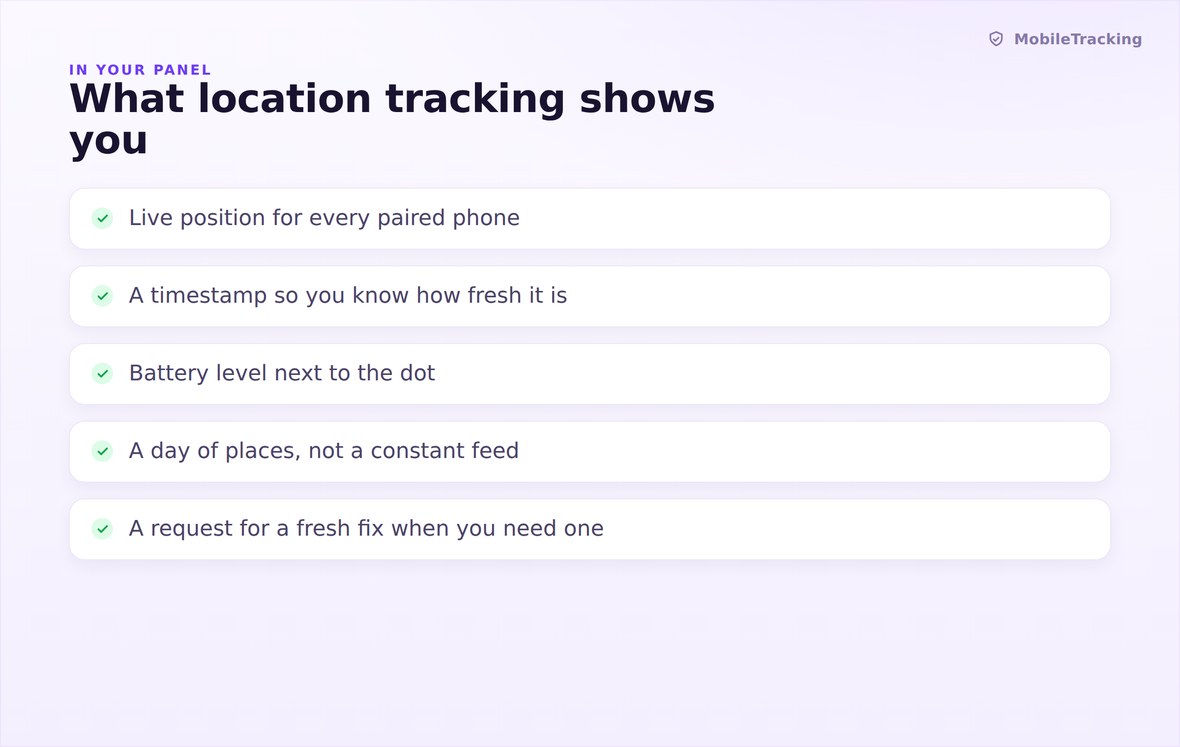
Position, time, battery and accuracy, with the saved place name when there is one.
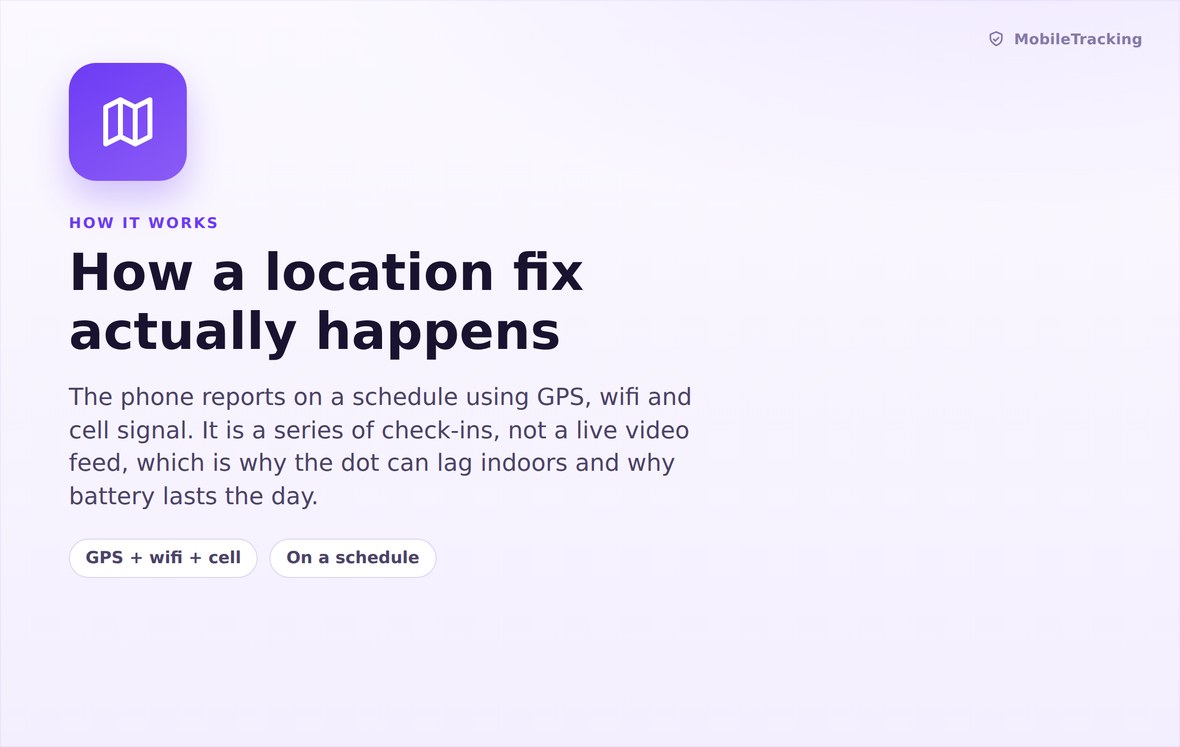
Android blends satellite, Wi-Fi and cell signals, then reports on a schedule and on movement.
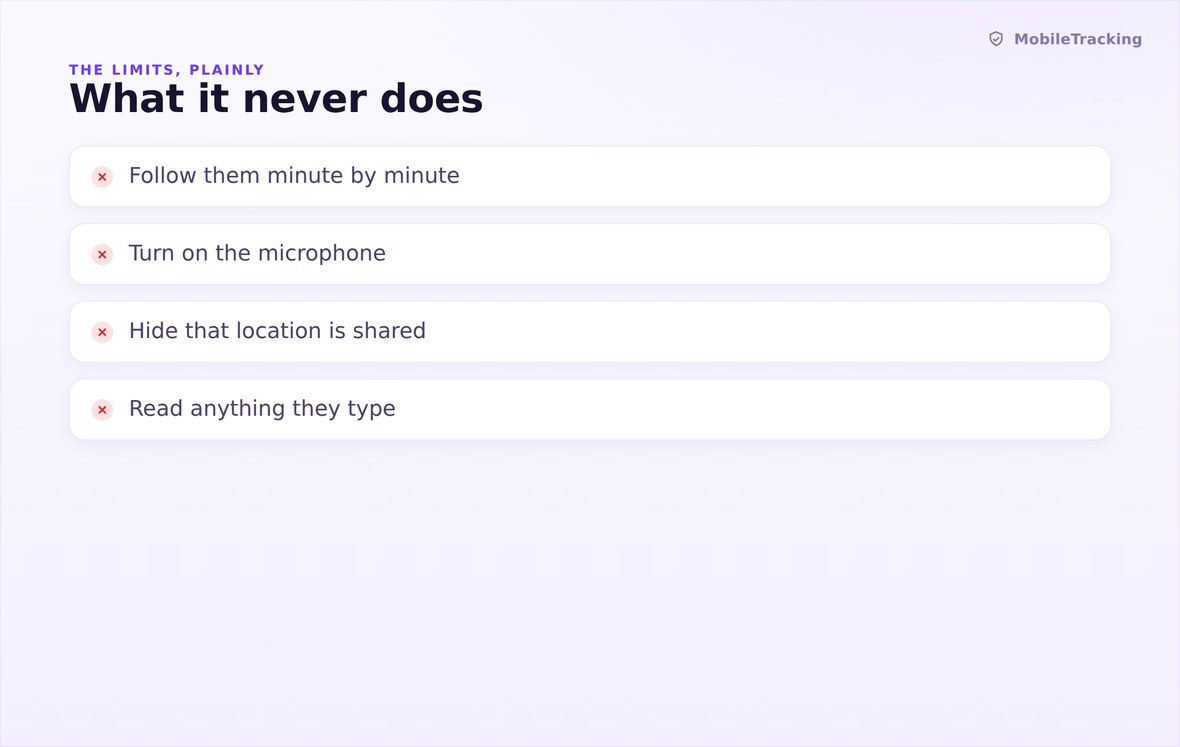
No hidden mode, no microphone, no camera, no selling of anybody’s position.
What your child sees
The family app sits in the launcher with its own name and icon, and its home screen is a plain list of what is being shared right now. Location is at the top of that list. Android adds its own indicator whenever a position is being taken, and we make no attempt to suppress it. Your child can open the app at any moment and see exactly the same set of facts you can.
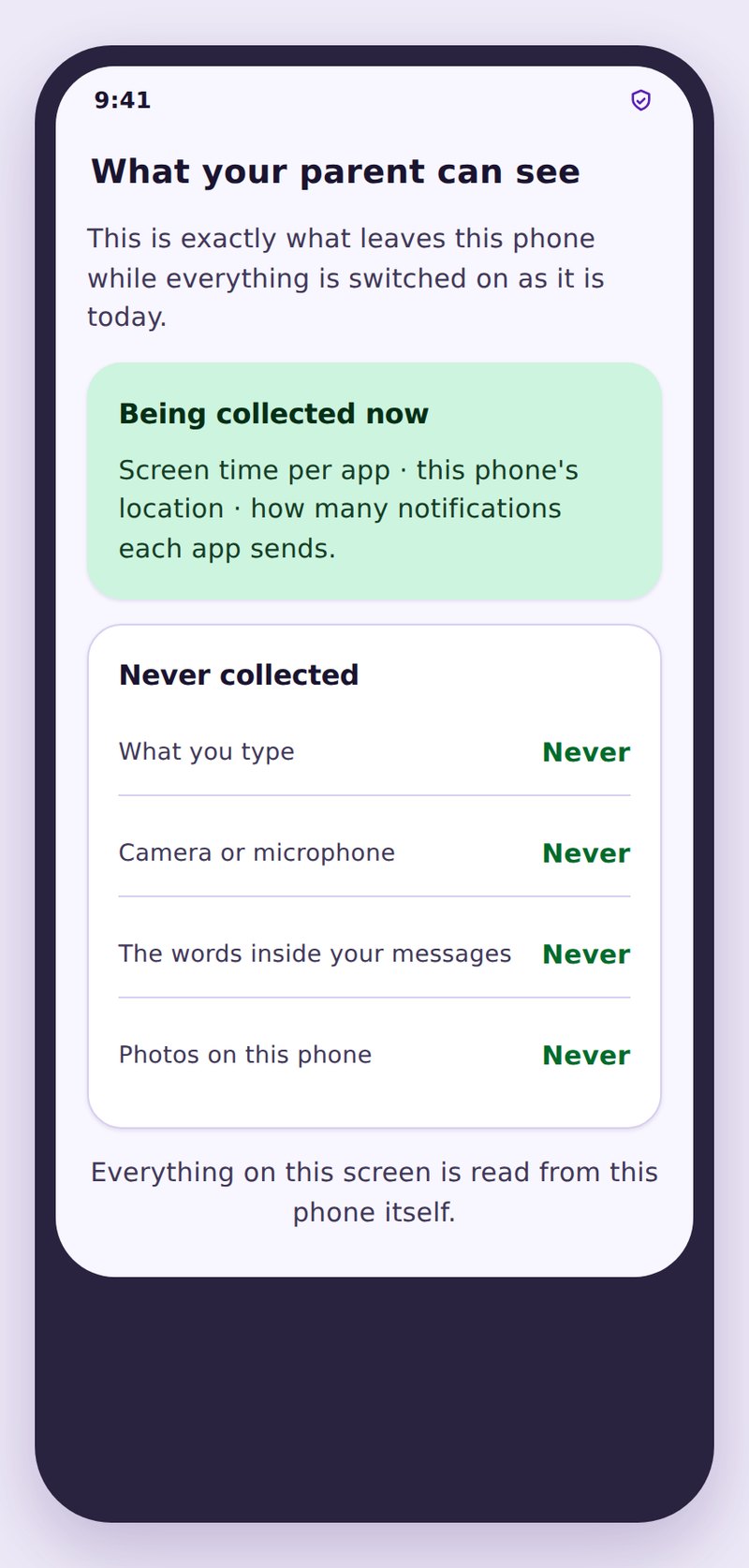
- Visible by designNo stealth icon, no disguised name, no silent install.
- Requests are loggedWhen you ask for a fresh fix, their app records that it happened.
- Their data stays yoursPositions go to your account over an encrypted link and nowhere else.
| Setting | What it does | Battery cost | Best for |
|---|---|---|---|
| Standard reporting | Check-ins every few minutes while moving, slower when still | Low | Almost every family, every day |
| Movement triggered | Extra readings when the phone starts or stops travelling | Low | Journeys to and from school |
| Requested fix | A single fresh reading asked for from your panel | Negligible, one off | The moment you actually need an answer |
| Place alerts | A notification on arriving at or leaving a saved place | Low | Replacing the “are you there yet” text |
| Battery saver on the phone | Android stretches the gaps between check-ins | Lowest | Long days away from a charger, with less precision |
No, and no honest app on a normal phone is. It reports on a schedule and on movement, usually every few minutes when someone is travelling, and you can request a fresh fix whenever you want one.
Indoors the phone cannot see satellites, so it estimates position from Wi-Fi and cell signals. As those change, the estimate shifts. The accuracy circle grows at the same time to tell you how much to trust it.
Typically a low single digit percentage of a day. Excluding the app from battery optimisation actually helps, because a phone that keeps waking the app up from a forced sleep works harder than one left to check in on its own schedule.
You see the last known position clearly labelled with its age. Readings taken while offline are queued and uploaded with their original timestamps when the phone reconnects.
They can revoke a permission or switch the phone off, and you will see that on the device card almost immediately. That is deliberate: the tool is not designed to defeat a child, it is designed to make silence visible so you can have a conversation.
No. MobileTracking is for phones you own or are responsible for, used with the knowledge of the person carrying them.
Put your family on one honest map
Create a free account, pair an Android phone in about two minutes, and see location, battery and check-in times together, with the child app visible from the very first launch.
Related features: Location History, Places and Geofencing, and Device Health.