Multiple Children
Multiple children on one account is the normal case, not the advanced one, and the app is built around that assumption from the first screen. Every child gets their own profile, their own rules, their own devices and their own alerts, all sitting under a single login you pay for once. What a nine year old needs and what a fifteen year old will tolerate have almost nothing in common, and the fastest way to lose a teenager’s cooperation is to hand them a rule set designed for their little brother.
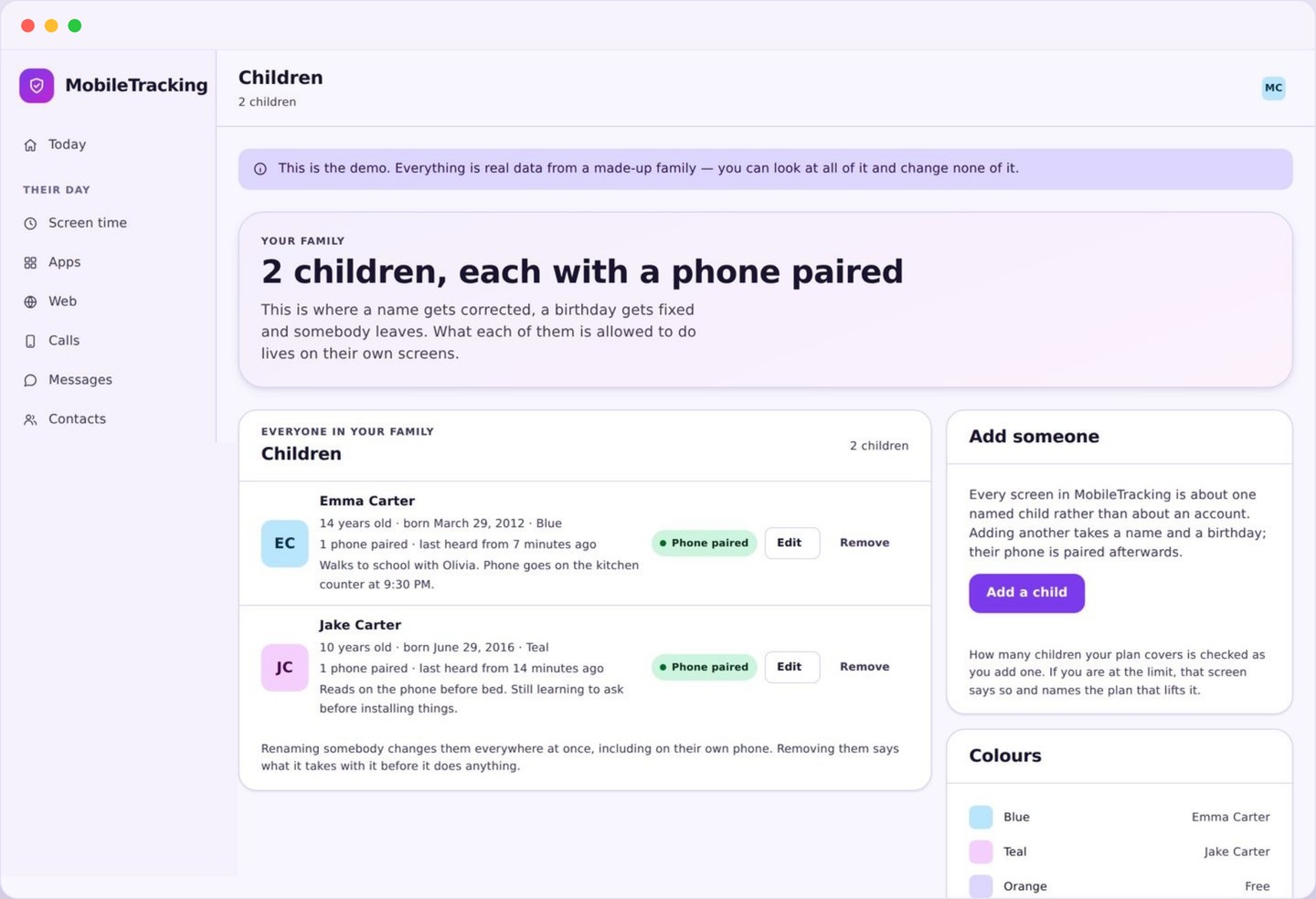
How multiple children fit on one account
A profile each, priced once, with nothing shared between them except the login.
The account is the family. Inside it, each child is a profile holding a name, a birthday, a set of rules, one or more paired devices, and their own stream of activity. Nothing crosses between profiles: a bedtime you set for one child does not touch another, a saved place can apply to one child and not the rest, and an app blocked for the youngest stays available to the eldest.
Adding a child after the first is the same short form: name, birthday, then a pairing code for their phone. There is no separate account to create and no charge per head on the free tier. Families with four children use the same panel as families with one.
The dashboard is built for the plural case. It opens on a row of children rather than a single child’s data, each showing today’s screen time, their last known location, and whether their device is reporting normally. You pick the child you are interested in and go deeper. You never have to hunt for a switcher hidden in a corner.
- One login, one price, as many children as you have.
- Rules, places, filters and alerts all set per child.
- Several devices per child, listed under that child.
- A dashboard that starts with everyone, not one person.
Why nine and fifteen should never share a rule set
The same settings applied to both ends of childhood will fail at both ends.
A nine year old benefits from firm structure. A short weekday allowance, a bedtime that ends the day cleanly, a strict web filter, and arrival alerts at school are all reasonable, and at that age they are usually accepted without much argument because the rest of life works the same way. The tool is doing what a parent in the next room would do.
A fifteen year old is a different problem entirely. They are two or three years from managing their own time with nobody checking, and the job has shifted from control to coaching. A filter tuned for a primary school child will block homework research, and a bedtime lock at nine will simply teach them that the interesting part of the internet is the part you reach on somebody else’s phone.
Applying one rule set across multiple children fails in both directions at once. The younger child gets limits too loose to be useful, and the older one gets limits so tight that circumventing them becomes the obvious project. In our experience, the accounts that stop being used after a month are almost always the ones where every child was given identical settings.
The practical version is straightforward. Younger children: tighter time, stricter filtering, more alerts, more visible structure. Older children: longer allowances, filtering reduced to what you would defend out loud, few alerts, and location kept for reassurance rather than checking. Same app, deliberately different shape.
Copying a rule set, then changing what does not fit
The fastest way to set up a sibling without accidentally cloning them.
When you add a second or third child, the panel offers to start from an existing profile. Choose the sibling closest in age, and the new child inherits their screen time schedule, bedtime, app limits, filter level and saved places in one action. It saves ten minutes of clicking and, more usefully, it saves you forgetting a setting you carefully thought about the first time.
The important part is what comes next. A copy is a starting point, not a decision. Open the new profile immediately and walk through four things: the daily allowance, the bedtime, the filter level, and which alerts are on. Two years of age difference usually means at least an hour of allowance, half an hour of bedtime, and one filter category.
Places are the exception worth handling separately. Home is shared by everyone, but school often is not, and a club or a friend’s street usually belongs to one child alone. A copied profile brings the whole list across, so delete the places that do not apply rather than leaving alerts firing for a child who has never been there.
More than one phone or tablet per child
A phone, a tablet, and the old handset in a drawer all belong under the same child.
Children rarely have exactly one device. There is the phone, the tablet used mostly in the evening, and sometimes an older handset kept on wifi for games. Each of these pairs with its own code and appears under that child, so the tablet has its own health check and its own permission status while the rules stay attached to the person.
Screen time is where this matters most. A limit set for a child counts across every device they own, which is the only version that makes any sense. Two hours a day means two hours a day, not two hours on the phone followed by two more on the tablet while the panel cheerfully reports that both limits were respected.
Reporting varies by device and it is worth knowing why. A wifi only tablet cannot contribute useful location data when it is out of the house, so places and the live map lean on whichever device carries a SIM. The device list shows what each one is doing and when it last reported, so a tablet that has been face down under a bed for a week is obvious rather than mysterious.
Retiring a device is a single action. Unpair it and it stops reporting immediately, its history stays with the child, and the app on that handset returns to the inert state it was in before pairing. Passing a phone down means unpairing it from one child and pairing it to another with a fresh code.
Keeping alerts straight across multiple children
Two problems that grow with each child: telling notifications apart, and defending the differences out loud when someone asks why she gets more.
Every notification leads with the child’s name and, where it matters, the device. “Maya, phone: arrived at School, 08:14” tells you who and what before you have finished reading. Alerts are set per child as well as per place, so a younger child can have arrival and departure alerts at school while an older one has none, and the ones you have switched off simply never appear.
Volume is the other half of that. With three children and every alert enabled you would be reading forty notifications a day inside a week and ignoring all of them by the second. Turn alerts on for the child who genuinely needs them, use quiet hours everywhere, and let the dashboard summary cover the rest. A small number of messages you read beats a large number you swipe away.
Then there is the conversation that arrives in every family with multiple children, usually at dinner, usually as “why does she get more”. The honest answer is that she is older, and the useful version is to name the specific thing that changed and when the same thing will change for them. Vague fairness arguments go nowhere. A stated rule with a date attached ends the discussion.
The child app helps here in a way that surprises people. Because each child can see their own limits written down, differences are facts rather than suspicions, and a younger child who can read “bedtime 20:30, changes at your next birthday” argues far less than one who only knows their sibling stayed up later. Visible rules are easier to defend than invisible ones.
Loosening limits as multiple children grow up
The settings that worked last year are the most common reason a family stops using the app.
Rules go stale quietly. Nobody notices the moment a bedtime became too early or a filter started blocking legitimate schoolwork, because the failure looks like a child complaining and complaints are easy to dismiss. With multiple children the drift is worse, because the profile you tuned two years ago is still running while the person it describes has changed completely.
So the panel prompts you around each birthday with a specific suggestion rather than a general nudge: extend the allowance by half an hour, move bedtime later, drop a filter category. Accept it, change it, or dismiss it. The point is that the review happens at all.
Loosening early is better than loosening late. A limit relaxed because a child earned it is a reward and reinforces the arrangement. The identical limit relaxed after three weeks of arguing is a defeat, and it teaches them that pressure works better than trustworthiness. The same half hour, spent very differently.
Eventually a child should leave the arrangement altogether. Somewhere around sixteen or seventeen, most families reduce to location sharing only, then stop. Unpairing is one action, the app returns to doing nothing, and the child ends up managing their own time with several years of visible practice behind them. That is the outcome we are aiming at, and it is a great deal easier to reach when every child was on rules that fitted them.
Add each child with their own birthday
A profile per child, each with a name and a date of birth that sets age appropriate starting limits. Nothing is shared between profiles except the account itself.
- One login, however many children.
- Rules, places and alerts all set per child.
- Start a sibling by copying the nearest age.
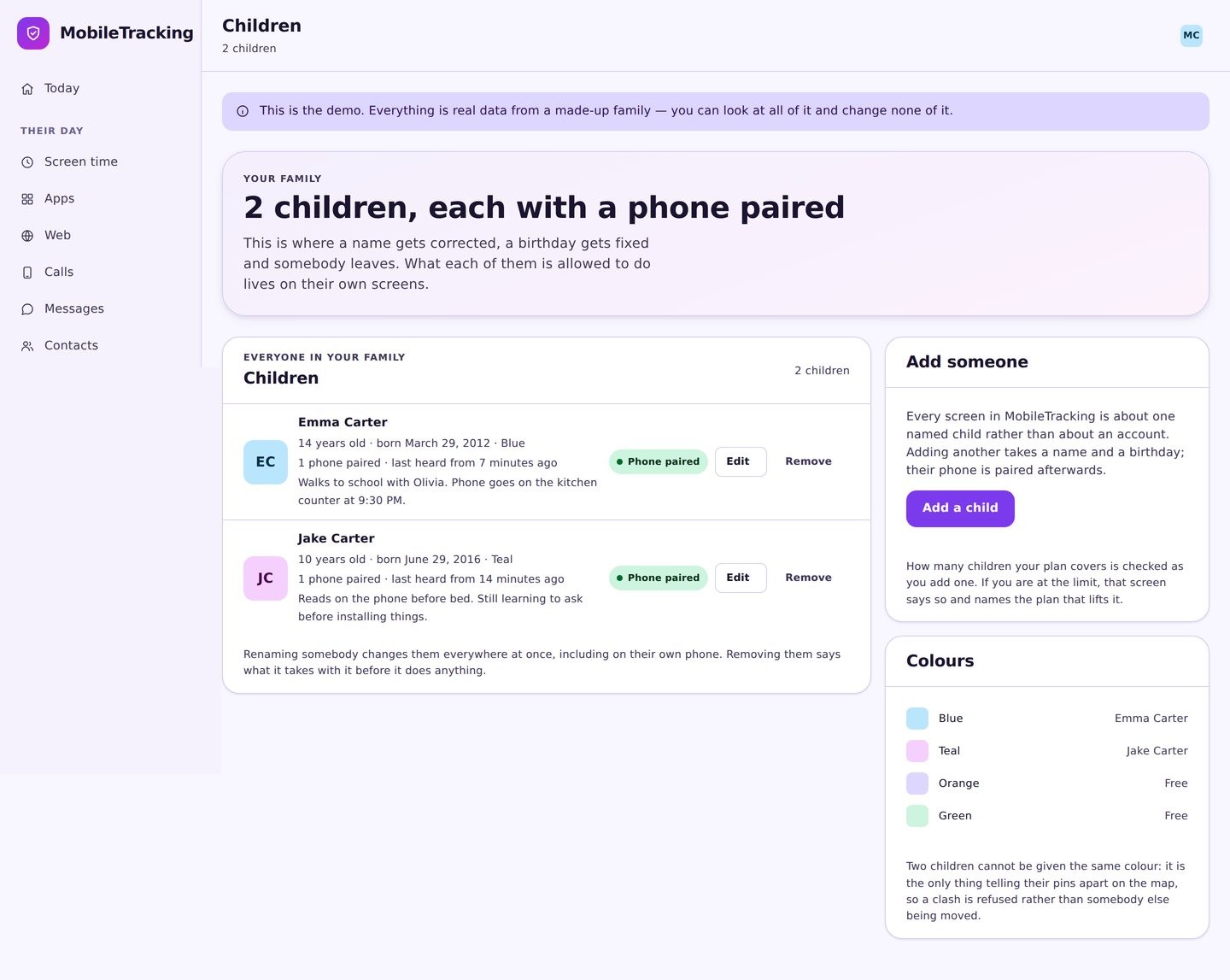
Pair every device under the right child
Phone, tablet, and the old handset kept for games each get their own pairing code and their own health check, all listed under the child they belong to.
- Screen time counts across all their devices.
- Each device shows when it last reported.
- Unpair in one action when a phone is retired.
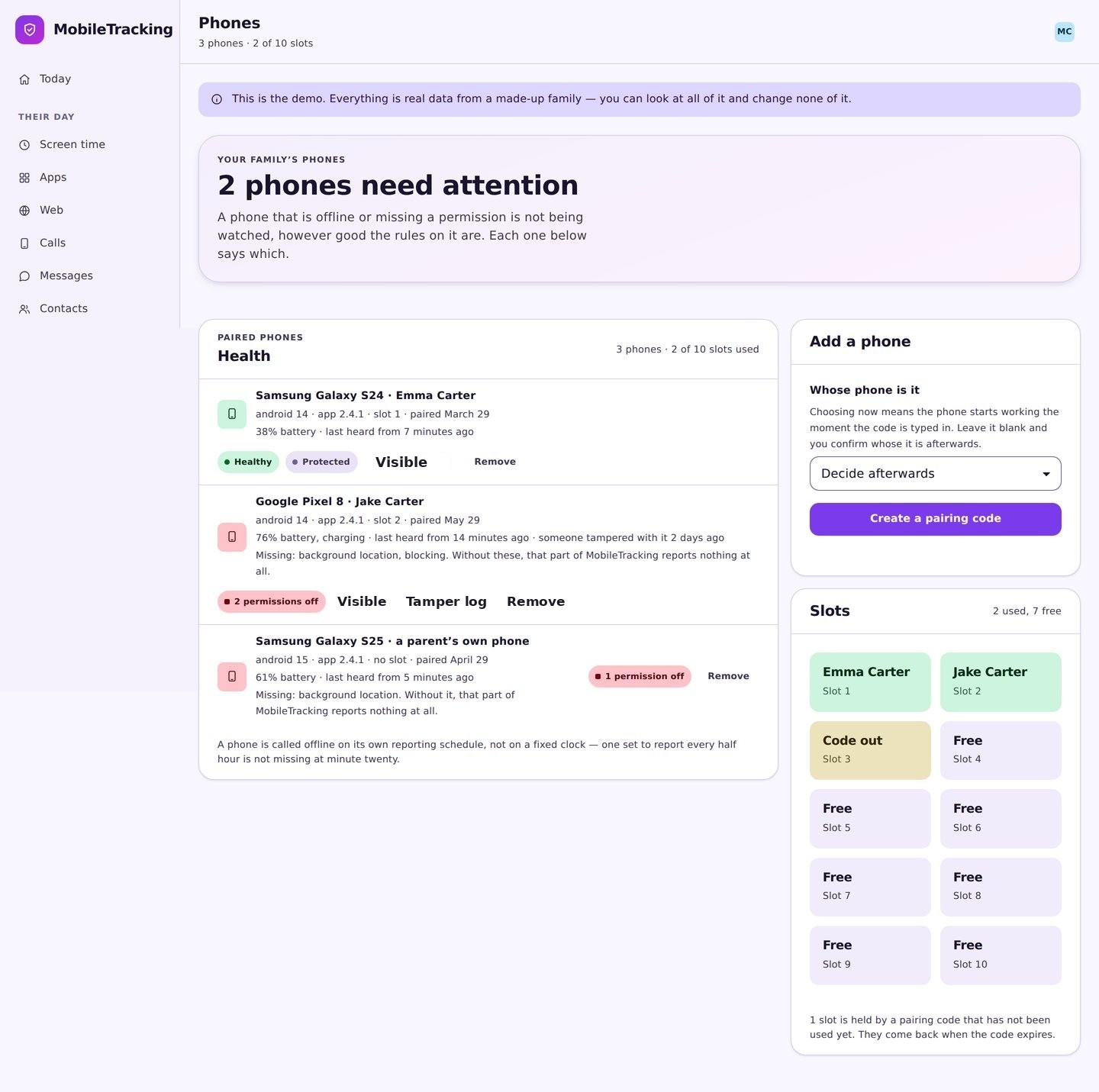
Read the family view, not each child in turn
The daily summary puts every child in one row: time used, last location, device status. You only open a profile when something asks for your attention.
- Everyone on one screen, side by side.
- Alerts labelled with name and device.
- Birthday prompts to loosen limits on time.
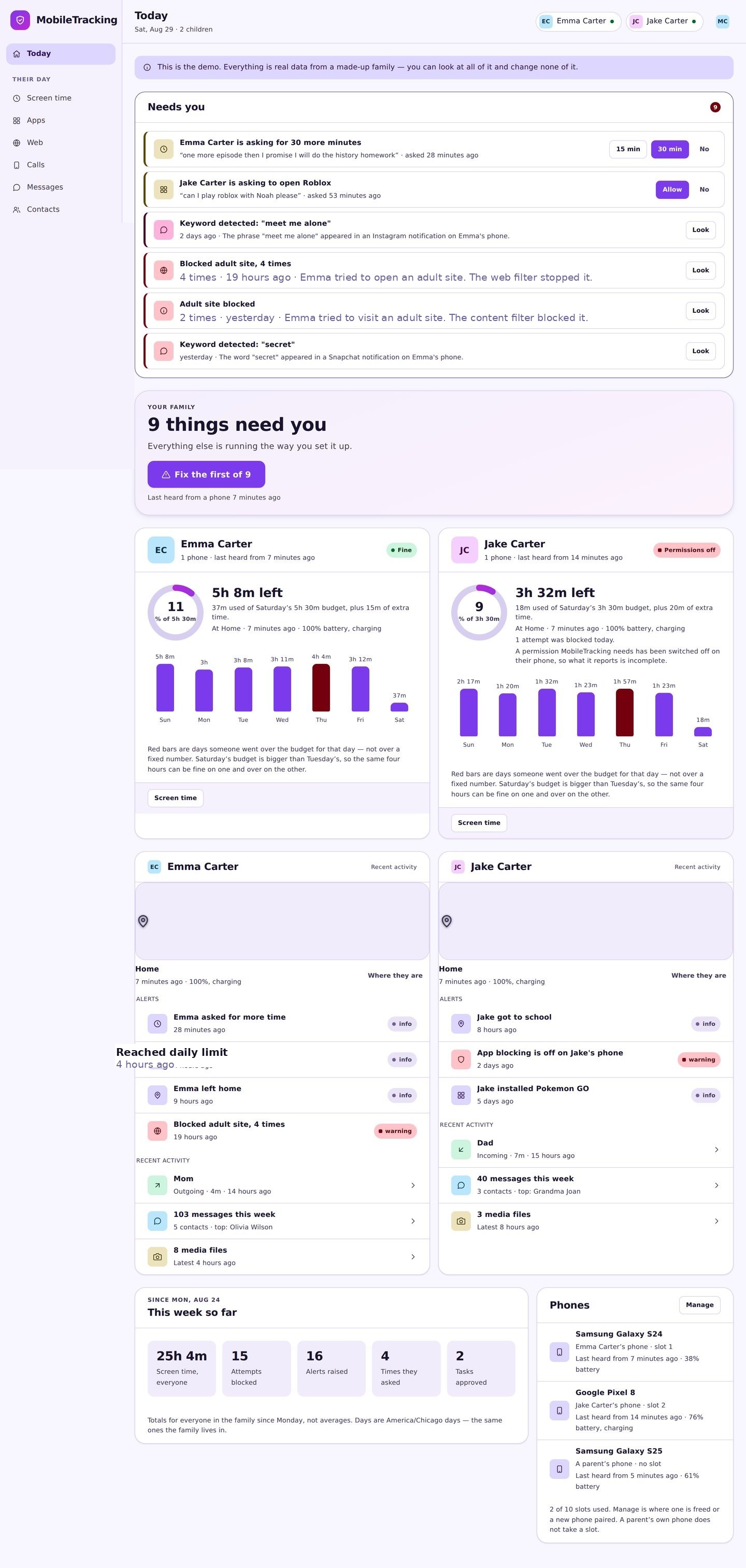
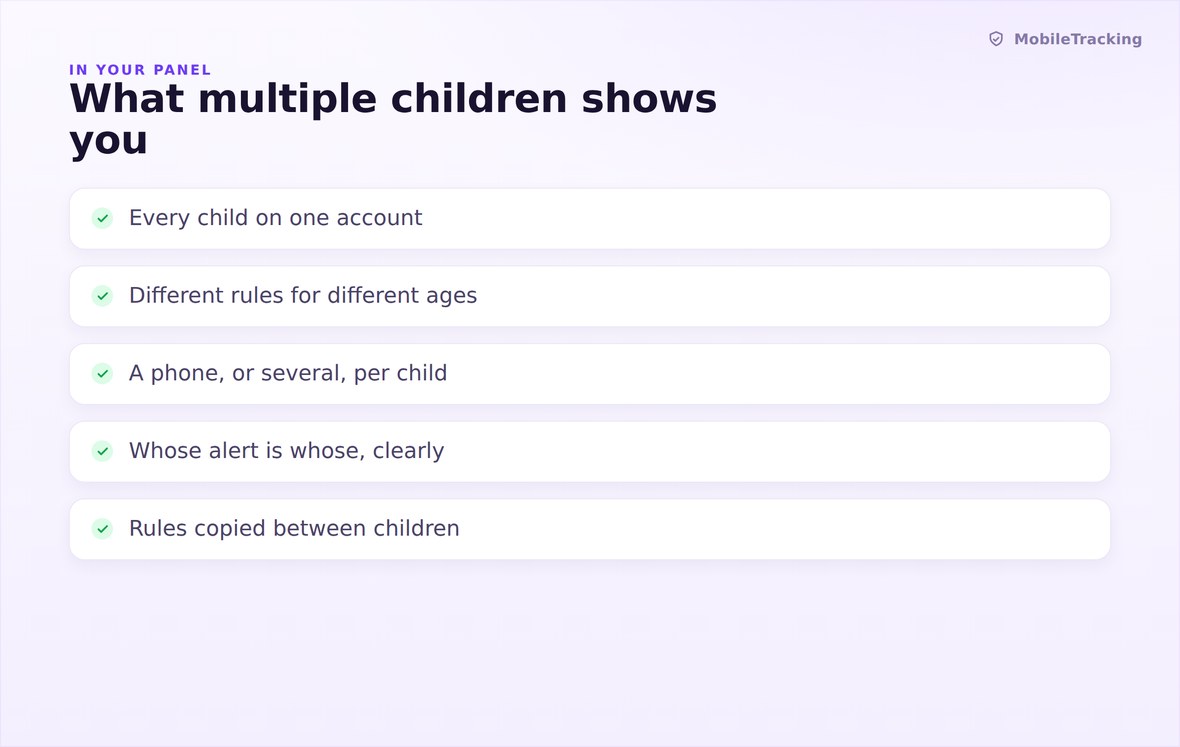
Every child side by side, with their own limits, devices, alerts and daily totals.
One account, a profile per child, and rules that never leak from one to another.
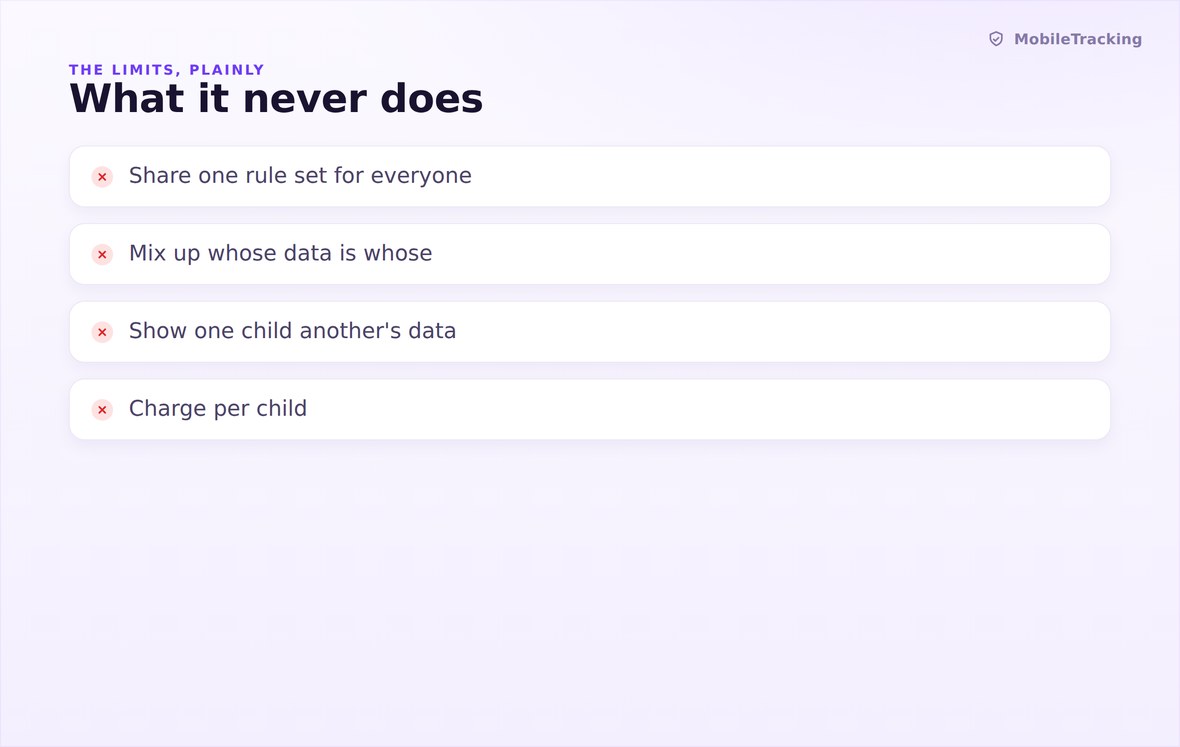
No shared rule set, no sibling comparison, and no child seeing another child’s data.
What your child sees
Each child sees their own rules and nothing about their siblings. There is no leaderboard, no comparison, and no way for one child to open the app and find out where another one is. What they can see is their own limits written down, which is what turns a sibling difference from a suspicion into a fact you can explain.
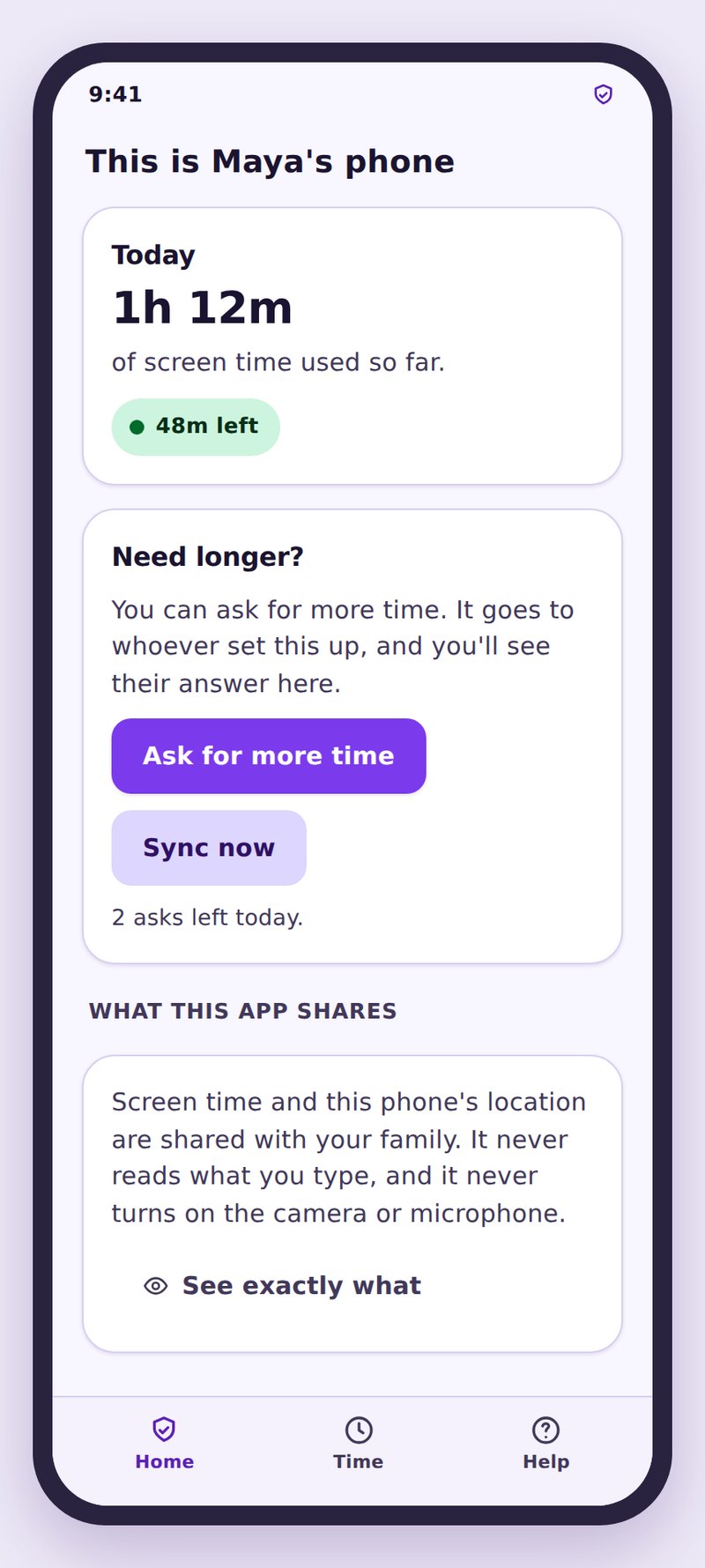
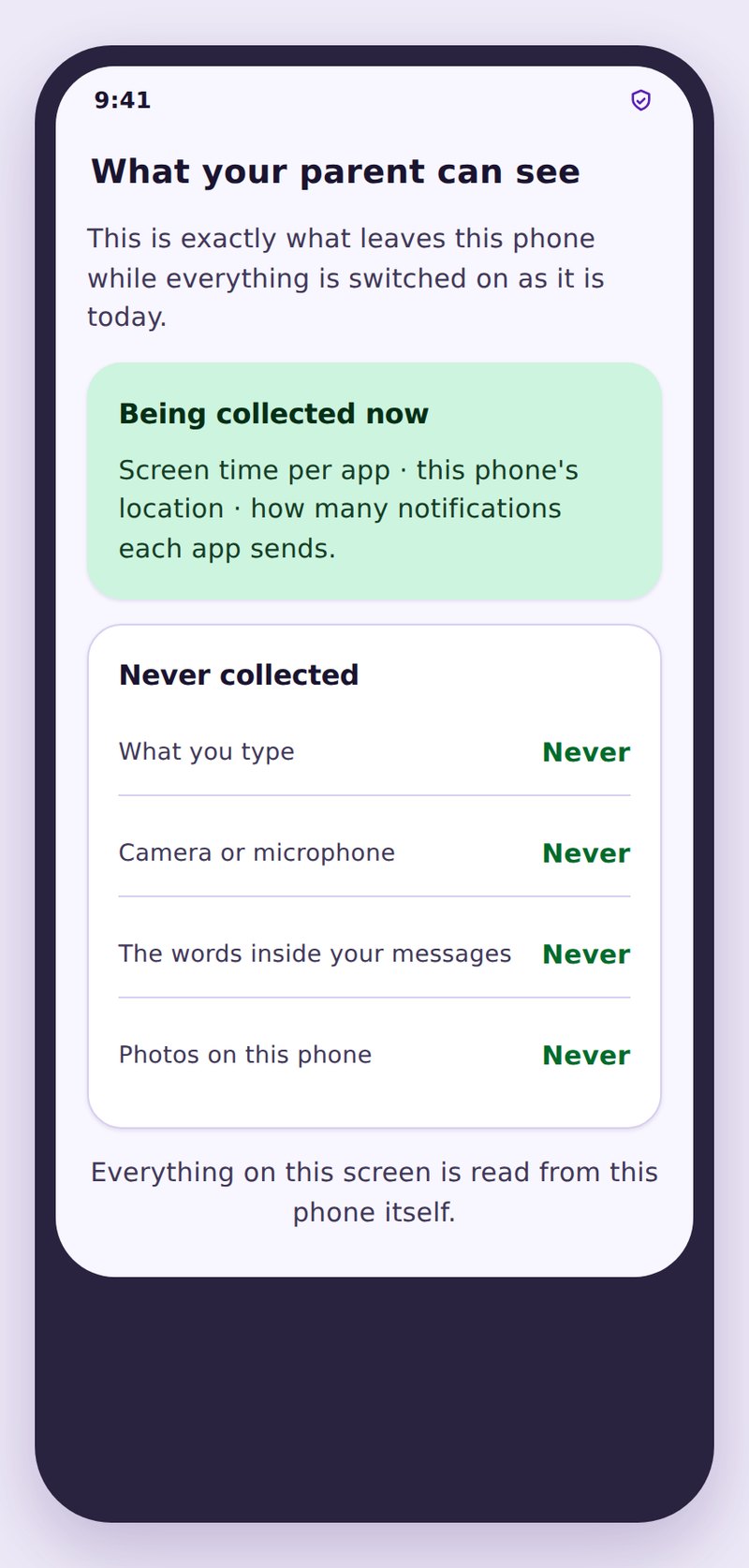
- Their own rules, in writingLimits, bedtime and filter level, visible without asking anyone.
- Siblings stay separateNo child can see another child’s location, activity or limits.
- Changes are datedEvery adjustment appears as a note, so a loosened rule is visible proof.
| Age | Weekday screen time | Filtering | Alerts | Emphasis |
|---|---|---|---|---|
| 6 to 9 | Around 1 hour | Strict, most categories blocked | Arrive and leave at school | Structure and routine |
| 10 to 12 | 1 to 2 hours | Moderate, adult and gambling blocked | School plus one trusted place | Habits and conversation |
| 13 to 15 | 2 to 3 hours | Light, adult content only | Departures only, mostly reassurance | Negotiation and self management |
| 16 and up | Guidance rather than a limit | Off, or adult content only | Location sharing they agreed to | Preparing to stop entirely |
No. One account covers your whole family, and the free tier does not charge per child. Add as many profiles as you have children.
No. Each child app shows only that child’s rules and activity. There is no sibling view, no comparison, and no shared feed.
Yes. When you add a child you can start from an existing profile, which brings across schedules, limits, filter level and places. Then adjust the allowance, bedtime and filter for the age difference, and remove any places that do not apply.
As many as they actually use. Each pairs with its own code and appears under that child, and screen time limits count across all of them together rather than resetting per device.
Every notification starts with the child’s name and, where relevant, the device. The alert history in the panel can also be filtered to one child at a time.
Yes. Add a co-parent to the account rather than sharing a password. Each of you signs in separately, sees the same children, and can be sent alerts independently.
One account, rules that fit each child
Add every child with their own birthday, copy a rule set to save time, then adjust it so the fifteen year old and the nine year old each get limits that make sense for them.
Related pages: Setup and Pairing, Family Dashboard, and Screen Time.