Open the Phone app. On iOS 26 and later, your call history sits in the Calls tab, listed underneath your favourites with the newest call at the top. If you’ve switched to the Classic layout, or you’re still on iOS 18, tap Recents instead. Tap any entry (or the info button beside it in Classic) to see the exact time, whether it was incoming, outgoing or missed, and how long it lasted.
Your iPhone keeps only a limited list, roughly the last 100 calls, so anything older has to come from a synced iPad or Mac, a backup, or your carrier’s records. This guide covers each of those, plus FaceTime and WhatsApp calls, deleting entries, and what to do when a call you know happened isn’t there.
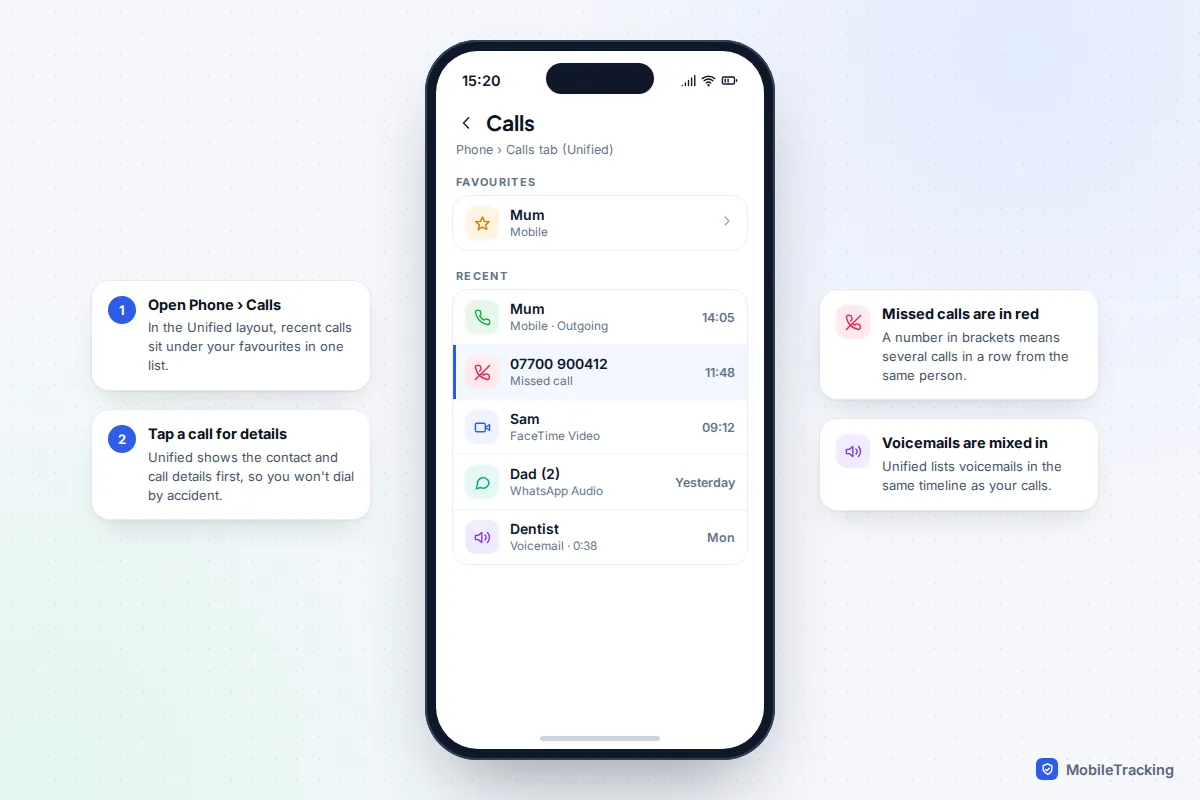
Find your recent calls in the Phone app
Apple redesigned the Phone app in iOS 26 and offers two layouts. Unified puts up to eight favourites across the top of the Calls tab, with your recent calls and voicemails in one list below. The tabs along the bottom become Calls, Contacts, Keypad and Search. Classic keeps the five tabs iPhone owners know: Favourites, Recents, Contacts, Keypad and Voicemail. iOS 27, released in September 2026, didn’t change this part of the app.
To check your history in the Unified layout:
- Open Phone and tap the Calls tab.
- Scroll past your favourites. Calls appear newest first, with a time for today’s calls and a day or date for older ones.
- Tap an entry to open the contact and the details of that call. Unlike the old design, tapping doesn’t dial; you tap the phone or video button to call back.
In Classic, tap Recents instead. Here, tapping a name calls that person straight away, which is how many accidental calls happen, so tap the small info button on the right when you only want to look.
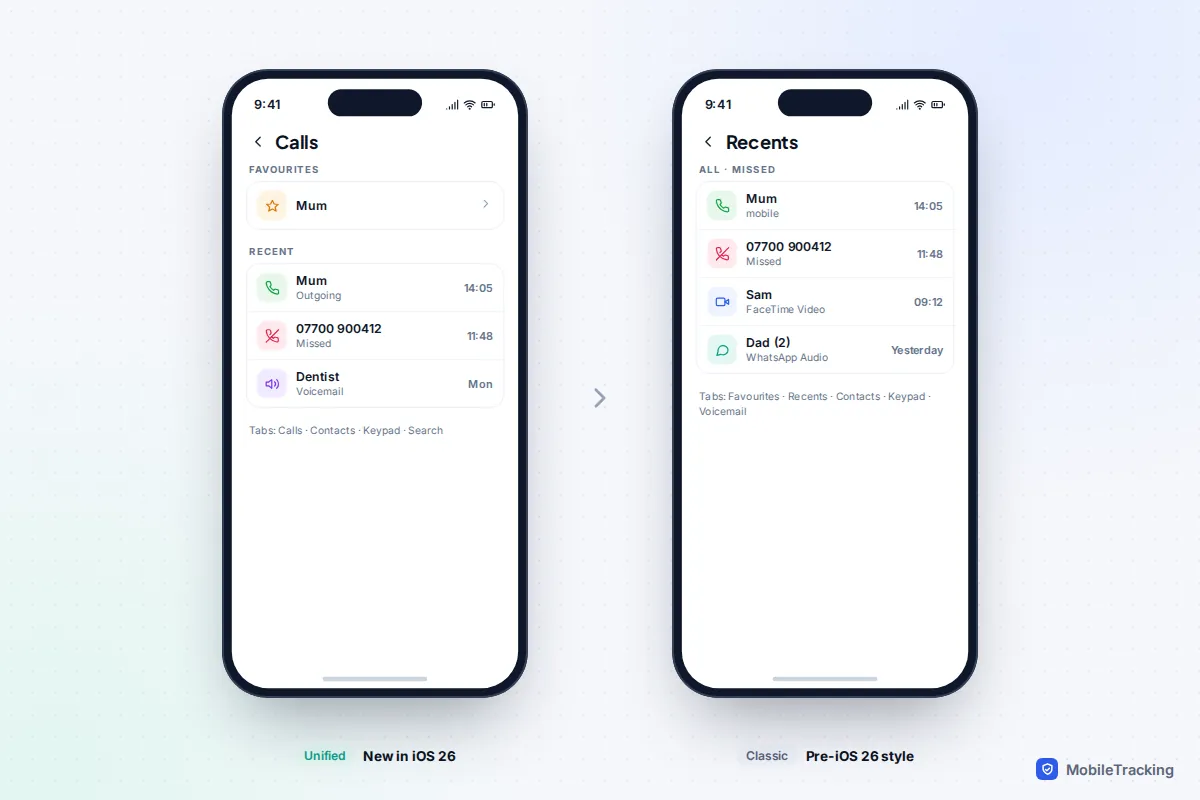
Switch layouts or filter the list
Tap the Filter button in the top-right corner of the Calls tab. The choice between Classic and Unified sits at the top of that menu. Below it you can narrow the list to Missed calls, Voicemails, Unknown Callers or Spam (Spam appears only if your carrier supports it). Choose Calls to go back to everything. Apple’s page on the Unified layout in the Phone app shows the same menu.
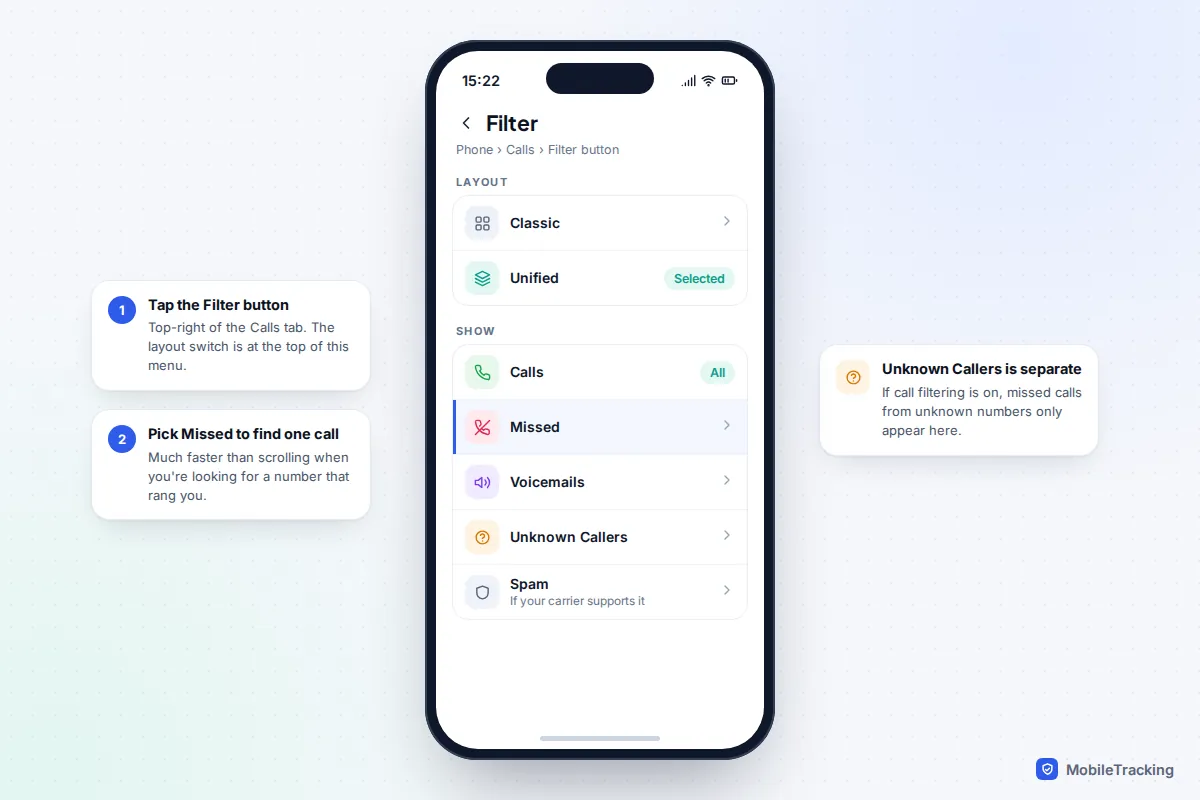
One setting changes what you see here. If you’ve turned on Unknown Callers under Settings › Apps › Phone › Call Filtering, missed calls and voicemails from numbers you haven’t saved move into the Unknown Callers filter instead of the main list. Nothing is lost, but you do have to look in the right place.
Read the details of a call
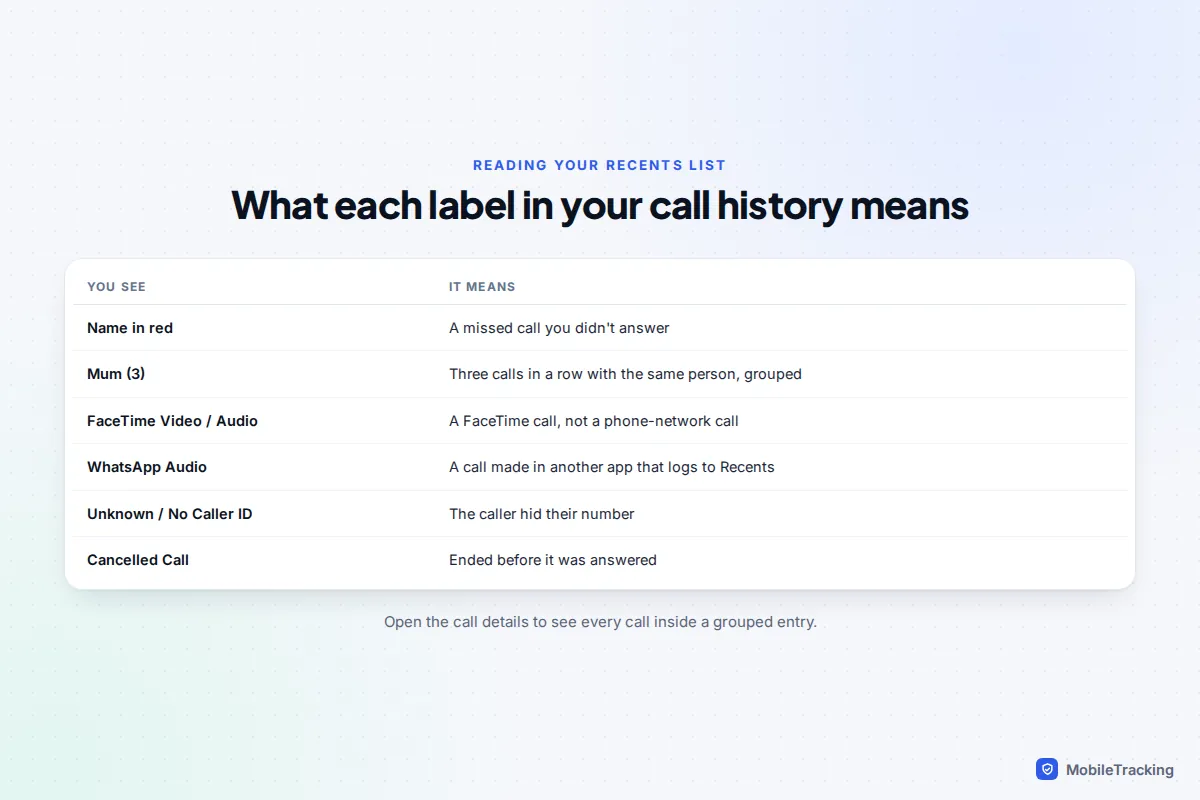
Each row in your history is a summary. Consecutive calls with the same person are grouped into one line with a number in brackets, so “Mum (3)” means three calls in a row. Missed calls show in red. Open the entry to see every call in the group separately, each with its own time, direction and length.
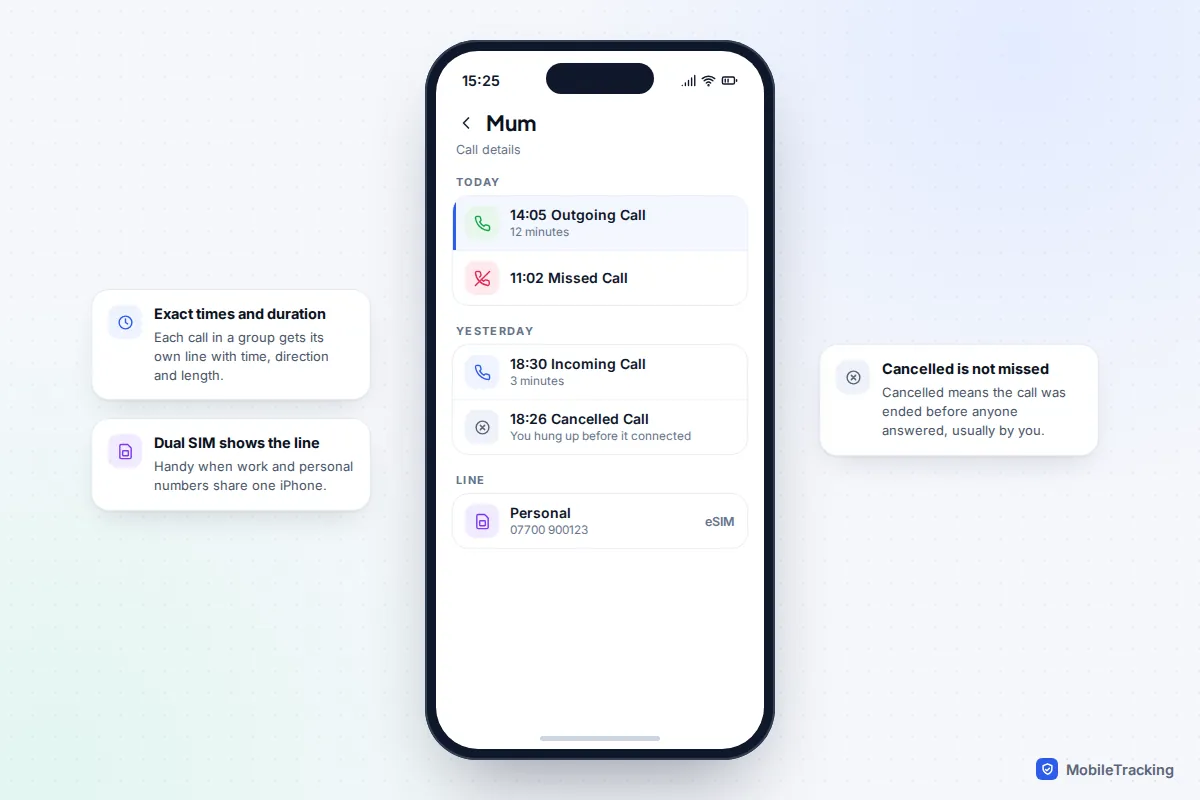
The details screen tells you:
- Date and time of each call, using your iPhone’s time zone.
- Type: Outgoing Call, Incoming Call, Missed Call or Cancelled Call. Cancelled means the call was ended before anyone answered, usually because you hung up while it was ringing.
- Duration of connected calls, in minutes or seconds. Our guide to seeing how long a call lasted covers checking this during a call as well as after.
- Which line was used, if your iPhone has two SIMs or eSIMs, shown by the label you gave each line.
If a number you don’t recognise keeps appearing, don’t ring it back just to find out who it is. Our guide on working out who a number belongs to explains the safer checks.
How far back does iPhone call history go?
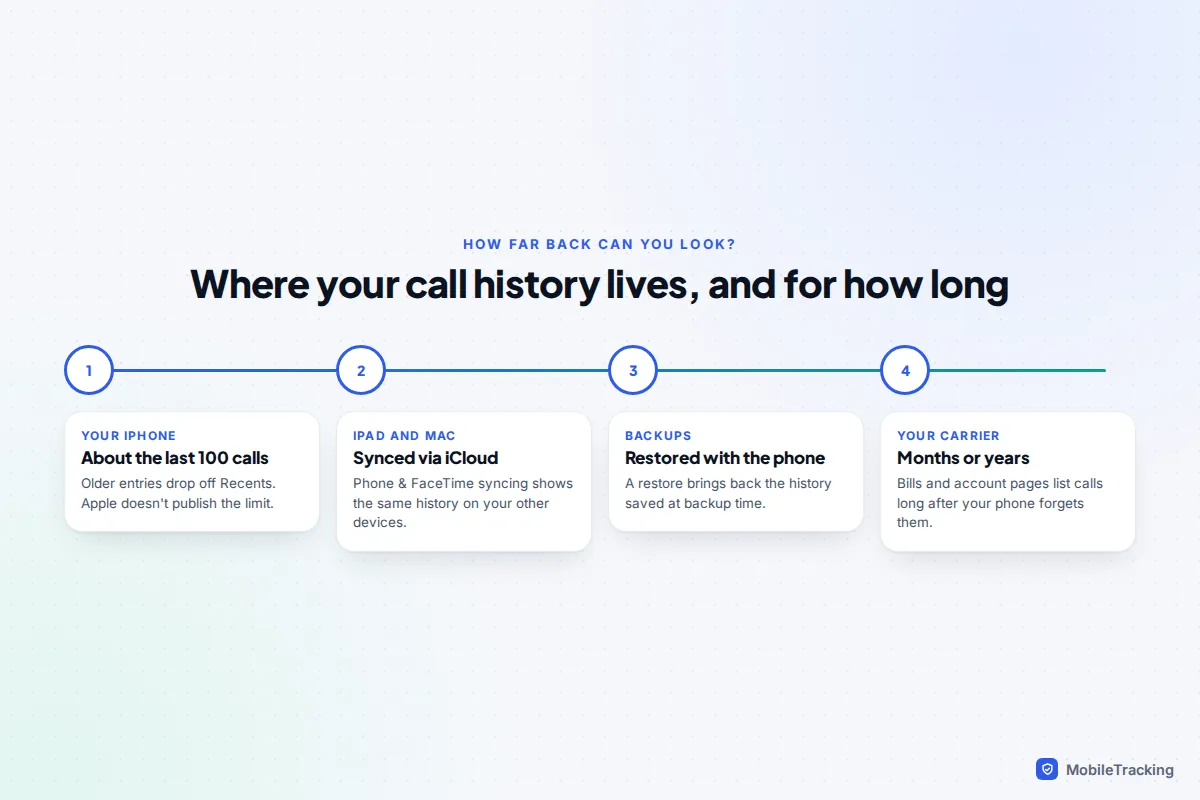
Not very far. The Recents list holds roughly the last 100 calls, a figure iPhone owners have reported for years but that Apple has never published. Once you pass it, the oldest entries drop off the bottom. If you make a lot of calls, that can be less than a week of history. There is no setting to make the list longer.
Grouped entries help a little, since several calls with one person take a single line, but the underlying limit is still on calls. FaceTime and app calls that log to Recents count too.
For anything older, you have three options:
- Another Apple device. If call history syncs through iCloud (next section), your iPad or Mac shows the same list, which can help if one device was offline.
- A backup. Apple lists call history among the data that encrypted backups on a computer include and unencrypted ones leave out. Restoring a backup brings back the history as it was on that day, but it also replaces everything newer, so only do it for something important. Our guide to recovering deleted call history on iPhone walks through the trade-offs.
- Your carrier. For calls weeks or months old, this is usually the only reliable source (see below).
See your calls on iPad and Mac with iCloud
Call history can sync across your Apple devices. With iOS 26, iPadOS 26 and macOS Tahoe 26, the iPad and Mac also have their own Phone app, so you can check and return calls from either.
- On your iPhone, open Settings, tap your name, then iCloud.
- Tap See All (on iOS 16 and 17 it’s called Show All).
- Turn on Phone & FaceTime.
- Do the same on your iPad and Mac, signed in to the same Apple Account.
Apple says this syncs your call history and carrier voicemails, and that call history doesn’t count towards your iCloud storage (voicemails and FaceTime video messages do). With syncing off, the history lives only on the device, and it can’t be recovered from iCloud if the phone is lost. Apple’s iCloud setup guide for Phone and FaceTime has the steps for each device.
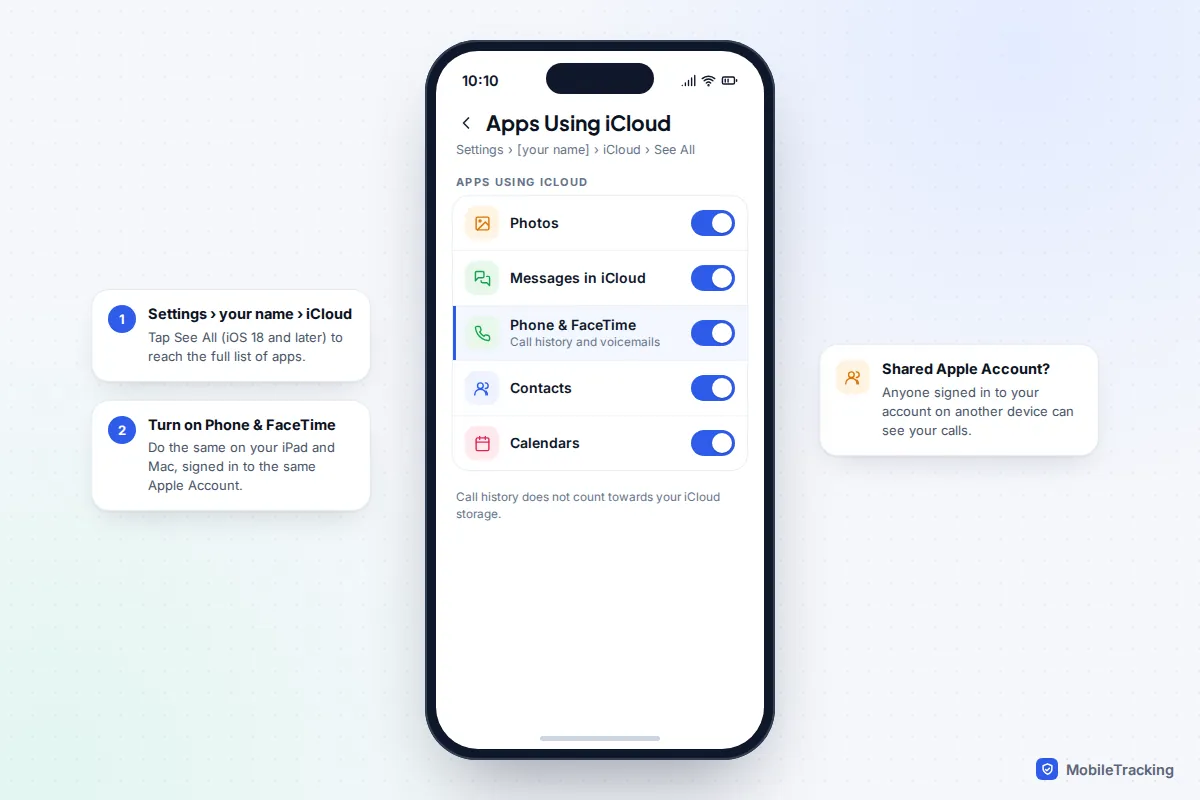
That last point matters in families. If a child’s iPad or a shared Mac is signed in with your Apple Account, your call history can show up there. The fix is separate accounts linked through Family Sharing. And if you suspect someone else has signed in to your account, our guide on checking who can access your iCloud shows where to look.
FaceTime, WhatsApp and other app calls
FaceTime calls appear in the Phone app’s history labelled FaceTime Video or FaceTime Audio, and also in the FaceTime app. Because they travel over the internet rather than the phone network, they never appear on your carrier’s records.
WhatsApp calls usually appear in Recents too, labelled WhatsApp Audio or WhatsApp Video, because WhatsApp uses Apple’s calling system to ring your iPhone like a normal call. The complete WhatsApp call log, including group calls, is in the Calls tab inside WhatsApp. WhatsApp doesn’t offer a switch to keep its calls out of Recents, although some other apps, such as Signal, include one in their privacy settings.
A practical consequence: if you delete a WhatsApp call from Recents, it stays in WhatsApp’s own list, and the reverse is also true. Check both places if you are looking for a particular call.
Older calls: ask your carrier
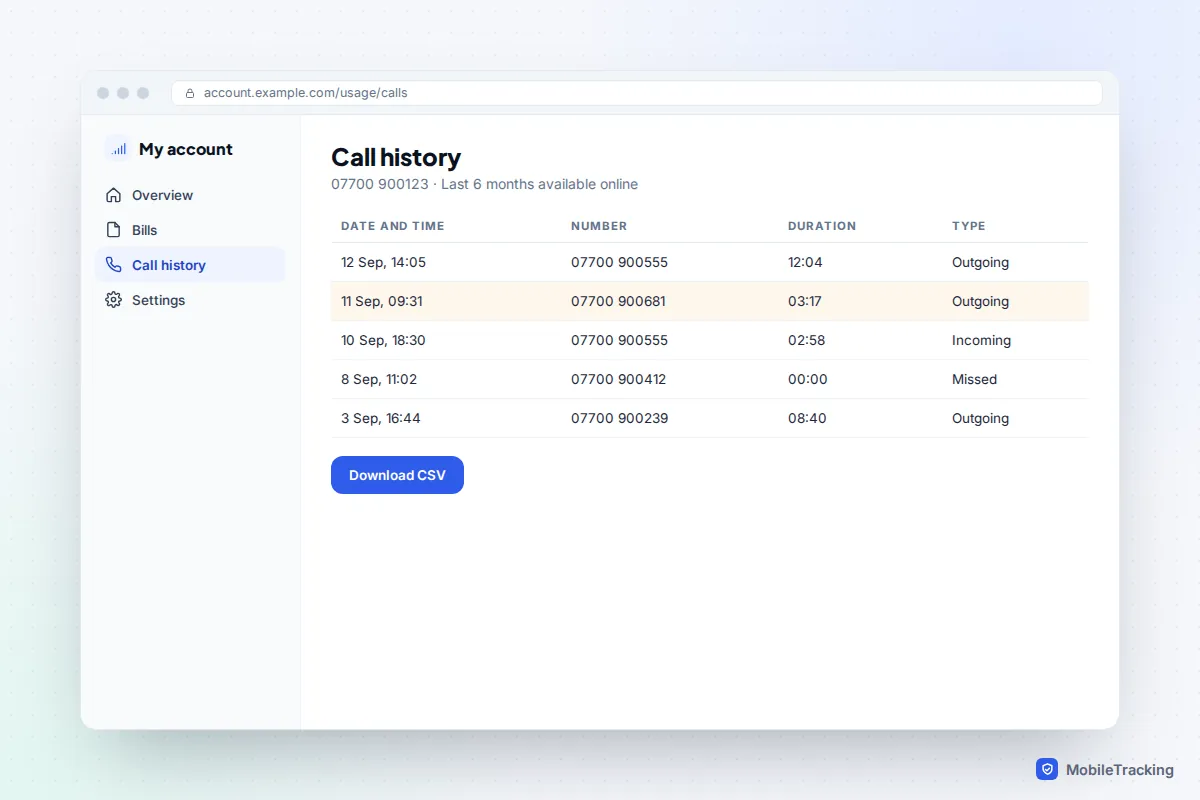
Your mobile network logs every call that goes over its network, and it keeps that record far longer than your iPhone does. Most carriers let you see recent months in their app or website, usually under usage, bills or itemised calls. An itemised bill shows the date, time, number and duration of each call, but never what was said.
A few things to know before you rely on a bill:
- Incoming calls may be missing. Many bills list only outgoing calls, because those are what you pay for. Ask for a full call record if you need both directions.
- How far back varies. Online access often covers a few months. For older calls, contact customer service. In the UK, you can make a subject access request under data protection law, and the carrier normally has one month to reply.
- Only the account holder can ask. On a family or work plan, the bill payer can usually see every number on the account.
Our guide on reading the call details on a phone bill explains the codes and abbreviations carriers use.
Delete one call or clear the whole list
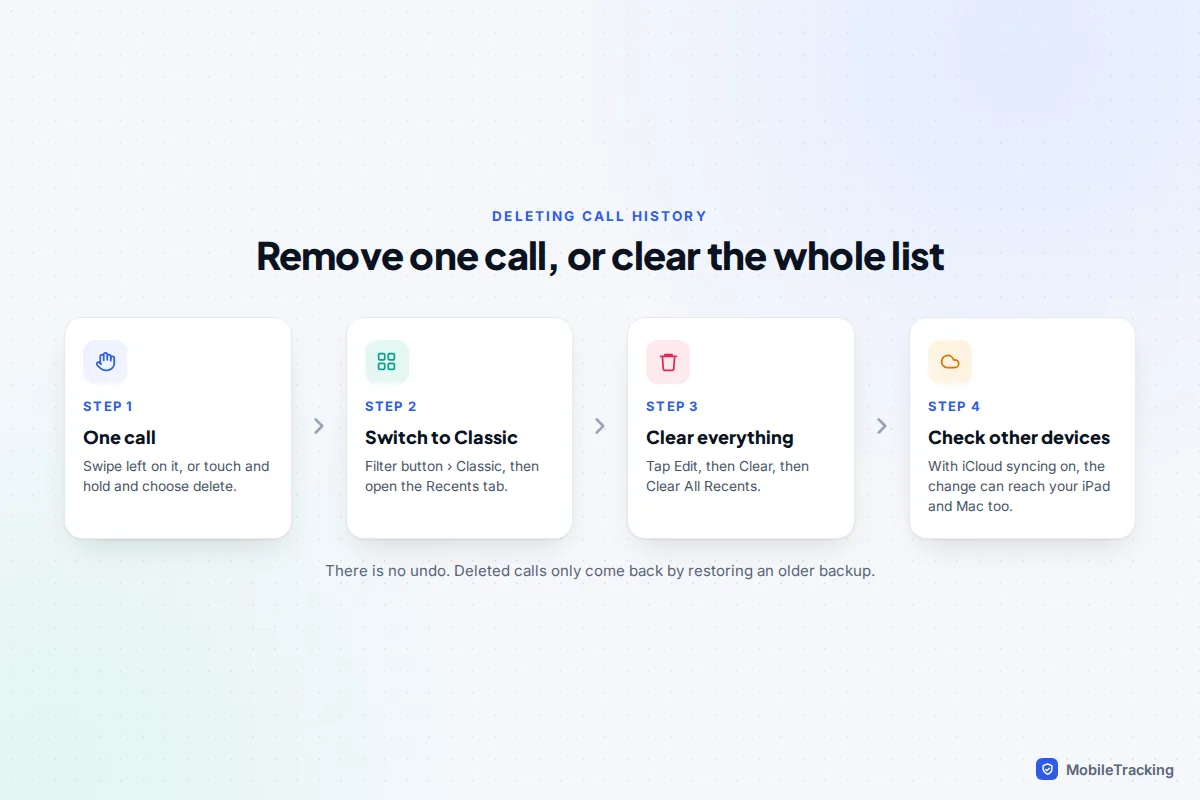
To remove a single entry, swipe left on it in the Calls or Recents list and tap delete, or touch and hold it and choose the delete option. Clearing everything at once is easiest in the Classic layout: switch via the Filter button, open Recents, tap Edit (on some versions, then Select), then Clear and Clear All Recents. You can switch back to Unified afterwards.
Troubleshooting: calls missing from your history
If a call you’re sure about isn’t listed, work through these in order.
The list looks short or only shows missed calls
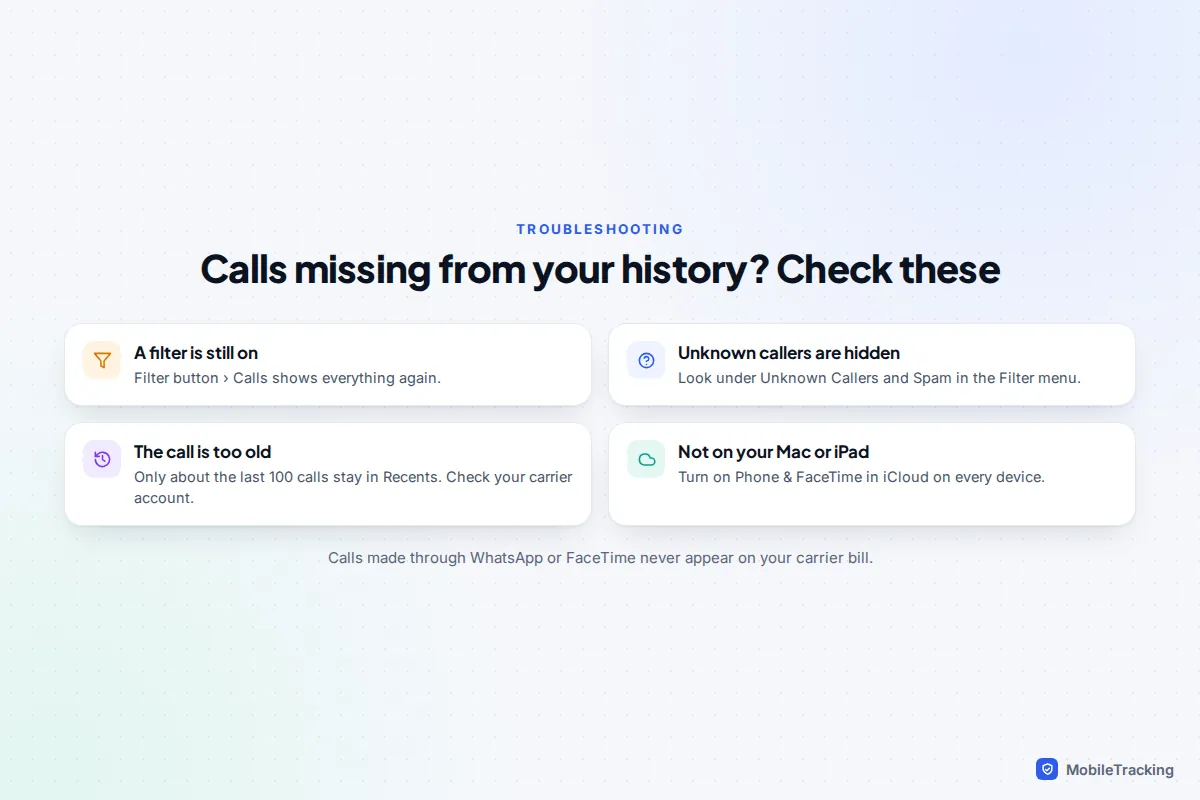
A filter is probably active. Tap the Filter button and choose Calls. In Classic, check that All rather than Missed is selected at the top of Recents.
A missed call from a stranger never appeared
Look under Unknown Callers and Spam in the Filter menu. If Screen Unknown Callers is set to Silence, those calls never rang and went straight to voicemail, so check the Voicemails filter too.
The call is on the bill but not on the phone
It has probably dropped off the bottom of the roughly 100-call list, or it was deleted, possibly on another synced device. The carrier record is the reliable copy.
History isn’t showing on my Mac or iPad
Check that Phone & FaceTime is on in iCloud settings on every device and that they use the same Apple Account. Sync can take a little while after a call, especially if a device has been asleep.
Frequently asked questions
Can I increase the number of calls my iPhone remembers?
No. There is no setting for it. To keep a longer record, turn on iCloud syncing for Phone & FaceTime, make regular encrypted backups, and use your carrier’s itemised records for anything important.
Does call history show the content of calls?
No. Neither your iPhone nor your carrier’s records include what was said, only who, when and for how long. Calls are recorded only if someone deliberately uses a recording feature.
Can I see my child’s call history?
If your child’s iPhone is signed in to your Apple Account, their calls may already sync to your devices, which also means they could see yours, so separate accounts are better. Screen Time doesn’t show call logs. The simplest approach for most families is an agreement that you can look at the phone together, rather than checking it when they aren’t around.
Why does a call show as Cancelled?
The call was ended before it was answered. On outgoing calls, it usually means you hung up while it was still ringing. It isn’t the same as a missed call, which is one that rang on your phone and wasn’t picked up.
Will deleted calls still appear on my phone bill?
Yes. Deleting an entry on your iPhone doesn’t touch your carrier’s records, so the call remains on your itemised bill and account history.