The quickest route depends on what you own. With an iPhone and a Mac, sign in to the Messages app on the Mac with your Apple Account and switch on Text Message Forwarding on the iPhone: every blue and green bubble then appears on the laptop. With an Android phone, open messages.google.com/web in any browser and pair it from Google Messages. On a Windows PC, the built-in Phone Link app works with both Android phones and iPhones, although the iPhone version is basic.
Each option takes about five minutes. The part most guides skip: every paired laptop becomes a second window into your texts, including bank codes and password resets. So this guide also shows how to check what is paired and how to unpair a laptop from the phone itself.
Which option should you use?
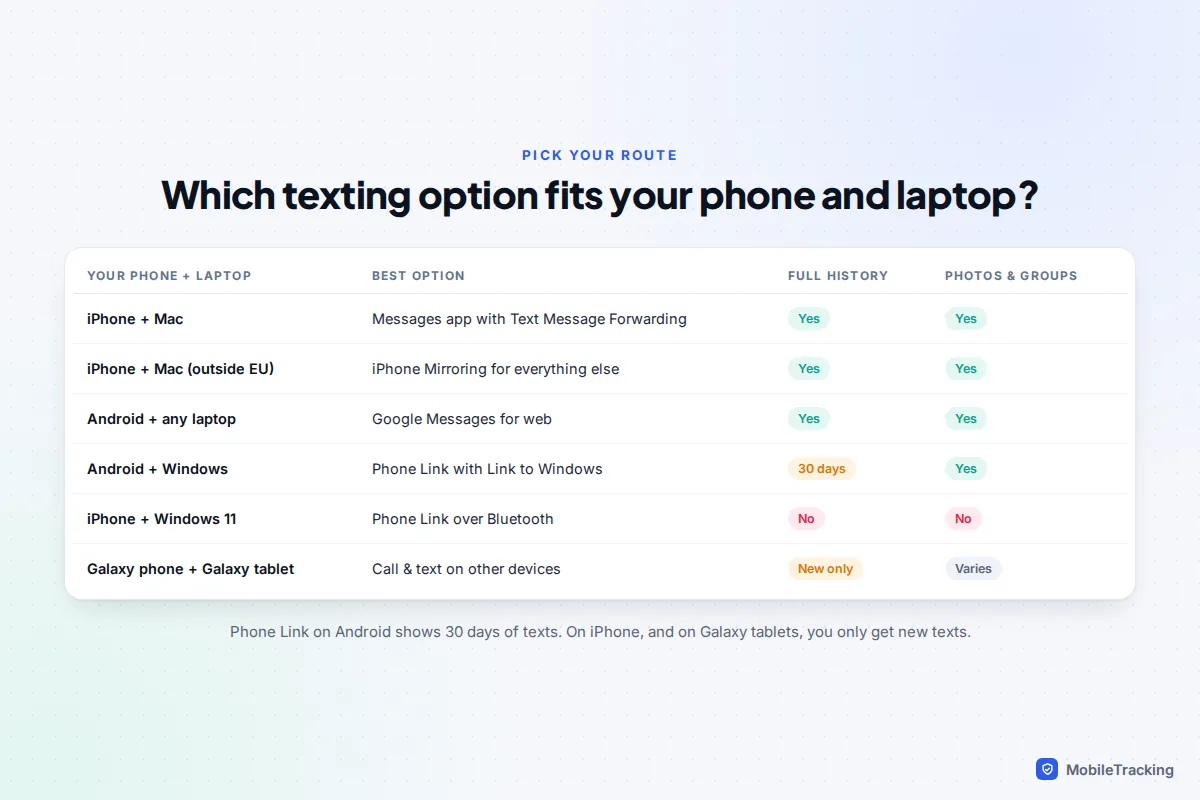
Start with the phone, not the laptop. Apple’s tools only work between Apple devices and Google’s web app only with Android. Phone Link is the bridge for Windows, and Samsung adds extras for Galaxy owners.
| You have | Use this | What to expect |
|---|---|---|
| iPhone and Mac | Messages on the Mac plus Text Message Forwarding | Full conversations, photos and group chats. The most complete option. |
| iPhone and Mac, want other apps too | iPhone Mirroring | Your whole iPhone in a window, so other apps work too. Not in the EU. |
| Android and any laptop | Google Messages for web | Any modern browser on Windows, Mac or Chromebook. Photos and groups included. |
| Android and Windows | Phone Link | Texts from the last 30 days, plus notifications and calls. |
| iPhone and Windows 11 | Phone Link | One-to-one texts only, with no history. |
iPhone owners on Windows should know that Intel’s Unison app, which did a similar job, shut down in 2025. Phone Link is now the mainstream option, so be wary of any other “iMessage for Windows” download that asks for your Apple Account password.
iPhone and Mac: Messages with Text Message Forwarding
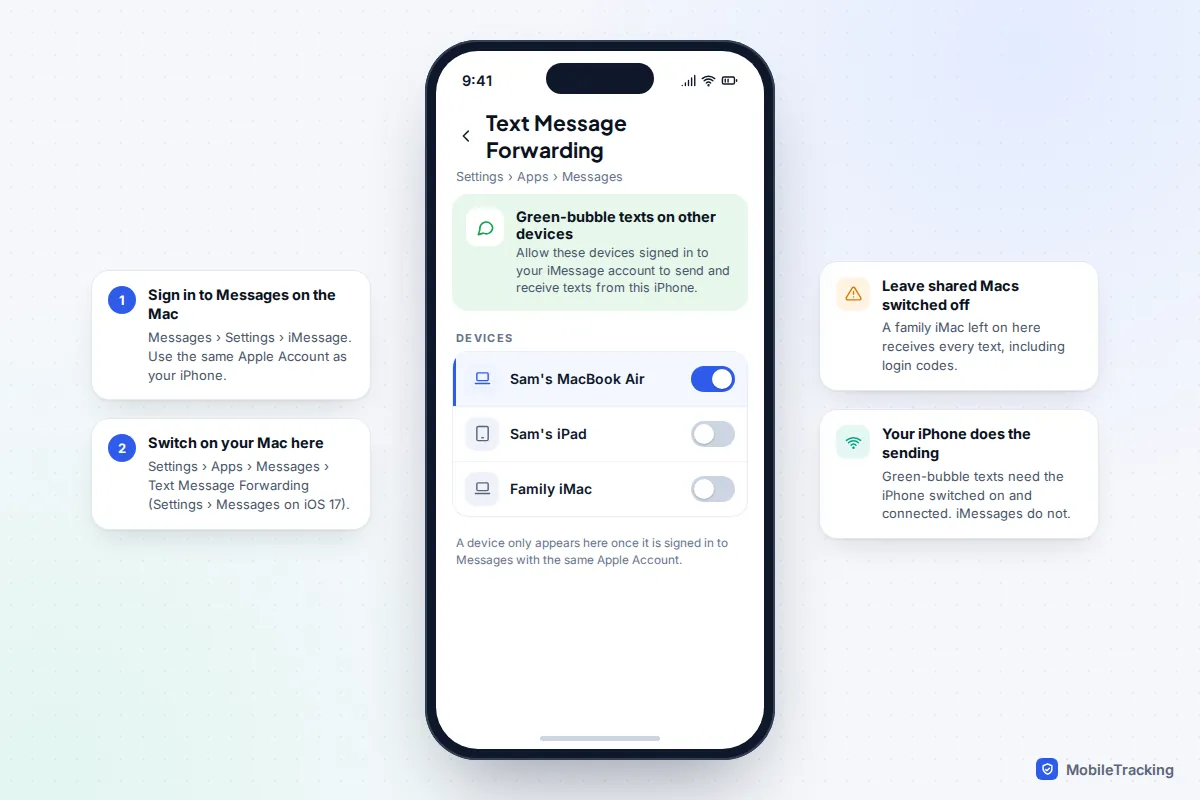
A Mac can send and receive iMessages (blue bubbles) on its own, because they travel through your Apple Account. SMS, MMS and RCS texts (green bubbles) go through your mobile network, so the iPhone has to relay them. Text Message Forwarding is the switch that allows that.
Step 1: sign in on the Mac
- Open the Messages app on the Mac.
- From the menu bar, choose Messages then Settings (called Preferences on older versions of macOS).
- Click iMessage and check that the Apple Account shown is the same one your iPhone uses. If it isn’t, click Sign Out and sign in with the right one.
Step 2: turn on forwarding on the iPhone
- On the iPhone, open Settings, tap Apps, then Messages. On iOS 17 and earlier, it is simply Settings then Messages.
- Tap Text Message Forwarding.
- Turn on the switch next to your Mac. If a code appears on the Mac, type it into the iPhone.
Test it by texting yourself from another phone. Green-bubble texts need the iPhone to be switched on and connected to Wi-Fi or mobile data, because the iPhone is still the device doing the sending. iMessages keep working on the Mac even if the iPhone is off.
Step 3 (optional): bring your older history across
Forwarding only covers new messages. To see years-old conversations on the Mac, turn on Messages in iCloud on both devices. On the iPhone, go to Settings, tap your name, then iCloud, tap See All, choose Messages in iCloud and turn on Use on this iPhone. On the Mac, open Messages, then Settings, click iMessage and tick Enable Messages in iCloud. The first sync can take hours, and once it is on, deleting a conversation on one device deletes it everywhere.
iPhone Mirroring: your whole iPhone in a window
iPhone Mirroring shows your actual iPhone screen on the Mac, so you can reply in WhatsApp or approve a banking prompt without picking the phone up. Apple’s requirements are specific:
- A Mac with Apple silicon or the Apple T2 Security Chip, running macOS Sequoia 15 or later.
- An iPhone running iOS 18 or later, with a passcode set.
- Both signed in to the same Apple Account with two-factor authentication, with Bluetooth and Wi-Fi on.
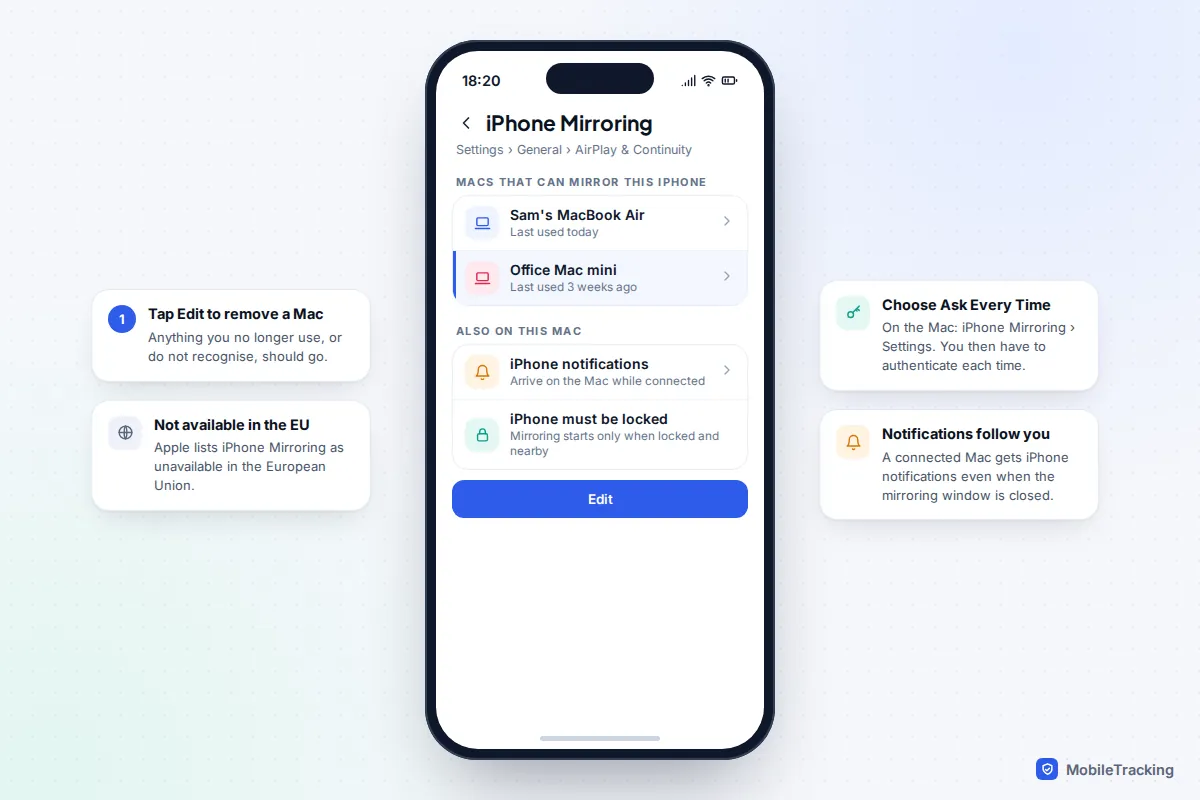
- The iPhone locked and near the Mac. Apple currently lists the feature as unavailable in the European Union.
Open the iPhone Mirroring app on the Mac and follow the prompts. One detail matters for privacy: once connected, the Mac receives your iPhone notifications even when you are not using the mirroring window. On the Mac, go to iPhone Mirroring, then Settings, and choose Ask Every Time so nobody else at that Mac can open your phone without authenticating.
Android: Google Messages for web
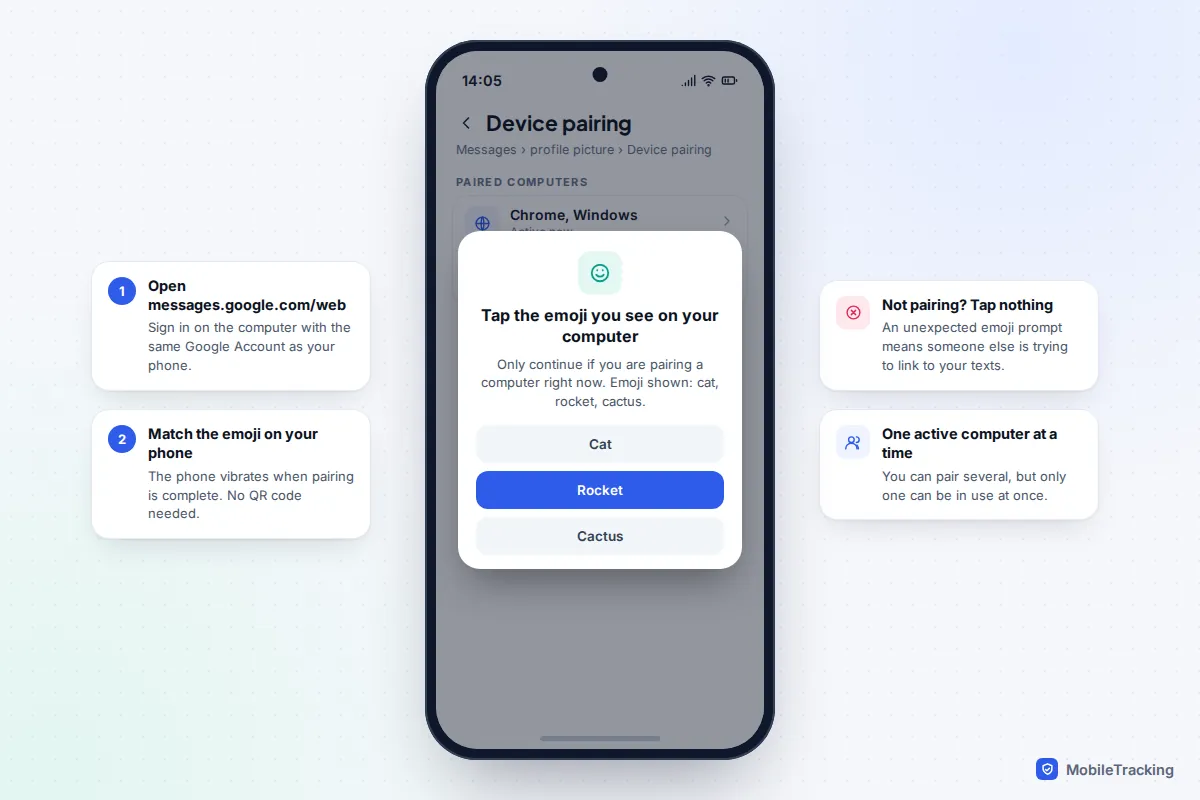
If your Android phone uses Google Messages, which is now the default on Pixels and on most Samsung phones, you can text from any modern browser on any laptop. Google has moved from QR codes to Google Account pairing, and says QR code pairing is no longer available in the US.
- On the laptop, go to messages.google.com/web and sign in with the same Google Account your phone uses.
- On the phone, open Google Messages, tap your profile picture and choose Device pairing.
- The phone shows three emoji. Tap the one that matches the emoji on your laptop screen.
- The phone vibrates when pairing is done and your conversations load in the browser.
Your phone still does the texting, so it needs to be on and online. You can pair several computers, but only one can be active at a time, and Google disconnects a session automatically after a few weeks without use. Full details are on Google’s Messages for web help page.
Windows laptops: Phone Link for Android and iPhone
Phone Link is built into Windows. Open it from the Start menu, sign in with a Microsoft account and choose your phone type. How well it works depends heavily on which phone you have.
With an Android phone
Microsoft needs Windows 10 (October 2022 update or later) or Windows 11, Android 10 or later, and both devices on the same Wi-Fi to set up. Install Link to Windows on the phone (it is already built into Samsung Galaxy phones), sign in with the same Microsoft account, then choose Pair with QR code on the PC and scan it from the app. Phone Link shows SMS and MMS messages from the last 30 days, and RCS works on selected Samsung models. You can’t delete messages from the PC. Phone Link can also handle calls; our guide to making calls from your computer covers that side.
With an iPhone
iPhone support is Windows 11 only and runs over Bluetooth. Microsoft is upfront that messaging is limited by iOS: there are no photos or videos, no group chats, and only messages that arrive while the phone is connected appear on the PC, so you won’t see older conversations. It is still handy for replying to one-to-one texts while you work.
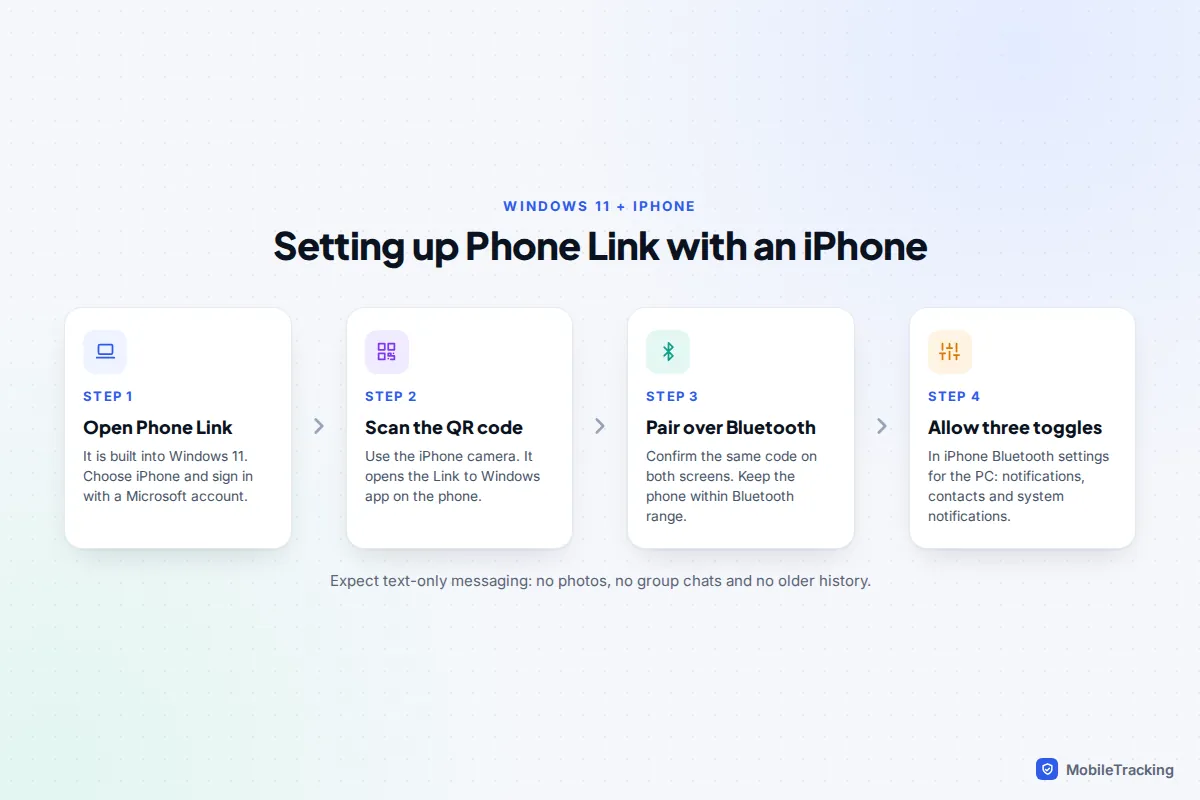
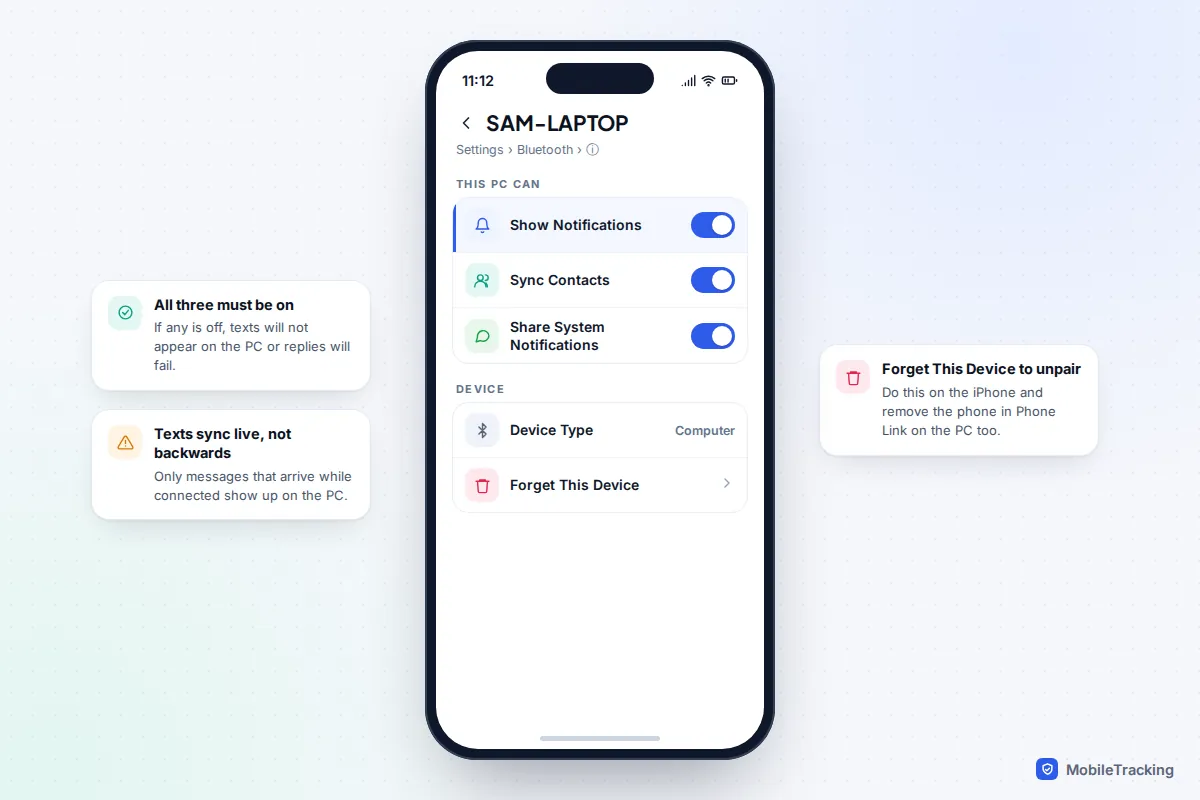
The most common reason Phone Link “does nothing” with an iPhone is a missing permission. On the iPhone, go to Settings, then Bluetooth, tap the info button next to your PC’s name and make sure Show Notifications, Sync Contacts and Share System Notifications are all on. Microsoft’s Phone Link setup page has the current requirements.
Samsung Galaxy options
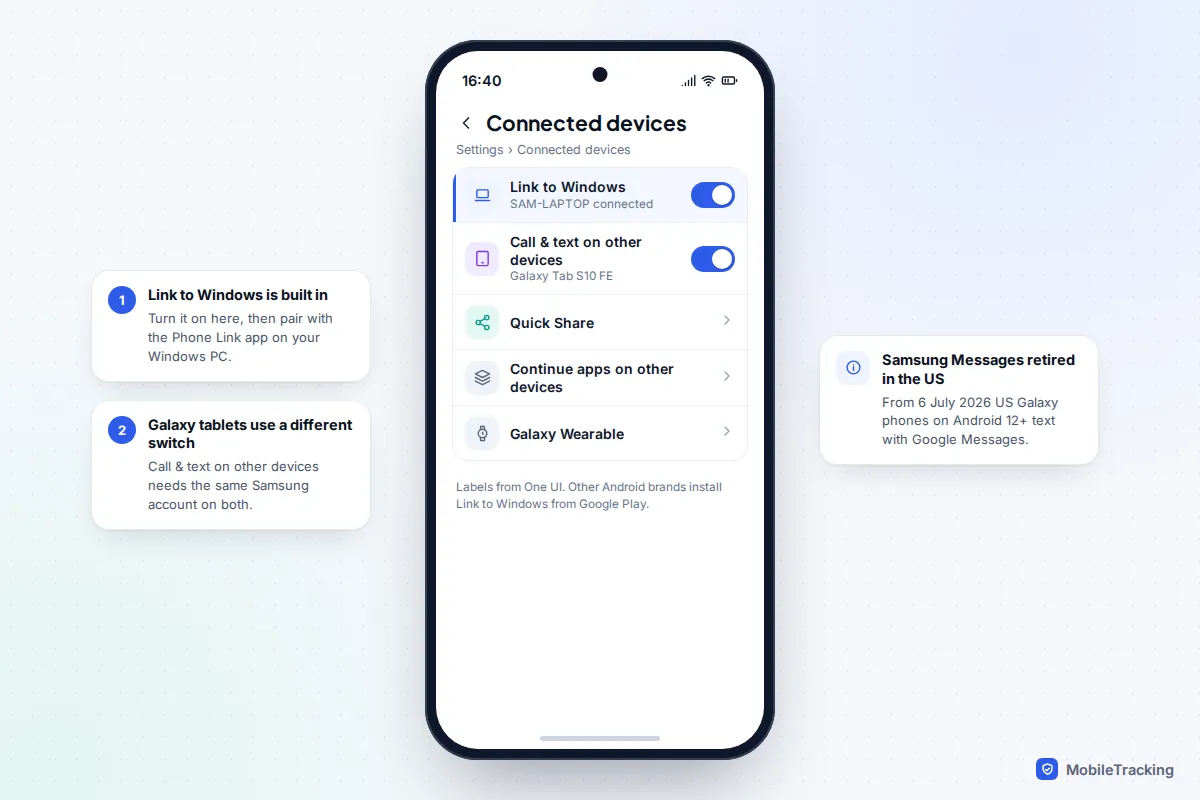
Galaxy phones have Link to Windows built in, so there is nothing to download. Go to Settings, then Connected devices, and turn on Link to Windows, then finish pairing in Phone Link on the PC as above. This is the setup where Phone Link works best, since selected Samsung models also get RCS chats on the PC.
If your “laptop” is actually a Galaxy tablet with a keyboard cover, use Call & text on other devices instead. Sign in to the same Samsung account on the phone and tablet, then turn it on from Quick settings or from Settings, Connected devices, Call & text on other devices. Samsung notes that previous conversations won’t appear on the tablet, only new ones.
One change to be aware of if you are in the US: Samsung discontinued its own Samsung Messages app there in July 2026 for phones on Android 12 or later, and moved owners to Google Messages. If your Galaxy phone has switched, Google Messages for web in any browser is now the simplest way to text from any laptop, including a Galaxy Book.
Shared computers: privacy and unpairing
Anyone who opens Messages on a paired Mac, the Messages for web tab on a shared PC, or Phone Link on a family computer can read your conversations, see login codes as they arrive, and send texts that look like they came from you.
Picture a common case: Priya pairs her Android phone with the family desktop to organise a school trip, then forgets about it. Months later, her teenage son sees a text from her bank on that screen. Nothing sinister happened, but her security codes were on show to anyone passing. Pair only computers you alone use, and unpair any others as soon as you’re done.
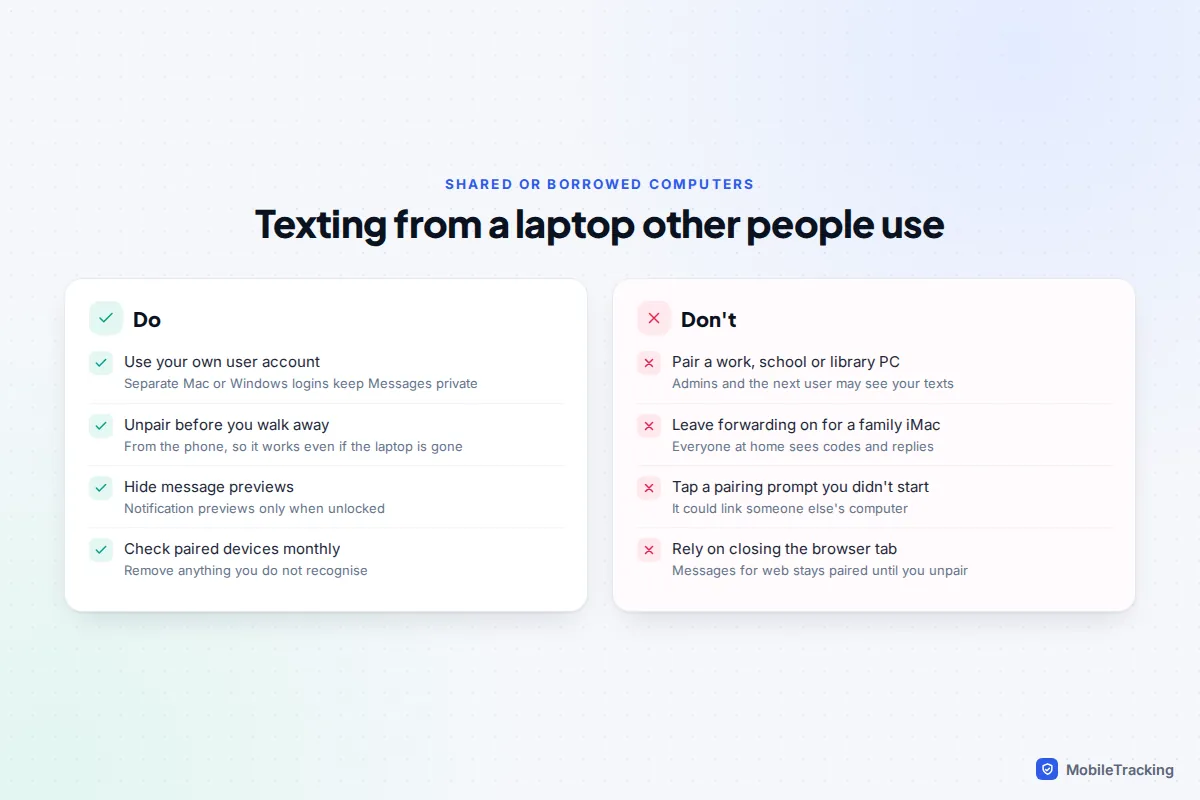
Two settings help. On a Mac, open System Settings, then Notifications, and set Show previews to When Unlocked so texts can’t be read on a locked screen. And treat any pairing prompt you didn’t start, such as an emoji request in Google Messages or a code on your iPhone, as a reason to decline. Avoid pairing work, school or library computers at all: administrators can often see what runs on them, and the next user may find your session still open.
How to unpair a laptop from your texts
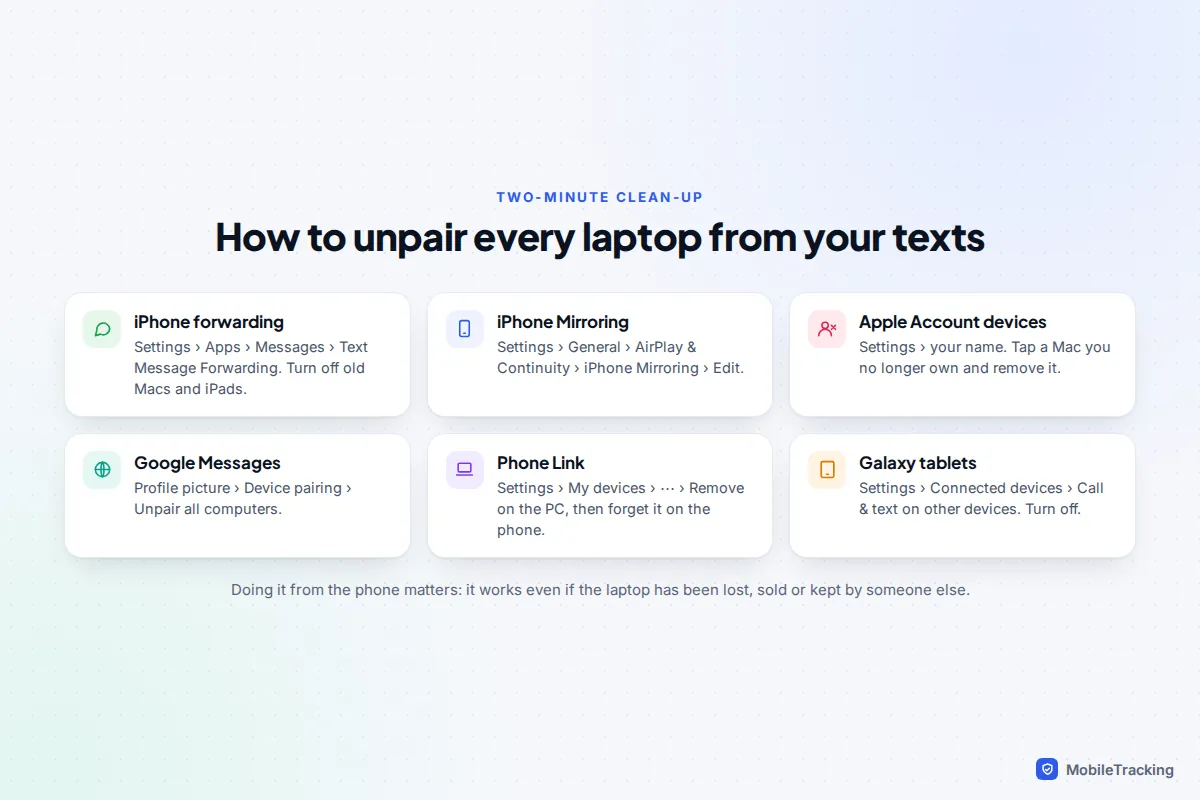
Unpair from the phone wherever you can, so it works even if the laptop has been sold or lost.
- iPhone and Mac: go to Settings, Apps, Messages, Text Message Forwarding and turn the Mac off. On the Mac itself, Messages, Settings, iMessage, Sign Out stops iMessages too. If you no longer own the Mac, remove it from your Apple Account under Settings, then your name; our guide to removing a device from your iCloud account walks through it.
- iPhone Mirroring: Settings, General, AirPlay & Continuity, iPhone Mirroring, then tap Edit and remove the Mac. On the Mac, the iPhone Mirroring app’s Settings has Revoke Access.
- Google Messages for web: on the phone, tap your profile picture, Device pairing, then Delete next to one computer or Unpair all computers. On the computer, open the menu in Messages for web and choose Unpair.
- Phone Link: on the PC, open Phone Link Settings, My devices, choose the three-dot menu next to the phone and Remove. On an iPhone, also go to Settings, Bluetooth, tap the info button next to the PC and choose Forget This Device.
- Galaxy tablets: Settings, Connected devices, Call & text on other devices, then turn it off.
Troubleshooting by symptom
| Symptom | Likely cause | Fix |
|---|---|---|
| Mac gets blue bubbles but not green ones | Text Message Forwarding is off, or the iPhone is off or offline | Check the Mac is switched on under Text Message Forwarding and the iPhone has signal or Wi-Fi. |
| The Mac doesn’t appear in the forwarding list | Different Apple Accounts on the two devices | On the Mac, check Messages, Settings, iMessage and sign in with the iPhone’s account. |
| Messages for web says it is trying to connect | Phone asleep, battery optimisation or a VPN blocking it | Turn off battery optimisation for Messages, allow background data, pause the VPN. |
| Phone Link shows no texts from an iPhone | A Bluetooth permission is switched off | Turn on Show Notifications, Sync Contacts and Share System Notifications for the PC. |
| iPhone Mirroring option is missing | Unsupported Mac, older software, or you are in the EU | Check for Apple silicon or a T2 chip, macOS 15 and iOS 18 or later. |
Frequently asked questions
Can I read my iMessages on a Windows laptop?
Only partly. Phone Link on Windows 11 handles one-to-one texts while the iPhone is connected over Bluetooth, but not your history, photos or group chats. Apple has no web version of Messages, so there is no official way to get your full iMessage history on Windows.
Does my phone need to be on for this to work?
For almost everything, yes. Google Messages for web, Phone Link and forwarded green-bubble texts on a Mac all rely on the phone to do the actual sending. The exception is iMessage on a Mac, which works through your Apple Account even if the iPhone is switched off or lost.
Do texts sent from my laptop cost anything extra?
No. The texts are sent by your phone on your normal plan, so SMS and MMS are charged exactly as if you had typed them on the phone. iMessages and RCS chats use data as usual.
Could someone read my texts from their laptop without me knowing?
Only if a computer has been paired, and every method above keeps a list of paired devices on your phone. Check those lists, remove anything you don’t recognise, and be wary of pairing prompts you didn’t start. A strong phone passcode stops anyone pairing a new computer while your phone is out of your sight.
Can I use Google Messages for web on two laptops?
You can pair more than one computer, but Google allows only one to be active at a time, so you switch between them rather than using both at once.
This guide is general information, not legal or financial advice. Read our editorial policy.