
While you are on a call, the running timer sits just under the other person’s name on the call screen, on both iPhone and Android. If you have switched to another app, iPhones with the Dynamic Island keep the timer counting at the top of the screen, and Pixel phones show it in a green chip in the status bar; tap either to jump back to the call.
After the call, open the Phone app’s call history. On an iPhone, go to Recents and tap the ⓘ next to the call (or, in the new iOS 26 layout, tap the call itself). On a Pixel, tap the call and choose Call details. On a Samsung Galaxy, tap the call in Recents and open its details. Each call is listed with its exact length. For a record that your phone can’t lose, your carrier’s itemised bill has every call too, although the numbers are often rounded up, as explained below.
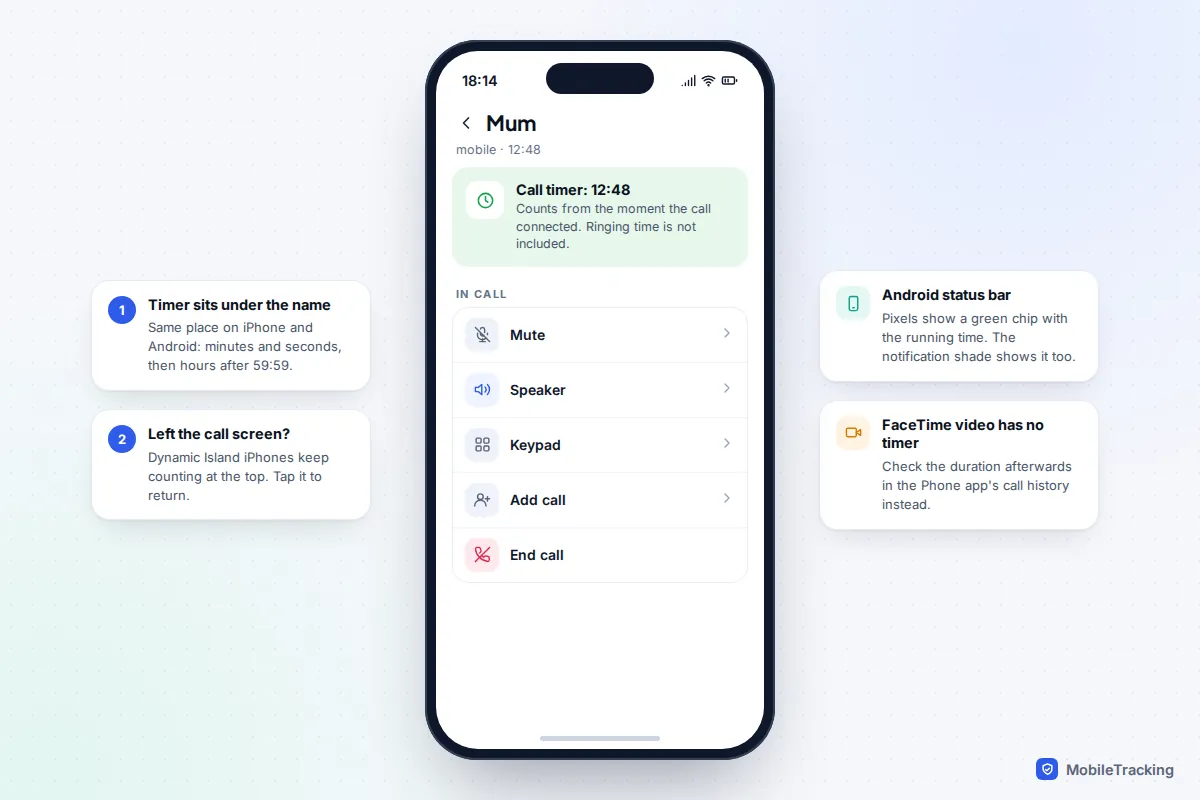
During a call: where the timer is
On every modern phone, the call screen shows elapsed time in minutes and seconds under the name or number, switching to hours, minutes and seconds after the first hour. It is the same whether you are on speaker, using earbuds or on a Wi-Fi call.
The trick is finding it when you are not looking at the call screen:
- iPhone 14 Pro and later (Dynamic Island models): the call shrinks into the Dynamic Island at the top, which shows the running duration. Tap it to go back to the full call screen.
- Older iPhones: the clock area at the top turns green (a pill on Face ID models, a bar on home-button models). Tap it to return to the call screen and see the timer.
- Pixel and other phones using Google’s Phone app: since Android 12, a green chip in the status bar shows the call’s elapsed time. Pulling down the notification shade also shows the ongoing call with its timer.
- Samsung Galaxy: pull down the notification panel to find the ongoing call, then tap it to return to the call screen and its timer.
App calls behave slightly differently. WhatsApp shows a timer under the contact’s name on voice calls. FaceTime Audio shows the elapsed time on the call screen, but a FaceTime video call doesn’t show a running timer at all, so you need to check the length afterwards.
On iPhone: after the call
iOS 26 gave the Phone app a new design, and the steps depend on which layout you are using. You can switch between them by tapping the menu button at the top right of the Recents or Calls screen.
Classic layout (and iOS 18)
- Open Phone and tap Recents.
- Find the call and tap the ⓘ info button on the right. Tapping the name itself calls the person back, which is the most common mistake here.
- The screen lists the calls in that group, each with its time and length, for example “Outgoing Call, 18:01, 23 minutes”.
Unified layout (iOS 26 default)
- Open Phone and go to Calls.
- Tap the call entry. In this layout, tapping opens the details and the separate phone button is what dials.
- For every call you have ever had with that person, scroll down and tap Call History.
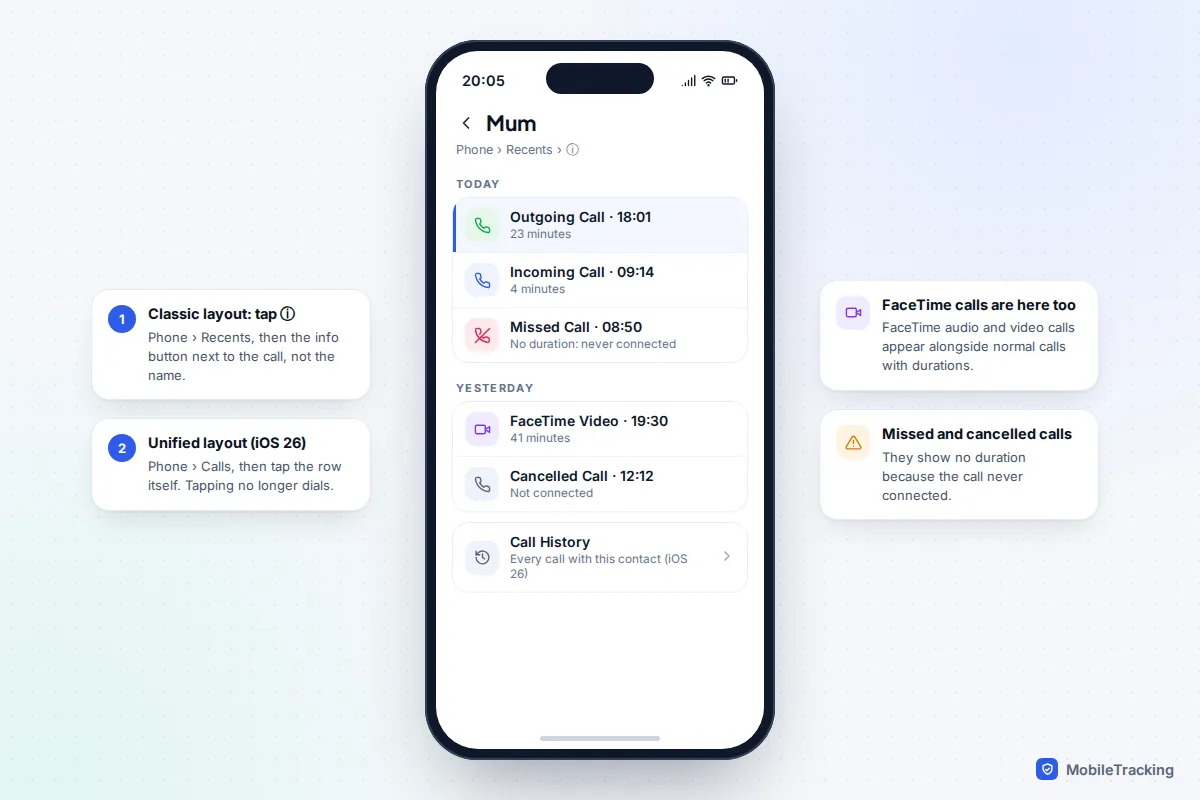
FaceTime audio and video calls appear in the same list with their durations, which is the easiest way to find out how long a FaceTime call lasted. Calls you answered on a Mac or iPad signed in to the same Apple Account can appear here too.
Is there a running total on iPhone?
There is no call-by-call summary, but some iPhones still show a Call Time counter at the very bottom of Settings, then Mobile Service (Cellular in the US), with a “Current Period” and “Lifetime” figure. It doesn’t appear on every iPhone or SIM setup, it only counts time since the phone was last set up or the statistics were reset, and it isn’t a billing record. For more ways to dig through older calls, see our guide to checking your call history on iPhone.
On Android: Pixel, Samsung and other phones
Most Android phones use either Google’s Phone app (Pixels, Motorola, OnePlus and many others) or Samsung’s own Phone app. The labels differ, but in both you tap a call to open its details.
Google Phone app (Pixel and many others)
Google redesigned its Phone app in 2025, merging Favourites and Recents into a single Home tab. To see a call’s length:
- Open Phone and stay on the Home tab.
- Tap the number or contact.
- Tap Call details. Each call with that number is listed with its time, direction and length.
To browse your whole log rather than one contact, tap More on the Home tab and choose Call history. Google’s steps are on its call history help page.
Samsung Galaxy (One UI)
- Open Phone and tap Recents at the bottom.
- Tap the call you want.
- If it expands with a row of buttons, tap the ⓘ details button. Samsung lists each call with its type, time and duration.
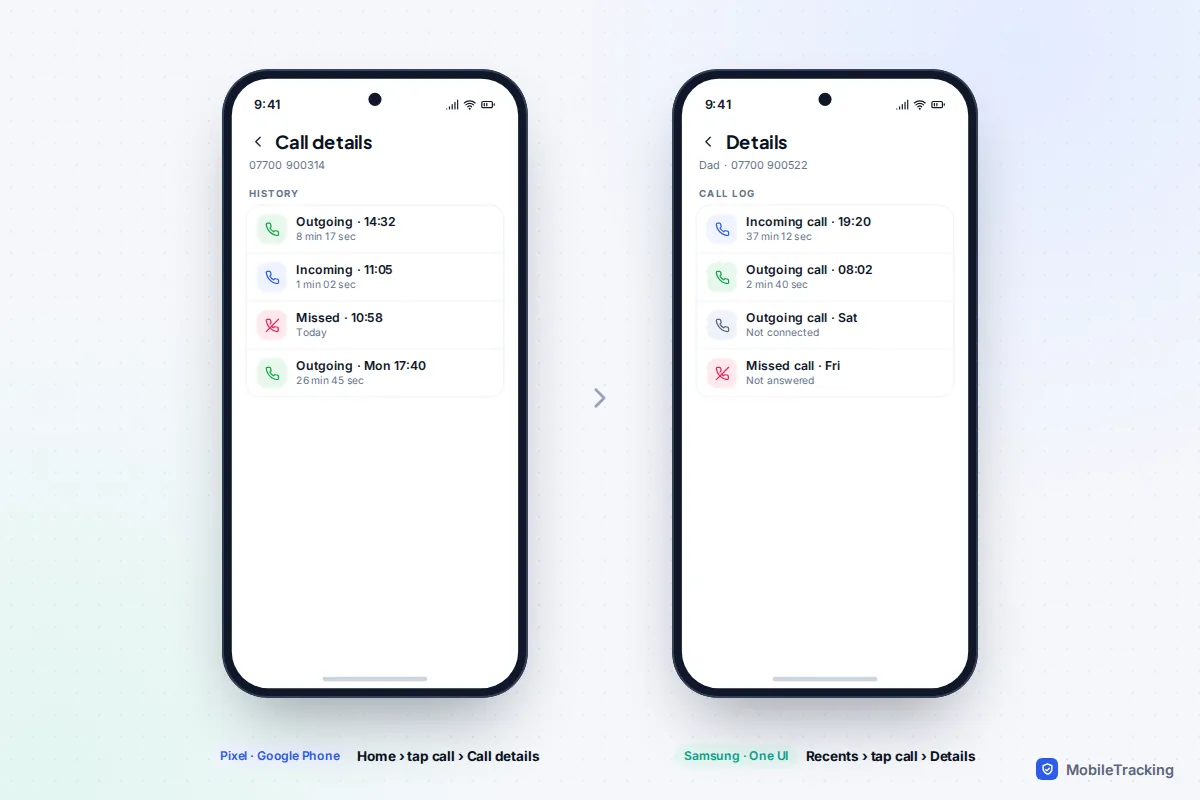
Neither app gives you a total for the week or month. If you need that, adding up individual calls is tedious, and your carrier’s usage page usually does it for you. Our guide to checking your call history on Android covers filtering and searching the log.
WhatsApp, FaceTime and other app calls
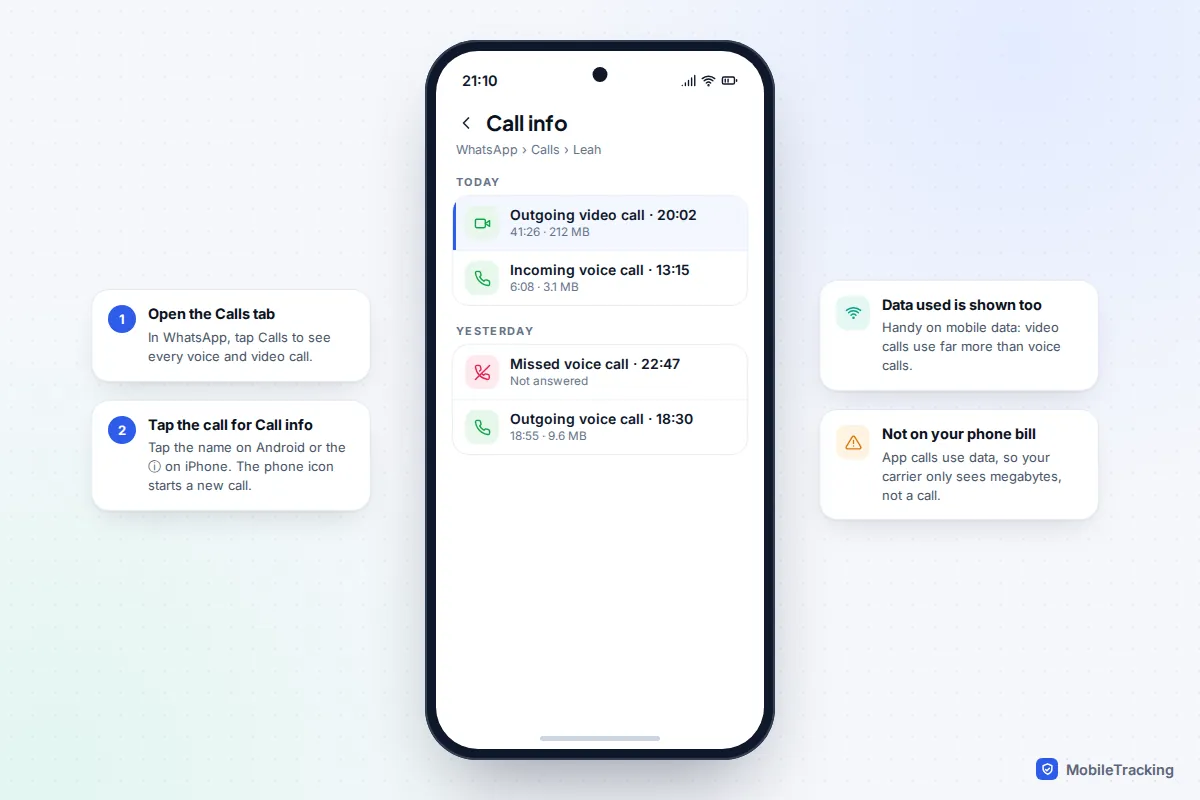
Calls made through apps travel over the internet as data. Your carrier sees megabytes, not a call, so these calls never appear on a phone bill. The app’s own history is the only record.
WhatsApp: open the Calls tab and tap the call. On Android, tap the person’s name rather than the phone icon (which starts a new call); on iPhone, tap the ⓘ. The Call info screen lists each voice and video call with its length and the amount of data it used. WhatsApp says call logs are stored in your chat database, so they come back with a chat backup but can’t be exported or restored once deleted without one. Details are on WhatsApp’s call history help page.
FaceTime: as covered above, check the Phone app’s call history on the iPhone. The FaceTime app on a Mac isn’t a reliable place to find call length, but calls made there can show up in the iPhone’s list when both use the same Apple Account.
Other apps: most calling apps keep their own call list or leave a note in the chat when a call ends. Check there first. If the app records no length, there is no other record, because the carrier can’t see inside these calls.
Carrier bills and itemised records
Your phone’s log can be deleted, lost with the phone or wiped in a reset. Your carrier’s record can’t be edited by you, which makes it the one to use for anything official: disputing a charge, a work expense claim, or checking usage on a limited plan.
Look in your carrier’s app or online account, usually under a heading like Usage, Itemised bill or Call details. Each call normally lists the date, start time, number, duration and cost. How far back you can see varies by carrier. Our guide to reading a phone bill’s call details explains the columns and codes.
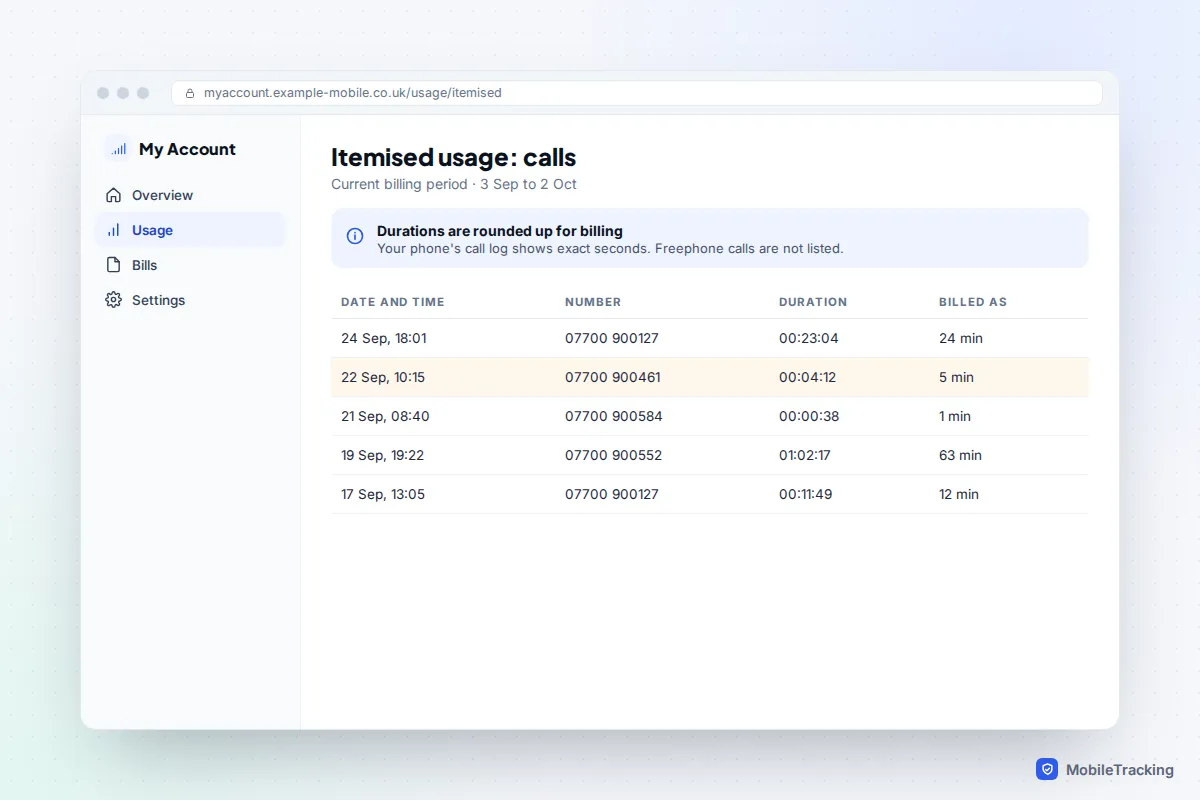
A few things catch people out:
- Rounding. Many plans bill per minute and round each call up. Verizon, for example, defines airtime as rounded up to the nearest whole minute. A 38-second call can appear as one minute.
- What is listed. In the UK, incoming calls are free on mobiles, so bills often list only outgoing calls. Ofcom rules also keep calls to Freephone numbers, which include many helplines, off itemised bills.
- Who can see it. On a family or shared plan, the account holder can usually view every line’s call details. In the UK, you have the right to ask for a non-itemised bill instead.
Why the numbers don’t match
It is common to see three different figures for one call. The phone’s timer and its call log agree to the second. The carrier’s figure may be rounded up. Screen-time tools give a figure that has nothing to do with the call’s length at all.
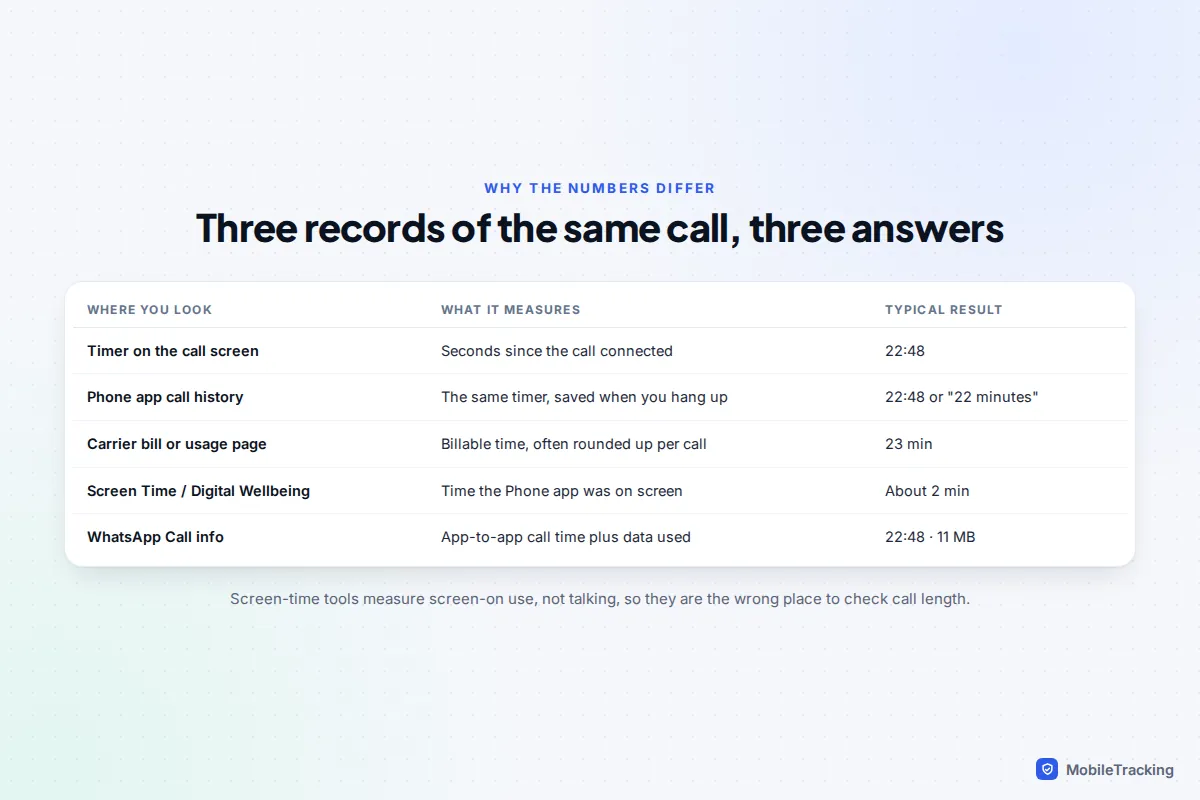
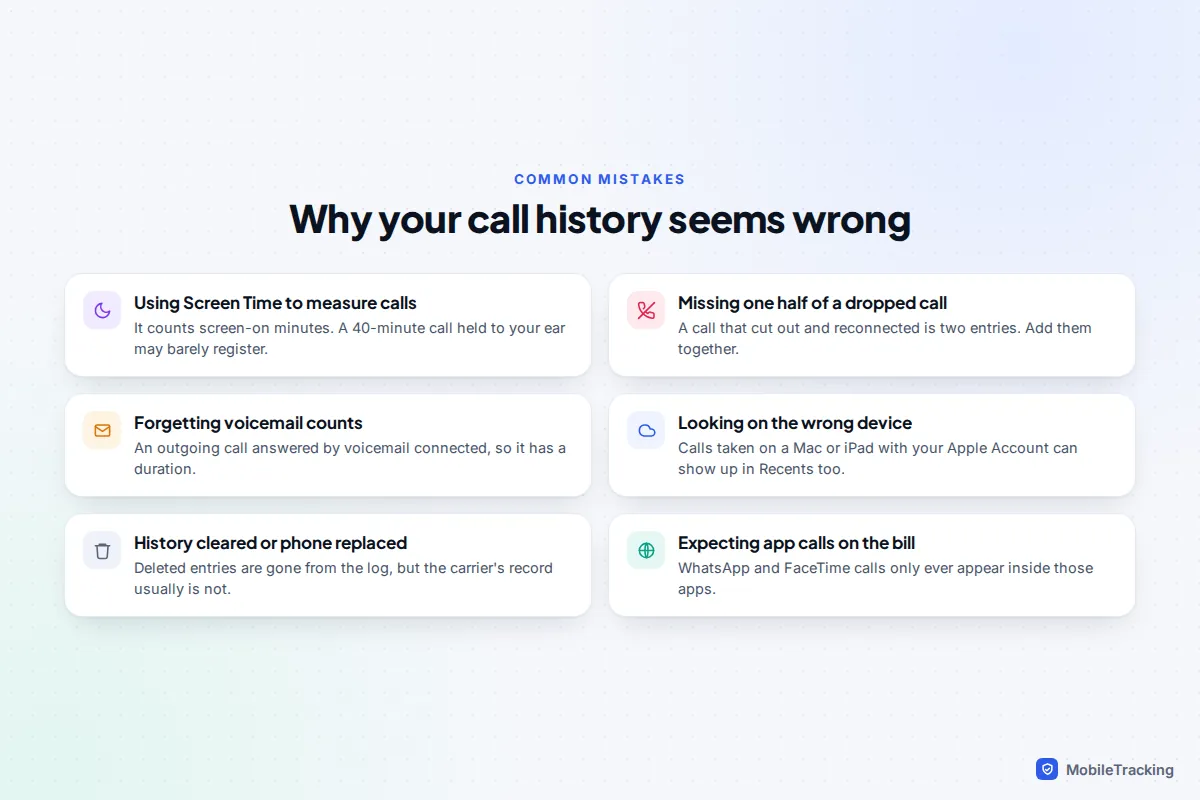
That last point surprises people. Screen Time on iPhone and Digital Wellbeing on Android measure how long an app was on screen. During a normal call, the screen switches off when you hold the phone to your ear, so a 40-minute chat might register as a couple of minutes of “Phone” use. Use the call log instead.
Other common gaps:
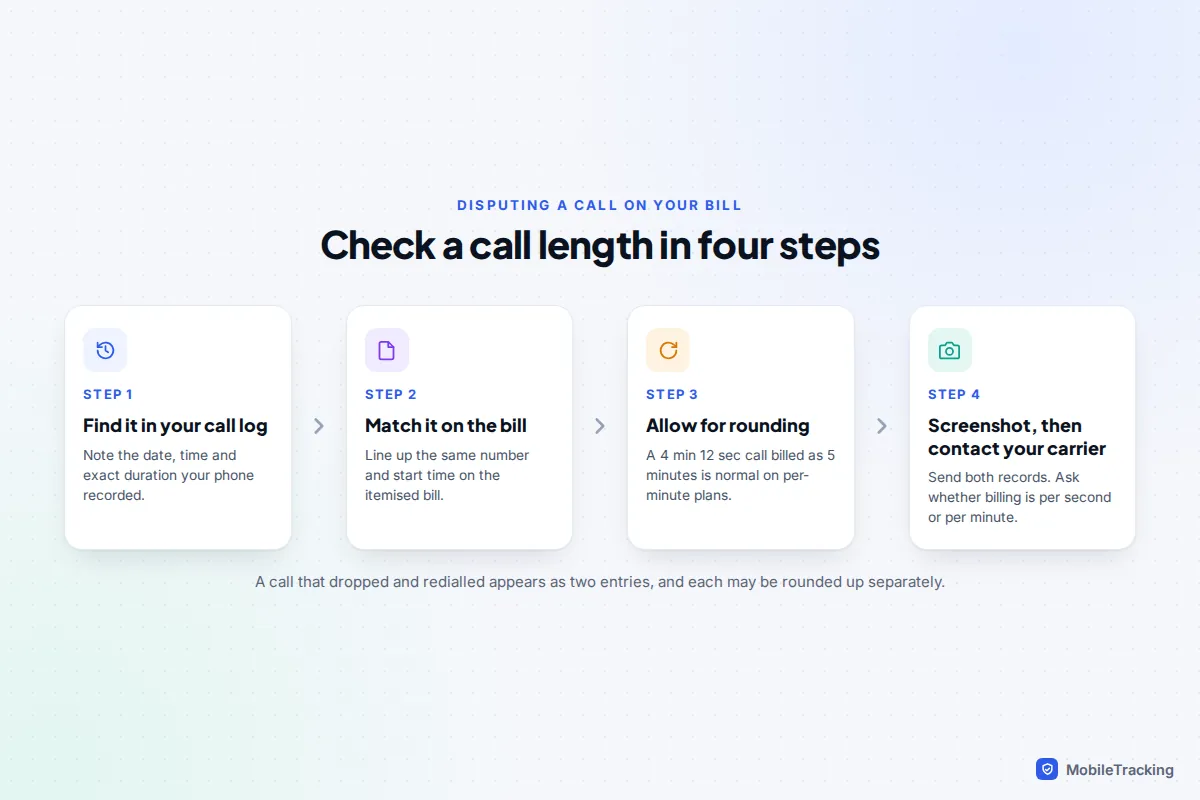
- Dropped calls: a call that cut out and was redialled shows as two entries. Add them together, and remember each may be rounded up separately on the bill.
- Voicemail: an outgoing call that went to voicemail did connect, so it has a duration in your log and usually on the bill.
- Merged or held calls: when you juggle two calls, each keeps its own timer, so neither entry shows the full time you spent on the phone.
Which record should you use?
| You want to… | Best record | Why |
|---|---|---|
| Know how long you have been talking right now | The call screen or Dynamic Island | Live, to the second |
| Check yesterday’s call with a relative | Phone app call details | Exact and instant |
| Dispute a charge or claim expenses | Carrier’s itemised bill | It is what you are billed on, and you can’t edit it |
| Track your minutes on a limited plan | Carrier app usage page | Totals are already added up and rounded as billed |
| Check a WhatsApp or FaceTime call | The app’s call info, or iPhone Recents | Carriers never see these calls |
| Find a call you deleted from the log | Carrier records or a backup | The phone keeps no copy once deleted |
A quick scenario: Tom’s bill shows a 63-minute call to his sister that he is sure was shorter. His phone log says 1 hour, 2 minutes and 17 seconds, and his plan bills per started minute, so 63 minutes is correct. Five minutes of checking saved him a long call to customer services.
If the call is missing from your history
If you can’t find a call at all, work through these in order:
- Check you are on the right screen. Filters such as “Missed” on iPhone, or a search left in the search bar, can hide calls.
- Check other devices. A call answered on a Mac, iPad, tablet or smartwatch may be recorded differently, and app calls only appear in their own app.
- Consider whether it was deleted. Clearing the log, a factory reset or a new phone without a restored backup removes entries. Our guide to seeing cleared call history explains what can be recovered.
- Ask the carrier. Your provider keeps its own record of calls made through the mobile network, independent of your handset.
Frequently asked questions
Does the call timer include ringing time?
No. The timer on your phone starts when the call is answered, whether by a person or by voicemail. Time spent ringing isn’t counted in your log, and carriers generally don’t bill for unanswered calls.
Why does my bill show a longer call than my phone?
Almost always because of rounding. Many plans charge each call in whole minutes, so 4 minutes 12 seconds is billed as 5. Check your plan’s terms or ask your carrier whether it bills per second or per minute.
Can I see how long a FaceTime video call lasted?
Yes, but only afterwards. FaceTime video calls don’t show a timer during the call. Open the Phone app on your iPhone, find the FaceTime call in Recents and open its details to see the duration.
Can I see my total call time for the month?
Your carrier’s app or online account is the most reliable place, since it adds up billed minutes for you. Phone apps show individual calls rather than totals, and the iPhone’s Call Time counter, where it appears, isn’t tied to your billing period.
Does Screen Time show how long I was on the phone?
Not accurately. Screen Time and Digital Wellbeing measure how long the Phone app was on screen, and the screen usually turns off during a call. Use the call details in your call history instead.
This guide is general information, not legal or financial advice. Read our editorial policy.