Location History
Location history turns a day of raw coordinates into something you can actually read: a list of the places your child stopped, when they arrived, when they left, and how long they stayed. It exists so you can answer a question once and then close the app, instead of hovering over a live map all afternoon. Your child can see the same timeline on their own phone.
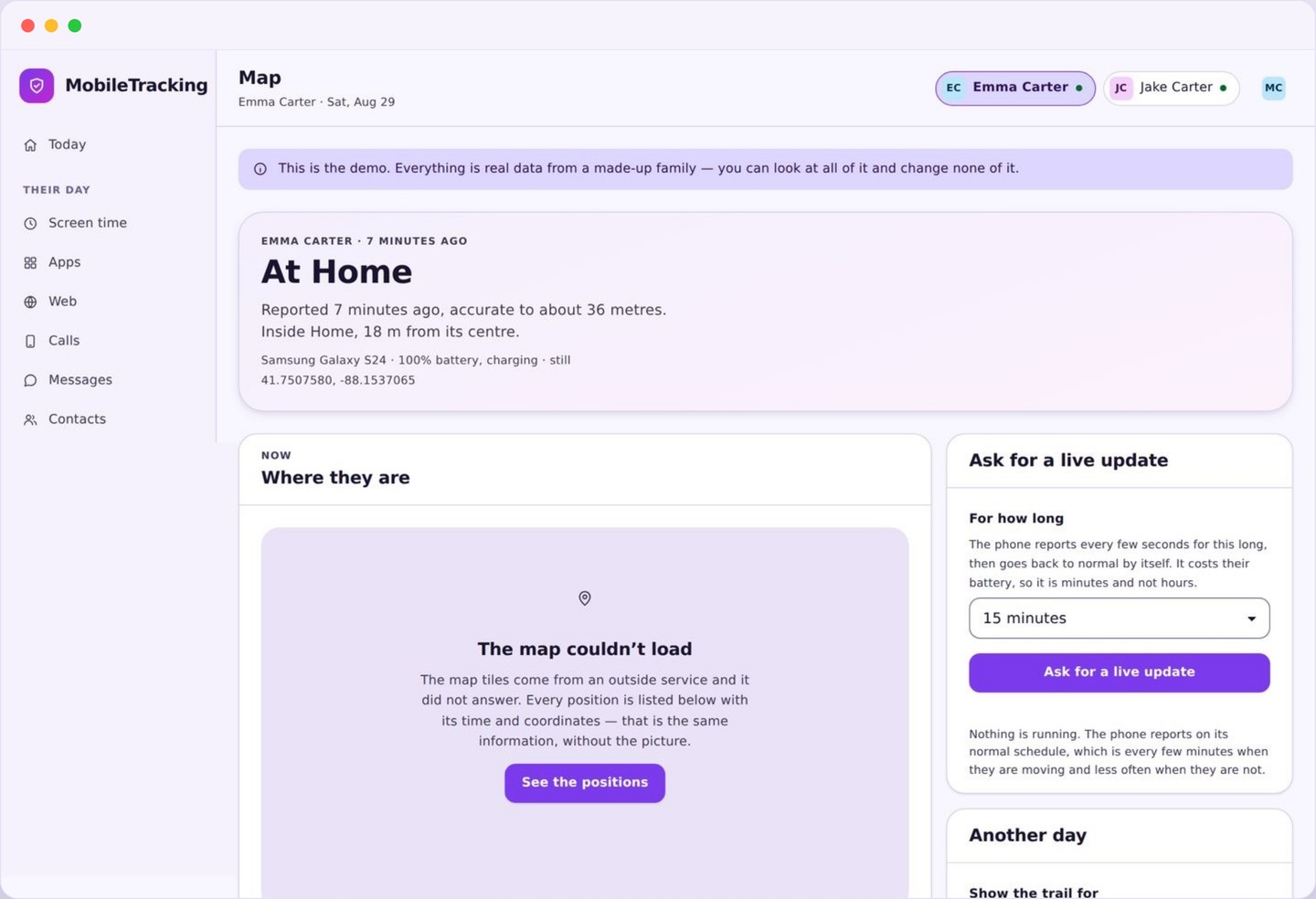
What location history shows you
A scrollable day, top to bottom, built out of stops and the travel between them.
Pick a child, pick a day, and you get a column of cards. Each card is a stop: a name, an arrival time, a leaving time, and the length of the stay written out as “1 hr 40 min” rather than left for you to work out. Between the stops sit thin travel rows that say how long the journey took. A normal school day usually collapses into six or seven cards, which is short enough to take in at a glance.
Where a stop falls inside a place you have saved, the card uses your name for it. Everywhere else it shows the closest street or landmark the map can offer, plus a small note that this is an unnamed stop. If it turns out to be somewhere your family uses often, you can save it as a place from the card itself, and every past and future visit picks up the new name.
Tapping a card moves the map to that stop and shows the accuracy circle for the readings behind it. That is the part most timelines leave out: a stop built from strong outdoor readings and a stop pieced together from weak indoor ones look identical unless the app tells you the difference. Ours does.
- Arrival time, leaving time, and dwell time for every stop.
- Travel time between stops, without a spaghetti trail of dots.
- Saved place names wherever one applies.
- Clearly marked gaps when the phone could not report.
How the timeline gets built
The phone sends positions. The timeline is what happens after those positions are grouped into human events.
The child app reports on a schedule and on movement, so what actually arrives is a stream of timestamped readings, each with an accuracy figure. On its own that stream is close to useless for a parent. So the readings are clustered: a run of positions that stay inside a small area for longer than a few minutes becomes a stop, and the movement between two clusters becomes travel. Short pauses at traffic lights do not become stops, and a genuine ten minute wait at a bus stop usually does.
Each cluster is then compared against your saved places. If its centre sits inside a place circle, the stop takes that name. Times come from the first and last readings in the cluster, which is why an arrival time can be a minute or two later than the moment your child physically walked through the door. The phone has to take a reading before anything can be recorded.
Gaps are kept honest. If the phone was off, out of data, or had its location permission revoked, the timeline shows a gap of exactly that length rather than joining two stops with a straight line and inventing a journey. When a phone comes back online after a while, queued readings are uploaded with their original timestamps and the day quietly repairs itself.
Answering “where were you at four” without hovering
The point of history is that it lets you stop watching. One look, later, beats fifty looks during the day.
The most common use is boring and useful: your child said they went to a friend’s after school, you were half listening, and later you want to place it in the day. Open yesterday, scan seven cards, see a stop from 15:40 to 17:10 two streets away, and you are done in ten seconds. No interrogation, no phone call, no atmosphere at dinner.
The second use is spotting a pattern rather than an incident. A walk home that has quietly grown from fifteen minutes to fifty over a fortnight is the kind of thing no single day would tell you, and the kind of thing worth asking about gently. Timelines are much better at this than live maps, because a pattern is made of days.
The third use is the one nobody wants to need. If a child is genuinely missing, a clear list of where the phone has been, with times attached, is far more useful to you and to anyone helping than a memory of glancing at a map earlier. Most families will never use it this way, and it is still the reason many of them keep history on.
How long location history is kept, and how to delete it
A rolling window, an obvious delete button, and no quiet archive behind the scenes.
History is kept on a rolling window rather than forever. Once a day falls off the end of that window it is removed from your panel and from our storage, and it does not reappear. We keep the window short on purpose: a month of context is genuinely useful to a parent, while years of a teenager’s movements is a liability nobody in the family benefits from.
You can delete sooner. Any single day can be wiped from its own screen, and the whole history for a child can be cleared in one action from their settings. Deletion removes the stored readings and the stops built from them, so a deleted day cannot be reconstructed later by us or by you. Deleting a child from your account removes their history with them.
Children can ask, too. The family app has a request that lands in your alerts, and a great many parents simply agree to it. Handing a fifteen year old the ability to say “please clear last week” costs you almost nothing and buys a surprising amount of goodwill, which is the whole trade this product is built around.
What location history deliberately does not do
Short list, firmly held. These are choices, not gaps in the roadmap.
It does not record audio, take photographs, or capture the screen. It does not know who your child was with, and it makes no attempt to guess by looking at other phones nearby. A stop is a place and a duration, and that is all a stop will ever be.
It does not score behaviour. There is no risk rating on a route, no colour coding a neighbourhood, and no machine learning that decides a stop looks suspicious. Judging what a Tuesday afternoon means is a parent’s job, and we would do it badly.
It does not hide, and it is not exportable to anyone else. The child app shows that history is being kept, and there is no public link, no shared feed, and no data sale that puts a child’s past week in front of a stranger.
Used well, this is a low drama tool. Check it when a real question comes up, keep the window short, tell your child what you looked at when you looked, and it stays what it should be: a shared family record rather than a private file on somebody who lives in your house.
Open a child and pick a day
The timeline sits next to the map. Scroll the column of stops, tap one, and the map jumps to it with its accuracy circle drawn in.
- Yesterday and today are one tap apart.
- Every stop shows arrival, leaving and dwell time.
- Gaps are labelled rather than smoothed over.
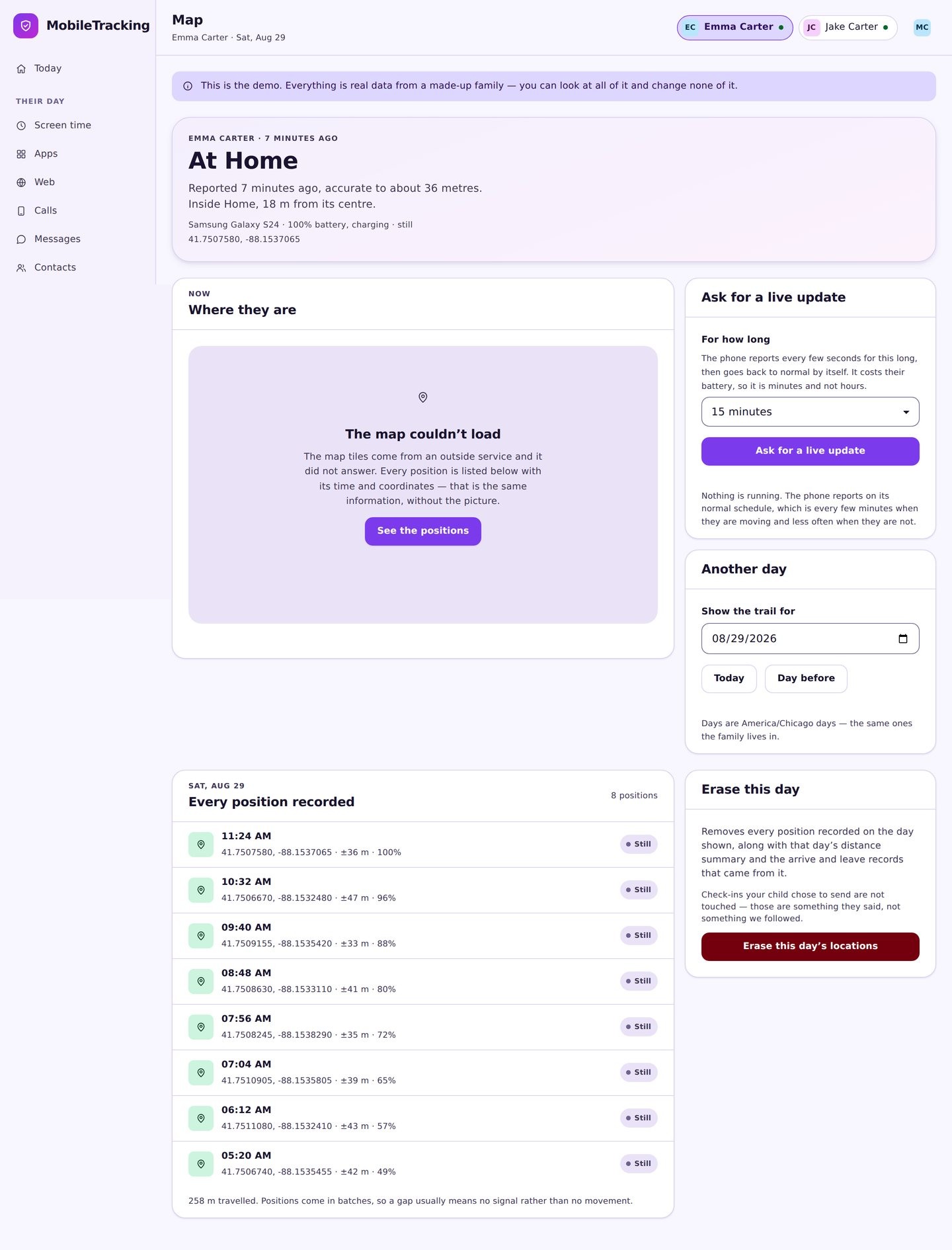
Name the places that keep coming up
An unnamed stop you see three times a week is a place waiting to be saved. Name it once and every entry in the history, past and future, uses that name.
- Save straight from a stop card.
- Use the words your family actually says.
- Fifty metres suits most buildings.
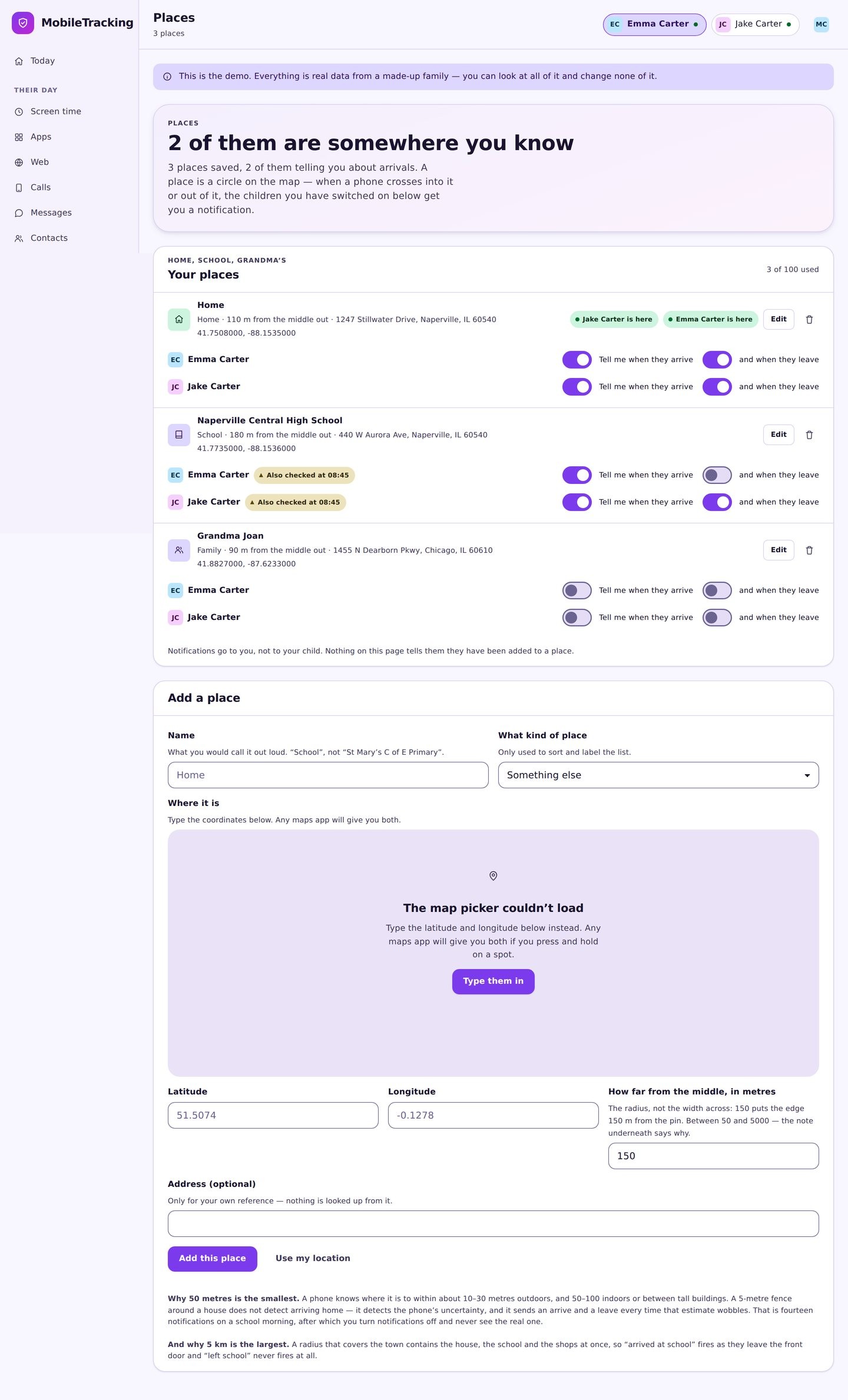
Keep the permissions healthy
History has holes when the phone stops reporting. The two settings that matter are the all the time location permission and an exemption from battery optimisation.
- Choose “allow all the time”, not “while using the app”.
- Exclude the family app from battery optimisation.
- Enable autostart on Samsung, Xiaomi and similar skins.
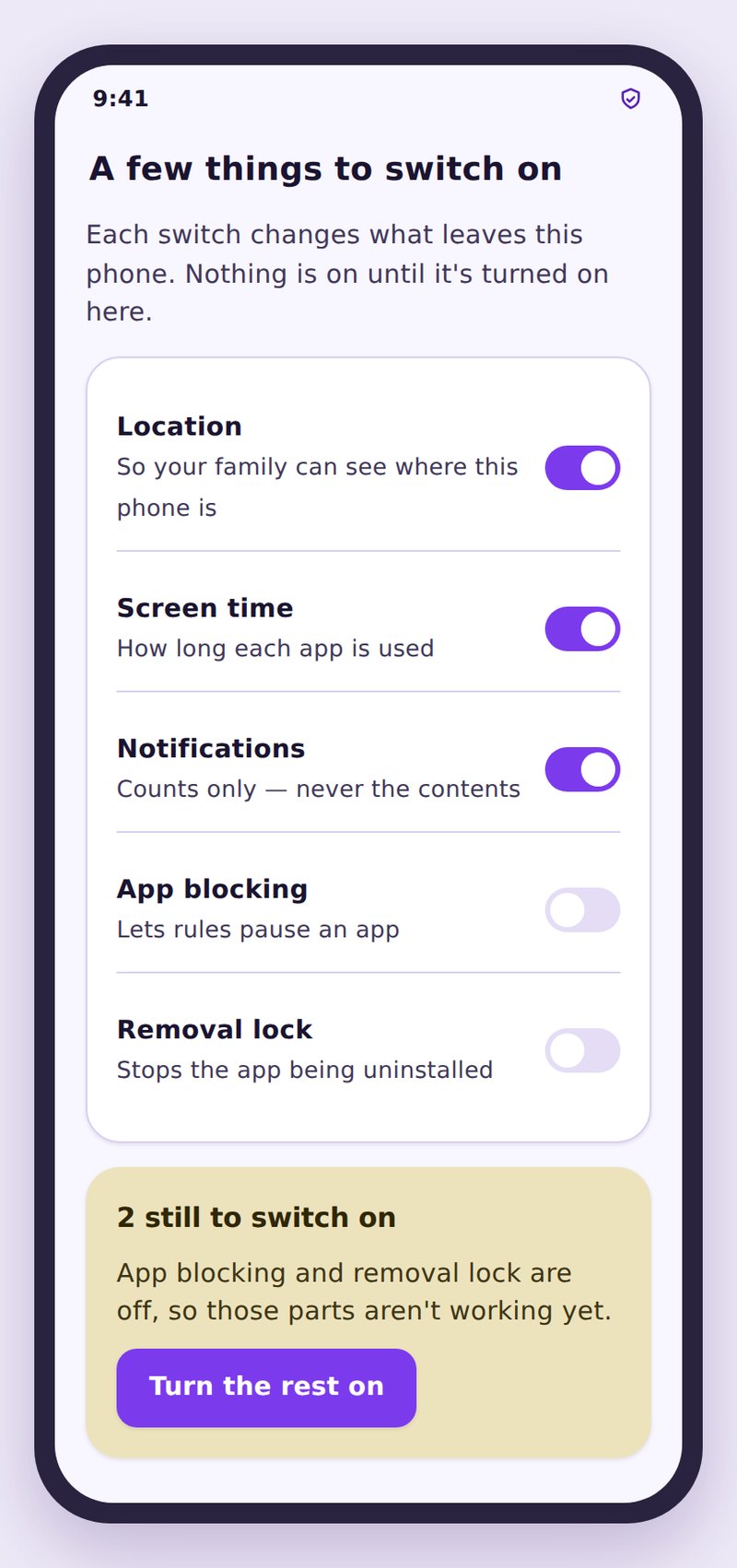
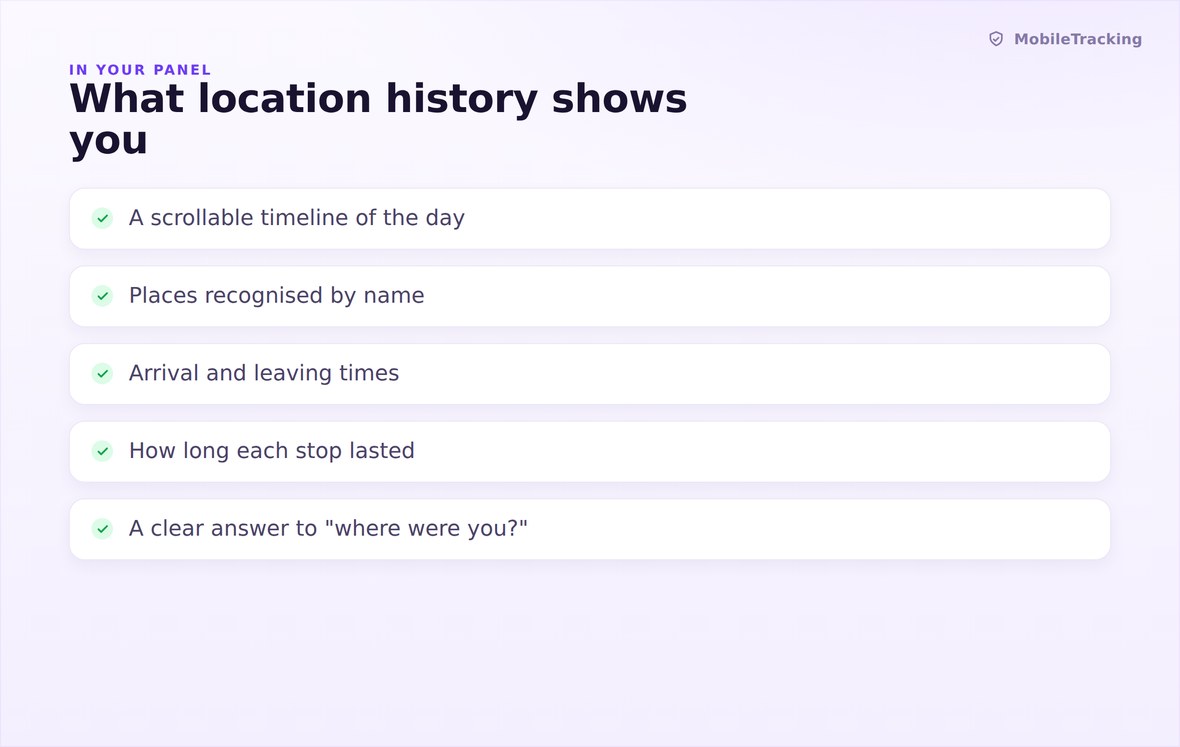
Stops, times, durations and travel, in the order they happened.
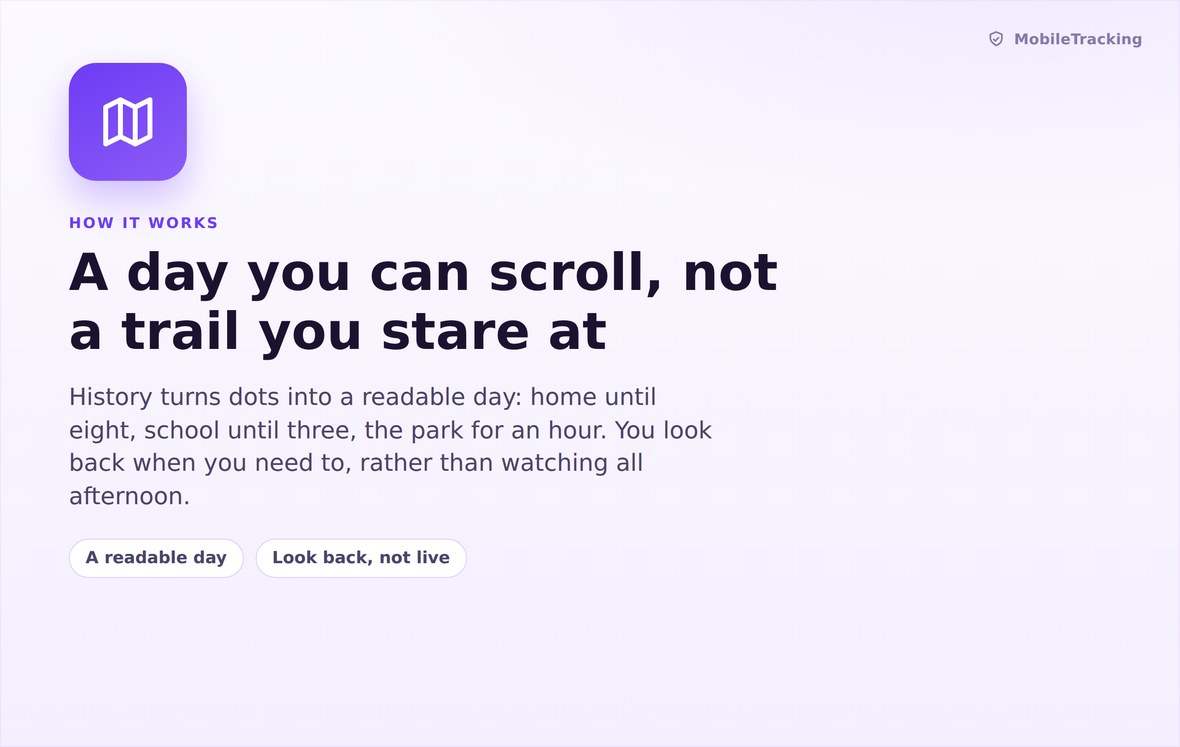
Readings are clustered into stops, matched to saved places, and left as honest gaps when the phone is quiet.
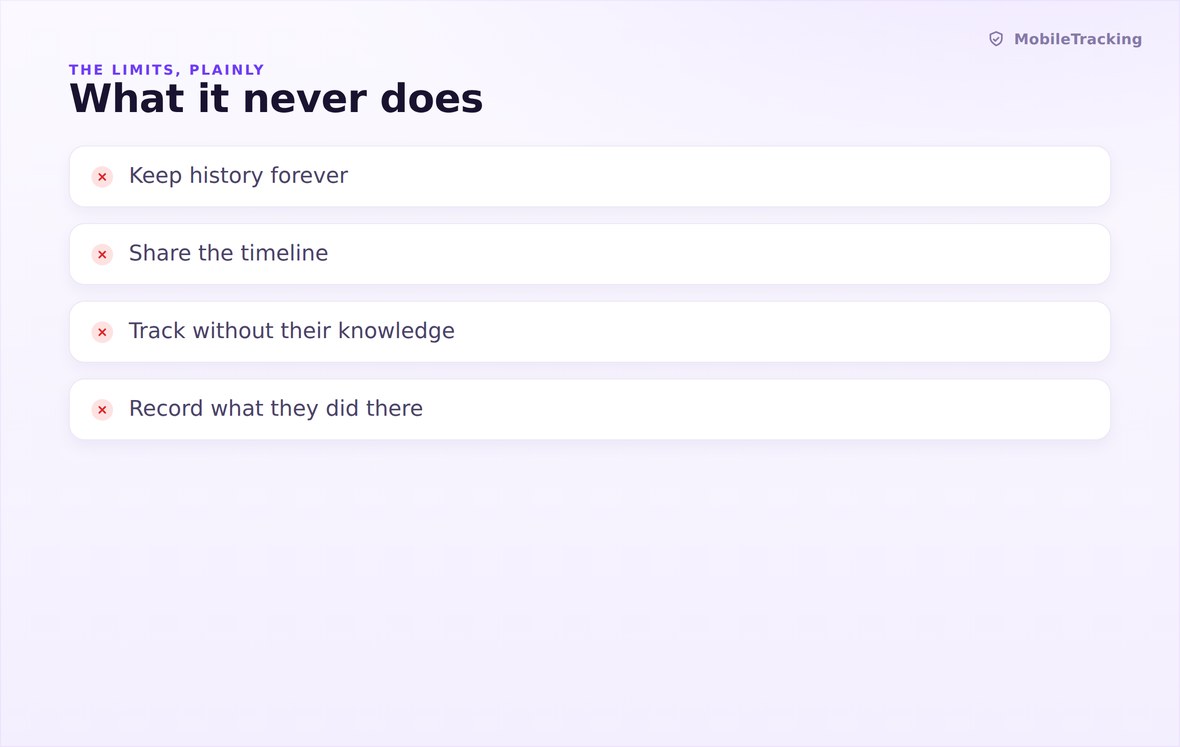
No audio, no photos, no guessing who your child was with, no scoring.
What your child sees
The MobileTracking Family app sits openly on their phone and states that location history is being kept, for how long, and who can see it. There is no hidden archive and no version of this product where a child is surprised to learn the record exists. If they ask what you looked at, the honest answer is always available to both of you.
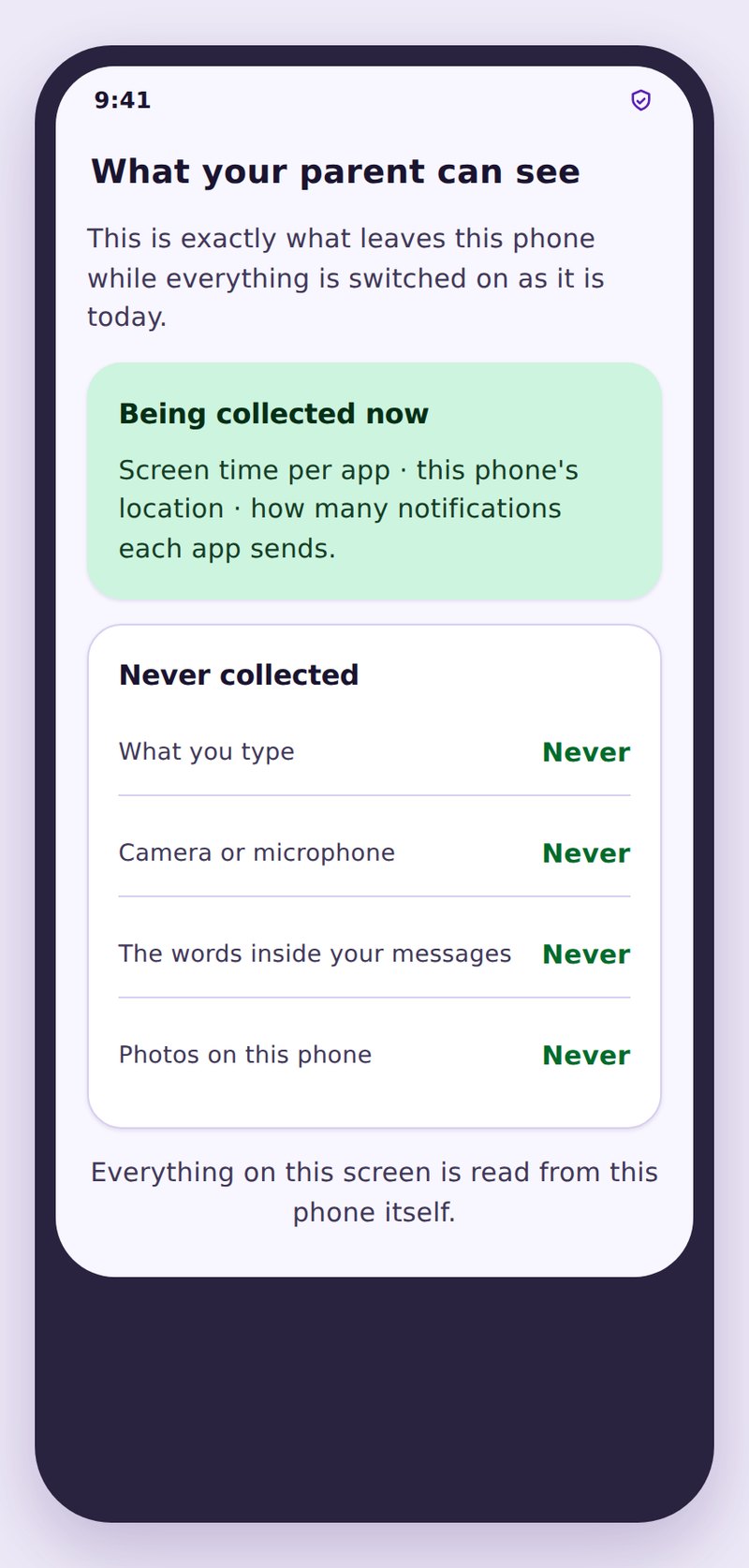
- Stated plainlyThe app names history sharing and the retention window on its own screen.
- They can askA delete request from their phone lands in your alerts for a yes or no.
- Nowhere elseHistory belongs to your account, is never sold, and has no public link.
| View | What it answers | Kept for | Good habit |
|---|---|---|---|
| Live map | Where is this phone right now | Not stored as history | Use it rarely, trust the timestamp |
| Today’s timeline | How the day has gone so far | Rolling window | Check once, in the evening |
| A past day | Where were you at four on Tuesday | Rolling window | Say that you looked, and why |
| Delete a day | Removes one day of stops and readings | Gone immediately | Agree the rules together first |
| Clear all history | Removes every stored day for that child | Gone immediately | A fair reward as trust grows |
A rolling window of recent days, after which each day is removed from your panel and from storage. It is not an indefinite archive, and older days do not come back.
Times come from actual readings. The phone has to take a position before anything can be recorded, so an arrival is stamped at the first reading inside the place, not at the moment a door opened.
Periods when the phone could not report: switched off, no data, no battery, or a revoked permission. We show the gap at its real length instead of inventing a journey across it.
Yes, a single day or the whole record for a child, from your panel. Deleted days are removed rather than archived, so nobody can restore them afterwards.
Yes. The family app names it on the screen they see every time they open it, and they can send you a request to clear it.
Read the day instead of watching the map
Pair an Android phone in about two minutes and get a clean, named timeline of stops and times, with a delete button that actually deletes and a child app that says so out loud.
Related features: GPS Location Tracking, Places and Geofencing, and Family Dashboard.