App Blocking
App blocking is the blunt instrument in the toolkit, and it works best when it is used sparingly and explained out loud. Tap an app, choose block or pause, and the next time your child opens it they get a plain screen naming the rule and the parent who set it. Not a crash, not a spinning wheel, not a phone that appears to be broken. A sentence they can read, and a button to ask about it.
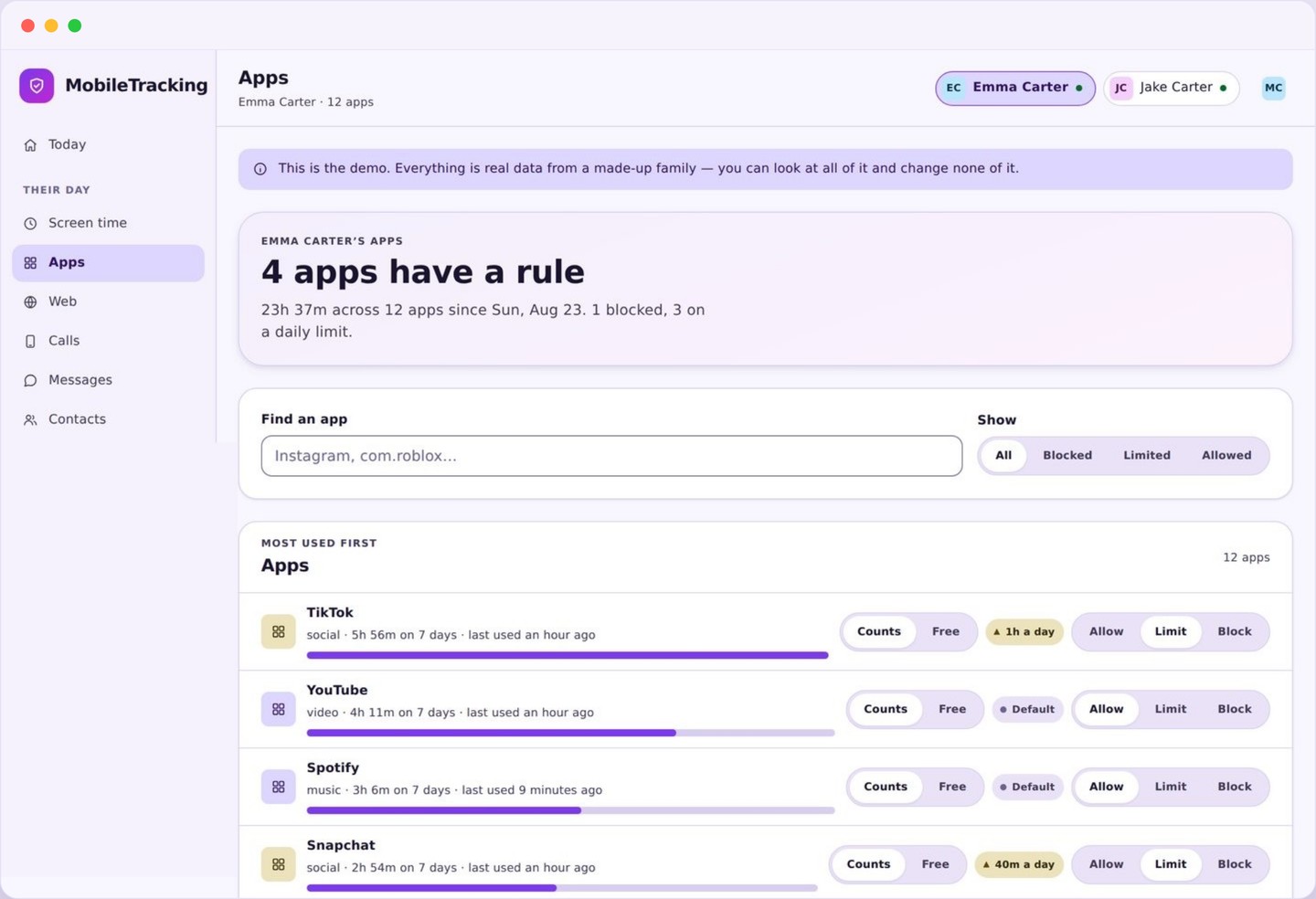
What app blocking looks like on your panel
A list of what is actually installed, with three possible states and the time each app has had this week beside it.
The list is drawn from the phone itself rather than from a catalogue, so it shows what is really there, including the things that arrived last week without being mentioned. Each row carries the app name, its icon, how long it has been used in the last seven days, and its current state. New arrivals are marked, which is usually where a parent’s attention should go first.
The three states are deliberately few. Allowed means nothing happens. Paused means the app stops during hours you choose and works normally the rest of the time. Blocked means it does not open at all until you change your mind. There is no partial mode, no warning-only mode, and no per-feature tinkering inside somebody else’s app, because those things do not work reliably and pretending otherwise just makes the tool untrustworthy.
States are per child and change immediately. Set a rule from your phone while standing in a supermarket and it applies within seconds. A pending request from your child appears at the top of the same page, so approving an exception is one tap in the place you were already looking.
App blocking outright, or pausing on a schedule
Most families reach for blocking and actually needed pausing. The difference matters more than any other choice on this page.
Blocking outright is the right answer for a small number of things: an app well outside your child’s age range, a VPN or proxy app installed to route around filtering, a gambling or dating app that has no business on the phone at all, or something that arrived from outside the store and you cannot identify. These are decisions rather than negotiations, and blocking makes them clean.
Pausing is the right answer for almost everything else. The problem with a game is rarely that it exists, it is that it exists at eleven at night and during homework. A pause covers exactly those hours and leaves the rest of the day alone, which means the rule is about time rather than about the app being bad. Children argue far less with a rule that has an end time attached.
The failure mode of over-blocking is worth naming, because it is common. Block six apps at once and you have not removed six problems, you have created one adversary. Effort that would have gone into using the phone goes into finding another way onto the same platform through a browser, a friend’s device, or a lookalike app with a different name. A short, defensible list of blocks holds. A long one leaks.
A reasonable starting position is one block and one pause. Block the single app you genuinely do not want on the device. Pause the two apps at the top of the time list during school hours and after bedtime. Then leave it a fortnight before touching anything else.
What your child sees when app blocking stops something
A plain screen that names the rule and the parent behind it. We do not fake crashes, and we will not.
Tap a blocked app and it opens onto a full screen message. It gives the app name, the rule that applies, whether the block is permanent or on a schedule, when it will next be available if there is a schedule, and the name of the parent who set it. Below that is a button to send a request, and nothing else. No shame, no countdown timer designed to nag, no cartoon padlock.
Some products in this category disguise a block as a crash or an error, on the theory that a child who thinks the app is broken will stop trying. It is a bad idea for three reasons. It teaches a child that their phone is unreliable, which sends them to a repair shop or a factory reset. It wastes everyone’s time on troubleshooting a problem that does not exist. And when the truth surfaces, as it always does, the thing that gets damaged is not the app rule but your credibility.
A named block is honest and, unexpectedly, more effective. There is nothing to investigate and nothing to discover. The rule is visible, it has an author, and the only route around it is to ask. That converts a technical contest into a conversation, which is the contest you can win.
The child app also carries the full list of current rules, so nothing is a surprise at the moment of use. A child can look at their own phone on Sunday evening and see exactly which apps pause at nine, without having to trigger each one to find out.
Requesting an exception, and why it is worth allowing
A one-tap request with an optional line of context, landing on your panel with the app named and the time attached.
From the block screen, your child can ask. The request carries the app, the current rule, the time it was sent, and up to a sentence of their own explanation. It arrives on your panel where you can grant fifteen minutes, an hour, the rest of the evening, or a permanent change, or simply decline it. Granting a temporary exception does not alter the underlying rule, which quietly returns afterwards without a second conversation.
Parents sometimes assume this will produce a flood. In practice it does the opposite. When asking is easy and the answer arrives quickly, requests are few and specific: a group project in a chat app during homework hours, a video call with a grandparent after bedtime, a game on a Friday when the schedule assumes a school night. Those are all reasonable, and each one is a small deposit of goodwill.
Requests that are refused are worth answering rather than ignoring. A declined request with no reply reads as a wall, and a wall is what makes a teenager start looking for gaps. A one-line answer costs nothing and keeps the system running on agreement rather than on enforcement.
Repeated requests for the same app are information, not nuisance. Three requests in a week for the same chat app during homework usually means the homework genuinely involves that chat app, and the right fix is to change the rule rather than to keep declining the symptom.
Categories, single apps, and the things that are never blocked
Broad rules for whole groups, precise rules for individual apps, and a hard floor nothing can cross.
You can act on a whole category, which is the efficient way to handle games or social apps as a group, and it has the useful property of covering the game that gets installed next week without you doing anything. Category rules are a good match for schedules: pause all games during school hours, pause social apps after bedtime, and stop maintaining a list by hand.
Single app rules are for the specific case, and they always win over the category. Pause every game after nine but allow one that a child plays with a cousin abroad. Block one social app while leaving the rest alone. The panel shows which rule is winning on each row, so an app that is blocked by a category and allowed individually is not a mystery.
Then there is the floor. The phone dialler, emergency calling, messages, the clock and alarm, the settings needed for accessibility, and the family app itself cannot be blocked by any rule you set. This is not a limitation we regret. A phone that cannot ring for help is a worse outcome than any app you were trying to stop, and no schedule, budget, or bedtime rule is allowed to take priority over that.
Blocking is also not uninstalling. The app stays on the phone with its data intact, and unblocking restores it exactly as it was. Nothing is deleted, and there is no punishment mechanic that removes a child’s saved progress in a game.
Set one block and one pause
Open the app list, sort by time used, and act twice. Block the single app that should not be there, and pause the busiest one during school and after bedtime.
- New arrivals are marked in the list.
- Rules apply within seconds.
- Categories cover apps installed later.
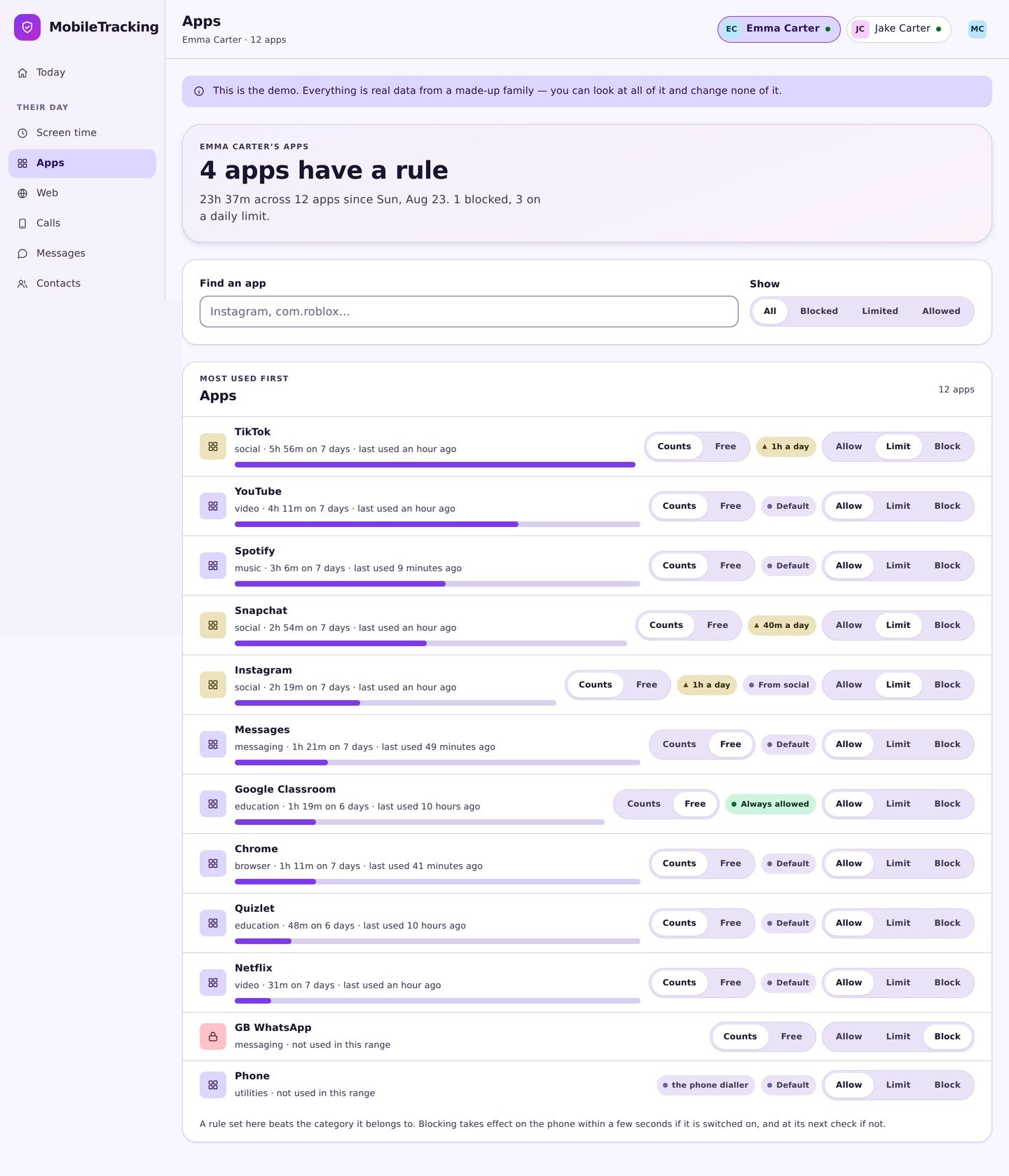
Attach the pause to a routine
A pause tied to school hours or a bedtime routine repeats itself without you thinking about it, and it ends at a time your child already knows.
- Same hours every school night.
- Different rules at weekends.
- Calls and the alarm stay untouched.
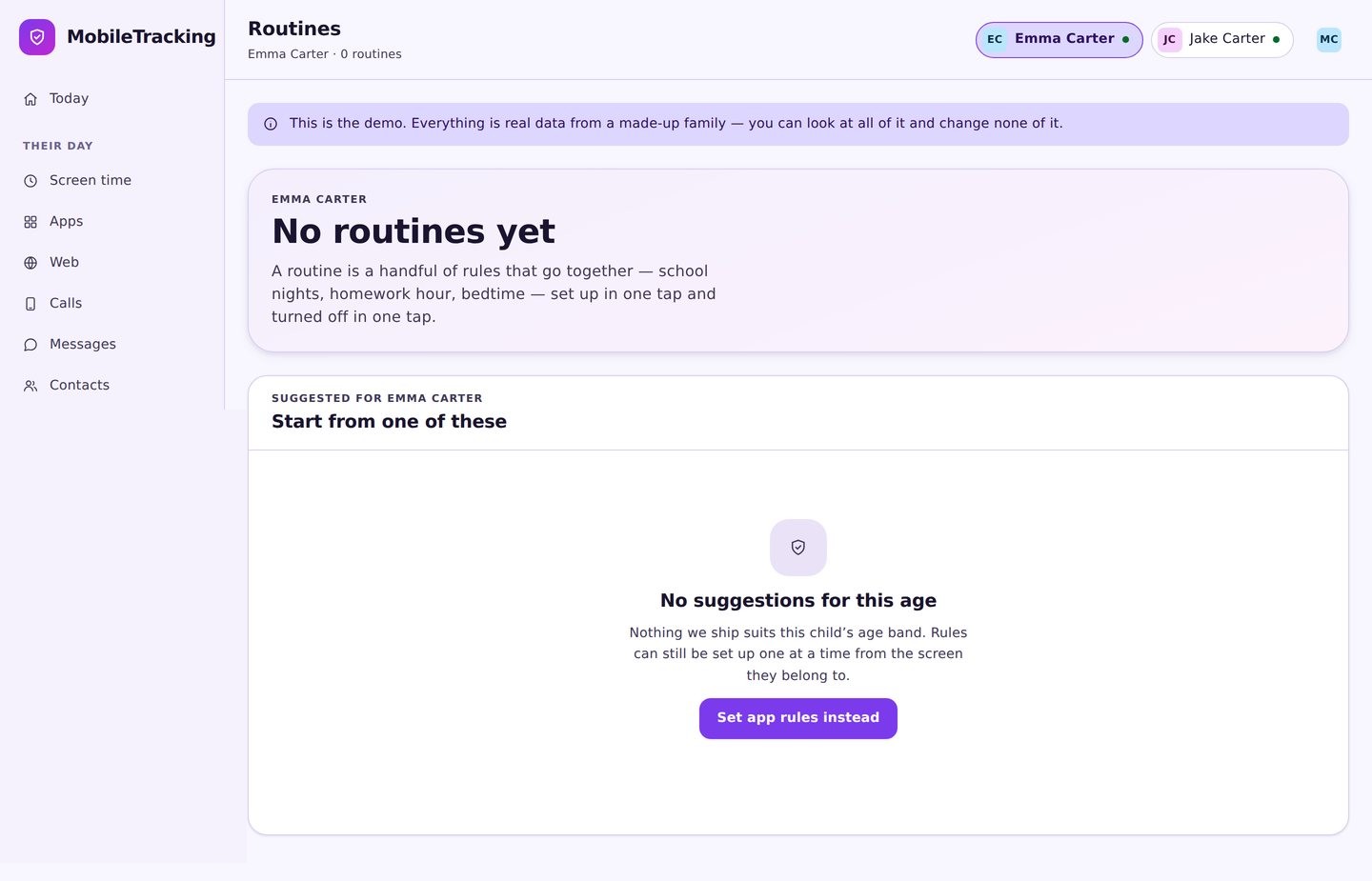
They get a screen that explains itself
The app name, the rule, when it lifts, and who set it. One button to ask for an exception, and no attempt to look like a crash.
- No fake errors or forced closes.
- Requests reach you in seconds.
- All current rules are listed in their app.
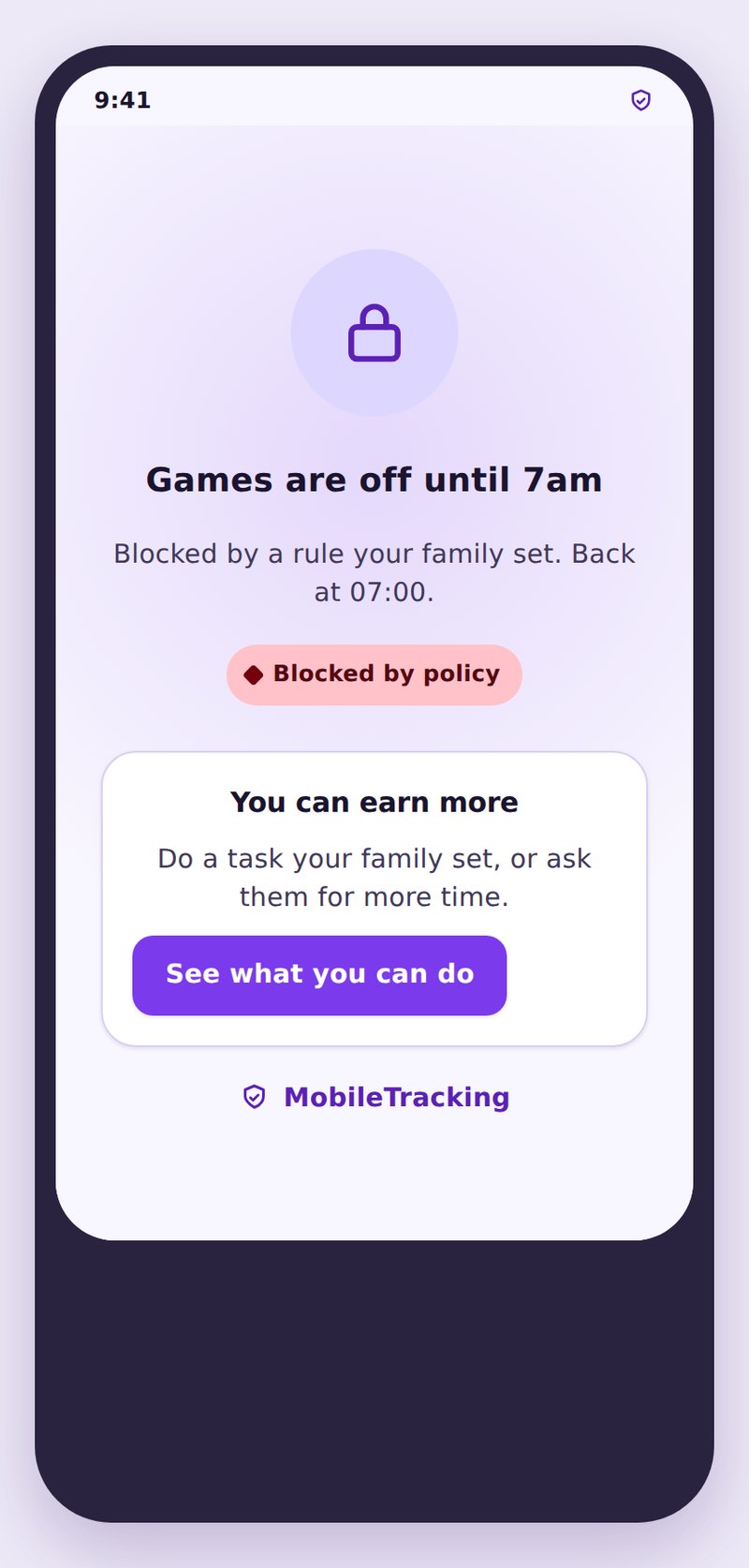
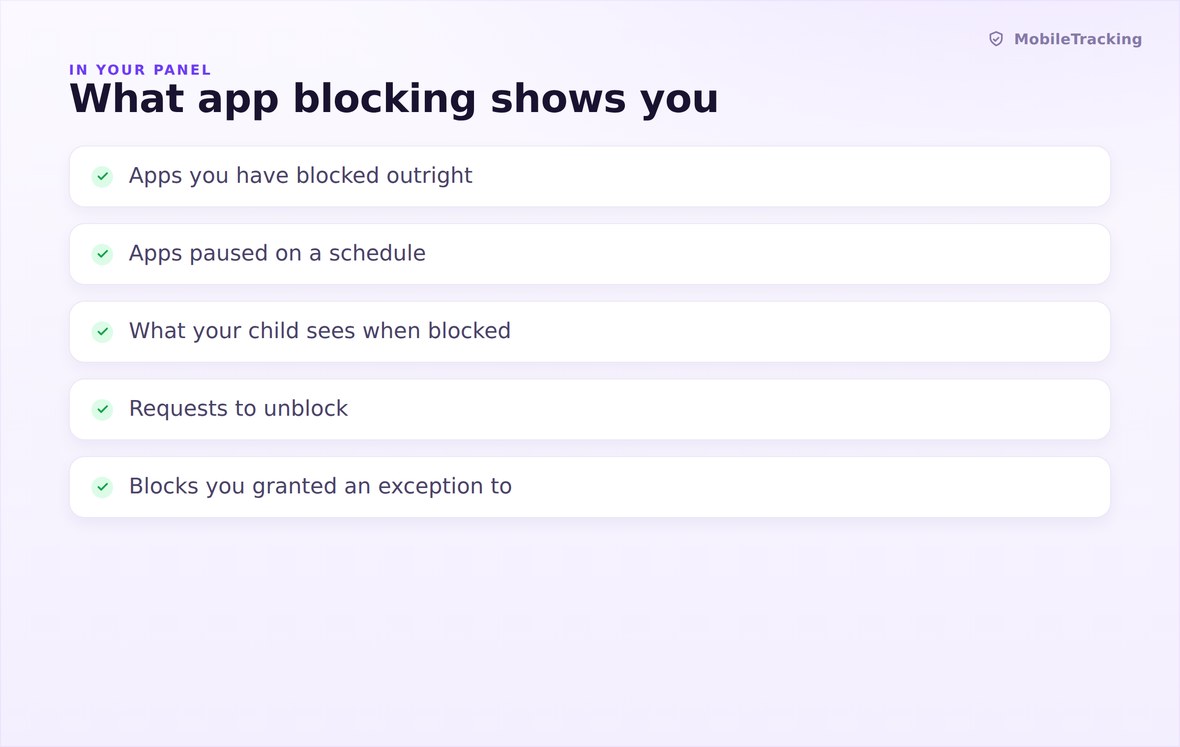
Every installed app, its state, its time this week, and any pending requests.
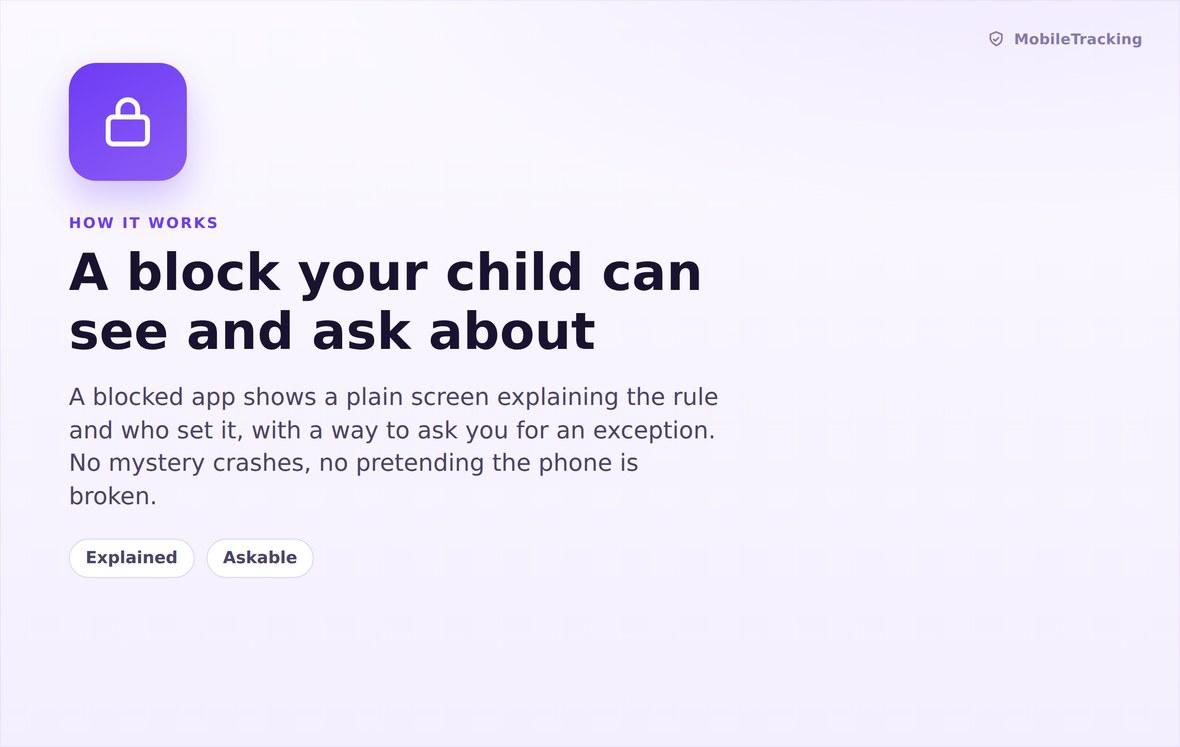
The launch is intercepted and replaced with a named screen, not a fake crash.
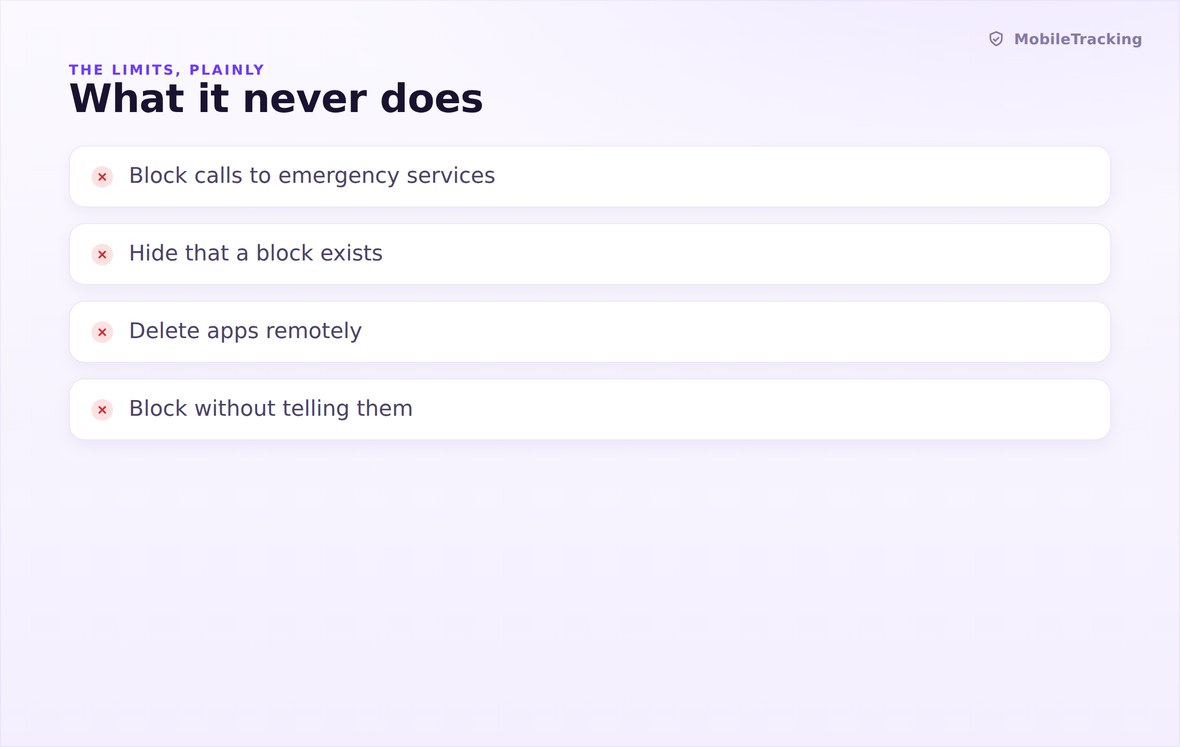
Never blocks calls or emergency dialling, never deletes an app, never hides a rule.
What your child sees
Every rule you set is listed on your child’s phone with your name and the date beside it, and that list is available before an app is ever tapped. App blocking here is a visible family agreement rather than a trap, which is why an explained block produces so many fewer arguments than a silent one. Nothing about what happens inside an app is read or recorded.
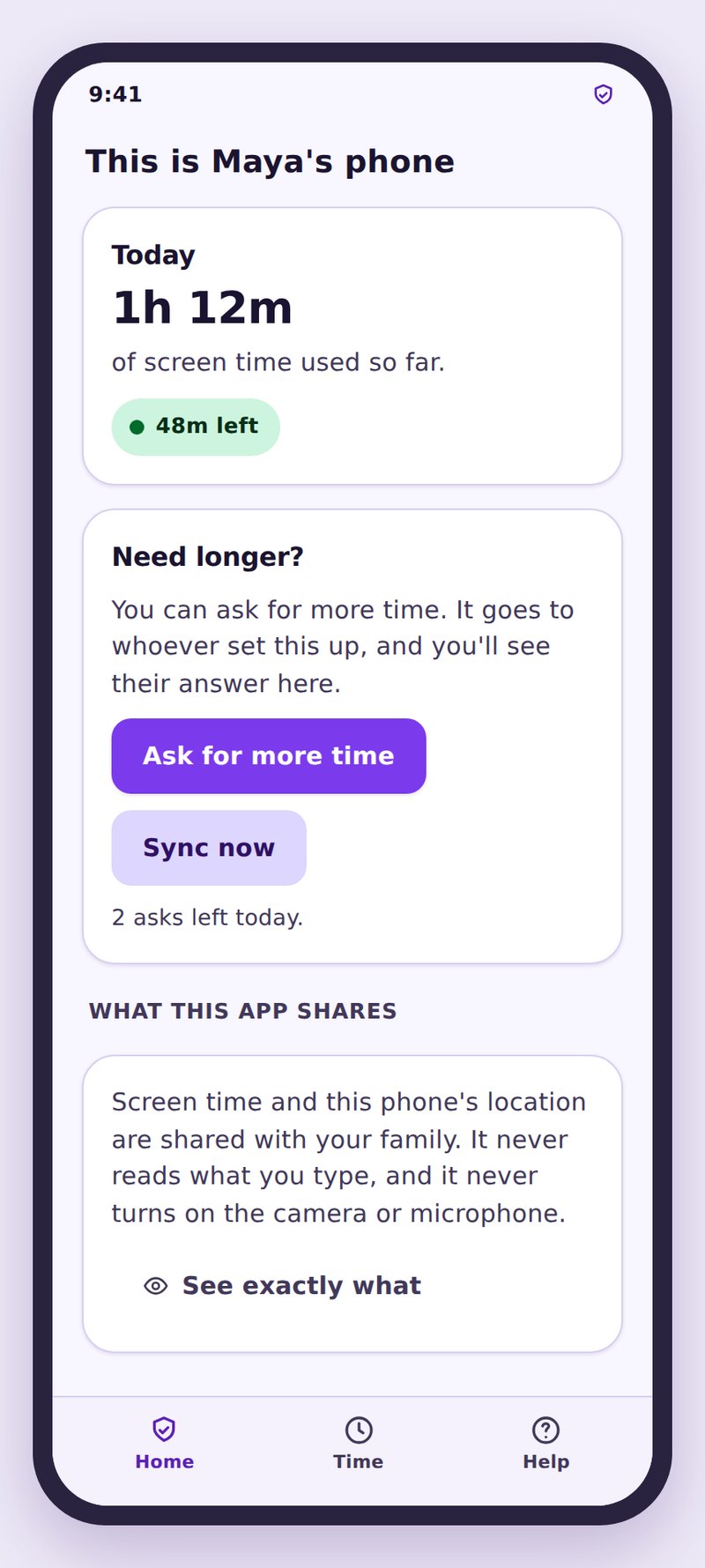
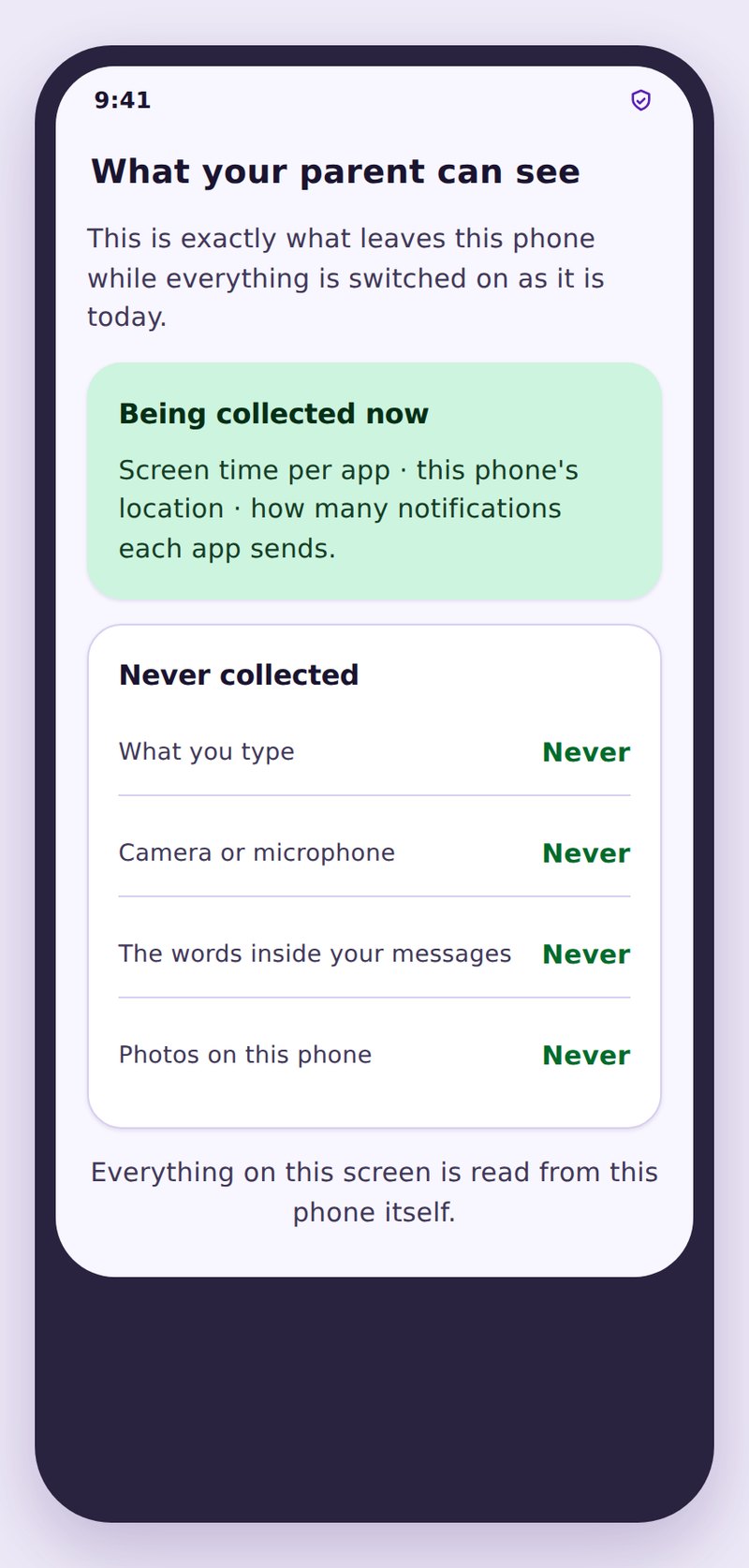
- The rules are listed in advanceThey can read which apps pause and when, without triggering each one.
- Nothing inside an app is readWe see which app opened and for how long, never what was said in it.
- A block is reversibleApps and their data stay on the phone, and unblocking restores everything.
| Situation | Use | Why | Watch for |
|---|---|---|---|
| Game played until midnight | Pause after bedtime | The problem is the hour, not the game | Set weekends separately |
| App well outside their age range | Block outright | A decision, not a negotiation | Explain it once, out loud |
| VPN or proxy app appears | Block outright | It exists to route around filtering | Check how it got installed |
| Phone used during lessons | Pause a category on a schedule | Covers apps installed later too | Allow the school’s own app |
| Chat app needed for homework | Single app exception | Individual rules beat the category | Change the rule after three requests |
| Calls, alarm, emergency dialling | Never blocked | Safety outranks every rule you set | Nothing, this cannot be overridden |
Yes, always. The dialler, messages, emergency calling and the alarm are outside every rule and cannot be blocked by any schedule, budget or block you set.
No. The app stays installed with everything intact. Unblocking makes it work again immediately, with no lost progress.
The app name, the rule, when it next becomes available, and the parent who set it, plus a button to request an exception. It never impersonates a crash or an error.
Removal is protected, and if the app is stopped or its permissions are revoked you are alerted on the device health page rather than left with a silent phone.
Yes. Category rules cover games or social apps as a group and automatically include ones installed later. Individual app rules override the category.
No. The app list records which app was opened and for how long. Message contents, photos, camera and microphone are never accessed.
Set one block and one pause tonight
Block the single app that should not be on the phone, pause the busiest one during school and after bedtime, and let a screen that names the rule do the explaining.
Related features: Screen Time and App Limits, Bedtime and Routines, and App Activity.