Screen Time & App Limits
Screen time in MobileTracking is three plain things: a daily budget in hours and minutes, a short list of caps on the apps that eat an evening, and a warning that arrives before anything stops. Nothing is dramatic and nothing is hidden. Your child sees the same numbers you do, watches the same countdown, and can ask for more time from the same screen that told them it was running out.
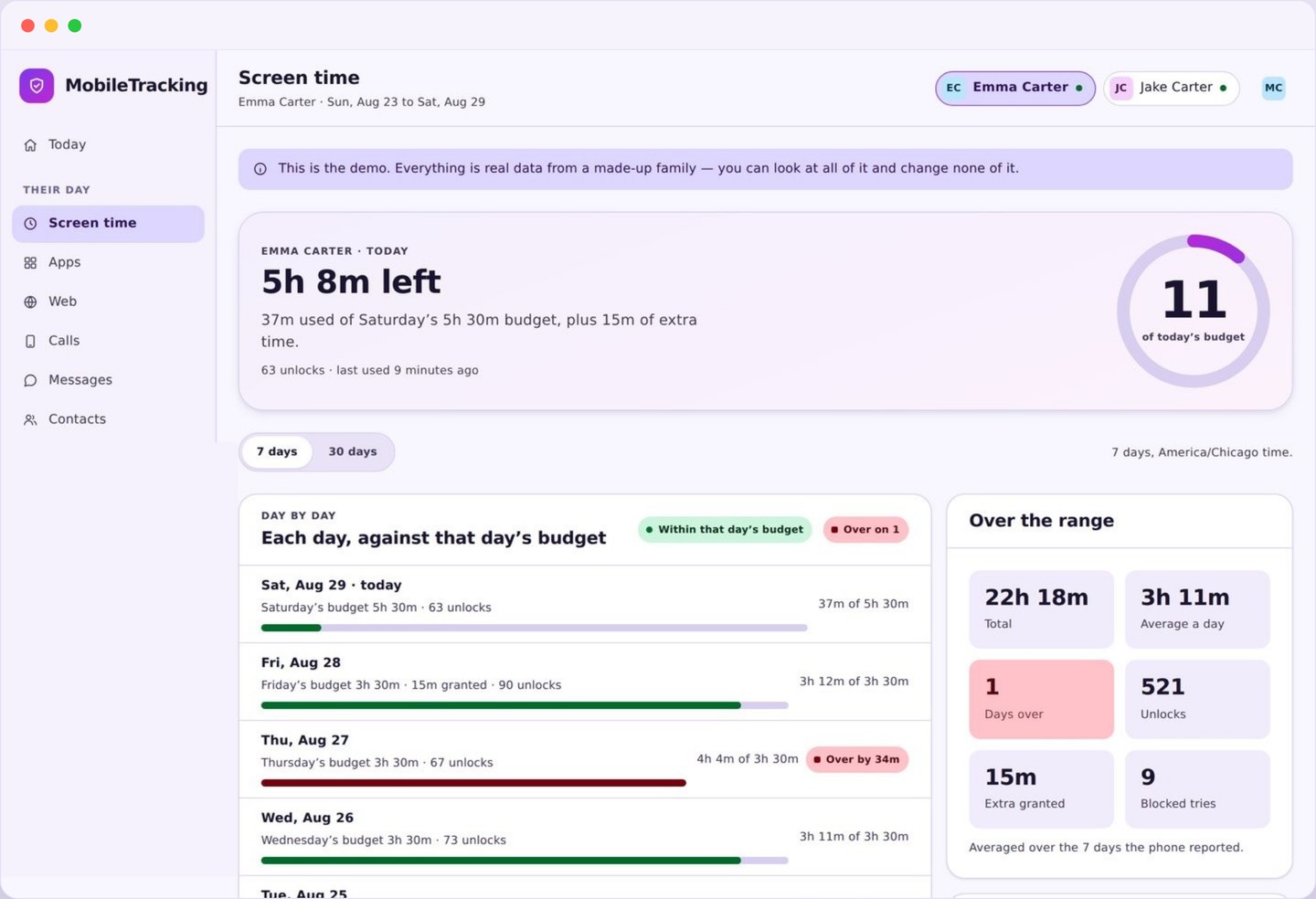
What the screen time panel actually shows
A budget, a bar that fills as the day goes on, and a ranked list of where the minutes went.
The top of the panel is one number: how much of today’s allowance is left. Under it sits a bar that fills through the day, coloured plainly rather than alarmingly, because a child who has used two hours of a three hour budget has not done anything wrong. Next to it is the time already spent, so the two halves of the same fact are never more than a glance apart.
Below that is the list. Every app that has been open today appears with the minutes it used, longest first, and any app carrying its own cap shows that cap beside the number. This is where most parents learn something. It is very common to discover that the app you worried about took eleven minutes and the one you had never thought about took ninety.
The right hand column holds the day’s shape. School nights and weekends can carry different budgets, so the panel tells you which one is in force and when it changes. If a bedtime block or a homework routine is going to interrupt the evening, it is listed there too, with its start time, rather than arriving as a surprise.
- Today’s total budget and the minutes still available.
- Every app used today, ranked by time.
- Per-app caps shown next to the app they apply to.
- Which day type is in force, and what changes tomorrow.
How the phone counts screen time
Android already measures this. We read its measurement rather than inventing our own.
Android keeps a usage record of which app is in the foreground and for how long, and it has done for years. The child app reads that record with a permission your child grants by hand during setup. Counting the foreground app is the honest definition of screen time: the app you are actually looking at accrues minutes, and the six apps sitting behind it in memory do not.
The screen has to be on. A phone in a pocket playing music is not counted, because nobody is looking at it, and a video paused on the sofa while the screen sleeps stops the clock. This is why the total you see is almost always lower than a child’s own estimate of their day, and it is also why background chat apps rarely appear high in the list even when notifications arrive constantly.
Totals are reported to your panel in short batches rather than instantly, so a figure can lag reality by a few minutes on a weak connection. The count itself never gets lost: the phone holds the record locally and sends it when it can, which means an afternoon spent offline still shows up correctly once signal returns. Days roll over at midnight in the phone’s own time zone.
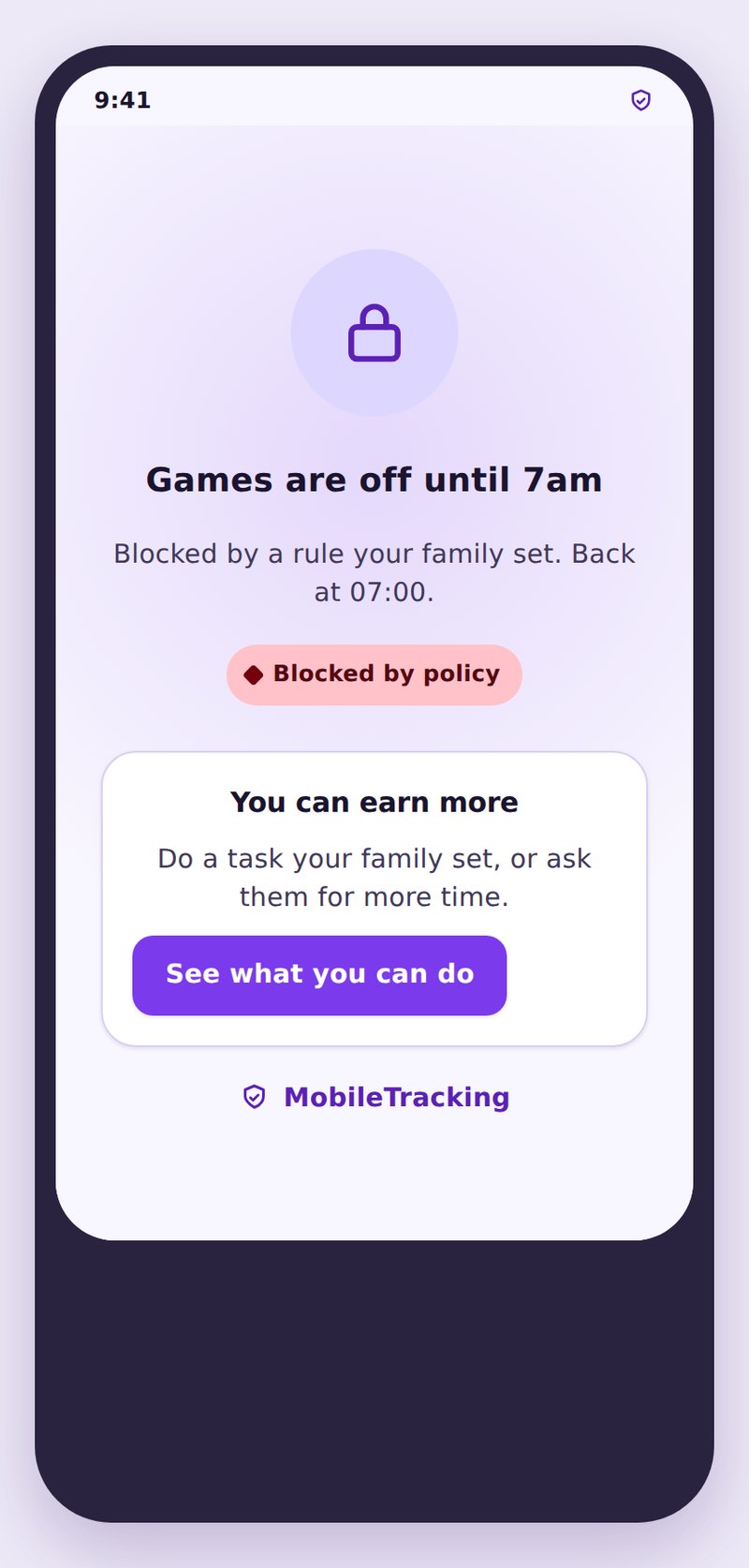
Blocking works through the same foreground signal. When a capped app comes to the front and its allowance is gone, the child app puts a full screen message over it explaining which limit was reached. It does not delete the app, uninstall anything, or reach inside it. It simply covers it, and the cover goes away when the budget resets or you grant more time.
The warning, and what happens at zero
A countdown nobody can miss, then a wind-down that leaves the useful parts of the phone alone.
Ten minutes before the budget runs out, the phone says so. The warning is deliberately boring: a notification and a small banner naming the limit and the time remaining. That ten minutes exists for one reason, which is that being cut off mid-match or mid-conversation feels like a punishment, and a rule that feels like a punishment gets fought. Ten minutes of notice turns the same rule into a fact of life.
At zero, the phone winds down rather than switching off. Games, video and the apps you have capped go behind the block screen. Everything a phone is genuinely for stays available: phone calls, emergency calls, messages, the camera roll, maps and navigation, the alarm clock, and any app you have marked as always allowed. A child who has spent their budget can still call you, still find the bus, and still get home.
The block screen names the reason. It says which limit ran out, whether it was the daily budget or a cap on that one app, and when the next reset happens. It also offers the button to ask you for more. Being told plainly why something stopped is the difference between a limit and a fault, and children treat the two very differently.
School nights, weekends and bedtime
One budget for every day of the week is the fastest way to make a limit feel unfair.
Most families run two numbers. A school night budget that fits around homework and a bedtime, and a longer weekend one that admits Saturday is not Tuesday. Setting those separately takes about a minute and removes the single most common argument, which is not really about screen time at all but about a rule that ignores the obvious difference between a Wednesday and a Saturday morning.
Bedtime is a separate switch and it works differently from the budget. Instead of counting minutes it names a window, and inside that window the entertainment apps stay behind the block screen whether or not any allowance is left. This matters because unused minutes should not be spendable at half past eleven. Sleep is the outcome with by far the strongest evidence behind it, and a bedtime block is the piece of this feature most worth turning on first.
Holidays deserve their own treatment rather than an abandoned rule. Raising the budget for a week is a decision you make once, on purpose, and it teaches something better than quietly letting the limit lapse: that the rule has a reason, and when the reason changes the rule changes with it. Put it back afterwards, on a day everyone expects, and the return costs very little.
Granting more, and why a reason helps
The request comes with a sentence attached, and the sentence is the useful part.
When a child hits a limit they can tap to ask for more, choose an amount, and type why. The request appears on your phone with the app name, the time already used today, and their reason, so you are deciding with the facts in front of you rather than from memory. Approving adds the minutes immediately and both phones show the new total. Declining is a single tap too, and it also shows on their side, so there is no silent refusal to wonder about.
The reason field is optional but we push it hard, because it changes what the exchange is. “Twenty minutes, I am in a group project call” is a negotiation between two people. A bare request is a slot machine handle, pulled repeatedly to see what comes out. Families who insist on a sentence report far fewer requests within a fortnight, which is not because they refuse more often but because the child filters their own asking.
Extra time can be one-off or scheduled. A one-off grant applies to today only and disappears at the reset, which is what you want for a genuine exception. If you find yourself granting the same twenty minutes every single evening, that is not a stream of exceptions, it is evidence that the budget is set wrong. Raise it, tell your child you have raised it, and let the exception go back to being exceptional.
What screen time limits deliberately do not do
The boundaries are as much a part of the design as the features.
They do not read anything. The app knows that a messaging app was in the foreground for eighteen minutes. It does not know who was messaged, what was typed, or what was said back. There is no keystroke logging, no camera access, no microphone access, and no capture of anything on the screen. Time is a number, and a number is all that leaves the phone.
They do not run in secret. The child app carries the same budget, the same caps and the same schedule you set, on a screen your child can open at any moment. Nothing arrives as an ambush, and a rule they can read is a rule they can argue with, which is exactly the conversation worth having.
They do not score anybody. There is no weekly grade, no comparison against other children, and no cheerful message about a bad week. The panel reports hours and apps and leaves the judgement to you, because a number that arrives with a verdict attached tends to be defended rather than discussed.
Set the daily budget
Pick a total for school nights and a different one for weekends. Start close to what the phone already reports for a normal week rather than at the number you wish were true.
- Two figures: school nights and weekends.
- Check last week’s average before choosing.
- Tighten later, in small steps, out loud.
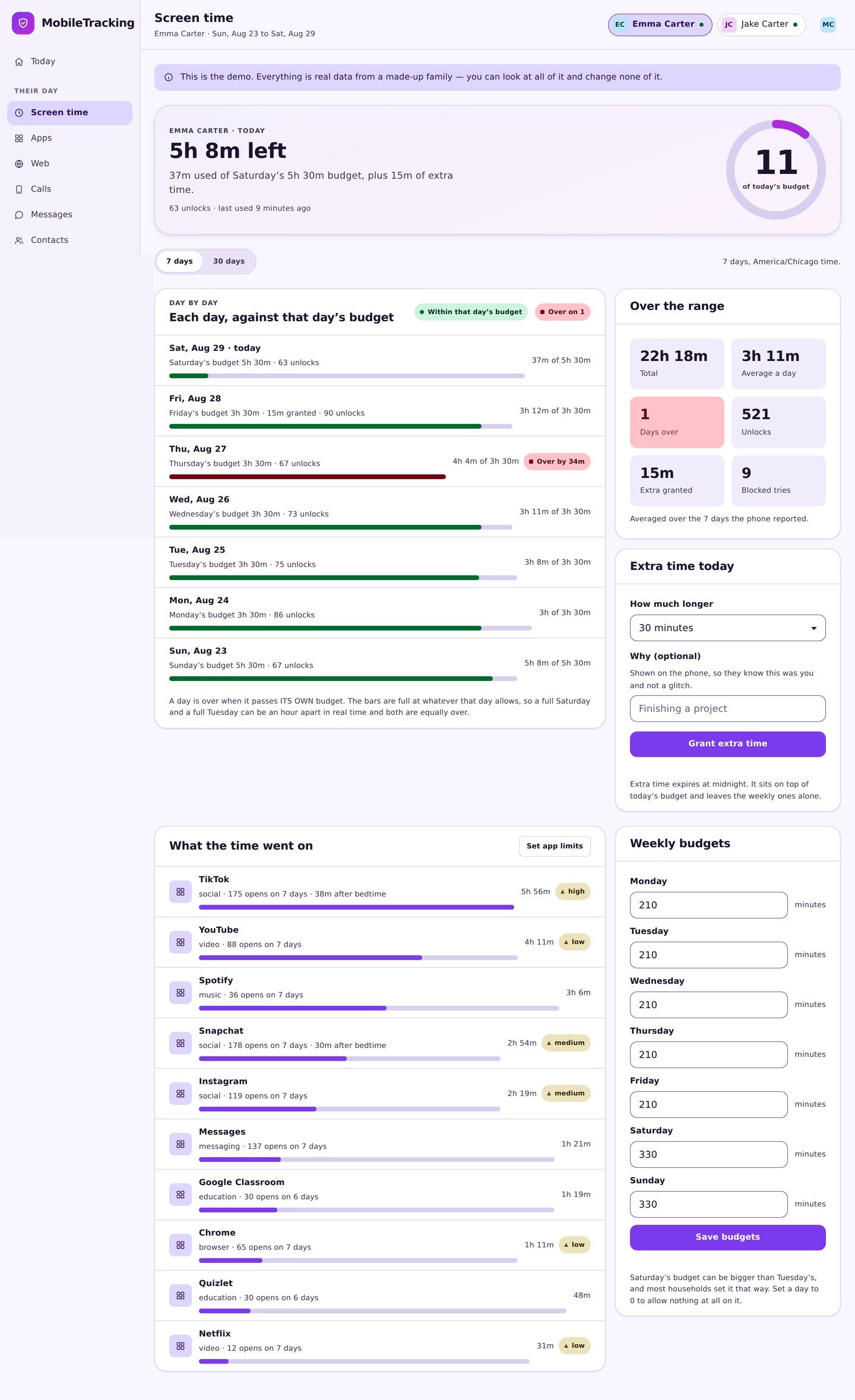
Cap two apps and set bedtime
Give a cap to the two apps at the top of the list, then name the hour the phone winds down. Two caps and one bedtime beat twenty rules nobody remembers.
- Cap the biggest two, not everything.
- Bedtime overrides leftover minutes.
- Mark maps and messages always allowed.
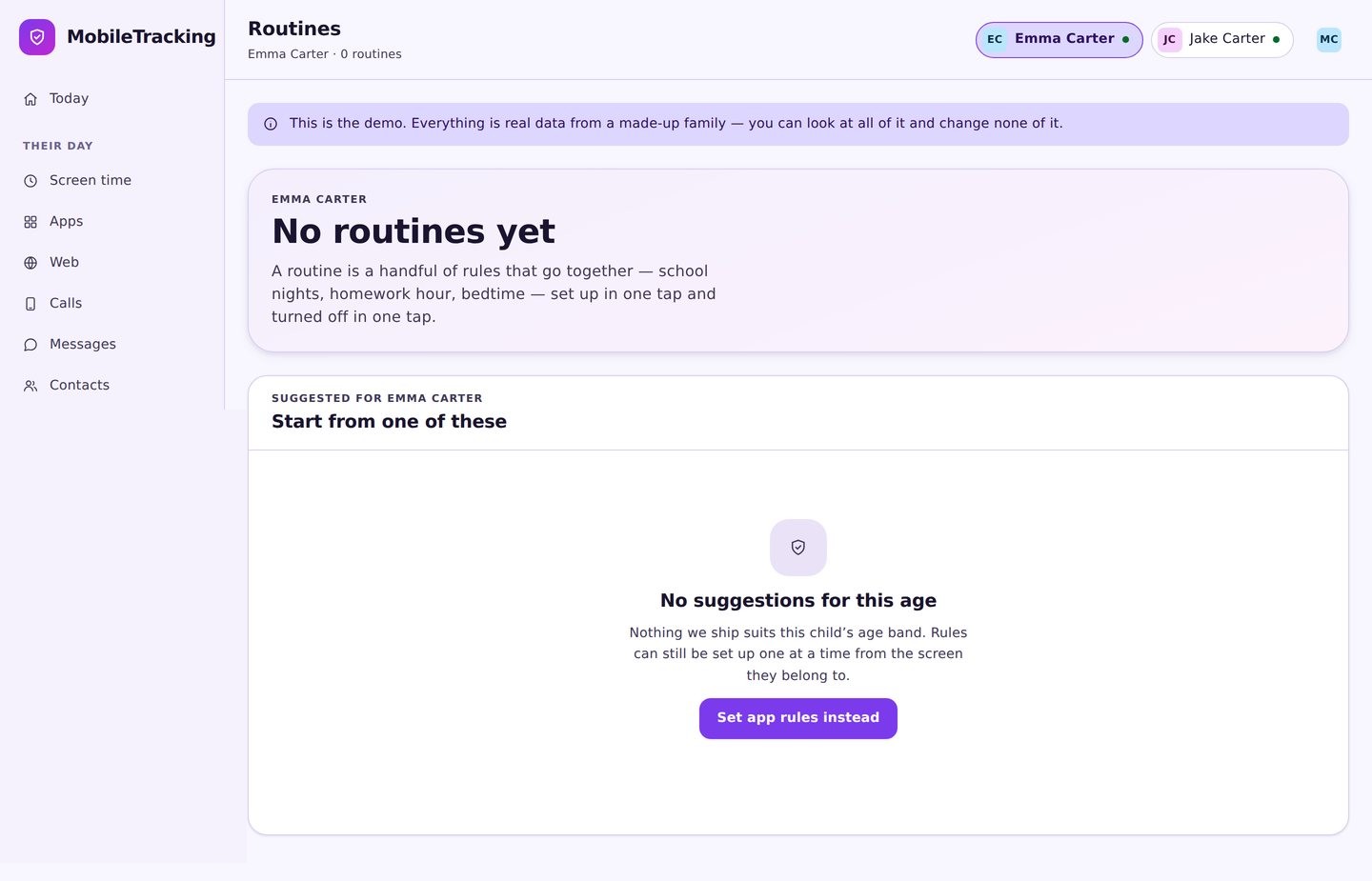
Show them the same screen
Open the child app together and let them see the budget, the caps and the countdown. Grant the usage access permission at the same time, since nothing counts without it.
- Usage access must be granted by hand.
- Show the request button before they need it.
- Agree what a good reason looks like.
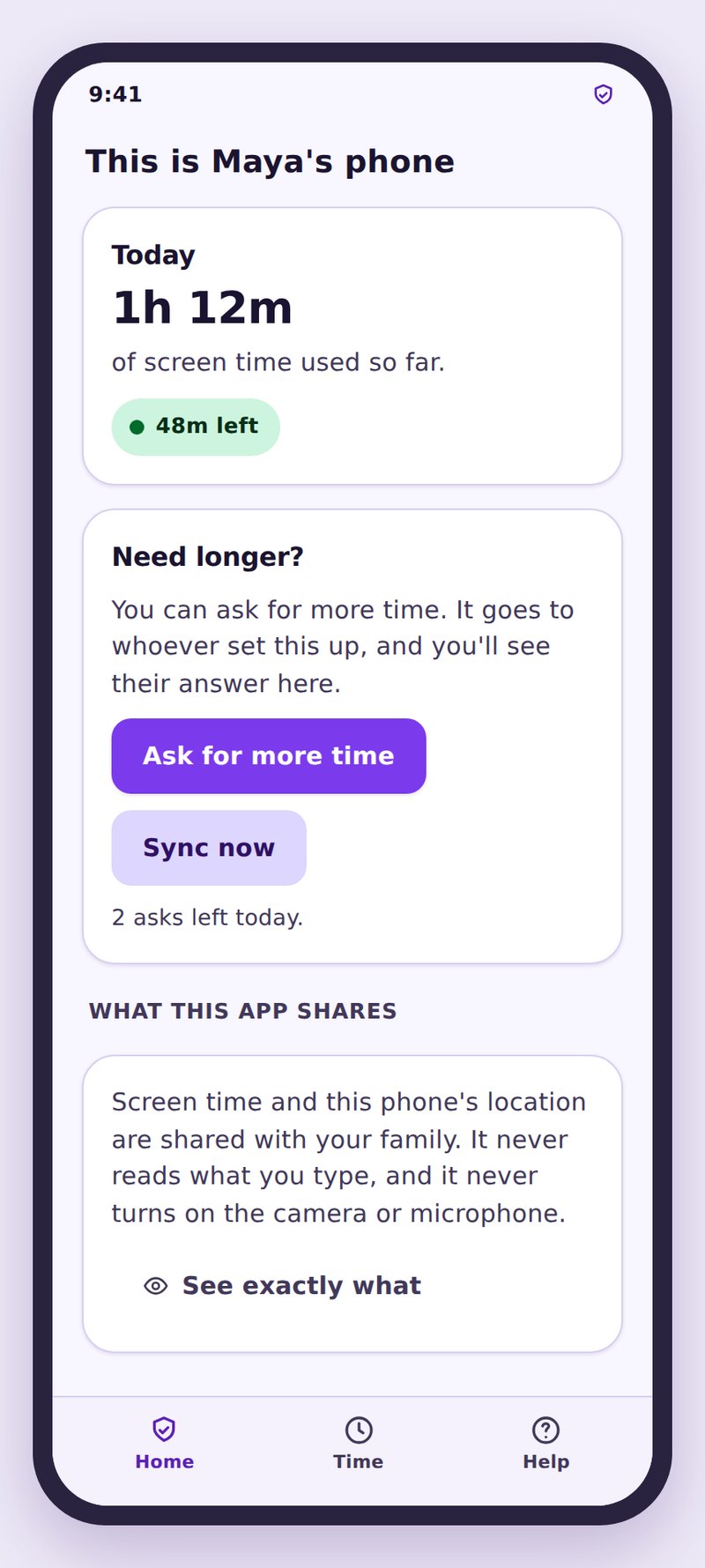
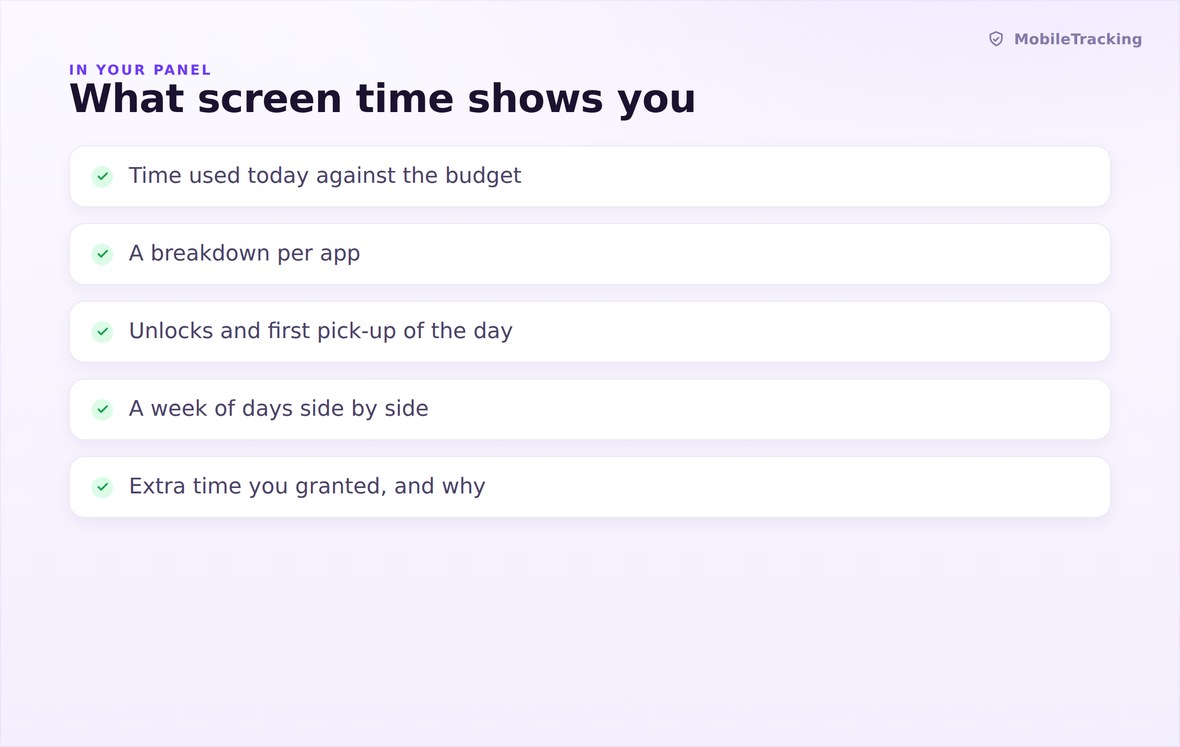
Budget left, minutes spent, and every app today ranked by time.
Android’s own usage record, read with permission, plus a cover screen at zero.
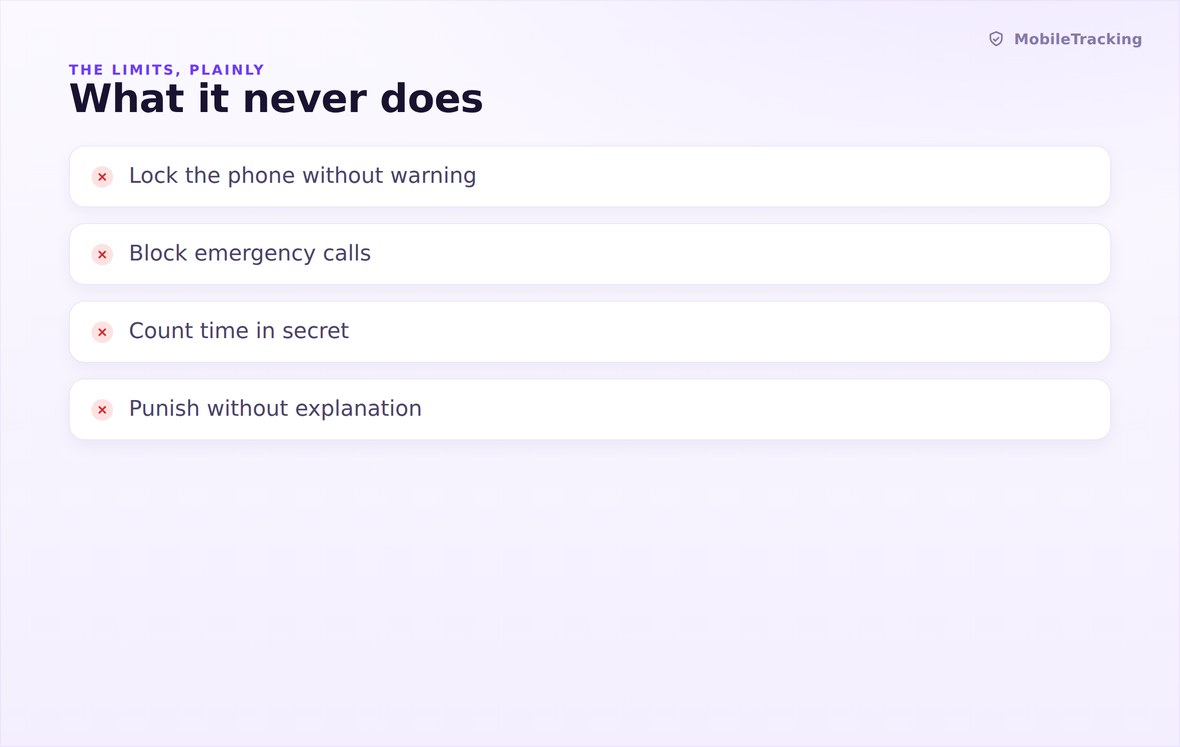
No message contents, no camera, no microphone, no secret rules.
What your child sees
Your child’s phone shows the budget, every cap, the bedtime window and the countdown, and when something is blocked it says which limit did it and when the reset comes. The rules are readable from their side at any hour, which is the whole reason the block screen works: it is enforcing an agreement they already knew about, not springing a trap.
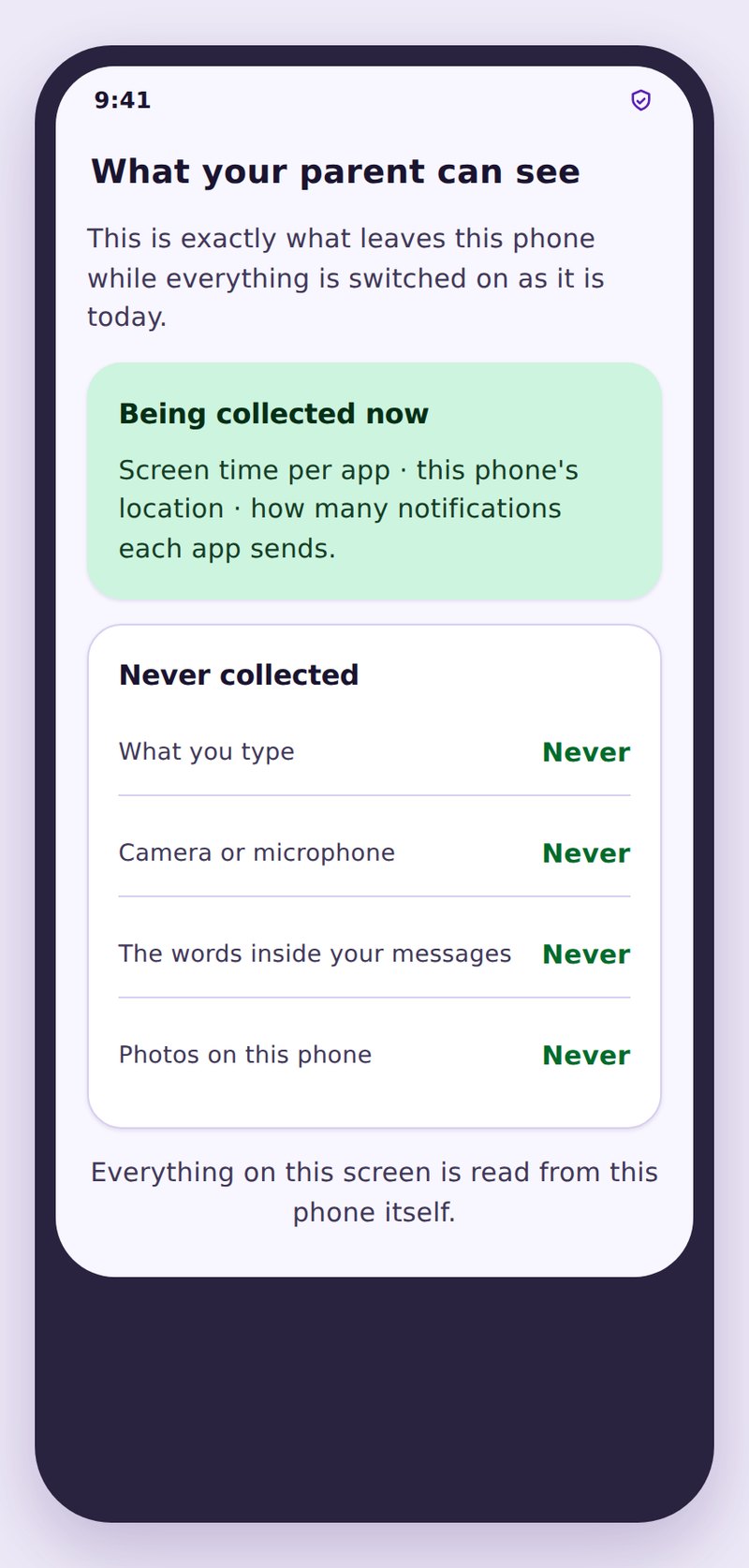
- Every rule is visibleBudget, caps and bedtime all appear on their screen, not just yours.
- Calls always workDialling, emergency calls and maps stay open even at zero minutes.
- Only minutes leave the phoneApp names and durations, never a word of what was typed or read.
| Age | School night budget | Weekend budget | Worth capping |
|---|---|---|---|
| 6 to 8 | 30 to 45 minutes | 1 to 1.5 hours | Video apps, which run on with no natural stopping point |
| 9 to 11 | 1 hour | 2 hours | One game, plus short form video |
| 12 to 14 | 1.5 to 2 hours | 3 hours | Short form video first, then the biggest game |
| 15 to 17 | 2 to 3 hours, or bedtime only | Often no cap at all | Usually nothing beyond a bedtime window |
No. Only the app in the foreground with the screen on accrues minutes, so music in a pocket and a paused video do not add up.
They keep working. Phone calls, emergency dialling, messages, the camera roll, the alarm and navigation are never blocked by a screen time limit.
Yes, and that is the point. A child with two hours left can still be out of minutes on one particular game if its own cap is spent.
Ten minutes by default, delivered as a notification and a banner naming the limit. It exists so nothing stops mid-match or mid-conversation.
Your panel notices that reporting has stopped and tells you. Nothing is hidden from either side, and the fix is a conversation plus reinstalling together.
No. Each day starts at the full budget, and a bedtime window applies whether or not minutes are left.
Set one budget and one bedtime tonight
Pick a school night total, cap the two apps at the top of the list, name the hour the phone winds down, and show your child the same screen you just set up.
Related features: Bedtime and Routines, App Activity, and Tasks and Rewards.