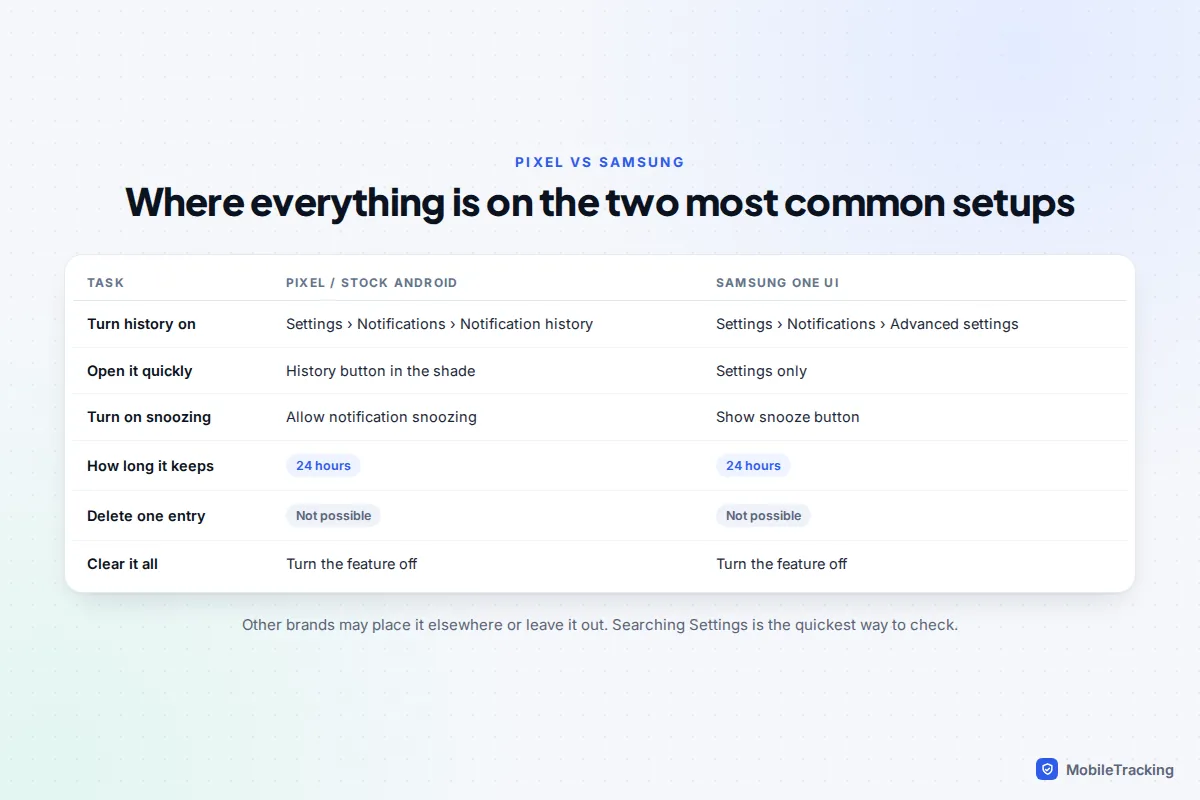
To turn on notification history on a Pixel or other phone running stock Android 15, 16 or 17, open Settings › Notifications › Notification history and switch on Use notification history. On a Samsung Galaxy, go to Settings › Notifications › Advanced settings › Notification history and switch it on. From then on your phone keeps a list of the notifications you receive and dismiss, going back 24 hours.
The catch is timing. Notification history only records from the moment you switch it on, so it can’t bring back the alert you swiped away this morning if the feature was off. Turn it on now, and the next time you dismiss something by mistake it will take you a few seconds to find. This guide covers where the setting lives, what it keeps, how snoozing fits in, and the privacy trade-offs on a shared phone.
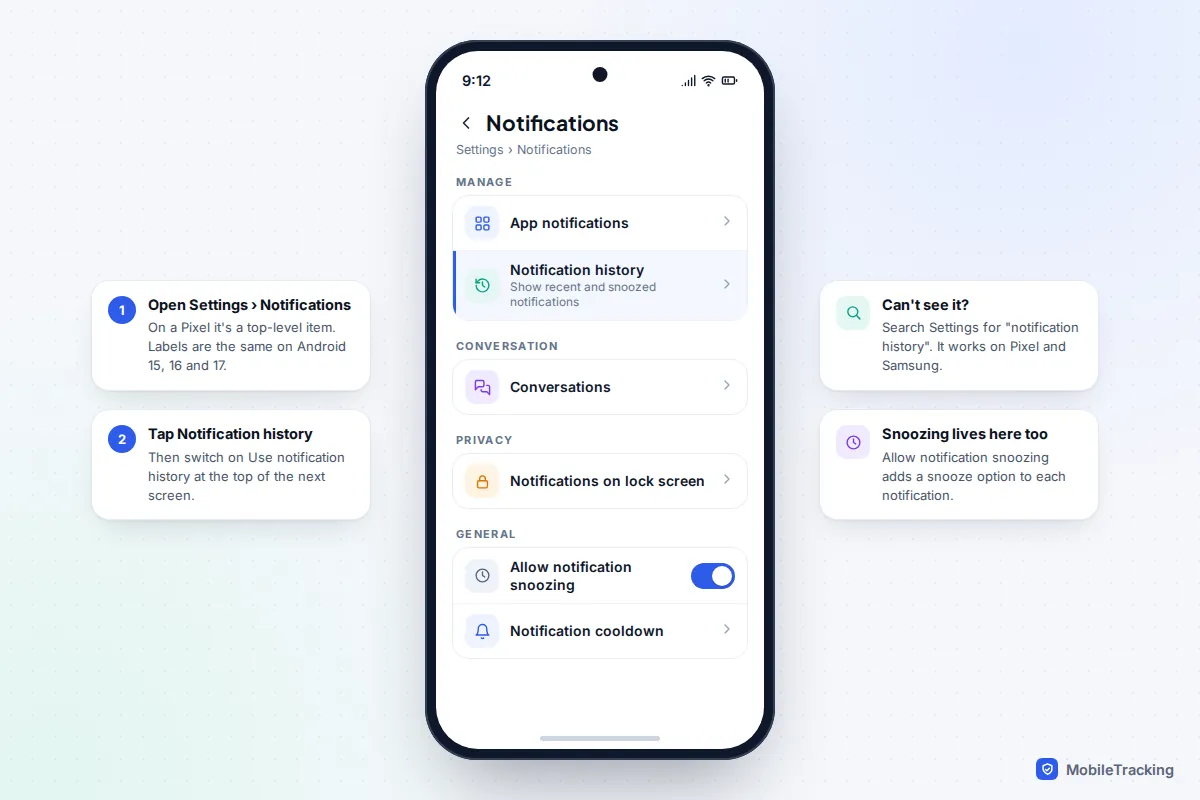
How to turn on notification history
Notification history has been part of Android since Android 11 in 2020, but it is switched off by default on most phones. The setting takes about 20 seconds to find once you know where to look.
Pixel and stock Android (Android 15, 16 and 17)
- Open the Settings app.
- Tap Notifications.
- Tap Notification history.
- Switch on Use notification history at the top of the screen.
The list starts empty. That is normal: it fills up as new notifications arrive. Google’s Pixel help page on past notifications describes the same steps.
Samsung Galaxy (One UI 7 and 8)
- Open Settings and tap Notifications.
- Scroll down and tap Advanced settings.
- Tap Notification history and switch it on.
Samsung’s own guide to Galaxy notification settings lists the same path. While you are on the Advanced settings screen, it’s worth switching on Show snooze button too, which is covered further down.
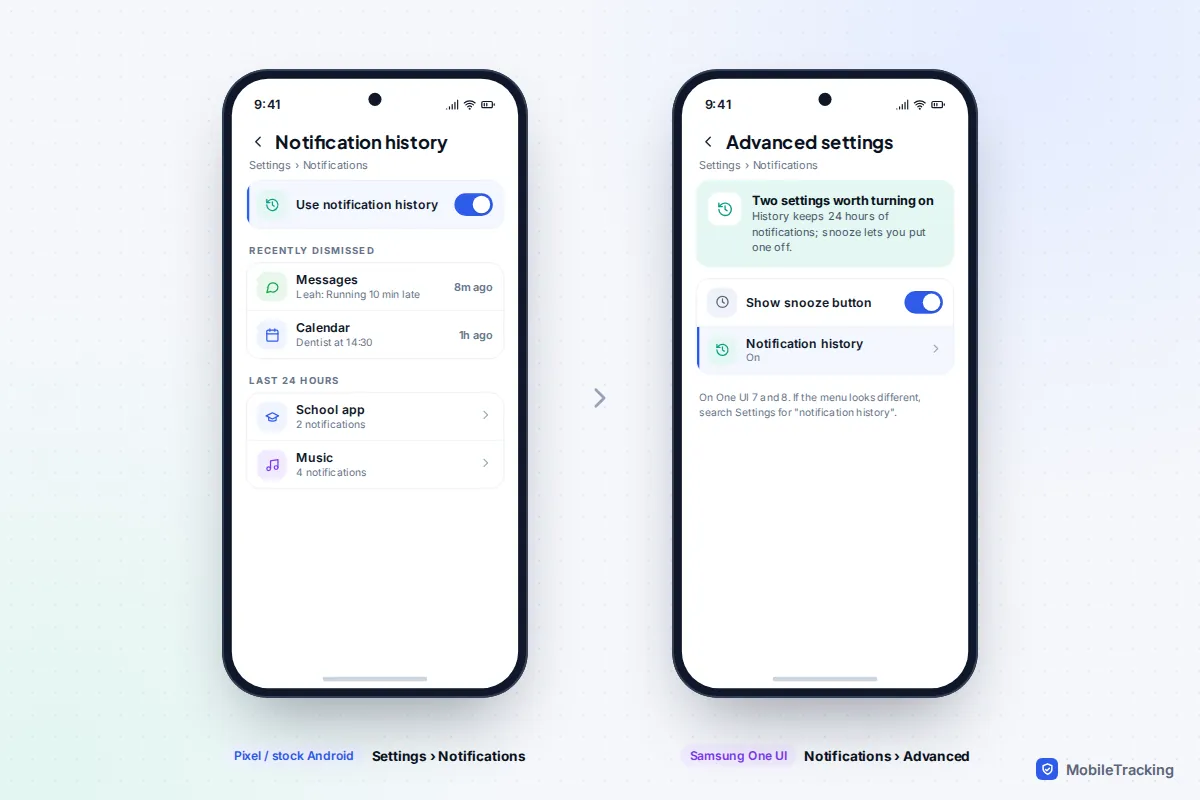
Other Android phones
Motorola, OnePlus, Xiaomi and other makers rename and move menus, and Google notes that some devices don’t include notification history at all. The quickest check is to open Settings, tap the search bar and type notification history. If nothing comes up, your phone’s maker has left it out.
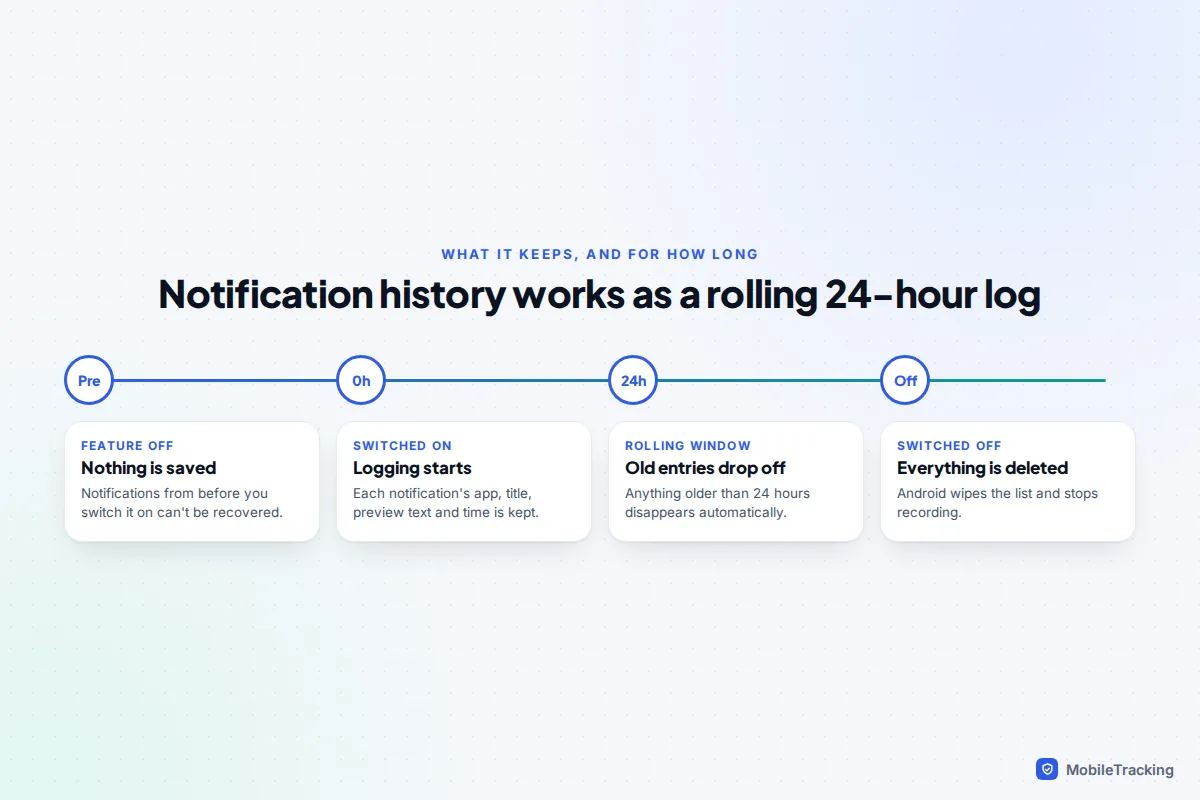
What it stores and for how long
Once it’s on, notification history keeps a rolling log of the last 24 hours. Each entry shows the app, the notification’s title, its preview text and when it arrived. Anything older than 24 hours drops off automatically, and there is no setting to keep entries longer.
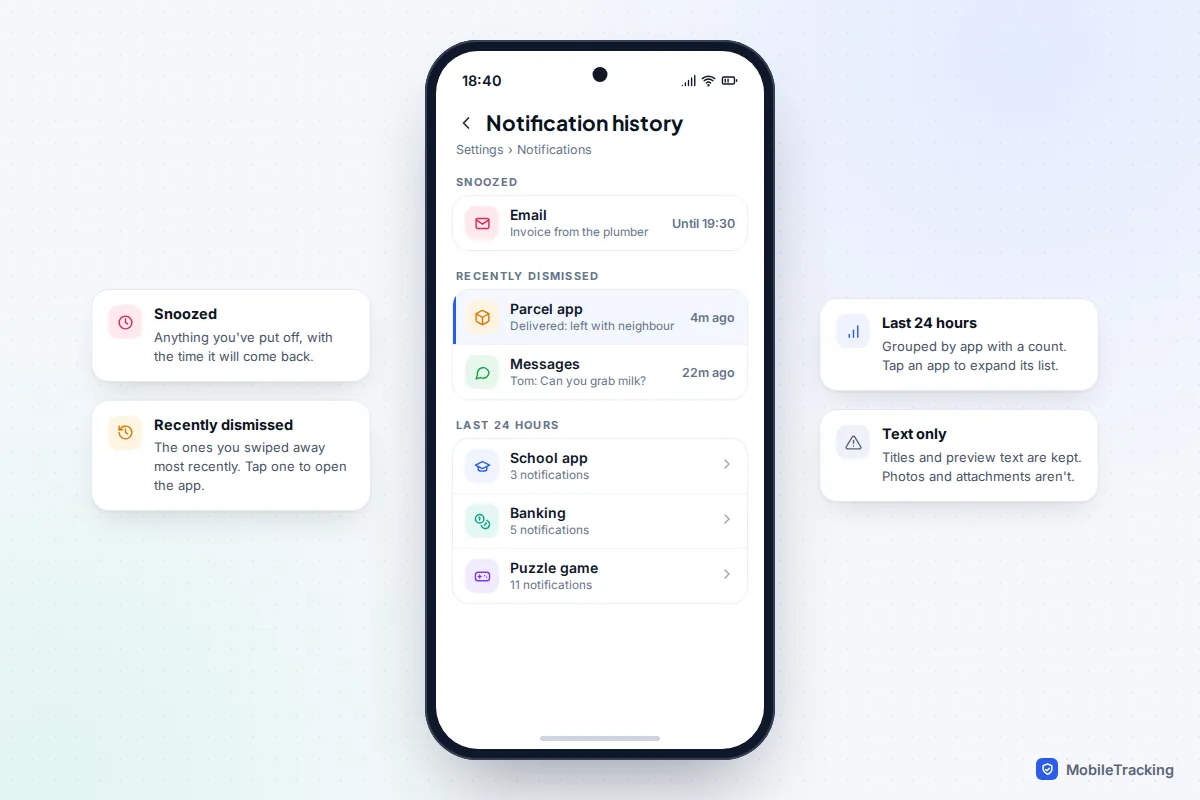
On a Pixel, the history screen is split into up to three groups:
- Snoozed: notifications you have put off, which will come back later.
- Recently dismissed: the latest ones you swiped away or cleared.
- Last 24 hours: everything else from the past day, grouped by app with a count. Tap an app to expand its list.
Samsung shows a similar list of recently dismissed notifications and the last 24 hours, grouped by app. On a Pixel, tapping an entry opens the app that sent it; on Samsung, touching and holding an entry takes you to that app’s notification settings. The history keeps text only. Photos, voice notes and attachments in a message aren’t saved. Apps whose notifications you have blocked never post anything, so they never appear.
That grouped view has a useful side effect. It shows you exactly which apps are pestering you most. If a game or shopping app has sent a dozen alerts since yesterday, open Settings › Notifications › App notifications, pick that app, and switch off the kinds of alert you don’t want.
How to recover a notification you dismissed
This is the moment notification history earns its place. You swipe away a delivery update or a message from school, then realise you needed it.
On a Pixel
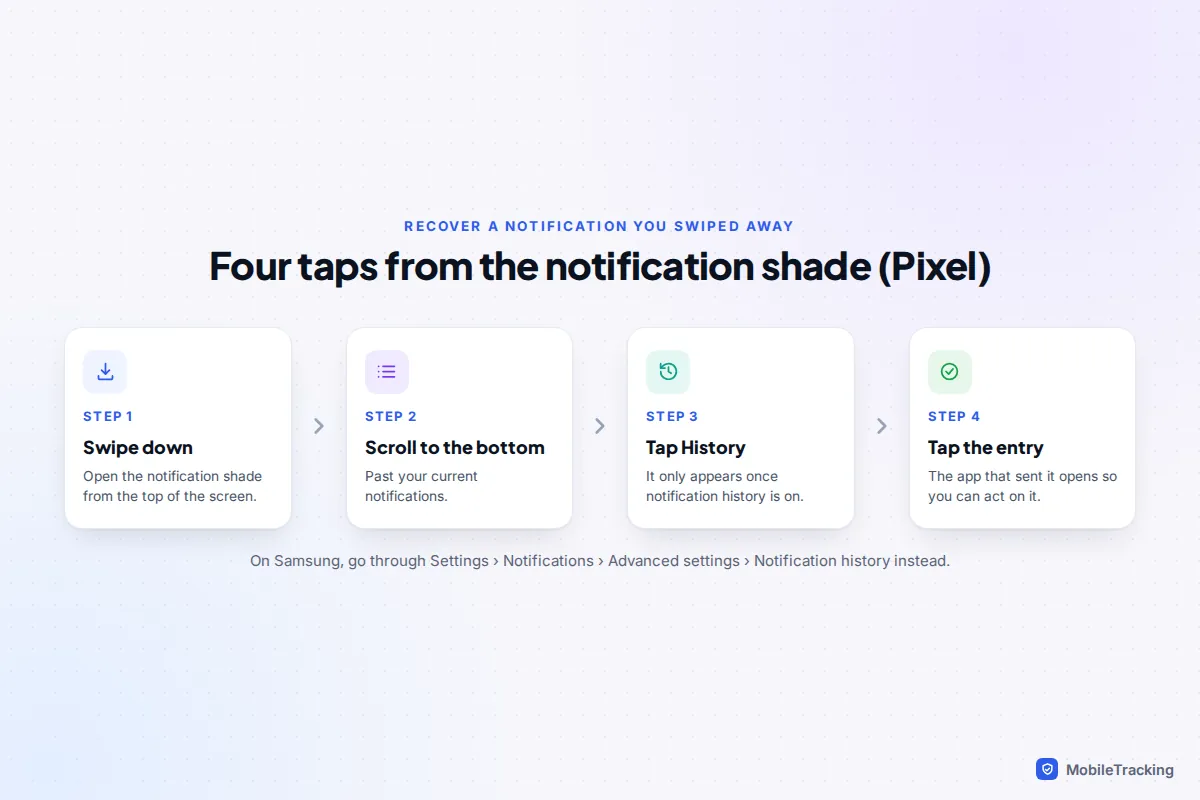
- Swipe down from the top of the screen to open the notification shade.
- Scroll to the bottom of your notifications.
- Tap History. This button only appears once notification history is turned on.
- Find the notification under Recently dismissed or Last 24 hours and tap it to open the app.
On a Samsung Galaxy
One UI doesn’t put a History button in the notification panel, so go to Settings › Notifications › Advanced settings › Notification history. If you use it often, typing notification history into the Settings search bar gets you there in one step.
What about messages someone deleted?
People often find that when a chat message arrives as a notification and the sender later deletes it, the original preview is still in notification history. It isn’t reliable. It only works if history was already on, the chat wasn’t muted, the text fitted in the preview, and it happened within the last 24 hours. Treat it as a lucky find, not a recovery method, and respect that the sender chose to take it back.
How to snooze a notification (and find it again)
Snoozing hides a notification for a set time, then brings it back. It is ideal for things you need to deal with later but don’t want to forget, like a bill reminder during a meeting.
- Turn snoozing on. On a Pixel, open Settings › Notifications and switch on Allow notification snoozing. On a Samsung, go to Settings › Notifications › Advanced settings and switch on Show snooze button.
- When a notification arrives, tap the small down arrow to expand it.
- Tap the snooze (clock) icon. The notification disappears for the default time.
- To choose a different time, tap the arrow beside the snooze time and pick 15 minutes, 30 minutes, 1 hour or 2 hours.
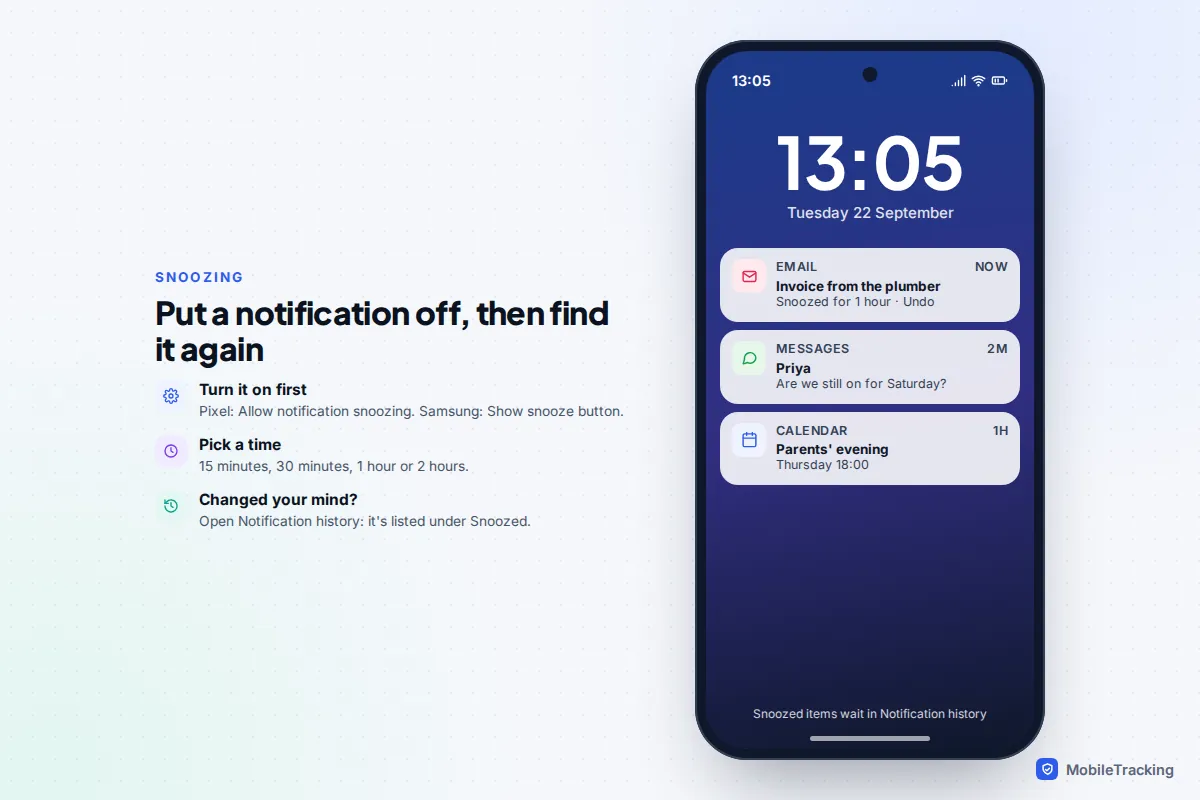
If you need a snoozed notification before its time is up, open notification history. On a Pixel it’s listed at the top under Snoozed, and tapping it opens the app. If you would rather silence a whole group of alerts for a few hours, a Do Not Disturb schedule is the better tool: our guide to using Do Not Disturb the smart way shows how.
Troubleshooting by symptom
The history screen is empty
Either it has just been turned on, or it was switched off at some point, which wipes the list. Leave it on for a day and it will fill up. If it stays empty while notifications are clearly arriving, restart the phone and check for a system update.
There’s no History button in the notification shade
On a Pixel, the button only shows once Use notification history is on. On Samsung there is no button in the panel, so use Settings instead.
A notification I know I got isn’t there
Check whether it was more than 24 hours ago, whether that app’s notifications are switched off, and whether the app replaced it with a newer notification. Messaging apps often update one notification rather than posting a fresh one for each message. If notifications aren’t arriving at all, work through our guide to fixing notifications that aren’t working.
I want more than 24 hours
Android doesn’t offer a longer window. Some Play Store apps keep a longer notification log, but they need permission to read every notification you receive, including message text and sign-in codes. Only use one from a developer you trust, and read the privacy section below first.
Privacy on shared and family phones
Notification history is private only as long as your phone is. Anyone who can unlock it can open Settings and read a full day of message previews, one-time sign-in codes, bank alerts and delivery updates. Hiding sensitive content on the lock screen doesn’t change this, because that setting only affects what shows while the phone is locked.
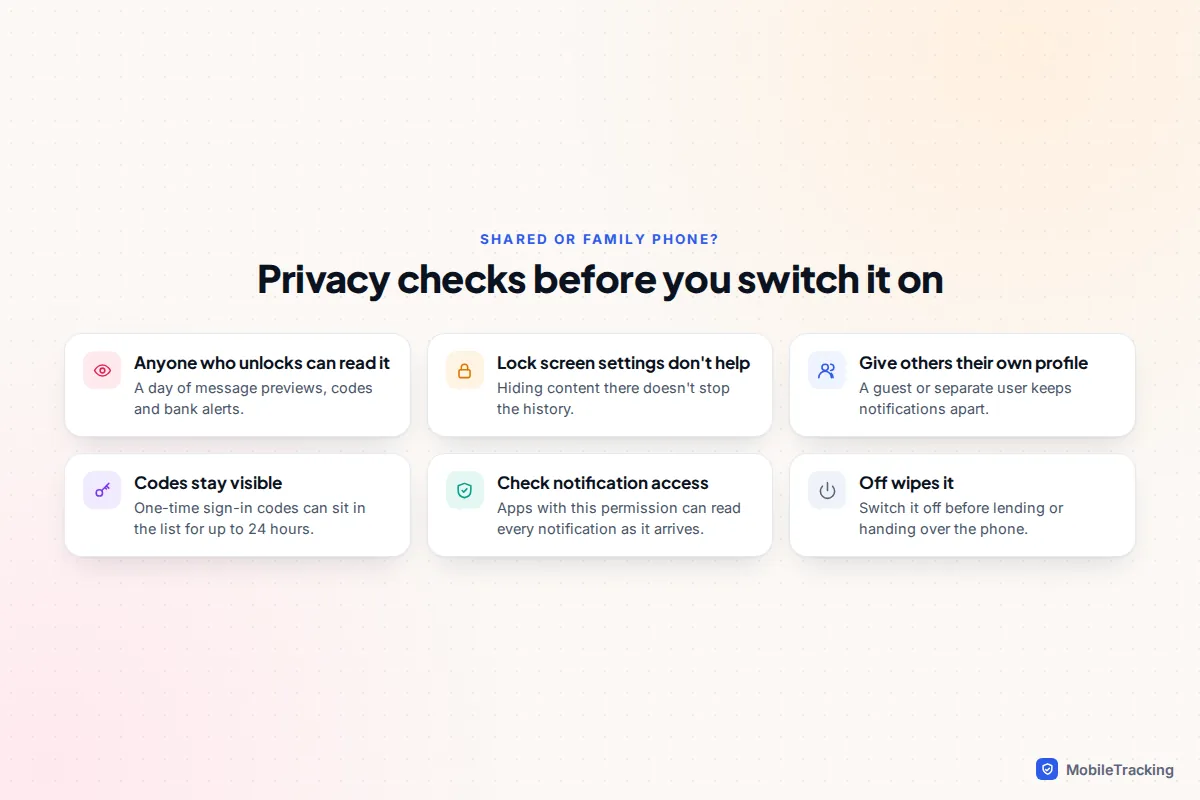
If a partner, child or housemate regularly uses your phone, give them their own space. Pixels and many other Android phones support a guest mode or separate users, each with its own notifications. Samsung offers this on its tablets but generally not on its phones. Our guide to setting up guest mode walks through it. Switch history off before handing your phone to a repair shop or lending it out.
Parents sometimes ask whether to turn it on a child’s phone to see what arrives. Reading it without their knowledge tends to damage trust, and teenagers quickly work out how to switch it off. If you want oversight for a younger child, use a supervision tool such as Google Family Link openly, and explain what it shows.
Check which apps can read your notifications
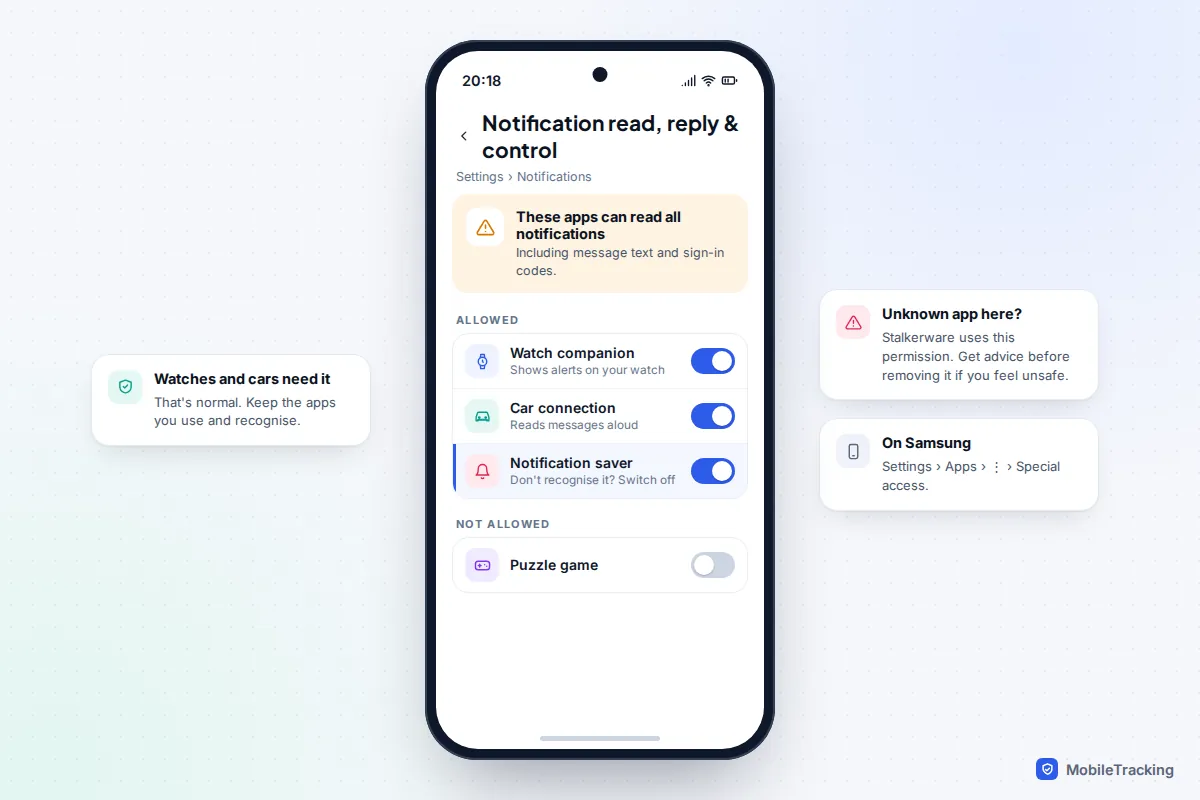
Separate from notification history, Android lets certain apps read every notification as it arrives. Smartwatch companions and car systems need this to work. Stalkerware abuses the same permission. On a Pixel, look under Settings › Notifications for Notification read, reply & control. On a Samsung, go to Settings › Apps, tap the three-dot menu, then Special access, and open the notification access entry.
How to turn notification history off and clear it
There is no button to delete a single entry or clear the list while keeping the feature on. Switching it off is the clear button: Android’s own documentation says that when history is turned off, all stored entries are deleted and nothing more is recorded.
- Open Settings › Notifications.
- Tap Notification history (on Samsung, tap Advanced settings first).
- Switch it off. The list is wiped straight away.
- If you want to keep using it, switch it back on. It starts again with an empty list.
If someone in the family uses an iPhone, things work differently, because iOS has no equivalent history screen. Our guide to seeing cleared notifications on iPhone explains what is and isn’t possible.
Frequently asked questions
Can I see notifications from before I turned on notification history?
No. Android doesn’t keep a hidden log when the feature is off, so there’s nothing to recover. Apps that claim to show older notifications can only show what they recorded themselves after you installed them.
How long does Android keep notification history?
24 hours on Pixel, Samsung and stock Android. Older entries drop off automatically, and there’s no built-in way to extend it.
Does notification history use much battery or storage?
No. It stores a small amount of text for a day’s worth of notifications, which is tiny compared with photos or app data. Leaving it on shouldn’t make any noticeable difference to battery life.
Does it save photos or voice messages?
No. It keeps the text of the notification, such as the sender and message preview. To see a photo or hear a voice note, tap the entry to open the app, if the message is still there.
Can someone else see my notification history?
Anyone who can unlock your phone can open it from Settings. Use a strong passcode, don’t share it, and set up separate profiles if others use your phone.