Safe Search
Safe search is the setting every search engine already offers and almost nobody keeps switched on, because it lives in a menu the person using the phone can reach. Held on from the parent side, it stops explicit results from appearing in the first place, and restricted mode does the same job on the big video sites. It is a small change with an outsized effect, and it takes about ninety seconds to set up.
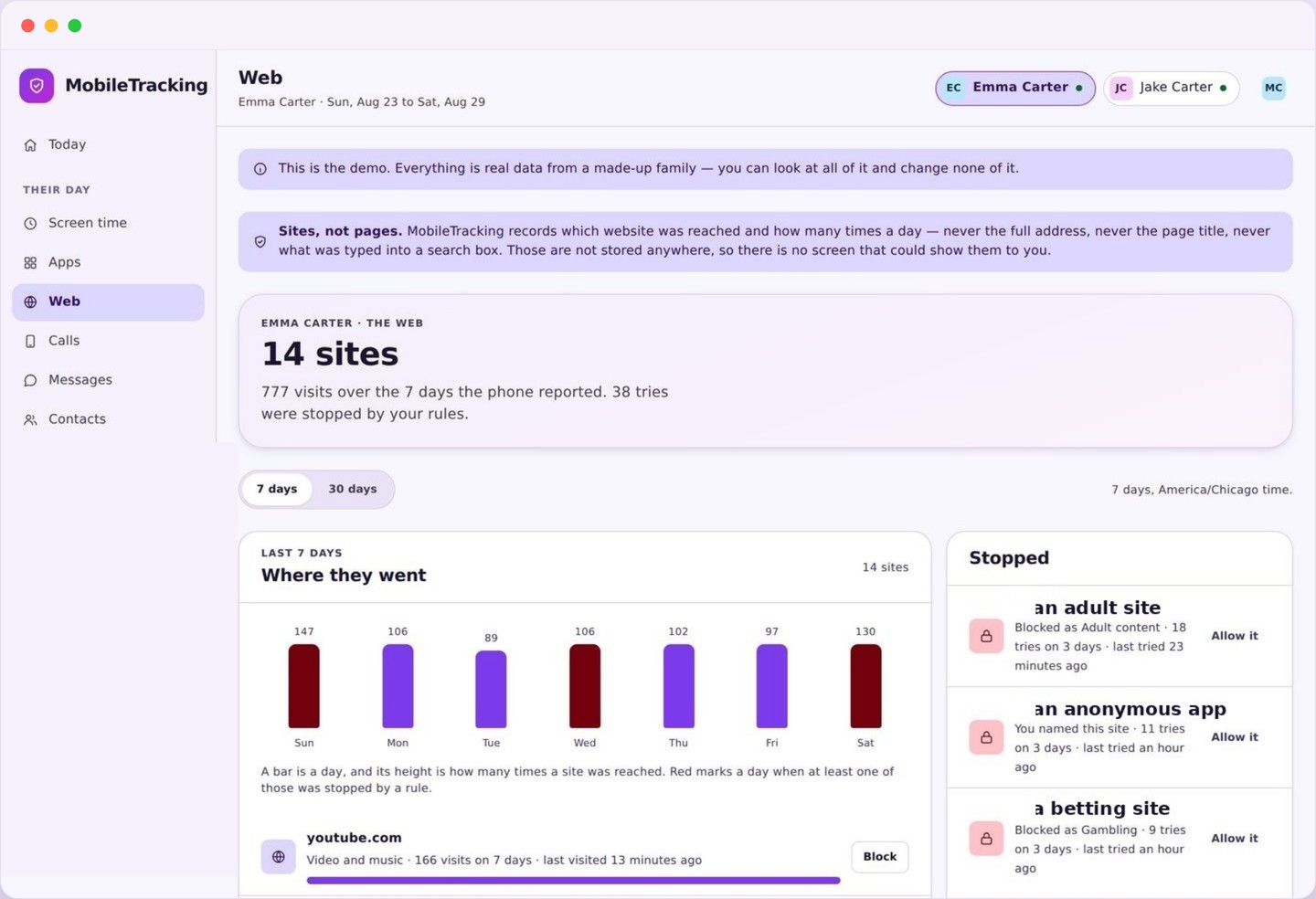
What safe search looks like when a parent holds it on
One switch per child, applied across search engines and browsers, with a small state indicator so you know it is really on.
On your panel it is a single row: safe search, on or off, per child. Underneath it sits the video row, which does the same thing for restricted mode. There are no sliders, no strictness levels, and no per-engine sub-menus, because search providers only really offer one meaningful state and pretending otherwise would be theatre.
What makes the parent version different from the one inside the search engine is that it is held. A setting your child can reach in a menu is a preference. A setting applied from the phone’s management layer, that reasserts itself if something tries to change it, is a rule. The row on your panel shows which of those two you have, and if enforcement drops for any reason the state indicator says so rather than continuing to show a comfortable green tick.
It applies across the phone, not inside one app. The default browser, a second browser installed later, the search box on the home screen, the search widget inside the assistant: they all resolve through the same enforced setting. This is the difference between fixing one app and fixing a device, and it is the reason a parent-held switch survives a child installing a different browser on a wet Sunday.
Why the switch inside the search engine never stays on
Not because children are devious, but because the setting was designed to be changed by whoever is holding the device.
Every major search engine puts its filter in a settings menu two taps from the results page, and that is entirely reasonable for an adult. It becomes a problem the moment the person you are protecting is also the person with the menu. Nothing has to be hacked and nothing has to be researched. The switch is right there, and turning it off takes less effort than turning it on did.
The second failure mode is quieter and catches families who did everything right. The setting is often stored per browser, per profile, or in a cookie, so it disappears when the cache is cleared, when a private window is opened, when the child signs into a different account, or when a new browser is installed. Parents report having set it three times without ever remembering turning it off, and they are usually telling the truth.
Holding it from the parent side removes both problems at once. The state does not live in a cookie, it is not attached to one browser profile, and it is not reachable from inside the search app. Your child can still see that it is on, because it is listed in their app with your name against it, but seeing a rule and being able to switch it off are very different things.
Restricted mode, YouTube, and YouTube Kids
Three different products with three different behaviours, and choosing the right one matters more than tuning any of them.
Restricted mode is the video equivalent of safe search. It hides content the platform’s own systems have flagged as mature, and it also hides comments, which for many parents is the more valuable half. Like safe search it is a per-account, per-browser setting by default, and like safe search it holds properly only when applied from outside the app where a child cannot reach it.
YouTube proper with restricted mode on is a reasonable setting for a secondary school child. It leaves most of the platform available, removes the obviously mature material, and closes the comment sections that turn a music video into something else. It is a filter on an adult product rather than a children’s product, and it should be understood that way.
YouTube Kids is a different product with a different catalogue, an age band you choose, and a much smaller pool of videos. For a child under about nine it is usually the better answer, and the honest way to run it is to make it the only video app on the phone rather than one option among several. Two video apps on the same device means the restricted one gets used when an adult is watching and the other one the rest of the time.
Neither platform’s filter is perfect, and both rely partly on how uploaders label their own content. Restricted mode reduces exposure substantially. It does not promise a curated library, and any product that claims a video platform can be made completely safe by one switch is overselling.
Why safe search needs category filtering behind it
A search filter shapes results pages. It has no view at all of a link typed, tapped, or shared.
This is the single most misunderstood thing in this area, so it is worth being blunt. Safe search filters what a search engine chooses to show. If your child never uses a search engine to reach a site, the setting is simply not involved. A link pasted by a friend, an address typed from memory, a tap inside a game, a redirect from an advert, a QR code on a poster: none of these pass through a results page and none of them can be filtered by a search setting.
Category filtering is what covers that gap, because it acts on the address itself at the moment the phone requests it, regardless of how the child arrived at it. The two tools overlap barely at all. Safe search cleans up the results a child sees while looking for something ordinary. Filtering stops the destination when they have a direct route to it.
Run together they cover most realistic paths. Run alone, each has a shape of failure that is easy to describe: safe search on its own is defeated by a shared link, and filtering on its own leaves image and video results on a search page technically allowed even when they are not what you want a nine year old scrolling through.
That is why both live on the same panel page, and why the setup below turns them on in the same pass. It takes one extra tap to do both and it roughly doubles what you are actually covering.
What safe search misses, and the autoplay problem
The gaps are real and specific. Knowing them is more useful than a promise of total coverage.
It misses anything with its own search box. A social app, a video app, an image board or a messaging app runs its own search inside itself, and the phone’s safe search setting has no influence there. Some of those apps have their own restricted settings worth turning on individually, and some have none at all, which is a genuine argument for app-level rules rather than for tuning search harder.
It misses images and video that are not labelled as mature by the platform, and it misses text on ordinary sites entirely. Safe search is a filter on obviously explicit material. It is not a judgement about whether an article, a forum thread, or a discussion is right for a twelve year old, and it does not try to be.
Then there is autoplay, which is the problem no filter really solves. A child watches one perfectly harmless video, the platform queues a related one, then another, and forty minutes later they are somewhere no individual step would have predicted. Nothing in the chain is explicit, so nothing is blocked, and the drift happens through recommendation rather than through search. Restricted mode trims the worst of what can enter that queue, but the mechanism itself is intact.
The practical answers to autoplay are not filters. Turn autoplay off in the video app itself, use a screen time budget so the session has an end, and put video apps inside a bedtime routine so the queue stops when the evening does. A rabbit hole with a time limit is a very different thing from an open-ended one.
Hold safe search on
One switch per child, applied across every browser and search box on the phone rather than inside a single app. Turn on restricted mode for video in the same pass.
- Applies to browsers installed later too.
- Not reachable from inside the search app.
- The state indicator tells you if it drops.
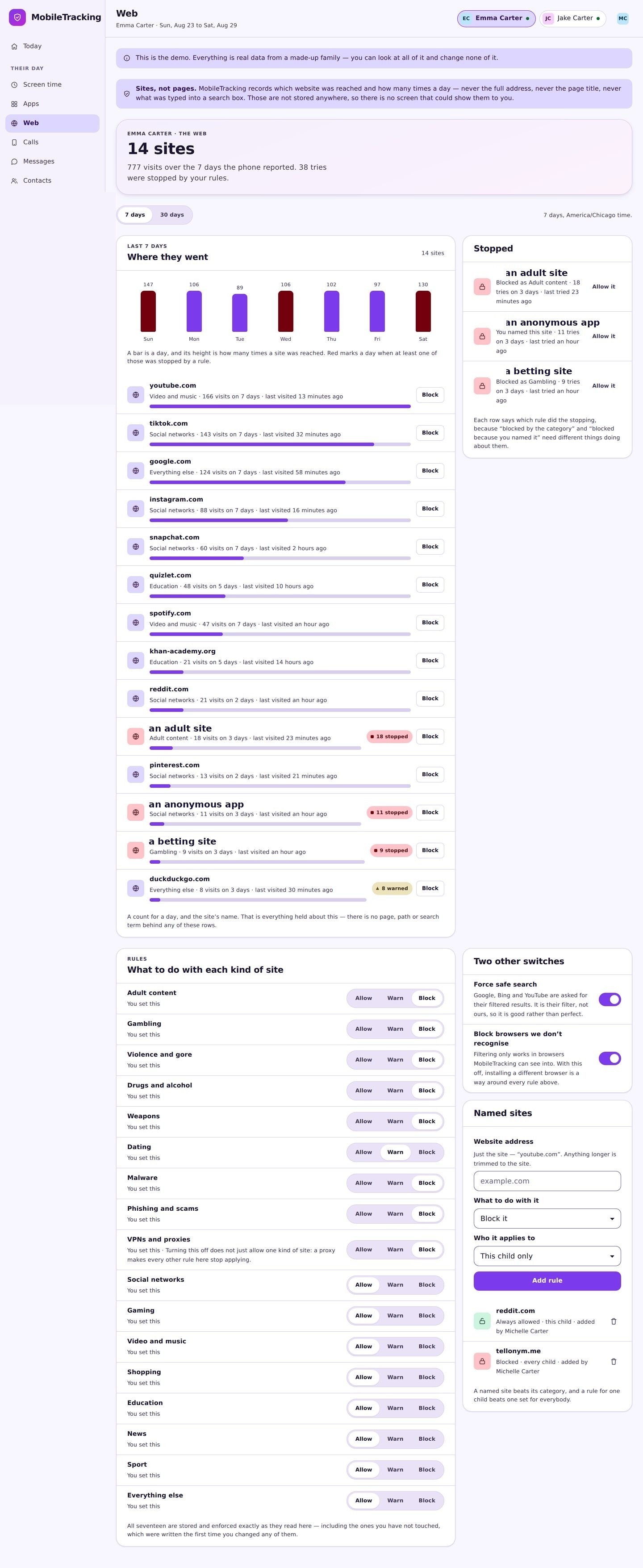
Decide which video app they get
For a younger child, make YouTube Kids the only video app and block the main one. For an older child, keep YouTube with restricted mode and leave it at that.
- Two video apps means the loose one wins.
- Set the age band inside YouTube Kids itself.
- Turn off autoplay in the app.
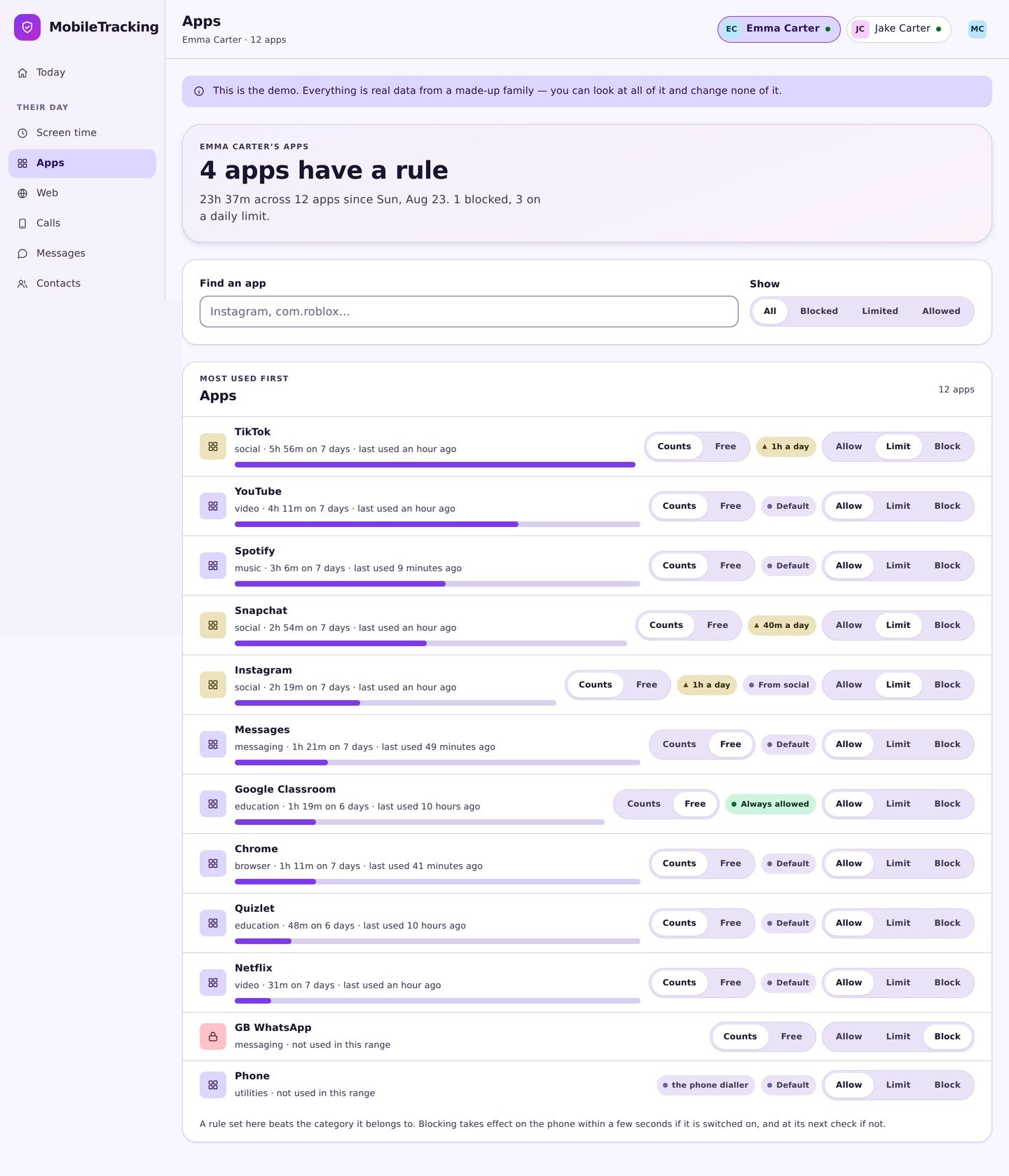
They see why something stopped
When a direct link is caught by category filtering, the screen names the category and the parent who set it. There is no fake error and no pretending the connection failed.
- The rule is named, not hidden.
- One tap asks for an exception.
- Safe search is listed in their app too.
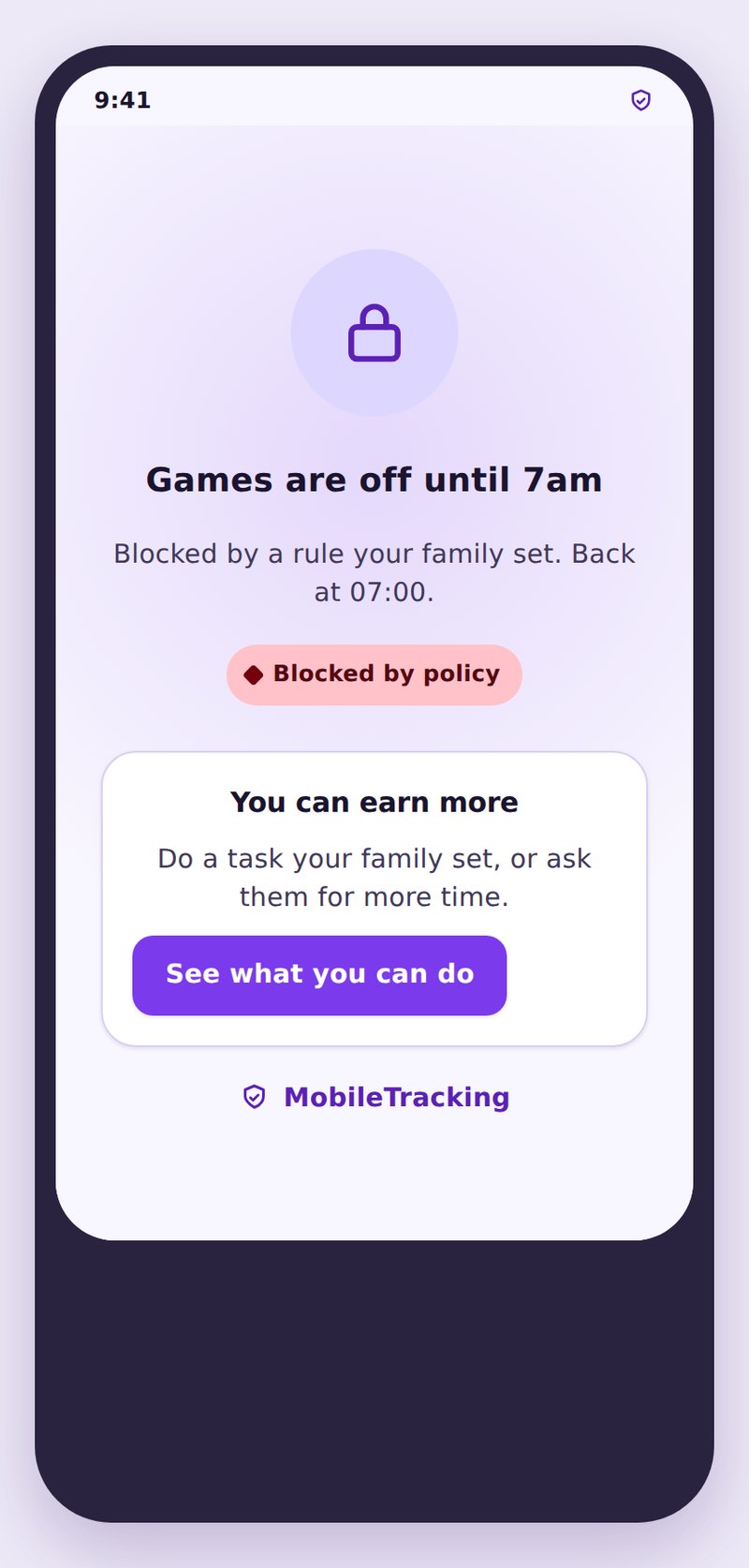
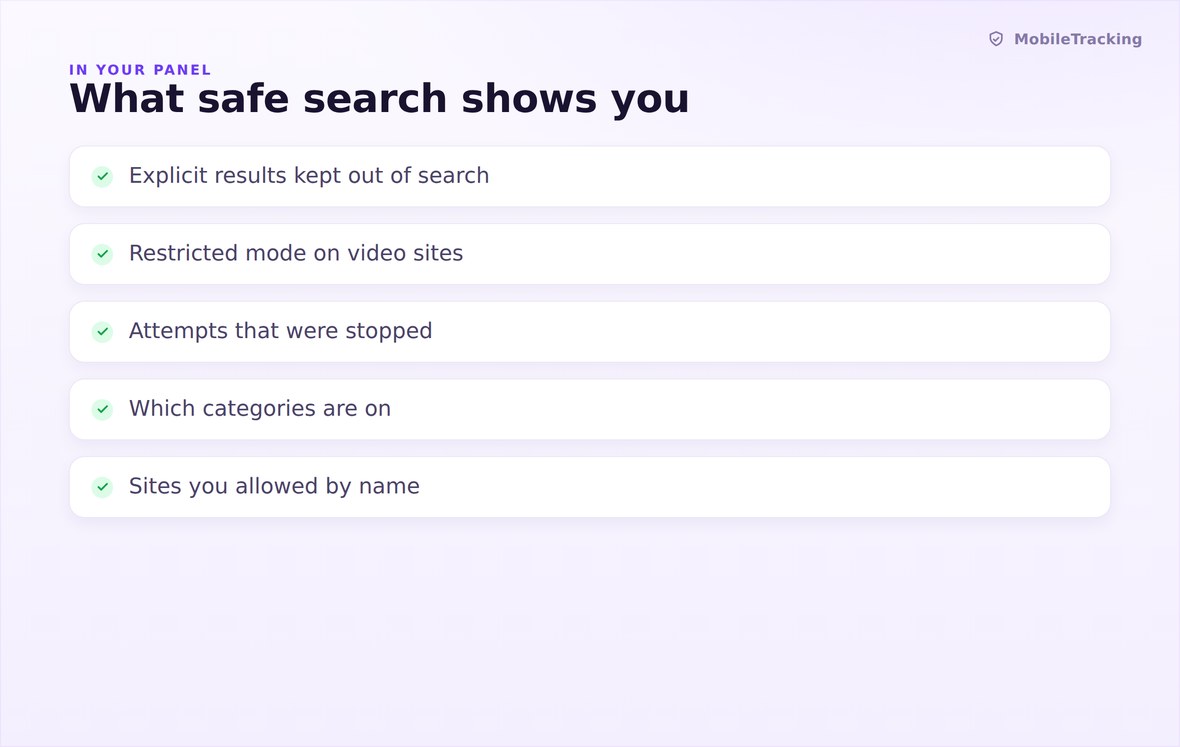
One row per child for search, one for video, and a state indicator you can trust.
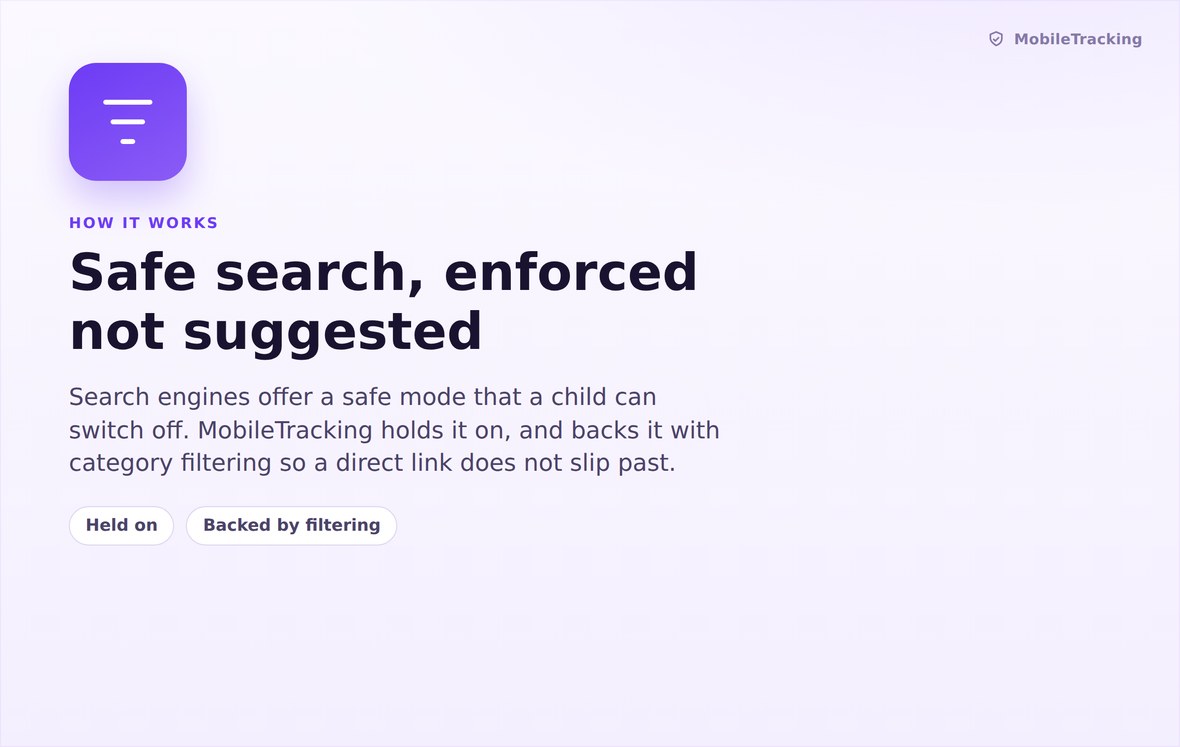
Held from the management layer, so clearing data or installing a browser does not reset it.
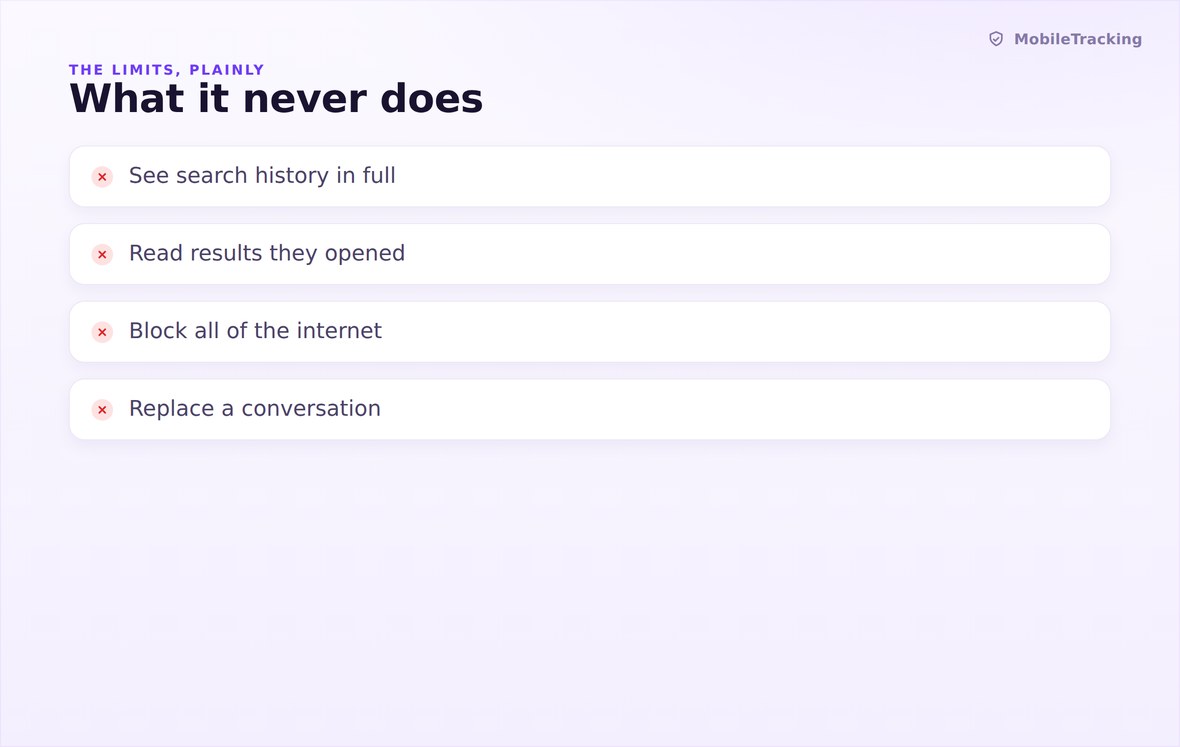
No reading of results, no search history for you to scroll, no coverage of in-app search.
What your child sees
Safe search and restricted mode both appear in your child’s app, named, dated, and attributed to the parent who switched them on. They will notice anyway, because results pages look different, so hiding it would only cost you credibility. What their app does not contain is a list of what they searched for, because we do not collect one.
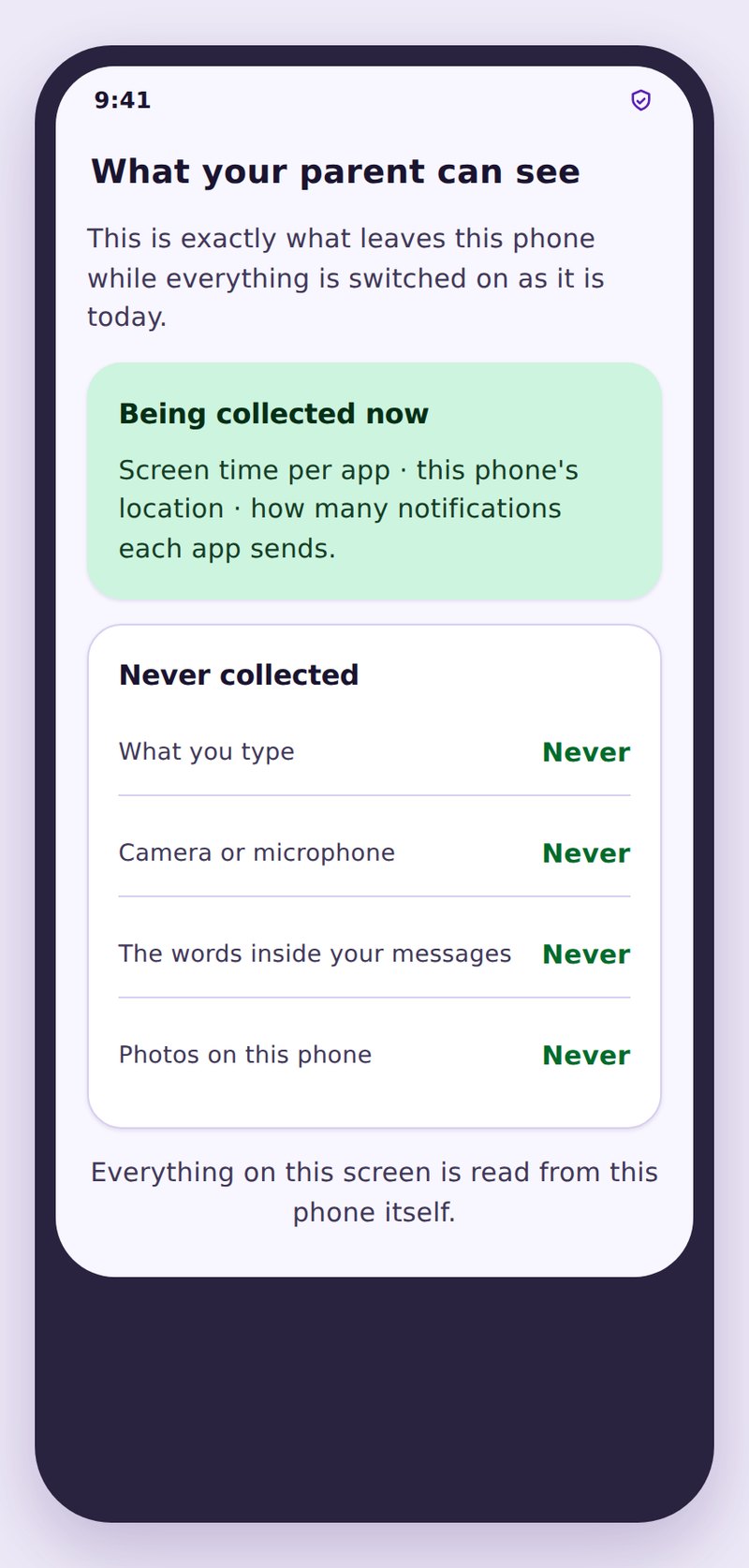
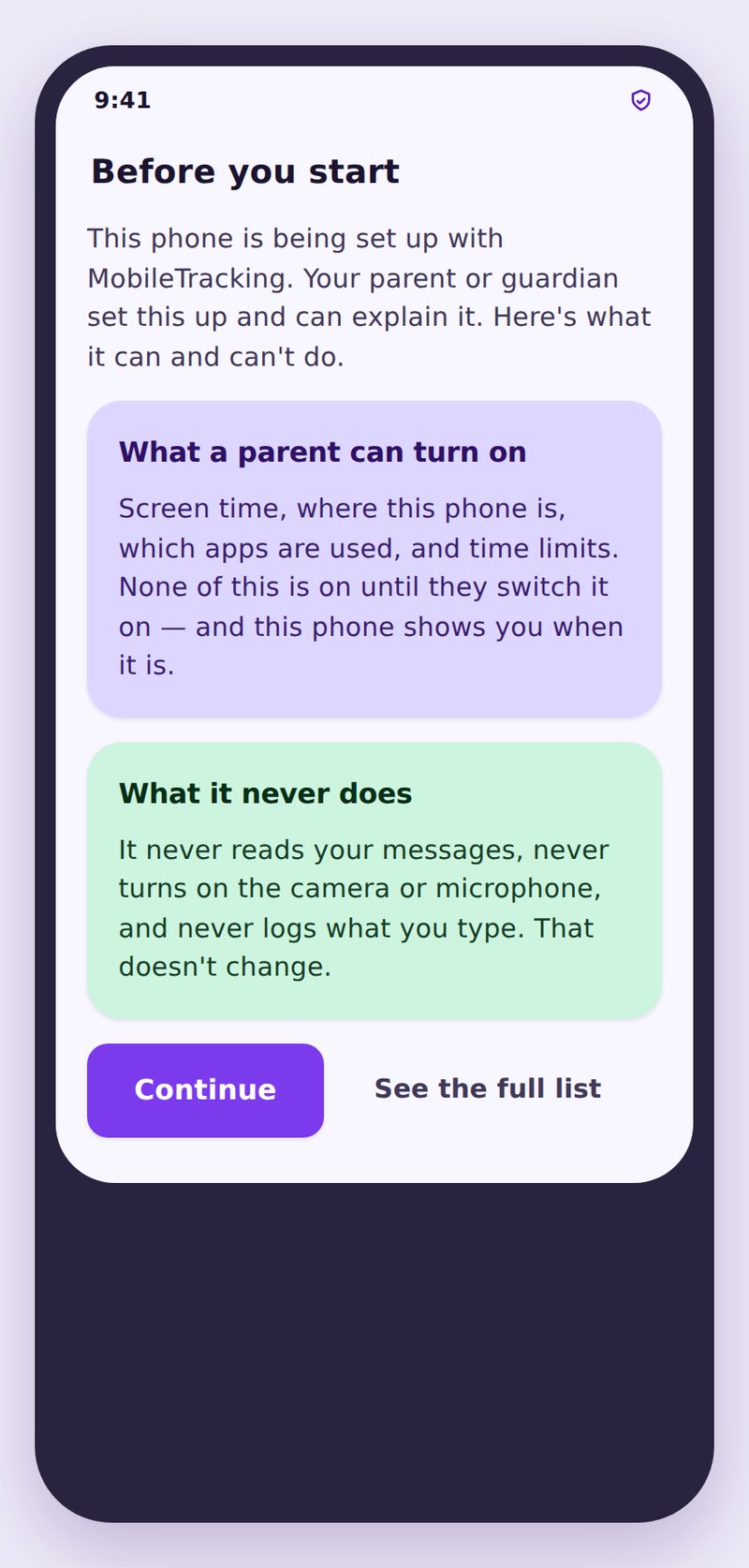
- The setting is namedTheir app shows it is on, who set it, and when it changed.
- No search history is keptWe do not collect search terms, results pages, or what was watched.
- Rules can be relaxed openlyLoosening a setting as a child gets older is visible to them too.
| Setting | What it filters | Where it fails | Best for |
|---|---|---|---|
| Safe search, held on | Explicit results on search engines | Direct links and in-app search | Every child, every age |
| Restricted mode | Mature video and comment sections | Recommendations and mislabelled uploads | Nine and over on the main platform |
| YouTube Kids | Whole catalogue, by chosen age band | Nothing, if it is the only video app | Under nine |
| Category filtering | The address itself, however it was reached | VPNs and proxy apps | Running behind both of the above |
| Autoplay off | The queue that follows a video | Nothing, but it must be set in the app | Every child under about thirteen |
No. Held from the parent side, the setting is not reachable in the search engine’s own menu, and it reasserts itself if something tries to change it.
Yes. It is applied at the device level rather than per browser, so a newly installed browser gets the same treatment as the default one.
No. Search terms are not collected, stored, or shown to you. The setting filters results, and that is the entire function.
Almost certainly because it was reached by a direct link rather than through a results page. That is exactly the gap category filtering is there to cover.
Yes, that is part of what it does, and for a lot of families it is the more valuable half of the setting.
Under about nine, YouTube Kids as the only video app. Older than that, the main app with restricted mode on and autoplay off is usually more realistic.
Hold safe search on in ninety seconds
Switch on safe search and restricted mode for one child, turn off autoplay in the video app, and let category filtering cover the links a search setting can never see.
Related features: Web Filtering, App Blocking, and Screen Time and App Limits.