App Activity
App activity is the single most useful screen in MobileTracking, because it answers the question every parent actually has: what is on this phone, and where does the evening go. It lists every installed app ranked by the time it used, flags anything that arrived recently, sorts the lot into categories, and lets you set each one to allowed, limited or blocked without leaving the page.
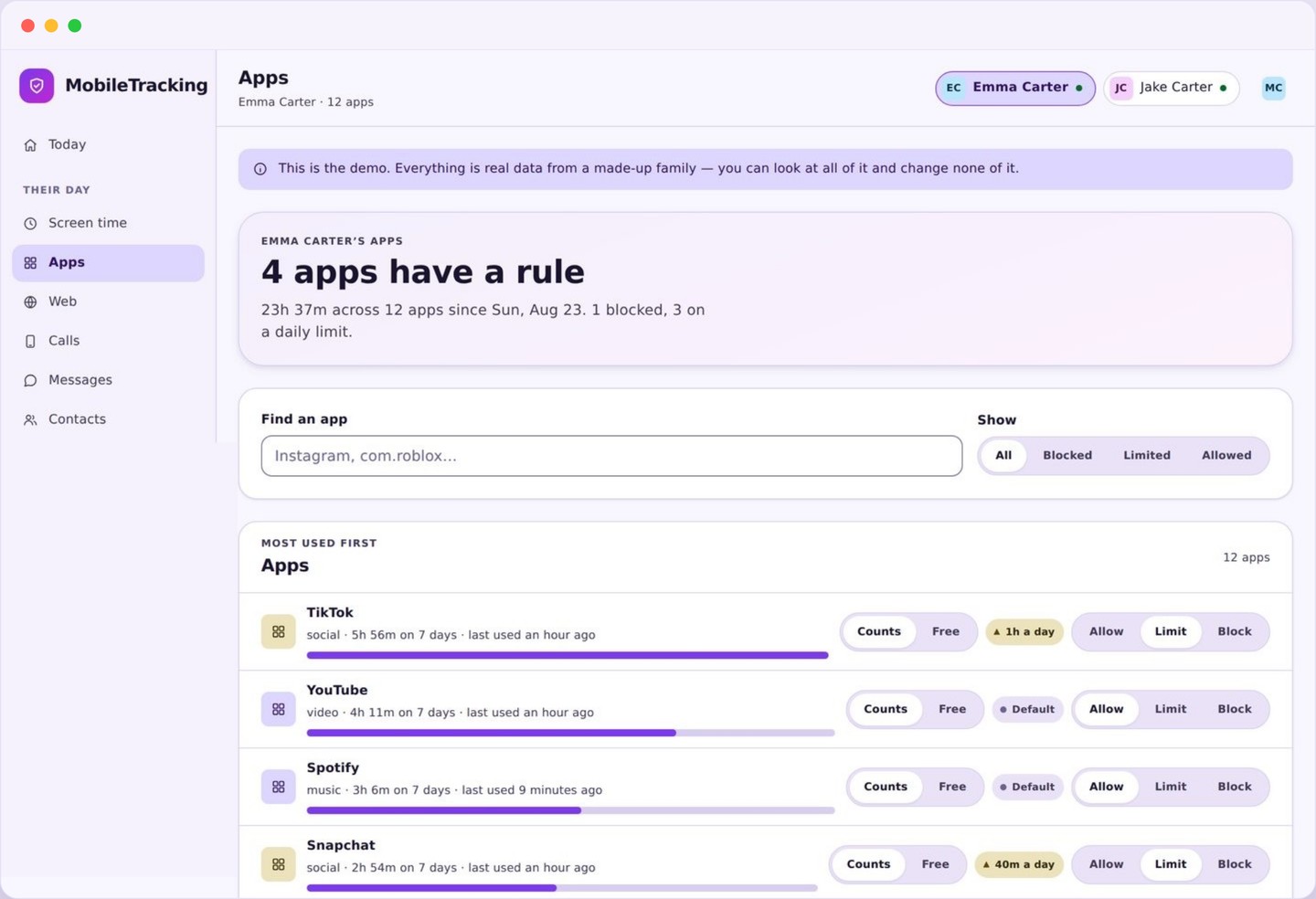
What the app activity list shows
Every app, the time it used, when it arrived, and the rule currently attached to it.
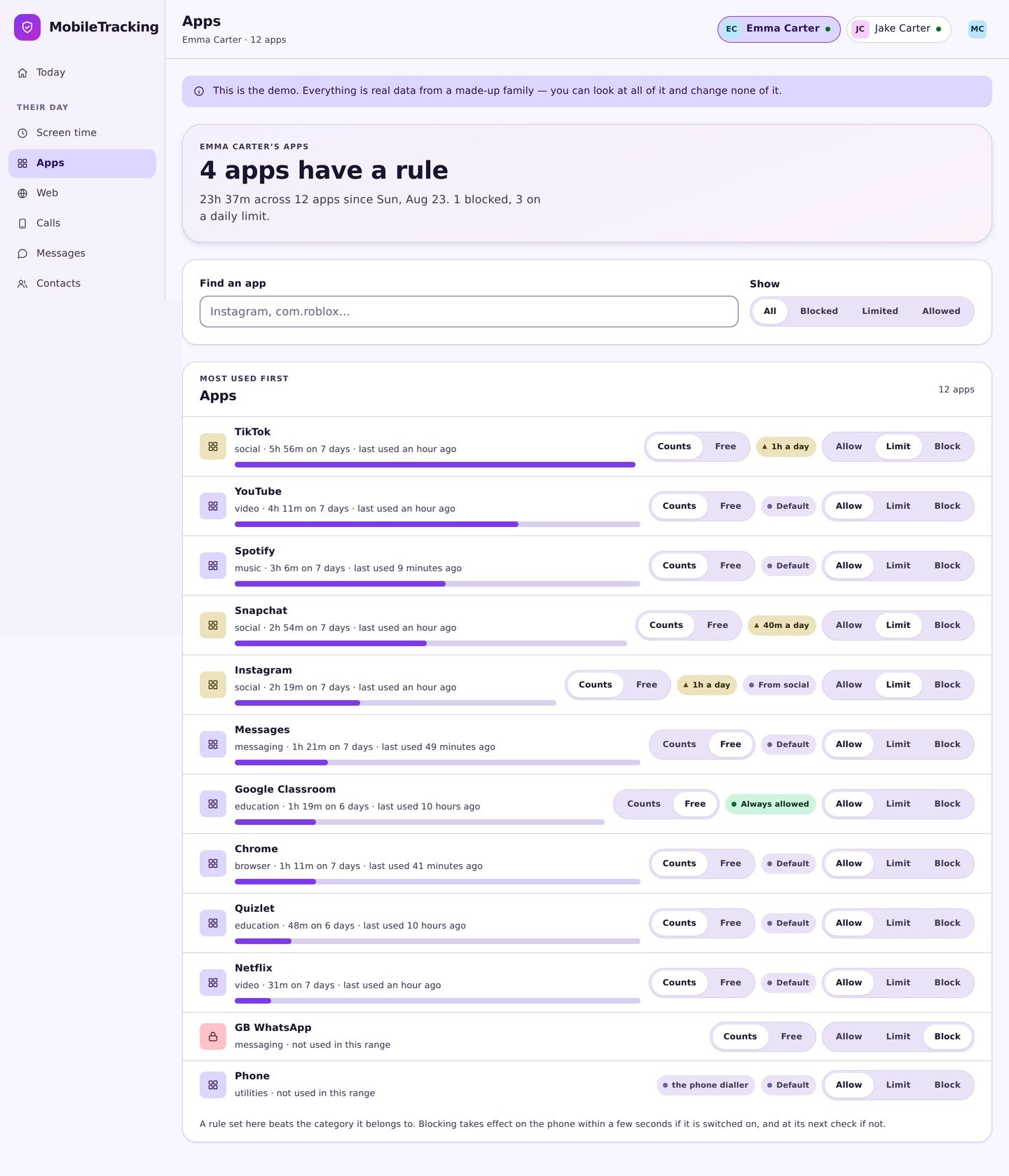
Each row is an app: its icon, its real name, the minutes it used in the period you are looking at, its category, and its current rule. Ranking by time rather than alphabetically is the whole point, because the top three rows usually account for most of the phone. Parents who have never seen this list almost always find the order surprising in one direction or another.
The period selector across the top switches between today, yesterday, the last seven days and the last month. Today tells you what is happening right now, which is the view you want when an evening has gone strangely quiet. The seven day view is the one worth actually reading, because a single Tuesday tells you very little and a week tells you the shape of the phone.
Apps installed recently carry a new badge, and the row shows the date they arrived. Apps that are installed but have not been opened at all still appear, at the bottom, with zero minutes. That sounds like clutter but it is deliberate: an app sitting unopened is still a fact about the phone, and it is often the first thing a parent wants to ask about.
- Every installed app, ranked by time used.
- Today, yesterday, seven days or a month.
- Install date, with recent arrivals flagged.
- The rule on each app: allowed, limited or blocked.
How app activity is collected
Two ordinary Android signals, both granted by hand, neither of them looking inside anything.
The first signal is the usage record Android already keeps, which notes the app in the foreground and how long it stayed there. The child app reads that with a permission your child grants during setup, on a system screen, by hand. Time is measured only while the screen is on and the app is in front, so a phone in a pocket accrues nothing and a paused video stops counting.
The second is the list of installed packages, which is how new arrivals get spotted. When a package appears that was not there before, the row is created, the install date is recorded and the flag is raised. That is a list of names, nothing more. No file from inside an app is read, copied or examined at any point.
Categories come from the app’s own store listing where one exists, with a small correction list of our own for the handful that classify themselves oddly. Where nothing is available the app arrives as uncategorised and you can file it yourself, which takes one tap and applies from then on.
Reporting happens in short batches rather than instantly, so today’s figures can trail by a few minutes. Nothing gets lost while a phone is offline: the record is held on the device and sent when signal returns, and the times stay correct rather than bunching up at the moment of reconnection.
Spotting an app that appeared overnight
The alert that earns this feature its place, and the right way to use it.
When something new is installed you get one notification with the app name, the category, and the time it arrived. That is the alert most parents say they wanted all along, because it is where the genuinely new things enter a phone: a chat app with strangers in it, a game with a live voice channel, a browser installed specifically to get around a filter.
The useful response is almost never to block it immediately. A new app is information, not an offence, and most of them are exactly what they look like. Open the row, read the category, look at what it has actually been used for over the next day or two, and ask about it in an ordinary voice. Silent deletion of something a child installed on purpose teaches concealment faster than any other single action.
Two patterns are worth taking seriously. The first is an app that arrives and is uninstalled again within a day or two, repeatedly, which usually means something is being used and then hidden. The second is a second browser or a proxy style app appearing on a phone that already has a browser, which is generally an attempt to get around web filtering rather than a sudden interest in software. Both are conversations, not confiscations.
Allow, limit or block from the same row
Three states, one screen, and a clear order of precedence when two rules disagree.
Allowed is the default and means the app counts against the daily budget like everything else. Limited means it carries a cap of its own, so an app can run out while the rest of the day continues. Blocked means it stays behind a cover screen at all times, without being uninstalled or deleted, and the block lifts the moment you change your mind.
Category rules save you doing this fifty times. Setting a bedtime cover or a cap on Games applies to every app filed as a game, including ones installed next month, which is the part that matters. Categories are how you stop maintaining a list by hand.
Where a category rule and an app rule disagree, the app rule wins. That precedence exists because the exception is almost always the point: Games may be capped at forty minutes while the one game a child plays with a cousin every Sunday is allowed, or Education may be uncapped while one so called learning app that is mostly adverts carries a firm limit. Set the broad rule with a category, then correct it one app at a time.
Some things cannot be blocked from this screen at all. The dialler, emergency calling, the system settings and the clock stay available whatever rule you write, because a parental control tool that can strand a child without a working phone has failed in a much more serious way than one that lets a game through.
Getting something useful out of the app activity list
What the numbers actually support, and the conclusions they will not carry.
Read the week, not the day. Any single day contains a long train journey, a sick afternoon, or a group project, and none of those mean anything on their own. Seven days shows you the pattern: which app is genuinely dominant, whether the evening has crept later, and whether last week’s change made any difference at all.
Time is not the same as harm. Ninety minutes of a game played with friends in a voice channel is a social evening, and twenty minutes of an app that leaves your child upset every time is a bigger problem. The list gives you duration because duration is what can be measured honestly, and the interpretation stays with the person who knows the child.
The best use of this screen is as the opening of a conversation rather than the end of one. “You spent four hours in that this week, what is happening in it” gets you an answer. Silently capping the app at forty minutes gets you a workaround, usually within a fortnight, and often one you will not find on the list because it happens on somebody else’s device.
What app activity deliberately does not do
The hard boundary of this feature, stated as plainly as we can put it.
It never sees inside an app. It knows an app was open and for how long. It does not know what was typed, sent, received, watched, posted or read. There is no message content, no screenshotting, no screen recording, no keystroke logging, no camera access and no microphone access anywhere in this product, and no setting that turns any of that on.
It does not uninstall or alter anything. Blocking places a cover over an app; the app itself, its data and its account remain untouched, and removing the block restores it instantly. Nothing is deleted from a phone by us, ever, and no purchase or account is interfered with.
It does not judge. There is no risk score on an app, no cheerful warning that a child is using something too much, and no ranking against other families. The list reports names, categories and minutes, and stops there, because a number delivered with a verdict attached gets defended rather than discussed.
It is not invisible. Your child’s phone lists every rule you have written, names any app you have blocked, and shows the same categories from their side. If you are looking for a tool that manages a phone without the person holding it knowing, this is deliberately not that tool.
Read the seven day list first
Open app activity, switch to seven days, and just read it before changing anything. The top three rows will tell you more than a month of guessing.
- Seven days, not today.
- Note the top three and the new arrivals.
- Change nothing on the first visit.
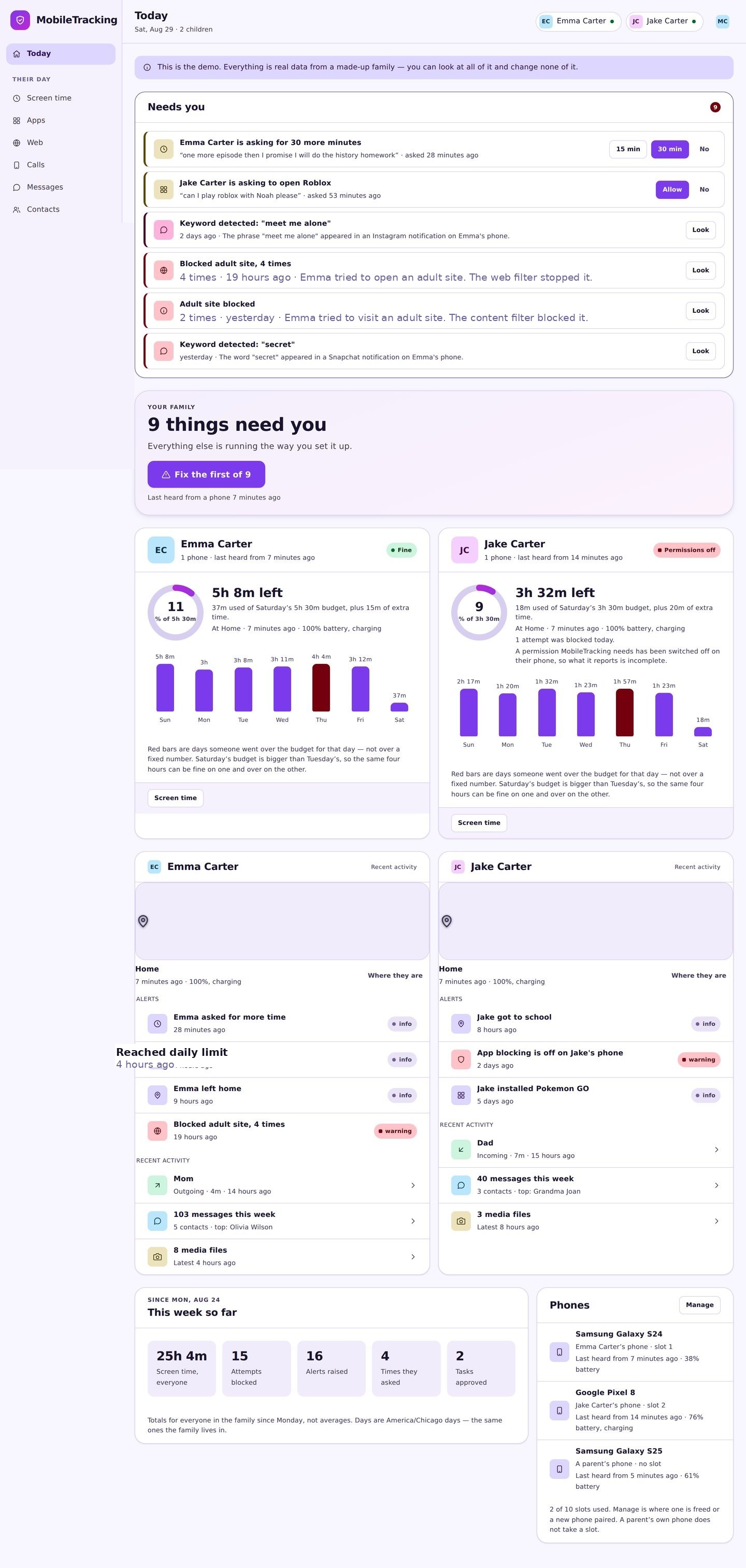
Set a category rule, then one exception
Cap the category that dominates, then correct it for the single app that deserves different treatment. App rules always beat category rules.
- Broad rule by category.
- One exception per app where it matters.
- Calls and settings can never be blocked.
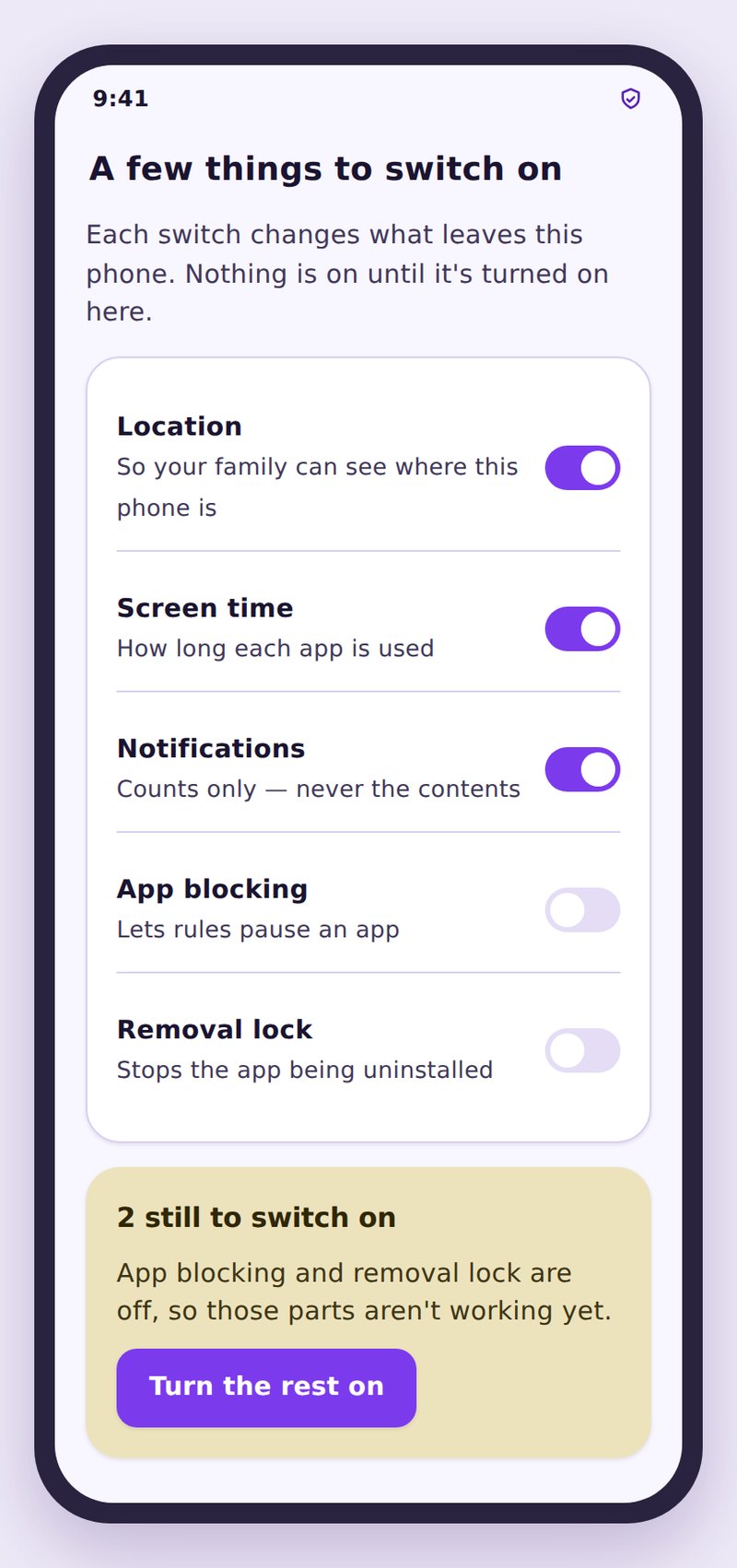
Grant usage access together
Nothing counts until Android’s usage access permission is granted by hand on the child’s phone. Do it together and show them the list it produces.
- Usage access is a manual system screen.
- Exclude the app from battery optimisation.
- Show them their own app list and rules.
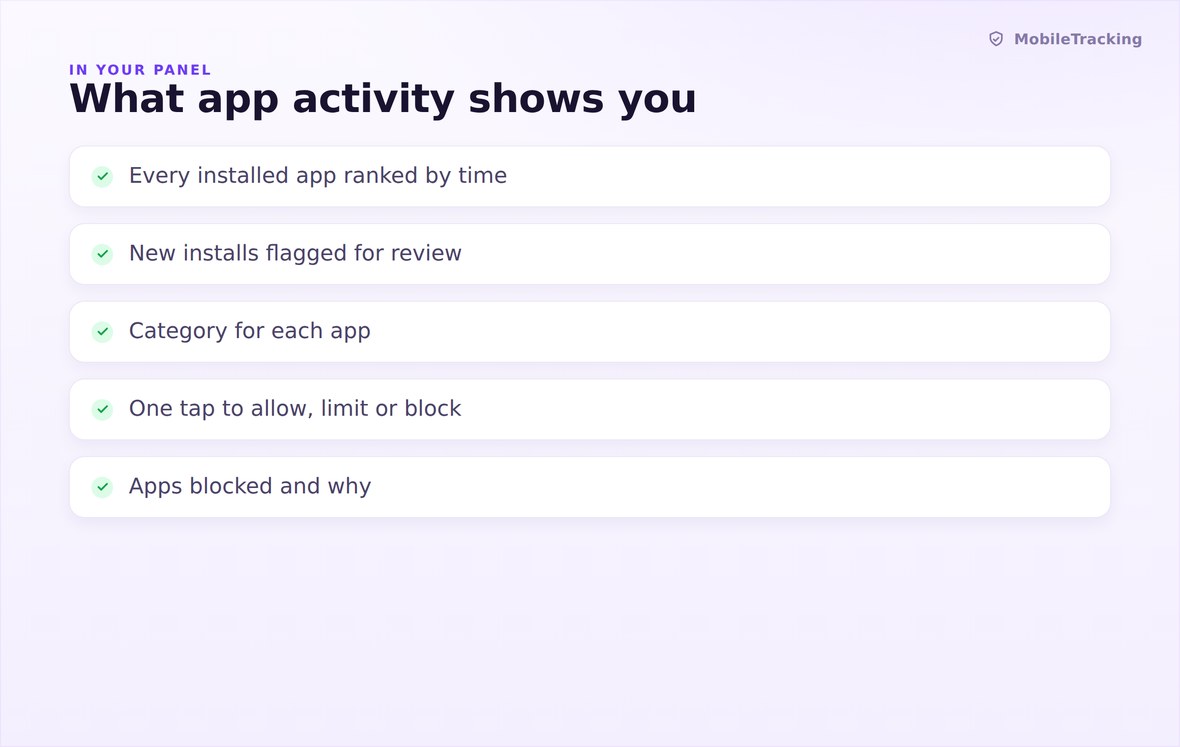
Every app, its minutes, its category, its install date and its rule.
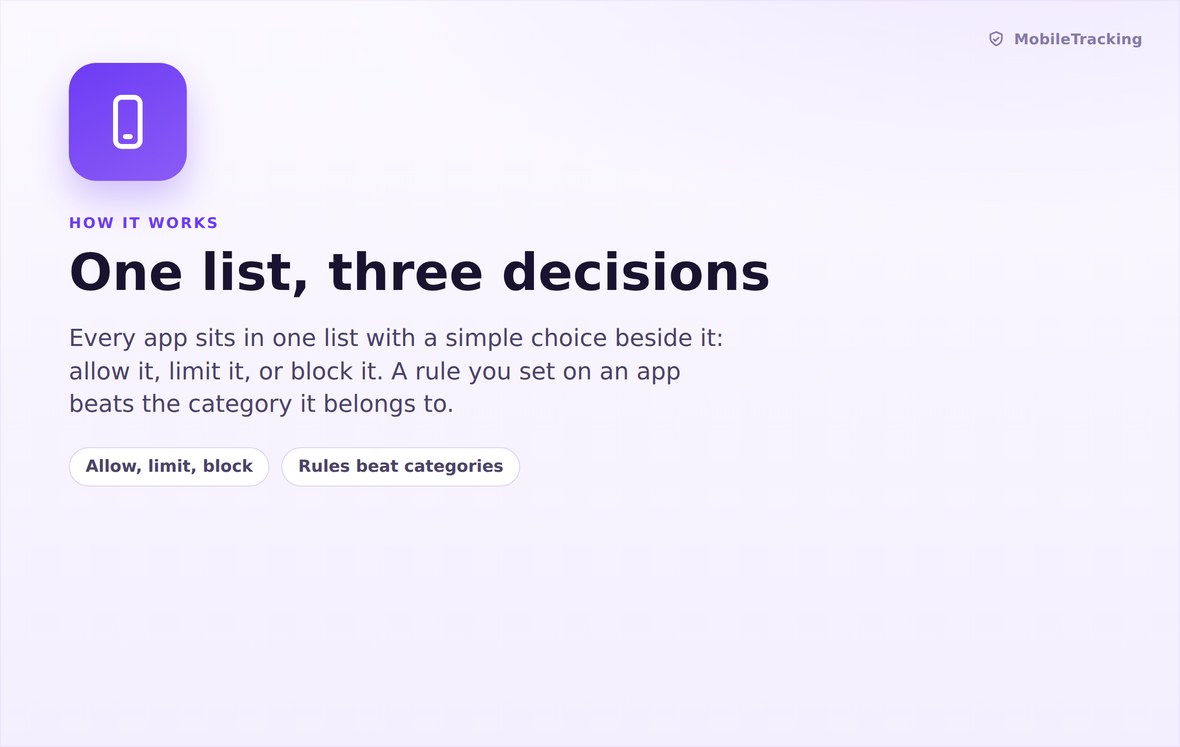
Android’s usage record plus the list of installed package names.
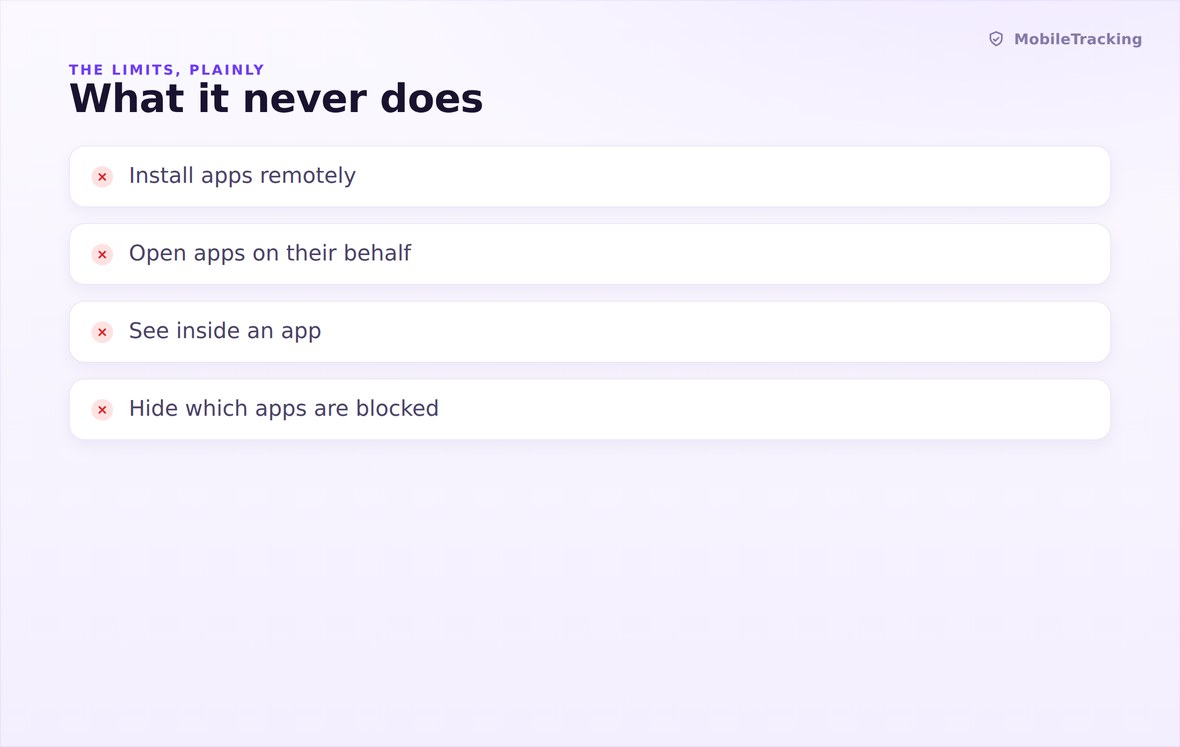
Never reads inside an app, never records the screen, never deletes anything.
What your child sees
The child app shows the same picture from the other side: their own list of apps and minutes, every category rule, every cap, and any app you have blocked, named plainly. When something is covered, the screen says which rule did it. They also see, in writing, that durations and app names are all that leave the phone and that nothing inside any app is ever read.
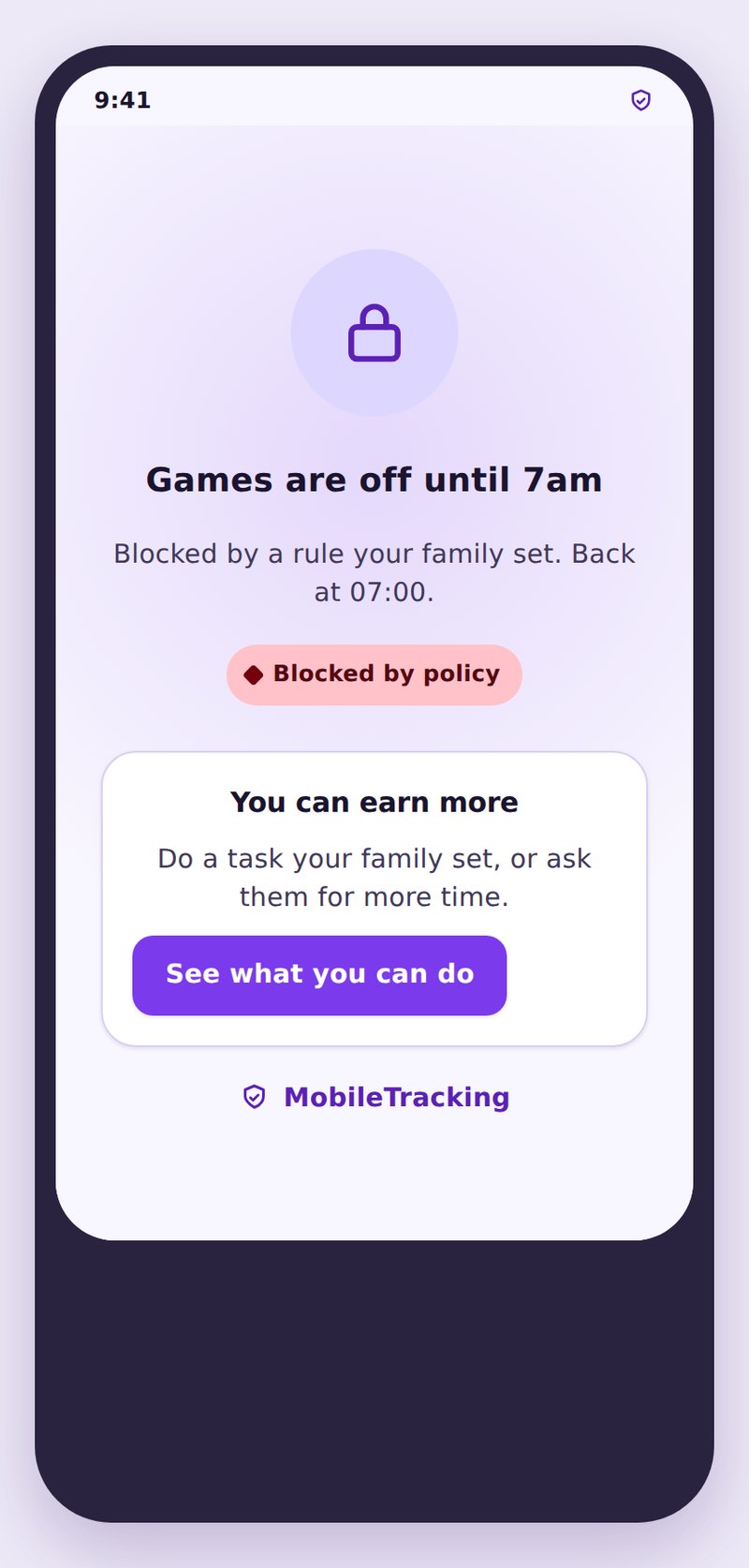
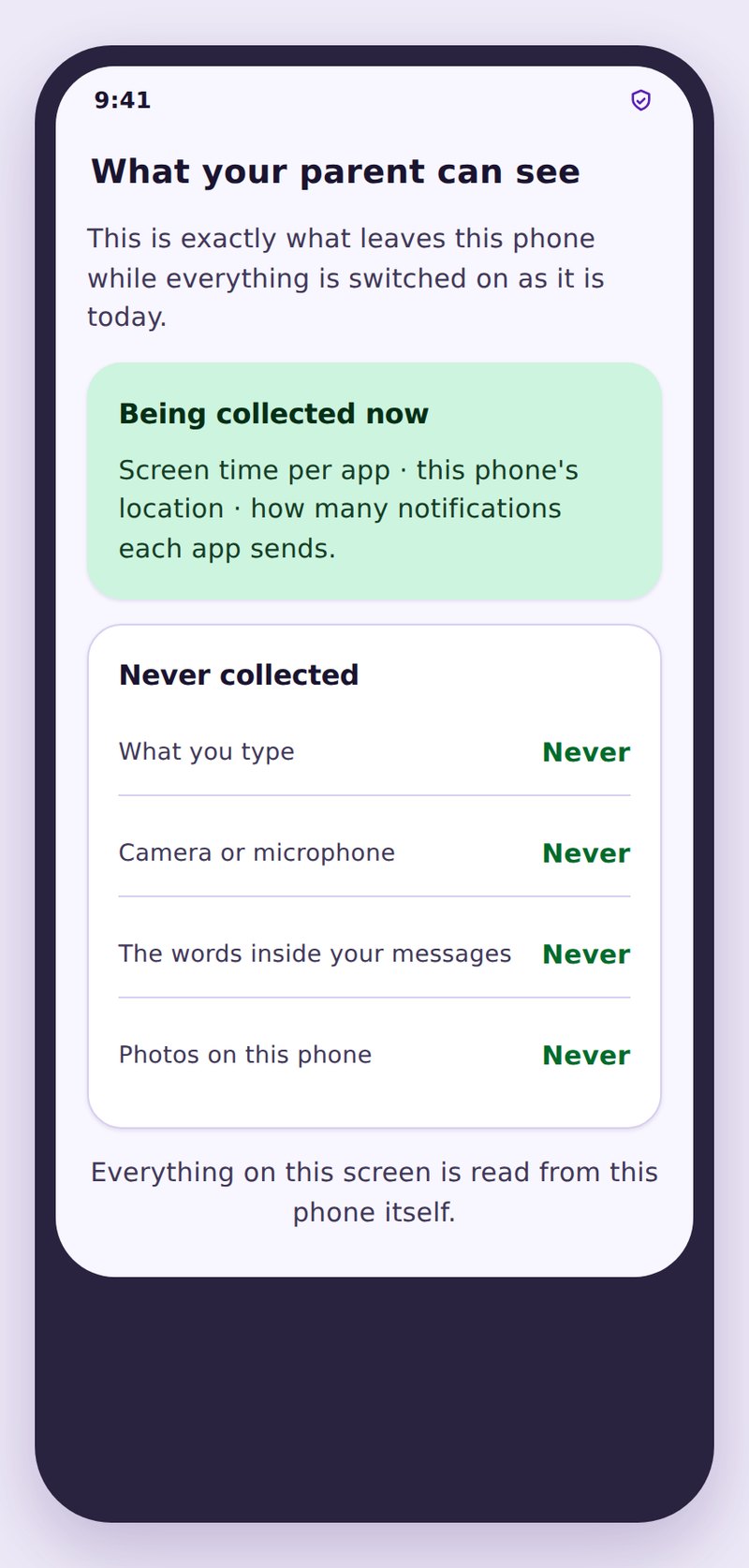
- They see their own listThe same apps, the same minutes, the same rules, on their screen.
- Blocks name their reasonThe cover screen says which rule applied and when it lifts.
- Only names and minutesNothing from inside an app is read, stored or sent anywhere.
| Category | Typical examples | Common rule | Worth watching for |
|---|---|---|---|
| Games | Battle games, sandbox builders, puzzles | A category cap, plus one allowed exception | Live voice chat with people outside the family |
| Short form video | Feed based video apps | The tightest cap on the phone | Sessions that quietly double month to month |
| Social and chat | Messaging and social networks | Allowed, covered by bedtime | A brand new chat app nobody mentioned |
| Browsers | The default browser and any others | Allowed, with web filtering doing the work | A second browser appearing overnight |
| Tools and education | Maps, notes, calculator, homework apps | Always allowed, usually uncapped | Learning apps that are mostly adverts |
No. It records that an app was in the foreground and for how long. No message content, no screenshots, no recording, no keystrokes.
Only the foreground app with the screen on is counted. Music in a pocket, paused video and background chat do not add minutes.
You get one notification naming the app, its category and the time it arrived, and the row is flagged as new until you have seen it.
Yes. Category rules apply to apps installed later, which is what makes them worth using instead of a hand kept list.
The rule on the app itself beats the rule on its category, so you can cap Games and still allow one particular game.
No. A block places a cover over the app. The app, its data and its account are untouched, and removing the block restores it instantly.
Read one week of app activity before you change anything
Open the seven day list, look at the top three rows and the new arrivals, then set one category rule and one exception. That is usually the whole job.
Related features: Screen Time and App Limits, Bedtime and Routines, and Web Filtering.