
 MobileTracking Editor
Losing your phone — whether it slips between the couch cushions, gets left on a café table, or disappears from a bag — is one of the most stressful everyday experiences imaginable. In a matter of minutes, your entire digital life: contacts, banking apps, photos, messages, and work files, becomes inaccessible. And if the phone has been stolen, the stakes are even higher.
The good news? Android phones come loaded with powerful tracking capabilities, many of which are completely free. Whether your goal is to find a misplaced device, monitor a child’s location for safety, or keep tabs on a company-owned phone, the tools available today are remarkably capable.
This guide walks through every major method for tracking an Android phone at no cost, from Google’s own built-in solution to manufacturer-specific tools to trusted third-party apps. By the end, you will know exactly which approach suits your situation, how to set it up, and what to do the moment you need it.
Why Android Tracking Matters More Than Ever
Smartphones are no longer just communication devices. They hold financial credentials, two-factor authentication codes, health records, and years of irreplaceable memories. The average person unlocks their phone over 150 times per day, according to research cited by Google, making the device an extension of daily life rather than a simple gadget.
When a phone goes missing, the concern goes beyond replacing hardware. It is about protecting the data inside it. Android’s built-in tracking and remote management tools exist precisely because of this reality.
Beyond theft or loss, there are other legitimate and common reasons people need to track an Android device:
Parental oversight. Parents of younger children and teenagers often want to know their child arrived safely at school, a friend’s house, or an after-school activity. Location sharing gives peace of mind without requiring constant phone calls.
Elderly family members. Older adults who live independently but may get disoriented benefit from location-sharing arrangements with trusted relatives.
Coordinating with family. Keeping track of where family members are during a busy day — school pickups, grocery runs, airport arrivals — is simply convenient.
Business device management. Companies that issue phones to employees have a legitimate interest in knowing where those devices are, especially for field workers or delivery drivers.
Each of these use cases maps to a different tool, and this guide covers them all.
Before You Start: Essential Prerequisites
No tracking method works without a few basic conditions in place. Before an emergency arises, take a few minutes to confirm the following on any Android phone you want to be able to track later.
A Google account linked to the device. Virtually every Android phone requires a Google account at setup. Make sure you know the credentials — especially the recovery email and password.
Location services enabled. Go to Settings → Location and make sure location access is turned on. For the most accurate tracking, enable “Use precise location” where it appears.
Internet connectivity. Tracking requires the phone to be online, either via mobile data or Wi-Fi. A phone with no connection cannot report its location in real time, although its last known location may still be visible.
Battery life. A dead phone cannot be tracked. Some tools will show the last known location before the battery died, but active tracking requires power.
Find My Device enabled. On most Android phones, this is on by default. Verify it under Settings → Google → Find My Device and toggle it on if it is off.
These small steps, taken in advance, can make an enormous difference in a stressful moment.
Method 1: Google Find My Device
Google Find My Device is the built-in tracking tool for Android phones, tablets, and even Wear OS devices. It is free, works across virtually every Android phone regardless of manufacturer, and requires nothing more than a Google account and an internet connection.
What Google Find My Device Can Do
- Show the device’s current location on a map in near real-time
- Display the last known location if the phone is currently offline
- Play a full-volume sound on the device for up to five minutes — useful for finding a phone lost nearby
- Lock the device remotely with a new PIN, pattern, or password
- Display a custom message and callback number on the lock screen
- Erase all data on the device as a last resort if recovery seems unlikely
How to Access It
There are two ways to use Find My Device.
Option A — Web browser: Visit android.com/find and sign in with the Google account linked to the missing phone. The site will immediately attempt to locate the device and display it on a map.
Option B — The Find My Device app on another Android phone: Download the Find My Device app from the Google Play Store on a secondary Android phone. Sign in with the target phone’s Google account. The app will show its current or last known location along with the same remote action options.
Step-by-Step: Tracking a Phone with Google Find My Device
- Open a browser and navigate to android.com/find, or launch the Find My Device app.
- Sign in with the Google account associated with the missing phone.
- If you have multiple devices on the account, select the correct one from the list at the top.
- The map will display the phone’s current location as a blue dot. A confidence radius circle indicates how accurate the location fix is. GPS is the most precise; Wi-Fi or cell tower estimates are less exact.
- Below the map, you will see three action buttons: Play Sound, Secure Device, and Erase Device. Use these as needed.
Play Sound is particularly useful for a phone that has been silenced or left on vibrate. The sound overrides the volume setting and plays at maximum volume for five minutes or until the screen is unlocked.
Secure Device lets you remotely lock the phone, set a recovery message on the screen (“If found, please call [number]”), and sign out of your Google account on the device. This is useful when you believe the phone is in someone else’s hands.
Erase Device is the nuclear option. Once triggered, it permanently wipes all data and cannot be undone. After erasing, Find My Device can no longer track the phone.
Google Find My Device’s Network Feature
Google has significantly expanded Find My Device’s capabilities with a Bluetooth-powered offline network — similar in concept to Apple’s Find My network. Enrolled Android phones can now detect other nearby Android devices using Bluetooth signals, updating the last known location even when the missing phone has no direct internet connection. This feature requires enrollment in the expanded network, which can be opted into under Settings → Google → Find My Device → Use Find My Device network.
Method 2: Manufacturer-Specific Find My Phone Features
Google’s tool is excellent, but several Android manufacturers have developed their own parallel solutions that sometimes offer additional features, tighter integration with their hardware, or the ability to track a phone even after a factory reset (since they tie tracking to a hardware-level account, not just Google).
Here is a rundown of the major ones.
Samsung Find My Mobile
Samsung’s Find My Mobile is arguably the most feature-rich manufacturer-provided tracking solution available on any Android phone. It is exclusive to Samsung Galaxy devices and requires a Samsung account (separate from your Google account).
Notable capabilities beyond standard tracking:
- Retrieve call logs and message history remotely
- Back up data to Samsung Cloud while tracking
- Extend battery life on a missing phone remotely to keep it online longer
- Unlock the device if you forget the PIN (subject to Samsung account verification)
- Track location even when the phone is offline using Samsung’s SmartThings network
How to set it up:
- On your Samsung phone, go to Settings → Biometrics and Security → Find My Mobile.
- Sign in with your Samsung account, or create one if you do not have one yet.
- Toggle on Remote controls and Google location service.
- Optionally enable Offline finding for the offline network feature.
How to track: Visit findmymobile.samsung.com from any browser, sign in with your Samsung account, and select your device.
Xiaomi / Redmi Find Device
Xiaomi and Redmi phones use MIUI’s built-in Find Device feature, tied to a Mi Account (now rebranded as Xiaomi account).
- Go to Settings → Mi Account → Find Device.
- Enable location access and remote controls.
- To track, visit i.mi.com on a browser and sign in with your Mi account.
The interface shows a map with the device location and offers options to ring the phone, lock it, or erase it.
OnePlus Find My Phone
OnePlus phones running OxygenOS use Google’s Find My Device by default, but they also integrate with the OnePlus account system on newer devices. Setup is identical to Google Find My Device — ensure the Google account is active and location services are on.
Huawei Find Device
Huawei phones without Google Services (post-2019 models) rely on the Huawei account system. Visit cloud.huawei.com and log in with your Huawei ID to access Find Device features including location tracking, remote lock, and data erasure.
For older Huawei phones that still run Google Services, standard Google Find My Device applies.
Motorola
Motorola does not maintain a separate Find My Phone infrastructure and instead fully relies on Google Find My Device. As long as Find My Device is enabled and a Google account is linked, the standard tracking process at android.com/find applies.
Other Brands (Oppo, Vivo, Realme, LG, Google Pixel)
These brands either use Google Find My Device exclusively or have discontinued their own tracking portals. The Google method described in Method 1 covers all of them.
Method 3: Google Maps Location Sharing and Timeline
Many people overlook the fact that Google Maps has its own location features that are entirely separate from Find My Device, and can be remarkably useful for ongoing tracking rather than emergency location.
Real-Time Location Sharing
Google Maps allows you to share your location with specific contacts in real time for a set duration — one hour, until you turn it off, or for a custom time period.
To share your location:
- Open Google Maps and tap your profile picture in the top right corner.
- Select Location sharing.
- Tap New share, choose a duration, and select a contact via Gmail or a shareable link.
The recipient sees your position as a moving dot on their Google Maps. This is ideal for family members who want to passively share locations without any additional app.
To view someone’s shared location: If someone has shared their location with you, their icon will appear on your Google Maps automatically. Tap it to see their exact position, battery level, and a timestamp of the last update.
Google Maps Timeline (Location History)
If location history is enabled on an Android phone, Google Maps records everywhere the device has been. This is called the Timeline feature.
To access it: Open Google Maps → tap your profile picture → Your Timeline.
This shows a day-by-day history of locations visited, routes taken, and even estimated mode of transport. It can be invaluable for retracing steps to find a lost item or verifying where a phone — and by extension its owner — has been.
Important privacy note: Google Maps Timeline requires the account holder to opt in. Location history is off by default on newer Android versions and must be explicitly enabled under Google Account → Data & Privacy → Location History.
Method 4: Third-Party Family Locator Apps
While Google’s tools are powerful for personal device recovery, they are less suited to ongoing family safety monitoring. A parent who wants to know their child arrived home safely, or who wants alerts when their teenager leaves a specific area, needs a more purpose-built solution.
This is where third-party family locator and parental control apps fill a genuine gap.
What Third-Party Apps Offer That Google Does Not
- Continuous, real-time location updates visible at a glance on a dedicated dashboard
- Geofencing — the ability to draw a virtual boundary around a location (school, home, a neighborhood) and receive instant alerts when the tracked device enters or exits
- Location history logs going back days or weeks
- Parental control features layered on top of tracking, such as screen time management, app usage monitoring, and content filtering
- Family-oriented interfaces designed for multiple devices in one household
MobileTracking Family Locator
One app worth highlighting in this category is MobileTracking Family Locator, which combines several tracking technologies — GPS, cell tower triangulation, and Wi-Fi positioning — to provide accurate location data even in environments where GPS alone may be unreliable (inside buildings, for instance, or in areas with weak satellite signal).
The app is structured around a parent-child device pairing. The parent installs the main app on their phone, the child has a companion app installed on theirs, and the two are linked via a binding code.
Core features of MobileTracking Family Locator:
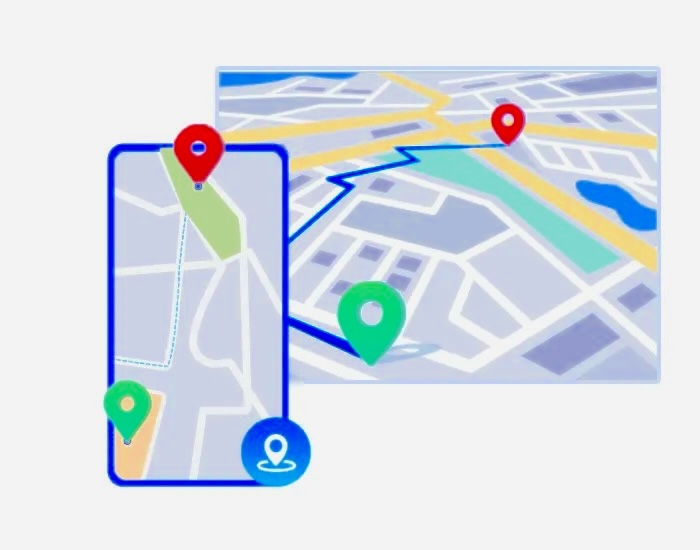
- Real-time GPS location displayed on a map dashboard
- Location history review
- Geofence alerts sent as push notifications
- Remote camera and one-way audio features for ambient awareness
- Screen time controls and app scheduling
- App blocker for specific applications
- Content filtering including restrictions on adult content within supported messaging apps
- Website blocker and browsing history
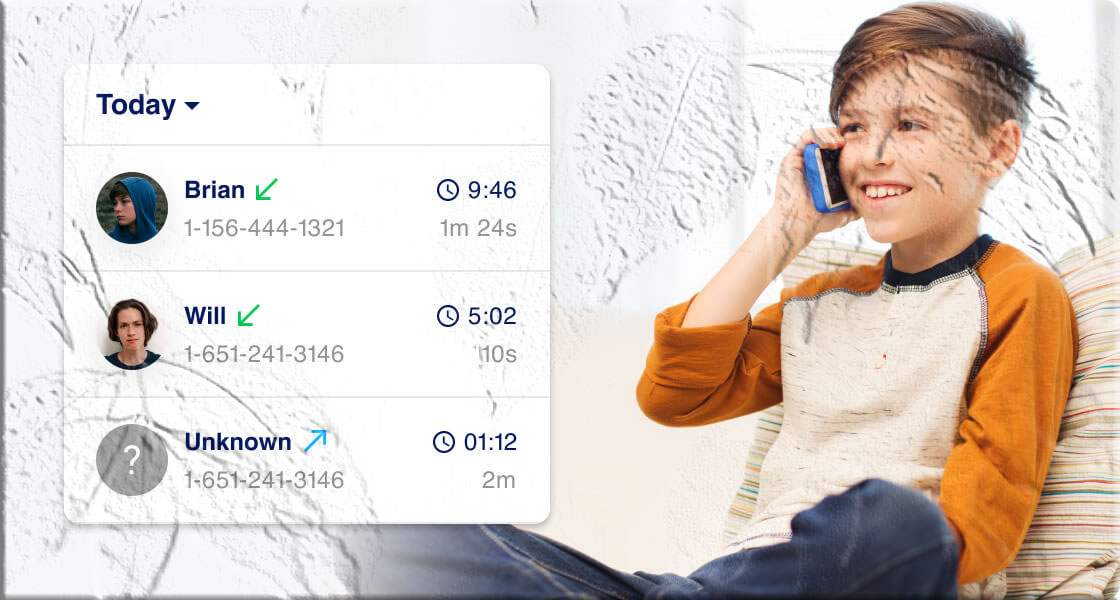
- Notification sync, including incoming calls and messages
How to set it up:
- Download and install it on the monitoring device (the parent’s phone).
- Create a MobileTracking account and sign in.
- On the Android phone to be tracked (the child’s phone), visit MobileTracking.app to download the companion Kids app.
- Follow the on-screen prompts to grant the necessary permissions on the child’s device.
- Use the binding code displayed in the Parental Control app to link the two devices.
- Once paired, tap the GPS icon at the bottom of the dashboard to see the tracked phone’s current location.
The app offers a free trial, with premium features available on subscription plans.
A note on transparency and consent: Using any tracking app on a device that belongs to another adult without their knowledge is illegal in many jurisdictions. These tools are designed for parents monitoring their minor children’s devices, employers monitoring company-owned hardware with employee awareness, or mutual family location sharing between consenting adults. Always ensure that tracking is disclosed and consented to where applicable.
Other Reputable Family Tracking Apps
Beyond MobileTracking, several other apps are widely used and trusted in this space:
Life360 (life360.com) is one of the most popular family location apps in the world, with tens of millions of users. It offers real-time location sharing for family members, driving safety reports, and crash detection. A free tier is available with core tracking features; premium plans add more detailed reporting.
Google Family Link (families.google/familylink) is Google’s own parental control solution, designed specifically for children under 13 (and teenagers with parental oversight). It allows parents to see their child’s device location, approve app downloads, set screen time limits, and lock the device remotely. It integrates directly with Google accounts, making it a natural fit for Android families already in the Google ecosystem.
Find My Kids is another app designed for parents, with a particular focus on school-age children. It includes a school schedule geofencing feature, SOS alerts that a child can trigger, and ambient sound monitoring.
Method 5: Tracking via IMEI Number
Every mobile phone has a unique 15-digit identifying number called an IMEI (International Mobile Equipment Identity). In principle, this number allows the phone to be traced on any network it connects to — regardless of what SIM card is inserted.
However, there is an important practical limitation: only mobile network operators and law enforcement agencies have the ability to use an IMEI number for tracking. Ordinary users cannot track a phone by IMEI directly.
If your phone is stolen and you want to use the IMEI, here is the appropriate process:
- Find your IMEI. The easiest way is to dial
*#06#from the phone before it goes missing — the IMEI appears on screen. You can also find it on the original packaging, in the phone’s settings under About Phone, or on the SIM tray area of some devices. - File a police report. Report the theft to your local police department and provide the IMEI number. Law enforcement can request that carriers flag the device.
- Contact your carrier. Report the stolen phone to your mobile network operator. Carriers can add the IMEI to a shared blocklist (maintained by the GSMA in many countries), rendering the phone unable to connect to any participating network — even with a new SIM card.
The IMEI route is not a self-service tracking method, but it is a critical step in the formal reporting process for stolen devices.
Method 6: Tracking via Phone Number
It is possible to find the approximate location associated with a phone number using online reverse lookup or phone lookup services. These tools aggregate carrier data and public records to provide a general geographic area — typically a city or region.
However, there are key limitations to understand:
- Precision is low. Phone lookup services provide area-level location (a city or carrier region), not a street address or GPS coordinate.
- Real-time tracking is not available. The location returned reflects carrier registration data, not the phone’s actual current position.
- These services are not free for detailed results. Basic lookups may confirm a carrier and country; detailed information typically sits behind a paywall.
For practical phone recovery or monitoring, number-based lookup is generally the least useful of all the methods described here. It may have some value for confirming whether a number belongs to a specific region, but it should not be relied upon as a primary tracking tool.
For actual real-time location tracking, the GPS-based methods described above are far superior.
Comparing the Methods: A Quick Reference
| Method | Cost | Real-Time? | Remote Actions? | Setup Required? |
|---|---|---|---|---|
| Google Find My Device | Free | Yes | Yes (lock, erase, sound) | Minimal (built-in) |
| Samsung Find My Mobile | Free | Yes | Yes (extended features) | Samsung account |
| Other Manufacturer Tools | Free | Yes | Yes (varies by brand) | Brand account |
| Google Maps Location Sharing | Free | Yes | No | Mutual agreement |
| Google Maps Timeline | Free | History only | No | Location history opt-in |
| MobileTracking Family Locator | Free trial / Paid | Yes | Parental controls | App install on both devices |
| Life360 | Free tier / Paid | Yes | No | App install on all devices |
| Google Family Link | Free | Yes | Yes (parental) | Google account, child setup |
| IMEI tracking | Free (via law enforcement) | N/A | No | Police report |
| Phone number lookup | Free (limited) / Paid | No | No | None |
How to Protect Your Android Phone Before It Goes Missing
Reactive tracking is valuable, but a few minutes of proactive setup dramatically improves your chances of recovering a missing device or protecting your data if it falls into the wrong hands.
Enable Find My Device right now. Go to Settings → Google → Find My Device and confirm the toggle is on. It takes ten seconds.
Use a strong lock screen. A PIN, pattern, or biometric lock is your first line of defense. Without it, anyone who picks up your phone has immediate access to everything.
Turn on automatic screen lock. Set the phone to lock after 30 seconds of inactivity at most.
Back up your data regularly. Go to Settings → Google → Backup and enable automatic Google backup. If your phone is erased remotely or physically replaced, you can restore everything to a new device.
Note your IMEI. Dial *#06# and save the 15-digit number somewhere safe — a notes document in your email, a piece of paper at home, or a screenshot backed up to Google Drive.
Enable two-step verification on your Google account. This prevents a thief from accessing your Google account and removing your device from Find My Device. Visit myaccount.google.com/security to set it up.
Consider a screen lock bypass for Find My Device. Under Settings → Google → Find My Device, enable “Allow lock bypass” so that you can ring the phone even when it is locked without requiring PIN entry on the lock screen.
What to Do the Moment Your Android Phone Goes Missing
Staying calm and acting methodically gives you the best chance of recovery. Here is a quick checklist for the first fifteen minutes:
- Call the phone first. It sounds obvious, but many “lost” phones are simply in another room or in a bag. Listen for the ringtone.
- Open Find My Device immediately. Go to android.com/find on any browser or use the app on another phone. Play the sound before doing anything else.
- Check the location on the map. If the phone is at a known location (your home, workplace), go look there. If it is showing a location you do not recognize, do not go there alone — contact police.
- Secure the device remotely. Use the Secure Device feature to lock it and display a contact number for a finder.
- Alert your carrier. Call your mobile provider and report the phone as lost or stolen. Ask them to suspend service temporarily to prevent unauthorized calls, data use, or purchases.
- Change your critical passwords. Log in to your Google account on another device, check for any unfamiliar sign-ins under Security, and change your password. Do the same for your email, banking app, and any other sensitive account.
- File a police report if stolen. Get a case number — you will need it for insurance claims and potentially for carrier cooperation.
- Use Erase Device only as a last resort. Once you erase, you cannot track the phone anymore. Only do this if you are certain recovery is impossible and you need to protect sensitive data.
Frequently Asked Questions
Can you track an Android phone without the owner knowing?
Technically, certain monitoring apps can run quietly in the background. However, installing tracking software on a device owned by another adult without their knowledge or consent is illegal in most countries, including under stalkerware laws in the United States and privacy regulations in the European Union. Tracking is legal and appropriate for parents monitoring their minor children’s devices, employers monitoring company-owned hardware with clear policy disclosure, and mutual location sharing between consenting adults.
Can I track an Android phone if it is turned off?
No. An offline or powered-off phone cannot transmit its location in real time. Google Find My Device and most other tools will show the last known location — the most recent position recorded before the phone went offline. This is still useful for narrowing down a search area.
Does Google Find My Device work without a SIM card?
Yes, as long as the phone is connected to Wi-Fi. An Android phone on Wi-Fi with no SIM card can still connect to the internet and report its location via Find My Device. The location accuracy may be lower without mobile data, but it will still function.
Can you track a factory reset Android phone?
This depends on the method. Google Find My Device loses access after a factory reset because the Google account is removed in the process. However, Samsung’s Find My Mobile and Xiaomi’s Find Device are linked to hardware-level identifiers in some configurations and may retain tracking capability through a reset. This is why it is important to set up a manufacturer account, not just rely on Google.
Is it legal to use a family tracking app on my child’s phone?
In most countries, yes — parents have broad legal rights to monitor devices they own and provide to their minor children. Best practice is to be transparent with older children and teenagers about the fact that their location is being monitored. Open conversations about digital safety tend to build more trust than covert surveillance.
What if the Google account linked to the phone has two-step verification and I cannot log in?
Set up recovery options in advance. Under your Google account security settings, add a recovery phone number and a recovery email address. Google can use these to verify your identity if your password or second factor is unavailable.
Can I track multiple Android phones from one account?
Google Find My Device supports multiple devices under one Google account. Family tracking apps like Life360, MobileTracking, and Google Family Link are specifically designed to monitor multiple devices from a single dashboard, making them better suited to household or fleet management.
How accurate is Android phone tracking?
When GPS is available (outdoors with a clear sky view), accuracy is typically within 3 to 5 meters. Inside buildings or in dense urban environments, the phone falls back to Wi-Fi positioning, which is accurate to around 15 to 40 meters. Cell tower positioning is the least precise, often accurate only within a few hundred meters to several kilometers depending on tower density.
Final Thoughts
Android’s tracking ecosystem is remarkably mature for a free set of tools. Google Find My Device handles the core use case — recovering a lost or stolen phone — with no additional setup beyond what comes installed on the device. Manufacturer tools like Samsung’s Find My Mobile layer on additional capabilities for users who have invested in a particular brand ecosystem. And for families who need ongoing location awareness rather than emergency recovery, apps like MobileTracking Family Locator and Google Family Link fill the gap thoughtfully.
The key, as with most digital safety practices, is preparation. Setting everything up before anything goes wrong — enabling Find My Device, noting your IMEI, enabling automatic backups, using a strong lock screen — takes less than fifteen minutes and can save enormous stress later.
Take those fifteen minutes today. Your future self will thank you.
This article is for informational purposes. Always ensure that any location tracking is conducted with proper consent and in compliance with applicable laws in your region.





Add comment