
 MobileTracking Editor
Deleted text messages tend to reappear as important more often than anyone anticipates. The confirmation of an appointment that was texted weeks ago. A critical detail in a conversation you thought you would remember. Instructions sent via SMS before you had a chance to write them down. A message thread that contains the only record of an agreement made verbally and then formalized in text.
And then there is the other side of the coin: parents who know their child deleted messages specifically to conceal something, or employers who discover that a staff member has been communicating externally in ways that should not have been happening. In those situations, the question is not just about recovering data — it is about understanding what was being communicated, and with whom.
Whatever the reason, the good news is that deleted text messages are not always gone. Whether you are working with your own phone or trying to access messages on another device you are authorized to access, several recovery approaches can surface what was deleted — and the right one depends on your specific situation, platform, and how quickly you move after the deletion.
This guide covers four distinct methods for retrieving deleted text messages from another phone, organized from simplest to most technical. We cover backup restoration for both iPhone and Android, real-time monitoring apps that capture messages before they are deleted, dedicated SMS recovery software, and the carrier access route. Each method comes with honest guidance on when it works, when it does not, and what to expect.

Part 1: Why Deleted Text Messages Are Often Recoverable
Before diving into methods, it helps to understand why deletion does not necessarily mean permanent loss — and what circumstances can make it permanent.
How Text Message Deletion Actually Works
When you delete a text message on Android or iPhone, you are telling the operating system to remove it from the visible interface and mark that storage space as available for future use. The actual data is not immediately overwritten — it still exists in the device’s storage until new data physically replaces it.
This is the window of opportunity for recovery. As long as the space that the deleted message occupied has not been written over by new data, specialized tools can often locate and reconstruct the deleted content. The longer you wait after deleting, the more likely new data — new messages, app activity, downloads, photos — will overwrite that space and close the recovery window permanently.
This is why the first rule of text message recovery is: act immediately. Stop using the target phone as much as possible the moment you decide to attempt recovery. Every new piece of data created on the device reduces the chances of finding what was deleted.
When Deletion Becomes Permanent
Recovery becomes impossible when:
- The deleted message’s storage space has been overwritten by new data
- The device has been factory reset without a prior backup
- The cloud backup is older than the message you are trying to recover (meaning the message was created after the last backup and the backup predates the deletion)
- The carrier’s record retention period has expired
Understanding these limits helps you prioritize speed and choose the right method before the window closes.
Part 2: Critical Actions to Take Before Attempting Recovery
Two immediate actions significantly improve your recovery chances, and both should be done before opening any recovery app or initiating any backup restoration.
Stop Using the Target Phone
Every message received, every photo taken, every app update installed, every web page loaded writes new data to the phone’s storage. Each piece of new data increases the probability that it will land on the same storage sectors previously occupied by the deleted message. Put the phone in airplane mode if possible — this prevents messaging apps from receiving new messages and apps from downloading background updates that could overwrite your data.
Do Not Restart or Reboot
Deleted text messages sometimes remain in the device’s cache memory (short-term, volatile storage used for quick access). Restarting the phone often clears this cache, which may include your deleted messages. Avoid restarting the device until after you have attempted recovery.
Method 1: Restore a Backup from iCloud, Google Drive, or iTunes
Backup restoration is the most reliable and straightforward recovery method — provided a backup was made before the messages were deleted. This is the right first step for both iPhone and Android users.
iPhone — Restore from iCloud Backup
Apple automatically backs up iPhones to iCloud daily (when connected to Wi-Fi and power), including text messages and iMessage conversations. If your iCloud backup includes a version taken before the messages were deleted, restoration will recover them.
What to check first: Before restoring, go to Settings > [Your Name] > iCloud > Manage Account Storage > Backups on the target iPhone. You will see the available backups with their dates. If the most recent backup predates the deletion, it will contain the messages.
The limitation: Restoring from iCloud is not selective — it restores the entire backup to the device, replacing everything currently on it. This means you will lose any data created between the backup date and today. If that trade-off is acceptable, here are the steps:
Step 1: If the iPhone has existing data you want to preserve, back it up to a different account or export important data before proceeding.
Step 2: On the iPhone, go to Settings > General > Transfer or Reset iPhone > Erase All Content and Settings. Confirm the reset. The iPhone will return to its factory setup screen.
Step 3: Follow the setup prompts until you reach the Apps & Data screen.
Step 4: Tap Restore from iCloud Backup. Sign in with the Apple ID associated with the backup.
Step 5: From the list of available backups, select the one taken before the messages were deleted.
Step 6: Wait for the restoration to complete. Depending on backup size and internet speed, this may take anywhere from a few minutes to over an hour. Once complete, open the Messages app to verify the deleted messages have been restored.
iPhone — Restore from iTunes or Finder Backup
If you regularly back up your iPhone to a computer via iTunes (Windows or Mac with older macOS) or Finder (Mac with macOS Catalina or later), those backups are stored locally and do not require an internet connection to restore.
Step 1: Connect the iPhone to the computer you use for backups using a USB cable.
Step 2: Open iTunes (Windows or older Mac) or Finder (newer Mac). The phone should appear in the sidebar.
Step 3: Select the phone and navigate to the Summary or General tab.
Step 4: Click Restore Backup. A list of available local backups will appear with their dates.
Step 5: Select the backup taken before the messages were deleted and click Restore. The process will take several minutes.
Step 6: Once complete, disconnect the phone and open Messages to verify recovery.
Advantage over iCloud: iTunes and Finder backups are stored locally, so restoration does not depend on internet speed and is typically faster. They are also not subject to iCloud storage limits.
Android — Restore from Google Drive Backup
Google Drive is Android’s default cloud backup service, and when backup is configured properly, it includes SMS messages alongside other app data, call history, and device settings. Restoring a Google Drive backup that predates the deletion will recover the messages.
Important condition: Google Drive backup for SMS must have been enabled before the messages were deleted. Check Settings > Google > Backup to see the date of the last backup and confirm it includes Messages.
Option A: Restore via a second Android device (without factory reset)
If you have access to another Android phone where you can sign into the same Google account, you may be able to restore the backup to that device without wiping the primary phone.
Step 1: On the second Android device, sign into the Google account that was used to back up the target phone.
Step 2: If the device prompts a setup wizard (during initial setup or after a reset), you will see an option to Restore from Google Backup. Select it.
Step 3: Choose the backup associated with the target phone’s account and select Messages as a data type to restore.
Step 4: Complete the setup. Open the Messages app to check for the recovered messages.
Option B: Restore via factory reset on the original device
If the second device is not available, a factory reset of the original phone and restoration during setup will recover the backup.
Step 1: Go to Settings > General Management > Reset > Factory Data Reset. Enter your PIN or passcode when prompted and confirm.
Step 2: The phone will restart through the initial setup sequence. When it reaches the Copy Apps and Data screen, select Restore from Google Backup.
Step 3: Sign into the Google account and select the relevant backup. Choose Messages (and any other data types you want to restore).
Step 4: Complete setup. Open the Messages app to verify the deleted SMS have been restored.
Caution: Factory reset erases everything currently on the phone. This is irreversible. Make sure you have exported any data from the current state of the phone that you want to keep before initiating the reset.
Method 2: Read Deleted Messages in Real Time Using a Monitoring App
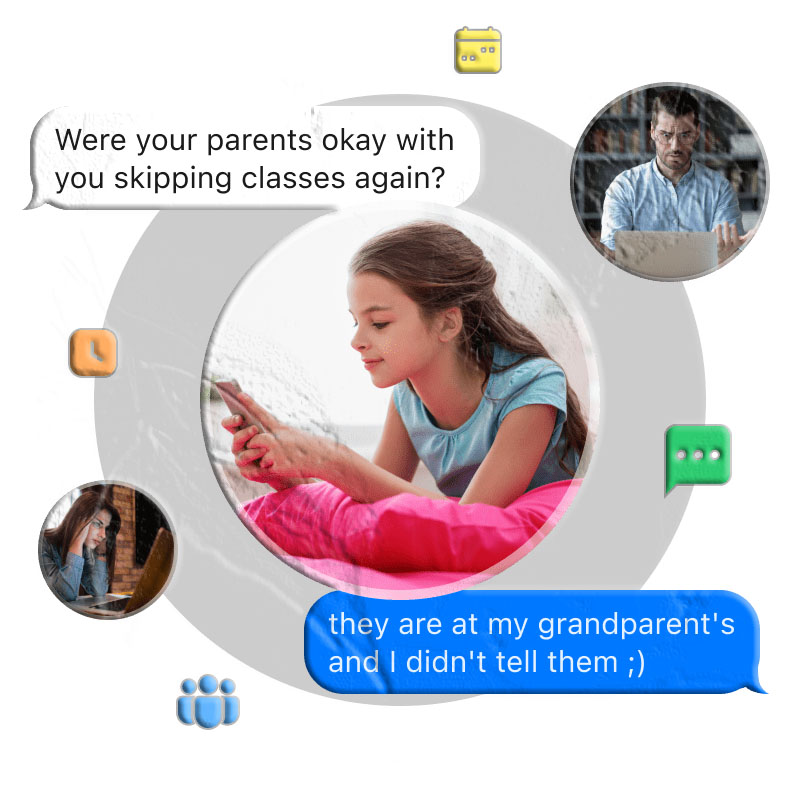
The previous method relies on a backup being taken before the deletion. This method takes a different approach entirely: rather than recovering messages after they have been deleted, it captures message content at the moment of delivery — so that even if the message is immediately deleted afterward, the content has already been recorded in the parent’s dashboard.
This approach is specifically designed for the parental monitoring use case, where a child may be routinely deleting messages to conceal conversations, and a parent needs ongoing visibility rather than periodic retroactive recovery.
MobileTracking Parental Control
MobileTracking Parental Control is a parental monitoring app for Android that addresses the deleted-message problem through notification syncing and screen-level capture. When a text message arrives on the child’s phone, it generates a notification. MobileTracking captures that notification content — including the sender and the message preview — and syncs it to the parent’s dashboard. This happens before the child opens and deletes the message.
The result: even if your child immediately deletes an incoming message, you have already received a copy of its content through the MobileTracking notification feed on your own device.
How notification-based message capture works:
When a new SMS arrives on the child’s phone, Android creates a notification in the system notification shade. MobileTracking operates at a level that captures this notification content before it is dismissed. The captured content — sender name or number, message text visible in the preview — appears in the parent’s notification feed within the MobileTracking dashboard.
This is not a traditional “recovery” method — it does not retrieve messages that were deleted before MobileTracking was installed. But it provides continuous, forward-looking coverage so that no future incoming message can be deleted without the parent already having seen it.
Additional features relevant to message monitoring:
Keyword detection for SMS. Parents can create keyword categories — words associated with bullying, inappropriate content, dangerous activities, or contact from specific people — and receive an instant alert when those words appear in any incoming message notification. This proactive alerting means parents do not need to review every notification manually; the app surfaces only the conversations that warrant attention.
Full SMS log. Beyond notifications, MobileTracking logs the content of sent and received text messages over time, creating a searchable record accessible from the parent dashboard. This is the closest equivalent to reading the message thread directly, accessible remotely without needing to pick up the child’s phone.
Screen mirroring. For situations where text content is less informative than seeing the full context — what app is open, what the conversation looks like, what is being typed in real time — MobileTracking’s screen mirroring shows the child’s phone screen live on the parent’s device.
Real-time GPS location. Know where the child’s phone is at any time, with 30-day route history and geofencing alerts that fire the moment the phone enters or leaves designated areas.
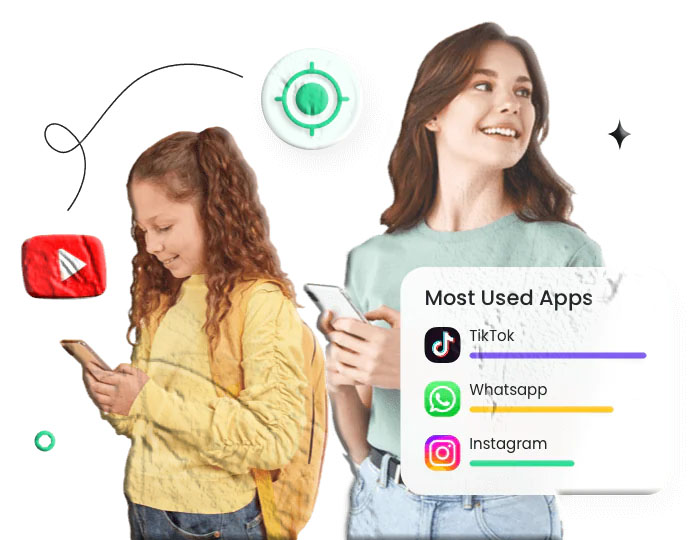
App usage monitoring. See which messaging apps are being used, for how long, and at what times of day — useful context for understanding communication patterns alongside the message content itself.
How to set up MobileTracking for message monitoring:
Step 1: Download and install MobileTracking Parental Control from the Google Play Store on your own phone. Create an account and log in.
Step 2: On the child’s Android phone, download and install the MobileTracking Kids companion app.
Step 3: Open MobileTracking Kids on the child’s device. Enter the pairing code shown in your parent dashboard to link the two phones. Complete the permissions setup — granting notification access is the critical permission for message monitoring.
Step 4: From your parent dashboard, navigate to Calls & SMS Monitoring to set up keyword detection categories. Navigate to Notifications to see the real-time message notification feed. Use Screen Mirroring to view the phone screen when needed.
Step 5: Going forward, all incoming SMS notifications are captured and synced to your dashboard, regardless of whether the child deletes them afterward.
Method 3: Use a Dedicated SMS Recovery Tool
When no backup is available and real-time monitoring was not set up in advance, dedicated data recovery software offers a last-resort approach. These tools perform deep scans of the device’s internal storage to locate remnants of deleted files — including text message database entries — that have not yet been overwritten.
How SMS Recovery Tools Work
When a text message is deleted, the entry is removed from the active message database, but the underlying data in storage is only marked as “available” — not physically erased. Data recovery tools scan the raw storage sectors looking for these marked-as-available sections that still contain message data, and attempt to reconstruct them into readable form.
Success rates vary considerably. The most important factor is time and device activity since the deletion. A message deleted an hour ago on a phone that has received no new content since then is much more likely to be recovered than one deleted three days ago on an actively-used device.
DroidKit
DroidKit by iMobie is one of the more widely used Android data recovery tools, available for Windows and Mac. It can recover not only text messages but also contacts, photos, call logs, and WhatsApp data.
Important caveat: Deep recovery of data directly from the device — rather than from a backup — typically requires the device to be rooted. Rooting grants the recovery tool access to the raw storage sectors it needs to scan. Rooting a device can void the manufacturer’s warranty and carries a risk of bricking the device if done incorrectly. This is an advanced step that non-technical users should approach cautiously.
How to use DroidKit for SMS recovery:
Step 1: Download and install DroidKit on your Windows or Mac computer.
Step 2: Connect the Android phone to the computer using a USB cable. Enable USB Debugging on the phone (Settings > Developer Options > USB Debugging).
Step 3: Launch DroidKit. From the main screen, select Recover Lost Data.
Step 4: Choose Deep Recovery from Device to scan the phone’s internal storage directly. If the device is not already rooted, DroidKit will guide you through the rooting process.
Step 5: Select Text Messages as the data type to scan for, and begin the scan. This process may take several minutes.
Step 6: DroidKit will display recoverable message data found during the scan. Review the results and select the messages you want to recover. Click Recover to export them to your computer or restore them to the device.
Other Recovery Tools Worth Considering
Dr.Fone — Data Recovery (Windows and Mac) supports both Android and iOS data recovery, with an SMS recovery option for both platforms. The iOS version does not require jailbreaking and can recover from iCloud or iTunes backups selectively — meaning you can extract just the messages from a backup without a full device restore.
PhoneRescue by iMobie is specifically designed for iOS data recovery and allows selective recovery of individual message threads from iCloud or iTunes backups without wiping the device. This solves the biggest limitation of Apple’s native backup restoration — the all-or-nothing nature of a full iCloud restore.
Method 4: Request Records Through Your Mobile Carrier
Mobile carriers maintain server-side records of SMS traffic that passes through their network. This means that even if a message has been deleted from a device, the carrier may have a record of it on their servers.
However, accessing carrier records is significantly more restricted than accessing a device backup, and the rules vary by carrier and jurisdiction. Understanding how this system works — and what you can realistically expect — prevents wasted effort chasing records that may not be accessible.
What Carriers Actually Keep
SMS messages are logged at the network level when they are transmitted. The carrier’s infrastructure routes the message from sender to recipient, and a record of that transaction is created. What is kept — and for how long — varies significantly by carrier and by the type of record:
Content vs. metadata. There is an important distinction between the content of a message (the actual words) and its metadata (who sent it, who received it, when, and from which device). Carriers typically retain content for much shorter periods than metadata. Content may be gone within a few days; metadata records can be kept for months or even years.
Carrier retention policies by major U.S. provider:
- AT&T: Retains SMS content for approximately 72 hours. After that, only metadata (phone number, timestamp, message count) is retained for longer periods — typically up to 7 years for business records. The 72-hour window for content is a narrow one that rewards acting immediately.
- Verizon: Has historically retained SMS content for approximately 10 days on their servers. Metadata is kept significantly longer. Verizon’s privacy policy and support pages provide the most current retention information.
- T-Mobile: Retains SMS content for varying periods depending on account type. Their support pages contain current policy information.
It is worth noting that these policies change over time, and the figures above reflect historical practice. Contacting the carrier directly gives you the most accurate current information.
How to Request Carrier Records
Carriers do not typically provide direct access to deleted SMS content to individual customers on request alone. The pathways for access are:
For account holders requesting their own records: Some carriers will provide account activity records — timestamps, numbers involved — through their account portals or customer service. The actual message content is more restricted and often requires a more formal process. Log into your carrier’s account management portal and look for Account History, Usage Details, or Message History to see what is available without a formal request.
For legal or law enforcement purposes: Carriers can provide message content records when served with a legally valid subpoena, court order, or law enforcement request. If you are pursuing a legal matter where text message records are relevant evidence, working with an attorney to obtain a subpoena is the appropriate channel. Carriers have dedicated legal compliance departments for processing these requests.
For parents of minor children: Because parents are legal guardians of their minor children, some carriers may provide more cooperative access to account records associated with lines under their account. Contact your carrier’s customer service with your account details and a clear explanation of your relationship to the phone line in question. Have your account number, the relevant phone number, and the approximate date range of the messages ready before calling.
Practical steps for contacting a carrier:
Navigate to the carrier’s official support portal (AT&T: att.com/support, Verizon: verizon.com/support, T-Mobile: t-mobile.com/support) and look for the account management or privacy request section. When calling customer service, ask specifically about the process for account holders to request SMS records — the terminology varies by carrier, and being specific about what you need avoids being redirected to the wrong department.
Part 3: Ensuring You Can Always Recover — Prevention Through Regular Backup
The most effective way to handle deleted text message recovery is to ensure you are never in a situation where you cannot recover them. A consistent backup routine eliminates almost all of the uncertainty around deletion — and takes only minutes to set up.
iPhone: Verify Your iCloud Backup Is Working
Step 1: Open Settings and tap your name at the top.
Step 2: Tap iCloud > Manage Account Storage > Backups.
Step 3: You should see your iPhone listed as a backup device with the date and time of the last backup. Tap on it to see which data types are included.
Step 4: Confirm Messages is listed as an included data type. If it is not, go back to Settings > [Your Name] > iCloud and toggle Messages on.
Step 5: Tap Back Up Now to create an immediate fresh backup. This ensures your current messages are captured regardless of the automatic schedule.
What to do after important conversations: For any text exchange that contains significant agreements, instructions, or information you know you will want to reference — a rental agreement finalized via text, a medical recommendation, a confirmation from a contractor — manually trigger a backup immediately after the conversation ends by following Step 5 above. This creates a backup that specifically includes that exchange.
For iPhone users who frequently exchange important information via text, a daily automatic backup schedule combined with the habit of manually backing up before any major data management (clearing space, preparing for software updates) provides the strongest safety net.
Android: Set Up and Verify Google Drive Backup
Step 1: Open Settings and go to Google > Backup.
Step 2: Confirm that Backup by Google One is toggled on, and that SMS messages (sometimes listed as “Messages”) is included under the data being backed up.
Step 3: Tap Back up now to create an immediate backup.
Step 4: Check the backup status screen to confirm the backup completed successfully and note the timestamp. This timestamp is the key reference point — if messages sent or received after this timestamp are deleted before the next backup, they may not be recoverable through backup restoration.
Android backups through Google One are stored in your Google account and can be accessed when setting up a new device or after a factory reset. Backups are end-to-end encrypted and accessible only with your Google account credentials.
Managing backup frequency: By default, Android backs up daily when the device is connected to Wi-Fi and charging. Most people back up during overnight charging, which means there is a potential gap of up to 24 hours between the last backup and any given moment during the day. For critical message conversations, a manual “Back up now” tap immediately after the exchange provides certainty.
Third-Party Backup Solutions for SMS
For users who want more control over their backup, want to maintain copies outside of Google’s or Apple’s ecosystem, or want to back up messages more granularly than the standard cloud backup allows, dedicated SMS backup apps provide an additional layer of protection.
SMS Backup & Restore (Android) creates independently stored XML backups of all SMS and MMS messages. Backups can be saved to your phone’s internal storage, an SD card, or uploaded to Google Drive, Dropbox, or OneDrive. Unlike the standard Google Backup, SMS Backup & Restore backups can be restored selectively — meaning you can recover specific message threads without a full device reset. This makes it one of the most useful tools for exactly the kind of targeted recovery that the native backup system does not easily support.
iMazing (Windows and Mac) provides iPhone backup management with selective SMS recovery capabilities. Unlike iTunes and iCloud, which require a full device restoration to access backed-up messages, iMazing lets you browse and export specific message threads from a backup file to your computer without touching the device. It is a paid application but is particularly valuable for users who need to access archived message conversations regularly.
Frequently Asked Questions
Can you recover deleted text messages that were never backed up?
The chances are lower but not zero. Data recovery tools like DroidKit and Dr.Fone perform deep scans of device storage to find deleted data that has not been overwritten. Success depends on how quickly you act and how much new data has been written to the device since deletion. Acting immediately — putting the phone in airplane mode and avoiding any new data creation — gives you the best possible chance.
How do I retrieve old text messages from another phone for free?
If the other phone is signed into a Google account (Android) or Apple ID (iPhone) that you have access to, you can restore the cloud backup during device setup without any paid tools. Google Drive backup restoration is free; iCloud restoration is free. Carrier record requests through official channels are also typically free, though access is limited.
Can phone companies retrieve deleted text messages?
Yes, within their retention window. Carriers maintain server-side logs of SMS traffic. Access typically requires a formal request — account holder verification for metadata, or a legal process for content. Carriers vary in how long they retain message content, with most keeping it for only a few days before it is purged from their servers.
Is it legal to retrieve deleted text messages from someone else’s phone?
This depends entirely on your relationship to the phone and the laws of your jurisdiction. Accessing your own messages is always legal. As a parent, accessing your minor child’s phone is generally legal in most countries as part of parental authority. Accessing another adult’s phone without their knowledge or consent is illegal in most jurisdictions and could constitute a criminal offense. Always ensure you have legal authority before attempting to access another person’s messages.
Will my deleted texts still be on my carrier’s server?
Possibly, within the carrier’s retention window. Most major U.S. carriers keep SMS content for between 72 hours and 10 days. After that, typically only metadata (numbers, timestamps) is retained. If you need to request records, act within that window. Metadata may be available for longer periods and can still be useful for identifying who communicated with whom, even without message content.
Can I see deleted texts on my child’s phone without them knowing?
With a parental monitoring app like MobileTracking installed in advance, yes. MobileTracking captures incoming message notifications before they can be deleted and syncs them to your parent dashboard. The companion app on the child’s device can run without a visible icon on the home screen. For parents who are concerned about ongoing communication rather than a past deletion, this approach provides more reliable, continuous coverage than retroactive recovery methods.
What is the best app for recovering deleted text messages?
For iPhone with existing backups: Apple’s native iCloud restoration or Dr.Fone/PhoneRescue for selective recovery without a full device wipe. For Android with existing backups: Google Drive restoration during device setup. For deep recovery without a backup on Android: DroidKit (requires rooting). For ongoing parental monitoring to prevent the need for recovery: MobileTracking Parental Control, which captures incoming messages before they can be deleted.
Final Thoughts
Recovering deleted text messages from another phone is most reliable when you act quickly, have a recent backup to restore from, and use the right method for your platform and situation. The backup restoration route — iCloud for iPhone, Google Drive for Android — is the simplest and most reliable option when a pre-deletion backup exists. Dedicated recovery software fills the gap when there is no backup, though with reduced reliability and increased technical complexity.
For parents dealing with a child who routinely deletes messages to conceal conversations, the more practical long-term solution is proactive monitoring rather than reactive recovery. A parental control app that captures message content as it arrives — regardless of what happens to the messages afterward — solves the problem at the source rather than requiring repeated recovery attempts after the fact.
Whatever your situation, the single most important action you can take right now is to set up automatic daily backups on every phone in your household. It takes less than five minutes and eliminates the most stressful scenarios entirely.
Disclaimer: This guide is for informational purposes only. Always ensure you have legal authority to access any device before attempting to recover its data. Monitoring another person’s communications without proper authorization may be illegal. Comply with all applicable laws in your jurisdiction.






Add comment