Most deleted files on Android can be recovered for 30 days, as long as you look in the right bin. Check the app you deleted the file from: Files by Google › Menu › Trash, Samsung My Files › Recycle bin, Samsung Gallery › Menu › Recycle bin, or Google Photos › Collections › Trash (called Bin in UK English). Then check any cloud service the file was synced to, such as Google Drive or OneDrive. Select the file and tap Restore.
If the file isn’t in any bin and there is no copy in the cloud, the honest answer is that it is almost certainly gone from the phone’s internal storage. Modern Android phones encrypt every file with its own key, and deleting a file throws that key away. The one real exception is a removable SD card, which you can often scan on a computer. This guide covers every place worth checking, in the order worth checking them.
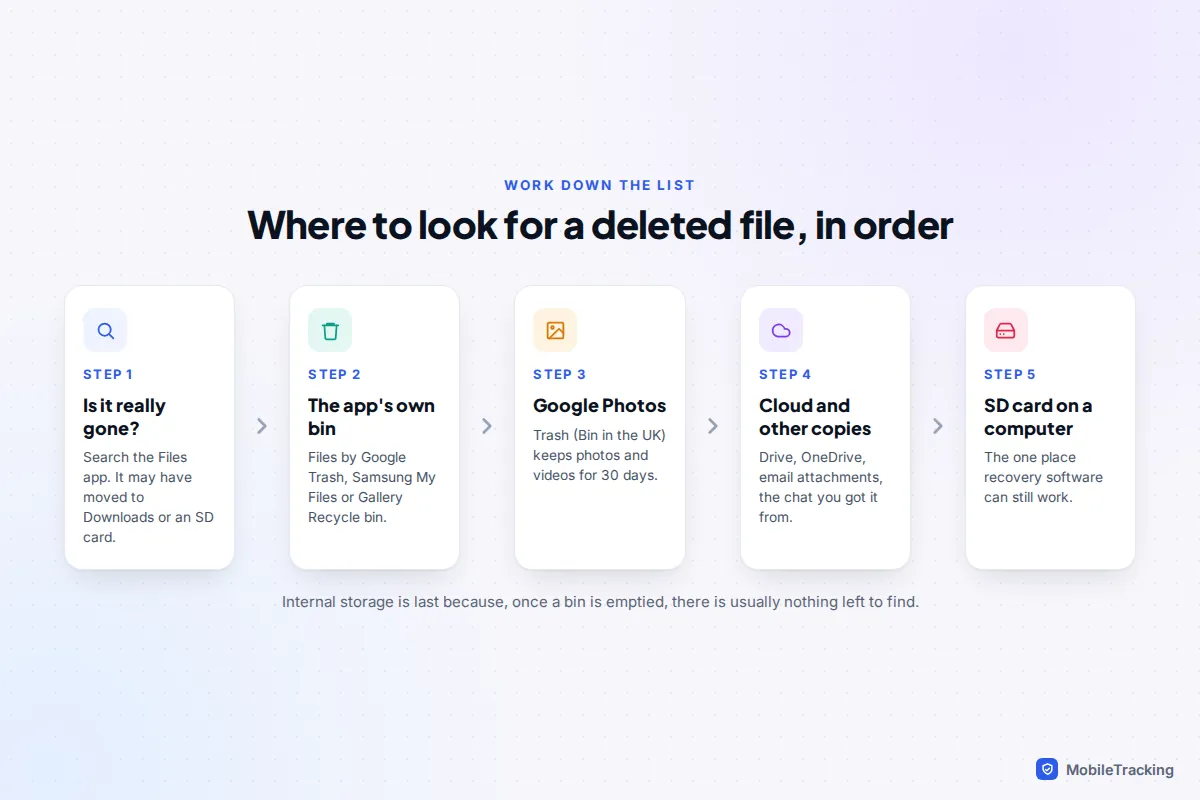
Where deleted files go, and how long they stay
First, make sure it’s really deleted
A surprising number of “deleted” files have simply moved. Open your file manager and use its search with part of the file name or the file type. Check the Downloads folder, the SD card if you have one, and, on a Samsung, the Secure Folder, which keeps its own separate files. A file opened from a chat app may also sit inside that app’s own folder. Our guide to finding a downloaded file on your phone covers the usual hiding places.
There is no single Android recycle bin
Unlike a Windows PC, Android has no one bin for everything. Each app that deletes files decides whether to use a bin, so where a file ends up depends on the app you used to delete it. Almost all of them now keep deleted items for 30 days.
| Bin | What goes there | How long |
|---|---|---|
| Files by Google: Trash | Files deleted in Files by Google (the default file manager on Pixels and many other phones) | 30 days |
| Samsung My Files: Recycle bin | Documents, downloads and other files deleted in My Files | 30 days |
| Samsung Gallery: Recycle bin | Photos and videos deleted in Gallery | 30 days |
| Google Photos: Trash or Bin | Photos and videos deleted in Google Photos, backed up or not | 30 days |
| Google Drive: Trash or Bin | Anything deleted from Drive, on any device | 30 days |
| OneDrive: Recycle bin | Files deleted from OneDrive, including Samsung Gallery photos synced there | 30 days (personal accounts) |
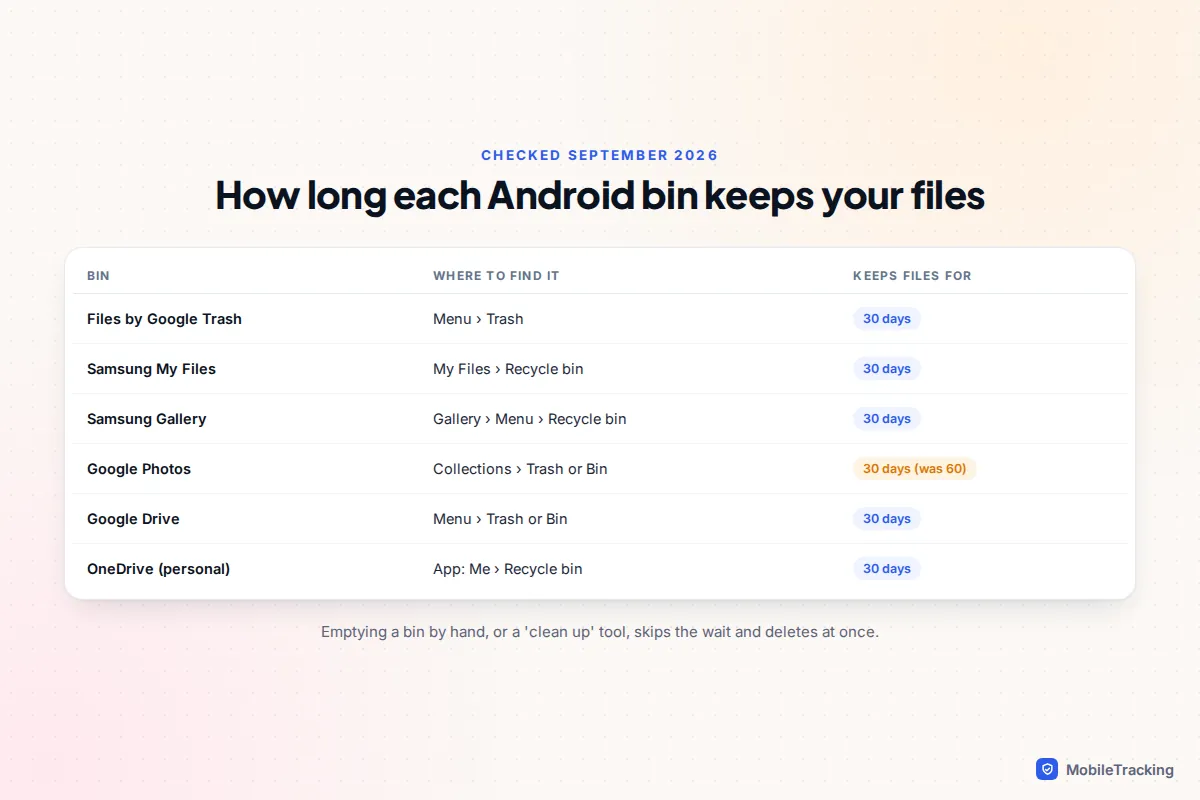
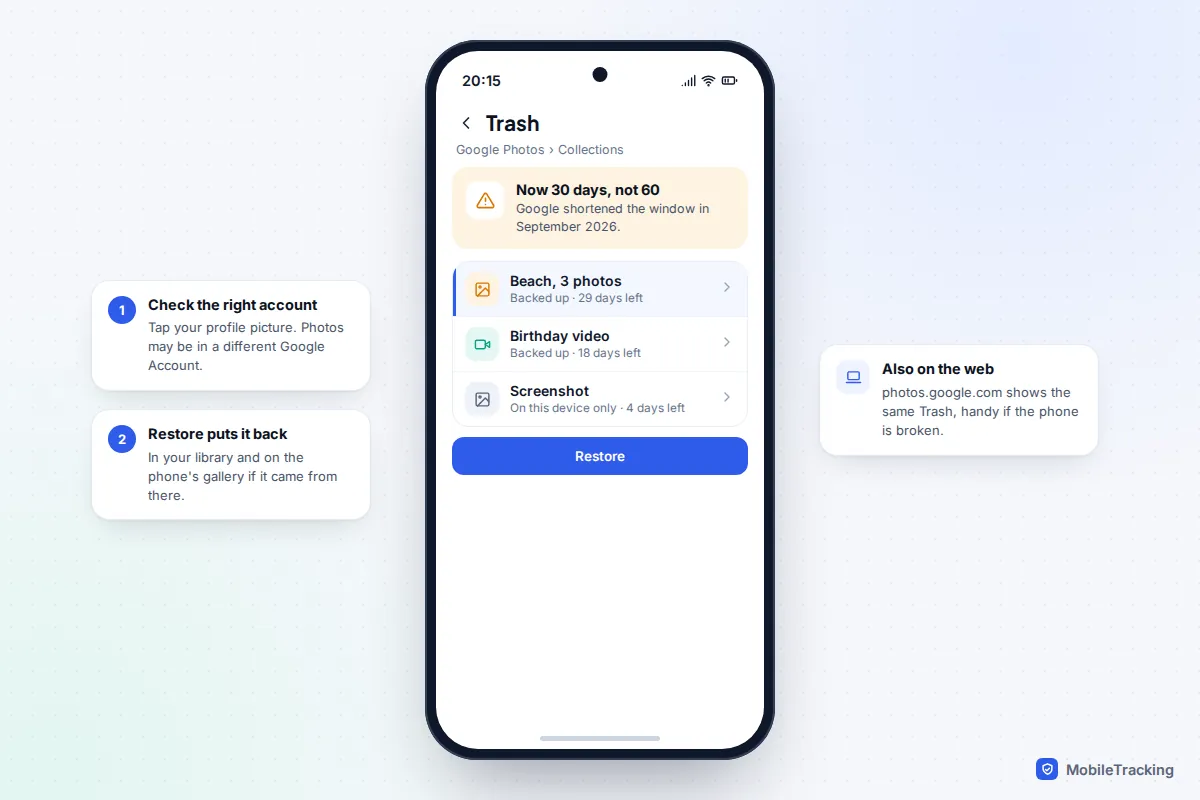
One recent change catches people out. Until September 2026, Google Photos kept backed-up items in its bin for 60 days. Google’s help page now says deleted photos and videos stay in the bin for 30 days before they are permanently deleted, the same as items that were never backed up. If you remember reading “60 days”, that advice is out of date.
Restore from the Files app’s bin
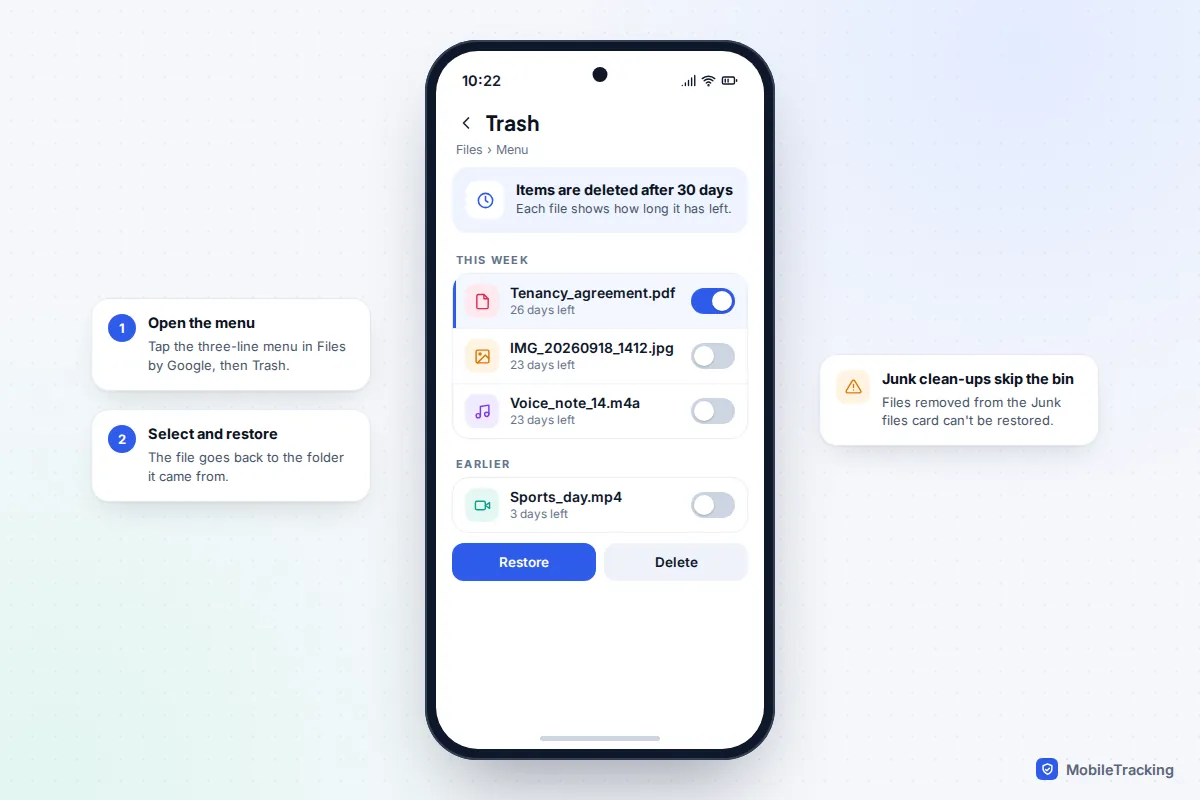
Files by Google (Pixel and many other phones)
- Open Files by Google.
- Tap the menu icon (three lines, top left) and choose Trash.
- Select the files you want back and tap Restore, then confirm.
The file returns to the folder it came from. According to Google’s Files help page, Trash keeps files for 30 days, and anything cleared through the Junk files card or deleted from Trash itself can’t be recovered. If Trash looks empty and you have an SD card, Google suggests removing the card to check whether the Trash then loads properly.
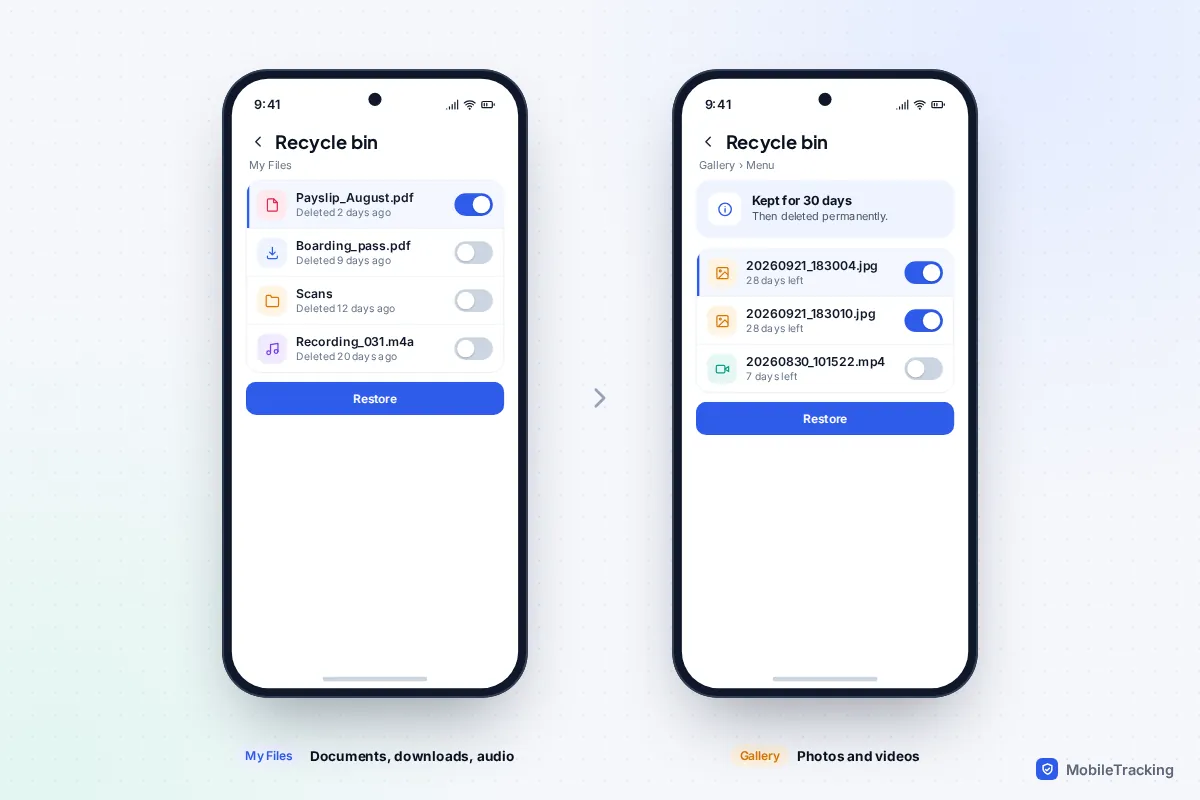
Samsung My Files
- Open My Files and scroll to Recycle bin.
- Tap Edit, select the files (or All) and tap Restore.
Samsung’s help page says items stay in the bin for 30 days and that the My Files bin can’t be switched off. There is also a shortcut to every Samsung bin at Settings › Device care › Storage (Storage management on older versions) under Recycle bin, which is useful if you’re not sure which app you deleted from. Other brands, including Xiaomi, OnePlus and Motorola, have their own file managers with a “Recently deleted” or “Recycle bin” section; the name varies, but it is usually in the app’s menu.
Photos and videos: Gallery and Google Photos
If you use Samsung Gallery, open Gallery › Menu (three lines) › Recycle bin, tap Edit, select the items and tap Restore. Samsung notes that the Gallery bin has to be switched on to catch deletions; if you can’t see it, check Gallery › Menu › Settings and turn it on for next time.
In Google Photos, the steps are:
- Open Google Photos and tap Collections.
- Tap Trash (or Bin).
- Select the photos or videos and tap Restore.
Two checks save a lot of worry. First, tap your profile picture and confirm you are in the right Google Account: photos backed up to a second account won’t show in the first. Second, where you deleted it matters. Deleting a backed-up photo in Google Photos removes it from your library everywhere and sends it to the bin, which you can also open at photos.google.com. Deleting it in another gallery app, such as Samsung Gallery, removes only the phone’s copy, so the backed-up version may still be sitting in your Google Photos library. There is more on this in our guide to recovering deleted photos on Android.
Look for a copy in the cloud or somewhere else
A file you can’t recover from the phone often exists somewhere else. Work through these before you give up:
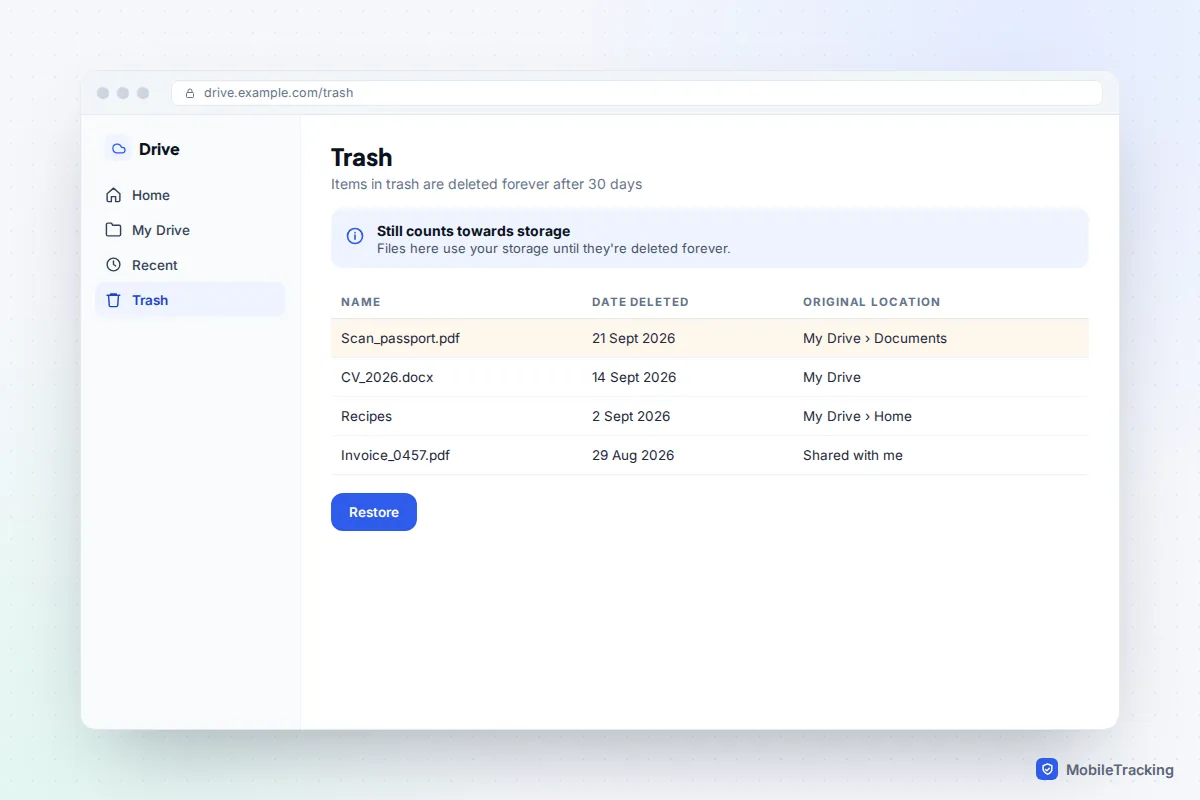
- Google Drive: open the Drive app or drive.google.com and check Trash. Items stay there for 30 days. If you permanently deleted something from Drive very recently, Google’s help pages say it may still be possible to recover in some cases, so contact Drive support quickly.
- OneDrive: if your Samsung Gallery syncs to OneDrive, check OneDrive’s Recycle bin (30 days for personal accounts).
- Email: search Gmail or Outlook for the file name, or the sender, if the file ever arrived as an attachment.
- The chat it came from: documents sent in WhatsApp, Messages or Telegram can often be downloaded again from the conversation, or the sender can simply resend them.
- Your computer: check its Downloads folder if you ever transferred or emailed the file to yourself.
One thing that won’t help: the Android phone backup. Google’s device backup saves app data, settings, call history and messages, not the documents in your Downloads folder, so restoring it won’t bring back a deleted PDF. Our guide to recovering deleted downloads goes into browser and app download folders in more detail.
SD cards: where recovery software can still work
A memory card used as ordinary “portable” storage behaves like a USB stick. When a file is deleted, the data often stays on the card until something new is written over it, so a scan on a computer has a fair chance of success.
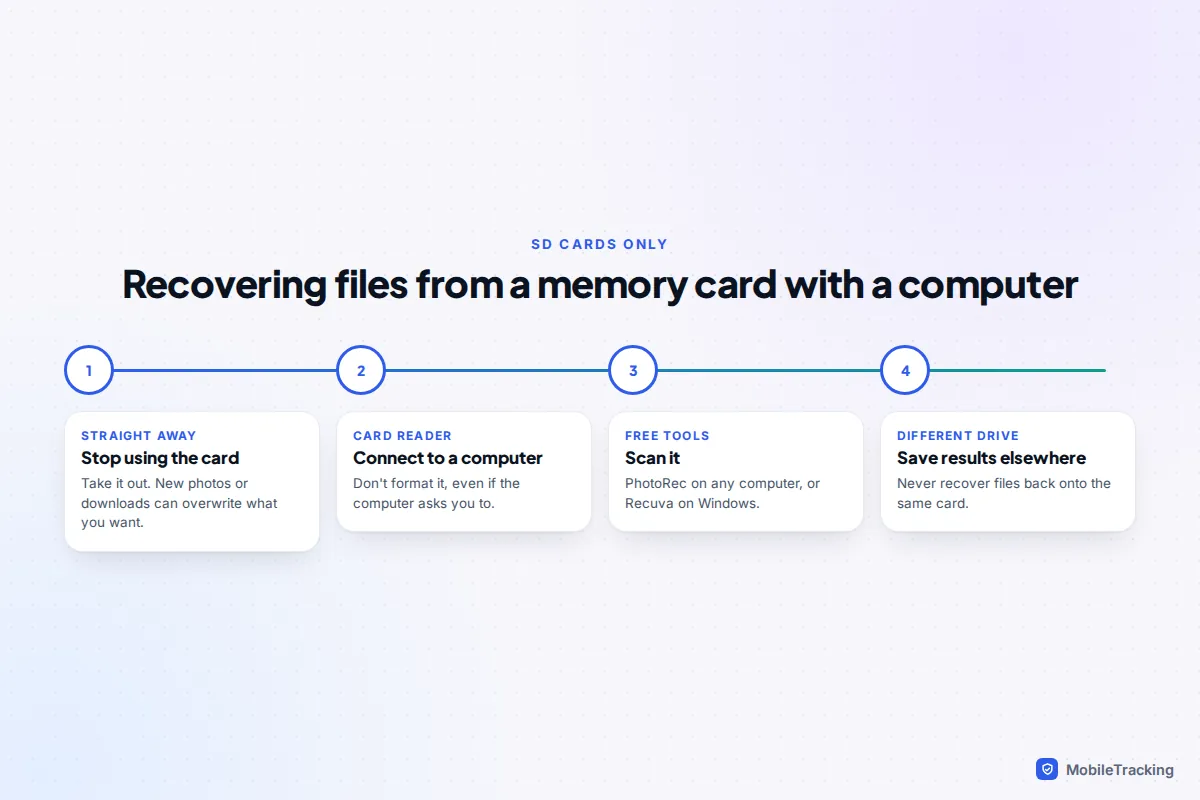
- Stop using the card straight away. Every new photo or download can overwrite the file you want.
- Take the card out and put it in a card reader connected to a computer. If the computer offers to format it, say no.
- Scan it with a reputable free tool: PhotoRec runs on Windows, Mac and Linux, and Recuva runs on Windows.
- Save anything you recover to the computer’s drive, never back onto the same card.
This won’t work if the card was set up as internal storage (sometimes called adoptable storage) or if you turned on card encryption. In both cases the card is encrypted with a key held by the phone, so a computer sees only scrambled data.
Why recovery apps rarely work on internal storage
Search the Play Store for “recover deleted files” and you’ll find dozens of apps promising to undelete anything. On a modern phone’s internal storage, they almost never can, and the reasons are technical, not a matter of finding a better app.
- Encryption. Google requires all devices launching with Android 10 or later to use file-based encryption. Each file is protected by its own key, and when the file is permanently deleted, the key goes with it. Any leftover data is unreadable.
- Flash storage housekeeping. Android regularly tells the storage chip which space is free (a process called TRIM), and the chip clears it for reuse.
- No access. Without root, an app can only see files that still exist in shared storage, not the raw storage chip.
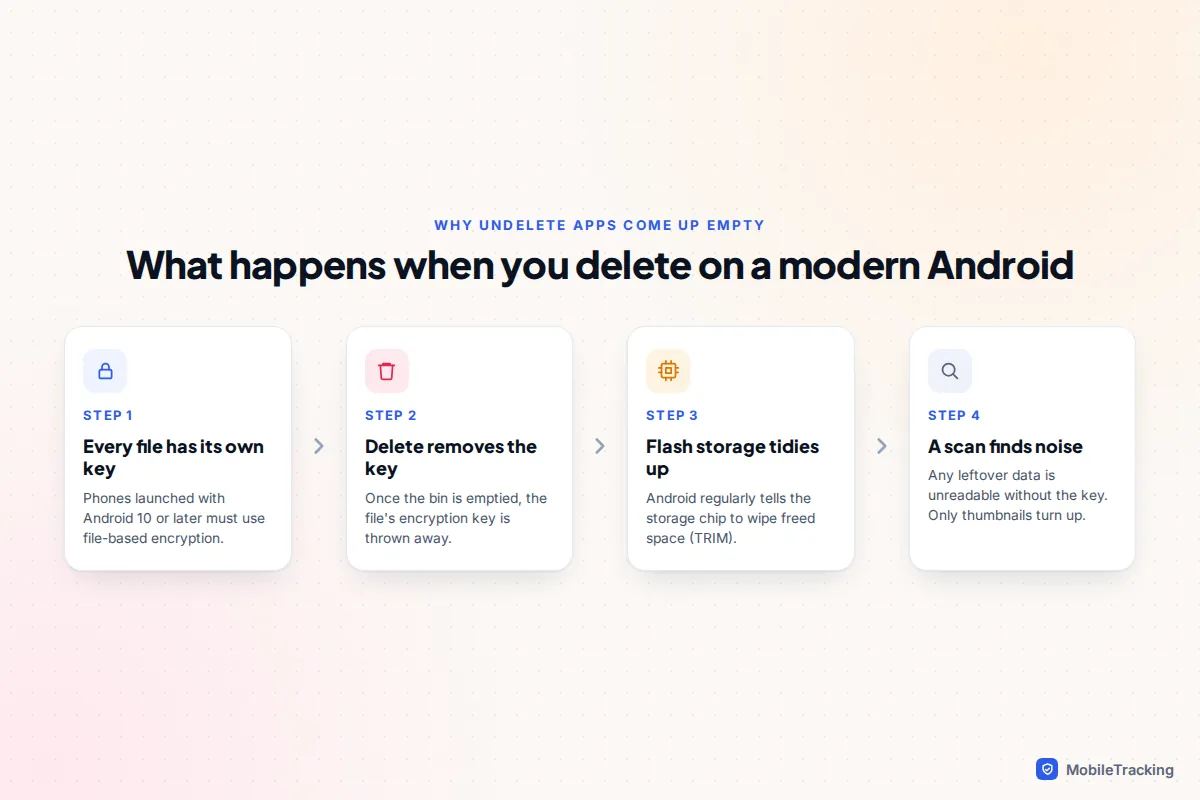
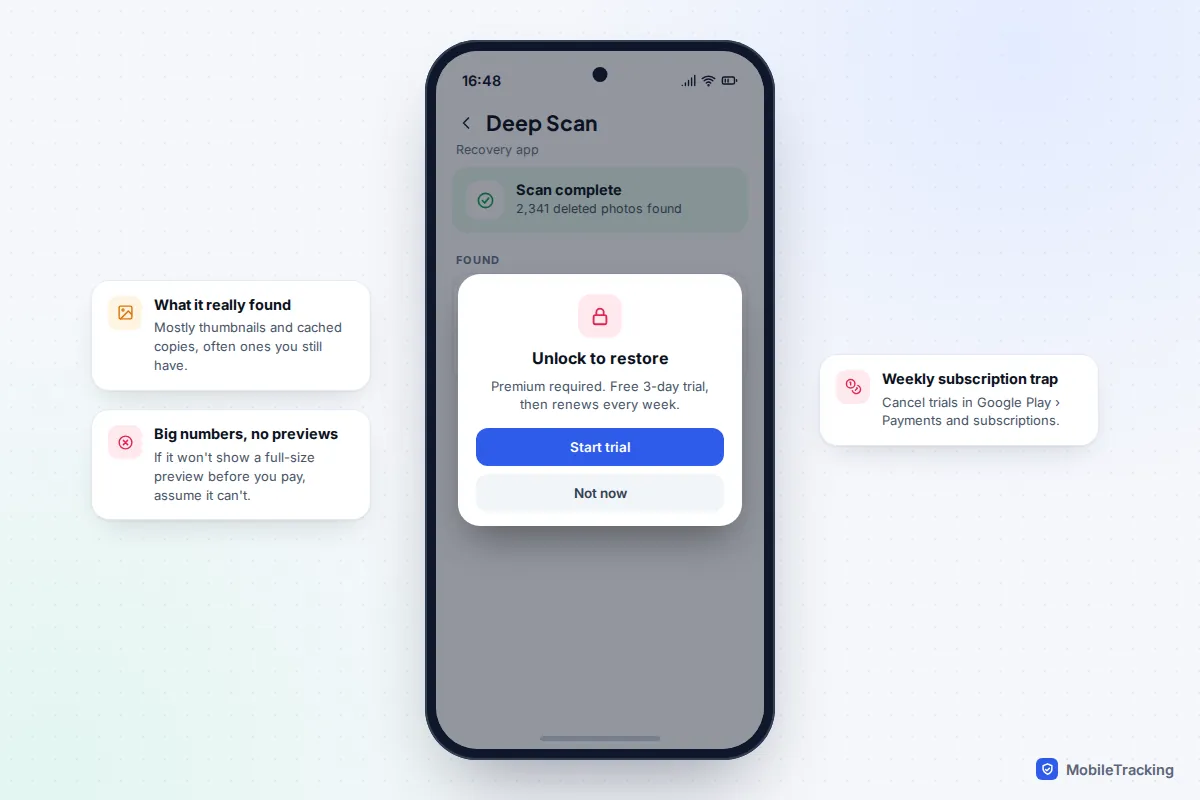
What these apps usually find is thumbnails, cached previews and copies that other apps keep, which is why the results are often small, blurry versions of photos. That can occasionally be worth having if a low-resolution copy is all you need, and a free app that shows you full previews before asking for anything is fine to try.
Red flags that an app is a waste of money
- It reports thousands of “recoverable” files but won’t show a full-size preview until you pay.
- It pushes a free trial that turns into a weekly subscription.
- It asks for permissions unrelated to files, such as contacts, SMS or accessibility access.
- A computer program tells you to root the phone or unlock its bootloader. Unlocking the bootloader factory resets the phone, which erases the remaining data, including your bins.
Should you stop using the phone?
For an SD card, yes, immediately. For internal storage it makes less difference, because encryption has done its work once a bin is emptied. What does matter is not making things worse: don’t run cleaner or “boost” apps, don’t accept storage clean-up suggestions that empty the bins, and don’t factory reset in the hope it will help, because a reset erases everything, including the bins.
When professional recovery makes sense
Data recovery companies are worth paying for in a few specific cases, and not in others.
- Worth considering: a phone that won’t turn on after water damage or a drop, where the files were never deleted. A specialist repair shop or lab may get the board running long enough for you to unlock it with your own passcode and copy the data off.
- Worth considering: a physically damaged SD card or USB stick that a computer no longer recognises.
- Not worth it: files deleted from a working phone’s encrypted internal storage. A reputable lab will tell you this before charging, and one that promises otherwise deserves suspicion.
Ask for a free assessment and a “no data, no fee” policy, and get the price in writing before any work starts.
How to make the next deletion a two-minute fix
Recovery on Android is really about having a second copy. A few settings, turned on today, mean a deleted file becomes a trip to the bin or the cloud rather than a loss.
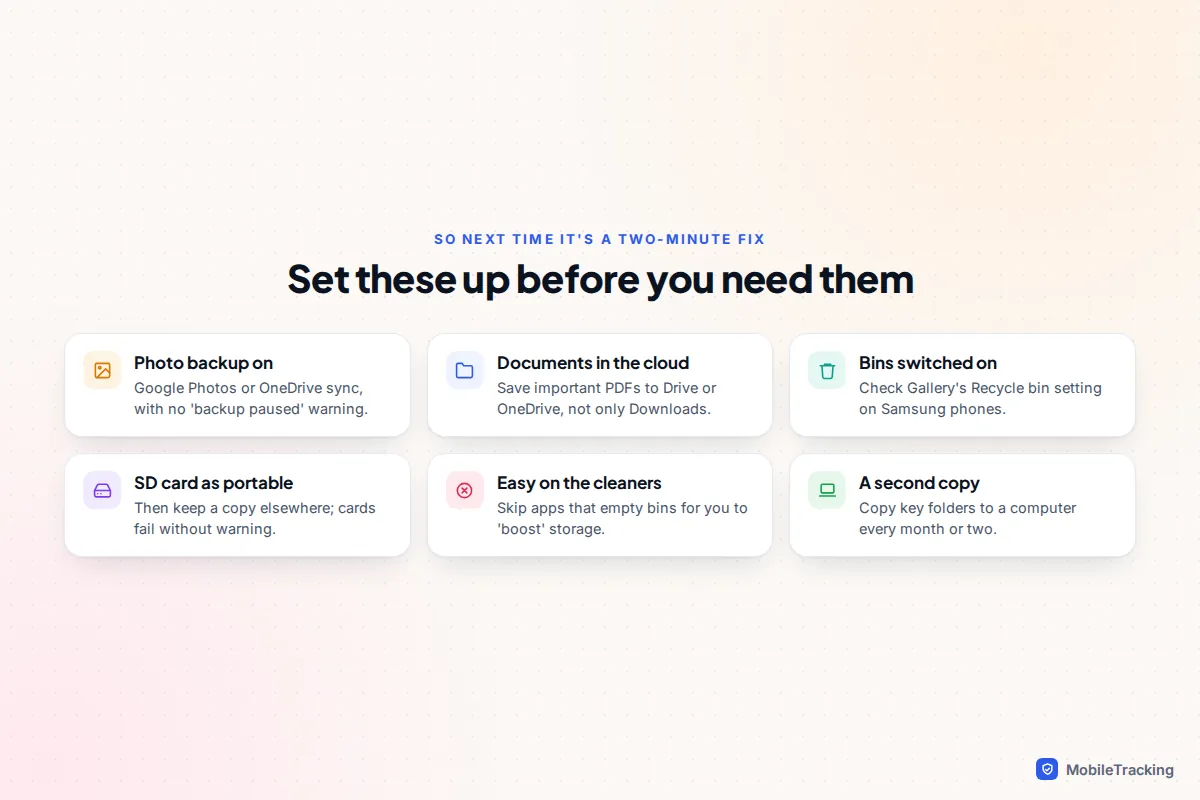
Turn on Google Photos backup (profile picture › Photos settings › Backup) or Samsung’s OneDrive sync, and save important documents such as passports, tickets and contracts to Drive or OneDrive rather than leaving them only in Downloads. Our guide to backing up your Android phone walks through the rest.
Frequently asked questions
Does Android have a recycle bin?
Not a single, system-wide one. Individual apps keep their own bins: Files by Google, Samsung My Files, Samsung Gallery, Google Photos and Google Drive all hold deleted items for 30 days. Where your file went depends on which app you deleted it from.
Can I recover files deleted more than 30 days ago?
Only from another copy, such as a cloud backup, an email attachment, a computer or the person who sent it. Once a bin has cleared a file from internal storage, it can’t be brought back.
Can I recover files after a factory reset?
Not from the phone itself. A reset deletes the encryption keys that protected your data. What you can get back is whatever was backed up or synced: Google Photos, Drive, contacts and your Google device backup.
Would rooting my phone help recover deleted files?
No. Rooting doesn’t undo encryption, and on most phones unlocking the bootloader to root it wipes the phone first, which destroys the bins and anything else still recoverable.
Are free recovery apps safe to try?
A well-reviewed app that shows full previews for free is harmless to try, especially for thumbnails or an SD card. Avoid any app that demands payment before showing results, asks for unrelated permissions or pushes a weekly subscription.