
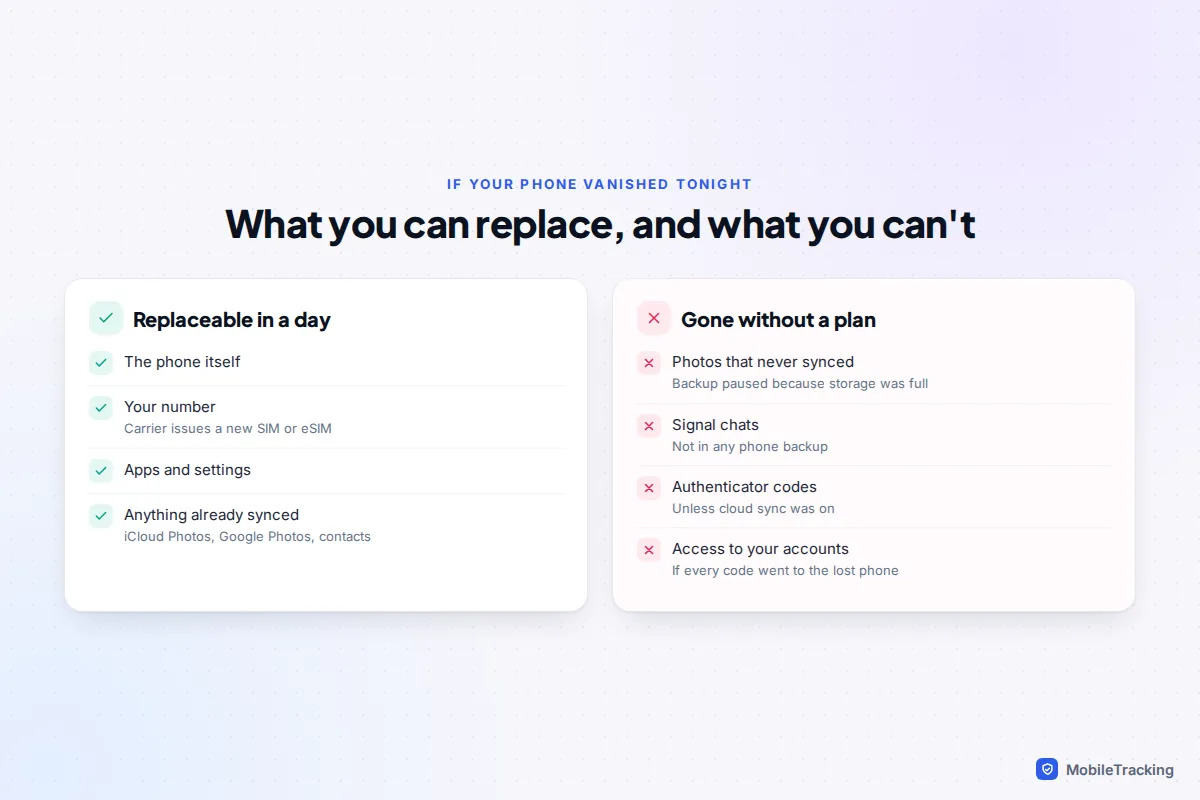
To make a lost phone an inconvenience rather than a disaster, you need three things in place before it goes missing: the phone’s own cloud backup switched on and actually running (iCloud Backup on iPhone, Google’s backup on Android), your photos syncing to the cloud, and a way to sign in to your accounts that doesn’t depend on the phone you’ve just lost. On top of that, WhatsApp and Signal keep their own backups, which the phone backup does not cover, so each needs switching on separately.
Most people have the first item and assume that covers everything. It doesn’t. The painful losses are the gaps: photos that stopped uploading months ago because storage was full, a Signal history with no backup, or authenticator codes that only lived on the missing phone. Below is each gap, then a short drill to prove it all works.
What actually needs protecting
Think of your phone as holding five kinds of thing: photos and videos, messages (texts plus each chat app), sign-in material (passwords, passkeys, authenticator codes), everyday data such as contacts, notes and calendars, and your phone number itself. Each is protected in a different way, and the built-in backup only handles some of them.
Contacts, calendars and notes are usually the easy part, because they already sync to your Apple or Google account (or Samsung, Outlook or another service) rather than living on the phone. Check which account your contacts are saved to: on Android, open Contacts and look at the account shown at the top, and on iPhone go to Settings › Apps › Contacts › Default Account. Contacts saved only to the phone or the SIM are the ones that go missing.
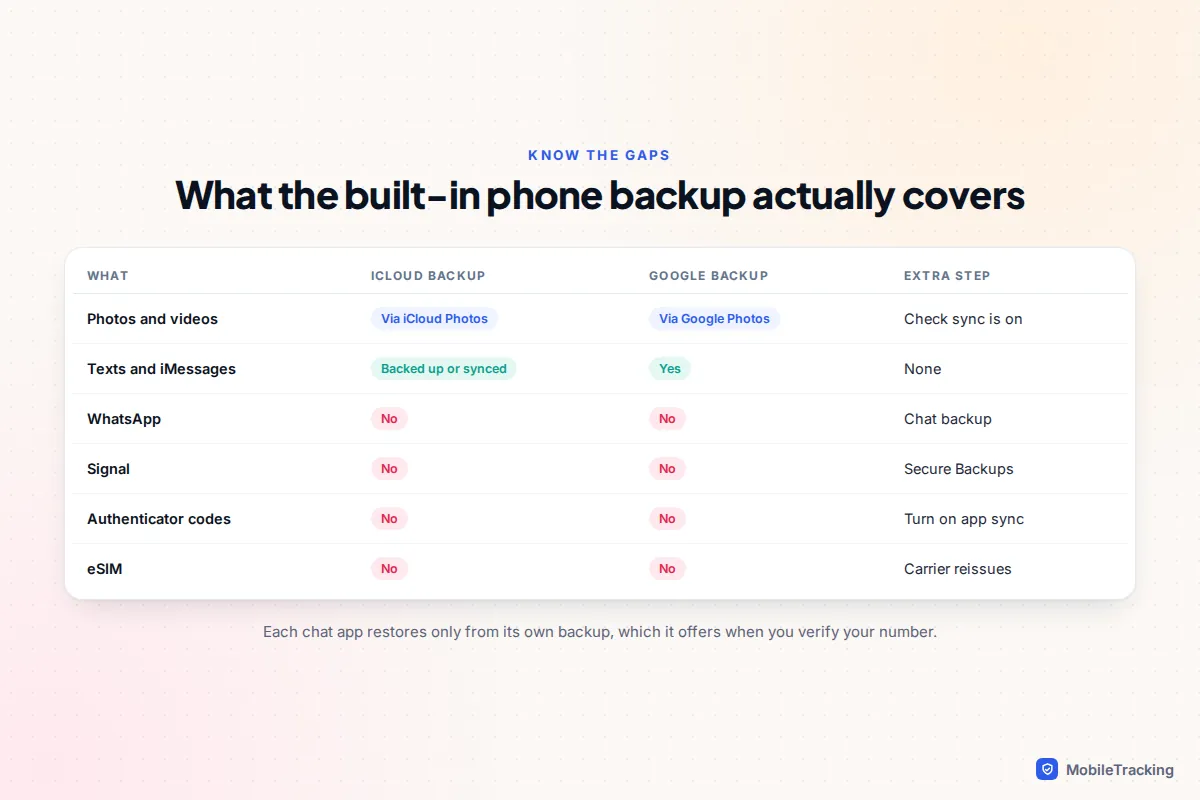
Your number is the odd one out. An eSIM or physical SIM can’t be backed up, but your carrier can issue a replacement on the same number, usually within a day. Until it does, any codes sent by text will not reach you, which is why the sign-in sections below matter so much.
Turn on the phone’s own backup, and check it runs
iPhone: iCloud Backup
- Open Settings, tap your name at the top, then iCloud.
- Tap iCloud Backup and switch on Back Up This iPhone.
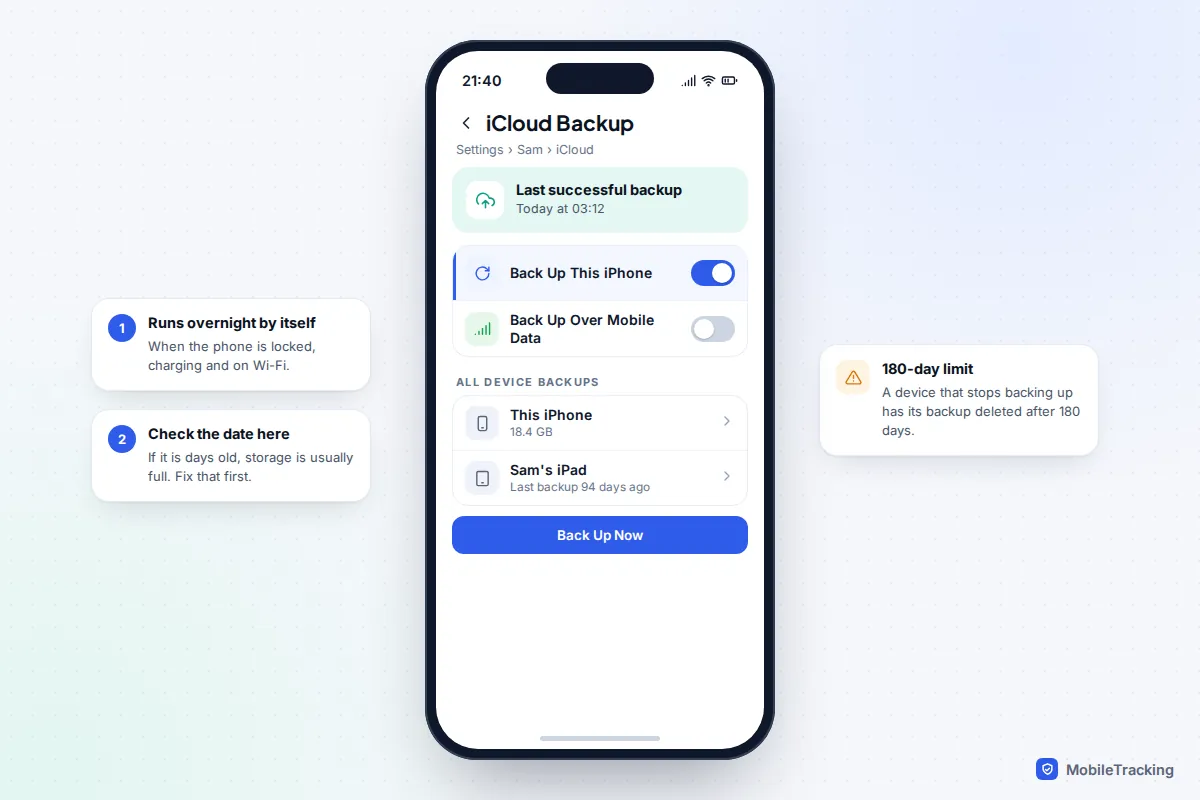
- Tap Back Up Now for the first run while connected to Wi-Fi, then check the date under “Last successful backup”.
After that, the iPhone backs itself up when it is locked, charging and on Wi-Fi, which for most people means overnight. On 5G models there is also an option to back up over mobile data. The backup holds app data, settings, your home screen layout and your messages, but it deliberately skips anything already syncing to iCloud, such as iCloud Photos, iCloud Drive and Messages in iCloud, because those are stored separately.
The free 5 GB rarely fits a full backup plus photos. If the backup date is days or weeks old, a full iCloud is the usual cause, and the fix is either a larger iCloud+ plan or clearing out old device backups in the same menu. Apple also deletes a device’s backup if it stops backing up for 180 days, which catches out people with an old iPad in a drawer.
Android: Google’s backup
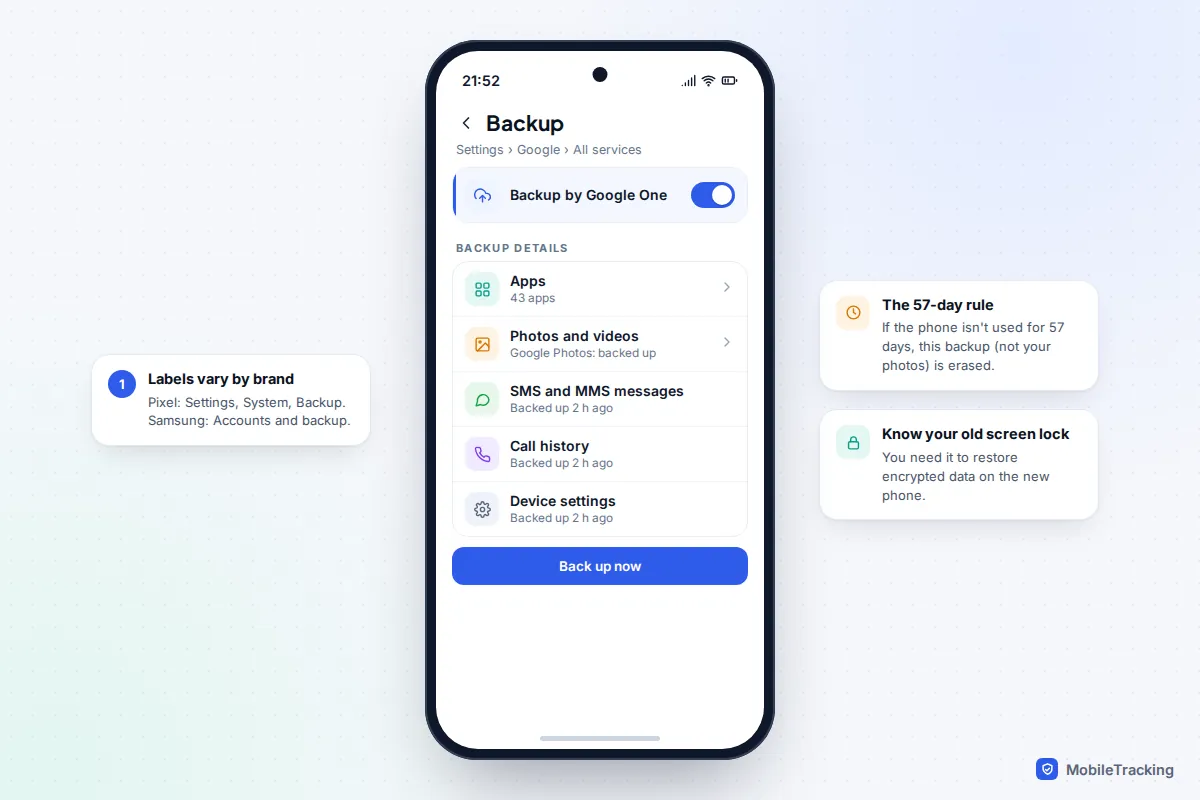
- Open Settings › Google › All services › Backup. On a Pixel you can also go to Settings › System › Backup; on a Samsung Galaxy it sits under Settings › Accounts and backup, next to Samsung’s own Samsung Cloud backup.
- Switch on Backup by Google One (the label varies slightly by phone and version).
- Tap Back up now. Google says the first backup can take up to 24 hours.
Google’s backup covers app data, call history, contacts, device settings and SMS and MMS messages, with photos and videos handled by Google Photos. It uses your Google storage, 15 GB free and shared with Gmail and Drive. Two details matter when a phone is lost. First, if you don’t use the device for 57 days, Google erases its backup (photos and videos stay in Google Photos), so set up the replacement within about eight weeks. Second, parts of the backup are encrypted with your old phone’s screen lock, so you will need to remember that PIN, pattern or password when restoring. Google’s backup help page lists what is included.
Photos: make sure they are syncing, not just “set up”
Photos are what people grieve over, and they are the most likely thing to have silently stopped. Sync is usually turned on once at setup, then storage fills up and uploading pauses with a notification that is easy to swipe away.
- iPhone: Settings › [your name] › iCloud, then Photos under Saved to iCloud, and make sure Sync this iPhone is on. In the Photos app, scroll to the bottom of your library to see whether it is up to date.
- Android with Google Photos: open Google Photos, tap your profile picture, then Photos settings › Backup. Tapping your profile picture also shows whether backup is complete or paused.
- Samsung Gallery: Samsung moved Gallery syncing to Microsoft OneDrive; the option is under Gallery › Menu › Settings › Cloud sync. Many Galaxy owners use Google Photos instead, which is fine; just pick one and check it.
The quickest proof is to open icloud.com/photos or photos.google.com on a computer and look for a photo you took this week. If it is there, your photos would survive a lost phone.
Chat apps keep their own backups
This is the gap that surprises people most. When you set up a new phone, WhatsApp and Signal do not restore from the iCloud or Google device backup. They ask you to verify your number and then offer to restore from their own backup, if one exists.
Go to WhatsApp › Settings › Chats › Chat backup. Set the frequency to daily and decide whether to include videos, which can make the backup much larger. On iPhone it saves to iCloud Drive; on Android it saves to your Google Account, and since 2024 those backups count towards your Google storage. You can also turn on End-to-end encrypted backup and protect it with a passkey, a password or a 64-digit key. If you choose a password or key, store it somewhere you can reach without the phone. Our full guide to backing up WhatsApp chats covers moving between iPhone and Android too.
Signal
Signal’s messages are in no phone backup at all. Its opt-in Secure Backups feature, now on both Android and iPhone, lives in Signal › Settings › Backups. The free tier keeps all your text messages and the last 45 days of media; a paid tier ($1.99 a month) raises the limit to 100 GB. The backup is locked with a 64-character recovery key that Signal never sees. Lose the key and Signal says there is no way to decrypt the backup, so write it down. There is more detail in our guide to backing up Signal chats.
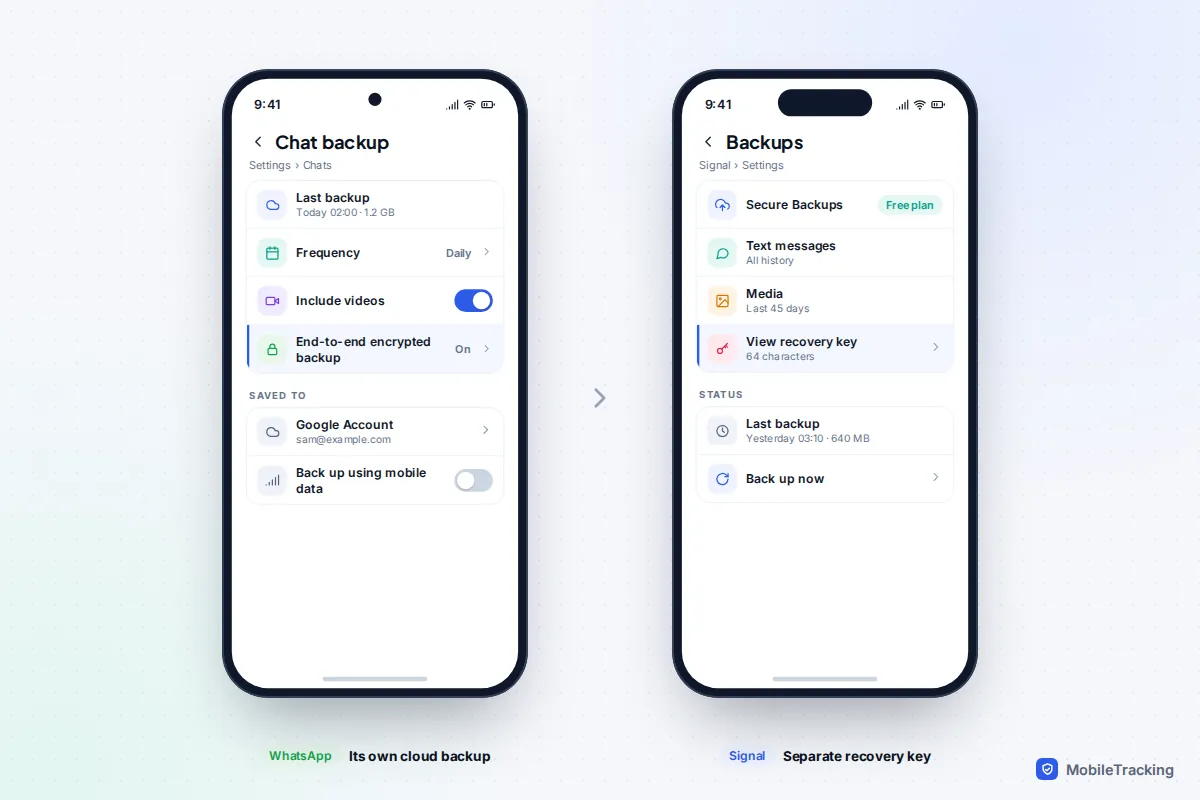
Telegram works differently: ordinary chats live on Telegram’s servers and reappear when you sign in, but Secret Chats are device-only by design and cannot be recovered.
Don’t lock yourself out: codes, passkeys and recovery codes
Losing data is bad; losing access to your email is worse, because your email is how you reset everything else. The risk is circular: your accounts send a code to your phone, and the phone is gone.
Authenticator apps
If you use an authenticator app for six-digit codes, check that its codes are synced, not stored only on the device. Google Authenticator can sync codes to your Google Account (tap your profile picture in the app and sign in; a cloud icon shows sync status). Microsoft Authenticator has a cloud backup option in its settings. On iPhone, codes saved in Apple’s Passwords app sync through iCloud Keychain. If an app offers no sync, save each service’s recovery codes instead.
Passkeys and passwords
Passkeys saved to iCloud Keychain or Google Password Manager sync to your other devices automatically. On a new Android phone or computer, Google asks for either your old Android screen lock or your Google Password Manager PIN before it unlocks them, so know at least one of those.
Recovery codes
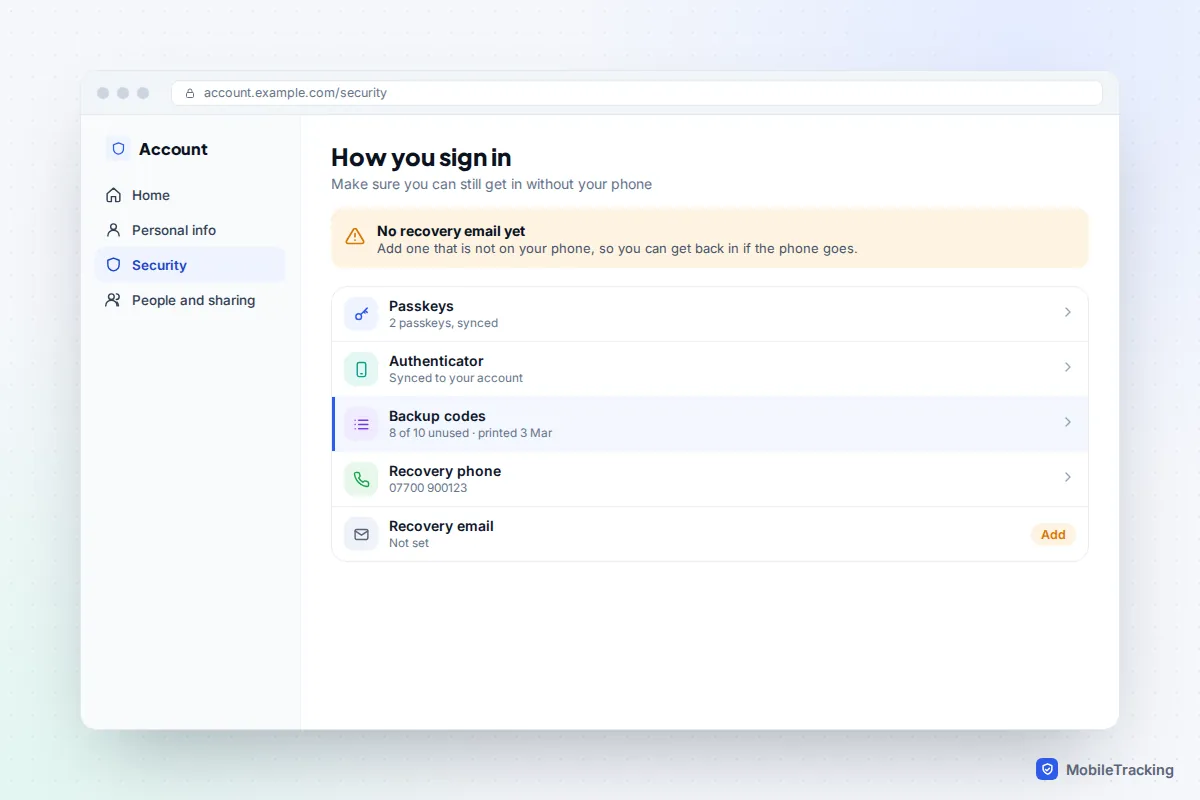
Google gives you a set of 10 single-use, 8-digit backup codes under Security › 2-Step Verification › Backup codes. Many other services, including Microsoft and Meta, offer similar one-time recovery codes. Print them or keep them in a password manager you can open from a laptop, and not only in a notes app on the phone itself.
Set up a second way in
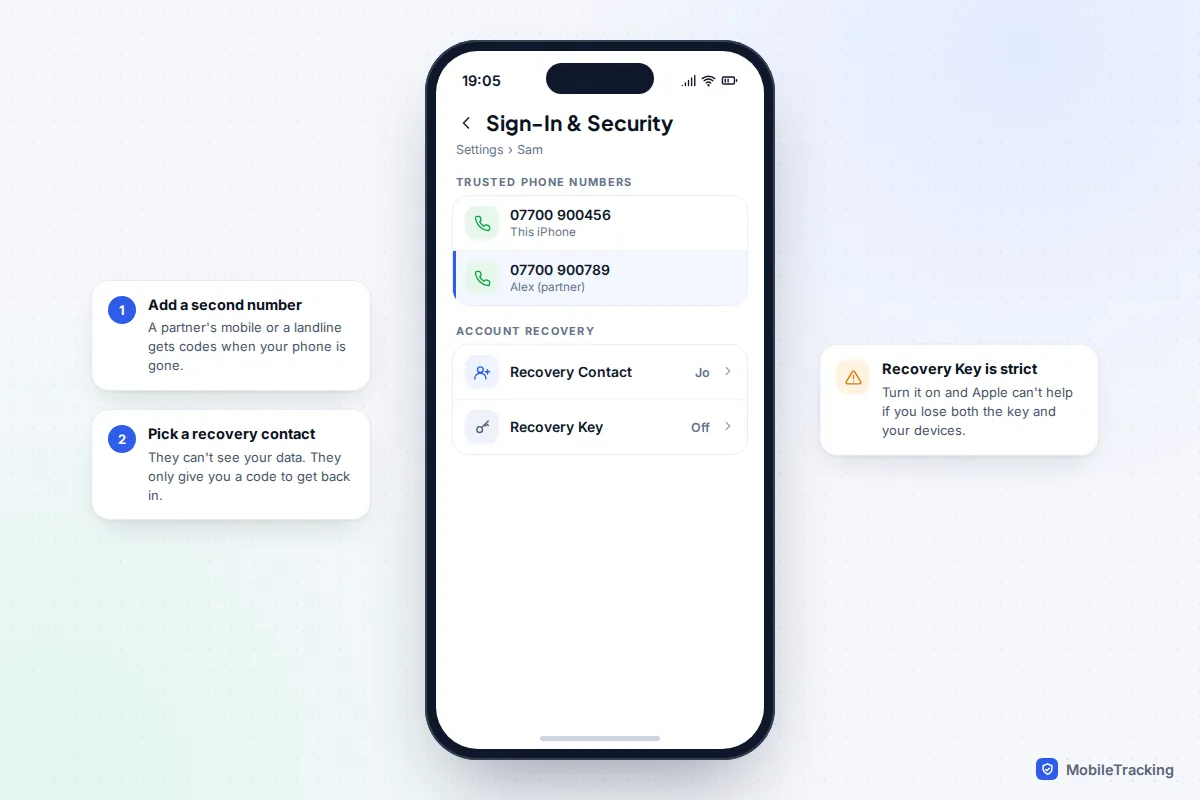
A second trusted phone number or device is what gets you back in on the evening you lose the phone, from a borrowed laptop, before any replacement arrives.
- Apple Account: go to Settings › [your name] › Sign-In & Security. Add a second trusted phone number, such as a partner’s mobile or a landline. Under Account Recovery, add a Recovery Contact: someone with an Apple device who can generate a code for you but cannot see your data. A Recovery Key is also available, but it is strict: if you turn it on and lose both the key and your devices, Apple cannot help.
- Google Account: at myaccount.google.com, under Security, add a recovery phone and a recovery email that is not the account itself.
- Another device: an iPad, Mac, laptop or old phone that stays signed in to your accounts can receive prompts and open your password manager.
- Your carrier: set an account PIN or password so a replacement SIM can be issued to you quickly, and not to a fraudster.
This matters in the first hour too: locating, locking or erasing a lost phone happens from your Apple or Google account, which you can only reach if you can sign in. Make sure Find My or Find Hub is switched on as part of the same session.
Test it: a 15-minute restore drill
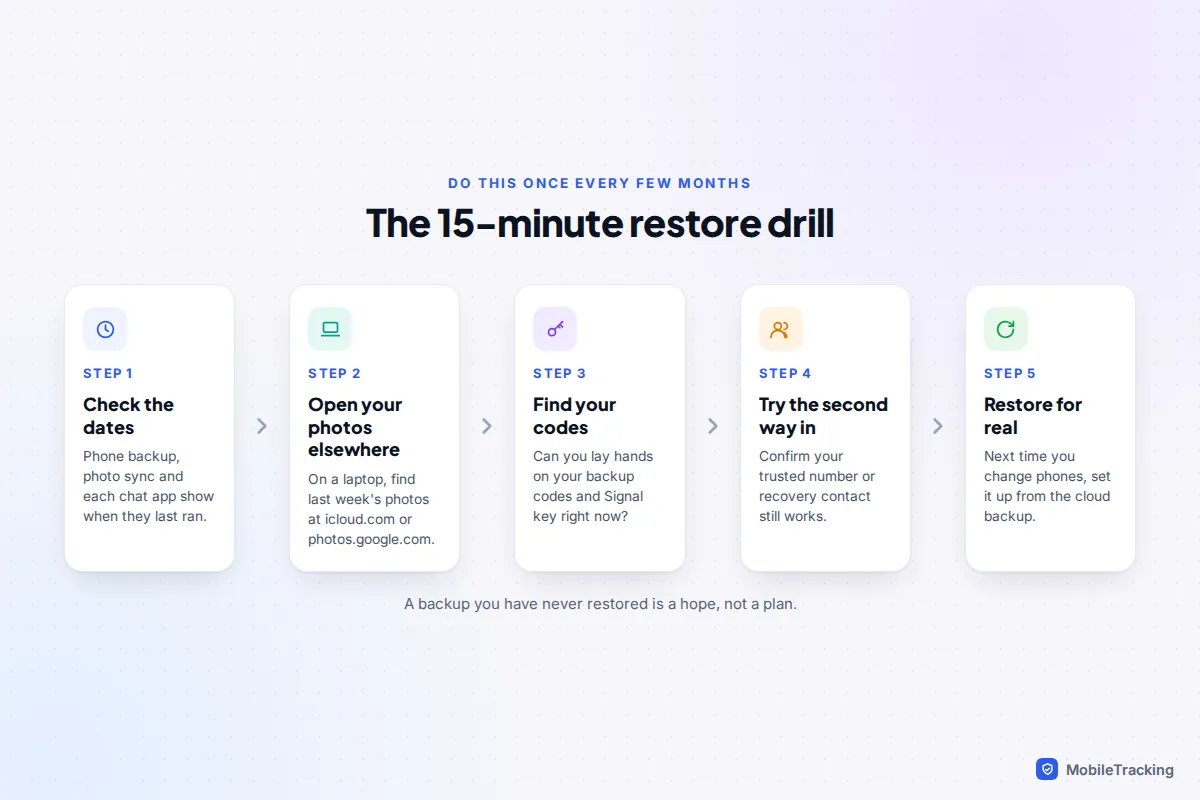
A backup nobody has tried to restore is a guess. You don’t need to wipe your phone to test most of this; you need to confirm each piece exists and that you can reach it without the phone in your hand.
- Check the dates: phone backup, photo sync and each chat app’s “last backup” should all be within the last day or two.
- On a computer, sign in to icloud.com or photos.google.com and open a photo from this week.
- Find your recovery codes and your Signal key without using the phone. If you can’t, fix that today.
- Ask your recovery contact or the owner of your second trusted number whether they know they have that role.
- Next time you change phones, set the new one up from the cloud backup instead of a direct cable or phone-to-phone transfer. That is a real restore, and it shows you what came back and what didn’t.
Our guide on testing that your backup works goes deeper on what a restore brings back.
What it looks like when the plan works
Sam leaves an iPhone on a train at 18:30. From a partner’s laptop, Sam signs in to icloud.com; the verification code goes to the partner’s phone, which is a trusted number. Sam marks the phone as lost with a contact number on the screen. The next day the carrier issues a replacement eSIM, and two days later a new phone restores from the previous night’s iCloud Backup. WhatsApp restores its own backup, and the authenticator codes come back through sync.
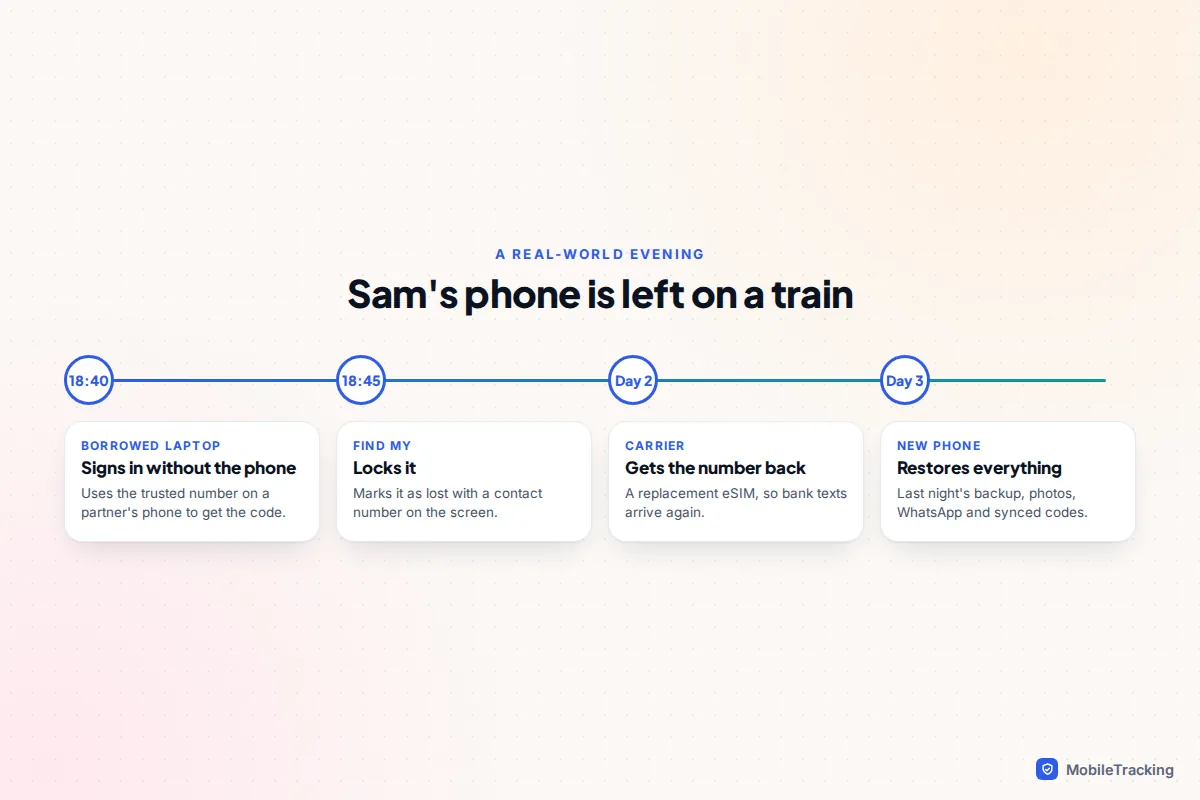
Had the phone looked unrecoverable, Sam could have erased it remotely. Erasing wipes the handset, not your iCloud or Google backups, so with this plan in place it costs nothing.
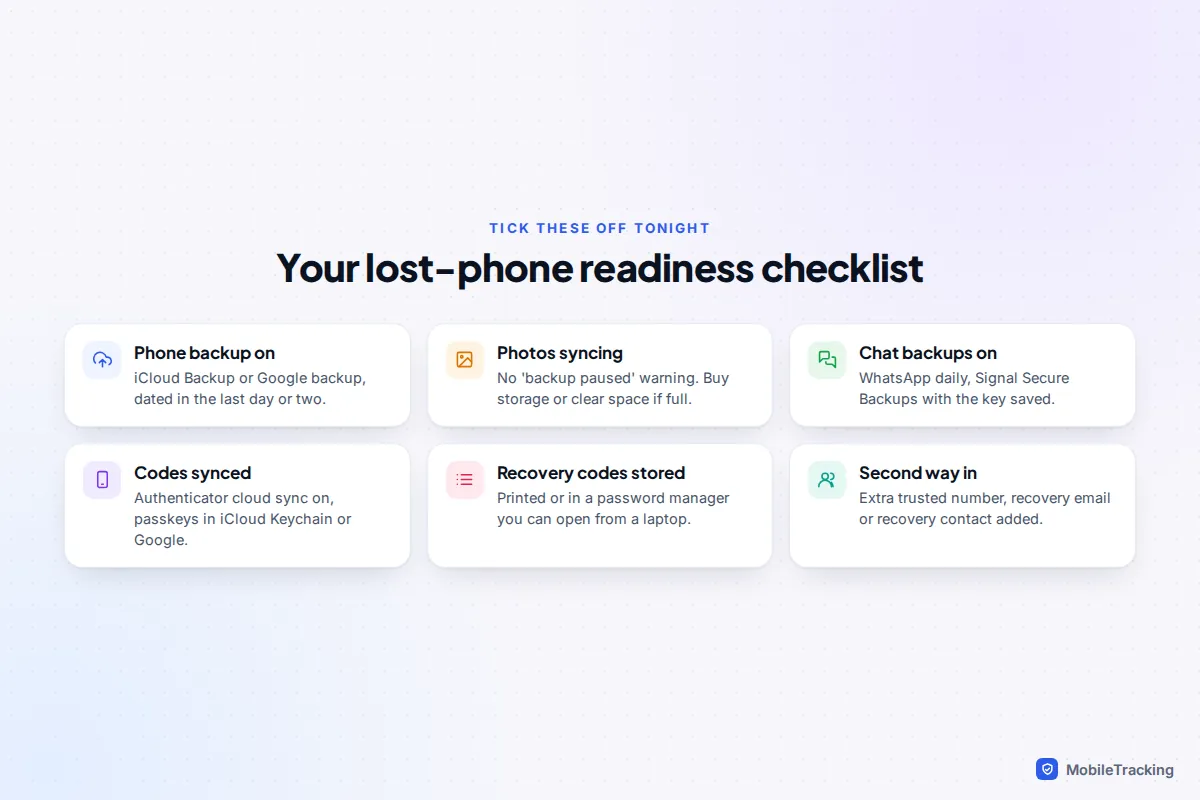
Your lost-phone readiness checklist
Work through these six items once, then recheck the dates every month or two. The only likely cost is extra cloud storage.
Frequently asked questions
Does erasing a lost phone delete my backup?
No. A remote erase wipes the device only. Your iCloud or Google backup, photos and chat backups stay in your account. Just remember the expiry rules: Google removes an Android device backup after 57 days of the device not being used, and Apple removes an iCloud backup 180 days after a device stops backing up.
Is the free storage enough?
Usually not. Apple’s free 5 GB rarely holds a backup plus a photo library, and Google’s free 15 GB is shared with Gmail, Drive, Photos and WhatsApp backups. A modest paid plan is cheap insurance.
Should I also back up to a computer?
It is a good second copy if you have one. An encrypted iPhone backup on a Mac or PC also includes saved passwords and Health data. On Android, copying your camera folder to a computer every so often protects photos against an account problem as well as a lost phone.
Will my WhatsApp chats come back from my iCloud or Google backup?
Don’t rely on it. WhatsApp restores from its own chat backup, which it offers after you verify your number on the new phone. If that backup is switched off, your chat history is not recoverable, even if your phone backup is perfect.
What if I lose the phone before any of this is set up?
Sign in to your Apple or Google account from another device as soon as you can, lock the phone, and contact your carrier for a replacement SIM so text codes reach you again. If you are locked out, use the provider’s account recovery process, which can take several days by design.
This guide is general information, not legal or financial advice. Read our editorial policy.