

 MobileTracking Editor
Text messages have replaced phone calls as the dominant form of communication for children and teenagers. Studies from the Pew Research Center consistently show that texting is the most-used communication method among teenagers, ahead of social media, video calls, and every other format. And while that is largely a normal and healthy part of growing up — staying in touch with friends, coordinating plans, navigating relationships — it also opens doors to risks that many children are not equipped to handle alone.
Cyberbullying, contact from online predators, exposure to inappropriate content, sharing of personal information, and peer pressure around messaging all happen through text and messaging apps. In many of these situations, children do not come to their parents — either because they are embarrassed, afraid of losing phone privileges, or simply because they do not yet have the emotional maturity to recognize when something has crossed a line. Monitoring text messages gives parents a window into these situations before they escalate.
This guide covers six practical methods for monitoring your child’s text messages on both Android and iPhone. The methods range from dedicated parental control apps that provide ongoing monitoring and instant keyword alerts, to built-in platform features like iCloud message syncing and Google Messages for Web, to backup restoration approaches for historical message review.
Each method is covered with step-by-step instructions, honest notes on what it can and cannot do, and guidance on the privacy and legal considerations that apply. The goal throughout is practical, useful monitoring that serves child safety — not surveillance for its own sake.
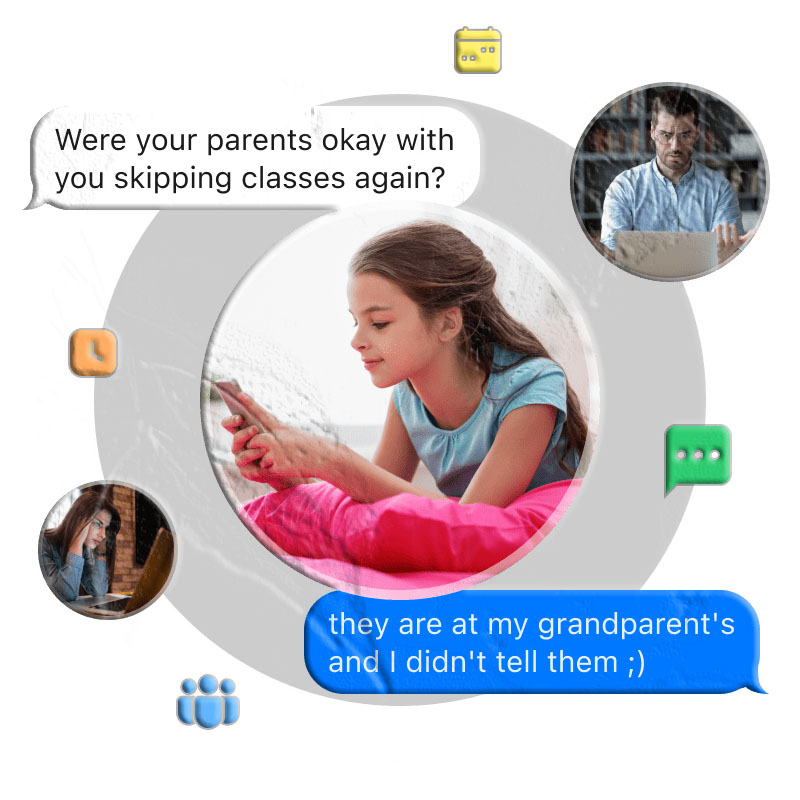
Why Parents Monitor Children’s Text Messages
Before covering the methods, it is worth being direct about the underlying concerns — because the specific risk you are trying to address often determines which monitoring method is most appropriate.
Cyberbullying
Bullying has migrated online, and text messages are one of its primary vectors. Mean messages, social exclusion organized through group chats, screenshots shared to embarrass, and coordinated harassment campaigns are all common patterns. Research from the Cyberbullying Research Center shows that roughly 27% of students report experiencing cyberbullying, and the majority of incidents involve direct messages or texts rather than public posts.
Children who are being bullied through messages often do not tell their parents. The fear of having their phone taken away — which removes their ability to communicate with the friends who are not bullying them — is a significant deterrent. Monitoring can reveal bullying that would otherwise remain hidden.
Online Predators
Adults who target children for grooming, exploitation, or abuse increasingly use direct messaging as the primary contact method. Initial contact may come through a gaming platform, social media, or a group chat, and then shift to direct text or messaging app communication. Children are naturally trusting and often do not recognize the warning signs of grooming behavior.
Regular review of incoming messages from unknown contacts, or monitoring of new contact additions, gives parents the opportunity to intervene before a situation progresses.
Inappropriate Content
Peer pressure around sharing photos — and specifically the social dynamics around explicit images — creates significant risk for preteens and teenagers. The permanence of digital images, the potential for distribution, and the legal implications of certain types of content are all things most children do not fully understand. Monitoring can catch these situations early.
Personal Information Disclosure
Children frequently share information in texts that they should not — home addresses, school names, daily schedules, location tags. This information can be used by bad actors for physical harm or identity theft. Monitoring helps parents identify when their child is sharing more than is safe.
Mental Health Signals
Text messages sometimes contain signals that a child is struggling emotionally — expressions of hopelessness, discussions of self-harm, or conversations that suggest significant anxiety or depression. Parents who monitor messages can catch these signals and respond with support before a situation reaches a crisis point.
None of these concerns justify monitoring as a form of general control or invasion of privacy beyond what safety requires. But they are real, they are common, and they are the reasons thoughtful parents seek out monitoring tools.
Legal and Ethical Framework
Is It Legal?
In most countries, parents have the legal authority to monitor their minor children’s digital communications. In the United States, no federal law prohibits parents from reading their own minor child’s text messages on a device they own and pay for. Most child safety advocates — including the Internet Safety 101 program — actively recommend that parents review their child’s online and text activity regularly.
This authority changes significantly once a child reaches the age of majority (18 in most U.S. states). Monitoring an adult child’s communications without their consent may violate the Electronic Communications Privacy Act or equivalent state legislation. The practical transition for most families is toward voluntary, transparent location and communication sharing by the time a child is in their later teens.
The Case for Transparency
Even when monitoring is entirely legal, the question of whether to tell your child about it deserves honest consideration. Transparent monitoring — “I have access to your messages and I check them periodically for safety” — combined with clear expectations about what triggers a review tends to produce better long-term outcomes than covert surveillance. Children who know their parents may see their messages tend to make better choices in messaging contexts. They are also more likely to come to parents when something goes wrong, rather than hiding problems.
This guide presents methods at various points on the visibility spectrum. We note where the child will be aware monitoring is occurring and where it operates in the background.
Method 1: Dedicated Text Monitoring App
Text monitoring apps are purpose-built for exactly this use case. They monitor incoming and outgoing messages continuously, flag concerning content, and alert parents — all from a single dashboard. This is the most efficient and feature-rich approach for ongoing monitoring.
MobileTracking Parental Control (Android)
MobileTracking Parental Control is a comprehensive parental monitoring app for Android that includes SMS monitoring as part of a broader suite of oversight tools. Its approach to text monitoring goes beyond simple message logging — it includes keyword detection that sends parents an instant alert when specific words appear in any incoming or outgoing text message. This proactive alerting model means parents do not need to review every message manually; they are only notified when something potentially concerning appears.
Key SMS monitoring features:
Keyword category alerts. Parents create custom keyword categories — for example, words related to bullying, self-harm, substance use, or contact from strangers — and MobileTracking sends an instant notification whenever those words appear in a message. The alert includes the message content and the contact it came from, giving parents the context they need to respond appropriately.
Full SMS log. In addition to keyword alerts, parents can view a complete log of sent and received text messages from the parent dashboard — organized by contact and timestamp, searchable, and accessible from any device with a browser.
Notification syncing. Beyond SMS, MobileTracking captures notification previews from all apps — including WhatsApp, Telegram, Instagram, and other messaging platforms — giving parents visibility into messaging that happens outside the standard text message system.
Live screen view. In situations where text monitoring alone is insufficient, parents can activate real-time screen mirroring to see exactly what is on the child’s phone screen at any given moment.
Call monitoring. The app logs incoming and outgoing calls, providing a complete communication record alongside the message log.
Step-by-step setup:
Step 1: Download and install MobileTracking Parental Control from the Google Play Store on your own phone. Create an account and log in.
Step 2: On your child’s Android phone, download and install the MobileTracking Kids companion app.
Step 3: Open MobileTracking Kids on the child’s device and enter the pairing code shown in your parent dashboard to link the two phones.
Step 4: Complete the permissions setup on the child’s phone, granting access to SMS, notifications, screen, and location.
Step 5: In your parent dashboard, navigate to Calls & SMS Monitoring. Tap Keyword Management and create keyword categories relevant to your concerns — for example, a “Bullying” category with common bullying language, a “Safety” category with words related to self-harm, or a “Strangers” category with phrases like “don’t tell your parents.”
Step 6: From that point on, whenever a text message containing one of your keywords arrives or is sent, you will receive an instant push notification on your own phone. Tap the notification to see the full message and context.
For iPhone monitoring: MobileTracking currently supports Android devices only. For iPhone-specific SMS monitoring, Bark is a widely recommended option that monitors iPhone messages and other apps for signs of concerning content and sends alerts without requiring parents to read every message.
Method 2: Check Synced Messages on Other Apple Devices (iPhone)
If your child uses an iPhone and their Apple ID is signed into multiple Apple devices in your household — a shared iPad, a Mac, or another iPhone — their text messages (including iMessages and SMS forwarded through their iPhone) may be visible on those shared devices through Apple’s message syncing feature.
This method requires no additional apps and works passively, but it depends on existing shared device access within your household.
How iMessage and Text Syncing Works
Apple allows messages to sync across all devices signed into the same Apple ID. When syncing is enabled, every text message — iMessage and standard SMS — that arrives on the child’s iPhone also appears on any other device using the same Apple ID. If you share an Apple ID with your child, or if your child’s Apple ID is signed into a family tablet or computer, you may already have access to their messages through that device.
How to Enable Message Syncing on Your Child’s iPhone
Step 1: Open Settings on the child’s iPhone.
Step 2: Tap their name at the top (their Apple ID section).
Step 3: Tap iCloud.
Step 4: Scroll down and find Messages. Toggle it on if it is not already enabled.
Once enabled, messages will sync to any other Apple device signed into the same Apple ID within a few minutes.
How to Access the Synced Messages
On the shared device (iPad, Mac, or another iPhone), open the Messages app. If the Apple ID is correctly signed in, the child’s messages will appear there automatically, looking identical to the messages on the child’s iPhone.
Limitations: This method only works if you share an Apple ID with your child or have physical access to a device already signed into their Apple ID. Most older children and teenagers have their own separate Apple IDs, which makes this method inapplicable. It also requires that the child not notice the Messages app showing on a shared device and take steps to disable syncing or remove the device.
Method 3: Text Message Forwarding (iPhone)
Apple’s Text Message Forwarding feature allows an iPhone to automatically forward all SMS messages to other Apple devices signed into the same Apple ID. This is a step up from passive syncing — it actively routes messages to your designated monitoring device in real time.
Setting Up Text Message Forwarding
Step 1: On the device you want to receive forwarded messages (your iPhone or iPad), sign in with your child’s Apple ID. Note: when you sign into your child’s Apple ID, Apple will send a verification notification to the child’s iPhone — so the child will be aware that someone has signed in.
Step 2: On the child’s iPhone, open Settings and scroll down to Messages.
Step 3: Ensure iMessage is toggled on.
Step 4: Tap Text Message Forwarding. You will see a list of eligible devices that are signed into the same Apple ID. Find the device you want to forward to and toggle it on.
Step 5: A verification code will appear on the monitoring device. Enter this code on the child’s iPhone when prompted to confirm the forwarding connection.
Once set up, all SMS messages received on the child’s iPhone will automatically be forwarded to your designated device.
Important transparency note: As mentioned in Step 1, setting up forwarding requires signing into the child’s Apple ID, which generates a visible notification on the child’s iPhone. This method is not covert — the child will know it has been set up. This may actually be appropriate: explicitly establishing with a child that their messages can be seen is a common and effective approach for setting expectations around responsible communication.
For Android devices: Android does not have a built-in equivalent to iPhone’s Text Message Forwarding. Third-party apps like SMS Forwarder can accomplish similar functionality on Android, though they require installation on the child’s device.
Method 4: Restore a Cloud Backup to Access Historical Messages
If you need to review historical messages rather than monitoring on an ongoing basis — for example, investigating a specific incident or concern — restoring a cloud backup to a separate device can provide access to a complete message history up to the date of the backup.
Important caveat: Restoring a backup to a device will erase all current content on that device and replace it with the backed-up data. This is a significant, irreversible step for the restoration device. Use a spare device for this purpose, not your primary phone.
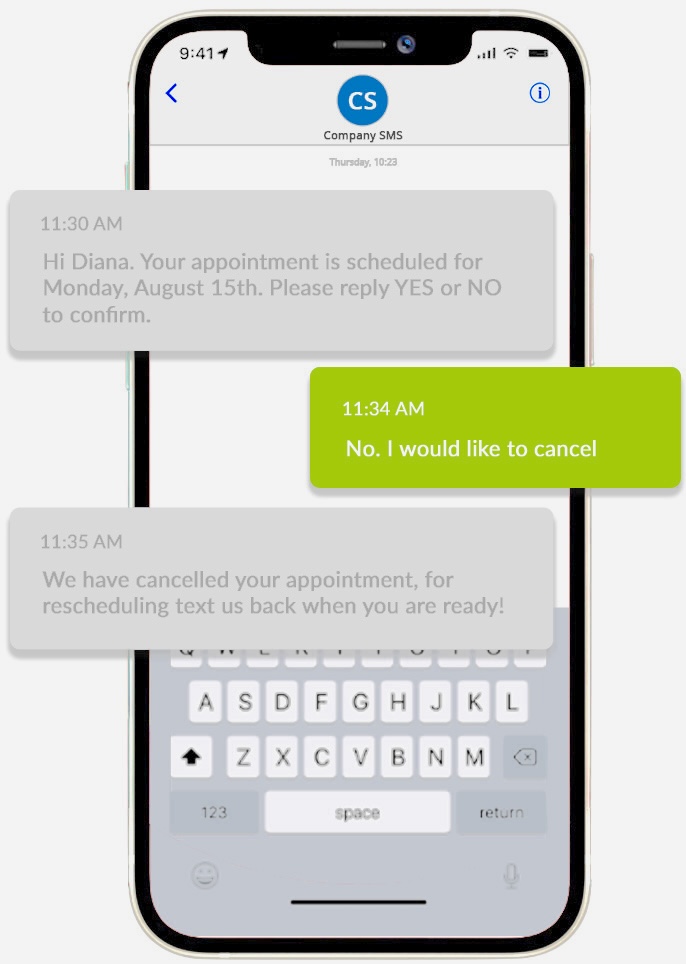
Restoring iCloud Backup (iPhone)
Step 1: On a spare iOS device (not your primary phone), go to Settings > General > Transfer or Reset iPhone > Erase All Content and Settings. Confirm the reset. The device will restart to its initial setup screen.
Step 2: Follow the setup prompts until you reach the Apps & Data screen.
Step 3: Select Restore from iCloud Backup and sign in with the child’s Apple ID and password.
Step 4: Select the most recent available backup from the list shown. Tap Continue to begin the restoration.
Step 5: Wait for the restoration to complete — this can take anywhere from several minutes to over an hour depending on backup size and internet speed.
Step 6: Once the device restarts and completes setup, open the Messages app. The child’s message history as of the backup date will be accessible there.
Restoring Google Backup (Android)
Step 1: On a spare Android device, go to Settings > System > Reset options > Erase all data (factory reset). Confirm and wait for the device to restart.
Step 2: Follow the setup prompts until you reach the data restoration screen.
Step 3: Select Restore from Google Backup and sign in with the child’s Google account.
Step 4: Select the relevant backup from the available options and tap Restore.
Step 5: Allow the device to complete setup. Open the Messages app to access the restored text message history.
Practical considerations: This method works best for investigating a specific past incident. It is not suitable for ongoing monitoring because it only captures historical data up to the backup date. For ongoing monitoring, Method 1 (a dedicated monitoring app) is significantly more practical.
Method 5: Check Message History Through Your Carrier
Mobile carriers maintain limited records of SMS activity on accounts they manage. If you set up and pay for the phone plan your child uses, you are the account holder and have certain access to account-level information.
What Carriers Typically Provide
Most major U.S. carriers allow account holders to view SMS metadata through their online account portals — this means you can see which numbers sent or received texts, at what times, and the message count. However, most carriers do not provide the content of text messages for privacy reasons.
The exception is T-Mobile’s DIGITS service, which is designed for multi-device management and may allow account holders to view some SMS content in certain configurations. This is not universal and depends on how the account is set up.
Current status of major carriers:
T-Mobile DIGITS allows users to use the same phone number across multiple devices. In some configurations, this means messages sent to the child’s number appear on a linked device. Check T-Mobile’s official documentation for the current capabilities of this service on your account.
Verizon and AT&T previously offered web-based message viewing but have discontinued these services. Both now direct users toward Google Messages for Web (covered in Method 6) for web-based message access.
How to Access Carrier Account Information
Step 1: Log into your carrier’s account portal through their official website (for example, t-mobile.com, verizon.com, att.com).
Step 2: Navigate to your account’s line management section. Find the phone line associated with your child’s device.
Step 3: Look for Usage or Message History options. These will show the numbers your child texted and the timing, even if the message content is not visible.
Practical value: Carrier account data is most useful for understanding who your child is communicating with — identifying unknown frequent contacts, checking for unusual contact patterns, or verifying whether a specific number appears in the message history. It is not suitable for reading message content.
Method 6: Google Messages for Web (Android)
If your child uses the Google Messages app (the default SMS app on many Android phones) to send and receive texts, Google’s Messages for Web feature allows the same message thread to be viewed on a computer or another device in real time.
This is a legitimate, Google-supported feature designed for convenience — it lets users send and receive texts from a desktop browser while their phone is nearby. For parents, it can serve as a way to view message activity from a secondary device.
How to Set Up Google Messages for Web
Step 1: Open a browser on the device where you want to monitor messages and go to messages.google.com/web. A QR code will appear.
Step 2: On the child’s Android phone, open the Google Messages app.
Step 3: Tap the child’s profile icon in the upper-right corner of the Messages app.
Step 4: Select Device pairing.
Step 5: Tap QR code scanner and scan the QR code displayed on your browser.
Step 6: Once the connection is established, the browser session will show the child’s message threads in real time. New messages appear as they are received.
Step 7: Optionally, enable Remember this device in the browser to maintain the connection over time without re-scanning.
Important Notes on Visibility
When Google Messages for Web is connected, a small icon or notification typically appears on the child’s phone indicating that Messages is being used on another device. This method is not invisible — a tech-savvy child may notice the device pairing notification and disconnect the session.
For ongoing monitoring, this method works best when combined with a transparent conversation about why it is set up. For a younger child who primarily texts within a household context, it is a simple and free option.
Coverage limitation: Google Messages for Web only captures standard SMS messages sent and received through the Google Messages app. It does not capture messages sent through WhatsApp, iMessage, Instagram DMs, Snapchat, or any other messaging platform. For monitoring across multiple messaging apps, Method 1 (a dedicated monitoring app with notification capture) is necessary.
Choosing the Right Method for Your Situation
Each of the six methods serves a different combination of needs. Here is a framework for matching the method to the situation:
For ongoing automated monitoring with keyword alerts (Android)
MobileTracking Parental Control is the most complete solution — keyword alerts, full SMS logs, notification capture across messaging apps, and live screen view. Best for parents managing specific concerns (bullying, suspicious contacts, content worries) who want to be notified when something happens rather than reviewing messages manually.
For iPhone families with shared Apple ID devices
iCloud Message Syncing (Method 2) is the simplest starting point. If you already have a shared device and the child’s Apple ID is synced, messages are already accessible without any additional setup. Text Message Forwarding (Method 3) extends this to active real-time forwarding if the shared device setup is not already in place.
For reviewing historical messages from a past incident
Cloud backup restoration (Method 4) provides access to complete message history as of the backup date. Best used for investigating a specific past concern, not for ongoing monitoring.
For lightweight monitoring of SMS without installing any app
Google Messages for Web (Method 6) is the simplest no-install option for Android families using the Google Messages app. Transparent, easy to set up, and free. Covers standard SMS only.
For understanding who the child is communicating with
Carrier account access (Method 5) shows contact numbers and timing without revealing content. Useful for confirming whether a specific unknown contact has been in regular communication.
Additional Monitoring Features Worth Knowing About
For parents using MobileTracking or evaluating comprehensive parental monitoring apps more broadly, a few features extend beyond text messages but are directly relevant to the same safety concerns:
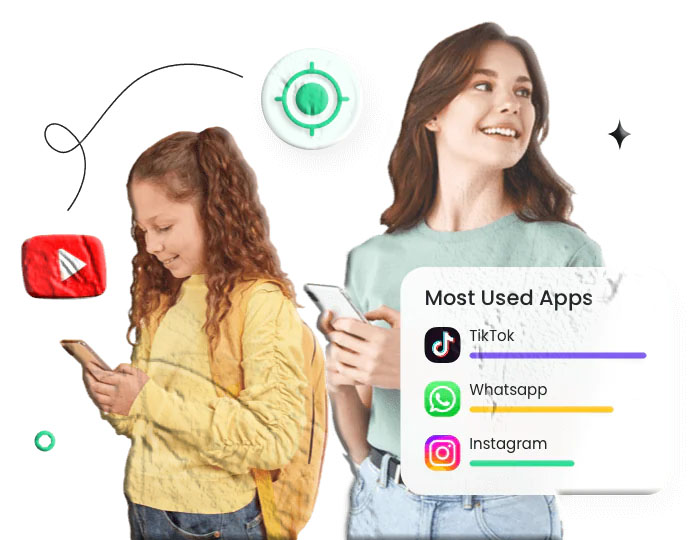
Social media and app notification monitoring. Text messages are no longer the only — or even the primary — place concerning conversations happen. WhatsApp, Instagram, TikTok, Snapchat, and Telegram are all active messaging environments for children and teenagers. MobileTracking captures notification previews from these apps, giving parents visibility into messaging activity across platforms without being limited to standard SMS.
Location tracking with geofencing. Knowing who a child is communicating with is one dimension of safety; knowing where they are is another. MobileTracking’s GPS tracking and geofencing alerts provide real-time location visibility with automatic notifications when the child’s phone enters or leaves designated areas.
Screen time management and app blocking. For parents who want to limit access to specific apps during certain hours — homework time, bedtime, school hours — MobileTracking provides app-level blocking and scheduling tools that work independently of message monitoring.
Low-battery alerts. When the child’s phone battery drops below a threshold the parent sets, an alert fires to the parent’s device with the child’s current GPS location. This is particularly useful at the intersection of safety and device management — ensuring parents know where the child’s phone was the last time it had power.
Tips for Making Monitoring Work as Part of a Healthy Family Dynamic
Monitoring tools are most effective when they are part of a broader approach to digital safety rather than a standalone response to anxiety. Here are several practices that help:
Establish expectations before giving a child a phone. The time to discuss what monitoring looks like and why is before the phone is handed over, not after a problem has already occurred. Children who understand from the start that parents have oversight rights tend to accept monitoring more readily.
Create a family digital agreement. A written (or verbally agreed) set of rules about phone use, messaging, and what kinds of content or contact are not acceptable gives children a clear framework. When monitoring reveals something concerning, referencing the agreement is much easier than invoking rules that were never explicitly stated.
Respond to what you find with conversation, not immediate punishment. The goal of monitoring is information, not surveillance for the purpose of discipline. When something concerning appears in a child’s messages, the first response should be a conversation — understanding what happened, how the child is feeling, and what support they need — rather than an immediate removal of privileges. Punitive responses to monitoring discoveries teach children to hide things more effectively, not to make better decisions.
Gradually reduce monitoring intensity as trust is established. A 12-year-old receiving their first phone needs different oversight than a 16-year-old who has consistently demonstrated responsible digital behavior. Plan to review your monitoring approach each year and discuss any reductions in oversight with your child as a concrete acknowledgment of their growing maturity.
Keep the conversation about digital safety ongoing. Monitoring provides a window; conversation provides context. Regular, non-confrontational check-ins about who the child is talking to, what they are seeing online, and how they are feeling about their digital life keep the door open for the conversations that matter most — the ones children have to choose to initiate.
Know when to ask for outside help. Monitoring is a parental tool, not a substitute for professional support when one is needed. If monitoring reveals ongoing bullying, signs of depression or self-harm, or concerning contact with adults, a school counselor, therapist, or — in urgent situations — law enforcement are the right next steps. Knowing your limits as a parent and reaching for appropriate support is not a failure of monitoring; it is exactly what monitoring is designed to enable.
Frequently Asked Questions
Can Google Family Link show me my child’s text messages?
No. Google Family Link does not provide access to your child’s text message content. Its features cover location tracking, app management, screen time limits, and content filters — but not SMS monitoring. For text message monitoring on Android, a dedicated app like MobileTracking is necessary.
Can I see my child’s iMessages through Family Sharing on iPhone?
No. Apple’s Family Sharing does not provide access to iMessage content. It allows shared purchases, subscriptions, and certain Family Sharing features, but message privacy is maintained. The Screen Time Communication Safety feature can blur potentially inappropriate images and control who the child can communicate with, but it does not let parents read message content. For message visibility on iPhone, iCloud syncing (if you share an Apple ID) or Text Message Forwarding are the relevant built-in options.
What is the best app for monitoring my child’s texts on Android?
MobileTracking Parental Control is one of the most comprehensive options for Android SMS monitoring, combining full message logging with keyword detection alerts, notification monitoring across messaging apps, and live screen view. It offers a 3-day free trial. Bark is widely recommended for iPhone and provides content analysis across iMessage, SMS, and social media apps with alert-based monitoring rather than full message review.
Can my child tell if I am reading their texts?
It depends on the method. Google Messages for Web shows a device pairing indicator on the phone. Apple’s Text Message Forwarding requires a visible verification step. Dedicated monitoring apps like MobileTracking operate in stealth mode on Android — the companion app does not appear on the home screen. However, children who are technically curious may discover monitoring through settings, battery usage, or data usage analysis. Transparent monitoring avoids this dynamic entirely.
Is monitoring my child’s texts an invasion of their privacy?
This is a question parents should take seriously. The answer depends significantly on the child’s age and the specific safety concern being addressed. For younger children, monitoring is broadly accepted as part of responsible parenting. For teenagers, the balance between safety oversight and privacy becomes more nuanced. Most child safety experts suggest that monitoring should be proportionate to the specific risk, transparent where possible, and reduced over time as children demonstrate responsible judgment.
What should I do if I find something concerning in my child’s messages?
The first step is to stay calm. Most concerning message discoveries — a conversation about a difficult emotional topic, a contact who seems inappropriate, discussion of a risky situation — are opportunities for parenting conversations, not emergencies requiring immediate action. Approach the conversation with curiosity rather than accusation: “I saw you were talking about X. Can you tell me more about what’s going on?” In situations that suggest genuine danger — explicit grooming by an adult, threats, descriptions of self-harm — involve a professional or, where appropriate, law enforcement.
Can I monitor messaging apps like WhatsApp, Snapchat, and Instagram through these methods?
Standard SMS monitoring methods (carrier access, Google Messages for Web, iCloud syncing) only capture standard text messages — they do not extend to third-party messaging apps. MobileTracking’s notification capture feature picks up preview content from app notifications across multiple messaging platforms, including WhatsApp. For comprehensive monitoring of third-party messaging apps, a dedicated parental monitoring app with notification access is necessary.
Final Thoughts
Monitoring your child’s text messages is not about reading every message or treating your child as a suspect. It is about maintaining appropriate safety awareness during a period of life when children are still developing the judgment and resilience they need to navigate digital communication safely. The tools available today — from free carrier account access to comprehensive monitoring apps — make it possible to calibrate that awareness to your child’s age, your family’s specific concerns, and the level of trust your relationship has established.
For most families, the practical starting point is a combination of clear expectations (established through direct conversation), automatic keyword monitoring (through an app like MobileTracking on Android or Bark on iPhone), and periodic check-ins as part of an ongoing digital safety dialogue. This combination — alert without exhausting, informed without intrusive — serves both safety and the trust that makes children willing to come to parents when something goes wrong.
The six methods in this guide cover the technical implementation. The more important work is the conversation that surrounds it.
Disclaimer: Monitoring laws and parental rights vary by jurisdiction and by the age of the child. Always ensure your monitoring approach complies with applicable laws. This guide is for informational purposes only.





Add comment