

 MobileTracking Editor
Accidentally deleting something on your phone has a particular quality of awfulness — that split-second between tapping “delete” and realizing you wanted to keep it. On WhatsApp, where photos and videos flow through conversations naturally and without much ceremony, it happens more often than most people would like to admit. A wrong swipe, a tap on the wrong item, a mass-delete of a conversation, or WhatsApp’s automatic disappearing message timer — and suddenly a photo you actually needed is gone from the chat.
The good news is that in most cases, deleted WhatsApp photos are not permanently gone — at least not immediately. WhatsApp’s backup systems, combined with your device’s own recently-deleted folders, create several recovery windows that give you a real chance of getting those images back. The key is understanding which recovery method applies to your situation and acting quickly — because some of these windows are short, and some close permanently once new data overwrites the space those deleted files occupied.
This guide covers every working method for recovering deleted WhatsApp images, organized by scenario: recovery using Google Drive backup (Android), iCloud backup (iPhone), local device backup (Android), the device gallery’s recently-deleted folder (both platforms), and what to do when none of the above options are available. We also cover a commonly overlooked use case for parents: monitoring WhatsApp messages on a child’s phone so that important or concerning messages — including disappearing ones — never go unreviewed.
By the end, you will know exactly which approach applies to your situation and the precise steps to follow to maximize your recovery chances.

Part 1: Understanding WhatsApp Photo Deletion — What Actually Happens
Before diving into recovery methods, it is worth understanding what actually happens to a photo when it is deleted from WhatsApp, because the answer determines which recovery approach has any chance of working.
When You Delete a Photo From the WhatsApp Chat
When you delete a photo from inside a WhatsApp conversation — by long-pressing on it and selecting delete — several things happen:
The photo is removed from the chat view. Neither you nor the other party can see it in the conversation anymore (if you selected “Delete for Everyone”). But this is a logical deletion from WhatsApp’s interface, not necessarily a physical deletion from all storage locations.
If the photo was previously saved to your device’s gallery — either because you tapped the download icon or because WhatsApp’s auto-save setting is enabled — a copy may still exist in your Gallery or Photos app. Deleting from the WhatsApp chat does not automatically delete from the gallery.
If the photo existed in a WhatsApp backup taken before the deletion, it can still be recovered from that backup by restoring to a previous backup version.
The underlying storage space on your device is not immediately overwritten. Data recovery works on a race against time — new files written to storage can overwrite the space previously occupied by deleted photos, making them permanently unrecoverable. Acting quickly improves your chances.
When WhatsApp’s Auto-Save Settings Delete Photos
WhatsApp can be configured to automatically save media to your device’s gallery — or not. If auto-save is off, photos received in chats are only stored within WhatsApp’s internal storage, not in your gallery. This means:
- Deleting the conversation permanently removes those photos unless a backup exists
- Clearing WhatsApp’s cache can also remove photos that were not independently saved
When Disappearing Messages Delete Photos
WhatsApp’s Disappearing Messages feature and View Once media work differently from regular photo deletion. Disappearing Messages can be set to delete automatically after 24 hours, 7 days, or 90 days. View Once media self-destructs the moment it is opened and cannot be reopened by either party.
These types of media are specifically designed to be unrecoverable through standard means. Recovering them requires a different approach — covered in Part 5 of this guide.
Part 2: How to Recover Deleted WhatsApp Images Using Backup (Android)
The most reliable method for recovering deleted WhatsApp photos on Android involves restoring from a backup — either a Google Drive backup or a local backup stored on the device itself.
Important Timing Warning Before You Start
WhatsApp creates automatic backups at a schedule you set (daily, weekly, or monthly) and also creates a local backup every day at 2 AM. These backups overwrite older ones on a rolling basis. If you delete photos today and wait several days before attempting recovery, newer automatic backups may have already overwritten the backup that contained your deleted photos.
Act as soon as possible after a deletion. The sooner you attempt recovery, the higher your chances of finding a backup that still contains the photos.
Method 1: Restore from Google Drive Backup (Android)
Google Drive is WhatsApp’s default cloud backup system on Android. When enabled, WhatsApp backs up your chats, media, voice messages, and settings to your Google Drive account at the frequency you have configured.
What you need: The same Google account that was used to create the backup must be logged into your phone. You also need sufficient storage in your Google Drive account for the backup to have been created successfully.
Note: Restoring from backup will replace your current WhatsApp data — including any new messages and media received since the backup was made — with the contents of the backup. This means you may lose recent messages in order to recover older deleted photos. Take this into account before proceeding.
Step-by-step instructions:
Step 1: On your Android phone, go to Settings > Apps > WhatsApp and uninstall the app. Alternatively, press and hold the WhatsApp icon and select Uninstall.
Step 2: Go to the Google Play Store and reinstall WhatsApp.
Step 3: Open WhatsApp and verify your phone number using the SMS code that is sent to you.
Step 4: After verification, WhatsApp will automatically detect if a backup exists in your Google Drive for that phone number. A screen will appear showing the available backup, including the backup date and size.
Step 5: Tap Restore to begin the restoration. The process may take several minutes depending on the size of the backup. Do not close WhatsApp or lock your phone during this process.
Step 6: Once the restoration is complete, WhatsApp will proceed to the main chat screen. Navigate to the relevant conversation and check whether the deleted photos have been restored.
Checking your Google Drive backup status: Before restoring, you can verify what backup is available by going to Google Drive > Menu (three horizontal lines) > Backups. Find the WhatsApp entry to see the backup date and file size. If the backup was taken before your photos were deleted, it should contain them.
Adjusting backup frequency for the future: Once restored, go to WhatsApp > Settings > Chats > Chat Backup and check your backup frequency. Setting it to Daily and ensuring Google Drive backup is enabled gives you the best protection against future data loss.
Method 2: Restore from Local Backup (Android)
WhatsApp automatically creates a local backup of your chats and media every day at approximately 2 AM and stores it directly on your Android device’s internal storage or SD card. This local backup is entirely separate from Google Drive — it does not require a Google account or internet connection, and it is retained even if you do not have a Google Drive backup configured.
The local backup retains files for up to seven days. This means up to seven previous daily backups may be available on your device, each one a snapshot of your WhatsApp data from a different day.
What you need: A file manager app that can access system-level folders. Google’s Files app does not provide access to this directory on most Android versions. Third-party file managers such as Solid Explorer or MiXplorer are commonly used for this purpose.
Step-by-step instructions:
Step 1: Install a file manager that provides access to internal storage folders. Open it and navigate to Internal Storage > Android > media > com.whatsapp > WhatsApp > Databases.
Step 2: In this folder, you will find several files with names in the format: msgstore-YYYY-MM-DD.1.db.crypt14
Each file name includes the date of the backup. The file extension may be crypt12, crypt14, or crypt15 depending on your WhatsApp version. Look for the most recent backup that predates the date when the photos were deleted.
Step 3: Rename that backup file to msgstore.db.crypt14 (or the appropriate extension for your version). This tells WhatsApp to use this file when restoring, instead of the most recent backup.
Step 4: If there is already a file named msgstore.db.crypt14 in that folder (the current backup), rename it first to something else — for example, msgstore.db.crypt14.bak — to preserve it in case you need to revert.
Step 5: Uninstall WhatsApp from your device and reinstall it from the Google Play Store.
Step 6: Open WhatsApp, verify your phone number, and when prompted to restore from backup, tap Restore.
Step 7: WhatsApp will restore from the local backup file you renamed, including the media it contained. Once complete, navigate to the relevant conversation to check for the recovered photos.
Caution: Restoring from a local backup, like restoring from Google Drive, will replace your current chat data with the contents of the backup. Messages and media received after that backup date will be lost unless you have saved them separately.
Part 3: How to Recover Deleted WhatsApp Images on iPhone
iPhone handles WhatsApp backups differently from Android, using iCloud as the primary backup medium. The general principle — reinstall WhatsApp and restore from a cloud backup — is the same, but the steps differ.
Method 1: Restore from iCloud Backup (iPhone)
iCloud is the default backup platform for WhatsApp on iPhone. When enabled, WhatsApp periodically backs up your chats and media to your iCloud account. The frequency of these backups depends on whether you have configured automatic daily backups or rely on manual backups.
What you need: The same Apple ID that was used when the backup was created must be signed into your iPhone. Your iCloud account must have sufficient storage to have saved a WhatsApp backup (5GB free storage is provided; larger backups require a paid iCloud plan).
Step-by-step instructions:
Step 1: Open the App Store on your iPhone and locate WhatsApp. Tap Delete App to uninstall it (press and hold the app icon > Remove App > Delete App).
Step 2: Reopen the App Store, search for WhatsApp, and reinstall it.
Step 3: Open WhatsApp and verify your phone number using the SMS verification code.
Step 4: After phone number verification, WhatsApp will automatically detect any existing iCloud backup associated with your Apple ID and display a prompt: “Restore from iCloud.” Tap Restore Chat History.
Step 5: WhatsApp will connect to iCloud and begin downloading and restoring the backup. This process can take several minutes to over an hour depending on the backup size and your internet speed. Keep the app open and your phone connected to Wi-Fi during this process.
Step 6: Once restoration is complete, WhatsApp will open to the main chat interface. Navigate to the relevant conversation to check whether the deleted photos have been recovered.
Checking your iCloud backup status: Before restoring, verify that an iCloud backup exists by opening WhatsApp > Settings > Chats > Chat Backup. The date and size of the most recent backup is shown here. If the backup date predates your deletion, it should contain the photos.
Enabling automatic backups for the future: On the same screen (Settings > Chats > Chat Backup), tap Auto Backup and set it to Daily. This ensures a fresh backup is created every day, minimizing the window of data loss if you need to restore in the future.
Part 4: How to Recover Deleted WhatsApp Images Without Any Backup
If no backup is available — you never enabled Google Drive or iCloud backups, the backup does not contain the photos you need, or you are past the retention window — there are still a couple of approaches worth trying.

Method 1: Check the Device Gallery’s Recently Deleted Folder
When a photo is deleted from your device’s gallery — not from within WhatsApp, but from the Photos or Gallery app — it is not immediately and permanently destroyed. Both Android and iPhone send deleted photos to a temporary holding folder: Trash on Android and Recently Deleted on iPhone. Photos remain in this folder for 30 days before being permanently deleted.
This method only works if:
- The WhatsApp photo was saved to your device gallery (either manually or through auto-save)
- You deleted it from the gallery app, not from inside WhatsApp
- Less than 30 days have passed since deletion
On iPhone:
Step 1: Open the Photos app.
Step 2: Scroll to the very bottom of the Albums tab and tap Recently Deleted. You will be prompted to verify your identity with Face ID, Touch ID, or your passcode.
Step 3: Browse the Recently Deleted folder to find the WhatsApp photos you want to recover. Photos are sorted by deletion date, so the most recently deleted items appear at the top.
Step 4: Tap Select in the upper-right corner and tap each photo you want to recover. To select all, tap Select and then Select All if that option appears.
Step 5: Tap the three-dot menu (⋯) in the lower-right corner and select Recover. Confirm the recovery when prompted.
The photos are immediately restored to your main Photos library and are once again accessible from WhatsApp if they were previously associated with a chat.
On Android:
Step 1: Open the Gallery app (the label and appearance varies by manufacturer — Samsung uses a built-in Gallery; other Android devices may use Google Photos).
Step 2: Tap the Menu icon (three horizontal lines or three dots, depending on your device) and look for Trash or Recycle Bin.
Step 3: Browse the Trash folder for the photos you want to recover. On Samsung Gallery, tap and hold a photo to enter selection mode. On Google Photos, tap and hold similarly.
Step 4: Select all photos you want to restore.
Step 5: Tap Restore (or the restore icon in the toolbar). The photos are returned to your main gallery.
Note for Google Photos users: If you use Google Photos as your gallery app, deleted photos go to the Trash folder within Google Photos and are held for 60 days — giving you a slightly longer recovery window. Access it by tapping Library > Trash in the Google Photos app.
Method 2: Ask the Other Person to Resend
This is the simplest approach when available and is often overlooked in the rush to find a technical solution. If the deleted photo was sent to you by someone else — a friend, family member, or colleague — the original sender still has the photo on their own device. Asking them to resend it is often faster than any backup restoration process, particularly if:
- The photo was sent recently
- The sender is easily reachable
- You do not have a relevant backup available or restoration would cost you recent messages
Send a quick message explaining that you accidentally deleted the photo and ask them to send it again. In group chats, any member of the group who has not deleted the photo from their own device can resend it.
Method 3: Data Recovery Software (Android, Advanced)
For Android users who have exhausted backup and gallery recovery options, third-party data recovery software can sometimes retrieve photos from the device’s internal storage if the deleted data has not yet been physically overwritten.
Applications like Dr.Fone and DiskDigger are designed for this scenario. They scan the device’s storage for traces of deleted files and attempt to reconstruct recoverable data. Success rates vary considerably — they depend on how much time has passed since deletion, how much new data has been written to the device, and whether the phone’s storage is based on flash memory (which handles deletion differently from hard drives).
Important conditions for this method:
- Most deep scan recovery tools require you to connect the Android phone to a computer
- Some require root access to the device, which voids warranties and carries its own risks
- Results are not guaranteed and quality of recovered photos may be degraded
This should be treated as a last resort after backup and gallery recovery have been exhausted, not a first step.
Part 5: Recovering WhatsApp Disappearing Messages and View Once Media
Standard recovery methods do not work for WhatsApp’s Disappearing Messages or View Once media. These are specifically designed to be unrecoverable through regular means — the self-destruct behavior is built into how the media is stored and processed.
Disappearing Messages set to the 24-hour, 7-day, or 90-day timer are deleted from the chat automatically when the timer expires. View Once photos or videos are deleted from the chat the moment the recipient opens them and cannot be reopened.
For parents who need ongoing visibility into this category of messages — because a child is using disappearing messages in ways that raise safety concerns — the most practical solution is proactive monitoring rather than retroactive recovery.
MobileTracking Parental Control
MobileTracking Parental Control is a parental monitoring app for Android that operates at the system level, capturing notification content and screen activity as it happens — before WhatsApp’s deletion timers trigger. Because it monitors the device independently of WhatsApp’s message storage, it can capture the content of disappearing messages at the moment they appear, providing parents with a record that persists even after the messages self-delete from the chat.
How this works in practice:
When a disappearing message arrives on the child’s phone, WhatsApp displays it as a notification and shows it on screen when the chat is opened. MobileTracking’s notification capture and screen monitoring features record this content at the moment it is displayed — creating a parent-accessible record before the 24-hour or 7-day timer removes it from the WhatsApp interface.
Key features relevant to message monitoring:
Notification monitoring. MobileTracking captures WhatsApp notification previews as they arrive on the child’s device. This gives parents a real-time stream of incoming message content, including disappearing messages, before they have had a chance to be read and deleted.
Screen mirroring. Parents can view the child’s screen in real time from their own device or a web dashboard. When the child opens a disappearing message or View Once media, the parent can see it on the mirrored screen at the same moment.
App usage monitoring. Track how much time the child spends in WhatsApp, with breakdowns by time of day. Unusual usage patterns — extended WhatsApp sessions late at night, spikes during school hours — become clearly visible.
SMS and keyword alerts. Configure specific words that trigger an alert if they appear in incoming notifications. If a concerning word appears in a WhatsApp notification from any contact, the parent receives an immediate notification.
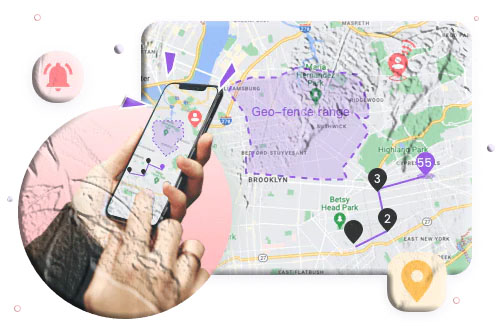
Real-time GPS location. See the child’s current location on a live map, with up to 30 days of location history. Geofencing alerts notify you the moment the child’s phone enters or leaves a designated area.
Ambient audio monitoring. Remotely activate the microphone on the child’s device to hear what is happening in the surrounding environment in real time — useful for safety checks when you need more than location data.
Low-battery alert with GPS. When the child’s battery drops below a set percentage, you receive an alert with their current location — ensuring continuity of safety information even when the phone is about to power off.
How to set it up:
Step 1: Download and install MobileTracking Parental Control from the Google Play Store on your own phone. Create an account and log in.
Step 2: On your child’s Android device, install the MobileTracking Kids companion app.
Step 3: Open MobileTracking Kids on the child’s phone, enter the pairing code shown in your parent dashboard, and complete the permissions setup — granting access to notifications, screen, location, and other features you want enabled.
Step 4: From your parent dashboard, navigate to Notifications to see incoming WhatsApp message previews in real time. Access Screen Mirroring for live screen view. Check App Usage for WhatsApp session data.
For parents concerned about disappearing messages specifically, the notification capture feature provides the most reliable window — it captures the message preview as it arrives, before any timer begins.
As with all parental monitoring tools, transparent use — explaining to your child that monitoring is in place and why — tends to produce better outcomes than covert surveillance. Children who understand the safety rationale behind oversight are more likely to communicate openly when something is wrong.
Part 6: How to Prevent WhatsApp Photo Loss in the Future
Prevention is significantly easier than recovery. Here are the most effective steps you can take to ensure that WhatsApp photo loss becomes a manageable inconvenience rather than a permanent loss.
Enable Automatic WhatsApp Backups
This is the single most impactful step. With automatic backups running daily, the most you can ever lose is one day’s worth of media — a tolerable window for most situations.
On Android: Open WhatsApp > Settings > Chats > Chat Backup. Set Back up to Google Drive to Daily and select the Google account you want to use. Make sure Include Videos is toggled on if you want video backups included. Tap Back Up Now to create an immediate backup.
On iPhone: Open WhatsApp > Settings > Chats > Chat Backup. Set Auto Backup to Daily. Tap Back Up Now to create an immediate backup. Ensure you have sufficient iCloud storage — if your iCloud storage is full, automatic backups will fail silently.
Save Important Media to Your Device Gallery
WhatsApp’s auto-save setting determines whether photos and videos are automatically copied to your device gallery when received. Enabling this creates a redundant copy of all received media in your Photos or Gallery app, independent of WhatsApp’s own storage.
On Android: WhatsApp > Settings > Chats > Media Visibility — toggle on to show media in gallery.
On iPhone: WhatsApp > Settings > Chats > Save to Camera Roll — toggle on.
With this enabled, every photo you receive in WhatsApp also exists in your gallery. Deleting from the WhatsApp chat does not delete the gallery copy, giving you a second location from which to recover it.
For photos you particularly want to preserve — family milestones, important documents, anything you know you will want to reference later — manually saving them to your device or to a dedicated cloud service (Google Drive, Google Photos, iCloud, or Dropbox) provides an extra layer of protection beyond auto-save.
Disable Disappearing Messages in Important Chats
If you are using WhatsApp’s Disappearing Messages feature in a conversation where you want to retain media, consider disabling it for that specific chat. Open the conversation, tap the contact’s name at the top, and look for the Disappearing Messages setting. Set it to Off for conversations where media retention matters.
For group chats where you cannot change others’ settings, the best approach is to save any media you want to keep immediately upon receiving it — before the disappearing timer has any chance to trigger.
Regularly Review and Archive Important Chats
Instead of deleting conversations when they feel cluttered, use WhatsApp’s Archive function to move conversations out of your main chat list without deleting them or their media. Long-press any conversation and tap the archive icon to archive it. Archived chats are accessible at the bottom of the Chats list and retain all their media.
Frequently Asked Questions
When you delete a photo from WhatsApp, where does it go?
When you delete a photo from within a WhatsApp chat, it is removed from the conversation view. If WhatsApp’s media auto-save was enabled and the photo was previously saved to your device gallery, a copy may still exist there. If a WhatsApp backup was created before the deletion, the photo will be present in that backup and recoverable through restoration.
Can you recover WhatsApp photos if you never had a backup?
It depends. If the photo was saved to your device gallery, check the Recently Deleted or Trash folder in your Photos or Gallery app — deleted media is typically held there for 30 days. If the photo was never saved to the gallery and there is no backup, recovery becomes significantly harder and would require data recovery software, with no guarantee of success.
Does uninstalling WhatsApp delete my photos?
No. Uninstalling WhatsApp does not delete photos that were already saved to your device gallery. Those photos exist independently of the WhatsApp app. Media stored only within WhatsApp’s internal storage (not saved to the gallery) may be affected, but locally cached media in the WhatsApp media folder typically persists even after uninstallation as long as you do not manually delete the folder or perform a factory reset.
How long does WhatsApp keep deleted photos in backup?
WhatsApp’s Google Drive backup retains the most recent backup you have created. Local backups on Android retain up to seven daily backup files before the oldest ones are overwritten. The window for recovery through backup is therefore seven days for local backup and however long since your last Google Drive backup was created. Enabling daily Google Drive backups maximizes your recovery options.
Can I recover WhatsApp View Once photos?
Not through standard means. View Once media is specifically designed to be unrecoverable — it deletes itself from the WhatsApp app the moment it is opened. Standard backup restoration and gallery recovery will not help because the media was never stored in those locations. Parental monitoring apps that capture screen content or notification previews at the moment of display are the only approach that can provide visibility into View Once media, and only if monitoring was already active before the media was received.
What is the best way to back up WhatsApp media?
Enable automatic daily backups to Google Drive (Android) or iCloud (iPhone) through WhatsApp > Settings > Chats > Chat Backup. Additionally, enable media auto-save so received photos are copied to your device gallery. For critical media, manually export it to a second cloud service. This three-layer approach — cloud backup, device gallery, and secondary cloud storage — gives you the best protection against any single point of failure.
Will restoring from WhatsApp backup delete my current messages?
Yes. Restoring from any WhatsApp backup replaces your current chat data with the contents of the backup. Any messages or media received after the backup date will be lost unless you have saved them elsewhere. This is the main trade-off of backup restoration — weigh it carefully before proceeding.
Can I selectively restore only specific photos from a WhatsApp backup?
Not directly through WhatsApp’s built-in restore process — it restores the entire backup, not individual files. For Android local backups, some third-party tools claim to allow selective extraction from WhatsApp backup database files, but this requires technical knowledge and is not a supported workflow. The standard process is a full restoration.
How do I stop WhatsApp photos from being automatically deleted?
If photos are disappearing from WhatsApp on a schedule, you may have Disappearing Messages enabled in one or more chats. Open the conversation, tap the contact or group name at the top, find Disappearing Messages, and set it to Off. For your own account’s default setting, go to WhatsApp > Settings > Privacy > Default Message Timer and set it to Off.
Does deleting WhatsApp on my iPhone delete my photos?
Deleting the WhatsApp app from your iPhone removes WhatsApp and its associated app data, but does not delete photos that were already saved to your iPhone’s Camera Roll or Photos library. Those photos exist independently. If you reinstall WhatsApp and restore from iCloud backup, your chats and media are recovered. Without a backup, chat history and media stored only within WhatsApp’s internal storage will be lost.
Final Thoughts
WhatsApp photo recovery is genuinely possible in most situations — the key variables are how quickly you act, whether backups were enabled before the deletion, and which platform you are on. Google Drive backup on Android and iCloud backup on iPhone provide the most reliable recovery path when they are set up in advance. The device gallery’s recently-deleted folder provides a useful secondary window for the 30 days after deletion. And simply asking the sender to resend is often the fastest solution of all.
The most important thing this guide should communicate is that almost all of these recovery options depend on preparation that happens before a photo is deleted. Automatic daily backups, media auto-save to the device gallery, and the habit of exporting important media to a secondary location — these take five minutes to set up and can be the difference between a quick recovery and a permanent loss.
For parents who need ongoing visibility into their child’s WhatsApp activity — including disappearing messages that would otherwise leave no recoverable trace — a dedicated parental monitoring app like MobileTracking provides real-time capture of notification content and screen activity at the moment it appears, creating a record that persists independently of WhatsApp’s own storage and deletion behavior.
Go set up your backups now, while you still have everything you want to keep.
Disclaimer: Recovery success depends on device model, Android or iOS version, backup configuration, and how much time has passed since deletion. Results are not guaranteed for any method. Always back up important data proactively.





Add comment