
 MobileTracking Editor
WhatsApp’s Last Seen feature is one of those small details that carries an outsized emotional weight in everyday communication. That quiet timestamp beneath a contact’s name — “Last seen today at 14:32” — tells you something that no message or status update could convey as simply: the person you are trying to reach was recently on their phone, saw the notifications, and has not responded. Or perhaps they genuinely have not been online yet. Or maybe they have set their privacy settings to hide the timestamp entirely.
These small distinctions matter in the real world. A parent wondering whether their teenager has actually been offline or simply does not want to talk. A professional trying to gauge whether an urgent message has been received. A friend wondering whether they have been read and ignored, or whether the person is genuinely unreachable. Understanding how Last Seen works — what it tells you, what it does not, and why it sometimes disappears entirely — is genuinely useful information for anyone who communicates regularly on WhatsApp.
This guide covers all of it in detail. We start with the basics — what Last Seen actually means and how to view it on any device — and move through the more complex territory: why the status sometimes does not show up, what it means when it is hidden, the privacy reciprocity rule that most people do not know about, and what options exist when you need more visibility into someone’s WhatsApp activity than the standard interface provides. We also cover how to manage your own Last Seen settings, including who can see it and what happens when you hide it from others.
By the end of this guide, you will have a clear, complete understanding of WhatsApp’s Last Seen system — and what to do in each scenario you are likely to encounter.
Part 1: What “Last Seen” and “Online” Actually Mean on WhatsApp
Before exploring how to view or manage these statuses, it helps to understand precisely what each indicator represents — because there is a meaningful difference between the two, and confusing them leads to misinterpretations.
What “Online” Means
When a contact’s status shows Online, it means that person currently has WhatsApp open on their device. They may be actively typing a message, scrolling through their chats, listening to a voice note, or simply have the app open in the foreground. The Online indicator appears in real time and disappears within a few seconds of the person closing the app or switching away from it.
Importantly, seeing someone show as Online does not necessarily mean they can see your specific message or conversation — they may be in a different chat, or they may have opened WhatsApp for an unrelated reason. It simply means the app is open and active on their device at that moment.
What “Last Seen” Means
Last Seen shows the most recent time a contact had WhatsApp open on their device. It is essentially the timestamp from the last time they were Online. The format changes based on how recent it is:
- Last seen today at [time] — They were online earlier today. The exact time is shown.
- Last seen yesterday at [time] — They were last online the previous day.
- Last seen [day of week] at [time] — They were online within the past week.
- Last seen [date] — They have not been online in more than a week. A date without a specific time is shown.
The Last Seen timestamp updates every time the person closes WhatsApp. It is not updated continuously — it is set at the moment the app moves to the background or the screen goes dark.
The Important Distinction for Communication
The practical takeaway is this: Last Seen tells you when someone was most recently active on WhatsApp. It does not confirm whether they saw your specific message. A person could be online briefly for reasons unrelated to your conversation — checking a different chat, playing a voice note, or clearing a notification — and their Last Seen would update without them ever reading what you sent.
Two blue ticks (read receipts) are the only definitive confirmation that your message was seen. Last Seen simply tells you they were on the app — not what they were doing there.
Part 2: How to Check Someone’s Last Seen on WhatsApp
The process is essentially the same across Android, iPhone, and WhatsApp Web or Desktop, with minor interface differences.
On Android
Step 1: Open WhatsApp on your Android phone.
Step 2: Tap the Chats tab at the bottom of the screen to see your conversation list.
Step 3: Tap on the chat with the contact whose Last Seen you want to check. Their status appears directly below their name at the top of the chat screen — it will show either Online (if they are currently active) or Last seen [time/date].
Step 4: If you want to check a contact you have not recently chatted with, use the search icon to find them, or tap the new chat icon and locate them in your contacts list. Opening the chat or tapping on their name will display their status.
Step 5: For a slightly more detailed view, tap on the contact’s profile picture or name at the top of the chat. This opens their contact info page, where their Last Seen or Online status is displayed beneath their profile photo.
On iPhone
Step 1: Open WhatsApp on your iPhone.
Step 2: Tap Chats in the bottom navigation bar.
Step 3: Tap on any conversation. The contact’s Last Seen or Online status appears just below their name at the top of the chat screen.
Step 4: For more detail, tap the contact’s name or profile photo at the top. Their full contact info screen will show the status prominently.
On WhatsApp Web and WhatsApp Desktop
The same information is available on the desktop versions of WhatsApp:
Step 1: Open WhatsApp Web in your browser or launch the WhatsApp Desktop app.
Step 2: Find the contact in your chat list on the left side and click on the conversation to open it.
Step 3: The contact’s Last Seen or Online status appears beneath their name in the header of the chat window — in the same position as on mobile.
Step 4: Clicking on the contact’s name or profile photo opens their info panel, where the status is also displayed.
Understanding the Timestamp Format
A few nuances about how the timestamp is displayed:
If a contact has not been online in more than two weeks, WhatsApp may no longer display a specific Last Seen time at all — it may simply show nothing or a very old date, depending on their privacy settings and activity.
If you see “no status information available” beneath a contact’s name, it typically means they have either hidden their Last Seen from you, you have been blocked, or the status information is temporarily unavailable due to a sync issue.
Part 3: Why You Cannot See Someone’s Last Seen on WhatsApp
This is one of the most frequently asked questions related to WhatsApp’s Last Seen feature — and there are several distinct reasons it can happen, each requiring a different response.
Reason 1: The Contact Has Hidden Their Last Seen
This is the most common reason. WhatsApp allows every user to control who can see their Last Seen status. The options are:
- Everyone — Any WhatsApp user who has their number can see their Last Seen
- My Contacts — Only people saved in their contacts can see it
- My Contacts Except… — Contacts can see it except specific people they have excluded
- Nobody — No one can see their Last Seen or Online status
If someone has set their Last Seen to Nobody or has specifically excluded you from seeing it, you will see nothing where the Last Seen timestamp would normally appear. The contact info page will also not show any status information.
Reason 2: You Have Hidden Your Own Last Seen
This is the rule most people do not know about: WhatsApp’s Last Seen visibility is reciprocal. If you have set your own Last Seen to Nobody — hiding it from everyone — WhatsApp will also prevent you from seeing other people’s Last Seen status, regardless of their own privacy settings.
This is a deliberate design choice by WhatsApp to prevent one-sided surveillance: you cannot observe everyone’s activity while hiding your own. If you want to see others’ Last Seen, you must make yours visible to at least some people.
To check whether this applies to you:
Go to Settings > Account > Privacy > Last Seen and Online in WhatsApp. If your Last Seen is set to Nobody, you will not be able to see other users’ Last Seen even if they have made it visible.
Reason 3: You Have Been Blocked
If a contact has blocked you on WhatsApp, several things change simultaneously:
- Their Last Seen and Online status becomes invisible to you
- Their profile picture becomes invisible or shows as blank
- Messages you send show only one gray tick (never delivered)
- WhatsApp calls to them do not connect
No single one of these is conclusive evidence of being blocked — each has other possible explanations. But if all four are true simultaneously and persistently, it is a strong indication. WhatsApp does not send a notification when someone blocks you.
Reason 4: You Are Not Saved in Each Other’s Contacts
WhatsApp’s default privacy settings show Last Seen to My Contacts. If you are not saved in someone’s phone contacts — or they are not saved in yours — you may not have mutual contact status, which can prevent Last Seen visibility even without any explicit privacy customization.
This is particularly relevant when messaging businesses, new acquaintances, or numbers you obtained through a group chat. Saving the contact’s number to your phone and asking them to save yours can resolve this in many cases.
Reason 5: You Are Looking at a Group Chat
Group chats on WhatsApp do not display individual members’ Last Seen statuses in the main chat header. When you have a group conversation open, the header shows the group name and a list of members — not any individual’s Last Seen.
To see a specific group member’s Last Seen, you need to open a direct (one-to-one) conversation with that person, not the group chat.
Reason 6: Unstable Internet Connection
Sometimes Last Seen simply does not load because your own internet connection is unreliable. WhatsApp pulls status information dynamically — if your connection is weak, intermittent, or transitioning between Wi-Fi and mobile data, it may fail to retrieve and display the status in real time.
To rule this out, check that other apps and websites are loading normally, and try refreshing the chat by closing and reopening it. If this is the issue, the Last Seen will appear once your connection stabilizes.
Reason 7: App Needs to Be Updated or Refreshed
A bug in an outdated version of WhatsApp can occasionally affect how statuses are displayed. If Last Seen has suddenly stopped showing for contacts it was previously visible for, check whether a WhatsApp update is available in the Google Play Store (Android) or the App Store (iPhone) and install it. You can also try logging out of your WhatsApp account and back in, which forces a fresh sync of contact data and status information.
Part 4: How to See Someone’s Last Seen on WhatsApp If They Have Hidden It
This is the part of the topic that generates the most questions — and the most important thing to say upfront is that WhatsApp itself offers no way to circumvent another user’s privacy settings. If someone has hidden their Last Seen and you do not have their cooperation, there is no feature within WhatsApp that will reveal it.
That said, there are a few indirect approaches that can provide some insight into a contact’s recent activity, particularly in the context of parental monitoring.
Indirect Method 1: Watch for the “Online” Indicator in Real Time
Even when someone hides their Last Seen timestamp, they may not have hidden their Online status. WhatsApp treats these as separate options in the privacy settings — Last Seen and Online are controlled together in the same setting, but the behavior is nuanced.
If you open a chat with someone who has hidden their Last Seen and watch the status line carefully when they are actively using WhatsApp, you may briefly see Online appear and then disappear. This tells you they are currently active, even though their Last Seen will not update afterward.
This requires you to have the chat open at the exact moment they are using WhatsApp — which is impractical for consistent monitoring — but it confirms that hiding Last Seen does not always hide the real-time Online indicator depending on their specific settings.
Indirect Method 2: Note When Messages Get Double-Ticked
Even with Last Seen hidden, you can infer recent activity from message delivery. When your message changes from one gray tick to two gray ticks, it means the recipient’s phone received the message — which implies their phone is on and connected to WhatsApp’s servers. While this does not confirm they have opened or read the message, it does confirm the phone was online at roughly that time.
If message delivery (double ticks) happen in the middle of the night, for example, it suggests the phone was active during that window — useful information for a parent, even without explicit Last Seen visibility.
Indirect Method 3: Check Profile Picture or Status Updates
Changes to a contact’s profile picture or WhatsApp status message require them to open the app and make edits. If you notice these have changed recently, it confirms recent WhatsApp activity even without a visible Last Seen timestamp.
Part 5: How Parents Can Monitor WhatsApp Activity — Including Hidden Last Seen
The scenario most parents encounter is this: their child has WhatsApp, uses it heavily, and has discovered that they can hide their Last Seen to make their activity less visible. For a parent who wants age-appropriate oversight of their child’s digital activity, the absence of Last Seen is one symptom of a broader challenge — the difficulty of knowing whether a child is online late at night, talking to unknown contacts, or using their phone during school hours.
Standard WhatsApp privacy settings cannot be overridden by anyone except the account holder. But for parents who have installed a parental monitoring app on their child’s device, a different kind of visibility is available — one that does not rely on WhatsApp’s Last Seen feature at all.
MobileTracking Parental Control
MobileTracking Parental Control is a parental monitoring app for Android that gives parents access to device-level activity data — which is entirely separate from WhatsApp’s in-app privacy settings. Because it operates at the Android system level rather than within WhatsApp, it is not subject to the privacy settings that a user can configure inside WhatsApp.
Seeing WhatsApp activity and approximate last use time:
Through MobileTracking’s Today’s Event or App Usage section, parents can see:
- How many times WhatsApp was opened throughout the day
- How long was spent in WhatsApp during each session
- The timestamp of the most recent WhatsApp session — which effectively gives you the “last used” time regardless of what the in-app Last Seen shows
This is not the same as WhatsApp’s Last Seen feature (it does not appear in WhatsApp itself), but it accomplishes the same underlying goal: knowing when the child was most recently active on WhatsApp.
What else MobileTracking shows parents:
Screen mirroring. Parents can view the child’s phone screen in real time from their own device or a web dashboard. This shows whatever is open on the phone — including the WhatsApp chat interface — as it happens.
Notification monitoring. Incoming WhatsApp messages typically generate a notification preview before the app is opened. MobileTracking can capture these notification previews, giving parents a glimpse of incoming messages.
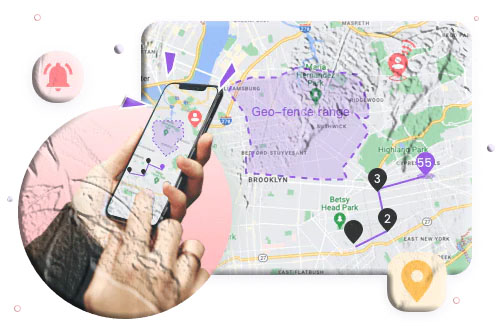
Real-time GPS location. Parents can see the child’s current location on a live map, with up to 30 days of location history and geofencing alerts for key areas.
App usage data. A full breakdown of time spent in every app, organized by day and time. Usage patterns — late-night WhatsApp activity, spikes during school hours, sudden changes in messaging volume — become clearly visible.
Ambient audio monitoring. Parents can remotely activate the phone’s microphone and hear the environment around the device in real time — useful when concerned about the physical context in addition to the digital activity.
SMS and notification keyword alerts. Configure specific words that trigger an alert if they appear in notifications — useful for flagging potentially harmful or inappropriate conversations proactively.
Low-battery notifications with GPS. When the child’s battery drops below a set level, the parent receives an alert with the child’s current location — ensuring continuity of safety information even when the phone is about to go offline.
How to set up MobileTracking:
Step 1: Download MobileTracking Parental Control from the Google Play Store on your own phone. Create an account and sign in.
Step 2: On your child’s Android device, install the MobileTracking Kids companion app.
Step 3: Open MobileTracking Kids on your child’s phone, enter the pairing code shown in your parent dashboard, and follow the permissions setup.
Step 4: From your parent dashboard, navigate to App Usage or Today’s Event to view WhatsApp activity. Tap on WhatsApp in the app list to see session times and the most recent use timestamp.
Step 5: For real-time screen view, tap Screen Mirroring from the dashboard. For location, tap Location. All monitoring features are accessible from the same central dashboard.
A note on transparent monitoring: research on parental oversight and teen behavior consistently finds that children respond better to monitoring when they know it is happening and understand the safety rationale behind it. Setting up monitoring with your child’s knowledge — and explaining clearly why it is in place and what you are looking at — tends to produce more trust, more open communication, and better digital safety outcomes than covert surveillance.
Part 6: How to Hide Your Own Last Seen Status on WhatsApp
Understanding how to manage your own Last Seen visibility is just as important as knowing how to view others’. Here is a complete guide to the available options and what each one means in practice.
Step-by-Step: Adjusting Your Last Seen Settings
On Android:
Step 1: Open WhatsApp and tap the three dots (⋮) menu in the upper-right corner. Tap Settings.
Step 2: Select Account, then tap Privacy.
Step 3: Tap Last Seen and Online.
Step 4: Under “Who can see my last seen,” choose from the following:
- Everyone — All WhatsApp users can see your Last Seen
- My Contacts — Only people saved in your phone contacts can see it
- My Contacts Except… — Your contacts can see it, but you can exclude specific people
- Nobody — No one can see your Last Seen or Online status
Step 5: Tap your chosen option to apply it. The change takes effect immediately.
On iPhone:
Step 1: Open WhatsApp and tap Settings in the bottom navigation bar.
Step 2: Tap Privacy.
Step 3: Tap Last Seen and Online.
Step 4: Choose the visibility option you want and tap it to apply.
Understanding the Reciprocity Rule
As mentioned earlier, WhatsApp enforces a reciprocity rule for Last Seen. Specifically:
- If you set your Last Seen to Nobody, you will also be unable to see other people’s Last Seen — regardless of what their own settings are.
- If you set your Last Seen to My Contacts or Everyone, you retain the ability to see others’ Last Seen (subject to their own settings).
This rule applies specifically to the Last Seen timestamp, not to the Online indicator. The Online indicator has its own separate control within the same Last Seen and Online settings screen.
Controlling Your “Online” Status Separately
Within the Last Seen and Online settings, there is a second option: Who can see when I’m online. The choices here are:
- Everyone — Any WhatsApp user can see when you are actively using the app
- Same as Last Seen — Your Online visibility matches your Last Seen visibility setting
Setting both to Nobody provides the most privacy but also prevents you from seeing others’ Last Seen or Online status, as described above.
What Hiding Last Seen Does and Does Not Do
What it does:
- Removes your Last Seen timestamp from other users’ view — they see nothing where the timestamp would normally appear
- Depending on your Online setting, can also hide the real-time Online indicator
What it does NOT do:
- Hide your read receipts (blue ticks) — people can still see when you have read their messages, unless you separately disable read receipts under Settings > Privacy > Read Receipts
- Prevent WhatsApp from recording your activity internally
- Hide your profile picture updates or status message changes from people with access to your profile
- Prevent apps with device-level access (like parental control apps) from seeing app usage data
Part 7: What It Means When Last Seen Is “Frozen” or Stuck
Some WhatsApp users encounter a puzzling situation: a contact’s Last Seen timestamp never changes, even though the person seems to be responding to messages. This is sometimes described as a “frozen” Last Seen.
Why Last Seen Appears Frozen
The contact is using WhatsApp without closing the app. Last Seen updates when the app moves to the background. If a person keeps WhatsApp open continuously — by not closing it between sessions — the Last Seen timestamp may appear stuck because it is only refreshed at app exit. Meanwhile, their Online indicator flickers on and off normally during this period.
The contact has enabled a third-party “freeze last seen” app or workaround. There are third-party apps and techniques that attempt to prevent WhatsApp from updating the Last Seen timestamp while still allowing normal WhatsApp use. These work by preventing WhatsApp from properly signaling its activity status to the server. They are not supported or endorsed by WhatsApp and may be unreliable or may stop working after WhatsApp updates.
There is a temporary sync issue. Sometimes Last Seen simply fails to update in real time due to connectivity issues on either end. The next time both phones have a stable connection, the status should sync properly.
Signs of a Frozen Last Seen
- The Last Seen timestamp has not changed in days or weeks, but you receive messages from that contact
- The contact shows as Online intermittently, but the Last Seen timestamp does not update after they go offline
- Your messages to them show double ticks (delivered), confirming their phone is online and connected
If you observe all three simultaneously, the Last Seen is likely being managed through a workaround or the app is running continuously without closing.
Part 8: Troubleshooting Common Last Seen Problems
Problem: Last Seen Is Not Showing for Any Contacts
Most likely cause: You have hidden your own Last Seen from everyone (set to Nobody), triggering WhatsApp’s reciprocity rule.
Fix: Go to Settings > Account > Privacy > Last Seen and Online and change your setting from Nobody to My Contacts or Everyone. After this change, other contacts’ Last Seen should become visible again.
Problem: Last Seen Is Not Showing for One Specific Contact
Most likely cause: That contact has set their Last Seen to Nobody or has excluded you specifically, or you have been blocked.
What to try: Check whether you can see their profile picture and whether your messages deliver (double ticks). If you see a blank profile picture and only one tick on messages, blocking is likely. If messages deliver normally but no Last Seen shows, their privacy settings are the likely cause.
Problem: Last Seen Was Visible Before but Is Gone Now
Most likely cause: The contact recently changed their privacy settings to hide Last Seen.
What to try: There is nothing you can do on your end — the contact has made a privacy choice. Attempting to contact them through another channel to confirm they are okay is entirely reasonable; attempting to circumvent their privacy choice is not.
Problem: Last Seen Shows an Incorrect Time
Most likely cause: Time zone differences or a temporary sync issue.
What to try: WhatsApp displays Last Seen in your local time zone. If the contact is in a different time zone, the timestamp is their local time converted to yours — which can look incorrect if you are not accounting for the difference. If the issue seems to be a genuine inaccuracy, restarting WhatsApp on your device should force a fresh sync.
Frequently Asked Questions
What does “Last Seen” mean on WhatsApp?
Last Seen shows the most recent time a contact had WhatsApp actively open on their device. It updates each time they close the app or switch away from it. It does not confirm whether they saw your specific message — it only confirms they were recently on WhatsApp.
Why can’t I see someone’s Last Seen on WhatsApp?
The most common reasons are: they have hidden their Last Seen in their privacy settings, you have hidden your own Last Seen (triggering WhatsApp’s reciprocity rule), they have blocked you, you are not saved in each other’s contacts, or you are looking at a group chat instead of a direct conversation.
Can I see Last Seen if someone has blocked me on WhatsApp?
No. When a contact blocks you, their Last Seen and Online status becomes completely invisible to you. Combined with other indicators — missing profile picture, single gray ticks on messages, WhatsApp calls not connecting — persistent invisibility of Last Seen is one signal that you may have been blocked.
Why can’t I see Last Seen even though I haven’t hidden mine?
WhatsApp’s reciprocity rule specifically requires that your Last Seen not be set to Nobody. If it is set to My Contacts or Everyone, you should be able to see others’ Last Seen (if they have made it visible). Check Settings > Account > Privacy > Last Seen and Online and confirm your setting.
Can I see someone’s Last Seen if they have set it to “Nobody”?
Not through WhatsApp itself — there is no in-app workaround for a contact who has set Last Seen to Nobody. For parents monitoring a child’s device through a parental control app like MobileTracking, device-level app usage data can show when WhatsApp was last used independently of the in-app privacy settings.
What does it mean if WhatsApp shows “Online” but no Last Seen?
It means the contact is currently active on WhatsApp (Online) but has hidden their Last Seen timestamp. The Online and Last Seen indicators are controlled by the same privacy setting, but in some configurations the Online indicator may still briefly appear even when Last Seen is hidden — depending on the specific option selected.
Can I tell if someone is ignoring me on WhatsApp?
WhatsApp does not have a feature that specifically tells you whether you are being ignored. Blue ticks confirm a message was read; if a contact consistently shows blue ticks but never responds, they are reading and not replying. If Last Seen is hidden, you may not be able to tell when they were active. The combination of Last Seen hidden + blue ticks disabled + no responses is a possible indicator, but could also reflect legitimate privacy preferences unrelated to you.
Does hiding Last Seen affect read receipts?
No. Last Seen visibility and read receipts (blue ticks) are controlled by separate settings. Hiding your Last Seen does not affect whether others can see that you have read their messages. To hide read receipts separately, go to Settings > Privacy > Read Receipts and toggle it off. Note that hiding read receipts is also reciprocal — if you disable them, you will also not be able to see read receipts for messages you send to others.
What is the difference between Last Seen and Online on WhatsApp?
Online is a real-time indicator that appears while someone is actively using WhatsApp at that moment. Last Seen is a historical timestamp showing when they were most recently active. Online disappears seconds after the person closes or backgrounds the app; Last Seen remains visible until updated by a new session.
How do I know if someone has frozen their Last Seen on WhatsApp?
If a contact’s Last Seen timestamp has not changed in days or weeks but you are receiving messages from them and occasionally see them show as Online, their Last Seen may be frozen — either because they are keeping the app open continuously or using a third-party tool. WhatsApp does not provide any official indicator for this behavior.
Final Thoughts
WhatsApp’s Last Seen feature sits at an interesting intersection of connection and privacy. For many people, seeing that timestamp is a simple, practical reassurance — a quick confirmation that a friend or family member is around and reachable. For others, especially those with concerns about being monitored, hiding Last Seen is a reasonable and legitimate privacy choice that the platform explicitly supports.
Understanding the system fully — how Last Seen works, why it disappears, what the reciprocity rule means for your own visibility, and what options exist for parents who need deeper insight into a child’s device activity — puts you in a much stronger position to use WhatsApp effectively and make informed choices about your own privacy settings.
The most important practical takeaway for most readers: if you cannot see someone’s Last Seen, check your own settings first. The reciprocity rule catches many people off guard. And if you are a parent trying to understand your child’s WhatsApp habits beyond what the app’s built-in features show, device-level monitoring through a parental control app provides a meaningful alternative that is not subject to in-app privacy controls.
Whatever your situation, the goal is the same: communication that works, boundaries that are respected, and enough transparency to keep the people you care about safe.
Note: WhatsApp features and settings menus may vary slightly between Android and iOS versions and between different WhatsApp versions. All steps in this guide reflect the current WhatsApp interface as of the most recent major release.





Add comment