You have two ways to give a child their own Spotify in 2026. The original Spotify Kids app is still in the App Store and Google Play, still requires a Premium Family subscription, and still suits young children who need a simple, hand-picked world of songs and stories. But Spotify’s own help pages now steer families towards managed accounts: music-only accounts for under-13s that live inside the normal Spotify app, work on Premium Family and, in a growing list of countries, on the free tier too.
Quick version: if your child is under about seven, set up Spotify Kids from the grown-ups area of the Kids app. If they are older and want “real” music, the charts and their own playlists, create a managed account from Profile picture › Settings and privacy › Parental controls › Create a managed account. Either takes around ten minutes. This guide walks through both, explains every control, and covers the snags parents hit most often.
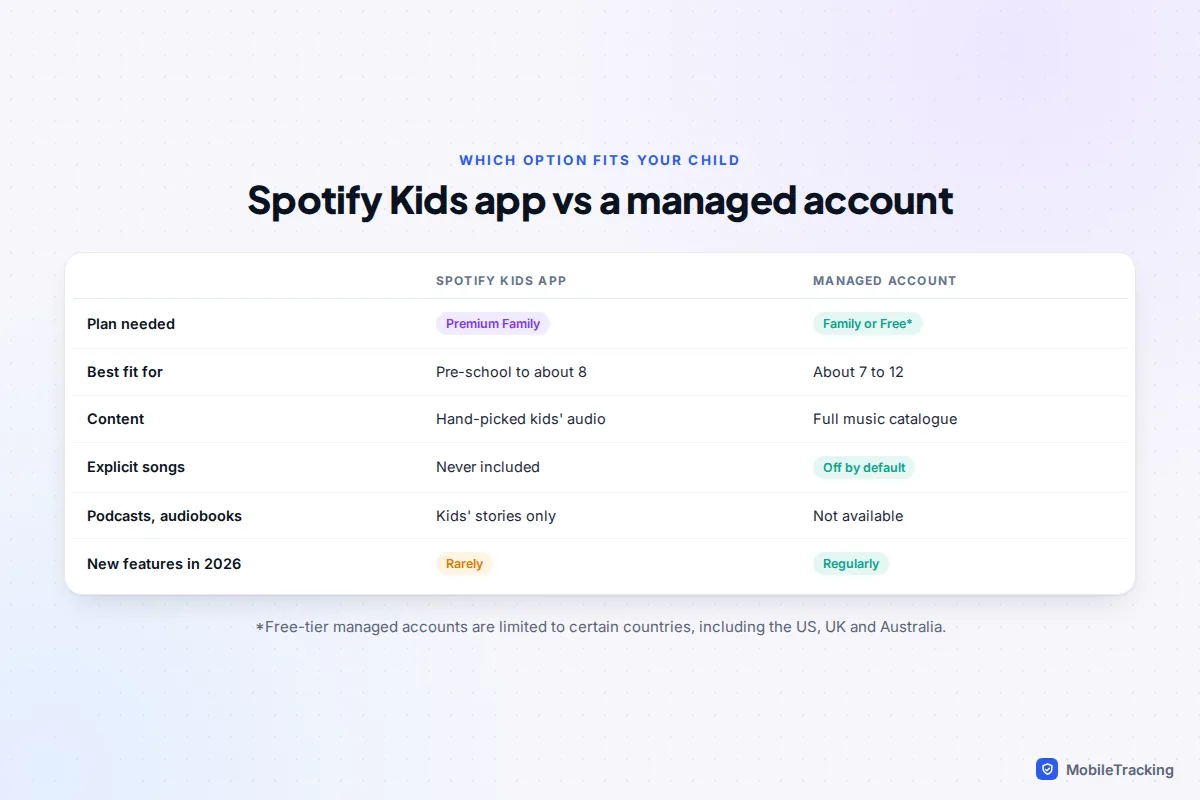
Is Spotify Kids still around, and what replaced it?
Spotify has not announced the retirement of Spotify Kids, and as of September 2026 you can still download it on iPhone, iPad and Android. It is, however, clearly no longer where the effort goes. The app’s store listings show infrequent updates, and the Spotify Kids help article opens with a notice pointing parents to managed accounts instead.
Managed accounts arrived on Premium Family in 2024 and have expanded steadily since. In May 2026 Spotify began offering them on the free, ad-supported tier, reaching the US, UK, Australia, France, Germany and the Netherlands in July 2026, with Canada and more European countries following later that month. In April 2026 it also added wider video controls for families. If you are choosing today, expect new features to land in managed accounts, not in the Kids app.
That doesn’t make Spotify Kids a bad choice. For a four-year-old, a screen of big colourful covers, nursery songs and bedtime stories with no search box full of adult music is exactly right. Just go in knowing it is a mature product that is unlikely to change much.
Which option should you use?
Match the tool to your child’s age and how much freedom they need. This table sums up the decision most families face.
| Your situation | Best choice | Why |
|---|---|---|
| Toddler or pre-schooler, shared tablet | Spotify Kids app | Only curated children’s content, no adult catalogue to stumble into |
| Child aged roughly 7 to 12 who wants chart music | Managed account | Full catalogue with explicit songs, videos and Canvas off by default |
| You don’t pay for Premium Family | Managed account on the free tier (if available where you live) | Spotify Kids needs Premium Family; free managed accounts don’t, but have ads and shuffle-only play |
| Teenager with their own login | Their own account, with explicit content managed from your Family page | Managed accounts are for under-13s (or the local equivalent) |
| Several children of different ages | Mix and match | Each Kids or managed account uses one of the six Premium Family places |
Before you start: what you need
A few minutes of preparation saves most of the frustration. Check these before you open either app.
- The plan manager’s login. On Premium Family, only the person who pays and manages the plan can create Kids or managed accounts. A family member logging in with their own details will just see an offer to subscribe.
- A free place on the plan. Premium Family has six accounts in total, and every Kids or managed account uses one of them.
- Your child’s real date of birth. Spotify uses it to decide which content and features apply, and when your child can later move to their own account.
- A way to prove you’re an adult. Managed accounts ask for parental consent, either a photo of your government ID plus a selfie (checked by the age-verification firm Yoti) or your bank card details. The card check places a temporary authorisation hold; it isn’t a purchase and is released.
- A PIN you’ll remember and your child won’t guess. Avoid birthdays and 1234.
- Up-to-date apps. Update Spotify (and Spotify Kids, if using it) on both your phone and your child’s device. Old versions are the most common reason menu options are missing.
How to set up the Spotify Kids app
Spotify Kids is a separate app, so install it on the device your child will actually use. The setup happens on that device.
- Install Spotify Kids from the App Store (iPhone and iPad) or Google Play (Android phones and tablets, including Samsung and Pixel).
- Open it and log in with the plan manager’s Spotify email and password, the same ones you use in the main Spotify app.
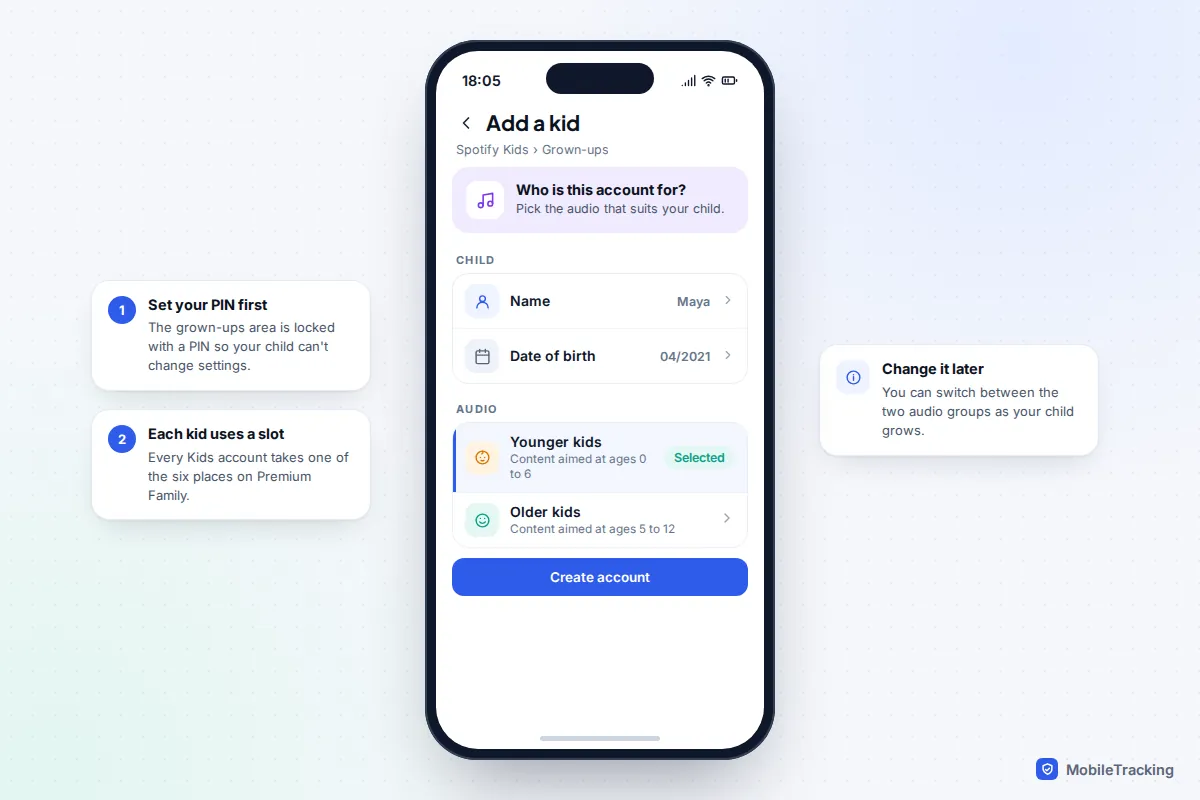
- When prompted, set a PIN. This locks the grown-ups area so only you can change settings.
- Choose to create a Kids account. Enter your child’s name and date of birth.
- Pick the type of audio. Spotify offers content aimed at younger children (about 0 to 6) and older children (about 5 to 12). You can change this later as they grow.
- Hand over the device. Repeat from the grown-ups area for each child if you have more than one.
Downloaded playlists work offline, which is handy for car journeys and flights. Download them on Wi-Fi before you leave, while you’re still in the app.
Checking listening history and blocking tracks
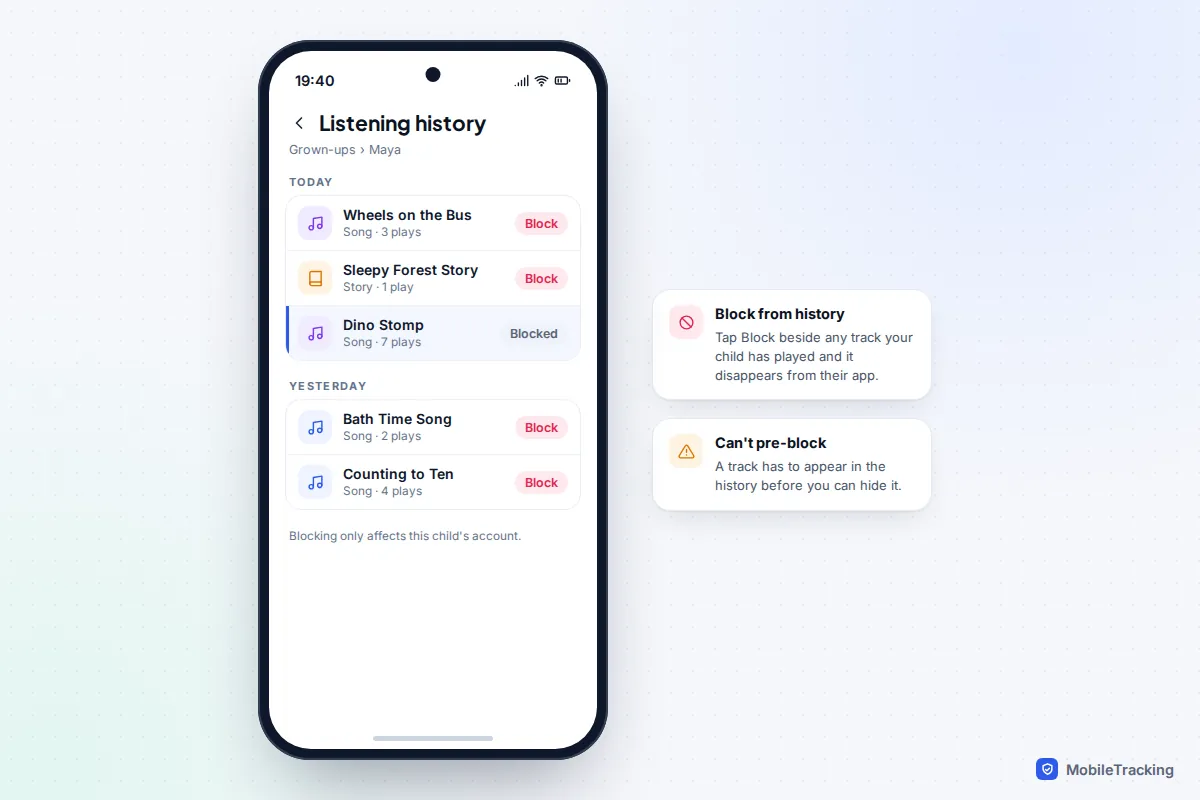
Inside the PIN-protected grown-ups area, select your child and open Listening history. You’ll see what they’ve played, and a block option beside each track. A blocked song disappears from that child’s app entirely, but only for that child: a younger sibling’s account is unaffected.
The catch is that you can only block something once it appears in the history. You can’t pre-emptively search and hide a track. If a particular song is driving the household mad, wait for it to show up, then block it.
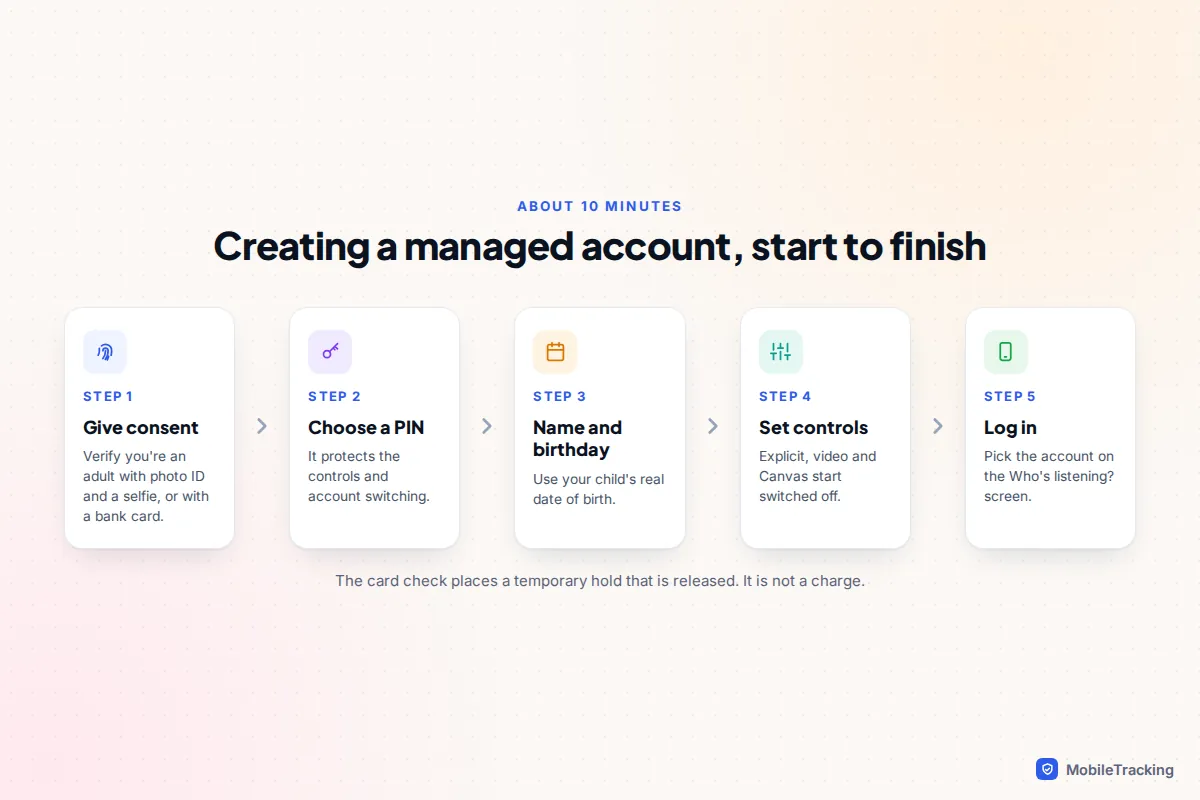
How to set up a Spotify managed account
A managed account lives inside the ordinary Spotify app, so your child gets the familiar interface, their own recommendations and even their own Wrapped, without adult content or social features. You create it from your own account.
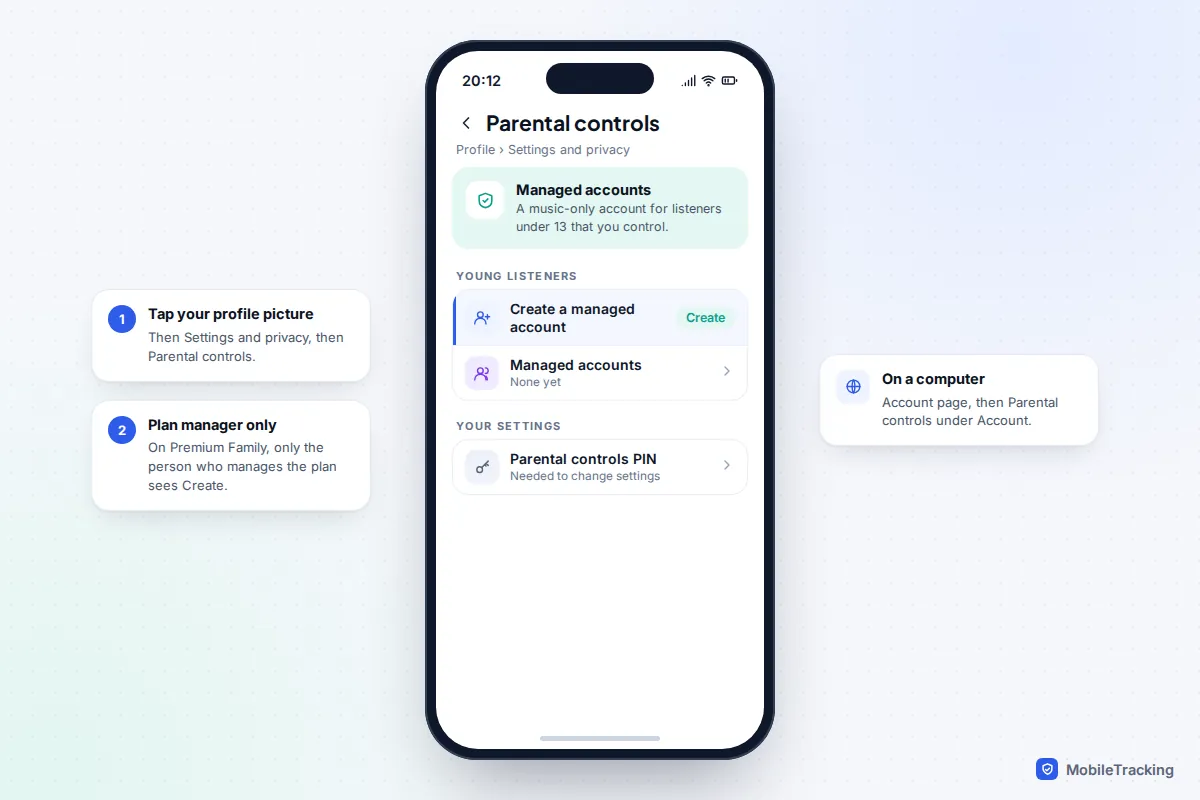
- In the Spotify app on your phone, tap your profile picture at the top.
- Tap Settings and privacy, then Parental controls.
- Tap Create next to Create a managed account. On a computer, go to your account page and choose Parental controls under Account instead.
- Give parental consent with your ID and a selfie, or your card details.
- Choose your parental controls PIN.
- Enter your child’s name and date of birth.
- Review the parental controls (see the next section) and finish.
If you pay for Premium Family, the new account joins your plan automatically. If you don’t, it’s created on the free plan, which has ads and limits playback to shuffle with restricted skips. Spotify lets one parent supervise up to ten managed accounts in total.
Getting your child logged in
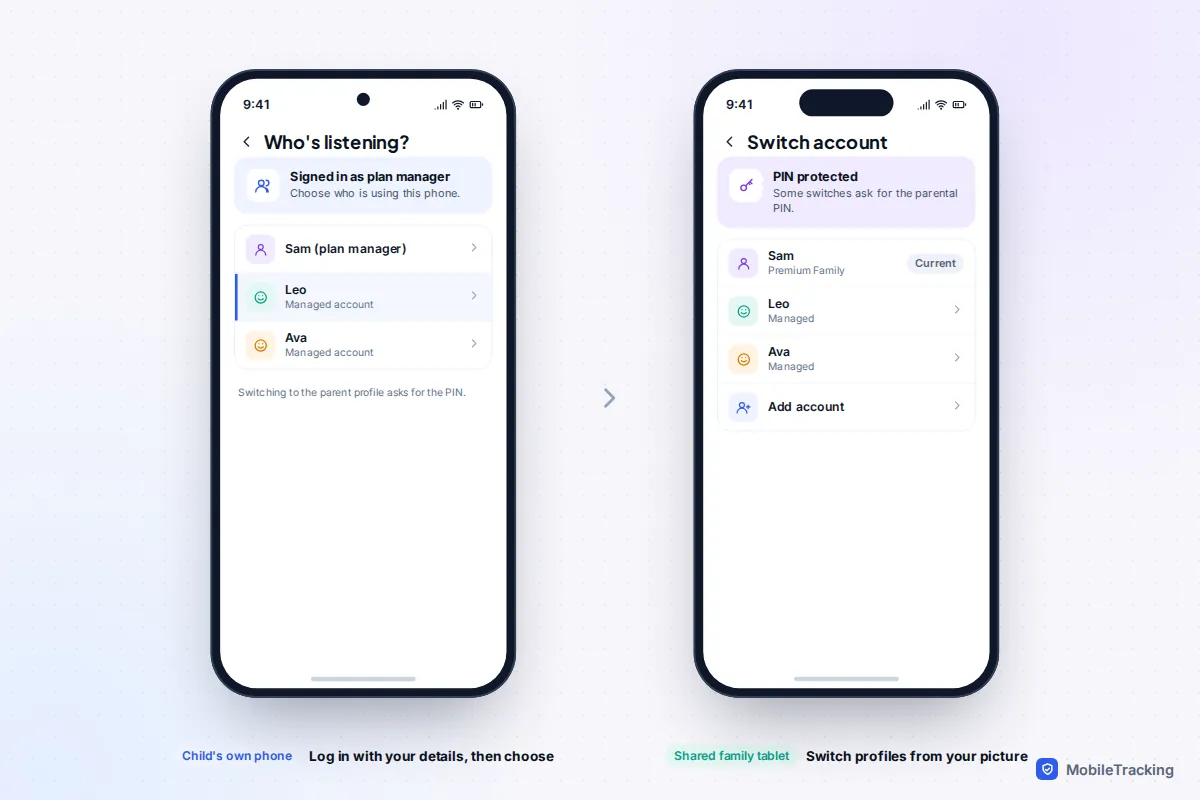
On your child’s own phone or tablet, open Spotify and log in with your details. A Who’s listening? page appears: pick your child’s managed account. On a device you share, log in as yourself, tap your profile picture and switch to their account. On Premium Family you can also go to Settings and privacy › Premium Family, tap the child under Plan members, then Login options › Log in on this device.
Switching back to an account that needs the PIN will ask for it, which stops a curious ten-year-old hopping into your profile.
The parental controls, explained
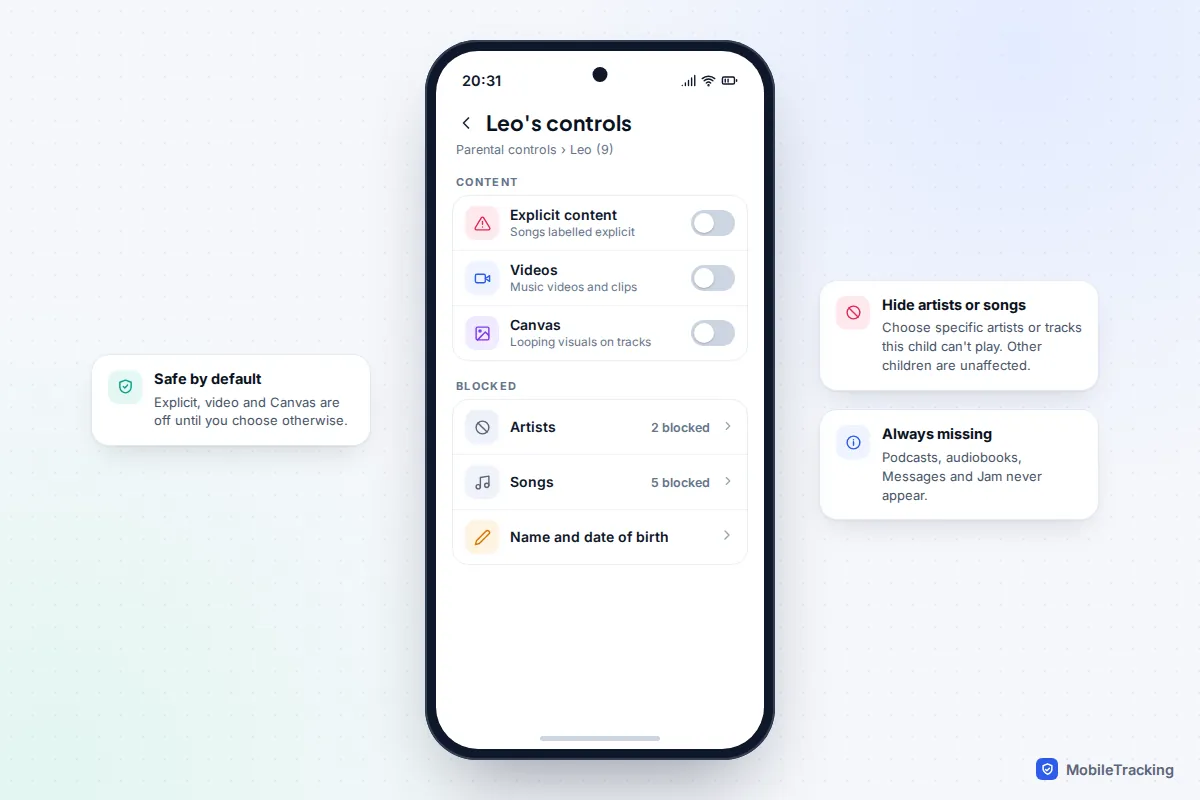
A managed account starts in its safest state, and you loosen things deliberately. Here is what each setting does and what’s simply not available.
- Explicit content: off by default. Songs labelled explicit by the label or artist won’t play. Labelling is done by rights holders, so the odd track with mature themes but no label can still slip through.
- Videos: off by default. Leave it off for younger children; Spotify says most parents of under-13s already do.
- Canvas: off by default. These are the short looping visuals behind some tracks. Harmless mostly, but they add screen stimulation to what could be audio-only listening.
- Blocked artists and songs: hide specific artists or tracks from this child’s account.
- Name and date of birth: editable from the same page, as is your PIN.
Some things are switched off permanently for managed accounts: podcasts and audiobooks, in-app purchases, Messages, and group features such as Jam, Blend and collaborative playlists. Your child’s profile can’t be searched for or followed by other users. They can still build their own playlists and get personalised mixes.
Controls for older children and teenagers
Once a child is 13 or over (the minimum age varies by country) they usually have a normal Spotify account on your Premium Family plan. You can still stop explicit tracks: as plan manager, log in to your Premium Family page in a web browser, click the family member and switch Explicit content off.
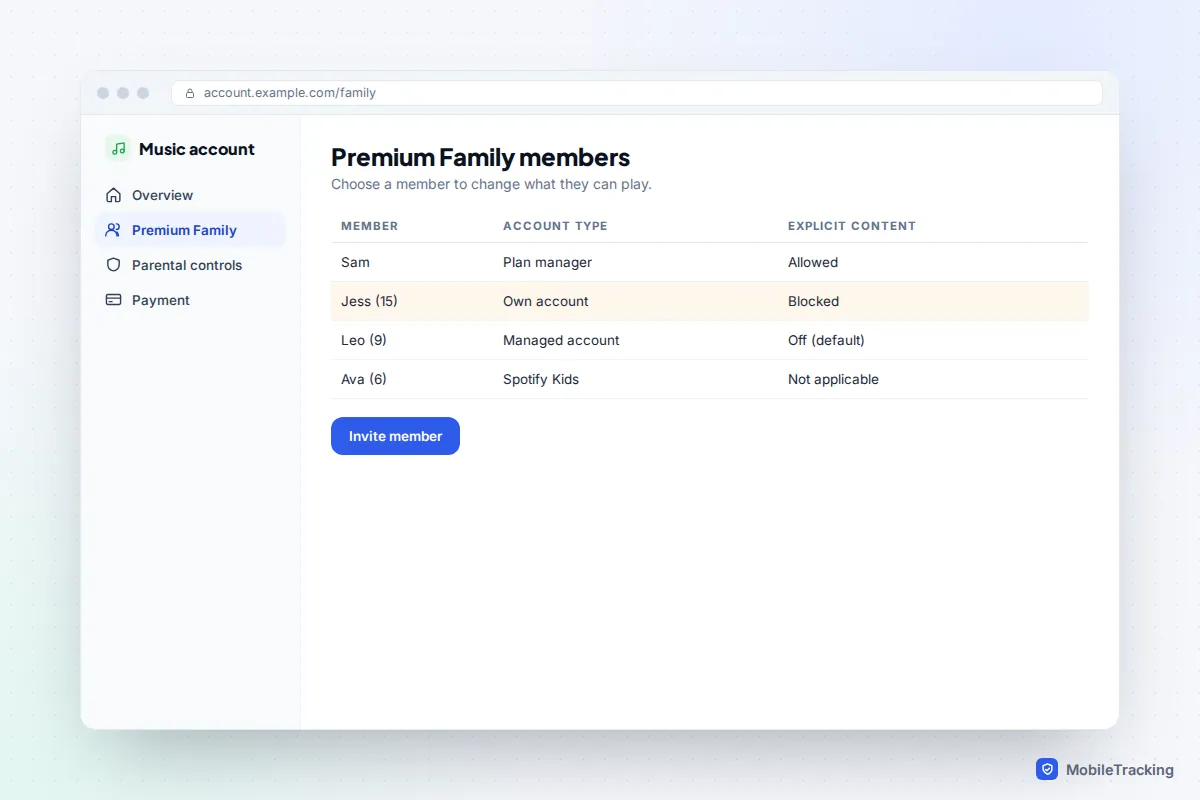
Teenagers can also toggle Allow Explicit Content under Settings and privacy on their own phone, so treat your setting as a house rule you’ve agreed together, not a lock. Spotify’s Messages feature is only available to users aged 16 and over, and videos tagged 18+ are unavailable to under-18s. Spotify doesn’t offer time limits, so if listening at 1am is the real issue, use the phone’s own tools: Screen Time on an iPhone or Google Family Link on Android.
One grown-up bonus arrived in September 2026: a setting that stops children’s and family music from shaping your own recommendations and Wrapped. If a car full of nursery rhymes has taken over your Discover Weekly, look for it in Settings and privacy as it reaches your account.
Moving on to their own account
When a young listener reaches the minimum age for a normal account, they can send you a request to graduate. You’ll get an in-app and email notification; if you approve, they add their own email, password and details. Their playlists, saved music and recommendations come with them, and they stay on the same plan. At 18, graduation is compulsory and no longer needs your approval.
For Spotify Kids, the move is less smooth: it’s a separate app with its own library, so an older child typically switches to a managed account or a standard account and starts their collection there. Letting them rebuild a few favourite playlists together is a nice way to mark the step up. Full details are on Spotify’s help page for setting up a managed account on Premium Family.
Common mistakes and troubleshooting
Most problems come down to the wrong login or a full plan. Work through the symptom you’re seeing.
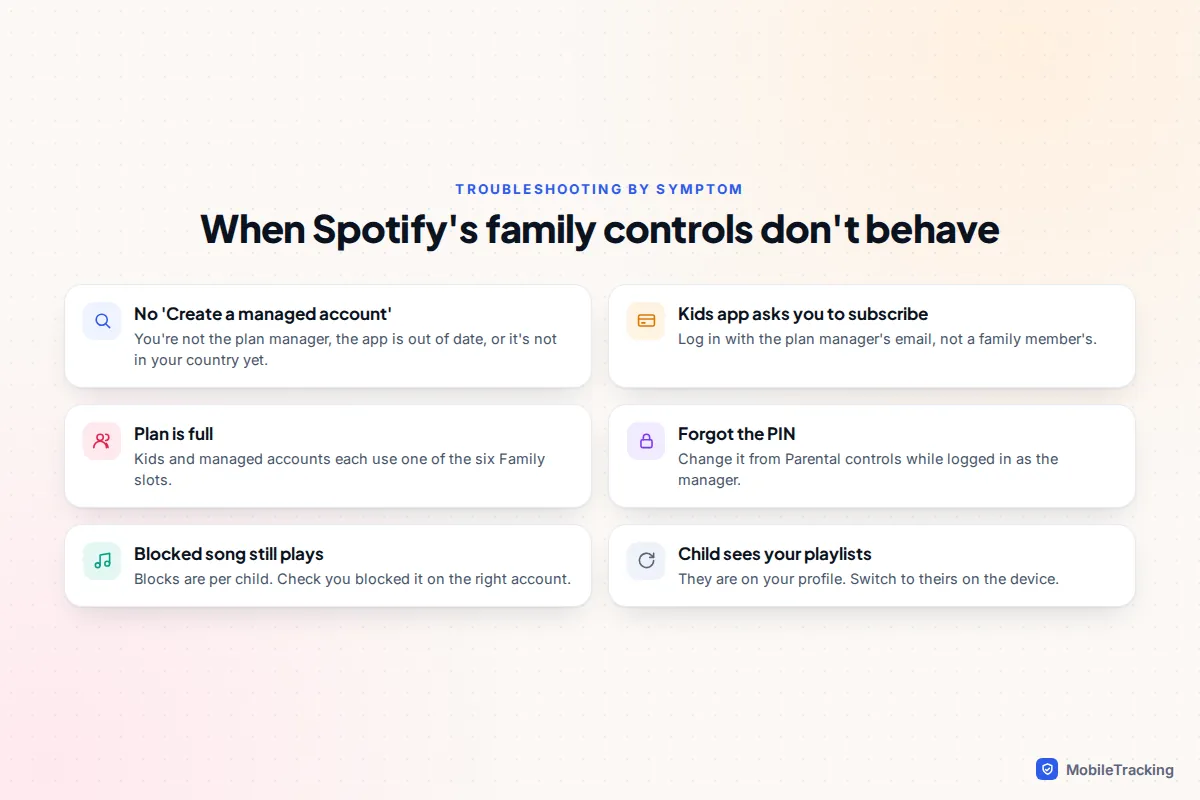
- “Create a managed account” isn’t there. Update the app, make sure you’re the Premium Family plan manager, and check your country. Free-tier managed accounts are still rolling out.
- Spotify Kids keeps asking you to subscribe. You’ve logged in with a family member’s account or an individual Premium account. It must be the plan manager’s.
- No space to add a child. Six places is the limit on Premium Family. Remove an old member who no longer uses it, such as a grown-up child who has moved out.
- Your child is hearing your music. They’re signed in as you. Switch to their profile, and don’t share your PIN.
- A song is still playing after you blocked it. Blocks apply per child, so check you blocked it on the right account.
A realistic scenario: Sam pays for Premium Family, and nine-year-old Leo wants the songs his friends talk about. Sam creates a managed account on his own phone in the evening, leaves explicit content and videos off, and logs Leo’s tablet into it. A month later Leo asks for a specific rapper; Sam checks the lyrics, decides no for now and blocks the artist, with an explanation rather than a flat refusal. For more on pitching those conversations, see our guide to streaming services and kids.
Frequently asked questions
Is Spotify Kids free?
No. The Spotify Kids app only works with a Premium Family subscription, and each child’s Kids account uses one of the six places on the plan. The free alternative is a managed account on Spotify’s free tier, where it’s available, which carries ads.
Has Spotify Kids been discontinued?
Not as of September 2026. It’s still downloadable and working, but Spotify is promoting managed accounts as the newer option, and that’s where recent features have appeared. Check the Spotify Kids help page for the latest status.
Can my child use a managed account without their own email address?
Yes. Managed accounts are created from your account using your child’s name and date of birth, and your child logs in by choosing their profile after you sign in. They only add an email when they graduate to their own account.
Can I see what my child listens to on a managed account?
The Spotify Kids app has a listening history in the grown-ups area. For managed accounts, Spotify’s published controls focus on explicit content, videos, Canvas and blocking artists or songs, so the simplest check is to switch to their profile now and then and look at their playlists and recently played, ideally with them.
Does it stop my child listening late at night?
No. Neither Spotify Kids nor managed accounts include time limits or bedtime schedules. Use the device’s own downtime or bedtime settings, and consider charging devices outside bedrooms overnight.