
 MobileTracking Editor
Losing a phone is already stressful. Losing a phone that is turned off feels even worse — because the moment that screen goes dark, most people assume it is simply gone, with no way to recover it. The GPS signal disappears. Calls to the number go straight to voicemail. Every tracking instinct you might have suddenly seems useless.
But that feeling of helplessness is not entirely accurate. While it is true that a powered-off phone cannot broadcast its live location in real time, there are several well-established methods that can still help you find it — or at least narrow down where it was when it went dark. Some of these methods rely on location data that was saved before the phone lost power. Others take advantage of offline-finding technology built into modern operating systems. A few are tools designed for ongoing peace of mind — apps that give you a low-battery alert before a phone ever shuts down, so you are not left scrambling after the fact.
This guide covers all of it. Whether your phone is Android or iPhone, Samsung or Pixel, whether it belongs to you or to a child you are trying to keep tabs on — you will find a relevant method here with step-by-step instructions and honest guidance on what each tool can and cannot do.
One important truth to set expectations before diving in: no tool can provide a real-time GPS location from a phone that is completely powered off — with a narrow exception for certain Pixel hardware. What these methods provide is the last known location before the phone shut down, or — with the right preparation — an offline ping picked up through a nearby device network. That last known location is often enough to recover a lost phone. Let us look at how.
Can You Really Track a Phone That Is Turned Off?
Before running through the methods, it is worth understanding what is technically happening — and what is not — when a phone powers off.
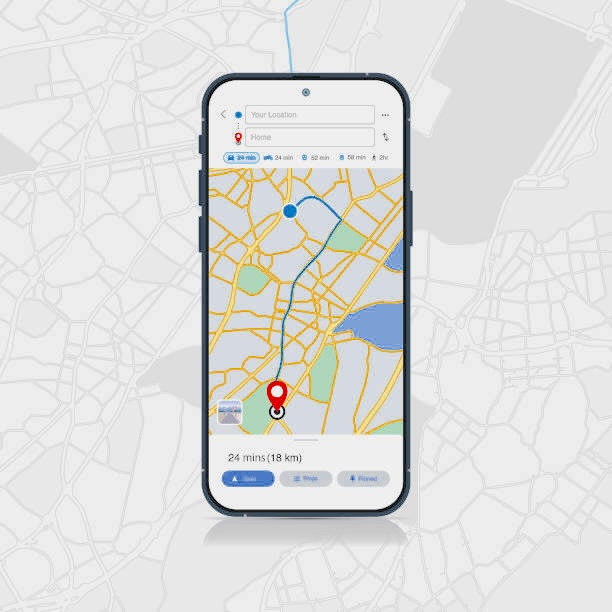
When a smartphone is running, it is continuously communicating with the outside world. The cellular radio connects to nearby towers. The GPS chip queries satellites. Wi-Fi scanning logs the locations of nearby networks. All of this generates a continuous stream of location data. When you open Google Maps or Find My iPhone, you are seeing a summary of this live data stream.
The moment a phone shuts down, all of those radios go silent. No more tower handshakes. No more GPS queries. No more Wi-Fi pings. From the network’s perspective, the device simply ceases to exist. This is why real-time tracking of a powered-off phone is not possible through conventional means.
However, several things remain possible:
Stored last-known location. Before the phone shut down — whether due to a dead battery or deliberate power-off — it recorded a location. Most tracking services store this as the “last location” and display it on a map even after the device goes offline. For many lost-phone scenarios, this last known location is accurate enough to lead you directly to the phone.
Offline finding networks. Apple and Google have both built passive Bluetooth-based networks into their ecosystems. When a phone with Offline Finding enabled goes dark, nearby devices belonging to other users can detect its Bluetooth signal and anonymously relay its location back to the owner — all without the lost device needing its own internet connection. Apple’s Find My network is the most developed version of this, though Google has expanded this capability in recent Android versions.
Pixel 8 hardware exception. Google’s Pixel 8 and Pixel 8 Pro introduced dedicated low-power hardware that allows the phone to respond to Find My Device queries even after the main system has shut down or the battery has died. This is a hardware feature specific to that generation and is not available on most other Android phones.
IMEI carrier records. Mobile carriers maintain records of which cell tower a device last connected to, identified by its IMEI number. This data can be used to approximate a phone’s last location, but carriers typically require legal authorization — a police report or court order — before sharing it with anyone other than law enforcement.
With that context established, here are the five most effective methods available to most people.
Method 1: Google Find My Device (Android)
Google Find My Device is the built-in tracking service for Android phones. It is free, requires no additional app installation, and works across virtually all Android devices — as long as certain conditions were met before the phone was lost.
Requirements
For Find My Device to show you a location, the lost phone must have had all of the following enabled before it shut down:
- Find My Device turned on — found in Settings > Google > Find My Device
- Location services enabled — found in Settings > Location
- An active Google account signed in — the same account you will use to search from another device
- Internet connectivity at some point before shutting down — the phone must have synced its location to Google’s servers at some point while it was still on
If all of these were in place, here is how to use the service.
Step-by-Step Instructions
Step 1: On any device with internet access — another phone, a tablet, or a desktop computer — open a browser and go to android.com/find. Alternatively, you can use the Find My Device app (available on Google Play) if you have another Android device handy.
Step 2: Sign in using the Google account that was logged into the lost phone. If you use the same Google account across multiple devices, this is likely the same account you use on your current device.
Step 3: After signing in, the interface will display all Android devices associated with your Google account. Select the lost phone from the list.
Step 4: The map will display the phone’s last known location — the most recent GPS coordinates that were synced to Google before the device went offline. A timestamp will tell you exactly when this location was recorded.
Step 5: If the location shown is somewhere accessible, you can navigate there directly. If the phone is nearby, you can also use the Play Sound option — though this only works if the phone is back online and has battery power.
Additional options: Find My Device also offers two remote actions that are useful depending on your situation. Secure Device lets you remotely lock the phone and display a custom message on the lock screen — useful if you think someone else has the phone and you want to prevent unauthorized access while you recover it. Erase Device permanently deletes all data on the phone — a last resort if recovery seems impossible and you are concerned about personal information.
Important note about two-factor authentication: If you are using a device that has not previously been signed into your Google account, or one you have not used in a long time, Google may require you to complete two-factor authentication before showing you the location data. Make sure you have access to your backup verification method — whether that is another trusted device, an authenticator app, or a backup phone number.
Pixel 8 Offline Exception
As mentioned earlier, the Google Pixel 8 and Pixel 8 Pro include dedicated low-power hardware that allows Find My Device to locate the phone even after it has been powered off or the battery has completely died. This feature must be enabled in Settings > Security & Privacy > Find My Device before the phone is lost. If it was enabled, the phone can respond to Find My Device queries for a limited period after shutdown, using only the phone’s reserved hardware power.
This is currently unique to the Pixel 8 lineup and is not available on other Android manufacturers’ devices.
Method 2: Samsung Find My Mobile
Samsung Galaxy users have access to a dedicated tracking service called Find My Mobile, which works independently of Google’s Find My Device and offers some capabilities that go slightly beyond it — most notably, the ability to locate devices that are offline using Samsung’s own network of Galaxy devices.
Requirements
- Find My Mobile enabled on the lost device — go to Settings > Biometrics and Security > Find My Mobile and toggle it on
- Location services enabled on the device
- A Samsung account signed in on the lost phone — this is separate from a Google account; it is a Samsung-specific account tied to your email address
- Optionally: Offline Finding enabled — this allows the device to be located even without an internet connection, using nearby Galaxy devices as relay points
Step-by-Step Instructions
Step 1: From any browser, navigate to smartthingsfind.samsung.com. Sign in using the Samsung account that was active on the lost phone.
Step 2: You will see a list of Samsung devices registered to your account. Select the lost phone.
Step 3: After a brief moment, the map will display the phone’s last known location. If Offline Finding was enabled and a nearby Galaxy device has detected the phone’s Bluetooth signal, the location may be more recent than the last active GPS sync.
Step 4: Depending on the phone’s current state, you may have additional options: Ring the device, Lock it remotely, Retrieve calls and messages from it, or initiate a Factory Reset if you believe it will not be recovered.
The Offline Finding Advantage
Samsung’s Offline Finding feature is one of the more practical advantages of using a Samsung device. When enabled, your Galaxy phone periodically emits a low-energy Bluetooth signal even when it has no Wi-Fi or mobile data connection. Other Galaxy phones in the vicinity — phones belonging to strangers who are simply nearby — can silently detect this signal and anonymously report it to Samsung’s servers. The whole process is encrypted and private; the stranger’s phone does not know it is helping, and they cannot see any identifying information about your device.
The practical upside is that your last known location is updated more frequently than it would be through GPS syncing alone, and it can continue to update for a short period even after your phone has no data connection — as long as there are other Galaxy devices nearby. In a city or a busy public space, this significantly increases the chances of getting a useful location fix.
Enable Offline Finding before you ever lose your phone: Settings > Biometrics and Security > Find My Mobile > Offline Finding, then toggle it on.
Method 3: Apple Find My (iPhone and Other Apple Devices)
Apple’s Find My service is widely considered the gold standard for consumer phone tracking — partly because of its enormous offline network, and partly because of how seamlessly it integrates across all Apple devices. If your lost phone is an iPhone, Find My is your primary tool.
Requirements
- Find My iPhone enabled on the lost device — found in Settings > [Your Name] > Find My > Find My iPhone
- Location Services enabled on the device
- An Apple ID signed in on the lost phone
- Optionally: Send Last Location enabled — this tells the iPhone to automatically send its GPS coordinates to Apple the moment the battery reaches a critically low level, giving you one final location update before shutdown
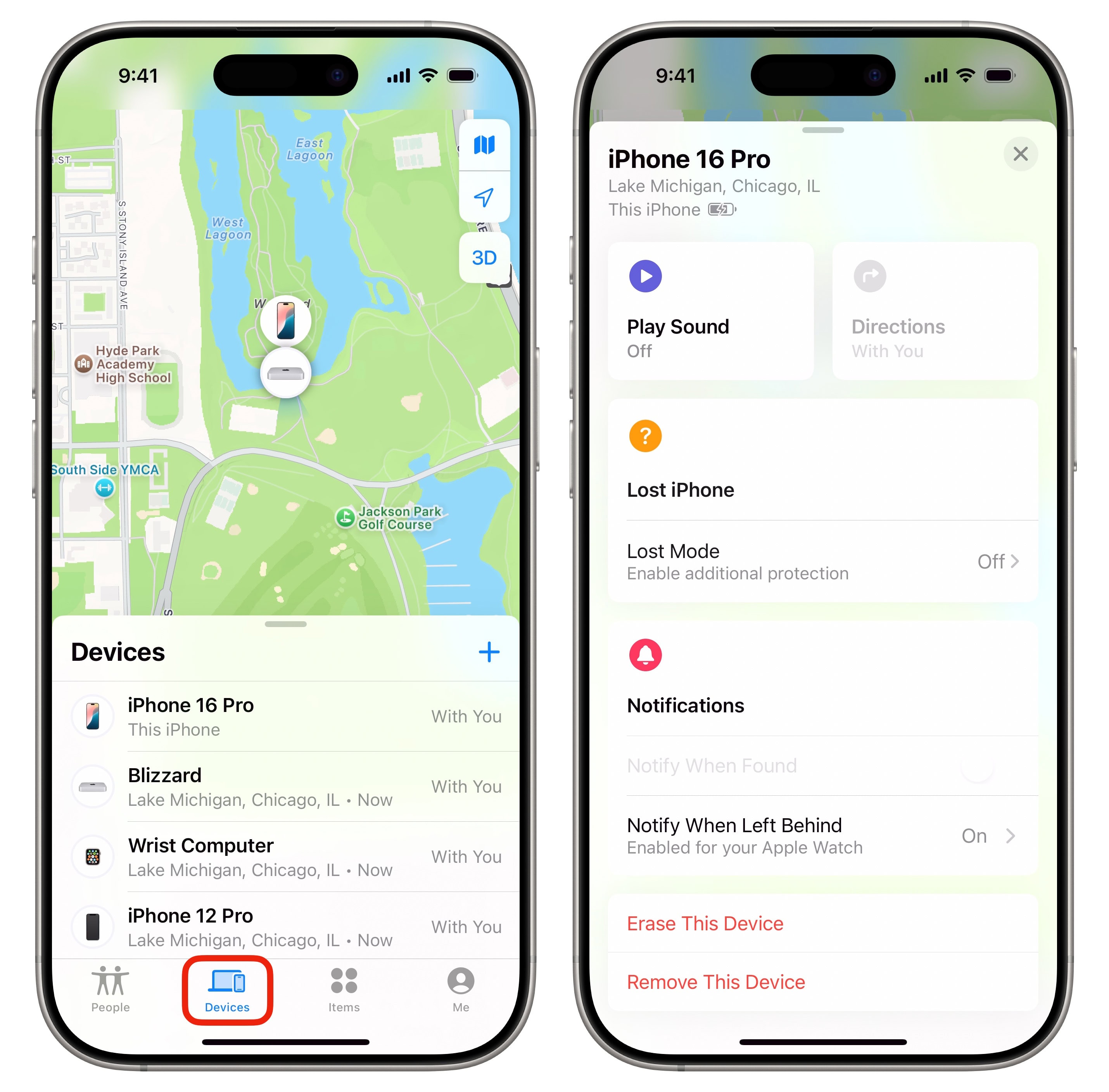
Option A: Using the Find My App on a Mac, iPad, or Another Apple Device
If you have another Apple device that shares the same Apple ID, this is the most direct method.
Step 1: Open the Find My app on your iPad, Mac, or another iPhone.
Step 2: Tap or click the Devices tab.
Step 3: Select the lost iPhone from the list of devices.
Step 4: The map will display its last known location. If the phone is offline, a label will indicate this alongside the timestamp of the last location sync. Tap Directions to open the location in Apple Maps or Google Maps.
Option B: Using iCloud.com from Any Browser
If you do not have another Apple device available, you can access Find My through Apple’s website from any computer or phone.
Step 1: Go to icloud.com/find and sign in with your Apple ID and password.
Step 2: If two-factor authentication is enabled on your account — which it likely is — Apple will send a verification code to a trusted device or phone number. Enter the code when prompted.
Step 3: Click All Devices at the top of the screen and select the lost iPhone.
Step 4: The last known location will be displayed on the map. Use the navigation option to get directions to that location.
Option C: Using Find My on Someone Else’s iPhone or Apple Device
If you do not have your own Apple device available and need to use a friend’s, this is still possible — with a few extra steps.
Step 1: Open the Find My app on your friend’s device.
Step 2: Tap their Apple ID in the upper-right corner and sign out of their account. (Do not worry — this only signs them out of Find My, not their entire device.)
Step 3: Sign in with your own Apple ID and password.
Step 4: Your devices will now appear. Select the lost iPhone and view the last known location.
Step 5: When you are done, sign out of your account and help your friend sign back into theirs.
Apple’s Find My Network: How It Works Offline
Apple’s offline-finding capability is powered by an enormous, anonymous network of over a billion active Apple devices. When your iPhone is powered off — or even in scenarios where it has been turned off intentionally — it can still emit a short-range Bluetooth signal using a small reserve of power retained for this purpose.
When a nearby iPhone belonging to anyone else passes within range, their device silently detects your phone’s Bluetooth signal and sends an encrypted location report to Apple’s servers. Because the entire process is end-to-end encrypted and anonymized, neither Apple nor the nearby stranger’s device knows who the lost phone belongs to or where the report came from. Only you — the account holder — can decrypt and see the location.
This network is what makes Apple’s Find My so effective even for powered-off devices. In urban environments with high iPhone density, offline location updates can continue arriving for hours after a phone shuts down. In rural areas with fewer nearby Apple devices, coverage may be spottier — but any update is better than nothing.
To make sure this is enabled on your iPhone: go to Settings > [Your Name] > Find My > Find My iPhone and confirm that both Find My iPhone and Find My Network are toggled on.
Method 4: Google Maps Timeline
Google Maps quietly records the location history of any Android device that has Location History enabled in the associated Google account. This timeline of movement — called Timeline in the app — can serve as a useful tool for piecing together where a lost phone has been, even after it has powered off.
This method works differently from Find My Device. Rather than showing you a single last-known location, Google Maps Timeline shows you a full historical record of everywhere the phone has been — plotted on a map, organized by day. This is particularly useful if the phone went missing over a longer period and you are trying to reconstruct where it might have ended up.
Requirements
- Location History must be enabled on the Google account linked to the phone — this can be enabled or disabled in your Google account settings
- You must be able to sign into that Google account from another device
Step-by-Step Instructions
Step 1: Open a browser on any device and go to google.com/maps. Sign in with the Google account that was active on the lost phone.
Step 2: Click the three horizontal lines (hamburger menu) in the upper-left corner of the screen to open the sidebar.
Step 3: Select Your Timeline from the menu.
Step 4: At the top of the Timeline view, click Today to see the most recent location data for the current day. A map with a line showing the phone’s movement will appear.
Step 5: Scroll through the timeline to find the most recent entry — the last location recorded before the phone went dark. This is where the phone was when it last had power and a data connection.
Step 6: Use that location as your starting point for recovering the phone. If the phone was left somewhere specific — a restaurant, a train seat, a parking lot — this last recorded location may point you directly to it.
Important Limitation
Google Timeline is only as current as the last time the phone was online with Location History enabled. If Location History was turned off, or if the phone had been on airplane mode for a while before shutting down, the Timeline may not reflect where the phone actually is. It is still worth checking — especially if you have used the phone’s Google account for a while — but treat the information as a starting point, not a definitive answer.
Method 5: MobileTracking Family Locator
The previous four methods are reactive — they help you find a phone after it has already gone missing. This fifth method takes a different approach: it is a proactive tool designed to keep you informed about a device’s location on an ongoing basis, so that a dead battery or a lost phone becomes a manageable situation rather than a crisis.
MobileTracking Family Locator is a family safety app designed primarily for parents who want continuous visibility into their children’s whereabouts and phone activity. Among its features is a low battery alert — a notification sent to the parent’s device when the child’s phone drops below a configurable battery percentage threshold. This means you get a heads-up before the phone ever shuts down, giving you a final, accurate location before the connection goes dark.
This solves one of the most frustrating aspects of tracking a powered-off phone: the fact that the “last known location” is only useful if it was recorded recently. With a low-battery alert, you have a clear, real-time location snapshot from just before shutdown — not one from hours earlier when the phone last synced.
Key Features
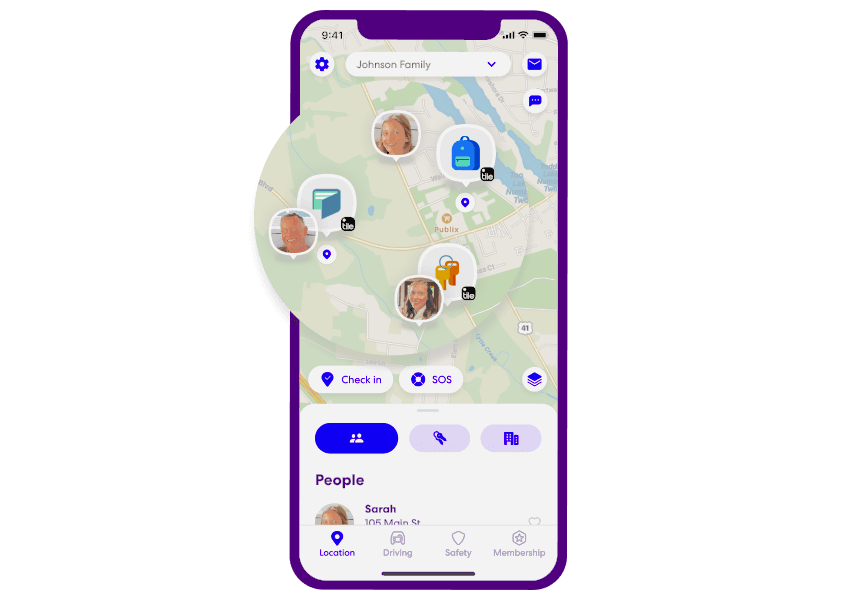
Real-time location tracking. The app displays the paired device’s current GPS location on a live map, updated continuously while the phone is on and has a data connection. You can check the child’s location at any time from your own phone.
Location history. MobileTracking stores up to 30 days of location history, giving you a detailed record of where the paired device has been throughout any given day. If a phone goes missing and you are trying to piece together a timeline, this history is invaluable.
Low-battery alert. This is the feature most directly relevant to tracking a phone before it turns off. When the paired device’s battery drops below a level you specify — say, 20% or 15% — the app immediately sends an alert to your phone. The alert typically includes the device’s current location, giving you an accurate, up-to-date fix before the phone goes dark.
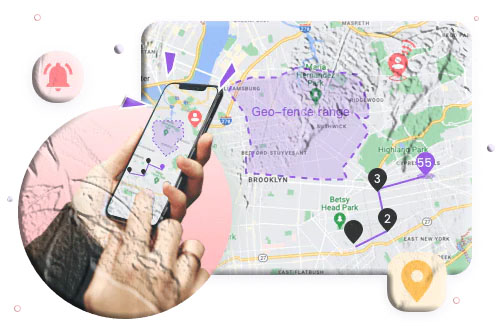
Geofencing with zone alerts. You can define virtual boundaries — a school perimeter, a neighborhood block, a sports facility — and receive instant notifications whenever the paired device enters or leaves those zones. This is useful not just for knowing where a child is, but for being alerted the moment something seems off.
Surrounding environment monitoring. MobileTracking includes a feature that allows you to remotely activate the paired device’s microphone and listen to what is happening around it in real time. This is designed for safety situations — for example, if you receive a low-battery alert from an unexpected location and want to assess whether the child is safe before acting.
App and screen time management. Beyond location, the app provides tools to view installed apps, set daily screen time limits, and block apps that are not age-appropriate — giving parents a fuller picture of how the device is being used.
How to Set It Up
Step 1: Download and install MobileTracking Parental Control from the Google Play Store on your own phone. Create an account using your email address and log in.
Step 2: On the child’s phone, download and install MobileTracking Kids — the companion app that pairs with your parent account.
Step 3: Open MobileTracking Kids on the child’s device. Follow the on-screen setup instructions and enter the pairing code displayed in your parent app to link the two devices.
Step 4: Grant the necessary permissions on the child’s phone — location access, notification access, and any other permissions the app requests to enable the features you want to use.
Step 5: Once paired, open your parent dashboard and tap the Location icon to see the child’s current position on the live map. To configure the low-battery alert, navigate to the alert settings and set the battery percentage threshold at which you want to be notified.
From that point on, you will receive a location-stamped alert whenever the child’s phone approaches the battery level you set — giving you consistent, proactive awareness rather than having to react after a phone has already gone dark.
Can You Track a Turned-Off Phone Using an IMEI Number?
The IMEI (International Mobile Equipment Identity) is a unique 15-digit number assigned to every mobile device. It is sometimes suggested as a way to track a lost or stolen phone, so it is worth addressing directly.
The short answer: not through public channels. Mobile carriers do have access to IMEI data and, in theory, can triangulate a phone’s last approximate location based on which cell towers it connected to. However, carriers do not make this information available to the general public on request. Accessing IMEI location data requires a formal request through legal channels — typically a police report or a court order.
If your phone has been stolen rather than simply lost, filing a police report and providing your IMEI number gives law enforcement the ability to formally request this data from your carrier. You can find your IMEI number by dialing *#06# on the lost phone (if it is still on), checking the phone’s original packaging, looking in your carrier account portal, or reviewing the receipt from your phone purchase.
Here are the general customer support contacts for the major U.S. carriers if you need to report a stolen device and discuss IMEI blocking or location assistance:
| Carrier | Customer Service |
|---|---|
| AT&T | 1-800-331-0500 |
| Verizon | 1-800-922-0204 |
| T-Mobile | 1-877-746-0909 |
| TracFone | 1-800-867-7183 |
| Straight Talk | 1-877-430-2355 |
Note that these are general customer service lines. For specific inquiries about stolen device reporting or IMEI blocking, visiting the carrier’s official website and navigating to their security or device protection section will give you the most accurate current guidance.
What to Do Immediately After Realizing Your Phone Is Lost
Acting quickly gives you the best chance of recovering a lost phone — especially since battery drain and the window for accurate location data both close quickly. Here is a recommended sequence of steps to take as soon as you realize your phone is missing.
Try calling or texting the phone first. If the phone is simply misplaced nearby — down a couch cushion, left in a bag, sitting somewhere in the house — calling it may make it ring and lead you straight to it. Even if the call goes to voicemail, that tells you something about the battery state.
Log into your tracking service immediately. Whether that is Google Find My Device, Samsung Find My Mobile, or Apple Find My, do this as quickly as possible while the last-known location data is still fresh and relevant.
Check Google Maps Timeline. If the native tracking tool is not showing a useful location, Timeline may fill in some gaps about where the phone was earlier in the day.
Enable Lost Mode. Both Apple Find My and Samsung Find My Mobile offer a “Lost Mode” or “Secure Device” option that locks the phone remotely and displays your contact information on the screen. This is useful if someone finds the phone and wants to return it — they can see how to reach you without accessing any of your data.
File a police report if theft is suspected. If you believe the phone was stolen rather than lost, a police report is necessary to trigger carrier-level IMEI tracking assistance and may also be required by your phone insurance provider to process a claim.
Contact your carrier to suspend the line. Suspending your phone number prevents anyone else from making calls or using mobile data on your account. You can typically do this online through your carrier’s account portal or by calling customer service.
Change sensitive passwords. If there is any chance the phone was taken by someone with bad intentions, change the passwords for your most sensitive accounts — email, banking, social media — from another device. Enable two-factor authentication on any account that does not already have it.
Preventing This from Happening Again
The best time to prepare for a lost phone is before you lose it. A few minutes of setup now can make a dramatic difference later.
Enable your platform’s find-my service today. Go to your phone’s settings right now — before you forget — and confirm that Find My Device, Find My Mobile, or Find My iPhone is turned on with location services enabled. This takes about thirty seconds and is the single most important step you can take.
Turn on Offline Finding. If you have a Samsung Galaxy phone, enable Offline Finding in Find My Mobile settings. If you have an iPhone, confirm that the Find My Network is enabled in your iCloud settings. These features work silently in the background and cost nothing, but they can be the difference between recovering a lost phone and not.
Enable Send Last Location on iPhone. Go to Settings > [Your Name] > Find My > Find My iPhone and toggle on Send Last Location. This guarantees you get one final GPS update from the phone as its battery dies — even if you forget to check the tracking app before it shuts down.
Use a family tracking app for ongoing peace of mind. If you are responsible for children who carry phones, an app like MobileTracking gives you a continuous stream of location data and alerts — including low-battery notifications that ensure you always have a recent location fix, regardless of whether the child remembers to keep the phone charged.
Consider a Bluetooth tracker as a backup. Devices like the Apple AirTag or Tile Mate can be slipped into a phone case and tracked independently of the phone itself. Even if the phone is powered off, the tracker may still be detectable via its own Bluetooth signal and the respective tracking network.
Enable a strong lock screen. A six-digit PIN or biometric lock does not help you find a lost phone, but it does prevent anyone who picks it up from accessing your personal data while you are working on recovery.
Frequently Asked Questions
1. Can I track a phone that is turned off in real time?
No — a powered-off phone cannot transmit its current GPS location. What tracking services can show you is the last location synced before the phone shut down. The exception is the Google Pixel 8 and Pixel 8 Pro, which have dedicated low-power hardware that allows Find My Device queries even after shutdown.
2. How accurate is the last known location for a turned-off phone?
It depends on how recently the phone synced its location before shutting down. If the phone was actively in use up until the moment it powered off, the last-known location can be accurate to within a few meters. If Location History was only updating periodically, it could be off by more. In either case, it narrows your search area significantly.
3. Does Apple Find My work when an iPhone is turned off?
Yes — to a significant extent. Apple’s Find My network uses nearby iPhones to relay the lost device’s Bluetooth signal, which continues briefly after shutdown. This can provide updated location data even after the phone is no longer powered on in the traditional sense. This feature must be enabled before the phone is lost.
4. Does Samsung Find My Mobile work offline?
Yes, if Offline Finding is enabled. Samsung’s network works similarly to Apple’s — nearby Galaxy devices can detect and anonymously relay the lost device’s Bluetooth signal. Enable Offline Finding in Settings > Biometrics and Security > Find My Mobile before you lose your phone.
5. Can I use IMEI to track my lost phone myself?
Not directly. IMEI location data is held by mobile carriers and is only accessible through official legal channels — a police report or court order. You can report your IMEI to your carrier and to police to initiate the official process, but you cannot personally access the carrier’s location records.
6. What if I never set up Find My Device or Find My iPhone before losing my phone?
If no tracking service was enabled before the phone was lost, your options are significantly more limited. Google Maps Timeline is still worth checking if Location History was on. Beyond that, retracing your physical steps, checking with venues you visited, or contacting your carrier about IMEI blocking are the remaining options.
7. How do I find my IMEI number if I do not have the phone?
Your IMEI is printed on the original phone packaging (usually on a sticker on the box). It is also visible in your carrier’s account portal under device details, and on your purchase receipt. If you registered the phone with the manufacturer, it may also appear in your account there.
8. Can I track a family member’s turned-off phone with MobileTracking?
MobileTracking shows real-time location while the device is on and retains the last known location after it goes offline. More usefully, it sends a low-battery alert before the phone shuts down — giving you an accurate, current location just before the connection is lost. This is one of its most practical features for the exact scenario of tracking a phone that subsequently powers off.
9. Will the phone owner know if I check their location through Find My?
On Apple devices, location sharing through Find My is based on mutual consent — both parties must agree to share locations. If you are viewing a device under your own Apple ID (i.e., it is your device), no notification is sent. For Samsung Find My Mobile, viewing the location of a device on your account does not send a notification. For third-party apps like MobileTracking, the behavior depends on how the app is configured.
10. Is it legal to track someone else’s turned-off phone?
Tracking your own device is always legal. Tracking a minor child’s phone with parental authority is generally legal in most countries. Tracking another adult’s phone without their consent is illegal in most jurisdictions, regardless of the method used. Always ensure you have the appropriate authority or consent before using any of the methods described in this guide.
Final Thoughts
Losing a phone that is turned off is frightening — but it is not necessarily hopeless. Google Find My Device, Samsung Find My Mobile, and Apple Find My all retain the last known location of a powered-off device, and with offline-finding features enabled, they can continue receiving location updates even after the phone goes dark. Google Maps Timeline provides a historical record that can fill in gaps. And proactive family tracking apps like MobileTracking take a step back from the reactive panic and replace it with consistent, ongoing awareness — including the critical low-battery alert that gives you a location snapshot right before a phone shuts down.
The common thread running through every effective method in this guide is preparation. Every tool works better — and in some cases, only works at all — if you have enabled the relevant settings before the phone is lost. A few minutes today to confirm that tracking features are active on your family’s devices is time that could save hours of frantic searching later.
If this guide helped you recover a lost device or prepared you to handle one in the future, pass it along to someone else who might need it. And if you have a specific situation not covered here, drop a question in the comments — we are glad to help.
Disclaimer: This article is for informational purposes only. Tracking another person’s device without proper authorization may be illegal in your jurisdiction. Always comply with applicable laws and obtain appropriate consent before using any location tracking service.





Add comment