
 MobileTracking Editor
Parenting has always involved balancing two competing instincts: the desire to protect your child from harm, and the need to give them space to grow, make mistakes, and build independence. For most of human history, that balance was managed through physical proximity and community — knowing where your child was because they were within earshot, or because a neighbor would let you know if something seemed off.
Today’s children inhabit a different kind of space. The moment a child has a smartphone, they carry with them a portal to virtually everyone and everything — a device that can connect them to friends, homework help, and entertainment, but also to strangers, inappropriate content, cyberbullies, and situations their parents cannot see or anticipate. And increasingly, they are physically mobile in ways that earlier generations were not — taking public transit, spending time in places that fall outside the traditional supervision of school and home.
Phone location tracking is one of the practical tools parents have in response to this reality. Knowing where your child is — in real time, reliably — gives you a foundation for the safety decisions you need to make every day. It does not replace trust, conversation, or the gradual granting of independence as children grow. But it provides a factual baseline that makes all of those things easier.
This guide covers four distinct methods for tracking your child’s phone, ranging from entirely free built-in solutions to comprehensive paid apps that extend monitoring well beyond location. For each method, we cover exactly how it works, step-by-step setup instructions, and an honest assessment of strengths and limitations — so you can choose the right tool for your child’s age, your family’s values, and your specific safety concerns.
We also address the legal and ethical dimension of phone monitoring honestly — because the “right” approach depends significantly on your child’s age, your relationship, and what kind of monitoring serves both safety and trust.
Is It Legal to Track Your Child’s Phone?
Before covering the methods, this question deserves a direct answer — because it comes up often and the answer is more nuanced than a simple yes or no.
For Minor Children
In most countries, parents and legal guardians have the legal authority to monitor their underage children’s devices. This is broadly recognized across the United States, the United Kingdom, Australia, Canada, and most European countries. The rationale is straightforward: parents are legally responsible for the wellbeing of their minor children, and monitoring tools are a reasonable part of fulfilling that responsibility.
In the United States, there is no federal law that prohibits parents from monitoring their minor child’s phone. In fact, most child safety advocacy organizations — including the National Center for Missing and Exploited Children — actively encourage parents to stay informed about their children’s digital activity.
As Children Approach Adulthood
The legal picture changes significantly as a child approaches or reaches adulthood. In the United States, a person is legally an adult at 18 in most states. Monitoring an adult child’s phone without their knowledge or consent — regardless of whether you are their parent — may constitute illegal surveillance under laws like the Electronic Communications Privacy Act.
The ethical dimension also shifts. A 17-year-old and an 18-year-old are practically the same person, but the legal and moral frameworks around their privacy are different. Many families handle this transition through open conversation: moving from monitoring-by-default to monitoring-by-agreement, where the now-adult child continues to share their location voluntarily because they understand the safety value of staying connected.
The Transparency Question
Even when monitoring is entirely legal — for a 12-year-old, say — the question of whether to tell the child about it is worth considering carefully. Research on adolescent development consistently finds that children who know they are being monitored and understand why tend to develop better decision-making skills than those who are monitored covertly without explanation. Transparent monitoring also preserves trust in ways that covert surveillance can undermine if and when it is discovered.
This guide presents methods that can be used with or without the child’s knowledge, depending on the app and the parent’s approach. We note where each method is visible to the child and where it operates in the background. The choice of approach is yours — made in the context of your child’s age, temperament, and your specific safety concerns.
Method 1: Google Find My Device (Android — Free)
Google Find My Device is the built-in location tool for Android phones, developed and maintained by Google. It is free, requires no additional app installation on the parent’s device, and works through any web browser or the Find My Device app. It was originally designed to help users locate their own lost or stolen phones, but its core functionality — showing a device’s GPS location on a map — works equally well for parents monitoring a child’s Android device.
How It Works
Find My Device works by linking to the Google account signed into the child’s phone. As long as Location Services is enabled on the device, Find My Device reports the phone’s current GPS coordinates to Google, which you can view on a map by logging into the same Google account.
This creates a monitoring arrangement where you can check the child’s location at any time from any device, browser, or the Find My Device app — without any visible indicator appearing on the child’s phone that someone is checking. The child is not notified when their location is viewed through Find My Device.
What You Need
- An active Google account signed into the child’s Android phone
- Location Services enabled on the child’s phone (Settings > Location — toggle on)
- Find My Device enabled on the child’s phone (Settings > Google > Find My Device — toggle on)
- The child’s phone must be on, have battery, and be connected to the internet
Step-by-Step Setup
Step 1: On the child’s Android phone, open Settings and navigate to Google > Find My Device. Confirm the toggle is switched on.
Step 2: Also confirm that Location is enabled in Settings > Location. The more accurate the location mode (GPS, Wi-Fi, and mobile networks), the more precise the results.
Step 3: On your own device, open a browser and go to google.com/android/find and sign in with the Google account that is active on the child’s phone. Alternatively, download the Find My Device app from the Google Play Store on your own Android phone.
Step 4: After signing in, you will see a list of devices registered to the account. Select the child’s phone. The map will display its current or last known location.
Step 5: Bookmark this page or save the app for easy access whenever you want to check the child’s location.
Honest Assessment
Find My Device is convenient for one-off location checks — for example, confirming a child has arrived somewhere safely, or finding a lost phone. However, it is not designed for continuous monitoring. It does not offer geofencing alerts, location history, or notifications when the child’s phone moves outside a designated area. It is also limited to the moment you actively check — there is no ongoing tracking or logging.
It also stops working entirely if the child’s phone is off, in airplane mode, or has no internet connection. For younger children who are always within a predictable range of home, school, and a few trusted locations, this level of monitoring may be sufficient. For situations that call for more proactive alerting or historical route data, the methods below offer more.
Pros: Completely free, no installation required on parent’s device, works from any browser, operates without visible indicator on child’s phone.
Cons: No geofencing alerts, no location history, stops working when phone is off or offline, requires parent to actively check rather than providing automatic alerts.
Method 2: Apple Find My (iPhone — Free)
Apple Find My is Apple’s integrated location sharing system, built into every iPhone running iOS 13 or above. Unlike Google’s Find My Device, which is primarily a lost-device tool, Apple’s Find My was explicitly designed for people sharing locations with each other — including family members through Apple’s Family Sharing feature.
How It Works
Apple Find My operates through two mechanisms. The first is direct location sharing — a person actively chooses to share their location with specific contacts, and both parties can see each other’s positions. The second, available through Family Sharing, integrates with parental oversight features that give parents visibility into a child’s location without requiring ongoing active sharing from the child.
Apple’s Find My also benefits from the vast Find My network — over a billion active Apple devices that can passively detect and relay the location of a family member’s device even when it is offline or the battery is low, using anonymous Bluetooth signals. This makes it significantly more capable than Google’s equivalent for offline location scenarios.
What You Need
- Both parent and child must have iPhones or Apple devices with iOS 13 or above
- Child must have an Apple ID
- Family Sharing must be set up, or the child must actively share their location
Setup via Family Sharing (Recommended for Younger Children)
Step 1: On the parent’s iPhone, go to Settings > [Your Name] > Family Sharing. If Family Sharing is not yet set up, tap Set Up Your Family and follow the prompts.
Step 2: Invite your child to join the family group using their Apple ID. If they are under 13 and do not have an Apple ID, you can create one for them through this process.
Step 3: Once your child is part of the Family Sharing group, open the Find My app on your iPhone and tap the People tab.
Step 4: Your child should appear in the list. Tap their name to see their current location on the map. You can also tap the location pin for route options, to set a notification for when they arrive at or leave a specific place, and to see how long ago the location was last updated.
Setup via Direct Location Sharing (For Older Children)
Step 1: On the child’s iPhone, open the Find My app.
Step 2: Tap the People tab, then tap the + icon or Share My Location.
Step 3: Enter the parent’s phone number or Apple ID and send the sharing invitation.
Step 4: Select Share Indefinitely to maintain ongoing location sharing rather than a time-limited share.
Step 5: Accept the invitation on the parent’s device. The child’s location will now appear in the parent’s Find My app.
Important Note on Visibility
Unlike Google Find My Device, the direct location sharing method in Apple Find My is visible to the child — they can see that they are sharing their location with you and can stop sharing at any time from within the app. The Family Sharing method for children under 13 is less easily disabled, but older teenagers with Family Sharing accounts can manage their sharing preferences. This is one reason transparent communication about monitoring tends to work better than attempting covert tracking on iPhone.
Pros: Completely free, offline finding through the Find My network, geofencing notifications available, works across all Apple devices, reliable and privacy-respecting.
Cons: Child can see sharing is active and may disable it, Android devices cannot be tracked, requires both parties to have Apple devices.
Method 3: Google Family Link (Android and iPhone — Free)
Google Family Link is Google’s dedicated parental supervision platform, available free on both Android and iOS. Unlike Find My Device — which is primarily a device locator — Family Link is a comprehensive parental oversight tool that combines location tracking with app management, screen time controls, content filters, and activity reports.
For parents who want a free solution that provides meaningful daily-use parental controls alongside location visibility, Family Link is the most capable free option available.
How It Works
Family Link creates a supervised relationship between a parent’s Google account and a child’s Google account. Through this relationship, the parent can see the child’s location, view their app activity, approve or deny new app downloads, set daily screen time limits, and lock the device remotely. The child’s phone operates normally but with the parent’s account able to see and influence activity.
For location specifically, Family Link shows the child’s current location with GPS accuracy and allows setting location-based alerts — notifications when the child arrives at or leaves a designated place.
What You Need
- A Google account for both parent and child (parents can create child accounts for children under 13)
- The child must be using an Android phone (location tracking is Android-only; the parent app is available for both Android and iPhone)
- The Family Link app on both devices
Step-by-Step Setup
Step 1: Download Google Family Link from the Google Play Store (for Android parents) or Apple App Store (for iPhone parents).
Step 2: Open the app and tap Get Started. You will be asked whether your child already has a Google account. If yes, tap Yes and sign in with their account. If not, tap No to create a supervised Google account for them through the setup process.
Step 3: On the child’s Android phone, open Settings > Google > Parental Controls and confirm that this is the child’s device by following the on-screen prompts.
Step 4: Complete the supervised account setup by following the remaining prompts in the Family Link parent app on your device.
Step 5: Once setup is complete, open Family Link on your device and tap your child’s name. Tap the Location tab or the Locate button to see their current GPS position. The map shows their location along with the battery level of their device.
Step 6: To set up location alerts, tap the location section and look for Set Locations or the geofencing option. Add key locations — home, school, a grandparent’s house — and configure arrival and departure alerts.
Honest Assessment
Family Link is more capable than Find My Device because it actively manages the child’s device — not just locating it. However, its location tracking has a notable limitation: it can take longer to update than real-time GPS apps, making it less suitable for situations where you need immediate, current location data. For routine safety monitoring — confirming a child arrived at school, checking that they are where they said they would be — it is perfectly adequate.
Pros: Completely free, combines location with app management and screen time controls, works from Android or iPhone parent device, supports location alerts.
Cons: Location updates can be slow, setup is more involved than Find My Device, only tracks Android child devices, setup on the child’s phone is visible.
Method 4: MobileTracking Parental Control (Android — Comprehensive Paid Option)
The three free methods above cover location tracking well, but they share a fundamental limitation: they tell you where the phone is, not what is happening on it. For parents who want visibility into not just location but also the broader digital activity on a child’s device — messaging apps, social media, browser history, screen content — a dedicated parental monitoring app provides a different category of oversight.
MobileTracking Parental Control is a comprehensive parental monitoring app for Android that combines GPS location tracking with a full suite of device monitoring features, all accessible from a parent dashboard that can be viewed on your own phone or through a web browser.

What Makes It Different
The core distinction between MobileTracking and the free options above is depth of visibility. Rather than providing a single map pin showing where the phone is, MobileTracking provides a continuous stream of information about what is happening on and around the phone — including:
- Where the phone is, in real time
- Where it has been, with a detailed route history
- What apps are open and for how long
- What notifications are arriving and from whom
- What the screen shows right now
- What the environment around the phone sounds like
For parents managing real safety concerns — a child who is being bullied online, a teenager whose social media activity has become worrying, a situation where knowing location alone is insufficient — this depth of monitoring is genuinely valuable.
Location Features in Detail
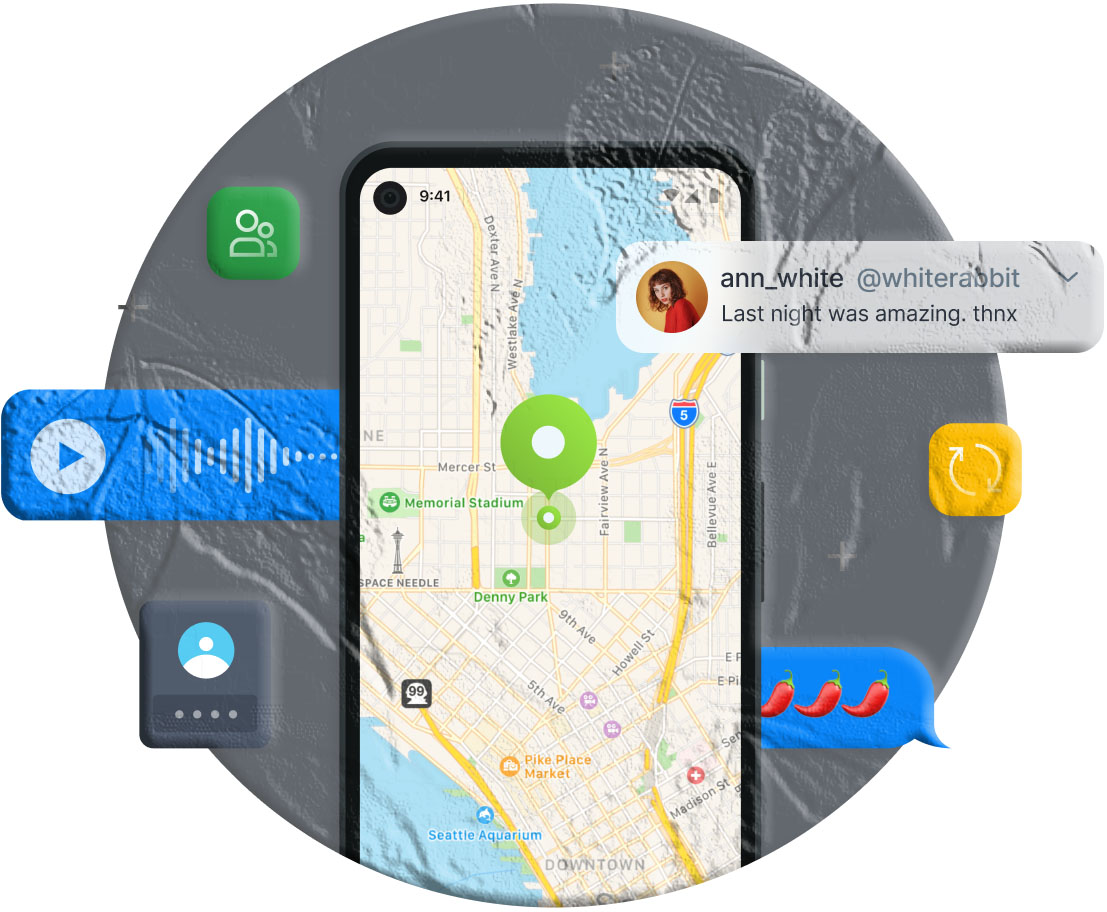
Real-time GPS tracking. MobileTracking shows the child’s current position on a live map, updated continuously while the phone is on and connected. Unlike Family Link, which can lag, MobileTracking’s location updates are designed for real-time accuracy.
30-day location history. The app stores a detailed location timeline for up to 30 days, allowing parents to review exactly where the phone was throughout any given day — not just the current position. Routes are displayed on a scrollable map, showing the path traveled and time spent at each location.
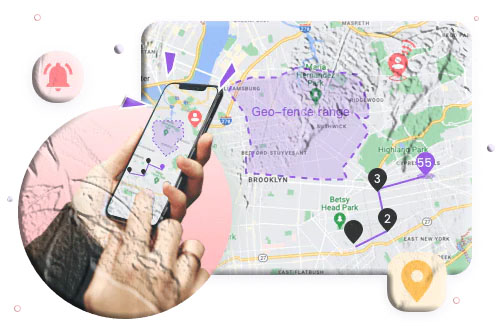
Geofencing with instant alerts. Parents can draw virtual boundaries around key locations — home, school, sports facilities, a friend’s house — and receive immediate push notifications the moment the child’s phone enters or leaves those zones. This removes the need to actively monitor the map; the app alerts you automatically when something changes.
Low-battery alert with location. When the child’s phone battery drops below a threshold the parent sets, an alert fires to the parent’s device. Critically, this alert includes the child’s current GPS coordinates — providing a final location snapshot before the phone potentially powers off. This addresses one of the most frustrating gaps in standard location tracking: not knowing where the phone was when it ran out of battery.
Beyond Location: Full Monitoring Features
Screen mirroring. Parents can view the child’s phone screen in real time from their own device. This shows whatever is currently on screen — WhatsApp chats, social media feeds, games, browser activity — as it is happening. This feature is particularly useful when combined with location data, giving context to what a child is doing in a given place.
Ambient audio monitoring. The app allows a parent to remotely activate the microphone on the child’s device and hear the surrounding environment in real time. This goes beyond digital activity monitoring — it lets parents assess the physical situation around the child when concerned about their immediate safety.
Notification monitoring. MobileTracking captures notification previews from all apps on the child’s device, providing a feed of incoming messages, social media alerts, and other notifications that the parent can review. This includes WhatsApp message previews, which appear in notifications before the app is opened.
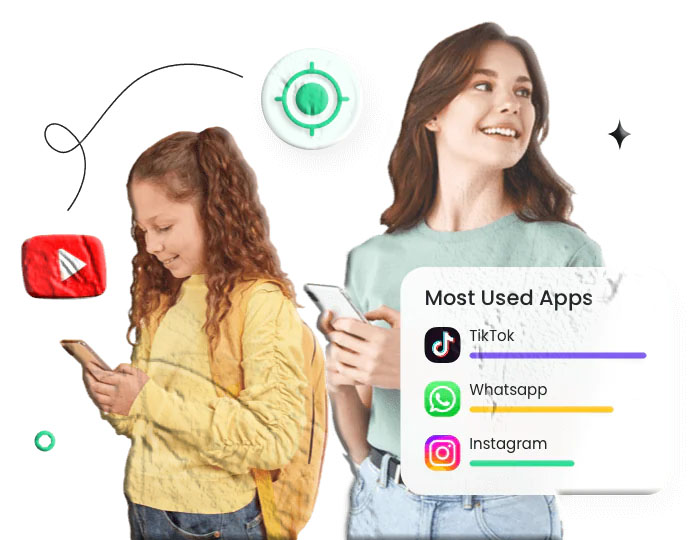
App usage monitoring and blocking. See exactly which apps are installed on the child’s device and how much time is spent in each one. Block apps that are not age-appropriate, and set daily usage limits for specific apps or categories of apps.
SMS and keyword alerts. Configure specific words that trigger an instant alert when they appear in incoming message notifications. If a concerning keyword — related to bullying, self-harm, substance use, or contact from strangers — appears in any incoming notification, the parent is immediately notified.
Stealth operation. On Android devices, MobileTracking Kids (the companion app installed on the child’s phone) can be set to operate without a visible icon on the home screen or app drawer. This means the monitoring continues without the child being able to see or interact with it directly.
How to Set Up MobileTracking
Step 1: Download and install MobileTracking Parental Control from the Google Play Store on your own phone. Open the app, create an account, and log in.
Step 2: On your child’s Android phone, download and install the MobileTracking Kids companion app.
Step 3: Open MobileTracking Kids on the child’s phone. Enter the pairing code shown in your parent dashboard to link the two devices.
Step 4: Complete the permissions setup on the child’s phone, granting access to location, notifications, screen monitoring, and other features you want active.
Step 5: From your parent dashboard, tap the Map icon to see real-time location. Navigate to History to review past routes. Set up geofence zones under Geofencing. Access screen mirroring, notification monitoring, and app management from the corresponding tabs.
Step 6: Configure your alert preferences — including geofence alerts, low-battery notifications, and keyword alerts — from the settings section of your dashboard.
MobileTracking offers a 3-day free trial, after which a subscription is required. Given the breadth of features, it represents the most complete monitoring solution of the four methods in this guide.
Pros: Real-time GPS with 30-day history, geofencing alerts, low-battery location alert, screen mirroring, ambient audio monitoring, app blocking, notification monitoring, keyword alerts, stealth mode operation.
Cons: Not free (3-day trial available), currently supports Android child devices only.
How to Choose the Right Method for Your Situation
With four distinct methods available, the right choice depends on your child’s age and device, your specific safety concerns, and your budget.
For Basic Free Location Checking (Android)
Google Find My Device is the simplest starting point. No setup beyond ensuring the Google account is signed in and Location Services is on. Check location anytime from a browser. Best for parents who need occasional location checks without continuous monitoring.
For Basic Free Location Checking (iPhone)
Apple Find My through Family Sharing is the equivalent for iPhone families. Free, reliable, works even offline through the Find My network. Best for iPhone-to-iPhone family setups where you want location plus arrival/departure alerts without paying for an app.
For Free Location Plus App and Screen Time Controls
Google Family Link is the strongest free option when you want monitoring beyond just a map pin. App approval, screen time limits, content filters, and location in one free platform. Best for younger children (under 13 particularly) on Android, where you want to actively manage device usage alongside knowing where they are.
For Comprehensive Monitoring Including Digital Activity
MobileTracking Parental Control is the right choice when location alone is not enough — when you need to see what is happening on the device, not just where it is. The combination of real-time GPS, 30-day history, geofencing, screen mirroring, notification monitoring, and app blocking makes it the most complete option for parents managing serious safety concerns or wanting a complete picture of a child’s digital life.
The Broader Conversation: Monitoring, Trust, and Independence
Phone tracking is a tool, not a parenting strategy. Used thoughtfully, it complements everything else you are doing to keep your child safe. Used poorly — as a substitute for communication, or as a way to extend control past the point where it serves safety — it can damage trust and push children to hide things rather than come to you.
A few principles that tend to produce good outcomes:
Start with the why, not the how. Before setting up any monitoring, have a direct conversation with your child about why you are doing it. “I want to know you are safe when you are out” is a different conversation starter than “I don’t trust you.” The first invites cooperation; the second invites resistance.
Match the monitoring level to the child’s age and maturity. A 10-year-old with a phone who walks to school for the first time needs different oversight than a 16-year-old who has been managing their own schedule for years. Escalating monitoring without reason, or failing to reduce it as a child demonstrates trustworthiness, creates friction.
Use monitoring as a safety net, not a surveillance tool. The goal is to be informed when something is wrong — not to review every message or track every movement for its own sake. Setting up geofence alerts for key locations and checking location when you have a specific reason is different from actively watching the map every hour.
Review and adjust as the child grows. What is appropriate monitoring for an 11-year-old is not appropriate for a 16-year-old. Plan to revisit your monitoring approach annually and discuss any changes with your child. Gradually reducing oversight as trust is established is a healthy progression.
Frequently Asked Questions
Can I track my child’s phone without installing anything on their device?
With Google Find My Device, you can view the location of any Android device that is signed into a Google account you have access to — from a browser, without installing anything on your own phone. However, the device itself still requires Find My Device to be enabled. There is no method that works entirely without any configuration on the target device.
How can I see everything on my child’s phone without them knowing?
MobileTracking Parental Control offers the most comprehensive monitoring in stealth mode — screen mirroring, notification capture, location tracking, app usage, and ambient audio monitoring, all from your parent dashboard. Its stealth mode hides the companion app icon from the child’s home screen. Note that this level of monitoring is most appropriate for younger children; for older teenagers, transparent monitoring tends to produce better outcomes.
What if my child turns off location services to avoid being tracked?
This is a common concern. On Google Family Link, children cannot turn off Location Services without the parent’s PIN. On Apple Find My through Family Sharing, a parent can prevent the child from disabling location sharing through Screen Time restrictions. On MobileTracking, location tracking continues as long as the companion app is running. No monitoring solution is completely resistant to a determined teenager who understands the technology, but parental control apps with PIN-protected settings significantly raise the bar.
Can I track my child’s iPhone from my Android phone?
Apple Find My requires Apple devices on both ends. For cross-platform scenarios (parent on Android, child on iPhone), Google Family Link’s location feature does not support iPhone child devices. Life360 is a cross-platform family location app that supports both Android and iOS in the same family circle. For comprehensive monitoring of an iPhone from an Android device, iOS-specific parental control apps like Qustodio or Bark provide web dashboards accessible from any device.
At what age should I stop tracking my child’s phone?
There is no universal answer. Most parents move toward transparent, voluntary location sharing by the time a child is 16 to 17, and many families continue mutual location sharing into college for safety and coordination rather than oversight. The legal question — where monitoring without consent becomes illegal — generally applies at 18 in most U.S. states. The practical transition point is when your child is demonstrating consistent, trustworthy judgment about their own safety.
Can my child uninstall the tracking app?
Most dedicated parental monitoring apps include a password-protected uninstall feature — the child cannot remove the app without a PIN known only to the parent. This applies to MobileTracking and most comparable apps. Built-in solutions like Find My Device and Family Link are similarly protected through Google account settings. No protection is absolute against a technically sophisticated teenager with physical access to the device, but password protection stops casual attempts.
What is the difference between Google Find My Device and Google Family Link?
Find My Device is a basic device locator — it shows you where a phone is on a map. Family Link is a full parental control platform that includes location tracking plus app management, screen time limits, content filters, activity reports, and the ability to remotely lock the device. Find My Device is better for lost-device recovery; Family Link is better for ongoing child monitoring.
Is there a free app that does everything MobileTracking does?
No free app combines real-time GPS, 30-day location history, geofencing, screen mirroring, ambient audio monitoring, and notification capture in a single platform. Google Family Link offers the strongest free location and control feature set for Android, but it does not include screen mirroring or ambient audio. The additional capabilities in MobileTracking reflect features that require ongoing server infrastructure to support, which is why they come with a subscription cost.
Final Thoughts
Tracking your child’s phone is not about distrust — it is about having reliable information in a world where children face genuine risks that were not present a generation ago. The tools available today make it easier than ever to maintain safety-relevant awareness of your child’s location and digital activity without following them physically or demanding constant check-in calls.
The four methods in this guide cover the full spectrum of needs and budgets. Google Find My Device and Apple Find My provide free, reliable basic location visibility built into the platforms your child’s phone already runs. Google Family Link extends that into free comprehensive parental controls suitable for younger children. And MobileTracking Parental Control provides the deepest monitoring available for parents whose situation calls for more than a map pin.
Whichever method you choose, pair it with open communication. The most effective approach to child safety is always one that combines good tools with good relationships — technology that tells you where your child is, combined with trust that makes them want to tell you themselves.
Disclaimer: Monitoring laws vary by jurisdiction and age of the child. This guide is for informational purposes only. Always ensure your use of monitoring tools complies with applicable laws in your country or state.






Add comment