
 MobileTracking Editor
WhatsApp is no longer just a social messaging app. For hundreds of millions of people around the world, it is the primary way they communicate — with friends and family, yes, but also with colleagues, clients, customers, and entire business operations run on nothing but WhatsApp groups and voice notes. According to WhatsApp’s own statistics, the platform handles over 100 billion messages every single day across more than 180 countries.
Given that scale and dependency, the moment your messages stop delivering — that sinking feeling when you see a single gray tick where you expected two — can range from mildly inconvenient to genuinely disruptive. Missing a client follow-up, failing to receive time-sensitive information, or being unable to reach a family member when it matters can all stem from the same technical hiccup: a WhatsApp message that was sent but never delivered.
The good news is that most delivery failures are fixable, and usually within a few minutes. The key is understanding what the different indicators in WhatsApp actually mean — what that single gray tick is telling you versus no tick at all — and then working through the causes systematically until you find the one that applies to your situation.
This guide covers every reason why WhatsApp messages fail to deliver, what each visual indicator means, and a step-by-step troubleshooting process that addresses each cause. We also cover some less obvious scenarios — server outages, blocked contacts, outdated app versions, and background data restrictions — that often get missed when people run through a basic troubleshooting checklist. By the end, you will have a clear, complete picture of what is going wrong and exactly how to fix it.
Part 1: Understanding WhatsApp’s Message Status Indicators
Before jumping into fixes, it is essential to understand what WhatsApp is actually telling you through its tick system. These small icons carry specific meanings, and misreading them leads to trying the wrong fix for the wrong problem.
The Four Message States in WhatsApp
One gray tick (✓): Your message has been successfully sent from your phone and received by WhatsApp’s servers. This is the “sent but not delivered” state. The message has left your device, traveled to WhatsApp’s infrastructure, and is waiting there to be pushed to the recipient’s phone. The problem at this point is entirely on the recipient’s side — their phone is not currently able to receive the message, which typically means they are offline, their phone is off, they have no internet connection, or they have recently uninstalled WhatsApp.
Two gray ticks (✓✓): Your message has been delivered to the recipient’s phone. Their WhatsApp app has received it and it is waiting in their inbox. They have not yet opened the conversation.
Two blue ticks (✓✓): The recipient has opened the conversation and read your message. If you see blue ticks and someone claims they did not see your message, they almost certainly have.
No tick at all (spinning clock or circle): Your message has not left your device yet. It is stuck in the outgoing queue on your phone. This is a problem on your end — your phone cannot connect to WhatsApp’s servers to send the message. This almost always means your internet connection is the issue.
Understanding this distinction is the single most important diagnostic step. If you see one gray tick, stop trying to fix your own connection — your messages are going through fine. Focus on the recipient’s situation. If you see no tick, stop worrying about the recipient — the problem is local to your device.
What About No Ticks After a Long Time?
If a message has been sitting with a clock/loading indicator for more than a few minutes and your internet connection appears to be working for other apps, WhatsApp itself may be experiencing a connectivity issue or the app may need to be refreshed. This is different from a brief sending delay, which is normal when transitioning between Wi-Fi and mobile data.
Read Receipts Can Be Disabled
One thing worth knowing: the blue tick (read receipt) can be disabled by any user in their WhatsApp privacy settings. If someone has turned off read receipts, your messages will show two gray ticks after delivery but will never turn blue — even after they have read the message. This is a privacy choice and has nothing to do with delivery failure.
Part 2: Why WhatsApp Messages Are Not Being Delivered — Every Cause
There are seven distinct categories of causes behind WhatsApp delivery failures. Understanding all of them is important because the fix for each one is different.
Cause 1: Internet Connectivity Problems on Your End
The most common cause of the “no tick” scenario — where the message never leaves your device — is a problem with your own internet connection. WhatsApp requires a working internet connection to send messages. Without it, messages queue up on your device and wait for connectivity to be restored before they are transmitted.
This can happen in several ways:
- Your Wi-Fi connection has dropped, even if the Wi-Fi icon is still showing (a connected router that has lost internet access will show as “connected” on your phone but have no actual internet)
- Your mobile data connection is weak, congested, or temporarily unavailable
- You have reached your monthly mobile data limit and data has been throttled or cut off
- Airplane mode is on, either deliberately or accidentally
- A VPN you are using is interfering with WhatsApp’s ability to connect to its servers
Cause 2: Internet Connectivity Problems on the Recipient’s End
The “one gray tick” scenario — where your message has sent fine but is sitting on WhatsApp’s servers, not delivered — is almost always caused by a connectivity issue on the recipient’s end. Their phone may be:
- Off or out of battery
- In airplane mode
- In an area with no mobile signal or Wi-Fi
- Connected to Wi-Fi but that Wi-Fi has no internet access
- Running WhatsApp in a restricted background mode that is blocking incoming notifications (common on battery-saving modes on Android)
In all of these cases, the one tick will automatically upgrade to two ticks the moment the recipient’s phone comes back online — without you needing to resend the message.
Cause 3: You Have Been Blocked by the Recipient
If you send messages to one specific contact and they perpetually show only one gray tick — or sometimes no ticks at all — while your messages to everyone else deliver normally, there is a possibility that person has blocked you.
WhatsApp deliberately makes it difficult to confirm whether you have been blocked, because it does not want blocking to become a point of conflict. The indicators are indirect:
- Messages to that contact show one tick only, for an unusually long time
- You can no longer see their profile picture (it appears blank or shows the default silhouette)
- You can no longer see their “last seen” status or their online indicator (even if you previously could)
- Any calls you attempt to that contact do not connect
No single one of these is definitive proof of being blocked — each has other possible explanations (privacy settings, phone off, etc.). But if you observe all four simultaneously and consistently, it is a strong indication.
Cause 4: The Recipient Has Uninstalled or Changed Their WhatsApp
If someone uninstalls WhatsApp or gets a new phone number without transferring their account, messages sent to their old account will show one gray tick indefinitely — because the account exists in WhatsApp’s system but is no longer actively connected to a running app on a device.
This is common when people switch phone numbers, get new devices, or decide to take a break from WhatsApp.
Cause 5: WhatsApp App Needs an Update
WhatsApp regularly releases app updates that address bugs, improve connectivity, and patch security vulnerabilities. An outdated version of WhatsApp can develop bugs that affect message sending, particularly after a server-side update that the old app version is not compatible with.
If your WhatsApp version is significantly behind the current release, you may experience intermittent sending failures, messages that appear to send but do not actually transmit, or notification delivery failures.
Cause 6: WhatsApp’s Servers Are Down
WhatsApp — like any internet service — occasionally experiences outages. When the service’s servers go down, no one can send or receive messages. This affects all users simultaneously and is generally resolved within minutes to a few hours. WhatsApp is part of Meta’s infrastructure, which also includes Facebook and Instagram. Major outages often affect all Meta properties simultaneously.
You can check the current status of WhatsApp’s servers at downdetector.com/status/whatsapp/ or similar service monitoring sites. If there is a widespread outage, the site will show a spike in user-reported problems.
Cause 7: Background Data or Battery Restrictions
On Android particularly, aggressive battery optimization settings can prevent WhatsApp from running in the background — which means it cannot maintain a connection to WhatsApp’s servers when the app is not actively open. This results in incoming messages not arriving until you open WhatsApp manually, and can also cause outgoing message delays.
On some Android devices (notably from manufacturers like Huawei, Xiaomi, Samsung with aggressive One UI optimization, and OnePlus), these battery optimization settings are applied automatically and can silently break WhatsApp’s background functionality without any obvious indication to the user.
Part 3: How to Fix WhatsApp Message Not Delivered — Step-by-Step Solutions
Work through these solutions in order, since the earlier ones address the most common causes. If one does not resolve the issue, move on to the next.
Fix 1: Check and Restore Your Internet Connection
This is always the first step, regardless of what the ticks show, because it rules out the most common cause immediately.
Step 1: Open your phone’s notification shade or Control Center and check that Wi-Fi or mobile data is turned on. If you are on Wi-Fi, confirm that the Wi-Fi icon shows a proper connection — not an exclamation mark or “No Internet” indicator.
Step 2: Open a browser and try loading a website — google.com is a reliable choice because it loads quickly even on slow connections. Try watching a short video or loading a high-resolution image. This gives you a definitive answer about whether you actually have internet access, rather than just a connection to a router.
Step 3: If the internet is not working on Wi-Fi, try switching to mobile data (or vice versa). This is the fastest workaround and will often allow messages to go through while you troubleshoot the primary connection.
Step 4: If Wi-Fi is the problem, restart your router by unplugging it, waiting 30 seconds, and plugging it back in. This resolves a large proportion of home Wi-Fi connectivity issues. If you are at a public hotspot, try disconnecting and reconnecting.
Step 5: Toggle airplane mode on for ten seconds, then back off. This forces your phone to drop all network connections and re-establish them from scratch, which often resolves minor connectivity glitches without requiring a full restart.
Step 6: If you are using a VPN, temporarily disable it and test WhatsApp. Some VPN configurations are incompatible with WhatsApp’s connection protocols, and the app may fail to connect when routed through certain VPN servers.
Fix 2: Contact the Recipient Through Another Channel
If your messages are showing one gray tick (sent but not delivered), the problem is on the recipient’s end and there is nothing more you can do to your own setup to fix it. The practical solution is to reach them through another channel and let them know their WhatsApp is not receiving messages.
Try these options:
- Send an SMS (regular text message) to their phone number — this works without internet and will alert them to check their connection
- Call their phone number directly
- Reach them through another messaging app — Signal, Telegram, iMessage, email, or any platform you both use
- If this is a business contact, try their official email or any contact method listed on their website
Once they check their connection or come back online, your queued WhatsApp messages will deliver automatically.

Fix 3: Restart WhatsApp and Your Phone
Sometimes WhatsApp’s connection to its servers becomes stuck in an error state that does not resolve itself automatically. A fresh start can clear this.
Step 1: Fully close WhatsApp — not just pressing the home button, but actually swiping it closed from your recent apps menu.
Step 2: Wait ten seconds, then reopen WhatsApp. Watch to see if the queued messages send automatically upon reconnecting.
Step 3: If that does not work, restart your phone entirely. A full restart clears cached network states, refreshes app permissions, and resolves low-level software issues that can affect background connectivity. This is not a glamorous fix, but it resolves a surprisingly high proportion of unexplained app behavior issues.
After restarting, open WhatsApp and let it run for a minute while connected to the internet. Any messages that were queued should send automatically.
Fix 4: Update WhatsApp to the Latest Version
An outdated app version is a frequently overlooked cause of messaging issues. WhatsApp’s client-server communication is version-specific in certain ways, and a very old version may not communicate correctly with WhatsApp’s current server infrastructure.
On Android:
Step 1: Open the Google Play Store.
Step 2: Tap your profile icon in the upper-right corner and select Manage apps & device.
Step 3: Tap Updates available. If WhatsApp appears in the list, tap Update next to it. Alternatively, search for “WhatsApp” directly in the Play Store and tap Update if it appears instead of Open.
On iPhone:
Step 1: Open the App Store.
Step 2: Tap your profile picture in the upper-right corner.
Step 3: Scroll down to the list of apps with available updates. If WhatsApp is listed, tap Update next to it.
After updating, relaunch WhatsApp and test whether messages are sending correctly.
Fix 5: Disable Battery Optimization for WhatsApp (Android)
On Android devices, battery optimization settings can prevent WhatsApp from maintaining its background connection — which means messages may not send or receive reliably unless the app is actively open on screen. Disabling optimization for WhatsApp fixes this without meaningfully affecting your overall battery life.
The exact path varies by Android manufacturer, but here is the general approach:
Step 1: Go to Settings > Battery (or Battery & Performance on some devices).
Step 2: Look for Battery Optimization or App Battery Management (some manufacturers label this differently — “Power-intensive app prompts,” “Background app management,” or similar).
Step 3: Find WhatsApp in the list and change its setting to Don’t Optimize or Unrestricted (the exact label depends on your device).
On Samsung Galaxy devices specifically: Go to Settings > Apps > WhatsApp > Battery > Battery Usage and select Unrestricted. Also check Settings > Battery > Background Usage Limits and make sure WhatsApp is not in the restricted list.
On Xiaomi/MIUI devices: Go to Settings > Apps > Manage Apps > WhatsApp > Battery Saver and set it to No restrictions. Also check Settings > Battery & Performance > App Battery Saver for additional restrictions.
After making these changes, restart WhatsApp and monitor whether it maintains a stable connection when running in the background.
Fix 6: Clear WhatsApp’s Cache (Android)
Over time, WhatsApp accumulates cached data that can occasionally become corrupted and interfere with the app’s normal operation. Clearing the cache removes this temporary data without deleting your chats or media.
Step 1: Go to Settings > Apps (or Application Manager) and find WhatsApp.
Step 2: Tap Storage (or Storage & Cache).
Step 3: Tap Clear Cache. Do not tap “Clear Data” — that would delete your local app data including chat history if not properly backed up.
Step 4: Relaunch WhatsApp and test message sending.
This fix is Android-specific. On iPhone, clearing the app cache requires deleting and reinstalling the app, which is covered in the next step.
Fix 7: Reinstall WhatsApp
If none of the above fixes have worked, reinstalling WhatsApp addresses app-level corruption that cannot be resolved through settings changes. This should fix issues caused by a partial or corrupted update, damaged installation files, or persistent bugs that have not cleared with restarts and cache clearing.
Before reinstalling, back up your chats:
On Android: Open WhatsApp > Settings > Chats > Chat Backup > Back Up Now. This backs up your chat history to Google Drive.
On iPhone: Open WhatsApp > Settings > Chats > Chat Backup > Back Up Now. This backs up to iCloud.
Without a backup, reinstalling WhatsApp will delete your local chat history. With a backup in place, you can restore everything during the reinstallation process.
After backing up:
Uninstall WhatsApp from your device (press and hold the app icon > Uninstall on Android, or press and hold > Remove App on iPhone).
Reinstall from the Google Play Store (Android) or App Store (iPhone).
During setup, verify your phone number and restore from your backup when prompted.
Fix 8: Check Whether WhatsApp’s Servers Are Down
If your internet connection is working fine, your app is up to date, and messages still will not send to anyone — not just one contact — there may be a WhatsApp service outage.
Step 1: Visit downdetector.com/status/whatsapp/ from another device or browser. This site aggregates real-time user outage reports and provides a graph of reported issues over the past 24 hours. A spike in reports confirms an ongoing outage.
Step 2: Check social media — Twitter/X in particular tends to surface WhatsApp outage reports rapidly. Searching “WhatsApp down” will surface recent reports if an outage is underway.
Step 3: If an outage is confirmed, there is nothing to do but wait. WhatsApp’s engineering teams prioritize service restoration quickly — most outages resolve within 30 minutes to a few hours. Your queued messages will send automatically once service is restored.
Step 4: During an outage, consider switching to an alternative messaging platform temporarily. Signal and Telegram are both capable WhatsApp alternatives that are free and available on both Android and iPhone, and do not share Meta’s infrastructure. For international business contacts, having Signal or Telegram installed as a backup means you are never fully without a communication option during Meta outages.
Fix 9: Check if You Have Been Blocked
If messages to one specific contact show one gray tick indefinitely and you suspect you may have been blocked, there are a few indirect checks you can perform.
Check their profile picture. Open the chat. If you can no longer see their profile picture and it shows a blank silhouette, they may have blocked you — though users can also set their profile picture visibility to contacts only, which produces the same result.
Check their last seen. If you previously could see their last seen timestamp and now it shows nothing at all, this can indicate blocking. However, users can also disable last seen visibility in their privacy settings.
Try calling through WhatsApp. Open the chat, tap the call icon, and attempt a WhatsApp voice call. If the call does not connect at all and shows no ring, it may be blocked. If it rings without answer, they are simply not picking up.
Send a message from a completely different number. If you have access to another phone with a different number that is not in their contacts, send a WhatsApp message from that number. If it delivers normally (two ticks), it confirms that WhatsApp is working on their end — and that the delivery failure from your number is likely due to blocking or another contact-specific issue.
If you determine you have been blocked, the appropriate response depends entirely on the nature of your relationship with that person. In a personal context, respect their decision and use another channel only if genuinely necessary. In a professional context, reaching out through email or a phone call to clarify the communication breakdown is the professional approach.
Part 4: Monitoring WhatsApp on a Child’s Phone — A Note for Parents
WhatsApp is extremely popular among teenagers, and for parents it presents a specific challenge: the app’s encryption means that messages cannot be intercepted or monitored through standard means. This makes it difficult to know whether a child is engaging in safe, appropriate conversations or communicating with people who may not have their best interests at heart.
For parents who want visibility into their child’s WhatsApp usage without invading privacy beyond what is age-appropriate, MobileTracking Parental Control offers monitoring features specifically designed for this scenario.
What MobileTracking can help parents monitor around WhatsApp:
App usage time. See how much time a child is spending in WhatsApp — including whether usage spikes at unusual hours, like late at night when the child should be sleeping.
Screen mirroring. View the child’s screen in real time from a parent dashboard, including what is visible in WhatsApp at any given moment.
Notification monitoring. Incoming WhatsApp message previews can appear in the notification panel, and MobileTracking can capture these to give parents visibility into incoming messages before they are opened.
Surrounding audio monitoring. If there is a safety concern about the environment a child is in — not just their digital activity — the app allows a parent to remotely activate the phone’s microphone to hear ambient sounds around the device.
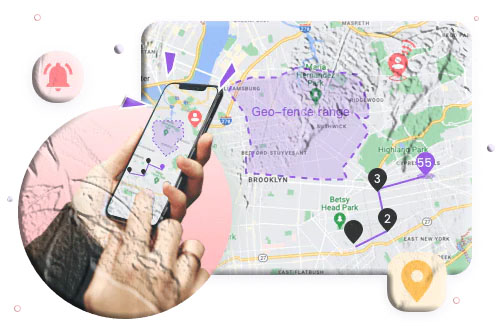
Real-time location. Parents can view the child’s GPS location on a live map, with 30 days of location history and geofencing alerts for designated safe zones.
App blocking and screen time limits. If a parent decides WhatsApp usage needs to be curtailed during homework hours, study time, or at bedtime, MobileTracking provides app blocking and scheduling tools to enforce those boundaries automatically.
How to set it up:
Step 1: Download MobileTracking Parental Control from the Google Play Store on your own phone and create an account.
Step 2: On your child’s Android phone, install the MobileTracking Kids companion app.
Step 3: Open MobileTracking Kids on the child’s device, enter the pairing code from your parent app dashboard, and complete the permission setup — granting access to screen mirroring, notifications, location, and other features you want active.
Step 4: From your parent dashboard, navigate to the relevant monitoring sections. Screen activity is available under the Screen Mirroring tab; location is under the Location tab; app usage data is visible under App Management.
As with any parental monitoring tool, transparency tends to produce the best long-term outcomes. Children who know monitoring is in place and understand the reasoning behind it — safety, not control — tend to be more cooperative and more likely to communicate openly with parents about things they encounter online.
Part 5: Setting Up a Messaging Backup for When WhatsApp Is Down
Because WhatsApp experiences occasional outages — and because for many people and businesses it has become a critical communication channel — having a backup option ready before an outage occurs is simply good practice.
The ideal backup option is an app that:
- Is free and available on both Android and iOS
- Does not rely on Meta’s infrastructure
- Can handle both individual and group messaging
- Works for international contacts without additional cost
Two apps meet these criteria particularly well:
Signal (Android | iOS) is end-to-end encrypted, open-source, and runs on completely independent infrastructure from Meta. It has a user interface similar to WhatsApp, making it an easy transition. Its privacy reputation is strong — recommended by security researchers and privacy advocates globally.
Telegram (Android | iOS) is fast, free, supports very large groups, and has no file size limits on shared media. It is not end-to-end encrypted by default (though it offers Secret Chats that are), but for general communication backup purposes it is highly capable and widely used internationally.
The key with either backup option is installing it proactively — sharing it with your most important contacts and establishing the habit of knowing how to reach each other outside of WhatsApp. An app that requires a 20-minute setup in the middle of a WhatsApp outage is not a backup; it is an additional source of frustration.
Frequently Asked Questions
Why is my WhatsApp message showing only one tick and not delivering?
One gray tick means your message left your phone and reached WhatsApp’s servers successfully, but has not been delivered to the recipient’s device yet. This is almost always because the recipient’s phone is offline — turned off, in airplane mode, out of signal range, or WhatsApp is restricted in the background on their device. The message will deliver automatically as soon as they come back online. There is nothing wrong with your phone or connection.
Why won’t WhatsApp send my message at all — no tick, just a clock?
No tick and a loading indicator means the message has not left your device yet. The problem is on your end — your phone cannot connect to WhatsApp’s servers. Check your internet connection first: confirm Wi-Fi or mobile data is working by testing another app or browser. If internet is working but WhatsApp still will not connect, try toggling airplane mode, restarting the app, and restarting the phone.
Can messages fail to deliver because of the recipient’s phone settings?
Yes. On Android particularly, aggressive battery optimization can prevent WhatsApp from running in the background, which means it cannot receive messages while the app is not open. If a contact repeatedly seems to receive your messages late — only after they open WhatsApp — their battery optimization settings are likely the cause. They need to set WhatsApp to “Unrestricted” or “Don’t Optimize” in their battery settings.
How do I know if someone blocked me on WhatsApp?
WhatsApp does not send a notification when you are blocked. Indirect indicators include: messages to that contact showing only one tick for an unusually long time, inability to see their profile picture or last seen status, WhatsApp calls not connecting, and their name appearing without any profile photo. No single indicator is definitive, but multiple indicators together suggest blocking. A practical test is sending a message from a different phone number — if it delivers normally, the issue is contact-specific.
Is WhatsApp down for everyone or just me?
Check downdetector.com/status/whatsapp/ to see if there are widespread reports of WhatsApp being down. If the site shows a spike in user reports, it is a server-side outage affecting everyone. If there are no reports, the problem is specific to your device, account, or network.
Will my unsent WhatsApp messages send automatically when the internet comes back?
Yes. Messages that failed to send because of a connectivity issue on your end are held in a queue on your device and will transmit automatically the moment your internet connection is restored — without you needing to resend them. Similarly, messages that were sent to a recipient who was offline will deliver automatically the moment they come back online.
My WhatsApp is up to date and my internet works, but messages still won’t send. What now?
Try these additional steps: clear WhatsApp’s cache (Android only — Settings > Apps > WhatsApp > Storage > Clear Cache), disable any VPN you have active, check that WhatsApp is not restricted in your phone’s battery optimization settings, and try reinstalling WhatsApp after backing up your chats. If none of these work, the issue may be temporary and related to WhatsApp’s servers — check Downdetector for outage reports.
Why do some people get my WhatsApp messages but one specific person does not?
If messages deliver fine to everyone except one contact, the issue is specific to that contact — either they have a connectivity problem, they have uninstalled WhatsApp, they have changed their phone number, or they have blocked you. Try reaching them through another channel (SMS, phone call, email) to determine which scenario applies.
Can WhatsApp deliver messages without mobile data?
Yes — if you are connected to Wi-Fi, WhatsApp uses that connection instead of mobile data. WhatsApp works on any internet connection, whether that is Wi-Fi, mobile data (3G, 4G, 5G), or even a slow connection. However, it does require some form of internet connectivity — it cannot send messages via SMS or without any network connection.
Is it safe to use WhatsApp for sensitive or confidential conversations?
WhatsApp uses end-to-end encryption for all messages, meaning only the sender and recipient can read the content — not WhatsApp, Meta, or any intermediary. However, device security matters: if someone has access to your phone or your chat backup is stored in an unencrypted form in cloud storage, messages could potentially be accessed. For highly sensitive conversations, Signal is generally considered the gold standard for secure messaging, with stronger privacy defaults and an open-source architecture that has been independently audited.
Final Thoughts
A WhatsApp message that fails to deliver is almost always solvable — and usually within a few minutes once you understand what the indicators are telling you. The single gray tick points to the recipient’s side; no tick at all points to your own connection. That distinction alone saves most people from applying the wrong fix to the wrong problem.
For the situations where it is not a simple connectivity issue — an outdated app, background data restrictions, a Meta server outage, or a blocked contact — the fixes covered in this guide address each scenario specifically. Work through them in order, from the simplest (checking your connection) to the more involved (reinstalling the app or checking server status), and you will identify the cause.
For families with children using WhatsApp, the platform’s encryption makes content visibility challenging. A parental control app like MobileTracking gives parents a practical way to maintain age-appropriate oversight around the app — monitoring usage time, screen activity, and location context — without requiring any special access to WhatsApp’s messaging infrastructure itself.
And regardless of your situation, taking ten minutes today to install Signal or Telegram as a backup communication channel means that the next time WhatsApp or Meta experiences a service outage, you have a ready alternative and the ability to reach your most important contacts through it without any scrambling.
Disclaimer: App features, settings menus, and WhatsApp interface details may vary between Android and iOS versions and between different phone manufacturers. Steps described in this guide are accurate for current versions of WhatsApp at the time of writing.





Add comment