
 MobileTracking Editor
Most people have a vague sense that they spend too much time on their phone. But vague feelings are not especially useful when you are trying to make real changes — either for yourself or for a child in your household. What actually works is data: knowing specifically which apps are consuming your time, for how long, and at what hours of the day.
Apple has built a surprisingly powerful tool for this directly into every iPhone running iOS 12 and above. It is called Screen Time, and if you have never explored it beyond accidentally tapping into it while browsing Settings, you are probably underestimating what it can do. Screen Time tracks exactly how much time you spend in every app on your phone — broken down by day, by week, by category, and by individual app — and it gives you tools to set limits, schedule downtime, and control which apps can be accessed and when.
For parents, Screen Time is particularly valuable. iOS includes parental oversight features that let parents monitor a child’s device activity remotely, approve or restrict specific apps, set age-based content filters, and lock settings with a passcode so children cannot simply turn the limits off themselves. And for parents who need visibility that goes further than what Apple’s native tools offer — including monitoring across messaging apps, social platforms, and real-time location — dedicated parental control apps extend that oversight significantly.
This guide covers all of it in detail. Whether you want to understand your own digital habits, get your child’s iPhone under better control, or find the right combination of native and third-party tools for your family’s specific situation, you will find step-by-step guidance here.
Part 1: Understanding iPhone Screen Time
Before getting into the specific steps, it helps to understand what Screen Time actually is and what it tracks — because the tool is more capable than most people realize, and knowing its scope helps you use it more effectively.
Screen Time is Apple’s built-in digital wellness and parental control feature, introduced in iOS 12 and continually expanded in subsequent iOS updates. It operates at the system level, meaning it tracks activity across the entire device — every app, every website visited in Safari, every notification received — without requiring any third-party software or additional setup beyond enabling the feature.
Here is what Screen Time tracks and makes visible to you:
Daily and weekly app usage. Screen Time records how many minutes (or hours) you spend in each app, every day. This data is aggregated into daily totals and weekly averages, and is displayed as a bar chart so you can see patterns across the week at a glance.
App categories. Apps are grouped into categories — Social Networking, Entertainment, Games, Productivity, Education, Utilities, and others — so you can see not just individual app usage but what types of content are consuming your time.
Pickup count and first pickup. Screen Time tracks how many times per day you pick up your phone and what the first app you opened was each time. This is a surprisingly revealing metric that tells you a lot about phone habit patterns — particularly whether you are reaching for the phone reflexively and what is triggering that behavior.
Notification count. The feature tracks how many notifications you receive from each app, which can help identify apps that are constantly pulling your attention even when you are not actively using your phone.
Website activity. Time spent on websites visited through Safari is also tracked, organized by domain.
Downtime and app limits. Beyond tracking, Screen Time lets you set time limits on specific apps or categories and schedule Downtime periods during which only approved apps are accessible.
All of this data is stored on the device and synced across your Apple devices if you have the same Apple ID signed in on multiple devices. For parents using Family Sharing, Screen Time data from a child’s device can be viewed remotely from the parent’s iPhone — a feature we will cover in detail later in this guide.
To access Screen Time, go to Settings > Screen Time. If you have never used it before, tap Turn On Screen Time and follow the brief setup process.
Part 2: How to Check App Usage on iPhone — Three Methods
Method 1: Check the Daily and Weekly Usage Report
The most straightforward way to see your app usage is through Screen Time’s built-in activity report, which gives you a comprehensive view of your usage across both individual days and the full week.
Step 1: Open the Settings app on your iPhone. Scroll down and tap Screen Time.
Step 2: At the top of the Screen Time screen, you will see a summary bar showing your usage for the current day or the daily average for the current week. Tap on this bar or tap See All Activity just below it to open the full report.
Step 3: At the top of the activity view, you will see a toggle between Day and Week. Tapping Day shows usage broken down by hour for the selected date — you can swipe left to move back through previous days. Tapping Week shows the weekly aggregate, with a bar for each day and a total or daily average.
Step 4: Scroll down through the report to see the data organized in several sections:
- Most Used: A ranked list of the apps you have spent the most time in, showing exact hours and minutes for the selected period
- Categories: A breakdown by content category (Social Networking, Entertainment, Games, etc.) showing how your time is distributed across different types of apps
- Pickups: How many times you picked up the phone and the time of your first pickup each day
- Notifications: Which apps are sending you the most notifications
This report is updated continuously throughout the day and resets at midnight. The weekly report is calculated automatically and does not require any manual logging or tracking on your part.
What to look for: Most people are surprised by two things when they first look at their Screen Time report in detail. First, the total daily usage number — which for many adults exceeds three to four hours — often comes as a genuine shock when they see it as a concrete figure rather than a vague feeling. Second, the gap between how much time they expected to spend on specific apps (social media, news, games) and how much they actually did is often larger than they anticipated.
Method 2: Check Individual App Usage in Detail
If you want to go deeper than the overall ranking and understand the usage pattern for a specific app — when during the day you are using it, how that has changed over the week — Screen Time lets you drill into individual apps.
Step 1: Go to Settings > Screen Time > See All Activity.
Step 2: In the Most Used section, scroll through the list of apps. Tap on any individual app to open its detailed usage view.
Step 3: The individual app screen shows you a bar chart of usage for that app across the days of the current week, along with the total time spent. You can see which days had heavy usage and which were lighter, making it easy to spot patterns — for example, discovering that you spend significantly more time on a social app on weekends, or that a game is mostly played late at night.
Step 4: The screen also shows how many notifications that app sent during the period. A high notification count alongside high usage time often suggests the app is drawing you back in through alerts rather than you choosing to open it — which is useful information if you are trying to reduce usage.
This per-app view is particularly useful for parents reviewing a child’s Screen Time, as it lets you focus on specific apps you are concerned about rather than just looking at aggregate totals.
Method 3: Check Total App Usage for the Week
For a quick, high-level view of your overall screen time across the past seven days, Screen Time provides a weekly total view.
Step 1: Open Settings > Screen Time.
Step 2: In the summary area at the top of the Screen Time screen, the current weekly average is displayed. Tap See All Activity.
Step 3: With the Week toggle selected at the top of the activity view, scroll down to see the full week’s usage across all apps and categories.
Step 4: The weekly view also includes a comparison to the previous week — a small indicator showing whether total usage is up or down, expressed as both a raw number (minutes or hours) and a percentage. This week-over-week comparison is one of the most motivating elements of Screen Time for people who are actively trying to reduce their phone usage, because it gives a clear success or failure signal without requiring any manual tracking.
Part 3: How to Set App Time Limits on iPhone
Checking usage is the first step. Acting on what you see — setting limits — is where Screen Time becomes genuinely useful as a habit-change tool. Here is how to set time limits for specific apps or categories on your own iPhone.
Setting Limits for App Categories
Step 1: Go to Settings > Screen Time and tap App Limits.
Step 2: Tap Add Limit. If Screen Time has a passcode set, you will be asked to enter it.
Step 3: You will see a list of app categories — Social Networking, Entertainment, Games, Creative, Education, Productivity & Finance, Utilities, and others. Tap the checkbox next to any category you want to limit. You can select multiple categories to apply a combined limit.
Step 4: Tap Next in the upper-right corner. On the following screen, use the time picker to set the daily time limit. You can set different limits for specific days of the week — for example, a more generous limit on weekends and a stricter one on school days.
Step 5: Tap Add to confirm. The limit is now active.
Step 6: When the daily limit for a category is reached, apps in that category will show a hourglass icon and display a “Time Limit” screen when opened. The user can tap Ignore Limit to request more time — which can be granted for one more minute, fifteen minutes, or the rest of the day, or denied entirely if a passcode is set.
Setting Limits for Individual Apps
If you want to limit a specific app rather than a whole category, the process is almost identical:
Step 1: Go to Settings > Screen Time > App Limits > Add Limit.
Step 2: On the category selection screen, tap the disclosure arrow next to any category to expand it and see individual apps within that category. Tap the checkbox next to specific apps to select them.
Step 3: Set the time limit and tap Add.
This granularity lets you, for example, limit only Instagram within Social Networking while leaving other social apps unrestricted — or limit only specific games while allowing educational apps in the same category to run freely.
Setting Up Downtime
Downtime is a related feature that blocks access to all apps except specifically approved ones during a scheduled time window. It is designed for bedtime, study periods, or family dinner hours — times when you want the phone to be essentially unavailable without turning it off entirely.
Step 1: Go to Settings > Screen Time > Downtime.
Step 2: Toggle Downtime on. Set the Start and End times for your Downtime window.
Step 3: Optionally, toggle on Customize Days to set different Downtime schedules for different days of the week.
During Downtime, apps that are not on your approved list will be greyed out and show a clock icon. Phone calls and any apps you have explicitly allowed under Always Allowed will remain accessible.
Removing a Time Limit
If you have set a limit you no longer want, removing it is straightforward:
Step 1: Go to Settings > Screen Time > App Limits.
Step 2: Tap on the limit you want to remove to open its detail screen.
Step 3: Scroll down and tap Delete Limit.
The limit is removed immediately with no additional confirmation step.
Part 4: How to Monitor and Limit App Usage on Your Child’s iPhone
For parents, Screen Time’s most valuable capability is its family oversight mode, which allows you to view and control a child’s Screen Time data and limits remotely from your own iPhone — without needing physical access to the child’s device every time you want to make a change.
This works through Apple’s Family Sharing feature, which links family members’ Apple IDs together and enables Screen Time management across the family group.
Setting Up Family Sharing for Screen Time
Step 1: On your own iPhone, go to Settings and tap your name at the top to open your Apple ID settings.
Step 2: Tap Family Sharing and follow the prompts to set up Family Sharing if you have not already done so. You will invite your child to join your family group using their Apple ID. If your child does not have an Apple ID, you can create one for them (Apple ID accounts for children under 13 are created through the parent’s account).
Step 3: Once your child is part of your Family Sharing group, go to Settings > Screen Time on your own iPhone and scroll down to the Family section. Your child’s name will appear there. Tap it.
Step 4: You can now view your child’s Screen Time data and configure their limits from your device, without touching their phone.
What You Can Manage Remotely
Once Family Sharing is set up and Screen Time is enabled on your child’s device, here is what you can control from your own iPhone:
View their usage data. The same daily and weekly app usage reports available on your own device are available for your child’s device — individual apps, categories, pickups, notifications.
Set app limits. You can create or modify app time limits and Downtime schedules for your child’s phone remotely.
Set content and privacy restrictions. Under Content & Privacy Restrictions, you can restrict access to explicit content, set age ratings for movies, TV shows, apps, and books, block in-app purchases, prevent changes to privacy settings, and control many other aspects of the device’s functionality.
Always Allowed apps. You can designate specific apps that your child can always access, even during Downtime or when App Limits are reached. Phone, Messages, and FaceTime are commonly placed here so children can always reach parents.
Lock Screen Time settings with a passcode. Setting a Screen Time passcode on your child’s device ensures they cannot disable Screen Time, remove limits, or change settings without your approval. The passcode is separate from the device unlock passcode and known only to you.
Require App Store purchase approval. Family Sharing can be configured so that any app your child wants to download from the App Store requires your approval first — an approval request arrives on your iPhone, and you can accept or deny it with a tap.
Part 5: The Limitations of iPhone’s Built-In Screen Time
Screen Time is a genuinely useful tool, and for many families it provides enough oversight. But it has real limitations worth understanding, particularly for parents who need more comprehensive visibility.
Screen Time only shows time, not content. You can see that your child spent 90 minutes in Instagram, but you cannot see what they were viewing, who they were messaging, or what content they were engaging with. For parents concerned about cyberbullying, contact from strangers, or exposure to inappropriate content, usage time alone is not a sufficient indicator.
App limits can be bypassed on shared accounts. A technically savvy teenager may find workarounds — deleting and reinstalling apps, using the browser instead of the app, or in some cases manipulating Screen Time settings if the passcode is guessable. The system is designed for cooperation, not adversarial circumvention.
Social media apps are not individually broken down by feature. Screen Time shows total time in Instagram, for example, but does not distinguish between time spent in the main feed, Direct Messages, Reels, or Stories. The most concerning behaviors — private messaging with strangers, consuming certain types of content — are not separately visible.
No location tracking. Screen Time does not tell you where your child is. Location visibility requires a separate tool, such as Apple’s own Find My app (for consensual sharing) or a dedicated parental monitoring app.
No alert system. Screen Time does not proactively notify you when something unusual happens — a spike in usage at 2 AM, a new app installed, a contact category that was not there before. You have to check the reports manually to notice changes.
Part 6: Extending Parental Control Beyond Screen Time
For families who need more comprehensive oversight — particularly around messaging content, social media behavior, location tracking, and real-time alerts — a dedicated parental control app fills the gaps that Screen Time leaves.
MobileTracking Parental Control
MobileTracking Parental Control is a comprehensive parental monitoring app that complements or extends what Screen Time offers, giving parents visibility into aspects of a child’s digital life that Apple’s native tool does not address.
Where Screen Time tells you how long a child spent in each app, MobileTracking can show you what was happening during that time — messages exchanged, websites visited, notifications received, and the broader context of a child’s online activity. It also adds the location-based oversight that Screen Time entirely lacks.
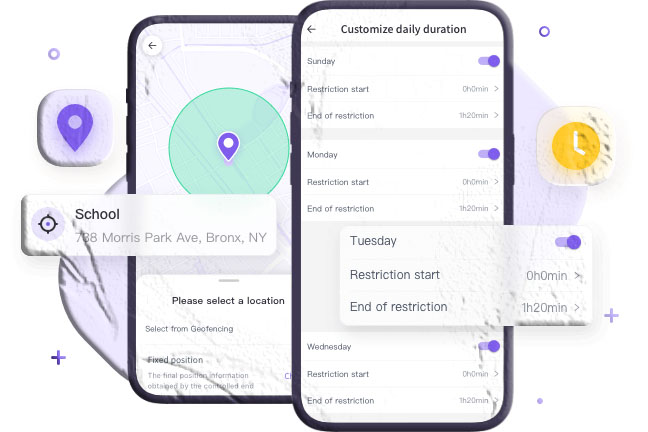
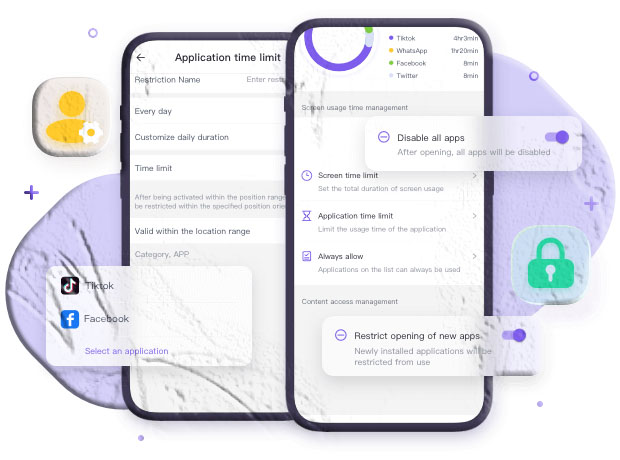
App monitoring and usage insights. MobileTracking tracks which apps are installed on the child’s device and how much time is spent in each one — giving you a view similar to Screen Time but with the ability to take action (block specific apps) directly from the parent dashboard.
Real-time GPS location. Parents can see their child’s live position on a map at any time, along with up to 30 days of location history showing where the child has been throughout each day and the route they took.
Geofencing with instant alerts. Set virtual boundaries around home, school, or other key locations. When the child’s phone enters or exits those zones, the parent receives an immediate notification — removing the need to actively monitor the map.
SMS and message monitoring. MobileTracking can log incoming and outgoing messages, with a keyword detection feature that fires an alert when specific words appear in a conversation — useful for catching signs of bullying, inappropriate contact from strangers, or conversations about risky behavior.
Ambient audio monitoring. The app includes a surrounding audio feature that allows a parent to remotely activate the microphone on the child’s device and hear what is happening in the environment around the phone — useful for safety checks when a child is in an unfamiliar or potentially concerning location.
Screen mirroring. Parents can view the child’s screen in real time from their own device — seeing exactly what apps are open and what content is being viewed as it happens.
Low-battery alerts. When the child’s phone battery drops below a threshold the parent sets, an alert fires to the parent’s device — including the child’s current GPS location, providing a final position snapshot before the phone might power off.
How to set it up:
Step 1: Download MobileTracking Parental Control from the Google Play Store on your own device and create an account.
Step 2: On your child’s device, install the MobileTracking Kids companion app.
Step 3: Open MobileTracking Kids on the child’s phone, enter the pairing code displayed in your parent dashboard, and complete the permissions setup — granting access to location, notifications, and the other monitoring features you want to activate.
Step 4: From your parent dashboard, navigate to App Usage to view installed apps and usage data, Location for real-time GPS, and other feature sections as needed.
MobileTracking is designed primarily for Android devices. For iPhone-specific parental controls that extend beyond Apple’s native tools, Qustodio and Bark are two well-regarded options that support iOS with content monitoring and alert features.
Part 7: Practical Tips for Using Screen Time Effectively
Setting limits is one thing. Getting the most out of Screen Time as an ongoing tool — and actually changing behavior — requires a slightly more thoughtful approach. Here are several strategies that help.
Review Reports Weekly, Not Daily
Daily fluctuations in usage are normal and often misleading — a sick day at home, a long commute, or a rainy weekend will produce usage spikes that look alarming in isolation. Weekly reports smooth out these variations and give you a more reliable picture of actual habits. Set a consistent time each week — Sunday evening is common — to review the previous week’s report and assess whether patterns are moving in the right direction.
Start with Awareness Before Setting Limits
If you are using Screen Time to change your own habits, the most effective approach is to spend one or two weeks simply observing without restricting anything. Looking at your actual usage data honestly — without judgment but with curiosity — often produces behavioral change on its own, before any hard limits are set. People frequently discover that knowing a timer is running changes how they interact with apps even before the timer runs out.
Use the Communication Limit Feature for Children
Screen Time includes a Communication Limits section that is separate from app time limits. It allows you to control who your child can call, text, and FaceTime with — specifying contacts who are always allowed, contacts from their contact list who are allowed, and no one outside contacts. This is particularly useful for younger children who you want to be able to reach you and family members but not communicate freely with unknown numbers.
Set Downtime to Align with Real Schedules
Downtime is most effective when it reflects your family’s actual schedule rather than an idealized one. For most families, the periods where phone use is most disruptive are school hours, homework time in the late afternoon, and the hour before bedtime. Setting Downtime to cover these specific windows — rather than a generic overnight block — tends to produce better compliance and fewer conflicts.
Lock Screen Time Settings Immediately
If you are setting limits for a child, set the Screen Time passcode before you do anything else. An unlocked Screen Time is almost no Screen Time — children who discover the settings are accessible will simply remove the limits. The passcode is set under Settings > Screen Time > Use Screen Time Passcode. Choose something the child does not know and cannot easily guess, and do not use the same number as the device unlock passcode.
Have a Conversation About Why
Research on screen time and child development consistently finds that children respond better to digital limits when they understand the reasoning behind them. A brief, honest conversation — explaining that you are concerned about sleep, focus during homework, or the content of specific apps — produces more cooperation than unexplained restrictions that feel arbitrary. Children who feel informed and respected are also more likely to come to parents when they encounter something online that worries them, rather than hiding it.
Frequently Asked Questions
How do I check app usage history on my iPhone?
Go to Settings > Screen Time > See All Activity. You will see a full breakdown of app usage by day and by week, including individual apps, categories, pickups, and notifications. Swipe left on the day view to go back through previous days, or toggle to the Week view for a weekly summary.
How do I check app usage on iPhone iOS 15 and later?
The process is the same on iOS 15 and all subsequent versions: go to Settings > Screen Time > See All Activity. Apple has not changed the core navigation for this feature since iOS 12, though additional data points (like notification counts and communication data) have been added in later versions.
How do I check the total screen time for the past week on my iPhone?
Open Settings > Screen Time and tap See All Activity. Select the Week tab at the top of the activity view. The weekly total and a per-day breakdown will appear, along with a comparison to the previous week.
How do I set a time limit for a specific app on iPhone?
Go to Settings > Screen Time > App Limits > Add Limit. Expand the relevant category to find the specific app, check it, and tap Next. Set the time limit and tap Add. The limit applies daily and resets at midnight.
How do I remove a time limit on my iPhone?
Go to Settings > Screen Time > App Limits, tap the limit you want to delete, scroll to the bottom, and tap Delete Limit.
How do I limit my child’s screen time on iPhone?
Set up Apple Family Sharing by going to Settings > [Your Name] > Family Sharing and inviting your child. Once set up, go to Settings > Screen Time, scroll to the Family section, tap your child’s name, and configure App Limits, Downtime, and Content & Privacy Restrictions from your own device. Set a Screen Time passcode to prevent your child from changing the settings.
Can my child turn off Screen Time limits without my permission?
If you have set a Screen Time passcode (which is different from the device unlock passcode) and your child does not know it, they cannot turn off or modify Screen Time settings. Setting the passcode is a critical step — without it, Screen Time limits provide very little actual protection.
How do I see which apps my child has installed on their iPhone?
Through Family Sharing and Screen Time, you can see all apps your child uses and their usage time under See All Activity in their Screen Time data. For more detailed app management — including requiring your approval before any new app is downloaded — enable Ask to Buy in your Family Sharing settings. This sends you a notification whenever your child attempts to download a new app from the App Store.
Is Screen Time accurate?
Screen Time is accurate for tracking time spent in apps. However, it counts any time the app is in the foreground as active usage — so if a child falls asleep with an app open on screen, that time counts. It does not measure engagement quality or content consumed. For some edge cases (like certain background audio apps), timing may be slightly imprecise, but for general habit tracking and parental oversight, it is reliable enough for practical use.
What is the best parental control app for iPhone?
Apple’s built-in Screen Time covers basic monitoring, app limits, content restrictions, and remote management well for most families. For deeper content monitoring — including messaging activity, social media content, and location tracking — third-party options like Bark (which monitors content and sends alerts for specific risks) and Qustodio (which provides a more comprehensive dashboard) are widely used on iOS. For Android-focused families, MobileTracking Parental Control offers a full feature suite including location, ambient monitoring, and app management.
Final Thoughts
Your iPhone’s Screen Time feature is one of the most underused tools available to both adults working on their digital habits and parents trying to create healthier boundaries around technology in their household. The data is there, it is free, it requires no additional software, and it updates automatically — the only thing required is the habit of actually looking at it and doing something with what you find.
For personal use, Screen Time’s combination of awareness (the reports) and friction (the limits) is a genuinely effective approach to reducing mindless scrolling, reducing before-bedtime phone use, and building more intentional digital habits over time. The week-over-week comparison alone is surprisingly motivating once you start checking it regularly.
For parents, Screen Time provides a solid foundation — particularly when combined with Family Sharing, content restrictions, and a Screen Time passcode. But for families with older children who are more active on social platforms, or parents who want real-time location visibility alongside app oversight, a dedicated parental monitoring app fills the gaps that Apple’s native tools leave.
The goal in either case is not perfect control — that is not realistic, and attempts to achieve it tend to backfire. The goal is enough visibility to notice when something is off, enough structure to support healthier habits, and enough openness to have honest conversations when the data reveals something worth discussing.
Note: Screen Time features and navigation may vary slightly between iOS versions. All steps in this guide are accurate for iOS 16 and above. Apple may update these features in future iOS releases.








Add comment