
 MobileTracking Editor
Losing an iPhone is one of those experiences that shifts instantly from mild inconvenience to full-blown panic. iPhones are expensive, they hold enormous amounts of personal data, and if yours is gone — really gone, not just misplaced between cushions — the feeling of helplessness can be overwhelming. Most people’s first instinct is to reach for Find My iPhone, the built-in Apple service that uses GPS and the Find My network to locate a device on a map. And most of the time, that instinct is exactly right.
But what if Find My iPhone was never turned on?
It happens more often than you would think. People buy a new phone, skip through setup steps, and never enable Find My. Others turn it off during a troubleshooting session and forget to turn it back on. Some people simply did not know the feature existed until the moment they needed it most. Whatever the reason, if Find My iPhone is disabled when your phone goes missing, Apple’s official tracking system is simply not an option — and the path to recovering the device becomes considerably more difficult.
The key word there is “more difficult,” not “impossible.” There are several alternative methods that can help you locate a lost or stolen iPhone even without Find My iPhone active. Some work best if the phone is still nearby. Others are designed for situations where it has been lost outside, potentially in an area you cannot easily search in person. A few involve third parties — your carrier, local authorities, or Apple itself. And one of the most practical approaches — the one that changes the entire situation for future incidents — is putting a proactive monitoring solution in place before a phone is ever lost.
This guide covers all of these scenarios with step-by-step instructions, honest assessments of what each method can and cannot do, and practical advice for protecting your device after you recover it.
What Happens When Find My iPhone Is Disabled?
Before diving into the alternatives, it is worth understanding exactly what you lose when Find My iPhone is not enabled — because it clarifies why the alternatives are harder and why some options are simply unavailable.
Real-Time Location Tracking Is Gone
The most obvious consequence is that you cannot see your iPhone’s current location on a map. Find My iPhone uses GPS, Wi-Fi positioning, cellular data, and Apple’s vast Find My network of nearby devices to pinpoint your iPhone’s location with precision. Without it enabled, none of that data is available to you through Apple’s official channels.
Lost Mode Is Unavailable
Lost Mode is one of the most useful features in the Find My ecosystem. When activated, it locks your iPhone remotely, displays a custom message on the screen with your contact information, and prevents Apple Pay from being used. It also begins continuously tracking and logging the device’s location even as it moves. If someone finds your phone, they can see your contact details without accessing any of your data. If someone steals it, you keep getting location updates. None of this is available without Find My enabled.
Remote Wipe Is Not Possible
If you reach the conclusion that recovery is unlikely and you are more concerned about your personal data than recovering the hardware itself, Find My iPhone would normally let you remotely erase all content from the device — contacts, photos, messages, passwords, everything. Without the feature enabled, you cannot do this. Your data is exposed for as long as whoever has the phone wants to access it.
The Security Risk Is Real
An iPhone found by a stranger is one thing. An iPhone stolen by someone with malicious intent is another. Without Find My, Lost Mode, or remote wipe available, your only options for data protection are hoping the device’s passcode holds and contacting your carrier to suspend the line. For an unlocked iPhone — or one with a predictable passcode — the personal data exposure is significant.
Understanding these gaps is important not just for the current situation but for ensuring you never face them again after recovery.
Part 1: How to Find a Lost iPhone That Is Still Nearby
The most common lost phone scenario is actually the least dramatic: the phone is somewhere nearby — in the house, in the car, at a nearby location — but you cannot find it. Maybe it slipped under furniture. Maybe it is on silent mode. Maybe someone moved it without telling you. Here are the most effective approaches for this situation.
Try Calling or Texting Your Number First
This is the obvious starting point, but it is worth being deliberate about it. Call your number from another phone and listen carefully, paying attention to rooms you have been in recently. If the phone is not on silent and has battery, a ringtone is the fastest possible way to locate it.
If the iPhone is on silent mode, texting still has a chance of working — but only if LED Flash for Alerts is enabled (covered below) or if the phone is near enough that you can feel or see the screen light up when a message arrives.
Also consider that someone else may have already found the phone. If your number rings without going to voicemail or if someone answers, stay calm and politely explain the situation. Most people who find a lost phone genuinely want to return it — have a clear, simple request ready and, if possible, offer to meet in a public location for the handoff.
Use the LED Flash for Alerts to Locate It in the Dark
Most people do not know this feature exists, but iPhones have a small LED flash near the rear camera that can be configured to blink silently whenever a notification arrives — calls, texts, app alerts, and so on. In a dimmed room, this quiet visual indicator can be spotted across a significant distance, even if the phone is tucked behind a couch cushion or sitting face-down on a surface.
The catch is that this feature must have been enabled before the phone was lost. It cannot be turned on remotely after the fact. But it is one of those features worth enabling proactively on every iPhone you own.
To check if it is currently enabled on your iPhone (before it is lost):
Go to Settings > Accessibility > Audio/Visual and look for LED Flash for Alerts. If the toggle is on, the feature is active. If it is off, toggle it on now.
To use this method when searching for a lost iPhone:
Dim the lights in the room you are searching. Have someone call or text your iPhone from another device. Watch carefully for a blinking light anywhere in the room. The flash is quick and subtle, so give your eyes a moment to adjust to the reduced light and scan slowly. Once you spot the flash, you can narrow down the area and find the phone.
This method works best in low-light environments and in situations where the phone has not ended up somewhere that would completely block the flash — under thick blankets or inside a closed drawer, for example.
Use Your Apple Watch to Ping the iPhone
If you have an Apple Watch paired with your iPhone, you have access to a direct Ping iPhone feature that does not depend on Find My iPhone at all. It operates over the Bluetooth and Wi-Fi connection between the two devices and works regardless of whether Find My is enabled.
When you activate it, your iPhone plays a distinct pinging sound at full volume — even if the phone is set to silent mode. This makes it one of the most reliable methods for finding a phone that is silent but still within range.
How to use it:
Step 1: On your Apple Watch, swipe up from the bottom of the watch face to open the Control Center.
Step 2: Look for the Phone Emitting icon — it looks like a phone with sound waves. Tap it.
Step 3: Your iPhone will immediately play a loud pinging sound. Tap the icon several times in quick succession if needed, and walk through your home listening for the sound.
Step 4: Once you hear the ping getting louder or softer, follow the sound to narrow down the location.
Important limitations: Both devices must be within Bluetooth range (approximately 30 feet / 9 meters), or within the same Wi-Fi network. If the iPhone’s battery is completely dead, the ping will not work. And if the iPhone is physically too far away — left in a car outside, for example — the Apple Watch will show a disconnected status.
For situations within a home or office, the Apple Watch ping is one of the fastest and most reliable solutions available.
Retrace Your Steps Methodically
If the phone is not responding to calls, texts, or pings, physical retracing is the next step. This is worth doing more systematically than most people attempt in the initial panic.
Rather than walking around the house randomly hoping to spot it, retrace your movements from your last clear memory of having the phone. Think about what you were doing when you last used it, what room you were in, what you did immediately after. Work backward from there in a structured way — check each location you visited, look on all surfaces (including low ones), look inside bags, pockets, and coat pockets, and check between and under cushions and furniture.
For locations you visited outside the home, the same systematic approach applies. Think about the last place you clearly remember using it — not just having it, but actually using it — and work forward from there. Did you set it down at a table at a restaurant? Did you place it on a seat on public transport? Did it fall out of your pocket getting in or out of a car?
Contacting every location you visited is worth doing, even if it feels like a long shot. Restaurants, coffee shops, rideshare drivers, public transit lost and found services, and retail stores all routinely receive found phones. Many businesses hold found items for days before turning them over to authorities. Call each location directly, describe the phone (model, color, any distinguishing case), and give them a callback number.
Part 2: How to Find a Lost iPhone That Is Outside or in an Unknown Location
When the phone is not nearby and you suspect it has been left somewhere away from home — or worse, stolen — the options change. Here are the methods that can help you track down an iPhone’s last known location or engage services that may assist in recovery.
Check Google Maps Timeline
Google Maps includes a feature called Timeline that records a history of your location movements based on your Google account activity. It is separate from Apple’s Find My system and operates independently — as long as the Location Services for Google Maps was enabled on the iPhone and you were signed into your Google account, the Timeline may contain a record of where the phone was before it went missing.
This is not real-time tracking. The Timeline shows where the phone has been — so if the phone is still in the same location where you lost it, the most recent entry in your Timeline could lead you directly there. If someone has moved it since then, the Timeline shows where it was at the time of the last update, which is still useful for narrowing down the initial area.
How to check Google Maps Timeline from another device:
Step 1: On another phone, tablet, or computer, open a browser and go to maps.google.com or open the Google Maps app. Make sure you are signed in with the same Google account that was active on your lost iPhone.
Step 2: Tap or click your profile picture in the top-right corner of the interface.
Step 3: Select Your Timeline from the menu.
Step 4: The Timeline view will show a map with your location history for the current day plotted as a route. Scroll through the timeline on the left side of the screen to see where you were at specific times during the day, including the last recorded location.
Step 5: Zoom in on the map to identify the last recorded location and cross-reference it with where you were and what you were doing at that time.
Important conditions: Location Services must have been enabled for Google Maps on your iPhone before it was lost. If Location Services was off, the Timeline will only show the last location recorded before it was disabled. The Timeline also requires an internet connection on the lost device to update — a phone with no connectivity or a dead battery will not generate new Timeline entries.
If the Timeline shows a location, check it in person as soon as possible. The sooner you act after a phone is lost, the more likely the phone is still where the Timeline shows it was.
Contact Your Mobile Carrier
Your mobile carrier maintains records of which cell towers your iPhone has connected to, which in combination provides an approximate location. This data is not as precise as GPS — cell tower triangulation typically narrows location to within a few hundred meters, not a specific address — but in many situations it is enough to identify the general area where the phone was last active.
Carriers do not generally provide this location data directly to customers upon request. However, there are several things your carrier can do:
Suspend the line. This prevents anyone who has the phone from making calls, sending texts, or using mobile data on your account. It protects you from unexpected charges and makes the device considerably less useful to someone who has taken it.
Block the IMEI. Your carrier can block your iPhone’s IMEI number, which prevents it from being activated on any network — effectively making the hardware useless as a phone. This is an irreversible step that makes sense if you are confident recovery is unlikely and you want to protect against the phone being resold or used with a different SIM.
Provide location data to law enforcement. If a police report is filed (covered below), law enforcement can formally request location data from your carrier through proper legal channels. This is not something carriers do in response to a customer request alone, but it becomes possible once the incident is in the hands of authorities.
To contact your carrier, call their customer service number or visit a store in person with proof of identity and account ownership.
File a Police Report
If you believe your iPhone was stolen — rather than simply lost — filing a police report is an important step for several reasons.
First, it creates an official record of the theft, which is required by most insurance providers and by AppleCare if you plan to make a replacement claim.
Second, it gives law enforcement the legal authority to request location data from your carrier and, in some cases, from Apple directly. While law enforcement agencies vary in how proactively they pursue individual stolen phone cases, having a report on file is a prerequisite for that assistance.
Third, it gives authorities your iPhone’s IMEI number, which can be flagged in national databases. If the phone surfaces at a pawn shop or secondhand electronics retailer — which is a common pathway for stolen devices — it may be flagged when the store attempts to verify it.
When filing the report, provide as much detail as possible: the exact model of iPhone, the serial number (found on your iPhone’s original packaging or through your Apple ID account at appleid.apple.com), the IMEI number (also available through your Apple account or by dialing *#06# if you still have the device), the approximate time and location of the loss or theft, and a description of any identifying features (case, scratches, engravings).
Use a Third-Party Location Tracking App
If a location tracking app was installed on your iPhone before it was lost, it may be able to show you the device’s last known location — or its current location if the phone is still on and connected to the internet. This is one of the few methods that can provide GPS-level accuracy outside of Apple’s Find My system.
The critical limitation is that the app must have been installed and configured before the loss. You cannot install a tracking app on a device you no longer have access to. This is why proactive installation is so important — the value of a tracking app is entirely in having set it up in advance.
What to look for in a tracking app:
A good tracking app for this purpose stores recent location history, updates location in real time when the device is online, and provides an accessible dashboard you can check from any other device. It should also send low-battery alerts before the tracked device loses power, giving you a final GPS snapshot before the phone goes dark.
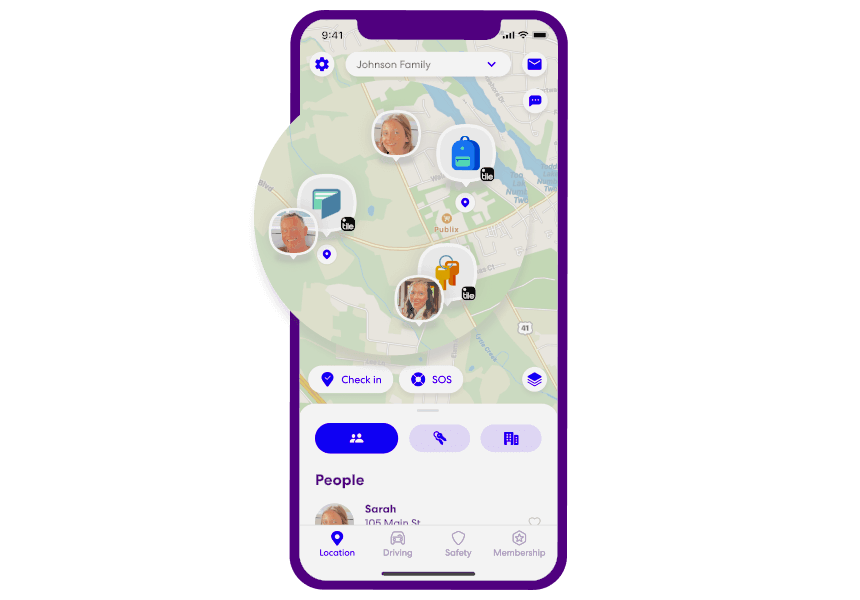
MobileTracking Parental Control is one example that families use for exactly this kind of proactive monitoring. While it is primarily designed as a parental oversight tool — letting parents see where a child’s phone is at all times — its location tracking features are directly applicable to the lost phone scenario. Parents who have installed MobileTracking on a child’s iPhone have access to:
- Real-time GPS location on a live map, viewable from the parent’s phone or a web dashboard
- Up to 30 days of location history displayed on a timeline, so they can trace exactly where the phone has been throughout any given day
- Low-battery alerts that fire when the battery drops below a set percentage — crucially, these alerts include the device’s GPS coordinates at the time of the alert, giving parents a final location fix before the phone shuts down
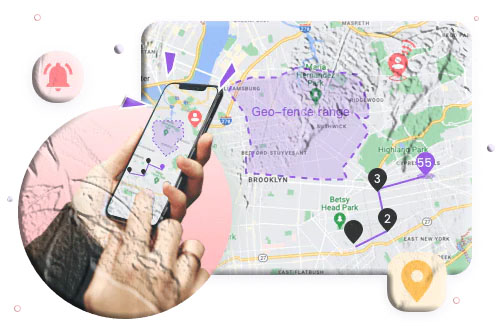
- Geofencing alerts that send a notification the moment the phone enters or leaves a designated zone — immediately flagging if the phone moves from a school or home location unexpectedly
For parents specifically, MobileTracking solves the “Find My iPhone disabled” problem proactively — because even if Find My is not enabled (or a child figures out how to disable it), the parent’s monitoring dashboard continues to report location independently. It is worth noting that MobileTracking’s core features are Android-focused, and for iPhone monitoring, parents should also evaluate iOS-compatible parental control apps like Qustodio or Bark, which offer location tracking alongside broader content monitoring for iPhones.
Contact Apple Support
Apple has access to data that individual users do not — including device activation records, iCloud sign-in history, and in certain cases, cooperation with law enforcement requests. While Apple cannot simply hand you a GPS coordinate for your phone, there are a few ways they can assist:
Serial number and IMEI verification. If you do not have your iPhone’s serial number or IMEI on hand, Apple Support can help you retrieve these from your Apple ID account, which is necessary for filing a police report or blocking the device with your carrier.
Replacement discussion. If you have AppleCare+ with Theft and Loss coverage, Apple can begin the replacement process once a police report has been filed and submitted. Without theft and loss coverage, replacement is at full retail price, but it is worth understanding your options.
Removing the device from your account. If you are confident the phone will not be recovered, Apple Support can help you remove it from your Apple ID and iCloud account so that it cannot be linked back to you and so that activation lock does not prevent a future legitimate owner from setting it up.
Contact Apple Support through the Apple Support website, the Support app on another Apple device, or by visiting an Apple Store or authorized service provider.
Part 3: Preventing This from Happening Again
Recovering a lost iPhone without Find My iPhone is stressful, uncertain, and often unsuccessful. The most effective response to this situation is ensuring it cannot happen again. Here is what to do immediately after recovering your iPhone — or right now if you are reading this as a precaution.
Enable Find My iPhone Immediately
This is the single most important step. Go to Settings > [Your Name] > Find My > Find My iPhone and make sure all three toggles are on:
- Find My iPhone — the core location tracking feature
- Find My Network — allows the phone to be located even when it is offline, using nearby Apple devices as anonymous relay points
- Send Last Location — automatically sends the phone’s GPS coordinates to Apple when the battery drops critically low, ensuring you have a final location fix before it dies
Check these settings now and whenever you restore or reset your iPhone, as the process of restoring can occasionally affect these settings.
Enable LED Flash for Alerts
As described earlier, this feature can make a silent iPhone visible in a dark room. Enable it at Settings > Accessibility > Audio/Visual > LED Flash for Alerts and leave it on permanently.
Add a Medical ID or Emergency Information
Under Settings > Health > Medical ID, you can add emergency contact information that is visible from the lock screen without unlocking the phone. If someone finds your iPhone and wants to return it, this gives them a direct way to contact you or a family member — even if they cannot access the phone itself.
Note Your iPhone’s IMEI and Serial Number
Find these at Settings > General > About on your iPhone. Screenshot or write them down and store them somewhere other than the phone itself — in email, in a cloud document, on paper in your wallet. Having these on hand instantly makes police reports, carrier requests, and insurance claims significantly faster.
Set Up iCloud Backup
Regardless of whether you can recover the hardware, your data should be recoverable. Enable iCloud Backup at Settings > [Your Name] > iCloud > iCloud Backup and set it to back up automatically when the phone is charging. This ensures that even if the phone is permanently lost or stolen, restoring your data on a new device takes minutes rather than months of rebuilding contacts, photos, and app data from scratch.
Consider AppleCare+ with Theft and Loss Coverage
AppleCare+ with Theft and Loss is an optional coverage plan that specifically covers situations where an iPhone is lost or stolen. Without it, Apple provides warranty coverage for manufacturing defects but not for loss or theft. With it, you can get a replacement iPhone (subject to a service fee) as long as Find My iPhone was enabled at the time of the loss — which is an additional reason to ensure that feature is always on.
For Parents: Install a Parental Control App with Location Tracking
As discussed earlier, having a proactive monitoring app on your child’s phone changes the entire equation when a device goes missing. Rather than depending on Find My iPhone alone — which can be turned off by a tech-savvy teenager, disabled during a restore, or forgotten during setup — a dedicated parental control app provides a second, independent layer of location visibility.
The combination of Find My iPhone (enabled) plus a parental control app with its own location tracking means that there are two independent systems recording the phone’s location. If one is unavailable, the other continues to work.
Frequently Asked Questions
Can I find my iPhone if Find My iPhone is turned off?
Yes — but with significantly more effort and less certainty. The alternatives include checking Google Maps Timeline (if Location History was enabled), using the LED Flash for Alerts for nearby searches, using an Apple Watch to ping the phone, contacting your carrier, filing a police report, and checking whether a third-party tracking app was installed before the loss. None of these alternatives match the precision and reliability of Find My iPhone when it is properly enabled.
What should I do immediately when I realize my iPhone is lost?
First, call your own number from another phone in case the phone is nearby and someone has found it. Then check Google Maps Timeline for a last known location. Contact your carrier to report the loss and suspend the line. File a police report if theft is suspected. If there is any chance the phone is somewhere accessible, go there as soon as possible — the sooner you act, the more likely the phone is still where you lost it.
Can I remotely lock or wipe my iPhone without Find My iPhone?
No. Lost Mode (which locks the phone remotely and displays your contact information) and Remote Erase are both features of Apple’s Find My system. Without Find My iPhone enabled, neither is available. This is one of the most significant security consequences of not having Find My enabled.
Can my carrier track my lost iPhone?
Carriers maintain records of which cell towers a device has connected to, which can provide an approximate location. However, they do not typically provide this information directly to customers. They can suspend your line, block the IMEI, and in cooperation with law enforcement they can provide location data through official legal channels. Contact your carrier and also file a police report if you believe the phone was stolen.
Does Google Maps Timeline work on iPhone?
Yes — but only if the Google Maps app was installed on the iPhone and Location Services was enabled for it. Google Maps for iPhone is available on the Apple App Store. Timeline records your location based on your Google account activity, which is separate from Apple’s location systems. If you were signed into Google Maps with your Google account before losing the phone, Timeline may show the phone’s last reported location.
Can I find a lost iPhone without any apps or features pre-enabled?
If no tracking features were enabled — no Find My iPhone, no Google Maps Timeline, no third-party tracking app — your options are limited to physical searching, calling your number, contacting places you visited, asking your carrier to suspend the line, and filing a police report. There is no technical method for locating a phone that was not sharing or recording its location in any form.
What is the IMEI number and why does it matter for a lost iPhone?
The IMEI (International Mobile Equipment Identity) is a unique 15-digit code that identifies your specific iPhone on the cellular network. It is separate from your phone number — it stays with the hardware, not the SIM card. When you report a stolen phone, giving the IMEI to your carrier allows them to blacklist the device, preventing it from being activated on any network in the country, even with a different SIM. You can find your IMEI at Settings > General > About or by dialing *#06#. It is also printed on the original iPhone packaging and available through your Apple ID account at appleid.apple.com.
Will Apple help me find my lost iPhone?
Apple can assist with retrieving your serial number and IMEI, discussing AppleCare+ replacement options if you have theft and loss coverage, removing the device from your Apple ID, and providing information to law enforcement through proper legal channels. Apple cannot independently access your iPhone’s GPS location and share it with you outside of the Find My system.
Should I publicly post about my lost iPhone on social media?
It can occasionally help — particularly if the phone was lost in a specific local area and someone who found it sees the post and recognizes the description. However, avoid posting sensitive details like your home address, your schedule, or your full phone number publicly. A general description of the phone, where and approximately when it was lost, and a contact email address is sufficient.
How do I prevent losing my iPhone data if the phone is unrecoverable?
Enable iCloud Backup at Settings > [Your Name] > iCloud > iCloud Backup. Set it to back up automatically when the phone is connected to Wi-Fi and charging. With regular iCloud backups in place, losing the hardware becomes a frustrating but manageable inconvenience rather than a catastrophic data loss. You can restore everything to a new iPhone during the initial setup process.
Final Thoughts
Losing an iPhone with Find My disabled is one of those situations that makes the value of proactive preparation painfully obvious. The methods covered in this guide — Google Maps Timeline, the Apple Watch ping, the LED Flash alert, carrier assistance, police reports, and third-party tracking apps — all have real value in the right circumstances. But none of them come close to the reliability and precision of Find My iPhone when it is properly enabled and configured.
If you are reading this guide in the middle of a search for a lost iPhone, use every method available to you and act quickly. The sooner you check Timeline, contact places you visited, and get your carrier involved, the better your chances.
And if you are reading this as a precaution — or after successfully recovering a device — use the next few minutes to enable Find My iPhone, Send Last Location, and iCloud Backup before you put the phone down. Check whether LED Flash for Alerts is on. Note your IMEI and serial number somewhere secure. These steps take less than five minutes and they transform a future loss from a potential nightmare into a manageable inconvenience.
For parents with children who carry iPhones, combining Apple’s Find My with a dedicated parental monitoring app provides two independent layers of location tracking — making it significantly harder for a lost phone, a drained battery, or a disabled setting to leave you without any visibility into where your child’s device is.
The best time to prepare for losing a phone is right now, while you still have it in your hands.
Disclaimer: This guide is for informational purposes only. Recovery outcomes depend on the specific situation, the conditions under which the device was lost, and whether preparatory steps were in place before the loss occurred. Always comply with applicable laws and carrier policies when attempting to recover a lost or stolen device.





Add comment