
 MobileTracking Editor
Most people assume that when they toggle off location services on their smartphone, they become essentially invisible to anyone trying to track them. It feels logical — location is off, so location cannot be tracked. But the reality is considerably more complicated than that, and understanding the gap between what people think that setting does and what it actually does is genuinely important for anyone who cares about their privacy.
The short answer to the question is: yes, your phone can still be tracked even with location services turned off. But the full answer requires understanding how location tracking actually works at a technical level — because there are multiple distinct technologies at play, and toggling one off does not disable the others. GPS, Wi-Fi scanning, cellular tower triangulation, and IP address tracking each operate independently, and each can reveal your location to varying degrees of precision without ever touching the “Location Services” setting on your phone.
This guide covers all of it clearly and honestly. We will walk through exactly how each tracking technology works, explain what disabling location services actually does and does not do, show you how to recognize if your phone is being tracked without your knowledge, and lay out the specific steps you can take to meaningfully reduce your digital footprint. We will also cover how parents can use these same tracking technologies responsibly — through apps designed specifically for family safety — to keep children protected in an increasingly complex online world.
Whether your concern is personal privacy, protecting a child, or simply understanding your device better, this article gives you a complete picture without the technical jargon.
Part 1: How Location Tracking Works on Your Smartphone
To understand why turning off location services does not make you fully untraceable, you first need to understand that “location tracking” is not a single technology. It is an umbrella term for at least four distinct methods that modern smartphones use — individually and in combination — to determine where you are. Each one works differently, each has different accuracy levels, and each responds differently to privacy settings.
GPS (Global Positioning System)
GPS is what most people picture when they think of phone location tracking. Your smartphone has a dedicated GPS receiver chip that communicates directly with a network of satellites orbiting the Earth. By calculating the time it takes for signals to arrive from at least three or four satellites simultaneously — a process called trilateration — the phone can determine its latitude, longitude, altitude, and the precise time with high accuracy. Under good conditions, outdoors with a clear view of the sky, GPS can pinpoint your location to within three to five meters.
GPS is the most accurate location method available to consumer devices, but it has a few key characteristics that are important to understand. First, it requires a relatively clear line of sight to satellites, which means it can be slower indoors or in dense urban environments with tall buildings. Second — and this is the critical privacy point — GPS is a one-way receive-only system. Your phone receives signals from satellites but does not transmit back to them. This means GPS itself does not report your location to anyone. It simply calculates where you are. The question of whether anyone else can see that location depends on what software is running on your phone and what permissions it has — not on the GPS signal itself.
When you disable location services on your phone, you are telling the operating system to stop feeding GPS data to apps. But depending on the phone’s design and what other software might be installed, GPS hardware can still be accessed in ways that circumvent user-facing settings.
Wi-Fi Positioning
Even when your phone is not connected to a Wi-Fi network — and sometimes even when Wi-Fi is turned off — smartphones continuously scan the radio environment around them, detecting nearby wireless networks and logging their signal strengths. This is used by the phone’s operating system to improve location accuracy in environments where GPS is weak, like indoors or in crowded urban areas.
The way this works is that software providers (including Google and Apple) have built massive databases that map Wi-Fi access point identifiers (called BSSIDs) to their known physical locations. When your phone detects a cluster of Wi-Fi networks around it, it compares those against the database and estimates its position based on which networks are visible and how strong each signal is. This is typically accurate to within 15 to 40 meters in a well-mapped area.
The privacy implication is this: if you are connected to a public Wi-Fi network, the provider of that network often knows your approximate physical location — because they know where the access point is, and they know your device connected to it. Many public Wi-Fi providers include location tracking consent in their terms of service, which most people never read before clicking “Accept.” This happens regardless of whether Location Services is enabled on your phone.
Using a VPN when connecting to public Wi-Fi addresses part of this problem by masking your IP address and encrypting your traffic. Reputable VPN services like those recommended by privacy organizations can significantly reduce the amount of information Wi-Fi networks collect about you.
Cell Tower Triangulation
Every time your phone makes a call, sends a text, or uses mobile data, it communicates with the nearest cellular tower. This is unavoidable — it is how cellular networks function. Your carrier always knows which tower your phone is connected to, and by measuring signal strength and timing across multiple towers, they can triangulate your approximate position.
Cell tower triangulation is typically accurate to within 100 to 300 meters in urban areas with dense tower coverage, and can be several kilometers off in rural areas where towers are more spread out. It is not as precise as GPS, but it is always active as long as your phone has a SIM card and any cellular signal — even if GPS and Wi-Fi tracking are both disabled.
Law enforcement agencies can request this data from carriers through legal channels, and in some cases, specialized devices called IMSI catchers (also known as Stingrays) simulate cell towers to intercept device data. Stingrays are used by law enforcement and, in some reported cases, by other actors — they cause nearby phones to connect to the fake tower instead of a legitimate one, revealing location and identifying information about all devices in the area. While individual users cannot protect themselves from Stingray devices through standard phone settings, awareness of how they work helps explain why cellular connectivity alone creates a location trail.
IP Address Geolocation
Every time your phone accesses the internet — whether through Wi-Fi or mobile data — it is assigned an IP address by the network it is using. IP addresses can be mapped to approximate geographic locations through publicly available and commercial geolocation databases. Services like MaxMind’s GeoIP and similar tools can typically identify your country, region, and city from your IP address, and sometimes narrow it down to a specific zip code or neighborhood.
IP geolocation is the least precise of the four methods discussed here — it does not know which street you are on, let alone your exact address — but it is worth knowing about because it operates completely independently of your phone’s location settings. Disabling GPS, Wi-Fi, and Location Services does nothing to prevent websites and online services from seeing your IP address and making inferences about your physical location. The only effective countermeasure for IP-based tracking is a VPN, which routes your internet traffic through a server in a different location and presents that server’s IP address to websites instead of your own.
Part 2: What Turning Off Location Services Actually Does — And Does Not Do
With that technical foundation in place, we can answer the original question more precisely.
When you go into your phone’s settings and disable Location Services (on iPhone) or Location (on Android), you are telling the operating system to stop providing GPS coordinates to apps that have requested them. This is a meaningful privacy improvement — it prevents the vast majority of apps from knowing your precise position. Navigation apps stop working. Weather apps default to a generic location. Photo apps stop embedding GPS coordinates in your images.
But here is what it does not do:
It does not stop cell tower communication. As long as your SIM card is active and your phone has any cellular signal, your carrier can see which towers you are connecting to. This is built into how cellular networks work and cannot be disabled through user-facing settings without removing the SIM card or turning the phone off entirely.
It does not stop Wi-Fi positioning. Even with Location Services off, your phone may still scan for and log nearby Wi-Fi networks at the OS level. And if you connect to a Wi-Fi network, the provider of that network still knows your device was there.
It does not prevent IP address tracking. Any internet activity — browsing, app usage, messaging — exposes your IP address to the services you connect to, regardless of Location Services status.
It may not stop all apps from accessing GPS. On most standard consumer devices, disabling Location Services should prevent properly coded apps from reading GPS. However, apps with elevated system permissions — or, in more concerning scenarios, spyware installed without your knowledge — may still be able to access location hardware directly.
The practical takeaway is this: disabling Location Services significantly reduces your location exposure, but it does not make your phone anonymous. It primarily stops apps from getting precise GPS fixes. The broader infrastructure of cellular, Wi-Fi, and IP tracking continues to operate underneath.
Part 3: How to Tell If Your Phone Is Being Tracked Without Your Knowledge
Most legitimate location tracking on your phone happens transparently — you consent to it when you install apps and grant permissions. But there is a less benign category: stalkerware, spyware, and monitoring apps installed by someone with physical access to your device. Knowing the warning signs can help you identify if something unauthorized is running.
Unfamiliar Apps in Your App List
The most direct sign of unauthorized monitoring is an app you do not recognize in your phone’s application list. Spyware apps are sometimes disguised under generic names — “System Service,” “Phone Monitor,” “Sync Manager” — to avoid detection. Go to Settings > Apps on Android or check your full app library on iOS and look for anything you did not install yourself.
On Android, also check Settings > Security > Device Admin Apps (sometimes called Device Administrators). Spyware sometimes grants itself device administrator privileges to prevent easy uninstallation. Any app with device admin access that you do not recognize is a serious red flag.
Apps Opening or Restarting Without Your Input
If your phone launches apps you did not open, refreshes apps in the background unexpectedly, or restarts without a clear reason, this can indicate that a background process — legitimate or otherwise — is triggering activity. Occasional background activity is normal. Frequent, unexplained activity that you notice disrupting your use of the phone is worth investigating.
Faster-Than-Normal Battery Drain
Battery drain is one of the most reliable indirect indicators of unauthorized background activity. GPS tracking is battery-intensive — it requires the phone’s GPS chip to stay active, location data to be processed, and that data to be transmitted over the network regularly. A spyware app doing all of this continuously will noticeably shorten battery life.
To investigate, go to Settings > Battery on both Android and iOS. Most phones display a breakdown of which apps are consuming battery. If an app you do not recognize — or one that has no obvious reason to consume significant battery — appears at the top of that list, investigate it further.
On iPhone, you can check battery health at Settings > Battery > Battery Health & Charging. A maximum capacity of 95% or higher combined with rapid drain during normal use is worth investigating as a potential software issue rather than a hardware one.
Device Running Hot Without Obvious Cause
All smartphones generate heat during intensive tasks — gaming, video calls, GPS navigation. But if your phone feels warm or hot during periods of light or no active use, that thermal output is coming from somewhere. Background processes that run the GPS chip continuously — as spyware must — generate heat. An unexpectedly warm phone that has been sitting idle on a table is a signal worth paying attention to.
Unexpectedly High Data Usage
Spyware must transmit the location data it collects to a remote server. This creates a mobile data footprint. Check your data usage breakdown at Settings > Network & Internet > Data Usage on Android or Settings > Cellular on iPhone. Look for apps consuming data in the background that you would not expect to be active.
Part 4: How to Stop Your Phone from Being Tracked
Understanding the tracking landscape leads naturally to the question of what you can actually do about it. Here are six concrete steps, ordered from most to least impactful.
1. Disable Location Services and GPS
This is the most obvious step and still the right starting point. On iPhone, go to Settings > Privacy & Security > Location Services and toggle it off entirely, or scroll through individual apps and set each one to “Never” or “While Using” rather than “Always.” On Android, go to Settings > Location and toggle location off, or manage per-app permissions individually.
For maximum privacy, go into individual app permissions and eliminate “Always” location access for any app that does not genuinely require it. Social media apps, shopping apps, and games rarely need continuous background location access. Navigation apps like Google Maps reasonably need it while in use, but should be set to “While Using” rather than “Always.”
2. Disable Wi-Fi When Not Actively Using It in Public
When you are out in public and not actively using Wi-Fi, disabling it prevents your phone from broadcasting its presence to nearby access points and eliminates the risk of automatically connecting to a network that logs your location. On both Android and iOS, you can toggle Wi-Fi off from the quick settings panel with a single swipe.
This is a habit more than a one-time setting — the most effective approach is making it automatic to turn Wi-Fi off when leaving the house and on when you arrive somewhere you trust.
3. Use a VPN When Browsing on Public Networks
A VPN (Virtual Private Network) encrypts your internet traffic and routes it through a server in a different location, masking your real IP address from websites, apps, and the Wi-Fi network provider. This addresses the IP-based tracking that location settings cannot prevent.
Not all VPNs are trustworthy — some free VPNs log and sell user data, which defeats the purpose. Look for providers with independently audited no-logs policies. The Electronic Frontier Foundation maintains guidance on evaluating VPN services. For most users, a reputable paid VPN is a worthwhile investment in overall privacy hygiene, not just for location specifically.
4. Audit App Permissions Regularly
Most people install apps and grant permissions without thinking much about them — and then forget to revisit those permissions as time passes. On a quarterly basis, go through your app list and check what location access each app has. Revoke location access from any app that does not have a clear, ongoing need for it.
Also pay attention to permission requests when installing new apps. An app that asks for location access when its core functionality has nothing to do with location — a flashlight app, a calculator, a simple game — is requesting something it should not need. Either deny the permission or choose not to install the app.
On Android: Settings > Privacy > Permission Manager > Location On iPhone: Settings > Privacy & Security > Location Services
Both interfaces show you every app with location access and let you change it without uninstalling the app.
5. Be Cautious About Downloads from Outside Official App Stores
The primary distribution mechanism for spyware and stalkerware on consumer devices is sideloading — installing apps from sources other than the official Google Play Store or Apple App Store. Both official stores conduct security screening of apps, which is imperfect but catches a significant amount of malware. Apps installed from unofficial sources — APK files from unfamiliar websites on Android, for example — bypass this screening entirely.
On Android, go to Settings > Security and check whether “Install Unknown Apps” is enabled for any application. Unless you have a specific reason for this and trust the source, disable it.
Installing a reputable mobile security app — Malwarebytes, Bitdefender Mobile Security, or similar — provides an additional layer of detection for malicious apps and can identify spyware that has already been installed.
6. Turn Off the Phone Entirely for True Privacy
If you need complete assurance that your location is not being transmitted — for a specific period, a specific meeting, or a specific situation — turning the phone off entirely is the only approach that addresses all four tracking methods simultaneously. A phone that is off cannot communicate with cell towers, cannot scan Wi-Fi networks, and cannot transmit anything over the internet.
This is obviously not a practical everyday solution, but for specific high-privacy situations it is the most reliable option available short of leaving the phone at home.

Part 5: How to Stop Your Carrier from Recording Your Location
Your mobile carrier is a category of its own when it comes to location tracking, because the information they have access to is structural — it comes from how the cellular network works — rather than from an app you can uninstall.
Carriers record which cell towers your phone connects to, and this data is retained for varying periods depending on the carrier and applicable law. In the United States, this data has historically been provided to law enforcement agencies upon request and has, in some cases, been sold to third-party data aggregators — a practice that has drawn significant regulatory scrutiny.
For iPhone users: Go to Settings > General > About and scroll to Diagnostics & Usage. Selecting Don’t Send stops your device from proactively sharing diagnostic data with Apple and, by extension, reduces some of the data points transmitted. This does not prevent carrier-level tower data logging but reduces ancillary data collection.
For Android users: Carrier-level diagnostics apps have historically been embedded at a system level on some Android devices — most notoriously, an app called CarrierIQ was discovered on millions of devices more than a decade ago before being removed following public outcry. Today, the situation is more transparent but varies by manufacturer and carrier. Reviewing your installed system apps and disabling any carrier diagnostic apps you find in Settings > Apps > System Apps can reduce some data collection.
The most effective option available to consumers is to use end-to-end encrypted communication apps like Signal for messaging and calls. While this does not prevent the carrier from knowing which towers you connected to, it prevents them from reading the content of your communications.
Part 6: Responsible Use of Location Tracking — Keeping Children Safe
Everything discussed so far has focused on protecting your own location from unwanted tracking. But it is worth acknowledging that the same technology that can be misused for surveillance can also be used responsibly and effectively to protect the people we care about most — particularly children.
Parents face a genuine challenge. Children and teenagers carry smartphones everywhere, have access to a global internet, and increasingly operate in digital spaces that parents cannot easily see or supervise. Location tracking — when implemented transparently, with the child’s knowledge, and with age-appropriate boundaries — is one of the most practical tools available for keeping children physically safe.
MobileTracking Parental Control
MobileTracking Parental Control is a parental monitoring app designed specifically for this use case. It gives parents real-time visibility into a child’s location and digital activity, with a feature set that addresses several of the tracking limitations discussed earlier in this article.
One of MobileTracking’s more practically significant features in the context of this article is its ability to provide location data even in scenarios where the child’s phone location settings have been modified. For parents concerned that a child may attempt to disable location tracking to hide their whereabouts — a common scenario with teenagers — this provides an additional layer of reliability.
Key features relevant to location and safety:
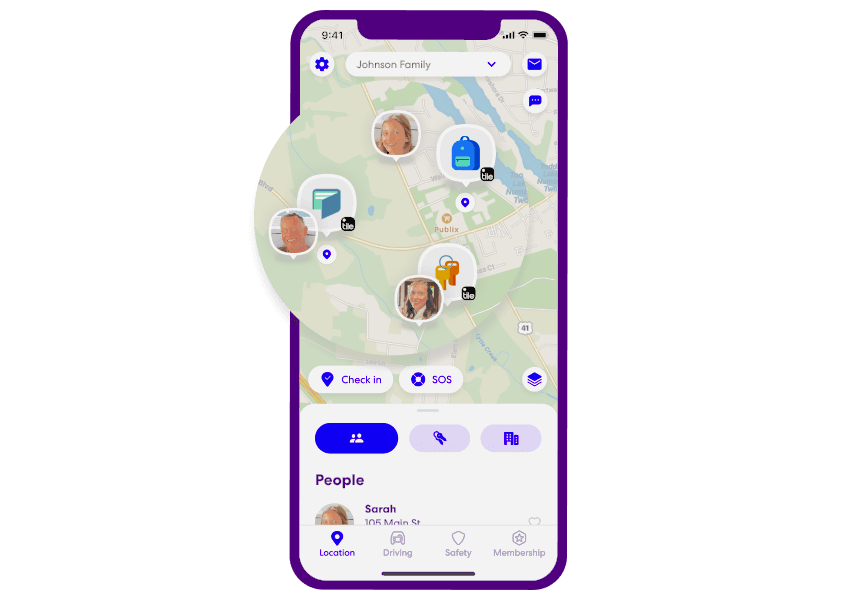
Real-time GPS location. Parents can see the child’s current position on a live map at any time. The location updates continuously while the phone is active and connected.
Location history. The app stores up to 30 days of location routes, displayed on a timeline. Parents can review where a child has been throughout any given day, including the path they took — not just a single endpoint.
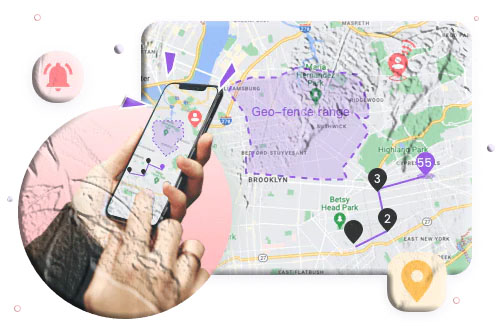
Geofencing with instant alerts. Parents can draw virtual boundaries around important locations — home, school, a friend’s house — and receive immediate notifications when the child’s phone enters or leaves those zones. This removes the need for constant active monitoring; the app alerts you when something changes.
Low-battery notification. When the child’s phone drops below a defined battery percentage, the app sends an alert to the parent’s device. This alert includes the child’s current location, providing a final GPS fix before the phone potentially powers off — directly addressing the “location goes dark when battery dies” problem.
Surrounding environment monitoring. Parents can remotely activate the microphone on the child’s device to hear what is happening in the environment around the phone. This is intended for safety situations — verifying that a child is actually where the map says they are, or checking in when something seems off without escalating to a direct phone call.
Screen mirroring. Parents can view the child’s screen in real time from their own device, providing visibility into what apps are open and what content is being accessed.
SMS and call monitoring with keyword alerts. The app logs incoming and outgoing messages and can be configured to send an alert when specific keywords appear — useful for catching signs of cyberbullying, contact from strangers, or conversations about dangerous behavior.
Setting up MobileTracking:
Step 1: Download MobileTracking Parental Control from the Google Play Store on your own device. Create an account and sign in.
Step 2: On your child’s Android phone, download and install MobileTracking Kids — the paired companion app.
Step 3: Open MobileTracking Kids on the child’s phone and enter the pairing code shown in your parent dashboard to link the two devices.
Step 4: Complete the permission setup on the child’s device, granting access to location, notifications, and other features you want to enable.
Step 5: From your parent dashboard, access the Location tab to view the child’s live position and configure geofence zones and low-battery alerts.
A note on ethical use: the most sustainable and effective approach to parental monitoring is one that the child knows about. Children who understand why tracking is in place — as a safety tool rather than a punishment — tend to respond more positively and are more likely to come to a parent when something goes wrong, rather than working around the monitoring. Transparency about the tool, combined with age-appropriate conversations about why it exists, produces better outcomes than hidden surveillance.
Part 7: A Note on Legal Boundaries
Because this article covers both protecting yourself from being tracked and tracking others, it is important to address the legal dimension directly.
Tracking your own devices is always legal.
Tracking your minor child’s phone with parental authority is generally legal in most countries, provided the child is under the age of majority (typically 18). Most legal systems recognize parents’ rights and responsibilities to monitor the activities of their underage children, including digital activity.
Tracking another adult’s phone without their knowledge or consent is illegal in most jurisdictions, regardless of your relationship to that person. Installing monitoring software on a partner’s, spouse’s, or employee’s phone without their consent can constitute illegal wiretapping or unauthorized computer access under laws like the U.S. Computer Fraud and Abuse Act or equivalent legislation in other countries.
If you are unsure whether a specific monitoring activity is legal in your jurisdiction, consult a legal professional before proceeding.
Frequently Asked Questions
Can your phone be tracked if it is turned off completely?
When a phone is fully powered off, it stops communicating with cell towers and cannot transmit location data over the network. Tracking in real time is not possible. However, once the phone is turned back on, tracking can resume immediately — and services like Google Find My Device or Apple Find My will display the last known location from before shutdown, which may be enough to locate the phone. Google’s Pixel 8 and Pixel 8 Pro are exceptions, with dedicated hardware that allows Find My Device to locate them even after shutdown.
Can your phone be tracked in airplane mode?
Yes, partially. Airplane mode disables cellular, Wi-Fi, and Bluetooth — but it does not disable GPS by default. GPS is a receive-only technology that picks up satellite signals rather than transmitting to a network, so the system designers originally considered it safe to leave active in airplane mode. Apps that have GPS access can still determine your location in airplane mode. To prevent this, disable GPS explicitly in your location settings in addition to enabling airplane mode.
Can a phone be tracked without a SIM card?
Yes. Without a SIM card, the phone cannot connect to the cellular network, so carrier-level tracking and cell tower triangulation are not possible. But if the phone has Wi-Fi, it can connect to the internet through a Wi-Fi network, and the IP address from that connection can be geolocated. GPS also works without a SIM card — it does not require any network connection. So a SIM-free phone with Wi-Fi and GPS can still have its location determined.
Does Find My Device work when Location Services is turned off?
If Location Services is disabled, Google Find My Device cannot get a real-time GPS location from the device. However, it can still display the last known location that was synced before location was disabled, as long as the phone is connected to the internet. It can also remotely ring or lock the device regardless of Location Services status, as long as the phone is online.
How do I know if someone installed tracking software on my phone?
Look for these signs: unfamiliar apps in your app list (especially ones with generic or system-sounding names), unusual battery drain that does not match your usage, the phone running warm during idle periods, higher-than-expected mobile data usage, and unexplained background activity. For Android, also check Device Admin Apps in Security settings for anything you do not recognize. If you strongly suspect spyware, performing a factory reset is the most reliable way to remove it.
Can Google Maps track me without my permission?
Google Maps cannot share your location with others without your active consent — sharing requires you to initiate it from within the app. However, if Location History is enabled on your Google account, Google Maps (and Google’s services more broadly) record a timeline of your movements, which you can view — and delete — at myactivity.google.com. You can disable Location History in your Google account settings at any time.
Can someone track my phone with just my phone number?
Phone number-based tracking is limited for regular individuals. Reverse phone lookup services can return publicly registered information associated with a number — typically a name and a general geographic area — but not a real-time GPS location. Mobile carriers can technically triangulate a device by number, but they only release this to law enforcement through proper legal channels. Apps that claim to track any phone’s live location using just a number — without consent from the tracked person — are generally either fraudulent, inaccurate, or illegal.
What is the most effective way to prevent all location tracking on my phone?
No single setting eliminates all forms of tracking. The most effective combination is: turn off Location Services, disable Wi-Fi in public, use a VPN for internet browsing, review and restrict app permissions regularly, and avoid installing apps from unofficial sources. For situations requiring maximum privacy, turning the phone fully off is the only approach that addresses all tracking vectors simultaneously.
How can I tell if Find My iPhone is being used to track me?
There is no direct notification when someone views your location through Find My — but they can only do so if they have your Apple ID and password. If you are concerned someone unauthorized has access, change your Apple ID password immediately at appleid.apple.com and review the trusted devices and phone numbers on your account. Enabling two-factor authentication significantly reduces the risk of unauthorized account access.
Is it legal to use a parental control app to track my child’s phone?
In most countries, yes — parents have the legal right to monitor their underage children’s devices as part of their parental responsibility. The specific age thresholds vary by jurisdiction. Monitoring an adult child’s phone without their consent is a different matter and is not covered by parental authority. Always ensure any monitoring is age-appropriate, clearly motivated by safety rather than control, and ideally done with the child’s knowledge of the monitoring’s existence.
Final Thoughts
The honest answer to “Can my phone be tracked if location services are off?” is yes — though the method and precision of that tracking varies considerably depending on which technology is being used. GPS switching off removes one avenue. It does not close all the others.
Understanding this is not meant to induce paranoia. The vast majority of location tracking that happens on your phone is mundane — apps personalizing your experience, services loading content relevant to your area, your carrier maintaining the technical records that cellular networks require. The steps outlined in this article are not about opting out of modern technology entirely. They are about making informed choices: knowing which apps genuinely need location access and which ones are overreaching, understanding what public Wi-Fi networks can see about you, and taking the specific actions that meaningfully reduce your exposure rather than assuming a single toggle handles everything.
For parents, the same technology that can be misused for surveillance is a legitimate and valuable safety tool when used responsibly and transparently. Knowing where a child is, receiving an alert when they leave a designated safe zone, and being notified before their phone runs out of battery are practical applications of location technology that serve genuine protective purposes.
Privacy and safety are not opposites — they are both things worth taking seriously, with tools and habits tailored to the actual risks your situation involves.
Disclaimer: This article is for informational purposes only. Laws governing location tracking and phone monitoring vary by jurisdiction. Always comply with applicable local laws and obtain appropriate consent before monitoring another person’s device.






Add comment