

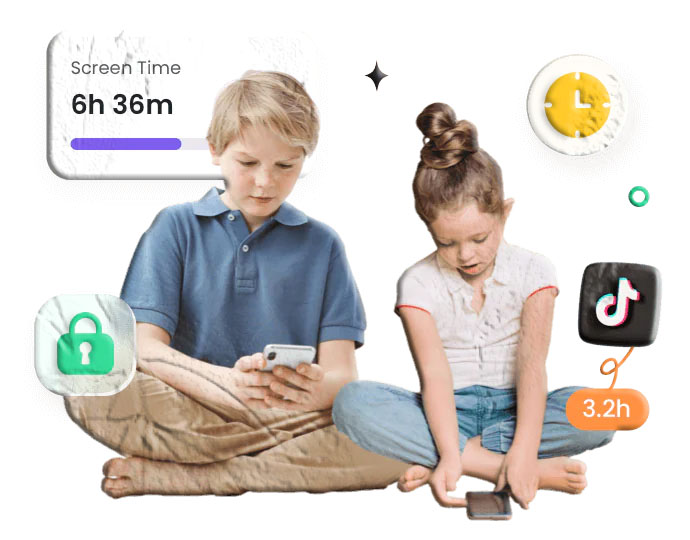
Ask a room full of parents what they’d change about their children’s relationship with technology, and “less screen time” rises to the top of almost every list. Not because screens are inherently bad — they’re not — but because the default state of a child with unrestricted smartphone access is one where screens expand to fill available time in ways that crowd out sleep, physical activity, face-to-face interaction, and the quieter, slower experiences that are increasingly hard to find.
The challenge isn’t that children love their phones. Of course they do — smartphones are remarkable devices that offer entertainment, connection, creativity, and information in a package that fits in a pocket. The challenge is that the people who design the apps on those phones are extremely good at their jobs. Social media algorithms, game reward loops, notification systems, autoplay features — all of these are carefully engineered to maintain engagement and make stopping feel harder than continuing. Children are navigating this environment without the neurological development that would give them the executive function to step away reliably on their own.
This is where structured screen time management makes a genuine difference. Not as a punishment or a rejection of technology, but as an external framework that does for a child’s digital life what bedtimes, meal times, and homework schedules do for other parts of it: creates structure that supports health and development without relying entirely on the child’s still-developing self-regulation.
MobileTracking‘s screen time management tools give parents a practical set of controls for this task — visibility into how time is being spent, daily limits that automatically enforce boundaries, app-level restrictions, geofencing-based phone locks, and alert systems that keep parents informed when children push against the limits that are in place. This guide covers all of it: the research context for why screen time management matters, how MobileTracking’s specific tools work, age-appropriate approaches for different developmental stages, how to set everything up, and the broader philosophy of helping children build genuinely healthy digital habits rather than simply fighting with their phones.
The Case for Screen Time Management: What the Research Actually Shows
Before getting into how MobileTracking’s tools work, it’s worth grounding the conversation in what we actually know about screen time and child health — because the picture is more nuanced than the simple “screens are bad” narrative, and understanding the nuance helps parents make better decisions about how to use monitoring and limiting tools.
What Research Says About Screen Time and Children’s Health
The American Academy of Pediatrics (AAP) has developed guidance on screen time that distinguishes by age and, increasingly, by type of use:
- Under 18 months: The AAP recommends avoiding screen use other than video chatting, with the exception of high-quality educational content with a caregiver present. The infant brain develops rapidly in this period, and passive screen time displaces the face-to-face interaction and physical exploration that development depends on.
- 18 months to 2 years: High-quality programming only, watched together with a parent who helps the child understand what they’re seeing. The solo-viewing default of most device use is specifically what the guidance discourages.
- Ages 2–5: Limit to one hour per day of high-quality content. Research supports the idea that excessive screen time at this age is associated with delays in language development, reduced physical activity, and disrupted sleep patterns.
- Ages 6 and older: The AAP moved away from prescribing a specific hour limit for older children, instead emphasizing that screen time shouldn’t displace adequate sleep, physical activity, homework, and in-person social connection. This framing is useful: the question isn’t just how much, but what it’s displacing.
Research from the National Institutes of Health has found associations between high levels of recreational screen time in school-age children and lower cognitive function, reduced grey matter in brain regions associated with language and literacy, and reduced capacity for sustained attention. These are associations, not established causal relationships, but they’re consistent with the broader picture that high-volume passive screen time isn’t neutral for developing brains.
The Sleep Dimension
Among all the documented effects of excessive screen time, disrupted sleep may be the most consistently supported and the most consequential. The National Sleep Foundation has documented the relationship between device use — particularly in the hour before bed — and delayed sleep onset, reduced sleep duration, and poorer sleep quality in children and teenagers.
The mechanism is partly blue light, which suppresses melatonin production. But it’s also the content itself: social media, games, and messaging are specifically designed to maintain engagement, and the psychological state they produce — arousal, anticipation, social vigilance — is incompatible with the relaxed, winding-down state that precedes sleep.
The downstream effects of poor sleep in children compound quickly. Sleep-deprived children show reduced academic performance, worse emotional regulation, increased behavioral problems, and greater risk of anxiety and depression. Managing screen time at bedtime isn’t just about phone use — it’s about protecting sleep, which protects virtually everything else.
Social Media and Adolescent Wellbeing
The question of social media’s effects on teenagers has generated significant research attention. While the picture is complex, the American Psychological Association has noted that heavy social media use — particularly passive scrolling rather than active communication — is associated with increased rates of anxiety, depression, and negative self-comparison in adolescents, particularly girls.
Critically, it’s not binary. The relationship between social media use and wellbeing follows a dose-response pattern: moderate use has smaller or neutral effects, while heavy use shows stronger negative associations. This supports the case for limits rather than outright bans — allowing children to participate in digital social life while keeping usage within ranges where effects are less harmful.
The Importance of What’s Displaced
Perhaps the most useful frame for thinking about children’s screen time is not “how much is too much” in absolute terms, but “what is it displacing?” An hour of screen time during an afternoon that also includes outdoor play, homework, family dinner, and appropriate sleep isn’t the same as an hour that comes at the expense of sleep or physical activity.
Parents who approach screen time management through this lens — ensuring that the basics of healthy development are protected before screen time fills available hours — are operating from a more nuanced and effective framework than simple hour-counting.
How MobileTracking’s Screen Time Tools Work
MobileTracking provides parents with four interconnected tools for managing screen time: usage monitoring, daily time limits, app-level controls, and location-based restrictions. Each addresses a different dimension of the screen time challenge.
Tool One: Screen Time Monitoring
Before a parent can manage their child’s screen time effectively, they need accurate information about what’s actually happening. MobileTracking’s monitoring gives parents visibility into:
Total device usage: How long the child’s phone was actively used during the day, and how that compares to recent days and weeks. Trends over time are often more informative than single-day snapshots — a child whose screen time has been steadily increasing over the past month presents a different situation from one who had an unusually high-use day.
App-by-app breakdown: How the daily screen time is distributed across different apps. Understanding that four hours of screen time is divided between two hours of educational content, one hour of messaging with friends, and one hour of social media scrolling is more actionable than knowing the total alone. The distribution tells parents where to focus any management decisions.
Usage timing: When during the day the phone is being used — morning before school, during school hours, after school, in the evening, late at night. Timing is often as important as volume: an hour of phone use at 11pm is more problematic than an hour at 4pm, even though the measured time is identical.
Most-used apps: A quick summary of the apps consuming the largest share of screen time — useful for getting a fast overview without needing to review the full app-by-app breakdown.
Notification activity: Which apps are generating the most notifications, and when. High notification frequency from a social app late at night indicates that the app is actively competing for the child’s attention during a time it shouldn’t be.
This monitoring layer is foundational. Without understanding what’s happening, any limits a parent sets are essentially guesses. With usage data, limits can be calibrated to the actual pattern of a specific child’s phone use.
Tool Two: Daily Screen Time Limits
MobileTracking allows parents to set daily time limits at two levels: for the device overall, or for specific applications.
Device-level daily limits: A total daily allowance for all screen use. Once the allowance is exhausted, the device locks — the child can still make emergency calls but cannot access apps or the browser until the limit resets, typically at midnight. This is the broadest form of limit, appropriate for families who want a firm ceiling on total daily device use regardless of what the time is spent on.
App-level daily limits: More granular limits that apply to specific applications. YouTube might be limited to one hour per day while messaging apps remain unrestricted. Social media might have a 45-minute combined daily allowance while educational apps run without limit. App-level limits allow parents to target the specific apps driving problematic usage rather than restricting all device activity equally.
The practical difference between these approaches matters for everyday family life. A device-level limit of four hours sounds reasonable but creates friction when a child legitimately needs their phone for a two-hour school project and an hour of homework research — they’ve used up their daily allowance on entirely legitimate activities. App-level limits that target entertainment and social apps while leaving educational and communication functions unrestricted avoid this friction while still addressing the actual concern.
Automatic enforcement: When a daily limit is reached, the restriction applies automatically without requiring any action from the parent. The child receives a notification that their limit has been reached, and the app or device locks. This removes the daily negotiation — the limit is the limit, enforced by the technology rather than requiring a parent to remember to intervene every day.
Tool Three: App Blocking and Scheduled Restrictions
Beyond daily time limits, MobileTracking’s app blocking tools allow parents to restrict specific apps during defined time windows — or block them entirely.
Full app blocking: A specific app is blocked entirely — it cannot be opened regardless of time of day or remaining daily allowance. This is appropriate for apps that have been identified as inappropriate for the child’s age, apps that are the source of a specific problem, or apps that a family has agreed aren’t suitable.
Schedule-based restrictions: More nuanced than outright blocking, schedule-based restrictions allow parents to block specific apps during defined time windows while leaving them accessible at other times. Social media blocked from 8am to 3pm during school hours, gaming blocked from 9pm to 8am, all non-essential apps restricted during a defined homework window — these are schedule-based restrictions that address specific times of concern without permanently removing access.
The schedule-based approach is particularly powerful because it creates consistent, predictable structure without requiring daily enforcement. Once a schedule is configured, it repeats automatically. Children know what to expect, which — perhaps counterintuitively — tends to reduce rather than increase conflict around limits.
Emergency and exception management: Situations arise where a child needs access to a blocked app for a legitimate reason — a homework assignment that requires a specific app, a family communication need during blocked hours. MobileTracking’s dashboard allows parents to grant temporary exceptions from the parent device without requiring the child to navigate a complex unlock process.
Tool Four: Geofencing-Based Phone Locks
One of MobileTracking’s more distinctive screen time features combines location awareness with device management: the ability to automatically lock or restrict a child’s phone when they enter or leave a specific location.
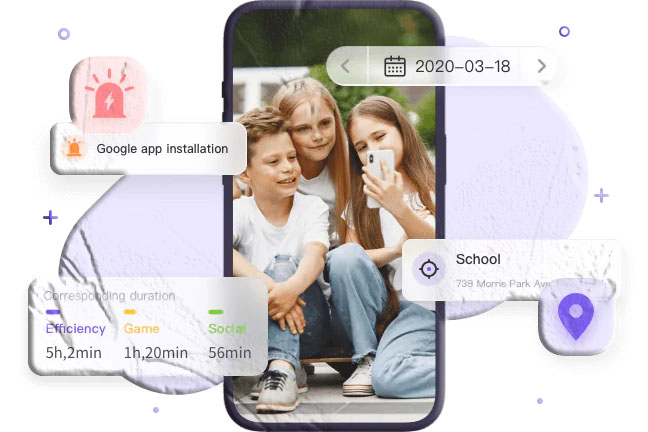
School-based locking: Configure a geofence around the child’s school and set the device to restrict to limited functionality automatically when the child is inside the school boundary. When they leave — at the end of the school day — the device returns to normal configured access. This automates what many schools ask children to do manually (put their phones away) and removes the decision-making burden from the child.
Home-based rules: Set the phone to automatically activate homework or bedtime restrictions when the child is at home during defined hours — restrictions that apply in the home environment but might not apply elsewhere.
Location-triggered alerts: In addition to automatic locks, geofencing can trigger alerts to parents when a child enters or leaves a defined zone — keeping parents informed of location changes while managing device access based on physical context.
The combination of location awareness and device management is uniquely powerful because it recognizes that appropriate phone use isn’t just a time question — it’s a context question. A child’s phone should function differently during school hours than during leisure time, and differently at home in the evening than at a friend’s house on a weekend afternoon.
Alerts and Notifications for Parents
Alongside the active management tools, MobileTracking’s screen time system includes alert capabilities that keep parents informed when specific events occur:
- A daily limit is approaching or has been reached
- The child attempts to access a blocked or restricted app
- The child attempts to modify device settings in ways that might affect monitoring
- The device is shut down unexpectedly
- The child’s device enters or leaves a geofenced area
These alerts don’t require the parent to be actively monitoring — they arrive as push notifications, bringing relevant information to the parent at the moment it occurs rather than requiring a scheduled check-in.
Setting Up Screen Time Management in MobileTracking
Screen time management is part of MobileTracking’s standard setup, with specific screen time configuration happening after the initial device binding.
Step 1: Install on Both Devices
Download and install MobileTracking on your parent device and your child’s device. Available through:
- Android: Google Play Store, for devices running Android 8.0 and above
- iOS: App Store, for devices running iOS 15 and above
- Direct download: At mobiletracking.app
Install the parent version on your device and the child version on the monitored device.
Step 2: Create Your Account
Open MobileTracking on your parent device, register for a free account, and log in. Your account is the hub for all configuration — screen time limits, schedules, app blocking, geofencing — accessible from the mobile app or any web browser.
Step 3: Bind the Child’s Device
Complete the binding process using the QR code or pairing code from your dashboard. Once bound, the child’s device appears in your account and data begins syncing.
Grant all permissions requested during the setup process, including usage access permission on Android (Settings → Apps → Special App Access → Usage Access → MobileTracking). Without this permission, screen time monitoring and enforcement won’t function correctly.
Configuring Screen Time Settings
After setup, navigate to the Screen Time section of the parent dashboard.
Setting daily limits:
- Select whether to set a device-level limit, app-level limits, or both
- For device-level: set the total daily allowance in hours and minutes
- For app-level: select specific apps and define individual daily allowances
- Save — limits apply immediately to the child’s device
Creating a daily schedule:
- Navigate to the schedule or routines section
- Define time windows and assign restriction profiles to each window
- Specify which days each window applies to (weekdays, weekends, or specific days)
- Test the schedule by checking that restrictions apply correctly during a defined window
- Save — the schedule repeats automatically
Setting up geofencing for school:
- Navigate to the geofence section (in the location or screen time tools)
- Add the school address and define the zone radius
- Set the restriction profile that applies when the device is inside the zone
- Configure arrival and departure alerts if desired
- Save — the geofence activates and will automatically apply the defined restrictions when the child’s device enters the zone
Configuring alerts: Navigate to notification settings and configure which events trigger parent alerts — limit reached, blocked app access attempted, settings change attempted, device shutdown, and geofence crossings.
Age-Appropriate Screen Time Approaches
Screen time management that works for a seven-year-old doesn’t work for a fourteen-year-old. Here’s how to calibrate MobileTracking’s tools to different developmental stages.
Early Childhood (Ages 3–6)
For very young children with access to a device — typically a shared tablet rather than a personal phone — the priority is strictly limiting total screen time and ensuring what’s accessed is age-appropriate.
Recommended approach:
- Set a strict device-level daily limit (30–60 minutes for ages 3–5, slightly more for 6-year-olds)
- Use app blocking to ensure only approved educational and entertainment apps are accessible
- Enable content filtering to prevent accidental access to inappropriate content
- Keep screen time visible — this age group doesn’t need a personal device in their bedroom
At this age, the device should function almost like a curated environment with a time limit, rather than a general-purpose tool. MobileTracking’s app blocking and daily limits create that environment without requiring manual oversight of every session.
Middle Childhood (Ages 7–11)
Children in this age group are using devices for a wider range of activities — homework, games, video streaming, and the beginnings of social communication. Total screen time is less meaningful than how it’s distributed.
Recommended approach:
- Set app-level limits for entertainment and social apps while leaving educational apps unrestricted
- Use scheduled restrictions to block entertainment apps during homework hours and after bedtime (typically 8–9pm for this age group)
- Review weekly usage reports to understand patterns and have informed conversations
- Configure school-based geofencing if the child carries a phone to school
The Child Mind Institute recommends that parents of children this age be actively involved in understanding what apps and content their children engage with, rather than simply limiting time. MobileTracking’s app usage monitoring supports this involvement.
Early Adolescence (Ages 12–14)
The transition to middle school typically brings a significant increase in social app use, peer communication through messaging platforms, and the beginning of the social media engagement that research most closely links to wellbeing outcomes.
Recommended approach:
- Maintain firm bedtime restrictions — social media and messaging apps blocked from 9–10pm is well-supported by sleep research for this age group
- Set social media app limits (45–90 minutes total per day is a commonly cited range, though family circumstances vary)
- Keep homework-hour restrictions active
- Review usage data weekly and have regular conversations about digital habits — what’s worth the time, what’s not
This age group is old enough to be involved in setting some parameters. Parents who negotiate the specific limits with their early-teen children — rather than imposing them unilaterally — often find more cooperative engagement with the restrictions.
Teenagers (Ages 15–17)
Teenagers need enough autonomy and digital independence to develop their own relationship with technology, while still benefiting from some structural support for the habits that protect their wellbeing.
Recommended approach:
- Focus on bedtime restrictions as the highest-priority limit — protecting sleep is consistently supported by research as worth maintaining even as other restrictions relax
- Move from hard daily limits to alert-based monitoring for most apps — getting notified when social media use exceeds a defined threshold is less confrontational and more developmental than automatic blocking
- Have explicit conversations about what limits remain and why
- Build in periodic reviews where limits are reassessed based on the teenager’s demonstrated judgment
Research from Pew Research Center shows that teenagers are generally aware of their social media habits and are often not satisfied with how much time they spend on their phones. A teenager who is a partner in managing their screen time — rather than simply subject to parental restriction — is more likely to develop lasting healthy habits.
Building Healthy Habits: Beyond the Technology
Screen time limits are tools. The goal isn’t a lower number on a dashboard — it’s a child who has a healthy, balanced relationship with technology that serves their life rather than dominating it. The technology provides the structure; the relationship and the conversations provide the foundation.
Framing Limits as Additions, Not Subtractions
One of the most effective shifts parents can make in how they approach screen time is to frame limits not as taking something away but as making space for other things. “The phone goes away at dinner because that’s family time” is a different conversation from “you’re not allowed to use your phone at dinner.” The first is about what’s valuable; the second is about restriction.
This framing is particularly effective with older children and teenagers, who are more responsive to reasoning about what matters than to pure rule-enforcement. “Less time on social media” is easier to accept when it’s in the service of something the child values — more sleep, more time for hobbies, better academic performance.
Making the Rules Visible and Consistent
Children — particularly younger ones — respond much better to predictable, consistently enforced rules than to limits that are applied inconsistently or that they discover through enforcement rather than in advance. Before configuring screen time limits in MobileTracking, having an explicit conversation with children about what limits are being set and why gives them a map of the territory and removes the sense that limits are being imposed arbitrarily.
MobileTracking’s schedule-based restrictions are useful here specifically because they’re consistent — the bedtime restriction applies every night, the school-hours restriction applies every weekday, automatically, without requiring a parental decision each day. Consistency removes the daily negotiation and the “just five more minutes” dynamic that exhausts both parents and children.
Using Screen Time Data for Conversation
The monitoring data that MobileTracking provides is most valuable not as the basis for restriction but as material for conversation. A weekly review of the family’s screen time patterns — “let’s see how our week looked” — normalizes awareness of digital habits without making it feel like surveillance. A specific conversation prompted by something in the usage data — “I noticed you were on [app] until 1am on Tuesday — what was happening?” — starts from accurate information and genuine curiosity rather than suspicion.
The Family Online Safety Institute consistently identifies ongoing family conversation about digital life as more protective than technical controls alone. Screen time monitoring gives parents the specific, accurate information that makes those conversations more grounded and productive.
Modeling the Behavior
Any conversation about screen time limits for children is more credible — and more effective — when it’s part of a family approach that includes parents. Children who observe their parents checking phones at dinner, scrolling through social media while ostensibly watching a family film, or being unavailable because of device use are receiving a message about digital habits that no parental control app can counteract.
Family screen-free times — meals, the first hour after school, defined evening windows — work better when they apply to everyone, not just to children. This is something no app can enforce on parents; it’s a choice that makes the whole conversation more honest and more effective.
Troubleshooting Common Screen Time Issues
A few problems come up commonly for parents configuring screen time management. Here are the typical ones and how to address them.
Daily limits aren’t applying to a specific app. Confirm that the app-level limit is correctly saved in the dashboard and that the child’s device has synced the updated settings. Syncing requires an active internet connection on the child’s device. Check that usage access permission is fully granted on Android, as this is required for app-level monitoring and enforcement.
The child is finding ways around the limits. Common workarounds include using a second device, using a browser to access apps instead of the native app, or using apps in incognito mode. MobileTracking’s monitoring and blocking applies to the monitored device — it doesn’t prevent use on other devices. If device-switching is a concern, addressing the second device requires extending the monitoring to that device as well. Browser-based workarounds can be addressed through the web filtering tools.
Schedule-based restrictions aren’t applying at the right times. Check that the time zone settings in your MobileTracking account match the child’s location, particularly if you’ve recently traveled. Also verify that the schedule is correctly saved and that the child’s device time is accurate.
The child turned off the monitored device to avoid limits. MobileTracking sends a parent alert when the child’s device shuts down unexpectedly — this is configured in the alert settings. Device shutdown isn’t a complete workaround, as the device needs to be on to function, but the alert ensures parents are informed when it happens.
Frequently Asked Questions
Q: What does the American Academy of Pediatrics recommend for children’s screen time? The AAP recommends no screen time for children under 18 months except video chatting, one hour or less per day of high-quality content for children ages 2–5, and for children ages 6 and older, that screen time doesn’t displace adequate sleep, physical activity, and in-person social connection. For older children, the focus is less on a specific hour limit and more on whether screen time is displacing health-supporting activities.
Q: How do I check my child’s screen time with MobileTracking? Log in to your MobileTracking parent account on your device or through the web dashboard. Navigate to the Screen Time or App Usage section to see a breakdown of daily usage by app, total device use, and usage timing for the current day and historical dates.
Q: Can I set different screen time limits for weekdays and weekends? Yes. MobileTracking’s schedule-based restrictions allow different rules to be applied on different days of the week. You can set stricter limits and restrictions for school days and more relaxed parameters for weekends, or any other day-based configuration that fits your family’s schedule.
Q: Can my child turn off screen time limits? MobileTracking’s screen time restrictions are managed through the parent account and aren’t directly accessible to the child through their device. Changes to limits require access to the parent account, which is protected by the parent’s account credentials. The child would need to access your account to modify settings.
Q: How do I block specific apps during school hours? In the schedule or app blocker section of the parent dashboard, create a time window covering school hours (8am–3pm, Monday through Friday, for example) and assign the specific apps you want blocked during that window. The restriction applies automatically during the defined hours and lifts automatically when the window ends.
Q: What happens when a daily screen time limit is reached? When a daily app-level or device-level limit is reached, the restricted app or device locks automatically. The child receives a notification that their limit has been reached. Parents can grant a temporary extension from the parent dashboard if circumstances warrant it. The limit resets at midnight.
Q: Is it better to set device-level limits or app-level limits? App-level limits are generally more targeted and cause less daily friction than device-level limits. By restricting the specific apps driving problematic usage — social media, games — while leaving educational and communication functions unrestricted, app-level limits address the actual concern without creating problems for legitimate device use. Device-level limits are more appropriate for very young children or as a total household-screen-time management tool.
Q: Does MobileTracking’s screen time management work on both Android and iPhone? Yes. MobileTracking supports screen time management on both Android (8.0 and above) and iOS (15 and above). Some specific features may differ slightly between platforms due to each operating system’s architecture. Consult MobileTracking’s documentation for platform-specific details.
Q: Can I see screen time data for more than one child’s device? Yes. MobileTracking supports multiple paired devices under a single parent account, allowing parents to monitor and manage screen time for several children from the same dashboard.
Q: Is MobileTracking free to use for screen time management? Yes. MobileTracking is free to download and use, with screen time monitoring, daily limits, app blocking, scheduled restrictions, and geofencing included in the free feature set. Visit mobiletracking.app to get started.
The Goal Behind the Limits: Raising Children Who Manage Their Own Screens
The best outcome of any screen time management approach isn’t a child who has phone use limited by an app. It’s a child who understands their own relationship with technology — what it adds to their life, what it takes away, when to put the phone down — and makes good choices about it because they want to, not because they have to.
That outcome is built over years of conversation, modeling, consistent structure, and gradually increasing autonomy. Screen time limits are part of the structure, not the whole strategy. They work best when they’re part of an approach that also includes honest family conversations about digital habits, parental modeling of healthy phone use, activities and interests that compete successfully with screen time for the child’s attention, and a relationship with parents in which children feel supported rather than policed.
MobileTracking’s screen time tools create the external structure that gives children developing brains the support they need before their own self-regulation is fully developed. As children grow and demonstrate the judgment to manage their own digital habits, those structures can relax — a natural progression toward the self-directed, balanced relationship with technology that is the actual goal.
The phone isn’t the enemy. Unmanaged, unstructured, unlimited phone use is the problem — and it’s a problem with practical, workable solutions that don’t require banning devices or constant conflict.
Explore MobileTracking’s full screen time management features at mobiletracking.app.
MobileTracking is available free for Android devices running Android 8.0 and above and iOS devices running iOS 15 and above. Screen time monitoring requires usage access permissions on Android, granted during setup. Feature availability may vary by device and operating system version. Screen time recommendations referenced in this article are from the American Academy of Pediatrics and other health authorities and are provided for informational context. Users are responsible for determining appropriate screen time limits for their children and for ensuring their use of monitoring features complies with applicable local laws.