
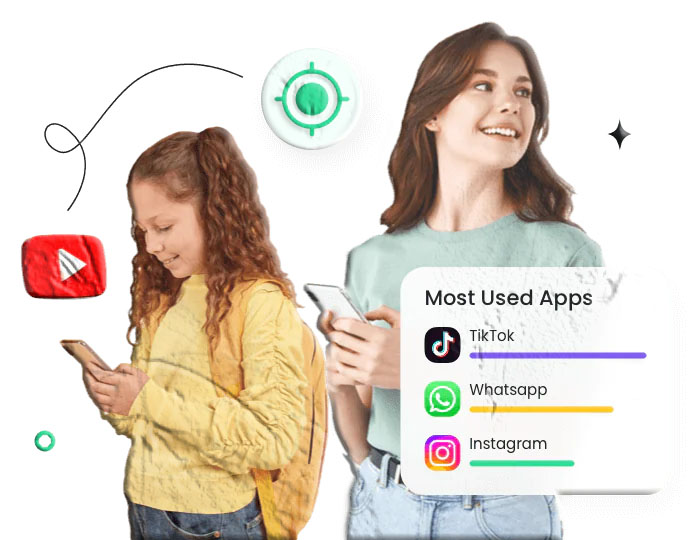
Walk past a group of children almost anywhere in the world today and you’ll see the same scene: heads down, phones out, thumbs moving. The smartphone has become so thoroughly integrated into daily life for young people that it’s less a device they use and more an extension of how they live. Homework, socializing, entertainment, creative projects, communication with friends and family — all of it flows through the same pocket-sized screen.
For parents trying to understand their child’s digital life, this creates a specific challenge: the phone isn’t a window into what a child is doing — it’s a closed door. You can see that they’re on their phone, but not what they’re doing on it. You can tell they’re engaged with something, but not whether it’s the educational app they said they’d use for homework or a social media platform they’ve been on for three hours. You can observe the time passing, but not where it’s going.
App usage monitoring gives parents the view behind that closed door. Not through surveillance of private conversations or continuous real-time watching, but through structured visibility: which apps are installed, how much time is spent on each one, when they’re being used, how many notifications each app is generating, and — where an app is causing problems — the ability to block it or set limits on how long it can be open.
MobileTracking‘s app usage monitoring feature brings all of this into a single parent dashboard, accessible from a parent’s own device or any web browser. It covers the full lifecycle of a child’s app activity — from installation through daily usage patterns to notification activity — and gives parents both the insight to understand what’s happening and the tools to act on what they learn.
This guide goes through everything: what the feature covers and what parents can actually see, why understanding app usage matters beyond simple time management, how the app blocking and notification filtering tools work, the age-specific approaches that make monitoring more effective, how to set everything up, and how app usage monitoring integrates into a broader approach to digital parenting.
Why App Usage Monitoring Has Become Essential for Parents
The sheer number of apps available to children — and the variety of what those apps do — has made understanding a child’s phone activity meaningfully more complex than it was even a few years ago.
The App Landscape Has Expanded Beyond Easy Oversight
In the early years of smartphone adoption, a child’s phone might have five or ten apps: a few games, a messaging app, a social platform or two. Understanding what those apps were and what they did was manageable through ordinary parental attention.
Today’s smartphones look very different. A typical teenager’s phone might have forty, sixty, or more apps installed — productivity tools, games, niche social platforms, streaming services, communication apps, fitness trackers, content creation tools, and hundreds of category-specific utilities. The app stores through which children find and download apps contain millions of options, new ones appearing daily, many of them designed with specific appeal to younger users.
Parents who want to understand their child’s app landscape can’t rely on occasional manual checks of their child’s phone. The landscape changes too quickly, the number of apps is too large, and — critically — the child is often the one in possession of the phone.
App Names Don’t Always Tell You What Apps Do
One of the more practically challenging aspects of monitoring a child’s app activity is that app names are frequently not self-explanatory. A parent who sees an unfamiliar app name on their child’s phone and wants to understand what it does faces a research task: find the app in the store, read the description, look at reviews, try to understand how it’s actually being used by young people rather than how it markets itself.
Common Sense Media has extensively documented the gap between how apps present themselves in app stores and how children actually use them. An app described as a communication tool might function primarily as a platform for sharing explicit content. A game with an innocuous name might contain community features that expose children to adult users. A photo editing app might have a social component that operates essentially as a social network. App names and official descriptions are often incomplete guides to what children actually encounter when they use them.
App usage monitoring doesn’t fully solve this problem, but it provides the foundation for addressing it: knowing which apps are installed and how much time a child is spending on each one allows a parent to investigate the ones they don’t recognize or that are consuming unusual amounts of time.
Screen Time Numbers Don’t Tell the Whole Story
Most parents have some awareness of how much total screen time their child is using. Fewer have a detailed picture of where that time is going. There’s a meaningful difference between a child who spends four hours on educational and creative apps and a child who spends four hours on social media and gaming — even if the total screen time numbers look identical.
Understanding how screen time is distributed across different apps gives parents a much more accurate picture of their child’s digital day than total time alone. It also surfaces patterns that total numbers obscure: a child who is using a particular app in unusually large volumes, spending time on a platform late at night when other apps aren’t in use, or receiving a high volume of notifications from an app the parent doesn’t recognize.
App Notifications as a Window Into Digital Life
Notifications deserve specific attention because they’re an underappreciated source of insight into a child’s app activity. Every notification sent by an app represents an event: a message received, a post interacted with, an alert from a platform, a prompt to engage with content. The volume and frequency of notifications from a specific app tells you something meaningful about how active that app is in a child’s life — and sometimes about what’s happening within it.
An app generating hundreds of notifications per day during school hours represents something different from one generating a few notifications in the evening. A sudden spike in notifications from a social app might coincide with a peer conflict playing out on that platform. MobileTracking’s notification monitoring surfaces this dimension of app activity in a way that simple usage time statistics don’t capture.
What MobileTracking’s App Usage Monitoring Covers
MobileTracking’s app monitoring feature provides visibility into three distinct aspects of a child’s app activity on the monitored device: what apps are installed, how those apps are being used, and how parents can actively manage app access through blocking and notification filtering.
Installed App Visibility
The foundation of app monitoring is a complete view of what’s on the child’s device. MobileTracking provides parents with a full list of apps installed on the monitored phone, including:
- App names and icons: The full inventory of what’s installed, presented in a readable format in the dashboard
- Installation dates and times: When each app was added to the device — useful for identifying newly installed apps that weren’t there at the last check, and for establishing a timeline around any incidents that may warrant investigation
- App categories: Where available, the category each app belongs to — games, social media, productivity, entertainment, and similar classifications that help parents understand the nature of the app without researching each one individually
The installation date information is particularly useful because it allows parents to identify new additions to a child’s app collection without needing to manually compare the current state of the phone against what was there previously. An app that appeared yesterday, that a parent doesn’t recognize, represents a concrete and manageable thing to investigate.
Daily App Usage Tracking
Beyond knowing what apps are installed, MobileTracking tracks how those apps are actually being used — how much time a child spends in each app, when those sessions occur, and which apps account for the largest share of their daily screen time.
Time spent per app: The dashboard presents a breakdown of daily screen time by application, showing how long the child was active in each app during a given day. This can be viewed as a summary (top apps by time used) or in more detail (usage timeline showing when each app was open).
Usage frequency and patterns: How often an app is opened and for how long each session lasts tells a different story from total daily time. An app opened briefly dozens of times throughout the day — consistent with a messaging app where notifications prompt frequent short check-ins — is a different usage pattern from an app that’s opened once and used for three hours, more consistent with gaming or video consumption.
When apps are being used: The timing of app usage often matters as much as the volume. Apps being used during school hours when the device should be put away, social media activity at 1am, or a cluster of usage from a particular app during times the child said they’d be doing homework — these timing patterns are visible in the usage data and often more informative than aggregate time statistics.
Most-used apps summary: MobileTracking surfaces a quick summary of the apps consuming the most screen time — a practical starting point for any review of a child’s digital habits that surfaces the most significant items without requiring a parent to scroll through a complete app list.
Notification Monitoring
In addition to tracking active usage time, MobileTracking monitors the notifications generated by apps on the child’s device — providing visibility into which apps are generating alerts and at what volume.
Notification volume per app: Seeing how many notifications each app generates in a day or week gives parents a sense of how actively that app is reaching out for the child’s attention. An app generating hundreds of notifications daily is one that’s attempting to pull the child back to it continuously; this is worth understanding regardless of whether the child is actually opening the app each time a notification arrives.
Notification content awareness: Where notification content is accessible through monitoring, parents can understand not just that a notification was sent but what triggered it — a message received, a social interaction, a system alert. This level of detail can surface situations where a child is receiving a high volume of messages from a specific contact, or where a platform is generating alerts that suggest intensive activity on the platform even during times when the child shouldn’t be using it.
Filtering specific app notifications: MobileTracking’s notification monitoring isn’t purely passive — parents can also filter or restrict the notifications that specific apps are permitted to send. This serves two functions: reducing the attention-fragmenting effect of constant alerts from high-notification apps, and limiting exposure to notification content from apps that are generating concerning alerts.
Active Management: App Blocking and Usage Controls
Beyond monitoring, MobileTracking gives parents active tools for managing app access and usage on the child’s device.
App Blocker
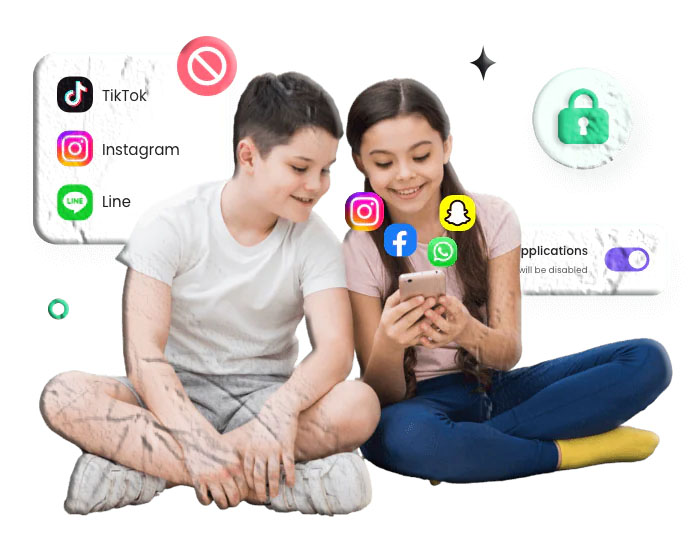
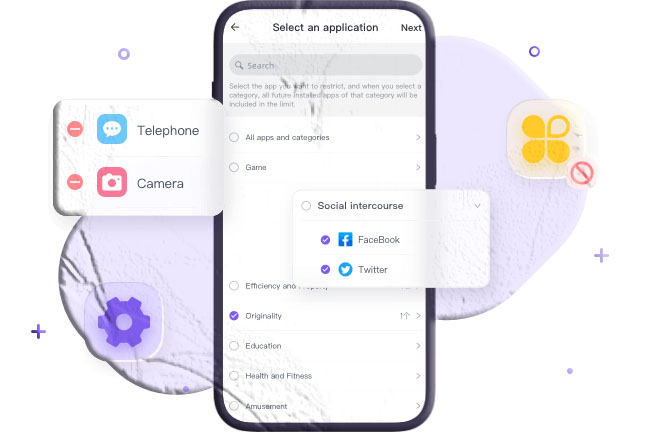
The app blocking feature allows parents to prevent specific apps from being opened on the monitored device. A blocked app remains installed but cannot be launched — selecting it produces a restriction message rather than opening the app. Blocking can be applied to any app on the device and can be reversed from the parent dashboard at any time.
When app blocking is most useful:
- A specific app has been identified as harmful, age-inappropriate, or the source of a problematic situation and needs to be taken off the table immediately without removing it from the device entirely
- An app is being used in ways that violate family rules — social media during school hours, gaming late at night — and the parent wants to enforce the rule structurally rather than relying on the child’s self-regulation
- A new app appeared on the device that the parent doesn’t recognize and wants to restrict while they investigate it
- Temporary blocking during a specific period: a discipline measure, a focus period before exams, or a family event where device use isn’t appropriate
App blocking through MobileTracking is applied from the parent dashboard without requiring physical access to the child’s device. The restriction takes effect immediately on the monitored device, which is practically useful in situations where physical phone access isn’t available.
Usage Time Limits Per App
In addition to outright blocking, MobileTracking allows parents to set daily usage time limits for individual apps. Once a child has used an app for the defined daily allowance, the app becomes inaccessible until the next day’s allowance resets.
Time limits are more graduated than blocking: they allow appropriate use of an app up to a defined threshold while preventing the kind of excessive, time-displacing use that becomes a problem. A one-hour daily limit on a gaming app allows leisure use without allowing four-hour gaming sessions. A thirty-minute limit on a social media platform maintains a reasonable relationship with the platform without allowing the kind of intensive, continuous use that research has linked to negative outcomes for young users.
Research from the American Psychological Association has highlighted the relationship between heavy social media use and wellbeing outcomes in adolescents — noting that the relationship isn’t binary but depends significantly on how much time is being spent and in what manner. Usage time limits offer a practical tool for maintaining the kind of moderate, bounded engagement with social apps that tends to be less problematic than unrestricted access.
Notification Filtering
For apps that a parent doesn’t want to block outright but whose notifications are excessive or concerning, MobileTracking’s notification filtering allows specific apps to be restricted in terms of what notifications they can generate on the child’s device. This can reduce the attention-fragmenting effect of high-notification apps while leaving the app itself accessible.
Setting Up App Usage Monitoring in MobileTracking
App usage monitoring is included in MobileTracking’s standard setup process. Here’s how to get it running and how to navigate the app-specific features once it’s active.
Step 1: Install on Both Devices
Download and install MobileTracking on your parent device and your child’s device. Available through:
- Android: Google Play Store, for devices running Android 8.0 and above
- iOS: App Store, for devices running iOS 15 and above
- Direct download: At mobiletracking.app
Install the parent-side app on your device and the child-side app on the monitored device.
Step 2: Create Your Account
Open MobileTracking on your parent device, register for a free account using your email address, and log in. Your account is the central hub for app usage data, block list management, and time limit configuration — accessible from the mobile app or any web browser.
Step 3: Bind the Child’s Device
Complete the binding process to connect the child’s device to your parent account. Use the QR code pairing or manual pairing code from your parent dashboard. Once bound, the child’s device appears in your monitoring account and begins syncing data.
App monitoring permissions: For MobileTracking to access app usage data on Android, it requires usage access permission — this is a specific permission type that allows an app to see which other apps are being used and for how long. During setup, the app will prompt you to grant this permission through the device’s Settings → Apps → Special App Access → Usage Access menu on Android. Follow the setup prompts completely to ensure this permission is granted.
On iOS, app usage monitoring operates within the permissions framework that Apple makes available to third-party apps on iOS 15 and above. Consult MobileTracking’s support documentation for iOS-specific setup details.
Step 4: Navigating the App Usage Dashboard
Once setup is complete and the device has been active, navigate to the App Usage section of your parent dashboard. You’ll find:
Installed apps view: A complete list of apps on the child’s device, with installation dates. Use this to get a baseline understanding of what’s installed and to identify any apps you don’t recognize.
Daily usage report: A breakdown of today’s screen time by app, showing how long the child has spent in each application. Navigation between dates allows you to review historical usage.
Usage timeline: A chronological view of app activity, showing when specific apps were opened and for how long, throughout the day. This reveals the timing patterns that aggregate daily statistics don’t capture.
Notification summary: Which apps have generated notifications today, and how many — giving you a picture of the attention landscape the child’s phone is creating.
App management tools: From any app entry, you can access blocking controls (block the app immediately or schedule a block), time limit settings (define a daily usage allowance), and notification filter options.
Age-Specific Approaches to App Monitoring
App monitoring isn’t a one-size-fits-all feature. The right approach looks different depending on the child’s age, maturity, and the specific apps in their life. Here’s how thoughtful parents adapt their approach across different developmental stages.
Younger Children (Ages 6–10)
For children in this age group who are just beginning to use smartphones or tablets, the app landscape is typically simpler and the appropriate oversight is more comprehensive.
What to focus on:
- Regular review of installed apps to catch anything new that needs investigation
- Ensuring apps are age-appropriate before they’re installed (or using the monitoring to catch inappropriate apps after the fact)
- Usage time limits that prevent any single app from consuming excessive time
- Blocking apps that have been identified as inappropriate for the child’s age
At this age, many families maintain a fairly tight list of approved apps — educational tools, age-appropriate games, communication apps for family contact — and use blocking to maintain those boundaries. Children this age typically haven’t developed the technical capability to circumvent app-level restrictions, which makes blocking straightforwardly effective.
Tweens (Ages 11–13)
The tween years bring more social app use, more diverse digital interests, and — often — the first experiences with social media platforms. App monitoring at this stage is as much about understanding as it is about restriction.
What to focus on:
- Paying particular attention to newly installed social apps — when they appeared, how much time is going into them, and what the notification volume looks like
- Setting usage time limits on social media platforms rather than blocking outright, maintaining reasonable boundaries while allowing appropriate participation in peer social norms
- Investigating unfamiliar apps in the installed list — understanding what they do before deciding whether to restrict them
- Using notification monitoring to understand which apps are most actively competing for the child’s attention
The Child Mind Institute notes that tweens are at a particularly sensitive developmental stage regarding social comparison and peer influence online. App monitoring at this age is as much about supporting wellbeing conversations as it is about technical restriction.
Teenagers (Ages 14–17)
Monitoring app usage for teenagers requires a more calibrated approach. Older teenagers typically have legitimate uses for a wider range of apps, a reasonable expectation of some digital privacy, and the technical sophistication to resent and potentially circumvent monitoring that feels disproportionate.
What to focus on:
- Usage time limits rather than blocking as the primary active tool — allowing app access within defined daily parameters rather than restricting outright
- Timing-based analysis rather than volume — noting when apps are being used (during school hours, very late at night) rather than simply how much total time is spent
- Notification monitoring as an indicator of social dynamics — significant spikes in notification volume from a social app can signal a situation worth discussing
- Regular but less intensive review — weekly summaries rather than daily detailed monitoring
Research from Pew Research Center consistently shows that teenagers’ use of social apps is intertwined with their social lives in ways that make blanket restriction counterproductive. App monitoring for this age group works best as a means of understanding patterns and opening conversations, not as a comprehensive restriction system.
Using App Usage Data as a Conversation Starter
The most valuable thing app usage data can do for most families isn’t enable restriction — it’s enable conversation. Understanding how a child is spending their digital time gives parents accurate, specific information to bring to discussions about digital habits, screen time, and the apps that are playing significant roles in their child’s life.
A parent who knows their child spent six hours on a gaming app yesterday has something specific to talk about. A parent who notices their child’s most-used app is one they’ve never heard of has a natural opening to ask about it — with genuine curiosity rather than accusation. A parent who sees that an app the child uses heavily is also generating large numbers of late-night notifications can have a direct conversation about what’s drawing them back to it at 1am.
This kind of informed conversation is consistently what research identifies as most protective. The Family Online Safety Institute notes that parental engagement with children’s digital lives — knowing what they’re doing, asking about it, discussing it — is more strongly associated with positive outcomes than technical restriction alone. App usage data gives parents the specific, accurate material for that engagement.
The approach that works best: use the monitoring data to understand, then bring that understanding into conversation. “I noticed you’ve been spending a lot of time on [app] lately — what do you like about it?” is a much more productive opening than either ignoring the data or using it as the basis for an immediate restriction.
App Usage Monitoring and the Broader Digital Safety Picture
App monitoring works best as one element of a broader monitoring approach rather than as a standalone feature. In MobileTracking, app usage data connects naturally with the platform’s other monitoring features to provide a more complete picture.
App usage and screen time scheduling: MobileTracking’s custom schedule feature allows parents to define time windows during which specific app categories are restricted. App usage monitoring shows which apps are consuming the most time; the schedule feature gives parents a tool to address that consumption structurally, restricting social media during homework hours or gaming apps after bedtime.
App usage and browsing history: Understanding that a child is spending significant time in a browser app complements browsing history monitoring, which shows what they’re visiting. An unusually high volume of browser usage is a prompt to check the browsing history for context.
App usage and social media monitoring: Apps that generate high notification volumes from social platforms are natural candidates for closer monitoring of the social platform itself — to understand whether the notification volume reflects ordinary social activity or something that warrants parental attention.
App usage and location data: The combination of location data and app usage timing can be revealing. A child who is supposedly at school but whose app usage shows active social media use at 11am presents a picture worth investigating from multiple angles.
MobileTracking’s unified activity feed brings these data streams together in a single chronological view, making the connections between different monitoring features visible without requiring a parent to manually correlate separate data sources.
Troubleshooting Common App Monitoring Issues
A few issues come up commonly for parents getting started with app usage monitoring. Here are the most typical ones and how to resolve them.
App usage data isn’t appearing in the dashboard. On Android, the most likely cause is that usage access permission hasn’t been granted. Go to the child’s device Settings → Apps → Special App Access → Usage Access → MobileTracking, and ensure it’s enabled. Without this permission, app usage data isn’t accessible to MobileTracking.
App blocking isn’t preventing the app from opening. Confirm that the block is correctly configured in the dashboard and that the settings have synced to the child’s device — this requires an active internet connection on the child’s device. If the block is configured but not taking effect, check that the child’s device has an internet connection and try manually syncing from the dashboard.
Newly installed apps aren’t appearing in the monitoring dashboard. The installed apps list syncs periodically rather than instantaneously. A newly installed app should appear in the dashboard within the next sync cycle, typically within a few minutes on an active internet connection. If it doesn’t appear after a reasonable period, check the child’s device’s internet connection.
Usage data shows different numbers from what iOS Screen Time reports. Different monitoring tools use different methodologies for measuring app usage time. Minor discrepancies between MobileTracking’s usage data and the device’s native screen time reporting are normal and don’t indicate a malfunction. Significant discrepancies may indicate a permissions issue — confirm that usage access permissions are fully granted.
The child uninstalled MobileTracking. On Android, configuring MobileTracking as a device administrator during setup makes it significantly more difficult to uninstall. If the app was uninstalled, monitoring pauses and the last known data remains in the dashboard until the app is reinstalled and rebound. The setup documentation covers specific steps for enabling device administrator protection.
Frequently Asked Questions
Q: What information does app usage monitoring show in MobileTracking? MobileTracking’s app usage monitoring shows the full list of apps installed on the child’s device with installation dates, daily time spent in each app, when apps are being used throughout the day, and the volume of notifications generated by each app. From the dashboard, parents can also block specific apps, set daily usage time limits, and filter notifications from specific apps.
Q: Can I see when a new app was installed on my child’s phone? Yes. MobileTracking’s installed apps view includes installation timestamps for apps on the monitored device, allowing parents to identify newly added apps and when they appeared.
Q: How do I block an app on my child’s phone using MobileTracking? Navigate to the app usage section of your parent dashboard, locate the app you want to block, and select the blocking option. The app will be immediately restricted on the child’s device. Blocking can be reversed at any time from the same dashboard.
Q: Can I see which apps my child uses most frequently? Yes. MobileTracking provides a summary view of apps ranked by daily usage time, showing which applications are consuming the most of the child’s screen time. This can be viewed for the current day or for historical dates.
Q: Does app monitoring work on both Android and iOS? MobileTracking supports both Android (8.0 and above) and iOS (15 and above). App monitoring capabilities work on both platforms, though the specific implementation differs due to each platform’s architecture. Android generally allows for more granular usage access. Consult MobileTracking’s documentation for platform-specific details.
Q: Can I set a daily time limit for a specific app rather than blocking it outright? Yes. MobileTracking allows parents to set daily usage time limits for individual apps. Once the child has used the app for the defined daily allowance, the app becomes inaccessible until the next day. This is a more graduated approach than outright blocking and is often more appropriate for older children.
Q: Can my child delete apps to hide them from monitoring? If a child uninstalls an app, it will no longer appear in the installed apps list after the next sync. MobileTracking can’t show apps that aren’t on the device. The installation timestamp in the historical data provides a record that the app was previously installed, which can be useful context for a conversation.
Q: Does app monitoring tell me what the apps are doing, or just that they’re being used? App usage monitoring shows what apps are installed, how long they’re being used, and how many notifications they generate. It doesn’t show the content of activity within apps — that’s covered by other MobileTracking features like social media monitoring and browsing history tracking. Together, these features provide a more complete picture than any single feature alone.
Q: Is MobileTracking’s app monitoring free? Yes. MobileTracking is free to download and use, with app usage monitoring — including the installed app view, daily usage tracking, notification monitoring, app blocking, and time limits — included in the free feature set. Visit mobiletracking.app to get started.
Q: How do I get started with MobileTracking? Download MobileTracking from the Google Play Store (Android) or App Store (iOS) on both your device and your child’s device, or visit mobiletracking.app for direct download links. Create a free account, complete the device binding process, and ensure usage access permissions are granted on the child’s device during setup.
Understanding the App on Their Phone Means Understanding Part of Their World
A child’s phone and the apps on it aren’t separate from their life — they’re embedded in it. The app that’s consuming three hours a day isn’t just a digital activity; it’s part of how they’re spending their adolescence, what social dynamics they’re navigating, what content they’re consuming, and what values and ideas they’re being exposed to.
App usage monitoring doesn’t give parents access to all of that in detail. What it gives them is the map: which apps, how much time, when, and at what notification intensity. That map is enough to know which territory deserves a closer look, which conversations are worth having, and where the interventions — time limits, blocks, schedule changes — are most likely to make a meaningful difference.
Used in combination with open conversations about digital habits, clear expectations about screen time, and genuine interest in what draws a child to the apps they use, app usage monitoring becomes something more than a restriction tool. It becomes part of how a parent stays genuinely connected to their child’s digital world — informed rather than oblivious, engaged rather than controlling, present in a part of their child’s life that previous generations of parents simply couldn’t see.
That presence — informed, proportionate, and rooted in a relationship of care — is what makes the difference.
Explore MobileTracking’s full app monitoring and family safety feature set at mobiletracking.app.
MobileTracking is available free for Android devices running Android 8.0 and above and iOS devices running iOS 15 and above. App usage monitoring requires usage access permissions on Android devices, granted during the setup process. Feature availability may vary by device and operating system version. Users are responsible for ensuring their use of monitoring features complies with applicable local laws and regulations.