
The internet is one of the most remarkable tools ever created for learning, creativity, and connection. It gives children access to encyclopedic knowledge, enables friendships across geography, supports homework and creative projects, and opens doors to interests and communities that previous generations could only have dreamed of.
It also serves up, with complete impartiality, content that is violent, sexually explicit, emotionally harmful, or simply wildly inappropriate for the age of the person searching for it — often in the first few results of a perfectly innocent search query. The same technology that makes everything accessible makes everything accessible. There’s no filter built into the internet itself. The web doesn’t know or care how old its visitors are.
This is the central challenge of raising children in the digital age: the internet is simultaneously one of the greatest educational resources available to young people and a space that requires thoughtful management to ensure what’s being accessed is appropriate for the child accessing it.
Browser monitoring and web filtering tools exist to bridge that gap. They’re the digital equivalent of the parent who pays attention to what their child is reading, watching, and exploring — not to police every click, but to maintain the kind of oversight that allows them to step in when something isn’t right.
MobileTracking‘s browser monitoring feature brings three interconnected capabilities to this problem: real-time browsing history tracking that shows parents what their children are visiting and searching online, a website blocking tool that prevents access to specific sites and content categories, and an internet filter that manages web access at a broader level. Together, they give parents a comprehensive set of tools for shaping a child’s online environment without having to physically oversee every browsing session.
This guide covers everything: how each feature works technically, how parents use them in practice, the thinking behind effective web filtering strategies, how to set everything up in MobileTracking, the nuanced question of how restrictive filtering should be at different ages, and the broader context of browser safety as one part of a thoughtful approach to children’s digital wellbeing.
Why Browser Safety Is a Unique Parenting Challenge
To appreciate why dedicated browser monitoring tools are useful, it helps to understand what makes the web specifically challenging as a space for children to navigate.
The Problem With Open Web Access
Television content is rated. App stores have age ratings, however imperfectly applied. Books are sorted by section in a library or bookshop. The physical world has various systems — however imperfect — that give parents some baseline of protection around the content their children encounter.
The web has essentially none of these. A child searching for information about a historical event might receive graphic images alongside the encyclopedia entry. A search for song lyrics might lead to a page with explicit content in adjacent recommendations. A Google Images search for an innocent term can return inappropriate results alongside the expected ones. None of this requires the child to be deliberately looking for harmful content — it finds them through the normal mechanics of how search engines and websites work.
Research from the Internet Watch Foundation has documented the scale of harmful content accessible through ordinary web browsing. Studies from Common Sense Media have found that a significant proportion of children report encountering content online that disturbed or upset them — content they weren’t looking for and didn’t expect.
This isn’t a failure of parenting. It’s the architecture of the open web, which was designed for adults who could navigate it with adult judgment and context. Children accessing the same web — on the same devices, through the same browsers — are doing so without that judgment and context, and frequently without any structural protection.
The Limits of “Just Talk to Your Kids”
There’s a version of the conversation about children and internet safety that places the entire responsibility on communication: if you talk to your children about what they should and shouldn’t access, they’ll make good choices. And communication is genuinely important — probably the most important single factor in how children navigate online challenges.
But it’s not sufficient on its own. Children encounter content through paths neither they nor their parents anticipated. A child who has entirely good intentions and a thorough understanding of what’s appropriate can still encounter genuinely disturbing material through an innocent search. Communication addresses motivation and judgment; it doesn’t change the technical architecture of what the browser serves up.
Browser monitoring and filtering tools address the technical layer. They don’t replace communication — they complement it by creating a structured environment in which the communication has the best chance of actually shaping outcomes.
The Challenge of Multiple Devices and Incognito Mode
A particular practical challenge for parents is that browser monitoring in any meaningful sense requires visibility across all the devices a child uses, and must account for the various ways children try to browse privately. Incognito mode in most browsers leaves no local history but doesn’t block content. VPNs can circumvent content filters. Device switching — moving from a monitored family computer to a phone — can bypass restrictions that only apply to one device.
MobileTracking’s browser monitoring operates at the device level rather than the browser level, which means it provides visibility and control regardless of which browser a child uses on the monitored device, and applies restrictions that can’t simply be circumvented by switching to a different browser app.
MobileTracking’s Browser Monitoring: Three Core Features
The browser monitoring feature in MobileTracking covers three distinct but interrelated capabilities. Understanding each one separately makes the overall picture clearer.
Feature One: Browsing History Tracking
Browsing history tracking gives parents visibility into what websites and pages their child has visited, what they’ve searched for, and how they’ve moved through the web during their online sessions. This information is collected from the monitored device and made available in the parent dashboard in real time.
What parents can see:
- A chronological log of websites visited, including the full URL and page title
- Search terms entered into search engines — what the child was looking for, in their own words
- The frequency and duration of visits to specific sites
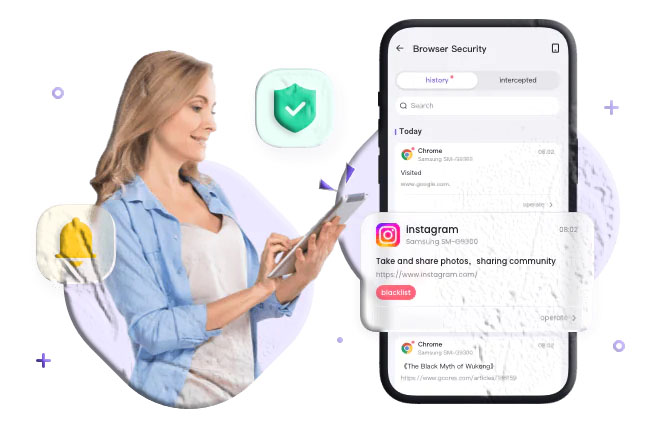
- Real-time notifications for browsing activity, so parents can be alerted immediately when specific types of sites are accessed rather than discovering activity only when they check the history log
The search monitoring dimension: Seeing the websites a child visits is useful. Seeing what they searched for is often more revealing. A child who visits a particular website might have arrived there from a recommendation; a child who typed a specific search query chose that query deliberately. Search monitoring gives parents insight into what questions their child is asking the internet — information that opens natural, non-confrontational conversation starters and can surface concerns that website-level monitoring would miss.
Real-time notifications: Rather than requiring parents to log in and review history at intervals, MobileTracking’s browsing monitoring includes live notification capability — alerts that fire when the child’s browser visits sites matching criteria the parent has defined. For parents who want immediate awareness of specific types of browsing activity rather than periodic review, this is a significant practical advantage.
How this is different from checking the device’s browser history: The browser’s local history on the child’s device can be cleared by the child, either manually or through private/incognito browsing. MobileTracking’s monitoring captures browsing data at the app level and syncs it to the monitoring account, which means the history available to parents isn’t dependent on whether the child has cleared the local browser history.
Feature Two: Website Blocker
The website blocking feature allows parents to prevent specific websites from loading on the monitored device. When a child attempts to access a blocked site, the browser doesn’t load the page. Blocking can be applied to individual URLs or to entire domains.
Blacklisting specific sites: The most direct form of blocking — add a URL or domain to the blacklist and access to that site is prevented on the monitored device. This is useful for specific sites the parent has identified as problematic, whether because the child has already been found accessing them, because the parent is aware of them as sources of harmful content, or because the child has been spending excessive time on a particular site.
Whitelisting approved sites: The opposite approach — defining a list of approved sites and blocking everything else — creates a much more restrictive environment appropriate for younger children or for specific devices with limited intended use. A device set up primarily for educational purposes might have a whitelist of approved educational sites with everything else blocked by default.
Blocking content categories: Beyond individual URLs, MobileTracking’s blocking capability operates at the category level — blocking entire categories of content (adult material, gambling sites, violent content, etc.) rather than requiring parents to manually enumerate every individual site in a category. This is the more practical approach for managing the breadth of the web, since new sites are created continuously and a manually maintained blacklist of individual URLs will always be incomplete.
Why category blocking is more effective than individual URL blocking: Consider adult content as an example. Blocking specific adult sites by URL is a game of whack-a-mole — there are thousands of such sites and more appear regularly. Category blocking addresses this by maintaining a continuously updated classification database that categorizes new sites as they emerge, catching harmful content at the category level rather than requiring a parent to identify and block each site individually.
Customization by family: MobileTracking’s website blocker is configurable rather than one-size-fits-all. The same categories that one family blocks by default might be appropriate for another family’s child to access. A teenage student researching historical violence for a school project has different needs from a primary school child’s general browsing. The blocking configuration is adapted to the specific child and family’s circumstances rather than applying a fixed global restriction.
Feature Three: Internet Filter
The internet filter is the broadest of MobileTracking’s three browser safety features — it manages web access at a systemic level rather than through individual site blocking decisions.
Category-level filtering: The filter allows parents to enable or disable access to broad categories of web content: adult material, gambling, violence, weapons, drugs, social media, gaming, streaming video, and similar categories. Enabling a category filter restricts access to all sites classified in that category, not just specific known sites.
Search engine filtering: In addition to filtering by category, MobileTracking’s internet filter enforces safe search settings on major search engines. Safe search filters — available on Google, Bing, and others — suppress explicit content from search results. MobileTracking can enforce these settings from the dashboard, ensuring they remain active even if a child knows how to disable them in the browser.
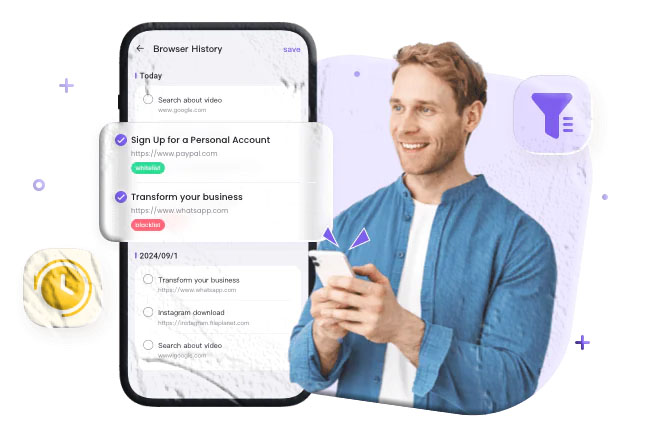
Whitelist management for trusted sites: The filter includes a whitelist function that allows parents to mark specific sites as trusted — ensuring they’re always accessible regardless of category restrictions. This is useful for educational sites, official school resources, or family-approved entertainment platforms that might otherwise be caught by broad category filtering.
Blacklisting suspicious sites: Sites that the parent or the browsing history has identified as concerning can be added to a site-level blacklist through the filter interface, creating a personally curated block list that complements the category-level filtering.
The relationship between the website blocker and the internet filter: These two features work together. The internet filter operates at the category level, automatically managing access to broad content types. The website blocker operates at the individual site level, allowing specific additions or exceptions to the category-level rules. Together, they create a layered filtering system — category restrictions covering the broad landscape and individual site management handling the specific cases that the category system doesn’t cover perfectly.
How to Set Up Browser Monitoring in MobileTracking
Getting browser monitoring running follows MobileTracking’s standard three-step setup process, with browser-specific configuration happening after the initial device pairing.
Step 1: Install MobileTracking on Both Devices
Download and install MobileTracking on your parent device — the device you’ll use to access the dashboard and manage settings — and on your child’s device. Both are available through:
- Android: Google Play Store, for devices running Android 8.0 and above
- iOS: App Store, for devices running iOS 15 and above
- Direct download: At mobiletracking.app
Install the parent version of the app on your device and the child version on the monitored device.
Step 2: Register Your Account
Open MobileTracking on your parent device, create a free account with your email address, and log in. Your account is the central hub for browsing history data, filter configuration, and block list management — accessible from your mobile app or any web browser.
Step 3: Bind the Child’s Device
Complete the binding process to link the child’s device to your parent account. Use either the QR code displayed in your parent dashboard or the manually entered pairing code from the child device’s MobileTracking app. Once bound, the child’s device appears in your monitoring account and data begins syncing.
For browser monitoring to function fully, MobileTracking needs the appropriate permissions granted on the child’s device during setup. Follow all on-screen prompts during the binding and setup process — browser monitoring permissions are included in the standard setup flow.
Configuring Browser Safety Settings
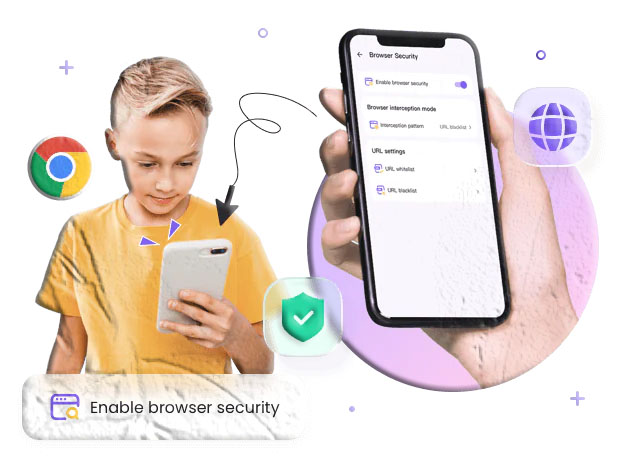
After setup is complete, navigate to the Browser Safety or Browser Monitoring section of your parent dashboard. Here you’ll find configuration options for all three components:
Setting up browsing history monitoring: History tracking is typically active by default after setup. Configure your notification preferences in this section — which types of sites you want real-time alerts for, and how you want those alerts delivered.
Configuring the website blocker:
- Navigate to the block list section
- To add a site to the blacklist: enter the URL or domain and confirm. The site is immediately blocked on the monitored device
- To create or add to a whitelist: enter approved URLs and mark them as whitelisted
- Category blocking is configured in the same section — enable or disable content categories based on what’s appropriate for your child
Setting up the internet filter:
- Navigate to the internet filter section
- Review the available content categories and enable filtering for the categories appropriate to your child’s age and your family’s values
- Enable safe search enforcement if you want to ensure search engine safe mode remains active
- Add any site-level whitelist or blacklist entries specific to your family’s situation
- Save your configuration — changes apply to the child’s device immediately
Thinking Through Your Filtering Strategy: Age-Appropriate Approaches
One of the most common mistakes parents make with web filtering is applying a one-size-fits-all approach that either over-restricts older children in ways that damage trust, or under-restricts younger children in ways that leave them exposed. Effective browser safety configuration should reflect the child’s actual age, maturity, and needs.
For Young Children (Ages 5–9)
Children in this age group are typically just beginning to use the internet, often for educational content, games, and videos. Their browsing is generally purposeful — going to specific sites they know — rather than exploratory in ways that encounter unexpected content.
For this age group, a relatively restrictive approach makes sense:
- Enable all content category filters — adult content, violence, gambling, drugs, and similar categories should all be blocked by default
- Consider a whitelist approach for devices primarily used for education: define approved educational and entertainment sites and block everything else
- Enable safe search on all search engines
- Set up browsing history review as a routine practice — going through the week’s browsing together with your child can be a natural part of digital literacy education at this age
The goal for young children isn’t to prepare them to navigate the full internet — it’s to create a protected space where their browsing happens within content appropriate for their age and development.
For Tweens (Ages 10–13)
The tween age group represents a significant transition in internet use. Children this age are more independently curious, use the internet for social connection as well as information and entertainment, and are actively exploring interests in ways that take them to new sites and content areas.
A category-based approach tends to work better than whitelist-only at this age:
- Maintain filtering for adult content, gambling, and similar harmful categories as non-negotiable defaults
- Use category-based filtering rather than strict whitelisting — allowing general web access within defined category restrictions
- Keep safe search active across search engines
- Review browsing history regularly — weekly review as part of a family conversation about online activity works well at this age
- Set up search keyword alerts for terms that would indicate access to concerning content
- Have explicit conversations about the filtering in place — tweens are old enough to understand that browsing restrictions exist and why
The American Academy of Pediatrics recommends that media use by tweens be accompanied by ongoing parental involvement and conversation rather than purely technical restriction — an approach that MobileTracking’s browsing history and alert features support effectively.
For Teenagers (Ages 14–17)
Teenagers use the internet in more complex ways — for research, creative projects, social life, entertainment, and the kind of exploratory browsing that’s part of adolescent identity development. Over-restrictive filtering at this age can damage trust, seem controlling, and simply be worked around by teenagers who have the technical sophistication to do so.
A more selective filtering approach tends to be both more effective and more appropriate:
- Maintain filtering for the highest-risk categories — explicit adult content and similar harmful categories remain worth filtering even for older teenagers
- Relax restrictions on categories that reflect legitimate teenage interests and information needs — limiting social media during homework hours rather than blocking it entirely, for example
- Use alert-based monitoring rather than comprehensive history review — getting notified when specific concerning searches or site categories appear, rather than reviewing every page visited
- Build in transparency — many families find it useful at this age to be explicit about what monitoring is in place, and to give teenagers a voice in setting some of the parameters
The Child Mind Institute notes that teenagers who feel their online activities are subject to proportionate, explained oversight — rather than blanket restriction — tend to respond more constructively to that oversight. At the teenage stage, browser monitoring works best as a safety net and conversation enabler rather than a comprehensive restriction system.
Practical Scenarios: How Browser Monitoring Surfaces Real Concerns
Understanding the feature in the abstract is useful. Understanding the specific situations where browser monitoring makes a genuine practical difference clarifies its value.
The Innocent Search That Leads Somewhere Unexpected
A primary school child researching a school project searches for something entirely age-appropriate and ends up following a chain of links to content that’s inappropriate for their age. Without monitoring or filtering, this happens invisibly and the parent never knows. With content category filtering active, the inappropriate content is blocked before it loads. With browsing history monitoring, even if the child did access something unexpected, the parent can see the path they took and use it as a teaching moment.
This scenario plays out constantly on the internet. It’s not about children with bad intentions — it’s about the architecture of the web, which serves up associated content regardless of whether that association is appropriate for the person following it.
The Gradual Drift Into Concerning Content
A more extended pattern: a child who starts with innocuous content — gaming videos, music — gradually follows recommendations and links to content that drifts progressively into more extreme territory. Content recommendation algorithms on major platforms are designed to keep users engaged, and the content that does that most effectively is often progressively more intense or extreme than what someone started with.
Browsing history monitoring surfaces this drift as a pattern rather than a single incident. A parent reviewing their child’s browsing history doesn’t just see individual sites — they see the trajectory of where browsing has been going over time. A pattern that shows a child’s online activity consistently drifting toward increasingly concerning content is a pattern worth addressing, and it’s visible in browsing history in a way that wouldn’t be apparent from any other monitoring feature.
The Identified Problematic Site That Keeps Appearing
A parent discovers — through browsing history monitoring, through a conversation with their child, or through another route — that a specific website is a recurring problem. Perhaps it’s a site that hosts inappropriate content, a forum that’s been a source of concerning influence, or simply a time-wasting destination that’s interfering with homework and sleep.
Website blocking addresses this directly: add the site to the blacklist and access from the monitored device is prevented immediately, without requiring the child to exercise willpower against a site they’ve already found habitual. The blocking doesn’t require the parent to have a confrontational conversation every time the child visits the site — it removes the option at the technical level, which is often both more effective and less friction-generating than repeated parental intervention.
The Homework Distraction Problem
A practical, lower-stakes use of web filtering that many families find genuinely useful: blocking or restricting access to entertainment and social sites during defined homework hours. A teenager who has YouTube, gaming sites, and social media blocked between 5pm and 7pm has a fundamentally different homework experience than one for whom those sites are a single browser tab away.
This isn’t about permanently restricting access to entertainment sites — it’s about creating structured time during which distraction sources aren’t available, making the homework itself easier to start and sustain. MobileTracking’s browser filtering can be configured through the schedule-based rules in combination with web filtering to apply different browsing restrictions at different times of day.
According to the National Education Association, structured homework environments — which include minimizing digital distractions — are consistently associated with better academic outcomes. Web filtering during homework hours is one of the more practical tools for creating that structure.
The Proactive Block Before Exposure
One of the most valuable uses of category filtering is preventive rather than reactive: blocking categories of harmful content before the child ever encounters them, rather than discovering the child has been accessing harmful content and then responding. Category filters for adult content, gambling, and violent content work best when enabled from the start of a child’s internet use and adjusted as the child develops, rather than enabled in response to discovering a problem.
Prevention is almost always easier than remediation. A child who has never encountered certain categories of harmful content needs no recovery from exposure, no difficult conversations about what they saw, and no re-establishment of trust damaged by discovering they were accessing things they knew they shouldn’t. The filter does its work invisibly and continuously.
Beyond Blocking: Using Browser Monitoring as a Communication Tool
It’s worth stepping back from the technical functionality to say something about how browser monitoring fits into the broader approach to digital safety that the research consistently shows works best.
The most effective approach to children’s online safety isn’t the most restrictive technical environment — it’s a combination of appropriate technical safeguards and ongoing, open communication between parent and child about the online world. Research from Thorn, which works extensively on child online safety, consistently identifies the parent-child relationship as the most significant protective factor — more significant than any technical control.
MobileTracking’s browser monitoring features support this approach in a specific way: they give parents information. The browsing history shows what a child is curious about and interested in. The search monitoring surfaces the questions a child is asking the internet. That information is material for conversation — not confrontation, but genuine engagement with a child’s interests, questions, and online experiences.
A parent who notices their child has been searching for information about a topic they haven’t raised at home has an opening to ask about it. A parent who sees their child has been spending time on a particular kind of site can engage with what draws them there. The monitoring doesn’t just catch problems — it opens windows into a child’s digital life that inform richer, more accurate parenting.
This is the best version of what browser monitoring is for: not comprehensive surveillance of every click, but maintained awareness that makes conversations more grounded and parenting more informed.
Frequently Asked Questions
Q: What is browser monitoring and what does it do? MobileTracking’s browser monitoring is a set of features that gives parents visibility into and control over their child’s web browsing on the monitored device. It includes browsing history tracking (showing what sites and searches the child has made), a website blocker (preventing access to specific sites or content categories), and an internet filter (managing web access at a broader category level with safe search enforcement).
Q: Can my child browse privately to avoid monitoring? MobileTracking’s browser monitoring operates at the device app level rather than within the browser itself, which means it captures browsing data even when the child uses incognito or private browsing mode in their browser app. Monitoring isn’t dependent on the browser’s local history — data is collected and synced independently.
Q: How does MobileTracking block specific websites? From the Browser Safety section of the parent dashboard, parents can add individual URLs or entire domains to a blacklist. Once a site is added, attempts to load it on the monitored device will be blocked. Category-level blocking works similarly but applies to entire categories of content rather than specific sites.
Q: What content categories can I filter? MobileTracking’s internet filter covers a range of content categories including adult content, gambling, violent content, weapons, drug-related content, social media, gaming, and streaming video, among others. Each category can be independently enabled or disabled, allowing parents to tailor filtering to their child’s age and the family’s specific needs.
Q: Can I whitelist specific sites so they’re always accessible? Yes. The filter includes a whitelist function that allows parents to mark specific sites as trusted — ensuring they’re always accessible regardless of category restrictions. This is useful for educational platforms, school resources, or family-approved sites that might otherwise be affected by broad category filtering.
Q: Does MobileTracking enforce safe search on search engines? Yes. MobileTracking’s internet filter includes the ability to enforce safe search settings on major search engines, ensuring that explicit content is filtered from search results even if the child knows how to disable safe search within the browser.
Q: How do I get notified when my child visits a concerning site? MobileTracking’s browser monitoring includes real-time notification capability. From the dashboard, you can configure which types of browsing activity trigger an immediate alert — specific sites, content categories, or search terms. Alerts are delivered as push notifications to your parent device.
Q: Will blocking websites cause conflict with my child? This depends significantly on how restrictions are introduced and explained. Children — particularly older ones — who understand the reasons for restrictions and feel the approach is proportionate to their age tend to accept them more readily than children who experience blocking as arbitrary. Many families find it useful to involve children in setting some of the parameters, particularly as they get older, and to make explicit what’s blocked and why.
Q: Can MobileTracking monitor browsing on all browsers, or just one? MobileTracking’s monitoring operates at the device level rather than being specific to a particular browser app, which means it provides visibility and applies restrictions across browsers on the monitored device — not just the default browser.
Q: Is browser monitoring free in MobileTracking? Yes. MobileTracking is free to download and use, with browser monitoring capabilities — including history tracking, website blocking, and internet filtering — included in the free feature set. Visit mobiletracking.app to download and get started.
Building a Safer Online Environment, One Setting at a Time
The internet isn’t going to become a safer, more age-appropriate environment on its own. The structural incentives of the web — engagement, advertising, recommendation algorithms — push content toward what’s most compelling regardless of whether it’s appropriate for the person receiving it. That’s not going to change, and parents who wait for the internet to become child-safe by default will be waiting indefinitely.
What parents can change is the environment in which their child accesses the web. A monitored device, with appropriate content categories filtered, harmful sites blocked, search results filtered for safe content, and browsing history visible to an engaged parent — that device creates a fundamentally different online experience for a child than an unmonitored device with unrestricted access.
MobileTracking’s browser monitoring features provide the tools to create that environment without requiring parents to be present for every browsing session. The filtering runs continuously in the background. The blocking applies without requiring the child to exercise restraint against content they’ve already found. The history and alerts give the parent maintained awareness without demanding constant active monitoring.
That combination — structure provided by the technology, awareness maintained by the parent, and communication kept open between them — is what effective child internet safety actually looks like in practice. The technology handles the parts that technology handles well. The relationship handles the parts that relationships handle well. Neither substitutes for the other; both are necessary.
Explore MobileTracking’s full browser monitoring and web filtering features at mobiletracking.app.
MobileTracking is available free for Android devices running Android 8.0 and above and iOS devices running iOS 15 and above. Browser monitoring features and filtering capabilities may vary by device and operating system version. Content category classifications are maintained and updated regularly. Users are responsible for ensuring their use of monitoring features complies with applicable local laws and regulations.