
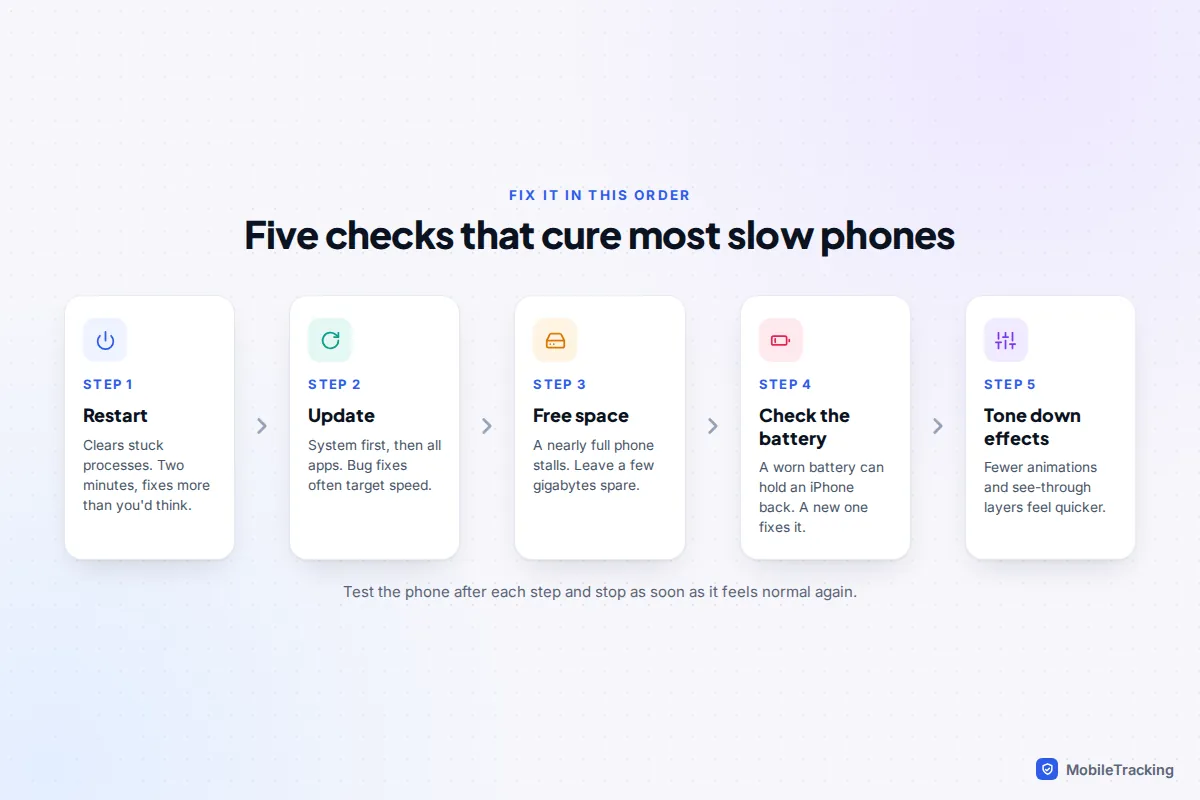
Restart the phone, install any system and app updates, and make sure it has a few gigabytes of free storage. Those three steps fix most slow phones within half an hour. If it’s still sluggish, check the battery: on an iPhone, Settings › Battery › Battery Health tells you if iOS is holding performance back because the battery is worn. Then look for power saving modes left switched on, and turn down animations and see-through effects.
What doesn’t help is just as important. Task killers, RAM boosters and “phone cleaner” apps don’t make phones faster, and swiping away every open app usually makes things slower. This guide shows you how to work out why your phone is slow, fix it in the right order on iPhone and Android, and recognise when a phone has genuinely reached the end of the road.
Diagnose first: what kind of slow is it?
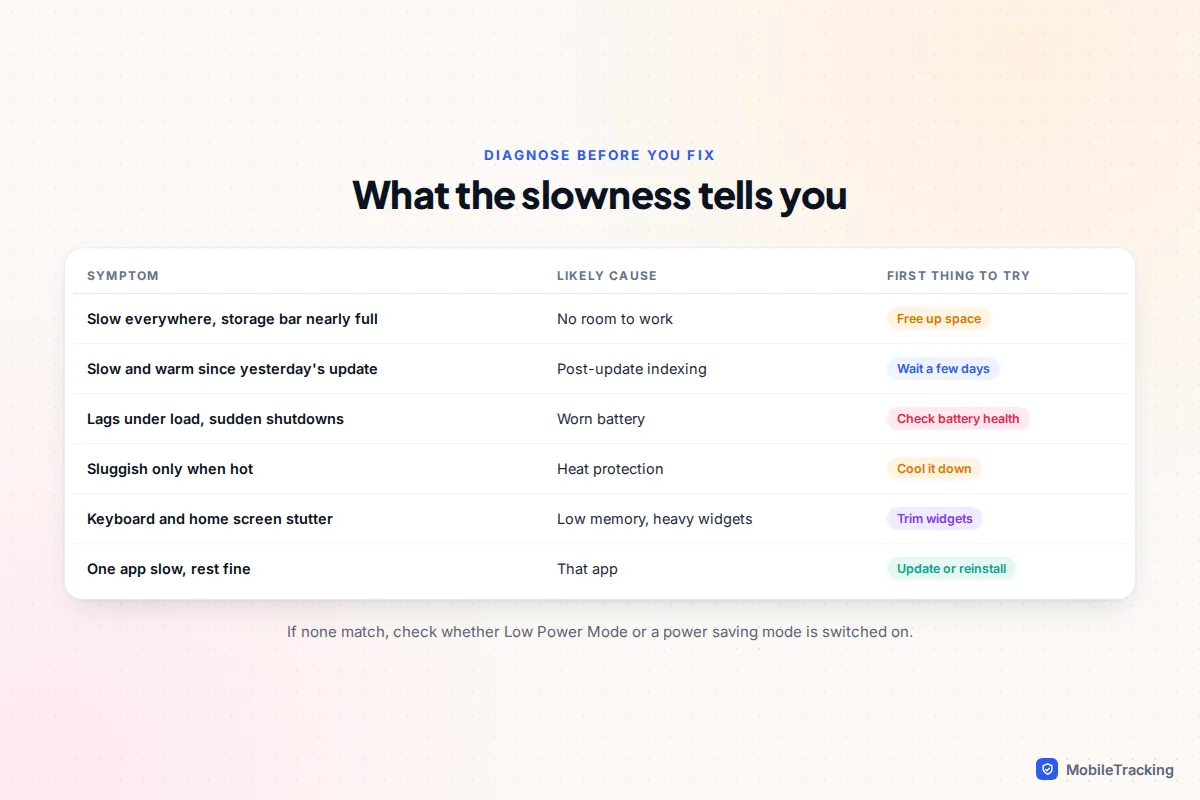
“Slow” covers several different problems, and each has a different fix. Notice when the phone struggles before you change anything.
| What you notice | Most likely cause | Start here |
|---|---|---|
| Everything lags and the storage bar is nearly full | Not enough free space | Free up storage |
| Slow, warm and draining since a major update | Background indexing after the update | Wait a few days, keep it charged |
| Stutters in games or the camera, or shuts down at 20% or 30% | Worn battery | Check battery health |
| Only slow when hot, charging or in the sun | Heat protection | Let it cool, remove the case |
| Keyboard and home screen stutter, apps reload constantly | Low memory, heavy widgets or launcher | Trim widgets and live wallpapers |
| One app is slow, the rest are fine | That app | Update it, clear its cache or reinstall |
| Everything slightly slower, battery lasting longer than usual | Power saving mode is on | Check Low Power Mode or power saving |
The six usual causes, and how to check each
1. Storage nearly full
Phones need free space to work: for temporary files, caches, app updates and the camera. When storage is almost full, apps stall, photos take longer to save and updates fail to install. Check Settings › General › iPhone Storage on iPhone, Settings › Storage on a Pixel, or Settings › Device care › Storage on a Samsung. If you’re within a few gigabytes of the limit, follow our 30-minute plan to free up storage before anything else.
2. A worn battery (the iPhone throttling question)
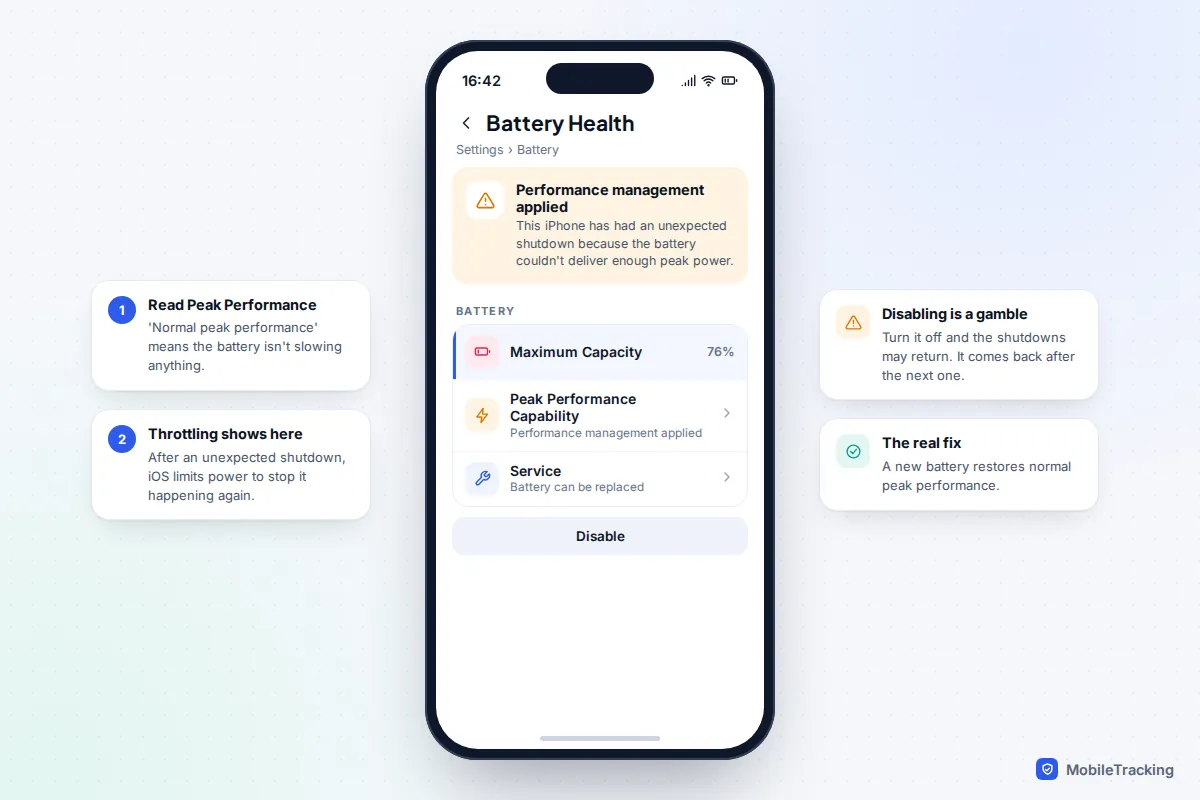
An ageing battery can’t always deliver the bursts of power a fast processor asks for. If an iPhone shuts down unexpectedly because of this, iOS turns on performance management, which limits peak performance to stop it happening again. You’ll see it in Settings › Battery › Battery Health under Peak Performance Capability. “Your battery is currently supporting normal peak performance” means the battery isn’t the problem.
If performance management has been applied, there’s a Disable option. Switching it off can bring the speed back, but the unexpected shutdowns may return, and iOS turns it back on after the next one. Replacing the battery is the proper fix and removes the limit. Apple explains this in its page on iPhone battery and performance, and our guide to checking your battery health covers what the numbers mean on iPhone, Pixel and Samsung. Android phones don’t show an equivalent throttling message, but a worn battery shows up as the same pattern: sudden shutdowns and a phone that struggles under load.
3. You’ve just updated
After a major update such as iOS 27, which arrived on 14 September 2026, or a new Android version, the phone re-indexes photos, messages and files, and re-optimises apps. Apple says that tasks related to an update carry on in the background and can affect battery life, and advises waiting a few days before judging. Leave the phone on charge and on Wi-Fi overnight for a couple of nights. If it’s still slow after a week, move on to the fixes below.
4. Power saving modes left on
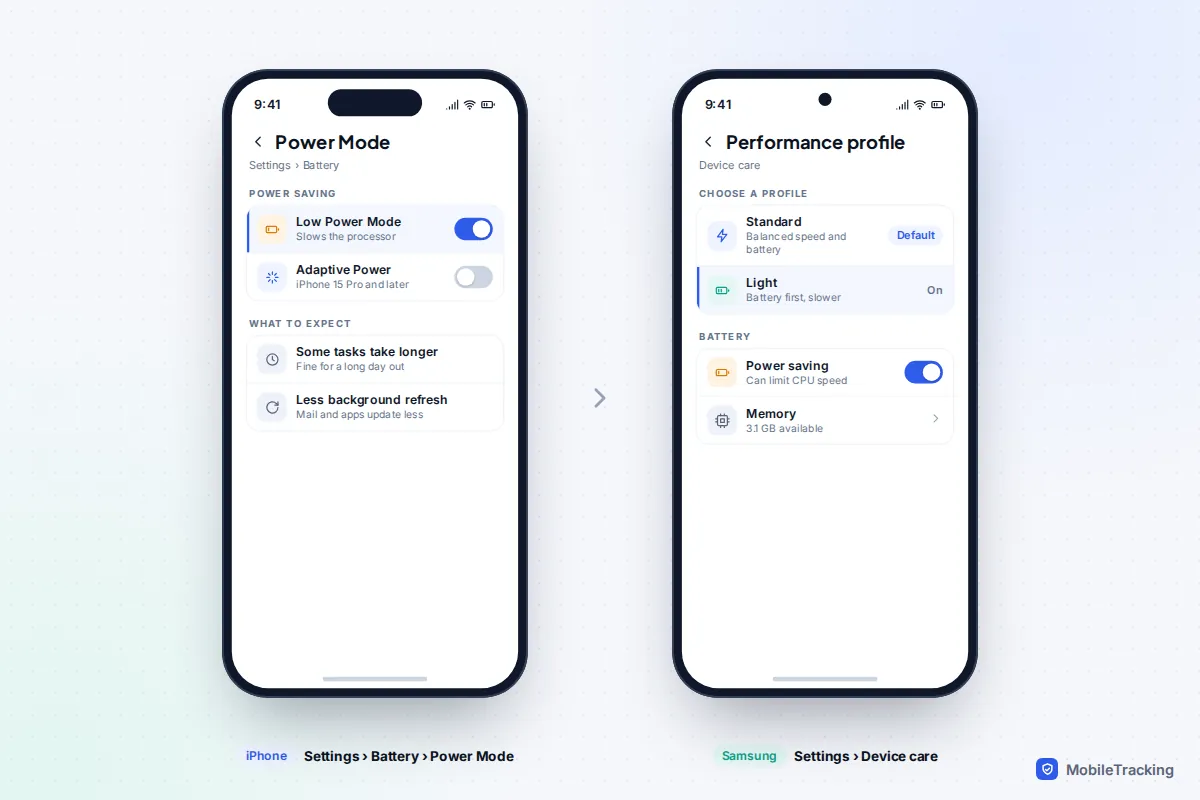
These save battery by slowing the phone down, which is easy to forget. On iPhone, Low Power Mode (in Settings › Battery, or turned on from Control Centre) reduces background activity and leans on the slower, more efficient processor cores; in 9to5Mac’s benchmark tests on an iPhone 16 Pro Max it roughly halved performance. Adaptive Power, in Settings › Battery › Power Mode on iPhone 15 Pro and later, makes smaller adjustments and warns that some tasks may take longer.
On a Samsung Galaxy, check Settings › Device care › Performance profile: Light puts battery life ahead of speed, and Standard is the default. Power saving (under Device care › Battery) can also limit processor speed. On a Pixel, Battery Saver and Extreme Battery Saver in Settings › Battery restrict background activity.
5. Heat
Every phone slows its processor to protect itself when it gets hot. If yours is only sluggish while charging, gaming, using sat-nav in a sunny car or in a thick case, heat is the cause. Our guide to fixing an overheating phone walks through each scenario.
6. Background apps, widgets and launchers
Phones with less memory, typically budget and older models, can struggle with lots of live widgets, animated wallpapers, a third-party launcher or several apps syncing large amounts of data at once. The symptoms are a stuttering keyboard, a home screen that redraws, and apps that restart every time you switch back to them. Remove widgets you don’t look at, go back to a still wallpaper, and switch back to the phone’s own launcher to test. If one app is working hard in the background, our guide on stopping apps running in the background shows how to find and restrict it.
The fixes, in order
Try these one at a time so you know what worked.
- Restart. On iPhone, hold the side button and either volume button, then drag the slider. On a Pixel, press Power and Volume Up together and tap Restart; on a Samsung, hold the side key and Volume Down, then tap Restart. Samsung phones can also restart themselves on a schedule under Device care › Auto optimisation.
- Update the system. iPhone: Settings › General › Software Update. Pixel: Settings › System › Software updates. Samsung: Settings › Software update.
- Update every app. In the App Store, tap your picture, then Update All. In the Play Store, tap your picture, then Manage apps & device › Update all.
- Free up storage if you haven’t already.
- Turn off power saving modes you don’t need, as above.
- Reduce motion and transparency. These make the phone feel quicker by cutting the work of drawing each screen (see the next section).
- Swap heavy apps for lighter ones. On Android, Google Go and Facebook Lite are built for less powerful phones, and using a social network in the browser instead of its app often helps.
- Reset settings, then, only if nothing else has worked, factory reset.
Turn down animations and effects
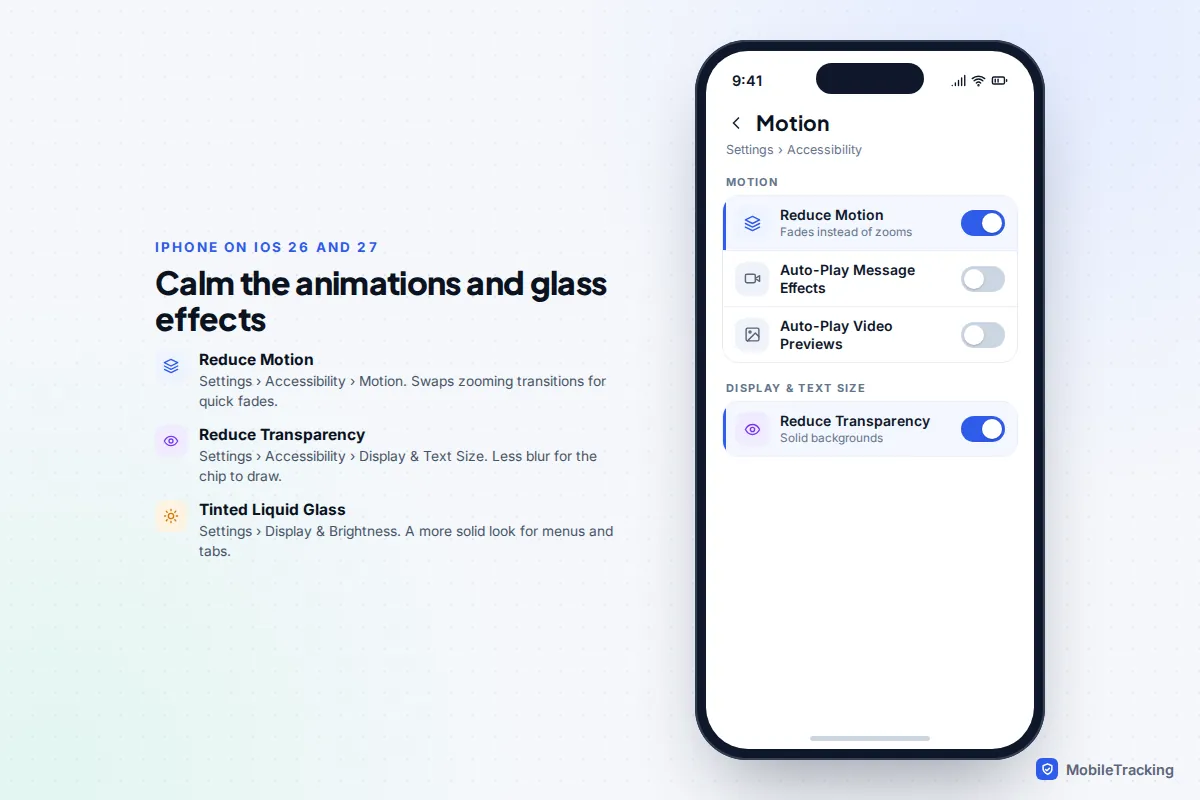
This doesn’t make the processor faster, but it cuts the time each animation takes and lightens the load of drawing the screen. iOS 26 introduced the translucent Liquid Glass design, which older iPhones have to work harder to render.
iPhone
- Settings › Accessibility › Motion › Reduce Motion: replaces zooming transitions with quick fades.
- Settings › Accessibility › Display & Text Size › Reduce Transparency: swaps blurred, see-through backgrounds for solid ones.
- Settings › Display & Brightness › Liquid Glass: choose Tinted for a more solid look across menus and tab bars.
Android
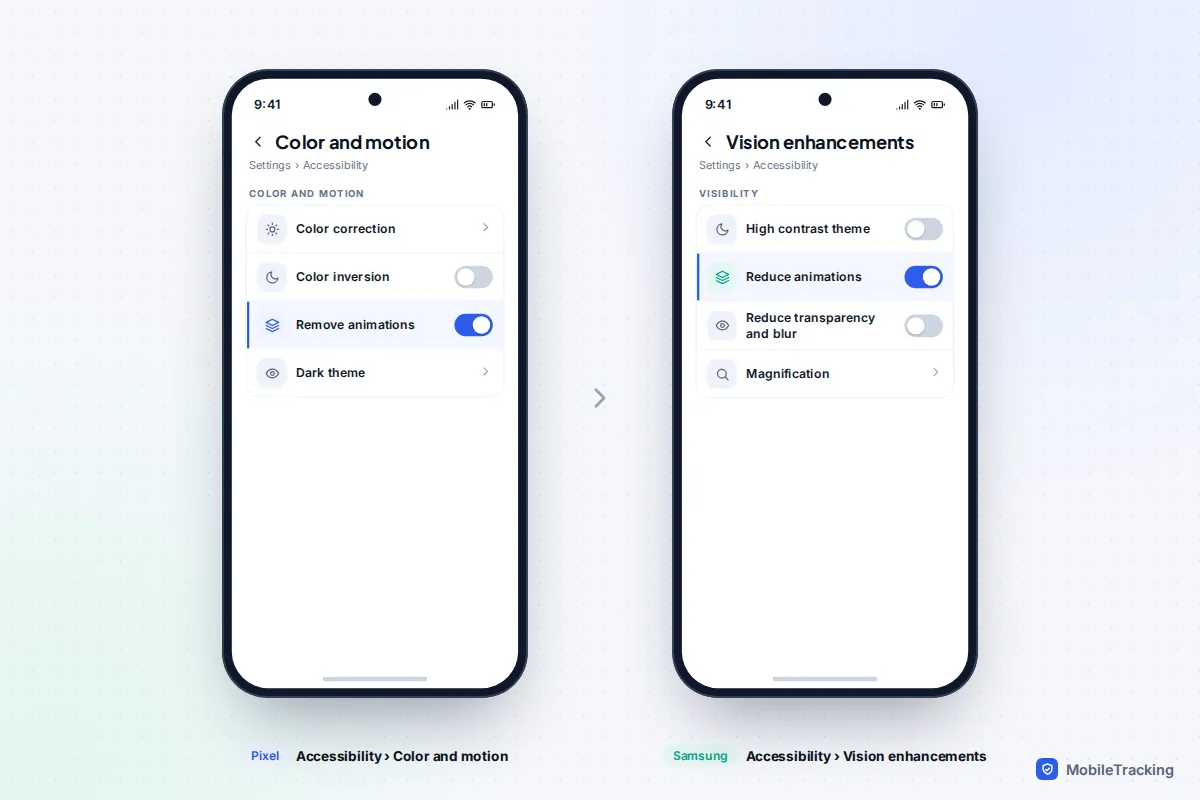
On a Pixel, turn on Settings › Accessibility › Color and motion › Remove animations. On a Samsung Galaxy, turn on Settings › Accessibility › Vision enhancements › Reduce animations; Samsung’s own help page notes it “can also help speed up your device a little”. If you’d rather keep some animation, Developer options (unlocked by tapping Build number seven times in About phone) lets you set the three animation scales to 0.5x.
Reset settings, safe mode and factory reset
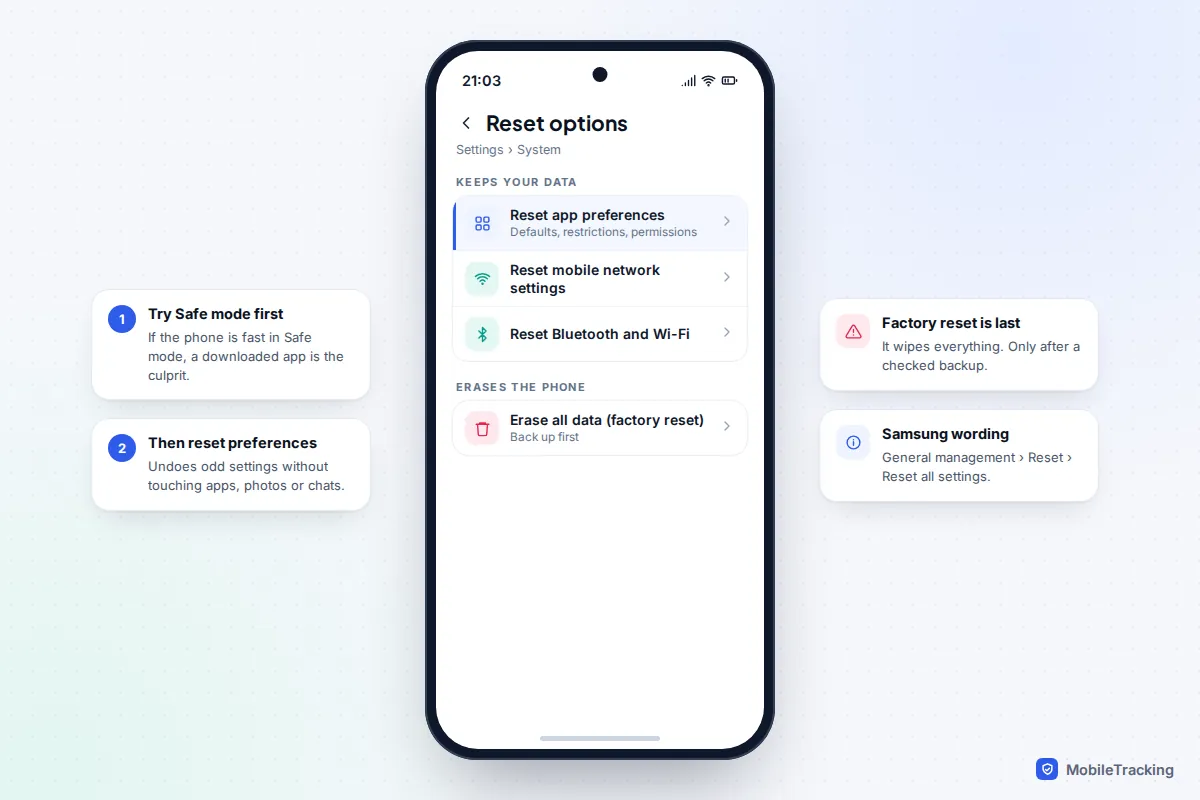
If the phone is still slow, rule out a misbehaving app next. On Android, restart in Safe mode, which runs only the apps that came with the phone. On a Pixel 6 or later, press Power and Volume Up, then touch and hold Power off or Restart and tap OK; Google’s page on finding problem apps with safe mode has steps for older models. If the phone is quick in safe mode, uninstall recently added apps one at a time. iPhone has no equivalent, so remove recent apps you suspect.
Resetting settings is the next step, and it keeps your apps, photos and messages:
- iPhone: Settings › General › Transfer or Reset iPhone › Reset › Reset All Settings. Wi-Fi passwords, layout, privacy and location settings go back to defaults, and Apple Pay cards need adding again.
- Pixel: Settings › System › Reset options › Reset app preferences, which undoes disabled apps, default apps and background restrictions.
- Samsung: Settings › General management › Reset › Reset all settings.
A factory reset is the last resort. It erases everything, and it only helps if the problem is software clutter rather than a worn battery or a phone that’s simply too old for today’s apps. Back up first, check the backup finished, and read our guide to restoring a phone from a backup before you start. Plan on an evening for the whole process.
Myths: task killers, RAM boosters and cleaner apps
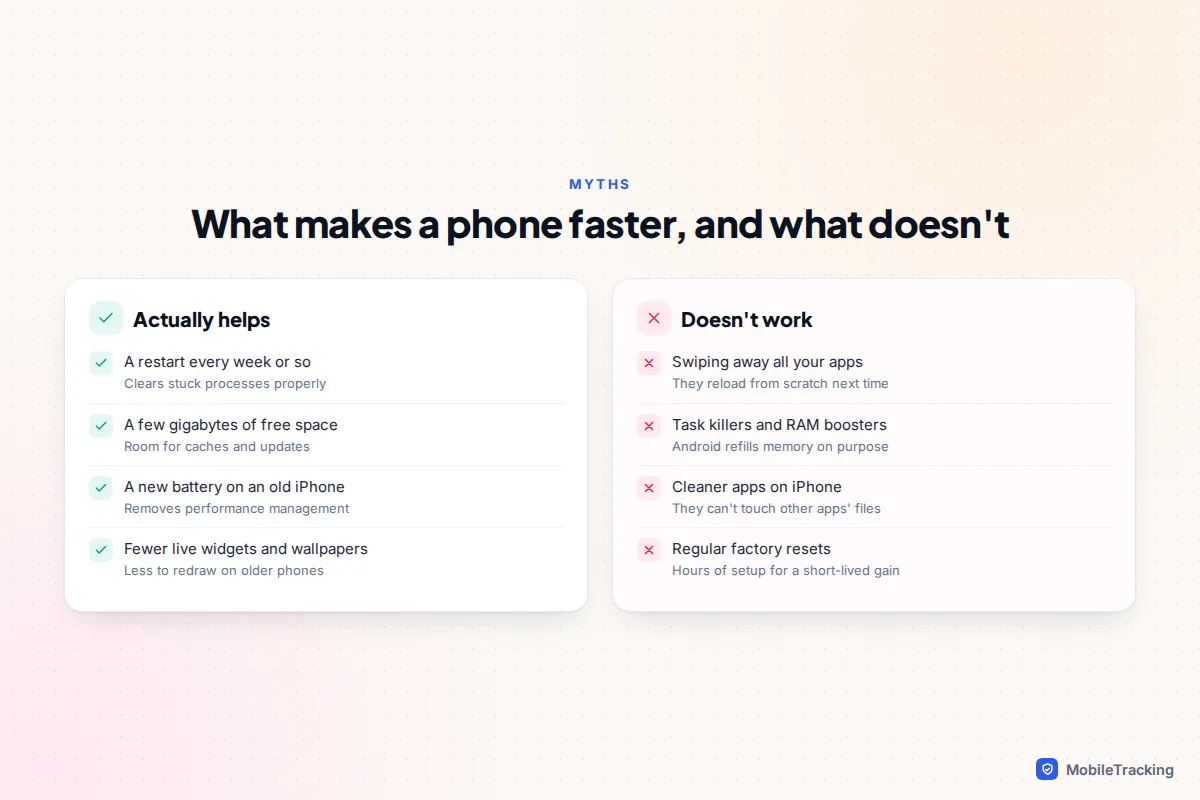
Swiping away every app doesn’t speed things up. Both iOS and Android freeze apps you aren’t using and reclaim their memory when something else needs it. When you force-close them, they have to load from scratch next time, which takes longer and uses more power. A senior Apple executive confirmed back in 2016 that force-quitting apps doesn’t help battery life. Close an app only when it’s frozen or misbehaving.
Task killers and RAM boosters don’t work on Android. Android deliberately keeps memory full of recently used apps, because unused memory is wasted memory. A booster that shows “2 GB freed” has just forced apps to restart later, and many can relaunch their background services straight away. Samsung’s own Memory › Clean now in Device care does something similar, and its effect is short-lived.
Cleaner apps are the least useful of all. On iPhone, an app can’t touch other apps’ files, so a cleaner can only nudge you towards what iPhone Storage already shows. On Android they repeat the built-in tools, often with heavy advertising and broad permissions.
A real-world example
Tom’s four-year-old iPhone had become painfully slow at taking photos. Storage was fine, but Battery Health showed 77% and performance management applied after a shutdown on a cold morning. A battery replacement, followed by Reduce Motion and a restart, brought the camera back to its old speed for a fraction of the cost of a new phone.
When it’s time to replace the phone
A slow phone is worth replacing when it stops getting security updates, when apps you rely on drop support, or when it’s still slow after a new battery, free storage and a reset. Security updates are the one to watch: a phone that no longer gets them becomes riskier every month, however well it runs. On Android, check the date under Settings › About phone › Android version on a Pixel, or Settings › About phone › Software information on a Samsung.
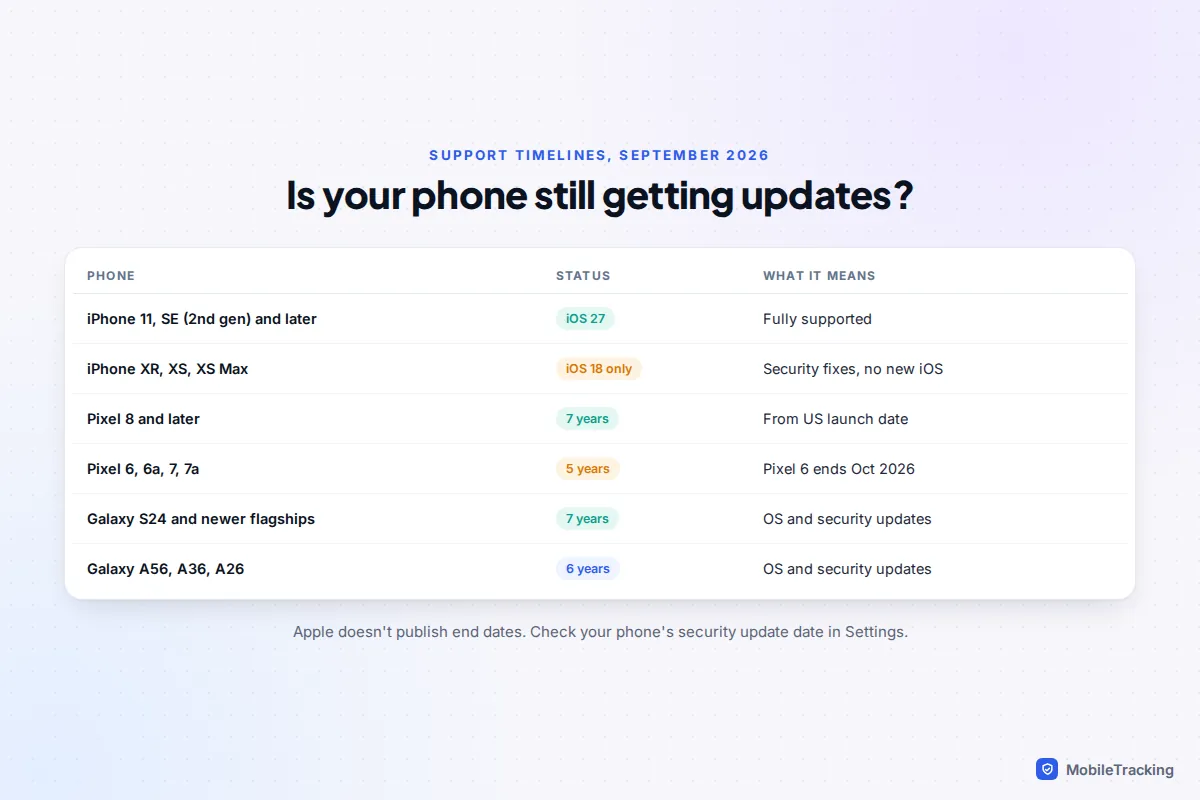
Where things stand in September 2026:
- iPhone: iOS 27 runs on the same phones as iOS 26: iPhone 11 and later, and iPhone SE (2nd generation) and later. The iPhone XR, XS and XS Max stopped at iOS 18 but were still getting security fixes, with iOS 18.7.10 released in August 2026. Apple doesn’t publish end dates.
- Pixel: Google promises seven years of updates for the Pixel 8 and later, counted from when each model went on sale in the US Google Store, and five years for the Pixel 6, 6a, 7 and 7a. That means the Pixel 6 reaches its end in October 2026. Google’s page on when Pixel phones get updates lists every model.
- Samsung: the Galaxy S24 series and later flagships, including the Fold6 and Flip6 onwards, get seven years; the Galaxy A56, A36 and A26 get six. Older and cheaper models get less.
- Apps: WhatsApp needs Android 6 or later from 8 September 2026, and iOS 15.1 or later on iPhone. Banking apps often set higher minimums.
Frequently asked questions
Why is my phone slow after an update?
For the first few days, the phone is re-indexing your photos, messages and files in the background. Leave it on charge and Wi-Fi overnight, update your apps, and give it a few days. If it’s still slow after a week, work through the fixes above.
Does Apple still slow down old iPhones?
Only when the battery can’t supply enough peak power and the phone has already shut down unexpectedly. You can see whether it’s happening in Battery Health, turn it off there, or remove it permanently with a new battery.
How often should I restart my phone?
Once a week is plenty, plus any time it feels sluggish. Samsung phones can restart automatically overnight.
Will a factory reset make my phone as fast as new?
It removes software clutter, but it can’t fix a worn battery, a phone that’s nearly out of storage once you restore everything, or apps that have simply grown heavier than the hardware. Try every other step first.
Is more RAM the answer?
You can’t add memory to a phone. Samsung’s RAM Plus borrows storage as virtual memory, which helps keep apps open but won’t make a slow phone fast.
This guide is general information, not legal or financial advice. Read our editorial policy.